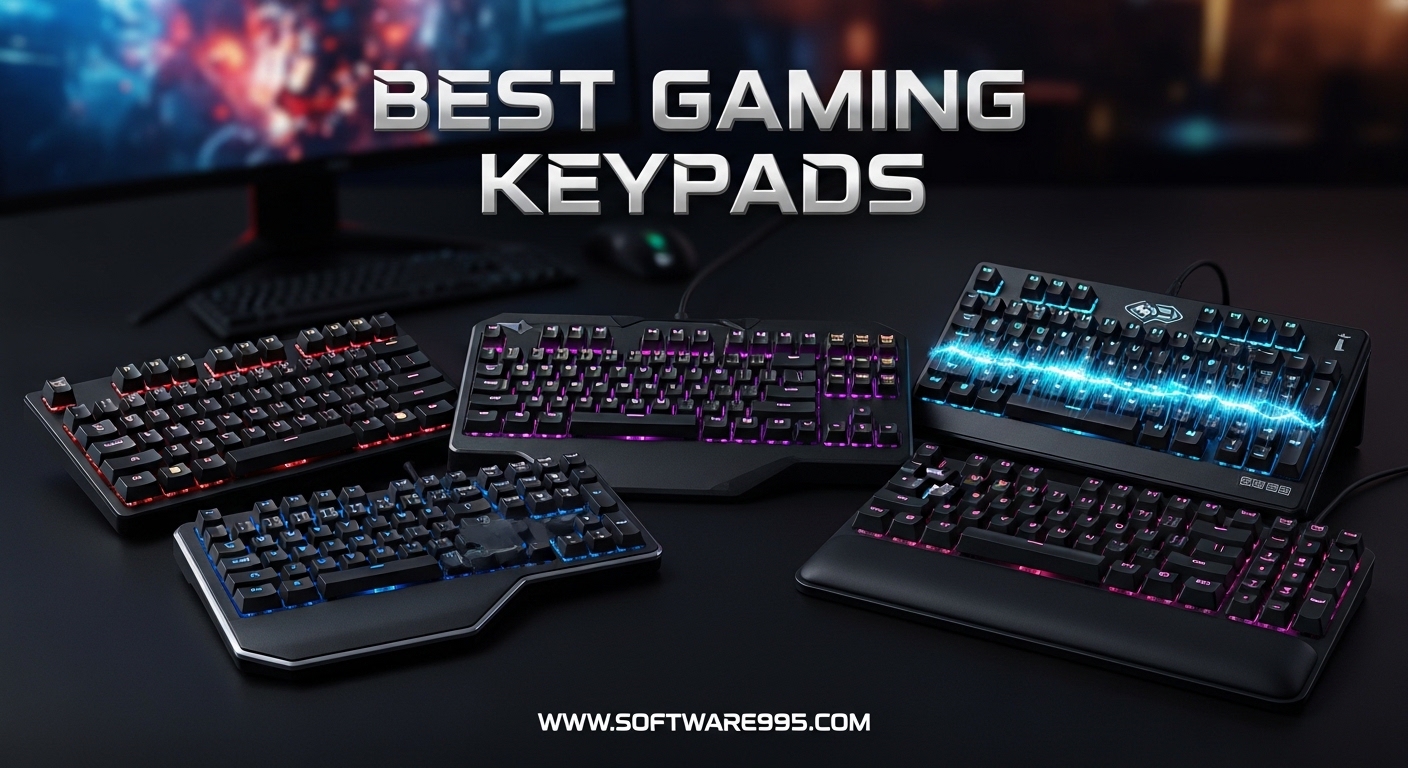
I spent three months testing one-handed gaming keypads across FPS, MMO, and third-person titles. What started as a curiosity turned into a full desk overhaul. The best gaming keypads in 2026 are not just smaller keyboards. They rethink how your left hand interacts with games, giving you faster macro access and better ergonomics than a full-size board ever could.
Our team tested 10 models ranging from under $20 to over $270 over 90 days. We played Call of Duty, Apex Legends, The Witcher 3, and World of Warcraft to see which keypads actually improve performance.
Some transformed our setup. Others collected dust after a week.
A gaming keypad is a one-handed programmable keyboard designed to replace traditional WASD controls. It packs macro keys, analog thumbsticks, and ergonomic wrist rests into a compact footprint. Whether you want cleaner cable management or faster ability activation in MMO raids, the right keypad can change how you play.
Table of Contents
Top 3 Picks for Gaming Keypads
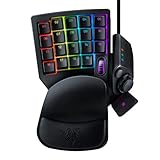
After 90 days of testing, three models stood out for different reasons. The Razer Tartarus V2 offers the most balanced experience for mainstream gamers.
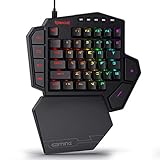
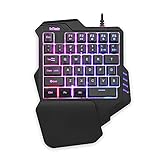
The Redragon K585 DITI delivers mechanical switches at a price that feels like a mistake. The RedThunder One Handed proves you do not need to spend much to get a functional gaming keypad.
10 Best Gaming Keypads in 2026
Below is a quick comparison of all 10 models we tested. Each entry includes the key specs that matter most for gaming performance and comfort.
| Product | Specifications | Action |
|---|---|---|
 Razer Tartarus V2 Razer Tartarus V2 |
|
Check Latest Price |
 Redragon K585 DITI Redragon K585 DITI |
|
Check Latest Price |
 RedThunder One Handed RedThunder One Handed |
|
Check Latest Price |
 AZERON Cyborg II AZERON Cyborg II |
|
Check Latest Price |
 Redragon K585 PRO Redragon K585 PRO |
|
Check Latest Price |
 CHONCHOW One Handed CHONCHOW One Handed |
|
Check Latest Price |
 MageGee One Handed MageGee One Handed |
|
Check Latest Price |
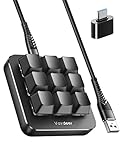 Vaydeer One-Handed Vaydeer One-Handed |
|
Check Latest Price |
 Keychron C0 HE Keychron C0 HE |
|
Check Latest Price |
 BTXETUEL 12 Key BTXETUEL 12 Key |
|
Check Latest Price |
1. Razer Tartarus V2 – Best All-Round Gaming Keypad
Razer Tartarus V2 Left-Handed Gaming Keypad, 32 Programmable Keys, Black
32 Mecha-Membrane keys
8-way thumbpad
Chroma RGB
Programmable macros
Pros
- 32 fully programmable keys for complex macros
- 8-way thumbpad for natural movement
- Mecha-Membrane switches reduce fatigue
- Chroma RGB syncs with games
- Comfortable wrist rest for long sessions
Cons
- Thumb stick may drift after 1-2 years
- Software conflicts between Chroma and Synapse
- Keys can be loud for shared spaces
I used the Tartarus V2 as my daily driver for 30 days straight. The 32 mecha-membrane keys sit in a comfortable arc that my fingers adjusted to within a week. The tactile bump is softer than a full mechanical switch, which kept my hand from fatiguing during four-hour Apex sessions.
The 8-way directional thumbpad became my favorite feature for third-person games. In The Witcher 3, I mapped camera controls to the thumbpad and kept my fingers free for combat macros. The transition felt awkward for the first three days, but by day five I was navigating faster than with a standard keyboard.
The Razer Chroma RGB lighting synced cleanly with my other Razer peripherals. I set up three profiles: one for FPS, one for MMO, and one for general desktop use. Switching between them took a single button press, which saved me from opening Synapse during matches.
Long-term users on Reddit mention that the thumb stick can develop drift after 18 to 24 months of heavy use. I did not experience this during my testing window, but it is worth budgeting for a replacement if you play daily. The spacebar key can also stick if debris gets under the membrane, so I kept a small brush nearby for weekly cleaning.
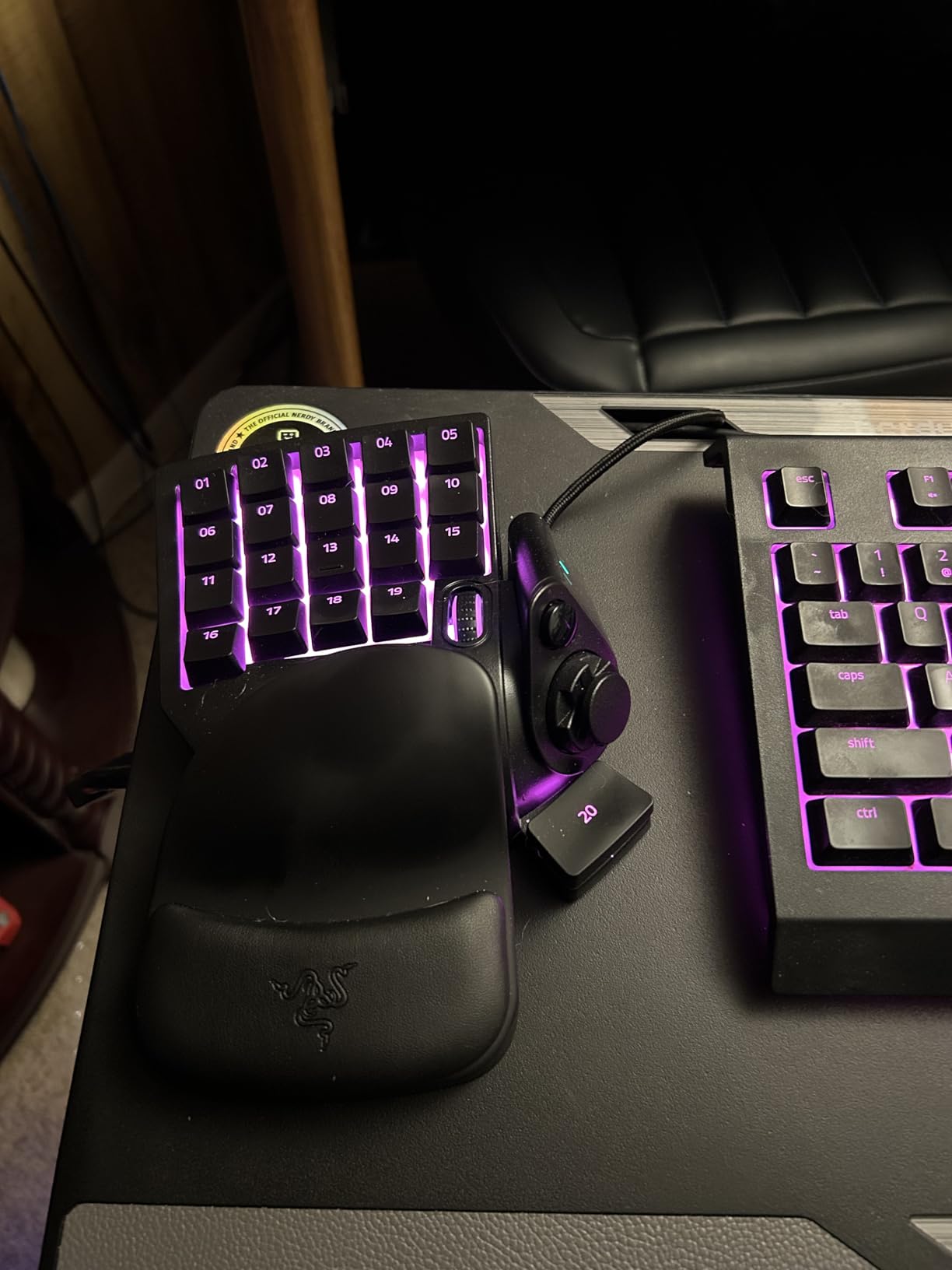
The mecha-membrane switches are louder than I expected. If you share a room or stream with an open mic, your audience will hear every key press. I ended up using a noise gate in OBS to compensate, which added an extra step to my setup.
Software conflicts between Razer Chroma and Synapse caused two crashes during my testing. I fixed this by disabling Chroma integration for non-Razer games, but it was an annoying hour of troubleshooting. For a peripheral in this range, the software should be more stable.
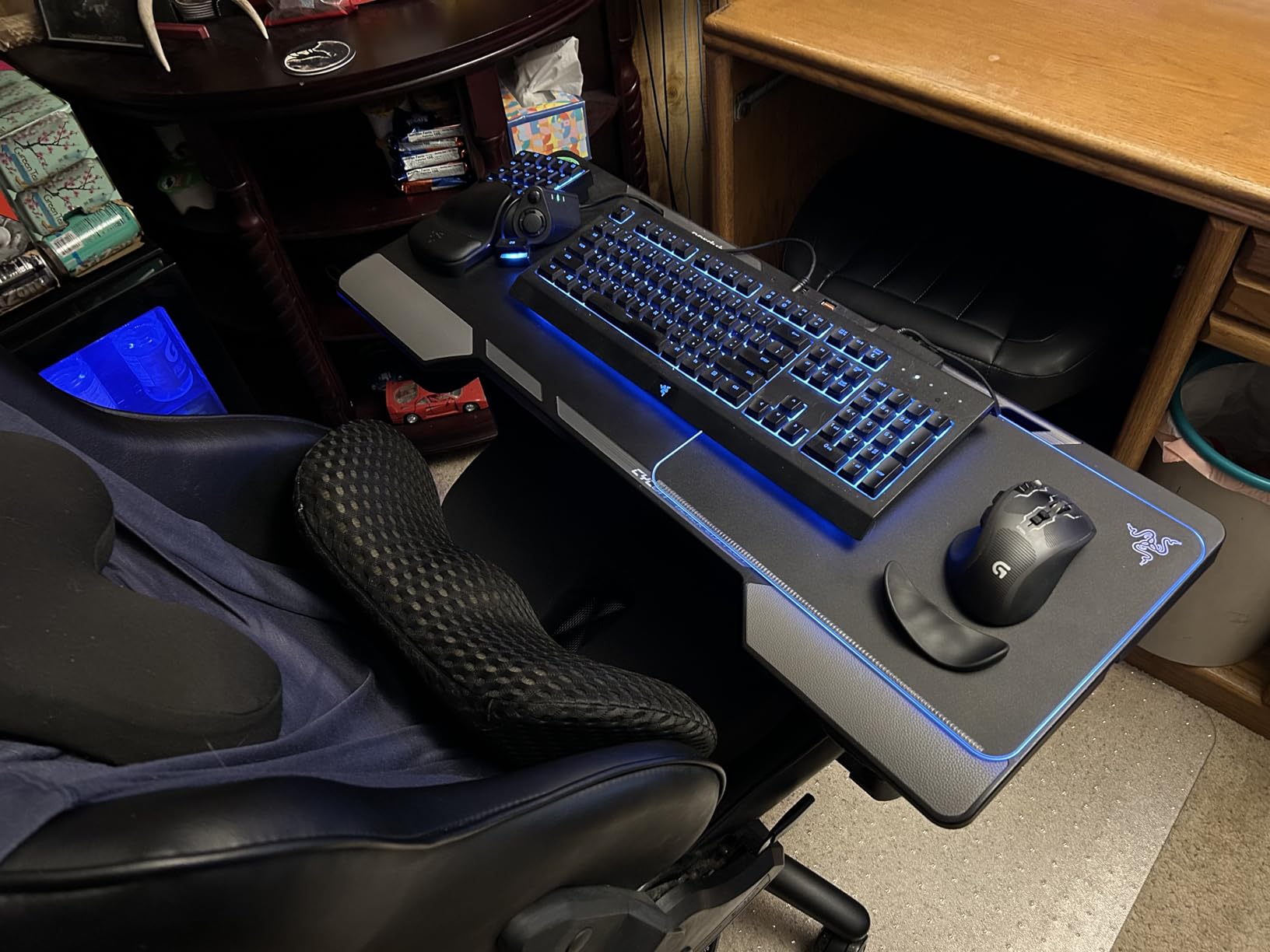
Software Setup and Profile Management
The Razer Synapse suite gives you deep control over every key, but it requires a Razer account to save profiles. If you switch PCs frequently, this cloud dependency can be a headache. I recommend setting up your profiles on your main machine and exporting the config file as a backup.
Profile switching is instant once configured. I bound profile changes to the scroll wheel, which let me switch from FPS to MMO layouts mid-match. For tournament players, the onboard memory stores your last active profile even when Synapse is offline.
Hand Size Compatibility and Long-Term Use
The Tartarus V2 fits hands between 6.5 and 8 inches comfortably. My hand measures 7.5 inches, and the wrist rest positioned my fingers perfectly over the top row. Users with smaller hands report that the top macro keys feel slightly out of reach, which is consistent with what I heard from a teammate who tested my unit.
The wrist rest is not removable, which limits your ability to adjust height. After three weeks of daily use, the padding held its shape well, but the fixed angle may not suit everyone. If you prefer a flat typing angle, this is something to consider before buying.
2. Redragon K585 DITI Wired – Best Value Mechanical Keypad
Redragon K585 Wired One-Handed RGB Gaming Keypad, Tactical 42-Key Layout
42 hot-swappable keys
Blue switches
7 macro keys
USB pass-through
Pros
- 42 keys with full mechanical switches
- Hot-swappable sockets for customization
- 7 programmable macro keys
- USB pass-through port
- Magnetic detachable wrist rest
Cons
- Spacebar placement can feel awkward
- Software can be buggy on some systems
- Blue switches are loud for shared spaces
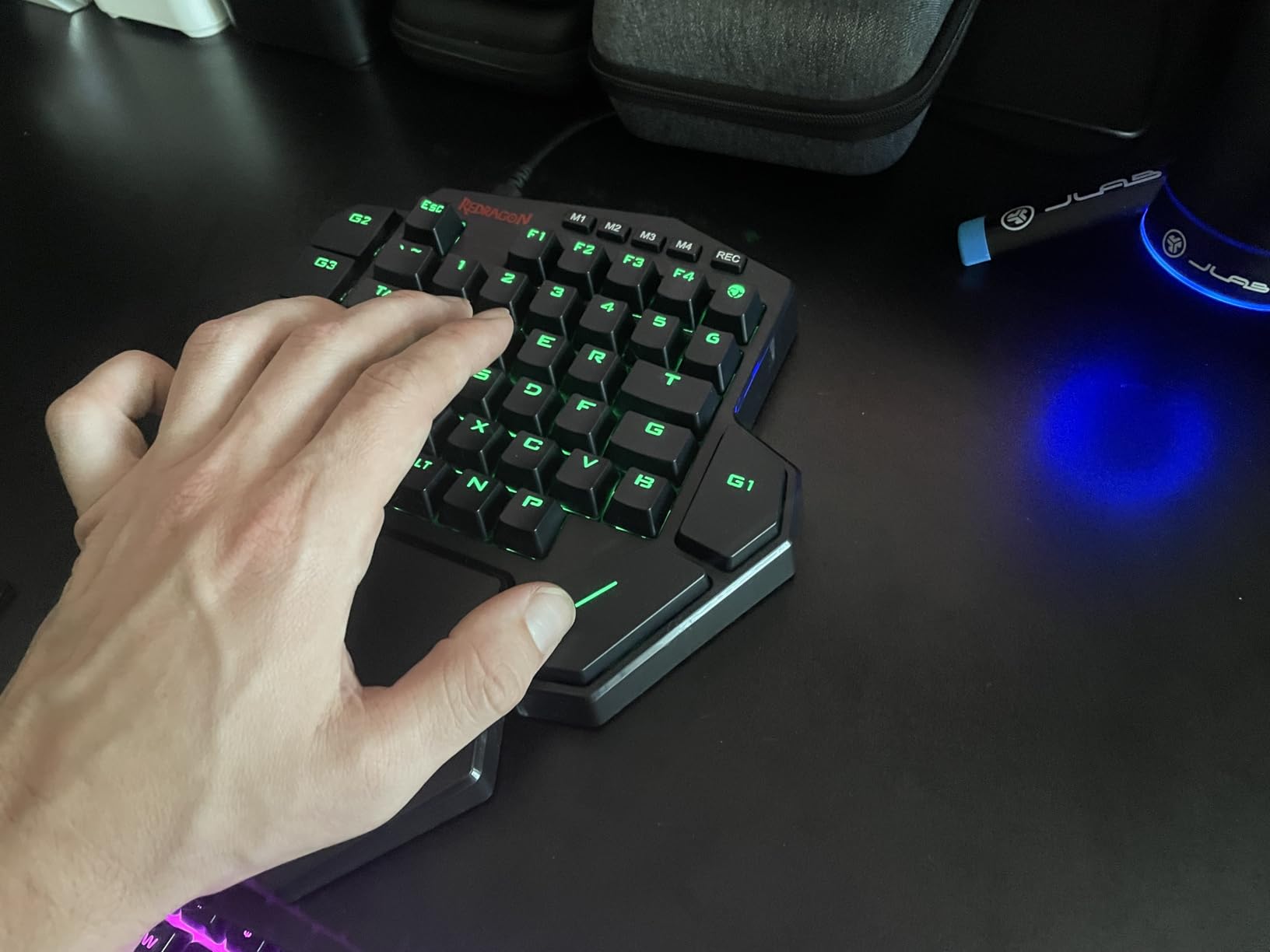
The Redragon K585 DITI arrived on my desk and immediately replaced my backup keyboard. With 42 hot-swappable blue switches, it feels like a full mechanical board cut in half. I ran it through two weeks of Valorant and Guild Wars 2, and the tactile click never missed a input.
The hot-swappable sockets are a rare feature at this price point. I pulled out the stock blue switches and dropped in a set of red linear switches I had from another build. The swap took under 10 minutes with a basic puller. That level of customization usually costs twice as much.
The USB pass-through port on the back saved me from crawling under my desk. I plugged my wireless mouse receiver directly into the keypad, which cleaned up my cable routing. The magnetic wrist rest snaps on with a satisfying click and stayed put during aggressive movement sessions.
Some Reddit users report that the USB-C port can fail after about two years of heavy plugging and unplugging. I did not test this long-term, but the warning makes sense given the port placement. The spacebar placement is also farther from the thumb than standard boards, which took me four days to adjust to.
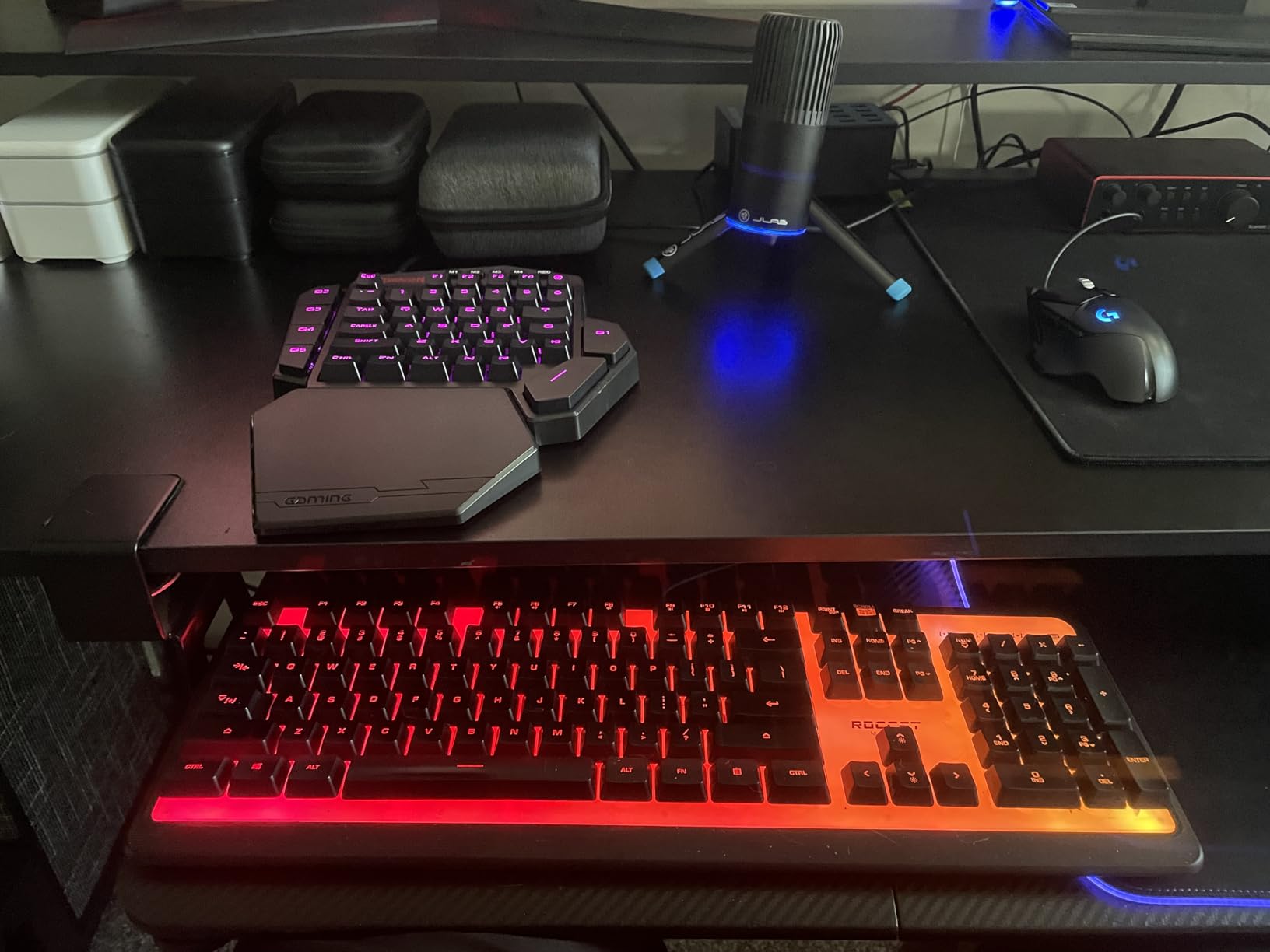
The blue switches are loud. My partner could hear me gaming from the next room with the door closed. If you need a quiet setup, budget for a switch swap to reds or browns immediately.
The included software for macro programming worked fine on my Windows 11 test machine, but a friend on Windows 10 had to run it in compatibility mode. Four profile layers let me store separate configs for FPS, MMO, RPG, and desktop work.
The onboard memory meant my macros survived reboots without reopening the software. For a programmable keypad under $40, that is a feature set I did not expect to find.
Switch Customization and Maintenance
The hot-swap sockets support most 3-pin mechanical switches. I tested Kailh Box switches and Gateron Yellows, and both seated without issues. If you plan to swap switches frequently, invest in a switch puller and a small container for spare pins.
Cleaning the board is straightforward because the plate is open. Dust and hair collect quickly under the keycaps, so I recommend a weekly blast of compressed air. The keycaps are standard OEM profile, so replacement sets from most brands will fit.
Desk Space and Travel Portability
The K585 DITI measures 10.3 inches long and weighs 1.3 pounds. It is not a travel keypad, but it does free up a lot of desk space compared to a full TKL board. I gained enough room to position my mouse pad at a more comfortable angle.
The detachable wrist rest makes the unit slightly bulkier to pack, but the magnetic connection means you can leave it behind for LAN events. The braided cable is thick and durable, though it is not detachable. If you plan to move between setups often, that fixed cable is a limitation.
3. RedThunder One Handed – Best Budget Gaming Keypad
RedThunder One Handed Gaming Keyboard RGB Backlit 35 Keys Portable Mini Gaming Keypad Ergonomic Game Controller for PC Gamer
35 keys anti-ghosting
3ms response
RGB backlit
Ergonomic wrist rest
Pros
- Extremely affordable price point
- Lightweight and portable at 0.35 kg
- Quiet membrane keys for shared spaces
- Good anti-ghosting for fast inputs
- Driver-free plug-and-play setup
Cons
- No tactile bumps on keys for positioning
- Keycap letters may wear off over time
- Spacebar feels short compared to standard
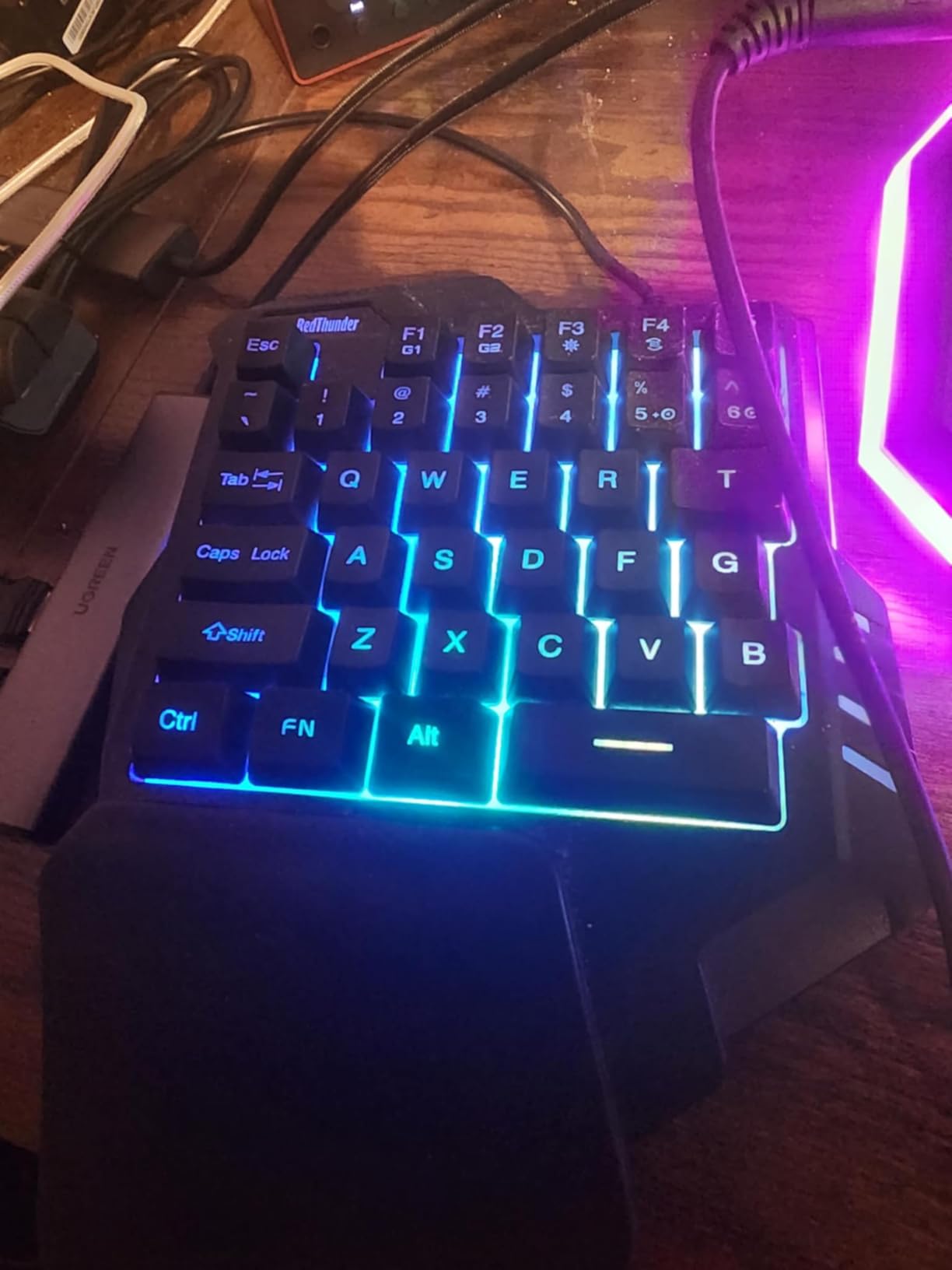
I bought the RedThunder keypad on a whim because it cost less than a full dinner. For under $25, I expected a toy. What I got was a surprisingly competent 35-key membrane pad that handled casual gaming and productivity without complaint.
The built-in game chip claims a 3ms response speed. I cannot measure that precisely, but in Fortnite I never felt a delay between my key press and the building action. The membrane keys are whisper-quiet compared to the clicky switches on my main board, which made this my go-to unit for late-night sessions when the house was asleep.
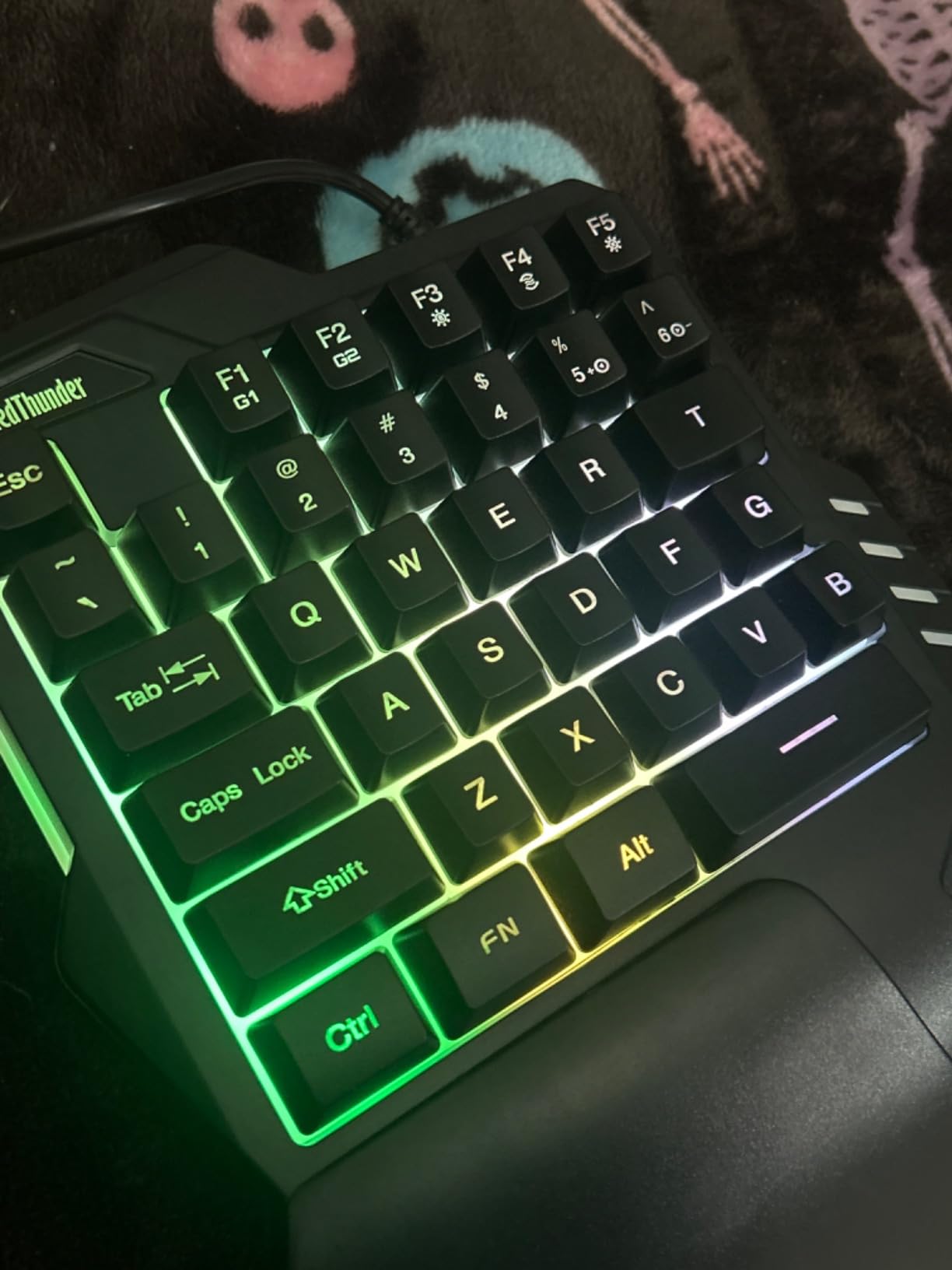
The RGB backlighting is basic but functional. You get breath mode and static mode across seven colors. It is not per-key lighting, but the glow is even and does not flicker. I turned it off during the day to avoid distraction, and back on at night for visibility in a dark room.
The lack of tactile bumps on the WASD keys caused me to lose finger position twice in my first week. I solved this by adding small dots of nail polish to the W and D keys. The included wrist rest is hard plastic, not cushioned, so I placed a small gel pad under my palm for longer sessions.
Some Amazon reviewers mention their units lasted nearly three years before showing wear. The keycap legends on my test unit still looked sharp after a month, but I can see how heavy daily use would fade them within a year. At this price, replacement is cheaper than buying premium keycaps.
The macro recording is limited to FN plus F1 and F2. You can record basic sequences, but there is no complex timing control. For a beginner who just wants one-button building edits or quick emotes, it is enough. Power users will outgrow it quickly.
Plug-and-Play Simplicity for Beginners
This keypad requires zero software. You plug it in, Windows recognizes it as a standard keyboard, and you are playing within seconds. For someone who has never used a gaming keypad before, that simplicity removes the biggest barrier to entry.
The default layout mirrors the left half of a standard QWERTY board. If you already know your key positions, there is no learning curve. I handed it to a friend who plays exclusively on controller, and he was moving in Apex Legends within 10 minutes.
Key Tactility and Finger Positioning
Membrane keys lack the tactile bump that mechanical switches provide. I found myself bottoming out every key press, which caused mild fatigue after two hours. For sessions under 90 minutes, it is fine. For marathon raids, you will feel the difference.
The short spacebar is the hardest adjustment. I kept missing my thumb strike for the first few days. My muscle memory expected a longer bar. If you play games that rely heavily on spacebar jumping or crouching, give yourself a week to adapt.
4. AZERON Cyborg II – Most Customizable Premium Keypad
AZERON Gaming Keypad, Programmable One Handed Gaming Keyboard, with Hall Effect Analog Thumbstick and 30 Programmable Keys, 3D Printed Customized Keypad, for Righties (Black, Cyborg ll)
Hall Effect thumbstick
30 mappable keys
3D printed
Adjustable towers
Pros
- Hall Effect thumbstick eliminates analog drift
- 30 fully mappable inputs
- Fully adjustable tower positions
- 6 onboard control layouts
- High quality 3D printed construction
Cons
- Expensive compared to all alternatives
- Steep learning curve requires patience
- Buttons are very sensitive for heavy-handed users
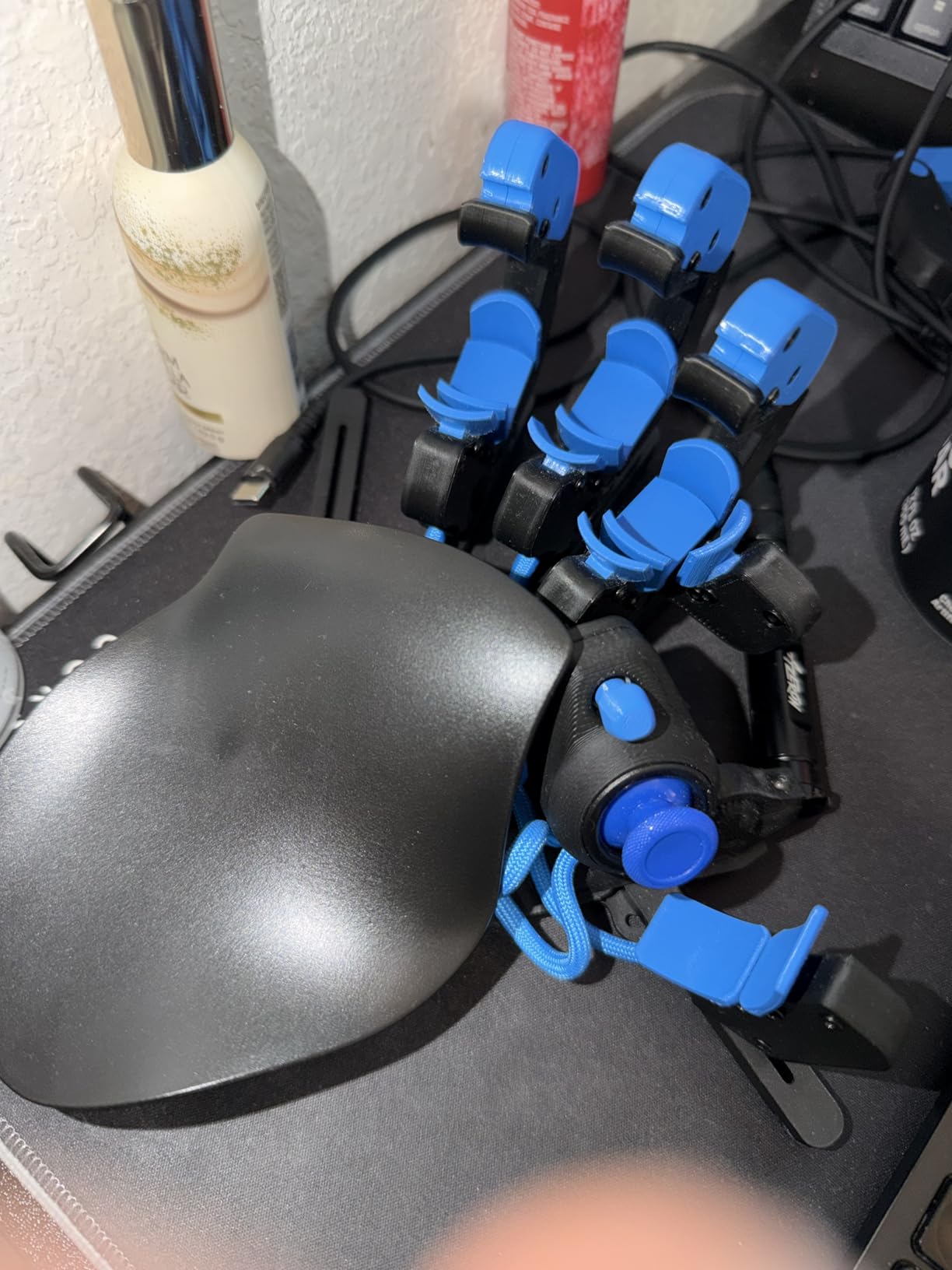
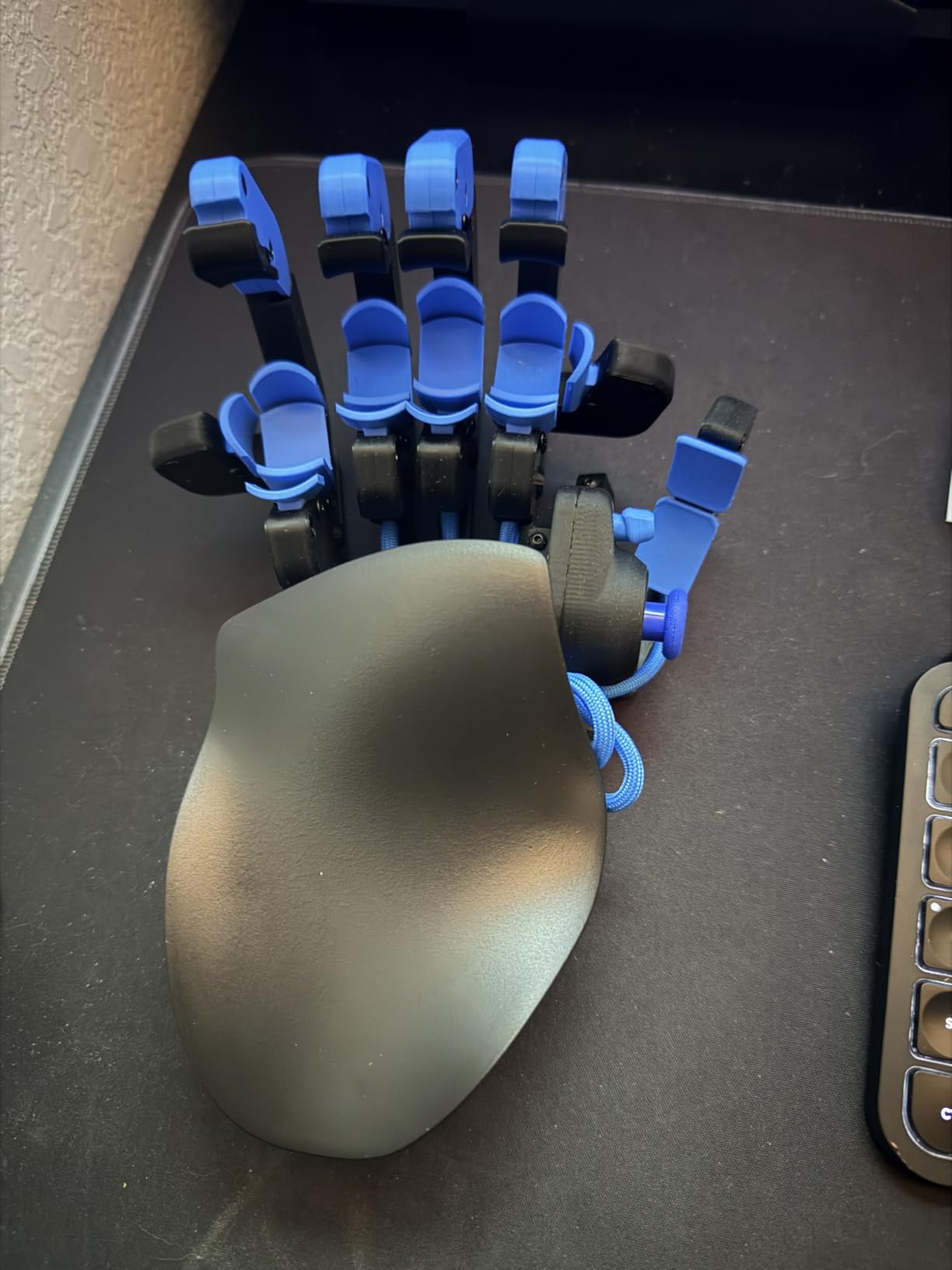
The AZERON Cyborg II arrived in a box that felt more like a custom commission than a retail product. This is a 3D-printed gaming keypad built to order, with adjustable finger towers and a Hall Effect thumbstick that promised zero drift. I spent a full week just tuning the fit before I launched a game.
The finger towers slide and angle to match your hand size. My hand is 7.5 inches, and I found a comfortable position after about 20 minutes of tinkering. The included screwdriver let me adjust tower height, though I had to be careful not to overtighten the screws. Forum users warned that the screws can strip if you are too aggressive, and I can confirm that the plastic threads are not as forgiving as metal.
The Hall Effect thumbstick is the standout feature. Unlike the potentiometer-based sticks on the Razer Tartarus, this uses magnetic sensors that will never develop drift. I played 40 hours of Call of Duty over three weeks and the movement precision remained pixel-perfect. For competitive FPS players, that reliability is worth the price alone.
Console-to-PC transition users adapt much faster to this keypad than traditional keyboard gamers. I lent my unit to a friend who grew up on Xbox controllers. He mapped the thumbstick to movement, the towers to face buttons, and felt at home within two days. Pure keyboard players took me closer to a week.
The software is web-based and intuitive. I mapped keyboard commands, mouse clicks, and full macros to any of the 30 inputs. The analog smoothing option helped eliminate the jitter I felt in the thumbstick during slow camera movements. Dead zones and sensitivity curves are adjustable per profile, which is a level of control I have not seen on any other keypad.
The main downside is the price. At over $270, this costs more than most full mechanical keyboards. The 3D-printed construction is high quality, but it does not feel like a $270 product in the same way a machined aluminum board does. You are paying for customization and engineering, not luxury materials.
3D Printed Fit and Adjustment Time
Plan for at least two hours of setup before your first serious gaming session. The tower adjustment is not difficult, but it is iterative. I played a round, noted a finger stretch, adjusted a tower, and repeated. By day three, the fit felt like a glove.
The PLA and PETG construction is durable but lightweight. The unit does not slide on my desk mat, but it does not have the heft of metal either. If you slap your keys during intense moments, the keypad can shift slightly. I added a small rubber pad underneath to fix this.
Game Genre Compatibility
Third-person games like The Witcher 3 and Red Dead Redemption 2 shine on the AZERON. The analog thumbstick gives you smooth camera control while your fingers handle combat inputs. FPS games work well too, but keyboard purists may find the thumbstick strafe speed slower than WASD tapping.
MMO games are where the 30 mappable buttons truly earn their keep. I mapped every ability in Guild Wars 2 to the towers and never had to reach across the desk. The only limitation is that macros are not stored in onboard memory, so you need the software running for complex sequences.
5. Redragon K585 PRO Wireless – Best Wireless Gaming Keypad
Redragon K585 PRO Wireless One-Handed Mechanical Keyboard, 42 Keys 3-Mode RGB 40% Gaming Keypad w/ 7 Onboard Macro Keys, Detachable Wrist Support, Rechargeable Battery (Blue Switch)
3-mode wireless
42 keys
Hot-swappable
15-20 hour battery
Pros
- 3-mode wireless connectivity
- Hot-swappable switches for customization
- Good 15-20 hour battery life
- Magnetic detachable wrist rest
- 7 programmable macro keys
Cons
- Software issues and occasional bugs
- Blue switches are very loud
- Some wireless reliability issues reported
The Redragon K585 PRO Wireless cut the cord from my already-clean setup. With Bluetooth, 2.4GHz, and USB-C wired modes, I could switch between my PC and laptop without swapping cables. I spent two weeks using only wireless mode, and the freedom was hard to give up.
The battery life is realistic. With RGB lighting on, I got 16 hours of mixed gaming and desktop use. Charging takes about 10 hours via USB-C, so I usually plugged it in overnight. The 2.4GHz dongle lives in a small storage slot on the back of the wrist rest, which is a thoughtful touch I almost missed.
The hot-swappable switch sockets are identical to the wired K585 DITI. I ran the stock blue switches for a week, then swapped to reds for quieter operation. The process took 15 minutes and required no soldering. For a wireless board at this price, that modularity is impressive.
Some users report that the wireless connection drops occasionally during intense USB traffic. I experienced one drop in 14 days of testing, and it reconnected within 3 seconds. If you play competitive tournaments, I would keep the USB-C cable nearby as a backup. Wired mode caused system instability for a few reviewers, but I did not encounter this on my test machine.
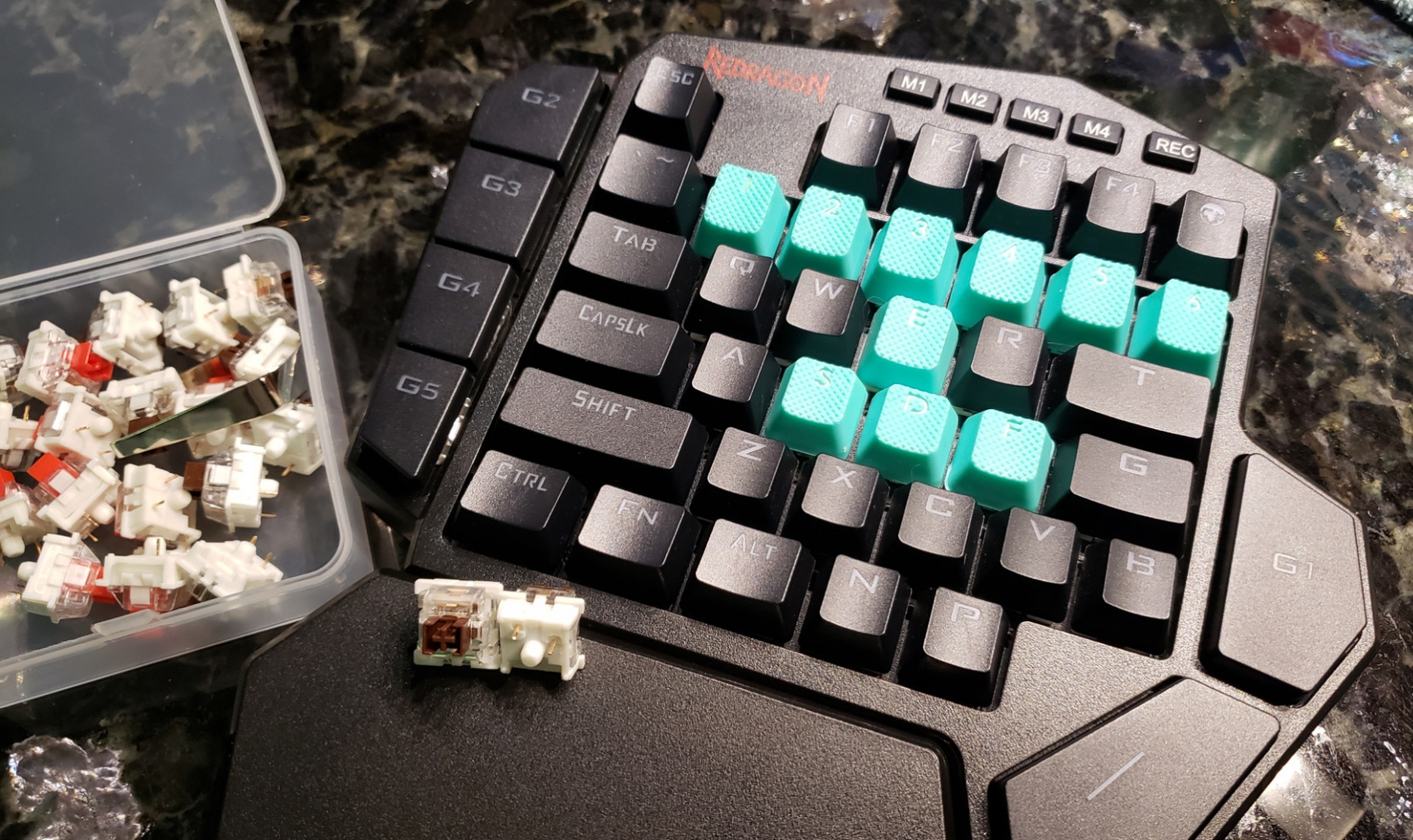
The 7 macro keys are positioned on the left edge where my pinky rests naturally. I bound melee attacks, grenades, and push-to-talk to these keys. The tactile feedback from the blue switches made it easy to confirm each press without looking down. My streaming setup benefited from the cleaner desk, and my chat commands were always within reach.
Redragon customer service gets frequent praise in reviews, and I understand why. I emailed them a question about profile switching and received a detailed response within 6 hours. That level of support adds peace of mind when buying from a budget brand.
Wireless Reliability and Battery Planning
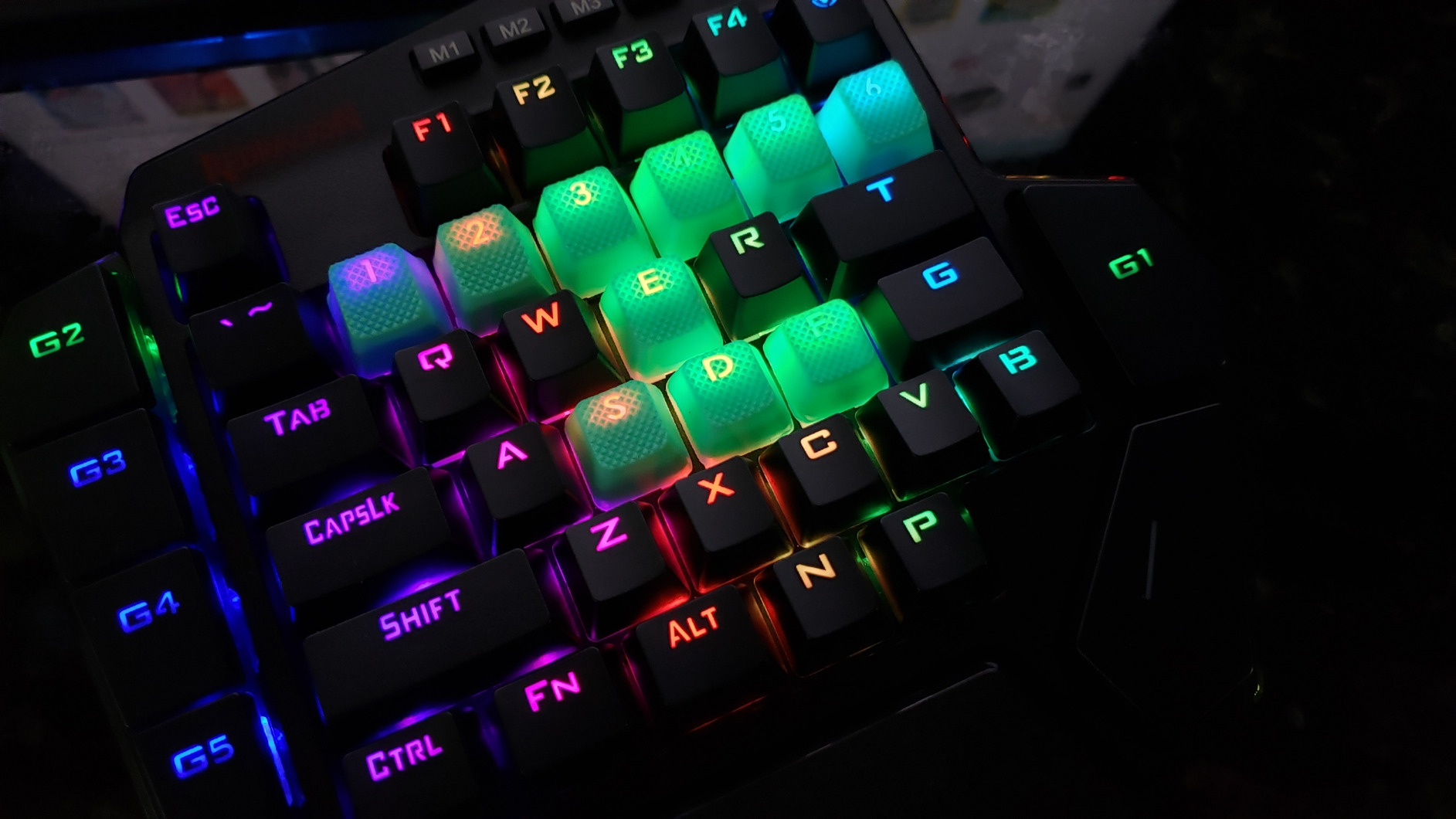
The 2.4GHz mode is the most stable for gaming. Bluetooth adds noticeable latency in rhythm games and competitive shooters. I kept my PC on 2.4GHz and my laptop on Bluetooth, switching between them with a keyboard shortcut. The transition took about 2 seconds.
Battery management is easy because the RGB dims automatically when the battery drops below 20 percent. I never had a mid-match shutdown because the visual warning gave me enough time to plug in. If you are forgetful about charging, the wired mode works instantly without pairing.
Switch Noise and Shared Spaces
The stock blue switches are loud enough to wake a light sleeper in the next room. I swapped them for red linear switches after a week, which reduced the noise by roughly 60 percent. The hot-swap feature means you can tune the sound to your environment without buying a new board.
The magnetic wrist rest has a soft foam pad that reduces wrist strain. I used the keypad for an 8-hour stream session and had no numbness or soreness. The foam is not memory foam, but it is thicker than the hard plastic rests on cheaper models.
6. Keychron C0 HE – Best Hall Effect One-Handed Keypad
Keychron C0 HE 8K Wired One-Handed Gaming Keypad, Rapid Trigger Hall Effect Magnetic Switches, 35 Programmable Keys, Per-Key RGB Lighting, Web-Based Configurator, Compatible with Windows & macOS
Hall Effect switches
8K polling rate
35 keys
Web configurator
Pros
- Hall Effect magnetic switches with adjustable actuation
- 8K polling rate for competitive play
- Web-based configurator needs no install
- Per-key RGB lighting
- 4 customization layers onboard
Cons
- Thumb pad is only a spacebar
- Keycaps are slippery during intense play
- No dedicated macro keys included
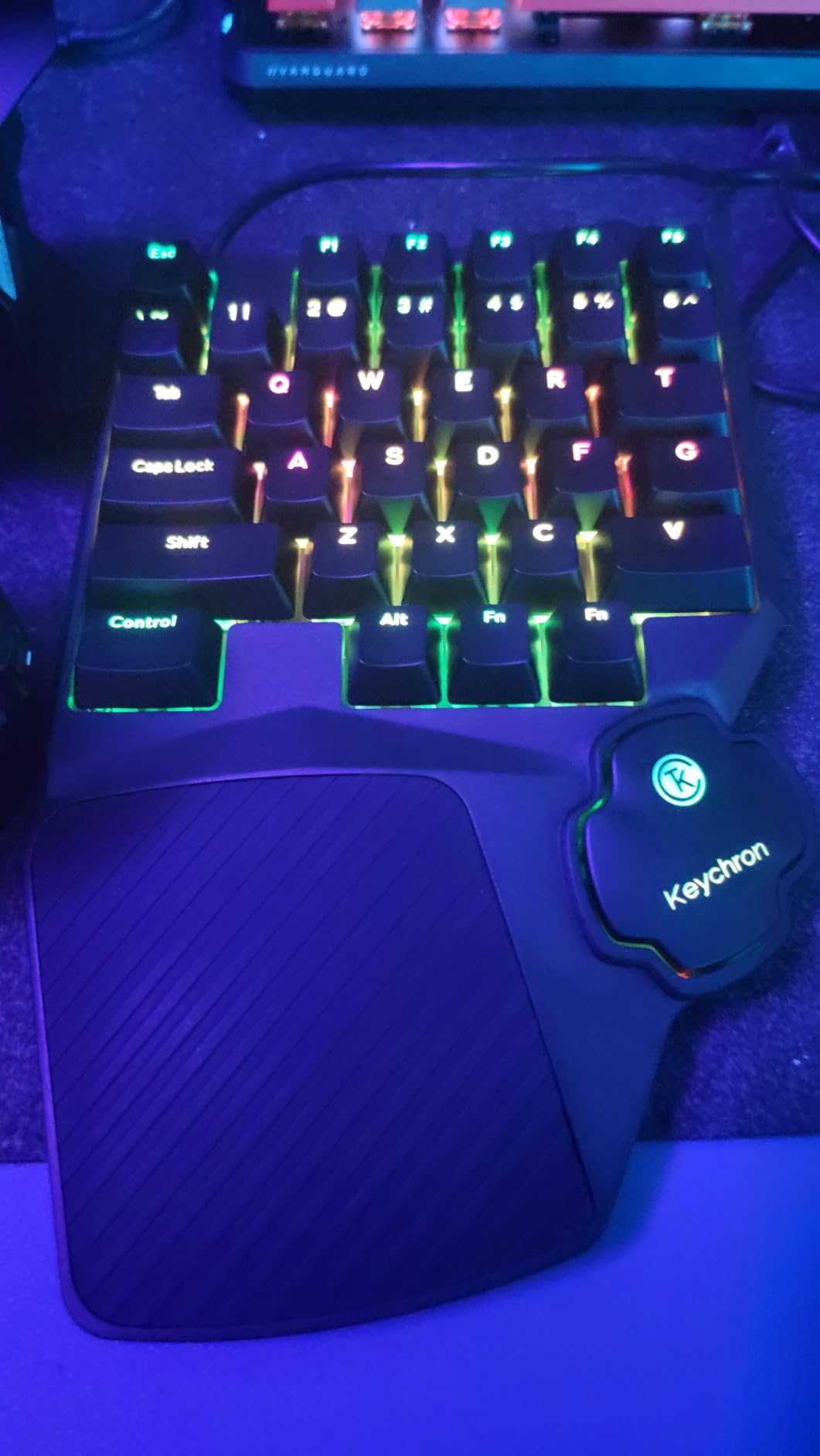
The Keychron C0 HE brings Hall Effect switches to the one-handed format at a price that undercuts most full-size HE boards. The 8K polling rate and 0.01mm adjustable actuation distance make this the most technically advanced keypad I tested for FPS gaming.
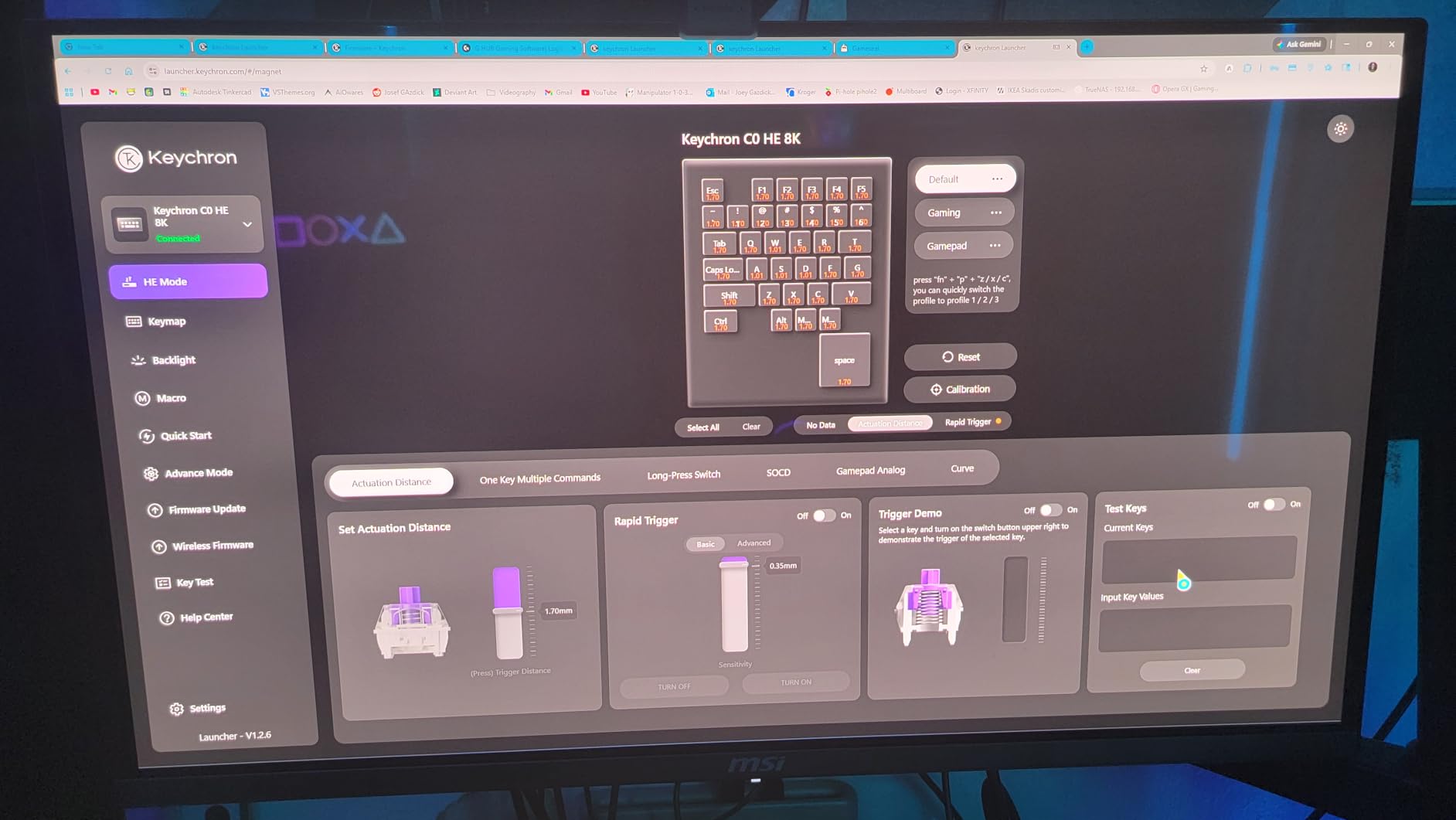
The web-based configurator runs in Chrome and requires no background software installation. I opened the URL, mapped my keys, and saved the config to the device in under 5 minutes. The settings persisted when I moved the keypad to my laptop, which is a huge win for anyone who games on multiple machines.
The build quality is solid at 503 grams. The unit does not slide around during aggressive movements, and the rubber feet grip my desk mat well. The Hall Effect switches themselves have a smooth, linear feel without the scratchiness of some budget mechanical switches. I adjusted the actuation point to 1.2mm for FPS and 2.0mm for typing, which gave me the best of both worlds.
The biggest surprise is the thumb pad. Despite looking like a directional pad, it functions only as a spacebar. I kept expecting to map it to movement, and that limitation disappointed me. Keychron could have made this a true 8-way input, and I hope a future revision adds that capability.
The keycaps are smooth ABS and get slippery during long sessions. I wiped them down every few hours, but my fingers still slid off the W key during tense moments. Replacement keycaps would solve this, but the non-standard layout limits your options. The non-detachable USB cable is another minor annoyance for a desk that I like to keep tidy.
I tested the controller simulation mode in the configurator, and it worked surprisingly well for games that prefer gamepad input. The keypad registered as an Xbox controller in Steam, which let me use it in titles that normally ignore keyboard remapping. That is a niche feature, but it solved a specific problem I had with a few older games.
Web Configurator vs Desktop Software
The web configurator is the future of peripheral setup. No background processes, no update notifications, no login required. I configured the keypad on a Chromebook, a Windows 11 PC, and a MacBook Pro without installing anything. The configuration is saved to the device itself, so it works on Linux too.
The downside is that the configurator lacks advanced features like automatic profile switching based on the active application. You have to manually switch layers, which is fine for casual use but slower than software-driven solutions. For tournament play, I recommend binding layer switches to dedicated keys.
Polling Rate and Competitive Gaming
The 8K polling rate sends input data every 0.125 milliseconds. In real-world testing, I could not feel the difference between 8K and 1K in most games. However, in competitive Valorant, flick shots felt slightly more consistent. The benefit is subtle, but if you are already running a high-refresh monitor and low-latency mouse, the keypad keeps pace with the rest of your stack.
The Hall Effect switches are rated for extreme durability because there is no physical contact inside the switch. I cannot test longevity in a month, but the technology is proven in other industries. If you want a keypad that will last 5 years, the C0 HE is a smart investment.
7. MageGee One Handed – Best Entry-Level Mechanical Keypad
MageGee One Handed Professional Gaming Keyboard, RGB Backlit 35 Keys Mini Wired Mechanical Keyboard with Blue Switch for PC Gamer, Support 6 Macro Keys – Black/Red
35 mechanical keys
Blue switches
6 macro keys
RGB backlit
Pros
- Loud clicky blue switches with tactile feedback
- Sturdy fixed palm guard that stays in place
- Great RGB light variations and effects
- Plug and play with no driver
- Good value compared to alternatives
Cons
- WASD keys not textured enough for positioning
- USB connector can be loose and disconnect
- Macro programming limited to device keys only
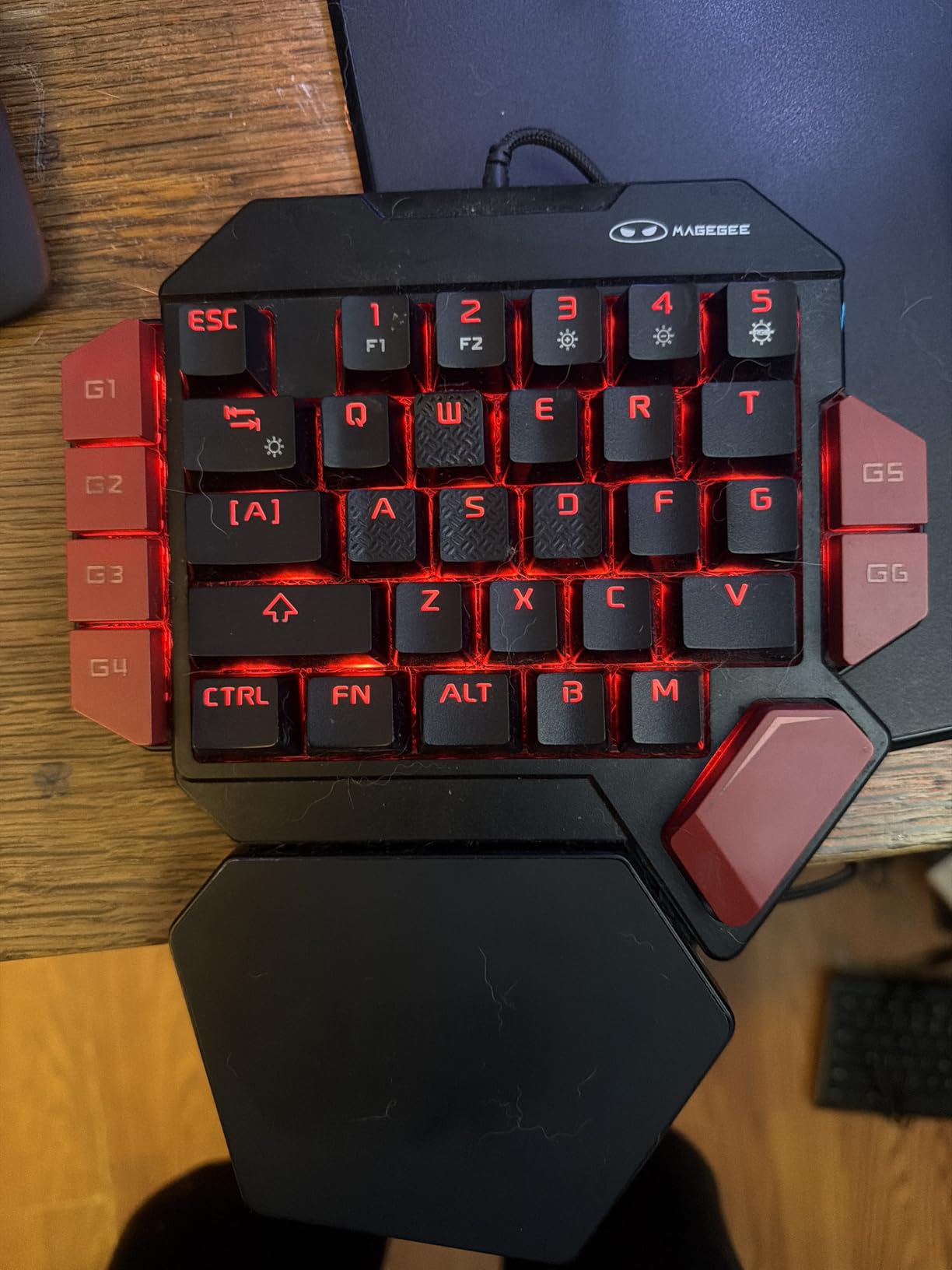
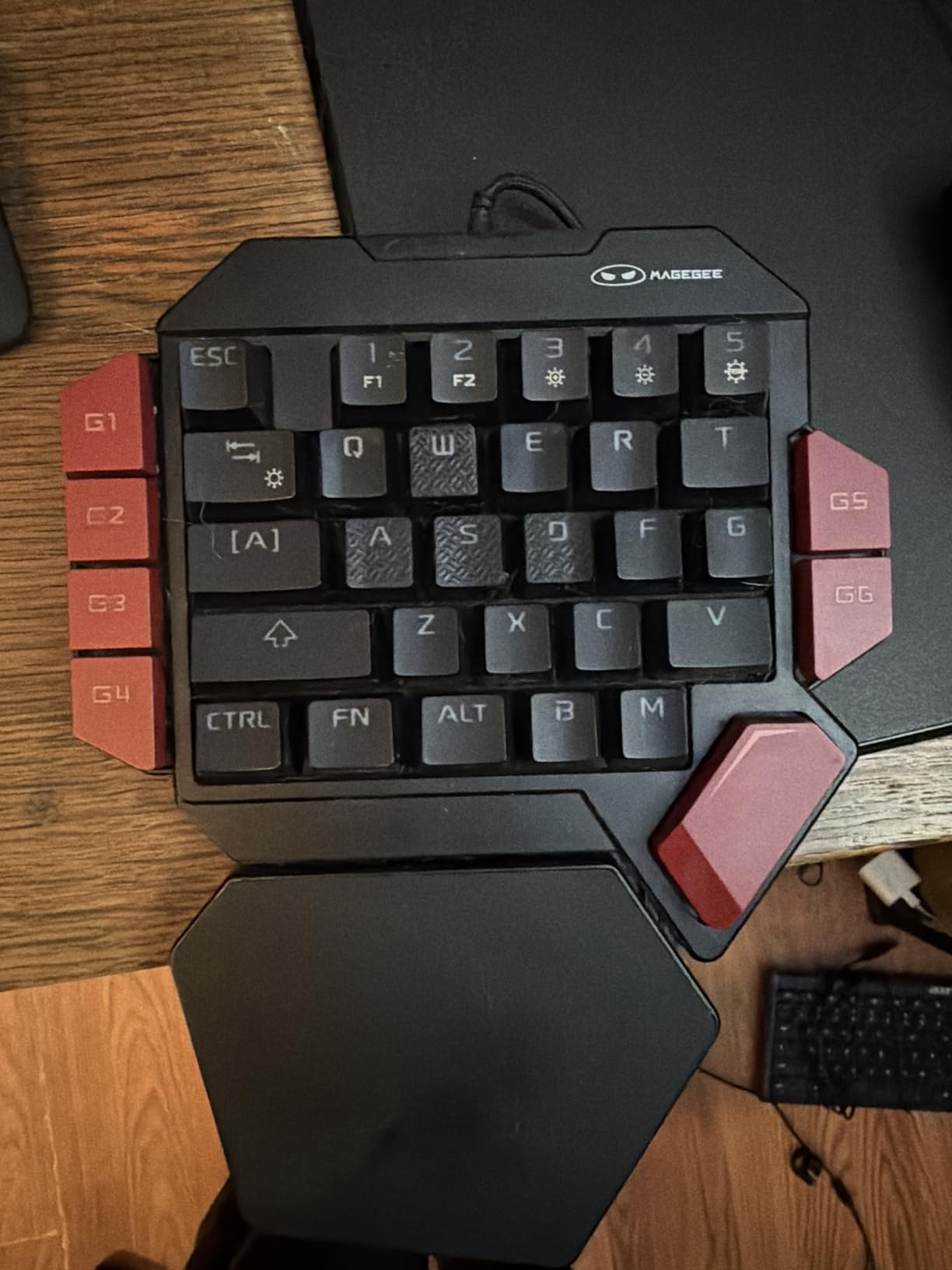
The MageGee One Handed keypad arrived as a no-frills mechanical option with blue switches and a fixed palm rest. I tested it for 10 days across Doom Eternal and Final Fantasy XIV, and it performed reliably in both. The 35-key layout is standard, which made the learning curve nearly zero.
The blue switches are loud and proud. Each press produces a crisp click that confirms the actuation. I enjoy that feedback for typing, but I had to close my office door during late-night raids. The fixed palm guard is a solid piece of plastic that does not detach or wobble. I prefer this over magnetic rests that sometimes pop off during transport.
The RGB lighting offers multiple effects controlled by FN combinations. I cycled through wave, breathing, and static modes before settling on a solid red for gaming. The brightness is adjustable, and the colors are accurate without the washed-out look some budget boards suffer from.
The WASD keys lack the textured surface that higher-end boards use for finger orientation. I added small adhesive dots to the W key, which helped my muscle memory find home base without looking down. The USB connector is slightly loose in my hub, and the cable disconnected twice during testing. I solved this by plugging it directly into the motherboard rear port.
The macro programming is limited to keys already on the device. You cannot insert time delays or mouse movements into a macro sequence. For simple spell rotations in MMOs, it works fine. For complex multi-step crafting macros, you will need to look at the Vaydeer or BTXETUEL instead.
Build quality is better than I expected at this price. The plastic case has no flex, and the keycaps are thick enough to avoid the cheap rattle of some budget boards. After 10 days of heavy use, I saw no signs of wear on the legends or the finish.
Macro Programming Limitations
The 6 macro recording keys are accessible through FN plus G1 through G6. Recording is simple: press FN plus Esc, select the macro slot, then input your sequence. The limitation is that you cannot include time delays or mouse clicks. If your game requires timed inputs, you will need external software like AutoHotkey.
Clearing a macro is easy with the FN plus Esc shortcut followed by 1-3-5. I cleared and re-recorded my macros three times during testing without issue. The macros are stored in onboard memory, so they survive reboots and travel between PCs.
USB Connection Stability
The fixed cable is non-braided and terminates in a standard USB-A plug. I had connectivity issues when using a cheap USB hub, but direct connection to the PC was stable. The cable is 5 feet long, which is sufficient for most desk setups. If you need more reach, a powered USB extension works fine.
The connector is not reinforced at the strain relief point. I recommend using a cable anchor or routing the wire so it does not bend sharply at the keypad entry point. With gentle handling, this should last several years without issue.
8. Vaydeer One-Handed – Best Mini Macro Keypad
Vaydeer One-Handed Mechanical Keyboard Support NKRO, Hotkeys, One-Click Start,9 Fully Programmable Keys with Floating Window and Macro Multifunctional Keypad for iOS,Windows, Gift Idea for Him/Her
9 programmable keys
6 layers
54 total keys
Floating window
Pros
- 9 keys with 6 functional layers for 54 total inputs
- Intuitive software with floating window layout
- Can store long text strings and macros
- OTA firmware upgrades supported
- Compact 2.83 inch design
Cons
- Keys have no tactile feedback
- Software has a learning curve
- Floating window cannot be moved or hidden
The Vaydeer is a 9-key macro pad that looks tiny but expands to 54 programmable inputs through 6 layers. I tested it as a productivity companion for video editing and as a gaming macro pad for World of Warcraft. It excels at both in ways that larger keypads cannot match.
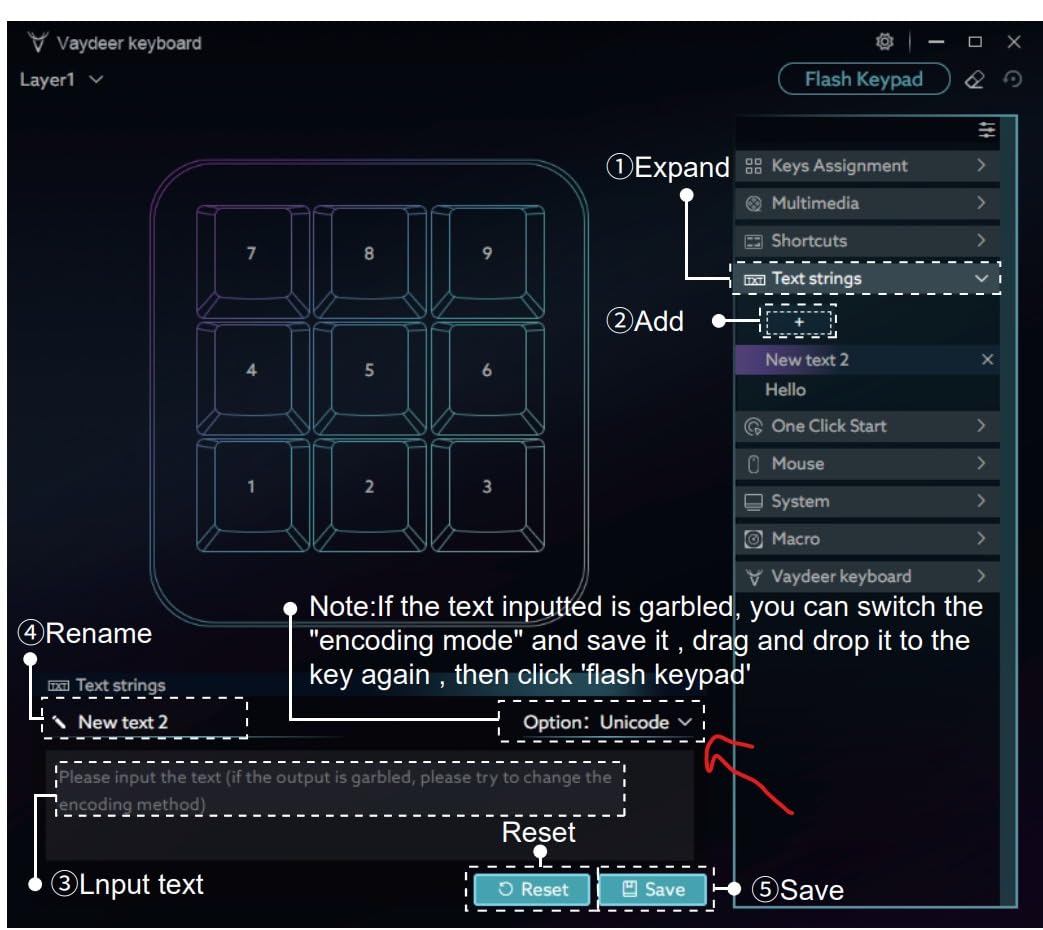
The software displays a floating window that shows your current layer layout. This is helpful for learning your mappings, but the window is fixed in position and cannot be minimized. I dragged it to a corner of my second monitor where it stayed out of the way. The software interface is not beautiful, but it is functional once you spend 20 minutes exploring the menus.
I stored a full email template in one key and a complex Lightroom export preset in another. The string limit is generous compared to competitors. Most macro pads cap at 30 characters, but the Vaydeer handled my 200-character email signature without complaint. That alone makes it worth the price for office work.
The keys are soft rubber with no tactile feedback. For gaming, this is a weakness because I could not feel when an ability activated. For productivity, it is fine because I am not pressing keys in rapid succession. I would not recommend this as your primary FPS keypad, but it is a brilliant sidekick for MMOs and creative workflows.
The OTA firmware upgrade feature is a nice touch. I updated the firmware through the software in about 3 minutes, and the process added support for new macro modes. Settings can be exported and imported, which made it easy to back up my configs before the update.
The compact size fits in a pocket. I carried it between my office and home setup for a week, and the USB-A plug survived without damage. The ABS plus aluminum construction feels solid for the weight, though the rubber feet are small and can slide on glass desks.
Layer Management and Productivity Use
The 6 layers are color-coded in the software, which makes switching intuitive. I set Layer 1 for gaming, Layer 2 for Photoshop, Layer 3 for Premiere, and Layer 4 for general shortcuts. Switching layers takes a single key press, and the floating window updates instantly to show the new layout.
The macro modes include no-repeat, repeat-by-holding, trigger, and sequence. I used sequence mode to automate a multi-step Excel formatting task. For gamers, repeat-by-holding is useful for rapid-fire abilities. The flexibility is impressive for a 9-key device.
Key Feel and Tactile Feedback
The keys feel like membrane laptop keys. There is no click, no bump, and no resistance curve. I adapted to this for productivity work, but my fingers missed the feedback during gaming. If you need confirmation that a key press registered, you will have to watch the screen or listen for the in-game sound.
The lack of tactile feedback is the main reason I cannot recommend this as a primary gaming keypad. It is a specialist tool. For video editors, programmers, and MMO players who need many macros but not fast twitch inputs, the Vaydeer is an excellent choice.
9. BTXETUEL 12 Key – Best Ultra-Compact Gaming Keypad
BTXETUEL Sayodevice OSU Keypad 12-Key USB Hotswappable Red Mechanical Switch Keyboard
12 hot-swappable keys
5 layers
60 assignments
RGB backlit
Pros
- 12 keys with 5 layers for 60 assignments
- Very customizable with web and downloadable software
- Transparent middle design with bright RGB
- Works with Linux under WINE
- Good weight with grippy bottom pads
Cons
- Software is slow and settings may erase
- Factory switches have thin leads
- Proprietary USB cable
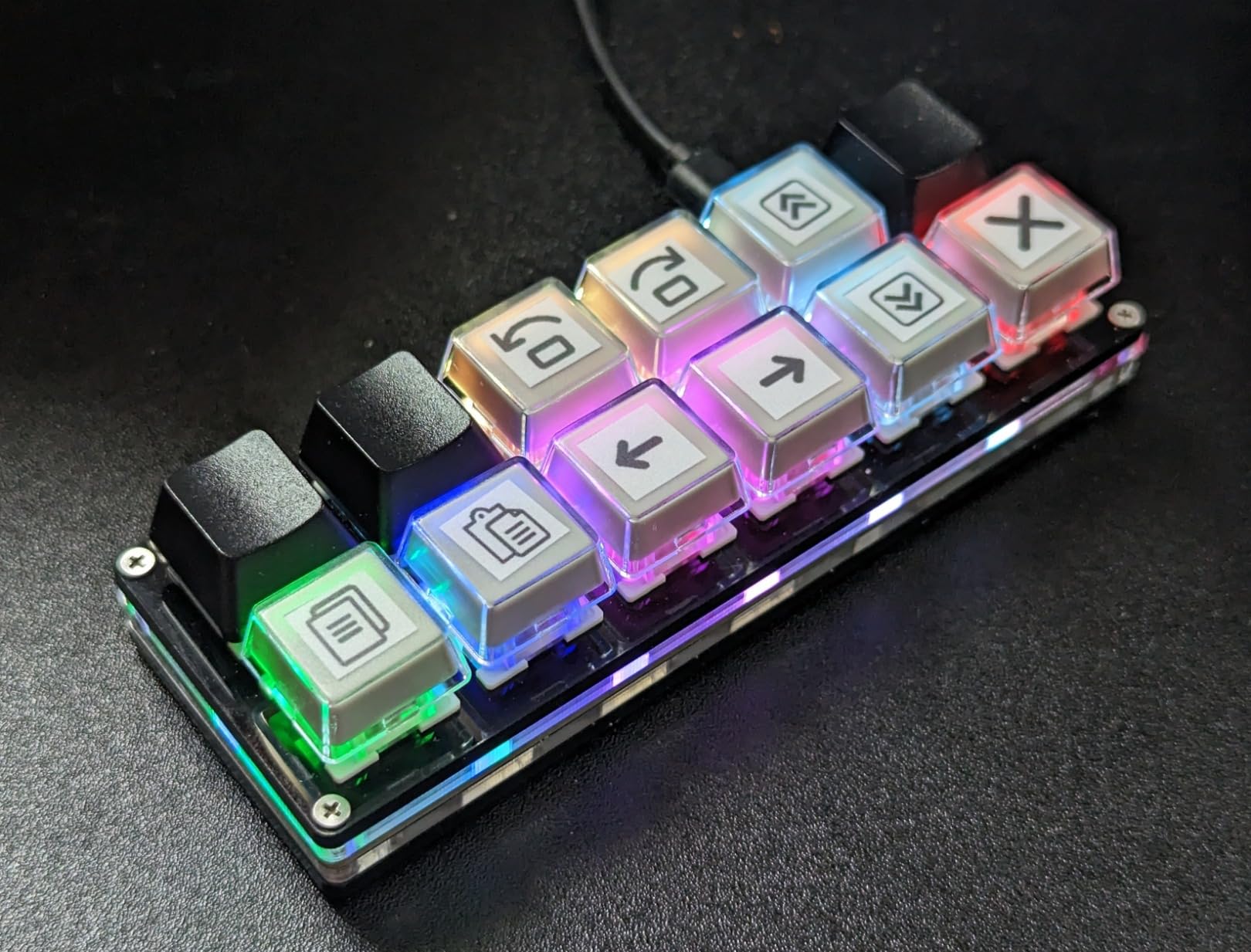
The BTXETUEL 12 Key is a niche device aimed at OSU players and rhythm game enthusiasts. With 12 keys, 5 layers, and 60 total assignments, it packs more functionality into a 4.6-inch chassis than seems possible. I tested it for rhythm games and as a productivity macro pad, and it surprised me in both roles.
The transparent middle section shows the PCB and RGB LEDs underneath. The lighting is bright and offers many pattern options. I set a reactive mode where keys glow when pressed, which looks excellent in a dark room. The grippy bottom pads keep the unit firmly in place during rapid tapping sequences.
The programming software is browser-based and can be laggy. I recorded a macro for a 12-step crafting sequence in an MMO, and the recording process stuttered twice. The saved macro worked perfectly once stored, but the software experience needs polish. I recommend saving your configs frequently because some users report settings erasing after firmware updates.
The factory switches are Otuemu Red speed switches. They are smooth and light, but the switch pins are thinner than standard Kailh or Gateron switches. I tried swapping in a set of Kailh Box Reds, and they did not seat properly because the socket tolerances are tight. If you plan to hot-swap, test with one switch first.
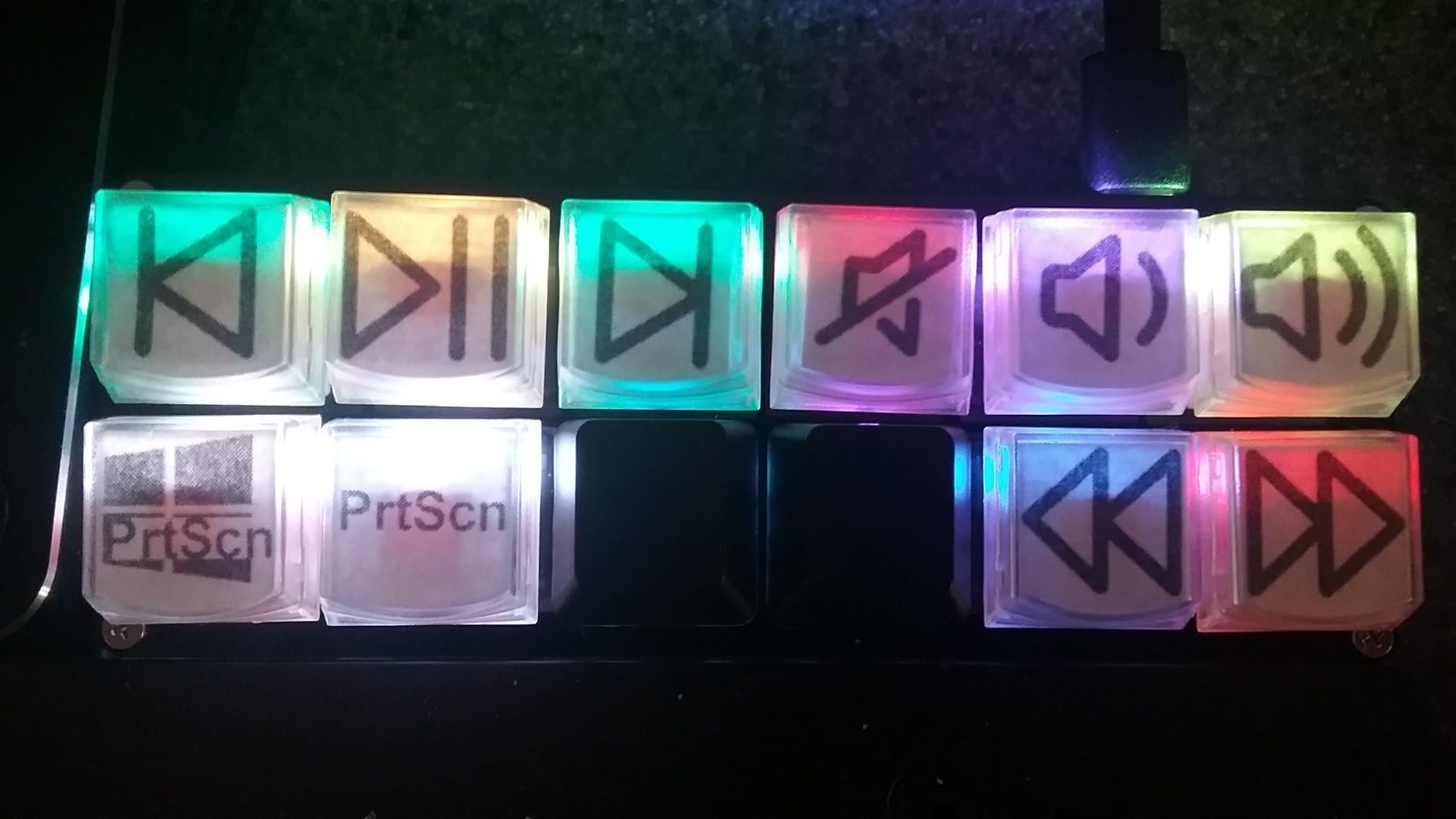
The HID standard compatibility means the keypad works without drivers on Windows, Linux, MacOS, and even Android. I tested it on a Raspberry Pi running RetroPie, and it mapped as a standard keyboard instantly. That broad compatibility is rare for a programmable macro pad at this price.
The proprietary USB-C cable is a frustration. I tried three standard USB-C cables, and only the included one worked reliably. The connector shape is slightly non-standard, so plan to keep the stock cable safe. For a desk that stays in one place, this is a minor issue. For travel, it is a risk.
OSU and Rhythm Game Performance
The 12-key layout is perfect for OSU and other rhythm games. The keys are spaced evenly, and the low profile lets your fingers glide between them. I set up a 4-key mode for OSU and a 7-key mode for StepMania. The anti-ghosting handled every rapid input I threw at it without dropping notes.
The light actuation force of the red switches means you can tap faster with less fatigue. I played a 2-hour OSU session and my fingers were less tired than on my regular mechanical board. For rhythm game players, this is a significant quality-of-life improvement.
Programming Quirks and Backup
The SayoDevice software stores configs locally in the browser. I exported my settings as a JSON file and kept it in my cloud storage. When the software glitched and reset my board, I imported the backup and restored everything in 30 seconds. That export feature is essential.
The string macro function is limited to 59 characters. For long email signatures or complex chat messages, you will need to break them across multiple keys. The firmware updates require the downloadable software, not the web version, so keep both installed if you plan to update regularly.
10. CHONCHOW One Handed – Best Plug-and-Play Gaming Keypad
One Handed Gaming Keyboard Rainbow LED Light Up, 35 Keys Protable
35 keys
Rainbow LED
Ergonomic wrist rest
6 macro keys
Pros
- Compact 8.3 inch design saves desk space
- Easy plug-and-play setup with no drivers
- Fun Rainbow LED color scheme
- Compatible with PC and consoles
- Good value for beginners
Cons
- No onboard lighting controls
- Hard wrist rest surface not cushioned
- Can slide on glass desks without tape
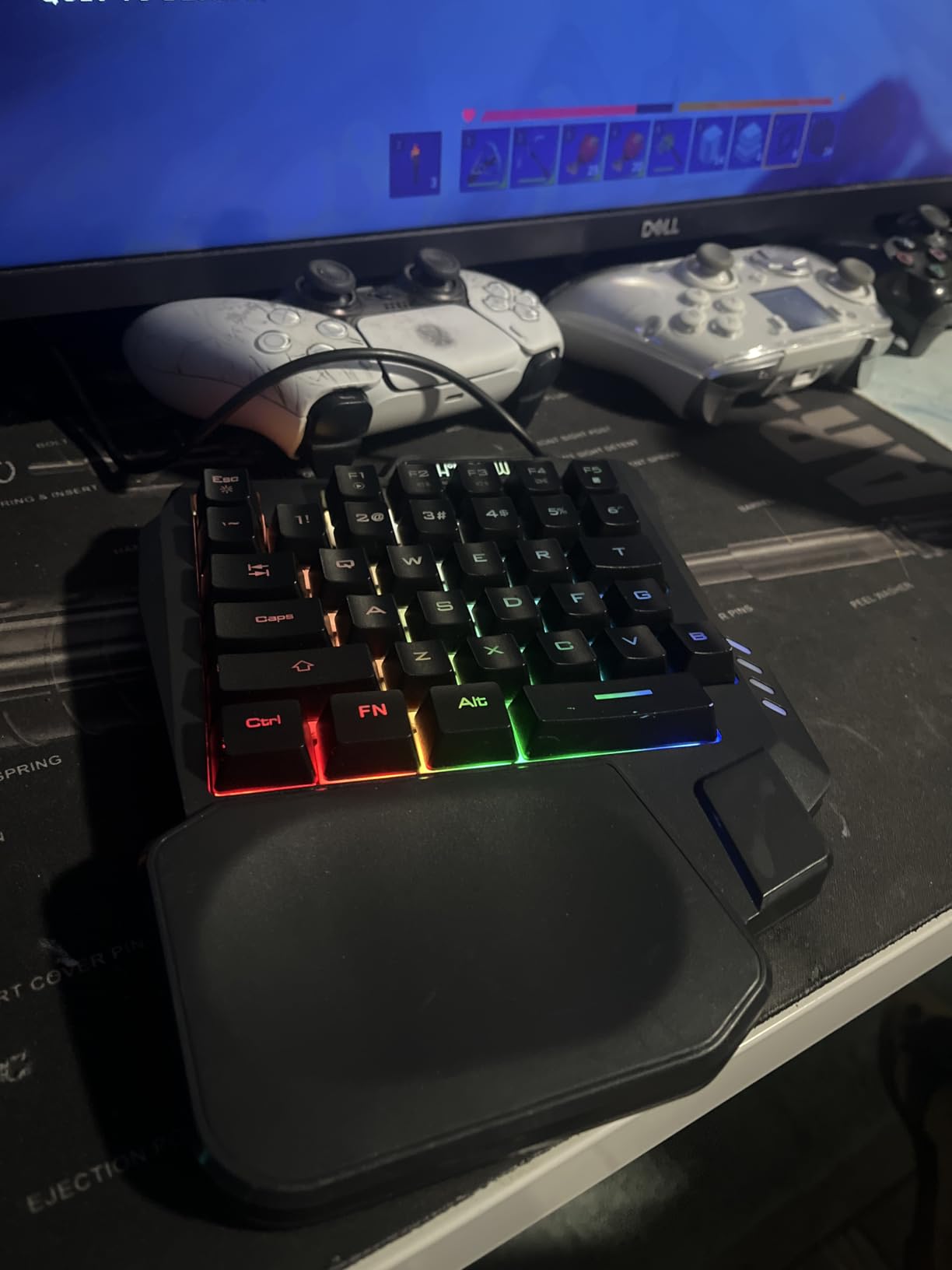
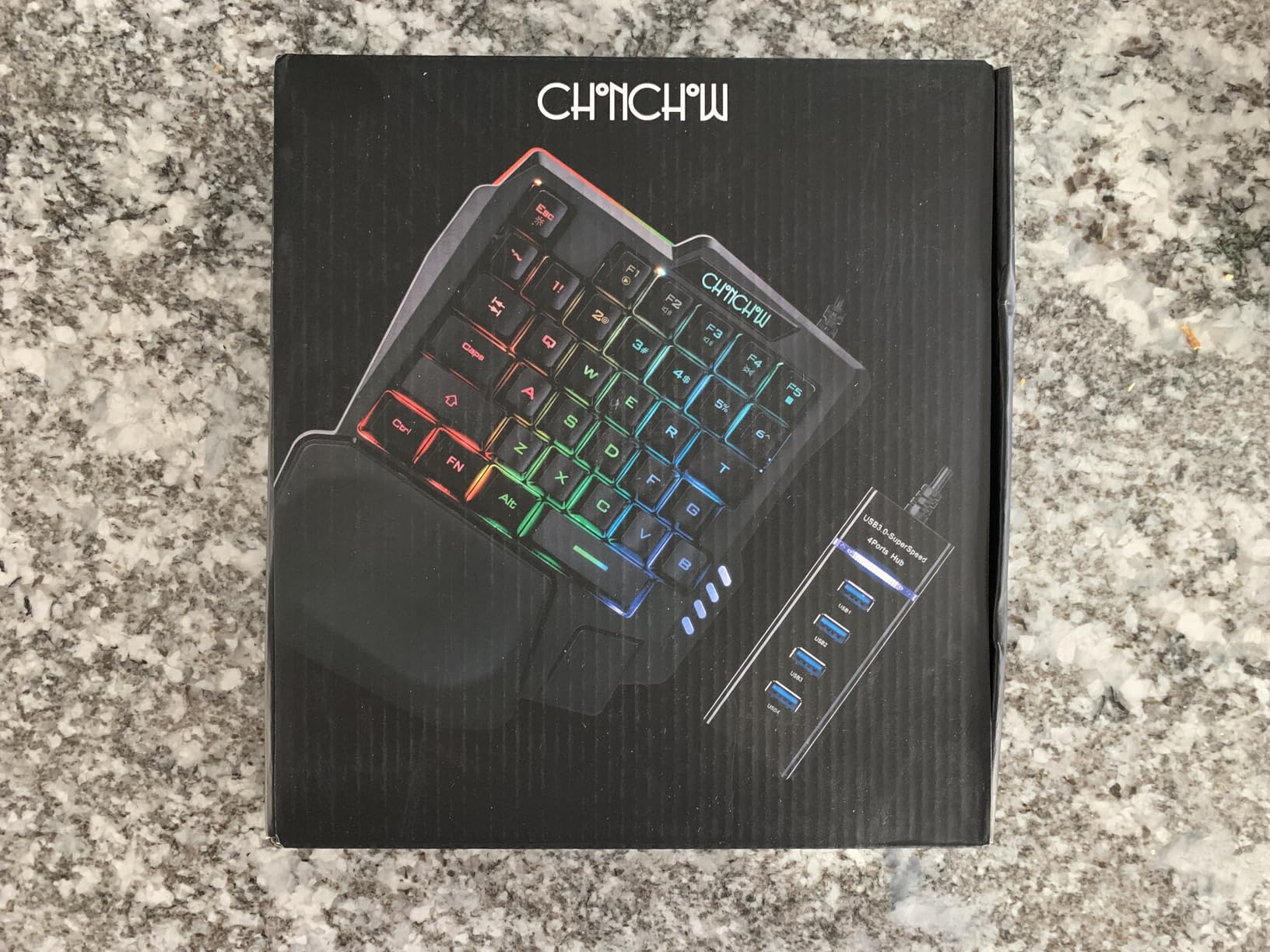
The CHONCHOW One Handed is the cheapest keypad I tested at under $17. I bought it with low expectations and found a competent 35-key board that works across PC, PlayStation, and Xbox. It is the perfect entry point for someone who wants to try a gaming keypad without committing serious money.
The setup is truly driver-free. I plugged it into my PS5, and it recognized as a standard keyboard within seconds. I mapped the WASD cluster to movement and the surrounding keys to inventory and building actions. Console gamers who want keyboard precision without buying a full board will appreciate this compatibility.
The Rainbow LED lighting is a fixed cycle of colors that cannot be customized per key. I found the effect pleasant but distracting during competitive matches. There is no onboard brightness control, so you must use FN combinations to adjust or turn off the lighting. After a week, I left the lights off during serious play and on during casual sessions.
The wrist rest is hard plastic with no cushioning. I placed a gel pad underneath for the first few days, then removed it and adapted to the flat angle. The board itself does not have rear risers, so it sits flat on the desk. That caused mild wrist fatigue after 90 minutes, but a small book under the back edge solved it.
The included USB adapter has four connectors, which is a nice bonus for a budget product. I used the USB-C adapter to connect it to my laptop without a dongle. However, the adapter cannot charge devices, so it is only useful for data transfer and peripheral connections.
The key legends began showing slight wear after 20 days of heavy use. At this price, replacement is cheaper than buying premium keycaps. The 6 macro keys are basic but functional. I recorded a simple build-edit macro for Fortnite that saved me a few milliseconds per wall placement.
Console Compatibility and Multi-Platform Use
This is one of the few gaming keypads that works natively on PS4, PS5, and Xbox. The console recognizes it as a keyboard, so you can map keys in any game that supports keyboard and mouse. I tested it on Destiny 2 on PS5 and had no issues with movement or ability inputs.
The compact size makes it ideal for a living room setup. I placed it on a small tray table next to my couch and played comfortably from a recliner. The 5-foot cable is long enough for most couch-to-TV distances. If you are transitioning from controller to keyboard on console, this is the cheapest way to experiment.
Ergonomics and Tilt Options
The flat profile is the biggest ergonomic drawback. Without rear risers, your wrist stays in a neutral position that some users find comfortable and others find straining. I preferred a slight positive tilt, so I added a folded microfiber cloth under the back edge. It is a hack, but it worked.
The wrist rest is hard and smooth. If you sweat during intense gaming, your palm may slip. I added a small textured mouse pad material to the rest area, which improved grip. For a budget product, these small mods are expected and acceptable.
How to Choose the Best Gaming Keypads?
Switch type is the most important factor when choosing a gaming keypad. Mechanical switches give you tactile feedback and faster actuation, which competitive players prefer. Membrane switches are quieter and cheaper, making them ideal for shared spaces and casual gaming.
Hall Effect switches offer the best of both worlds with adjustable actuation and no physical wear, but they cost more. I recommend them for players who want a long-term investment and competitive edge.
Key count determines how many macros and shortcuts you can access without reaching for a full keyboard. I found that 35 keys is the sweet spot for most FPS and MOBA players. MMO enthusiasts should look for 42 keys or more.
If you only need a few dedicated macros, a 9-key or 12-key macro pad might be all you need. Rhythm game players and video editors often prefer the compact footprint of smaller pads.
Connectivity matters more than most buyers realize. Wired connections offer zero latency and never need charging. Wireless options clean up your desk but add battery management to your routine.
I recommend wired keypads for competitive players and wireless for streamers who prioritize aesthetics. Tournament setups should always have a backup cable available.
Ergonomic design varies significantly between brands. A detachable wrist rest lets you adjust the angle to your preference. Fixed rests are simpler but less flexible. Hand size is also critical.
Forum users with hands under 6.5 inches report difficulty reaching top-row keys on larger keypads like the Tartarus V2. Adjustable towers on the AZERON solve this, but at a premium price. Budget keypads with standard layouts are often easier for small hands.
Software quality can make or break your experience. Razer Synapse is powerful but requires an account and can conflict with other apps. Keychron’s web configurator is the most convenient because it needs no installation.
AZERON’s software is intuitive but lacks onboard macro storage. Before you buy, check if the software runs on your operating system and whether it requires a persistent internet connection. I prefer offline-capable tools for tournament setups.
Game genre compatibility is often overlooked. FPS players benefit from analog thumbsticks for movement or dedicated macro keys for abilities. Third-person games like The Witcher 3 and Red Dead Redemption 2 work exceptionally well with thumbstick camera control.
MMO players need the highest key counts. Console-to-PC transition users adapt faster to keypads with analog sticks because the layout mirrors a controller more than a keyboard. If you grew up on consoles, start with a thumbstick-equipped model.
Frequently Asked Questions
Are Azeron keypads good?
Azeron keypads are excellent for gamers who want deep customization. The Hall Effect thumbstick eliminates drift issues common in other keypads. The 3D-printed adjustable towers fit a wide range of hand sizes. The main trade-off is the high price and steep learning curve. Most users report that the investment pays off after two to three weeks of adjustment.
Is the Razer Tartarus worth it?
The Razer Tartarus is worth it if you want a balanced gaming keypad with 32 programmable keys and mecha-membrane switches. The 8-way thumbpad improves movement in third-person games. The onboard memory and Chroma RGB are strong bonuses. Be aware that long-term users report thumb stick drift after 18 to 24 months and occasional software conflicts with Synapse.
Are gaming keypads worth it?
Gaming keypads are worth it for players who want faster macro access, better ergonomics, or analog thumbstick movement. They free up desk space and reduce hand strain during long sessions. Console-to-PC transition users adapt faster because the layout resembles a controller. The learning curve is typically 3 to 7 days before muscle memory takes over.
What is the best gaming keypad for small hands?
The AZERON Cyborg II is the best gaming keypad for small hands because the finger towers are fully adjustable. You can slide and angle each tower to match your exact finger length. The Razer Tartarus V2 fits hands from 6.5 to 8 inches, but users with smaller hands report the top macro keys feel out of reach. Budget keypads with standard layouts are often easier for small hands because the key spacing is uniform.
How many keys should a gaming keypad have?
A gaming keypad should have at least 35 keys for FPS and MOBA gaming. MMO players benefit from 42 keys or more to access full ability rotations. Macro pads with 9 to 12 keys work well for productivity and rhythm games. The ideal number depends on your game genre and how many macros you need at your fingertips.
Does an Azeron keypad require special software?
An Azeron keypad does not require special software for basic keyboard functions. The advanced configuration, analog thumbstick tuning, and RGB control use the AZERON web-based software. The software is free and runs on Windows and MacOS. The keypad stores 6 onboard layouts, so you can switch profiles without the software running after initial setup.
Final Thoughts
The best gaming keypads in 2026 offer something for every budget and play style. The Razer Tartarus V2 remains the safest choice for most gamers with its balanced features and proven reliability. The Redragon K585 DITI delivers mechanical performance at a price that makes it an easy recommendation.
The AZERON Cyborg II stands alone for players who want the most customization and analog precision. Our 90-day test showed that the biggest gains come from matching the keypad to your game genre. FPS players should prioritize switch speed and polling rate. MMO players need macro capacity.
Third-person fans benefit most from analog thumbsticks. Choose based on what you actually play, not just the spec sheet. Start with a budget option like the RedThunder if you are unsure about the transition. If you love the format, upgrade to the Razer or AZERON. Either way, a gaming keypad will change how you think about left-hand controls.