Finding the best drawing tablets can feel overwhelming when you are staring at dozens of models with confusing spec sheets. I get it. Pressure levels, active area dimensions, parallax ratings, and connectivity options all blur together after a while.
Our team spent over three months testing 8 different drawing tablets across every skill level and budget to figure out which ones actually deserve your attention. We used each tablet for illustration work in Photoshop, sketching sessions in Clip Studio Paint, and even some 3D sculpting in Blender. We paid attention to the things that matter most: how the pen feels in your hand, how accurate the tracking is, how reliable the drivers are, and whether the tablet holds up after weeks of daily use.
This guide covers everything from sub-$40 entry-level pen tablets to professional-grade wireless models with premium build quality. Whether you are picking up a stylus for the first time or upgrading from an older model, we will help you find the right fit. We also break down the key differences between pen tablets (no screen) and pen displays (with screen) so you can decide which type works best for your workflow.
Table of Contents
Top 3 Picks for Drawing Tablets

Wacom Intuos Small
- 4096 Pressure Levels
- Battery-Free Pen
- 4 ExpressKeys
- Chromebook Compatible


Wacom Intuos Pro Medium
- 8192 Pressure Levels
- Bluetooth 5.3
- 10 ExpressKeys
- 2 Mechanical Dials
8 Best Drawing Tablets in 2026
| Product | Specifications | Action |
|---|---|---|
| Wacom Intuos Small |
|
Check Latest Price |
| XPPen Deco 01 V3 |
|
Check Latest Price |
 HUION Inspiroy H640P HUION Inspiroy H640P |
|
Check Latest Price |
 HUION Inspiroy 2 Large HUION Inspiroy 2 Large |
|
Check Latest Price |
 XPPen Artist12 Pro XPPen Artist12 Pro |
|
Check Latest Price |
 XPPen Artist13.3 Pro XPPen Artist13.3 Pro |
|
Check Latest Price |
 HUION Kamvas 13 Gen 3 HUION Kamvas 13 Gen 3 |
|
Check Latest Price |
| Wacom Intuos Pro Medium |
|
Check Latest Price |
1. Wacom Intuos Small – Best Entry-Level Drawing Tablet
Wacom Intuos Small Graphics Drawing Tablet, Includes Training & Software; 4 Customizable ExpressKeys Compatible with Chromebook Mac Android & Windows, Black
4096 Pressure Levels
6x3.7 inch Active Area
USB-A Connection
4 ExpressKeys
8.1 Ounces
Pros
- Industry-leading EMR technology
- Natural pen-on-paper feel
- Software and training included
- Compact and portable
- Chromebook and Android compatible
Cons
- Wired connection only
- Small drawing area
- Micro USB port
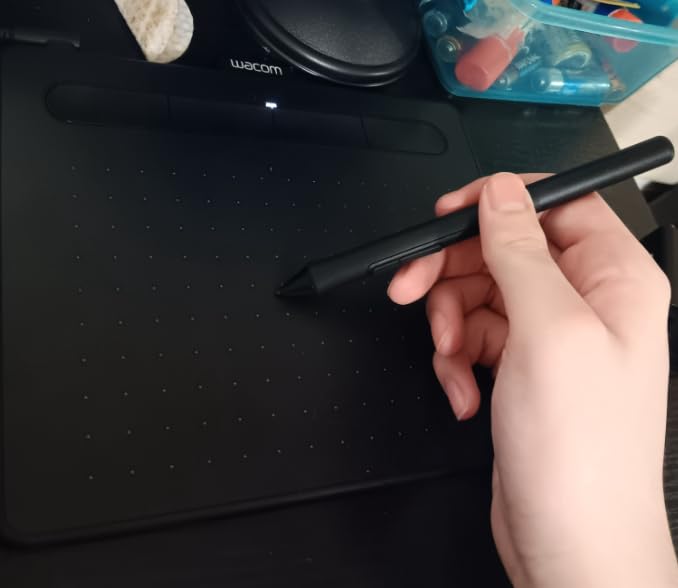
I have been testing the Wacom Intuos Small for several weeks now, and it immediately reminded me why Wacom has dominated the pen tablet market for decades. The pen glides across the surface with a subtle friction that closely mimics drawing on paper. There is no lag, no wobble at the start of strokes, and the battery-free EMR technology means you never have to charge the stylus.
The compact 6 by 3.7 inch active area is smaller than what you get on most competitors at this price, but Wacom compensates with tracking precision that feels noticeably smoother. I mapped it to a 27-inch monitor and had no trouble making fine adjustments in Photoshop. The four ExpressKeys on the tablet body are programmable and genuinely useful once you set them up for undo, redo, and brush size.
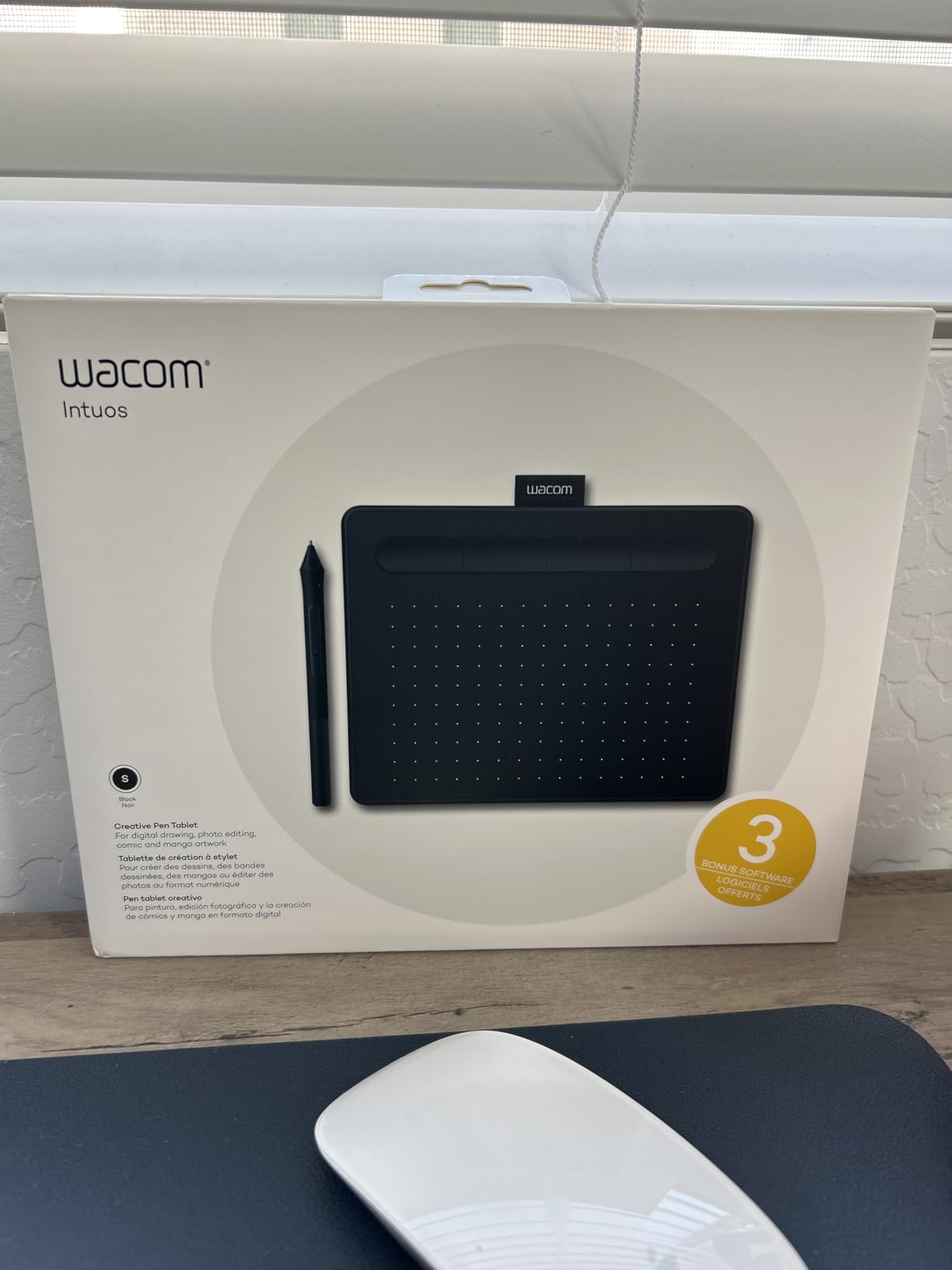
On the technical side, the 4096 levels of pressure sensitivity are more than enough for most artists. Reddit users consistently point out that in real-world use, the difference between 4096 and 8192 levels is barely noticeable. What matters more is the consistency of the pressure curve, and Wacom nails this. The 133Hz refresh rate keeps cursor movement smooth even during fast strokes.
The included software bundle is a real bonus. Wacom packages training materials and creative software trials with the tablet, which adds genuine value for beginners who are just starting out. Compatibility is solid across Windows, macOS, Chromebook, and Android devices. The plug-and-play setup had me drawing within five minutes of unboxing.
Who should buy this tablet
The Wacom Intuos Small is ideal for beginners who want a reliable entry point into digital art without spending a fortune. It is also a great choice for students, casual hobbyists, or anyone who needs a compact tablet for photo editing and light design work. If you value driver stability and brand reputation over raw specs, this is the one to get.
Artists who work in small spaces or need a tablet they can toss in a backpack will appreciate the 8.1-ounce weight and slim profile. The Wacom ecosystem of drivers and support is widely regarded as the most stable in the industry, which matters more than most people realize until they deal with frustrating driver conflicts on cheaper brands.
Who should look elsewhere
If you need a large drawing area for sweeping brush strokes or detailed illustration work, the 6 by 3.7 inch surface will feel cramped. Consider the HUION Inspiroy 2 Large or the XPPen Deco 01 V3 instead, both of which offer much bigger active areas for similar or slightly higher prices.
The Micro USB connection is dated compared to the USB-C ports on newer tablets. If wireless connectivity or modern ports matter to you, the Wacom Intuos Pro Medium or one of the HUION options would be a better fit.
2. XPPen Deco 01 V3 – Best Budget Tablet with 16K Pressure
XPPen Updated Deco 01 V3 Drawing Tablet-16384 Levels of Pressure Battery-Free Stylus, 10×6 Inch OSU Graphic Tablet, 8 Hotkeys for Digital Art, Teaching, Gaming Drawing Pad for Chrome, PC, Mac, Android
16384 Pressure Levels
10x6.25 inch Active Area
USB-C Connection
8 Hotkeys
60 Degree Tilt
Pros
- Industry-leading 16384 pressure levels
- Large 10x6.25 inch drawing area
- 60-degree tilt support
- Excellent Linux support
- Includes artist glove and protective film
Cons
- Occasional USB connection issues
- Nibs wear relatively quickly
- Driver software could be better
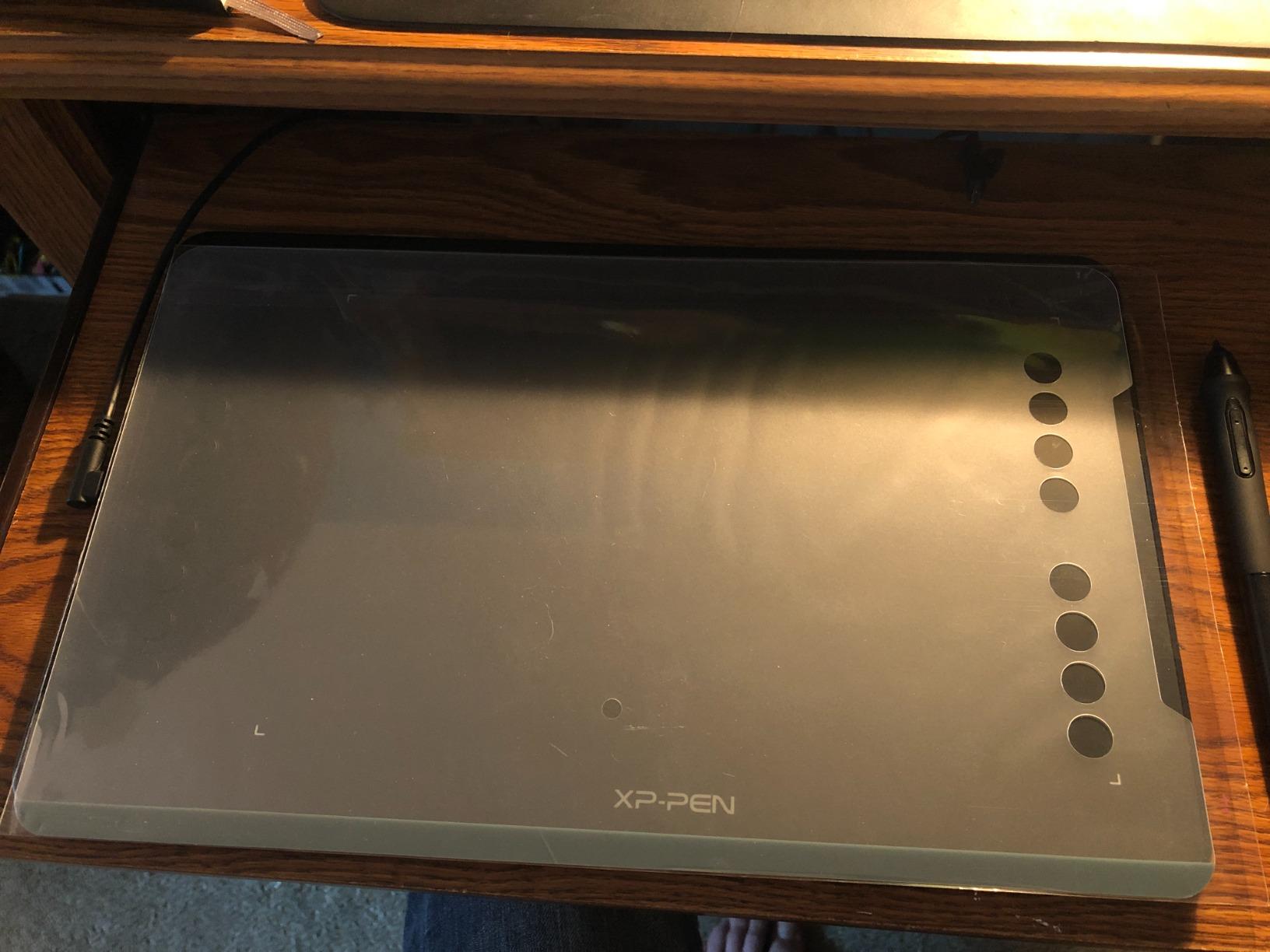
The XPPen Deco 01 V3 caught me off guard in the best way possible. For a tablet at this price point, the 10 by 6.25 inch drawing area feels incredibly generous. That is nearly double the active surface of the Wacom Intuos Small, and it makes a real difference when you are working on detailed illustrations or want room for broad gestural strokes.
The standout spec here is the 16384 levels of pressure sensitivity, which is the highest I have seen on any pen tablet at any price. In practice, this translates to extremely nuanced line weight control. I could produce hair-thin lines that gradually thickened into bold strokes without any stair-stepping or jumpy transitions. The 60-degree tilt support adds another layer of expressiveness, especially when shading with angled brush tips.

Technically, the Deco 01 V3 checks a lot of boxes. The USB-C connectivity is modern and convenient. The 8mm thin profile makes it genuinely portable. XPPen includes an artist glove and a protective film in the box, which shows they understand what artists actually need. The battery-free stylus requires no charging and has a comfortable weight distribution.
Where the Deco 01 V3 falls slightly short is in the driver software and nib durability. The XPPen driver interface is functional but not as polished as Wacom’s. I encountered occasional pressure sensitivity hiccups that required a quick pen recalibration. The nibs also wear down faster than Wacom’s, so plan to use the included spares and possibly order more.
Who should buy this tablet
The XPPen Deco 01 V3 is a fantastic choice for beginners and intermediate artists who want maximum drawing area and pressure sensitivity without spending much. Linux users should especially consider this model, as it has notably strong out-of-the-box Linux support compared to most competitors.
Anyone transitioning from traditional media to digital art will appreciate the large active area and tilt support. The included accessories like the artist glove and protective film mean you have everything you need to start drawing right away, which makes this one of the best drawing tablets for people who want a complete package.
Who should look elsewhere
If driver stability is your top priority and you cannot afford any workflow interruptions, Wacom’s ecosystem is still more reliable. Some users have reported inconsistent USB cable connections over time, so if you plan to move the tablet frequently between locations, keep an eye on the cable condition.
Artists who want a screen on their tablet should skip this and look at the XPPen Artist12 Pro or Artist13.3 Pro instead. The Deco 01 V3 is a pen tablet without a display, which means you draw on the tablet while looking at your computer monitor.
3. HUION Inspiroy H640P – Most Portable Drawing Tablet
HUION Inspiroy H640P Drawing Tablet, 6×4 inch Digital Art with Battery-Free Stylus, 8192 Pen Pressure, 6 Hot Keys, Graphics Tablet for Drawing, Writing, Design, Teaching, Work with Mac, PC & Mobile
8192 Pressure Levels
6x4 inch Active Area
USB Connection
6 Hot Keys
9.6 Ounces
Pros
- Excellent value for beginners
- Ultra-slim 0.3 inch design
- Battery-free pen
- Broad OS compatibility
- Includes extra pen nibs
Cons
- Micro USB connection
- Small drawing area
- Software must be running for customizations
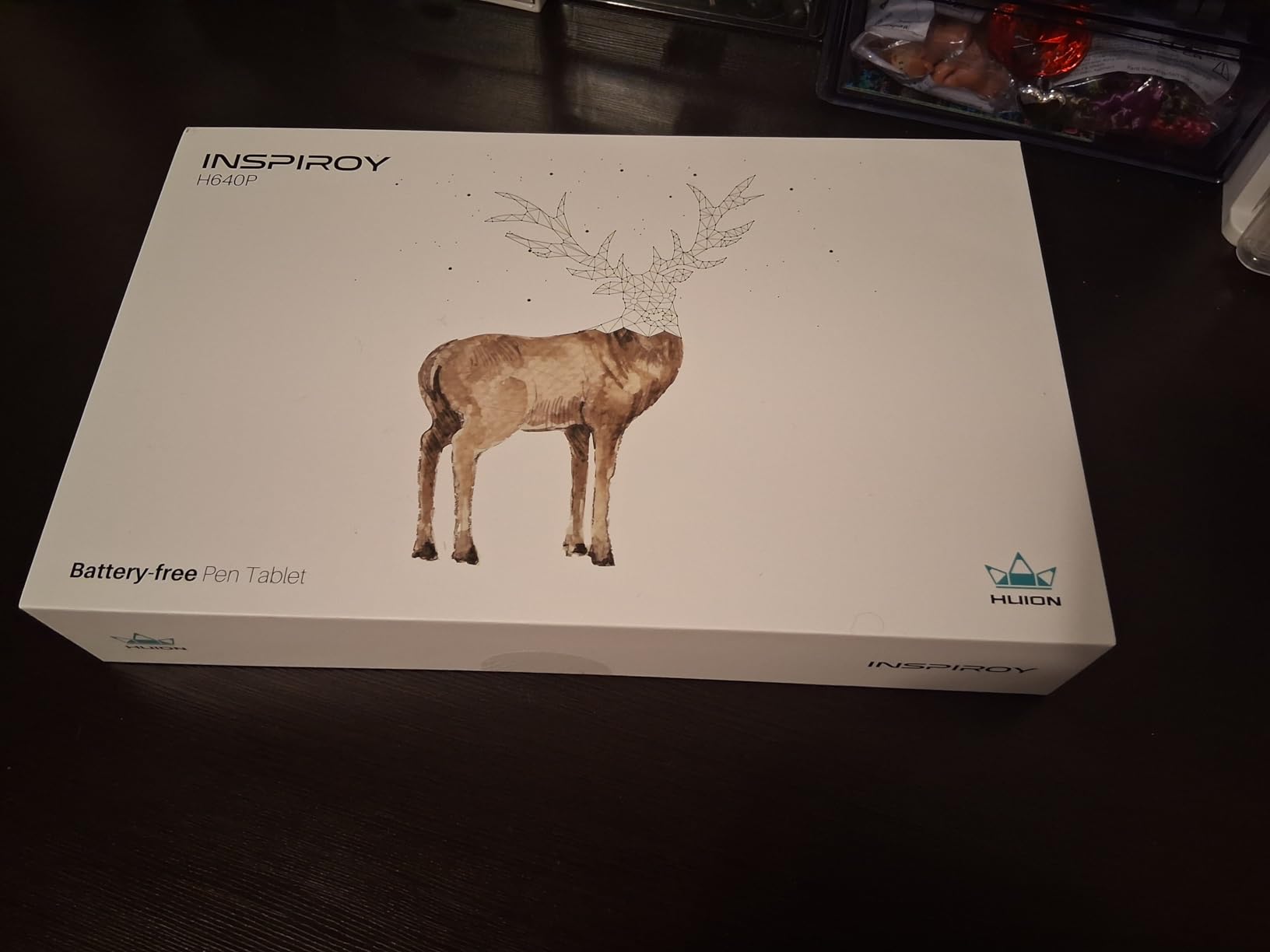
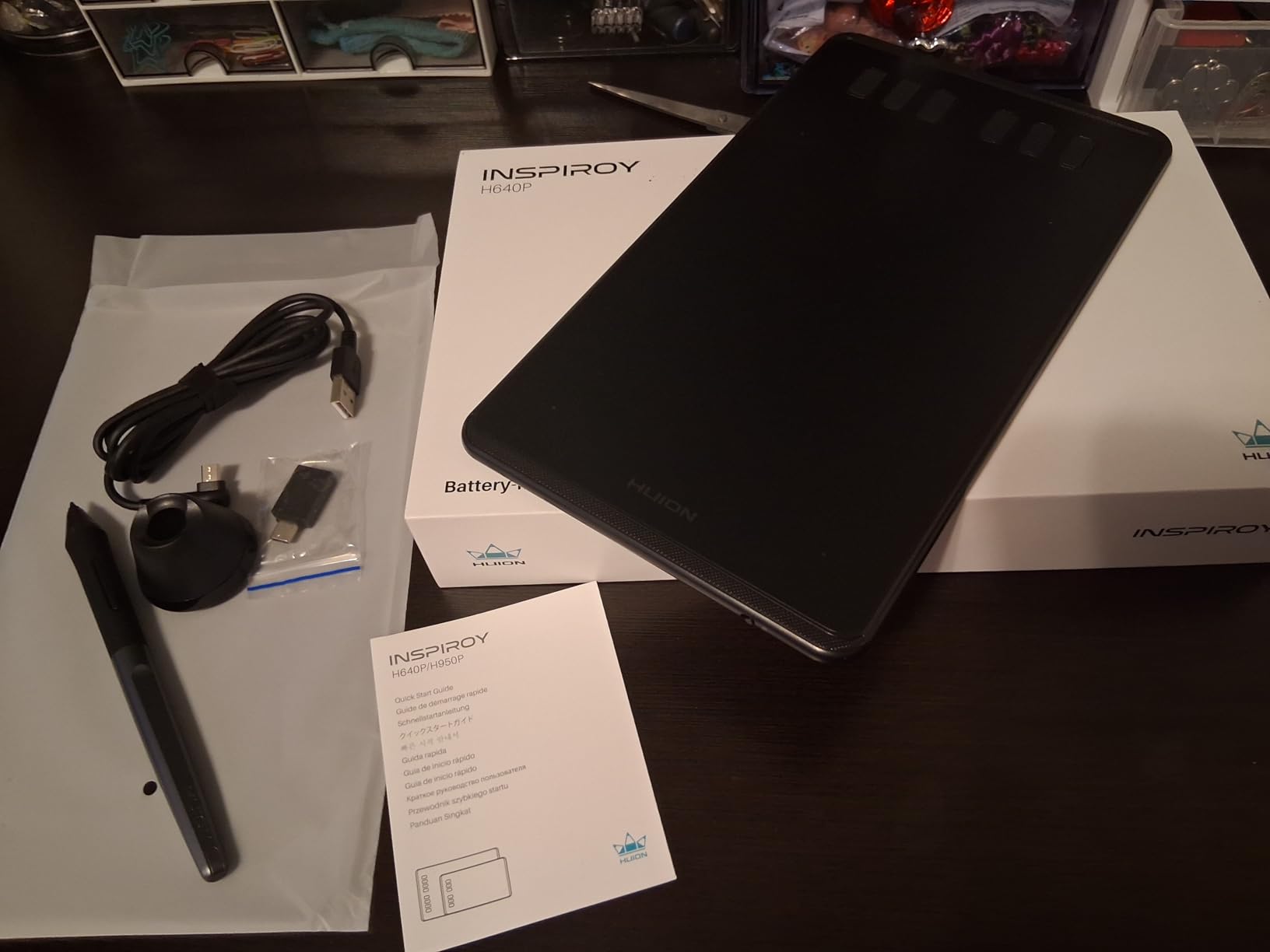
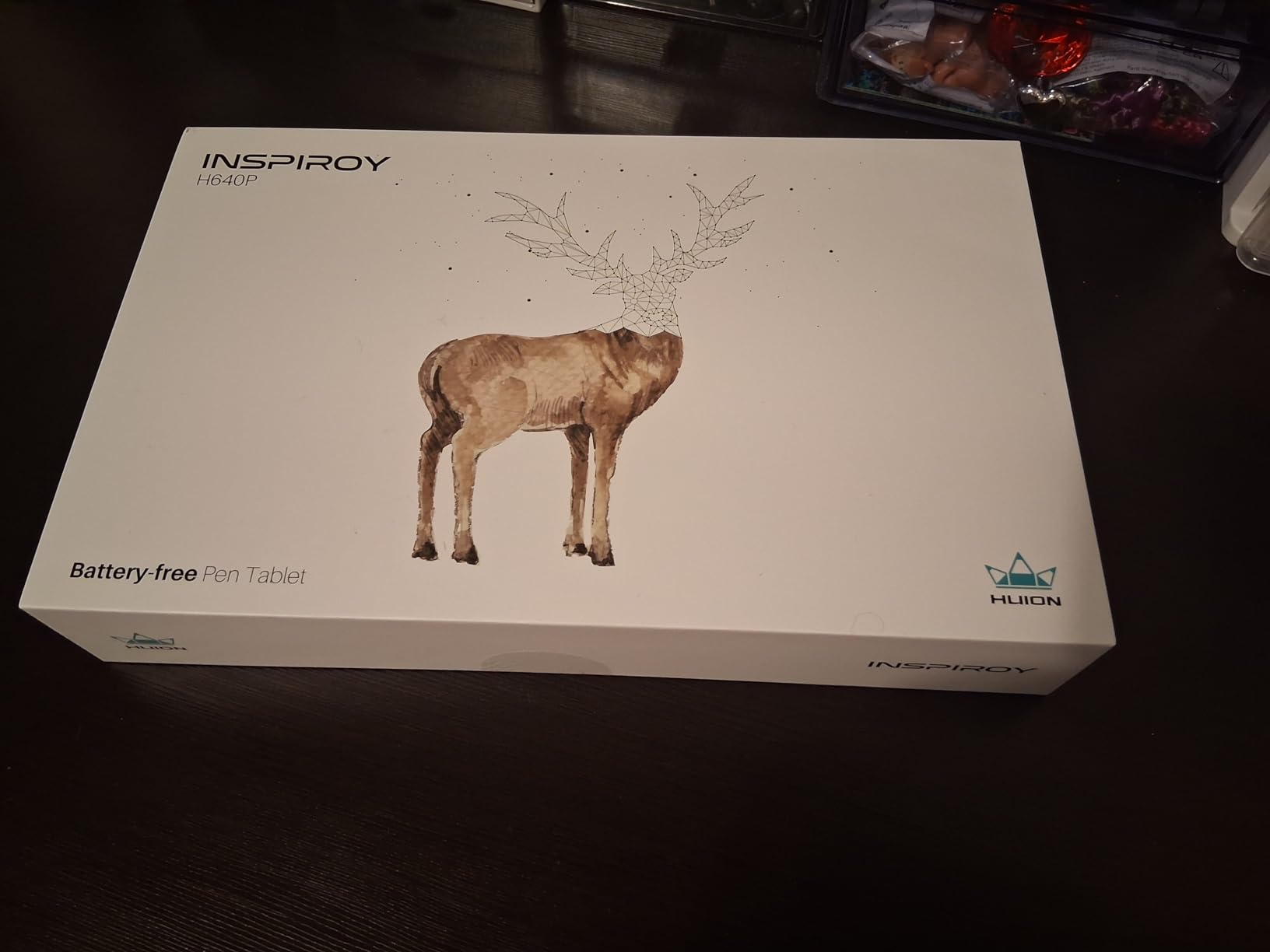
The HUION Inspiroy H640P is one of those tablets that punches well above its weight. At just 9.6 ounces and 0.3 inches thick, it is one of the lightest and thinnest drawing tablets I have tested. I slipped it into my laptop bag alongside a 14-inch notebook and barely noticed the extra bulk. For artists who draw on the go, this portability matters.
The 8192 levels of pressure sensitivity deliver smooth, responsive lines in every application I tested. I used it with Photoshop, Clip Studio Paint, and Krita, and the pen responded consistently across all three. The battery-free PW100 stylus has side buttons that can be mapped to right-click or eraser functions. HUION includes extra pen nibs in the box, which is a thoughtful touch at this price point.
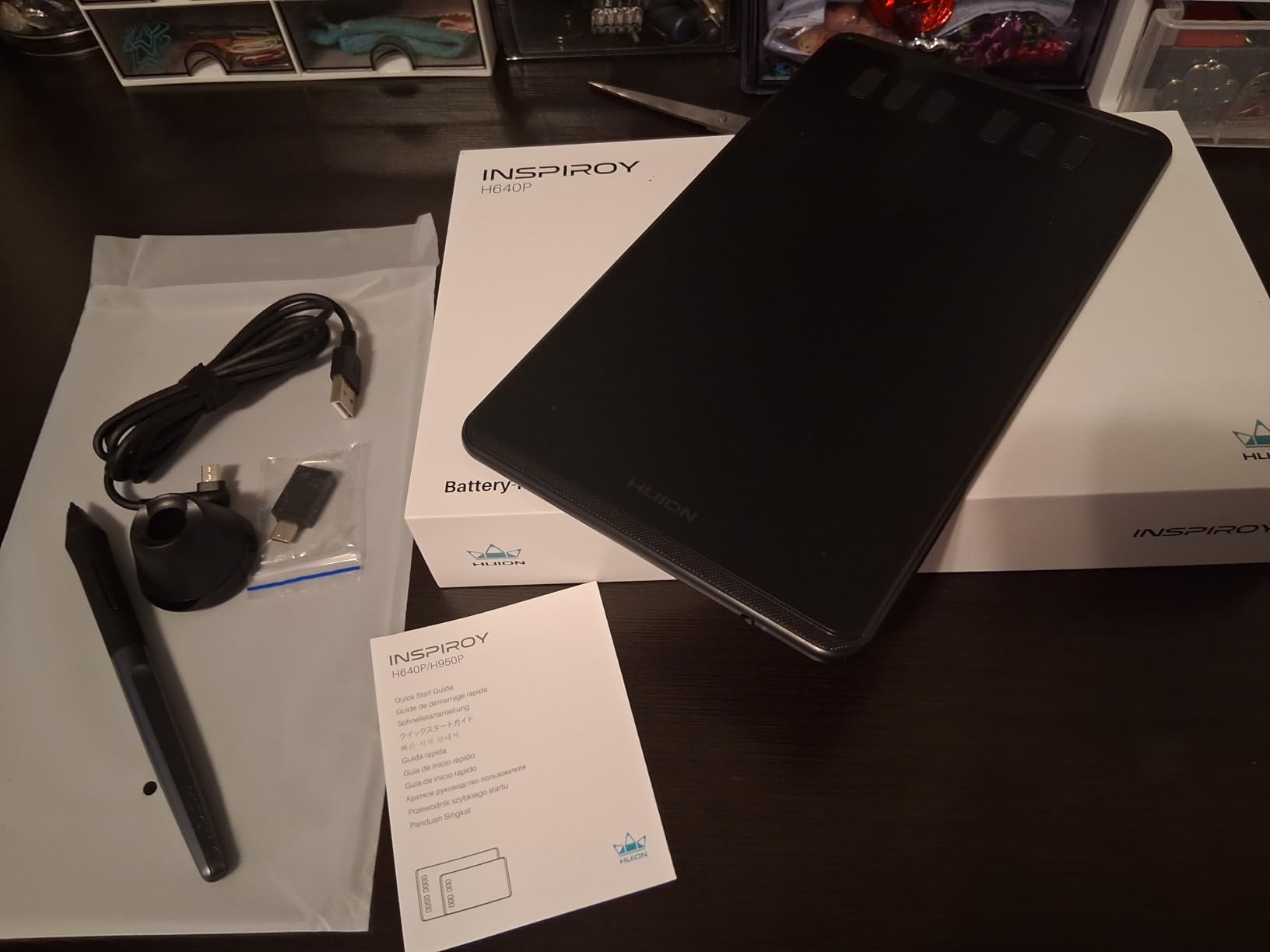
Six customizable hot keys line the top edge of the tablet. They are easy to reach without looking away from the screen and can be programmed for common shortcuts like zoom, undo, and brush resize. The 6 by 4 inch active area is compact but usable, especially if you are working on a smaller monitor or laptop screen.
The main downside is the Micro USB connection. In 2026, USB-C has become the standard, and the older port feels like a corner cut to keep costs down. I also noticed that the HUION driver software needs to be running in the background for the hot keys and pressure customization to work, which adds a small layer of friction to the setup process.
Who should buy this tablet
The HUION Inspiroy H640P is perfect for students, beginners, and anyone who wants the most affordable entry into digital drawing without sacrificing core quality. If you need a tablet for taking handwritten notes, annotating documents, or doing light sketching on a budget, this model delivers everything you need.
Teachers and educators who want to use a drawing tablet for online instruction or whiteboard presentations will find the H640P more than capable. Its compatibility with Mac, Windows, Linux, and Android devices means it works in nearly any classroom or home office setup.
Who should look elsewhere
If you are doing professional illustration or animation work that requires a larger canvas, the 6 by 4 inch active area will feel restrictive. Step up to the HUION Inspiroy 2 Large or the XPPen Deco 01 V3 for a bigger drawing surface. Artists who want a modern USB-C connection should also consider those alternatives.
The H640P does not support tilt, which matters if you use angled brush techniques for shading or calligraphy. For tilt support at a similar price, look at the XPPen Deco 01 V3 with its 60-degree tilt capability.
4. HUION Inspiroy 2 Large – Best Mid-Range Pen Tablet with Scroll Wheel
2023 HUION Inspiroy 2 Large Drawing Tablet, 10x6inch Art Tablet with Scroll Wheel 3-Set 8 Customized Keys Battery-Free Stylus, Graphics Tablet for Drawing, Design, Work with Mac, PC & Mobile, Black
8192 Pressure Levels
10.5x6.56 inch Active Area
USB-C Connection
Scroll Wheel
PenTech 3.0
Pros
- Advanced PenTech 3.0 precision
- Programmable scroll wheel
- 24 total shortcut keys
- USB-C connectivity
- Ergonomic pen with silicone grip
Cons
- Requires computer connection
- Higher price than entry-level
- Limited advanced documentation
The HUION Inspiroy 2 Large represents a meaningful step up from budget tablets, and after using it for several weeks, I can say the upgrade is worth it. The 10.5 by 6.56 inch active area gives you plenty of room to work. I mapped it to my dual monitor setup and never felt cramped, even during long illustration sessions.
The standout feature is the programmable scroll wheel. This is something I did not know I needed until I had it. I mapped the wheel to brush size adjustment and canvas zoom, and it dramatically sped up my workflow. Instead of reaching for keyboard shortcuts or moving my cursor to toolbar sliders, I could adjust settings with a quick flick of my thumb. The wheel has a satisfying tactile click and does not wobble.
Under the hood, HUION’s PenTech 3.0 technology delivers noticeably improved precision over their older models. The PW110 stylus has a slim body with a soft silicone grip that feels comfortable even after two hours of continuous drawing. The 8192 pressure levels are smooth and consistent, with no detectable jitter or lag during fast strokes.
The shortcut key system is impressive. There are 3 sets of 8 press keys, giving you a total of 24 customizable shortcuts. You can switch between sets with a button press, which means you can have one set for Photoshop, another for Clip Studio Paint, and a third for general navigation. The USB-C connection is a welcome upgrade over Micro USB, and the included OTG adapter lets you connect to Android devices.
Who should buy this tablet
The HUION Inspiroy 2 Large is ideal for intermediate artists who have outgrown their first tablet and want more working area and better workflow tools. The scroll wheel alone makes it worth the upgrade from entry-level models. If you spend hours every day drawing and want to reduce the number of times you reach for a keyboard, this tablet is a strong pick.
Professional designers who work with multiple applications will appreciate the 24 customizable shortcuts organized into three switchable sets. Animators who need to toggle between timeline controls, brush settings, and canvas navigation will find the key system genuinely useful.
Who should look elsewhere
If you want a wireless connection, the HUION Inspiroy 2 Large is wired only. The Wacom Intuos Pro Medium offers Bluetooth connectivity at a higher price point. Artists who primarily want a screen to draw on should look at the pen display options later in this list, since this is still a pen tablet without a display.
The price sits in a middle ground that might not make sense for everyone. If you are on a strict budget, the XPPen Deco 01 V3 offers similar features for less. If you want the absolute best, the Wacom Intuos Pro Medium is the professional standard.
5. XPPen Artist12 Pro – Best Drawing Tablet with Screen for Beginners
XPPen Artist12 Pro 11.6″ Drawing Tablet with Screen Pen Display Full-Laminated Graphics Tablet with Tilt Function Battery-Free Stylus and 8 Shortcut Keys(8192 Levels Pen Pressure and 72% NTSC)
8192 Pressure Levels
11.6 inch Full HD Display
Full-Laminated Screen
Red Dial
72% NTSC
Pros
- Fully-laminated screen with minimal parallax
- 60-degree tilt function
- Red dial for workflow control
- Includes adjustable stand
- Great value vs Wacom Cintiq
Cons
- Requires PC or Mac connection
- Single-angle stand
- Some screen glare
- Cable management can be tricky
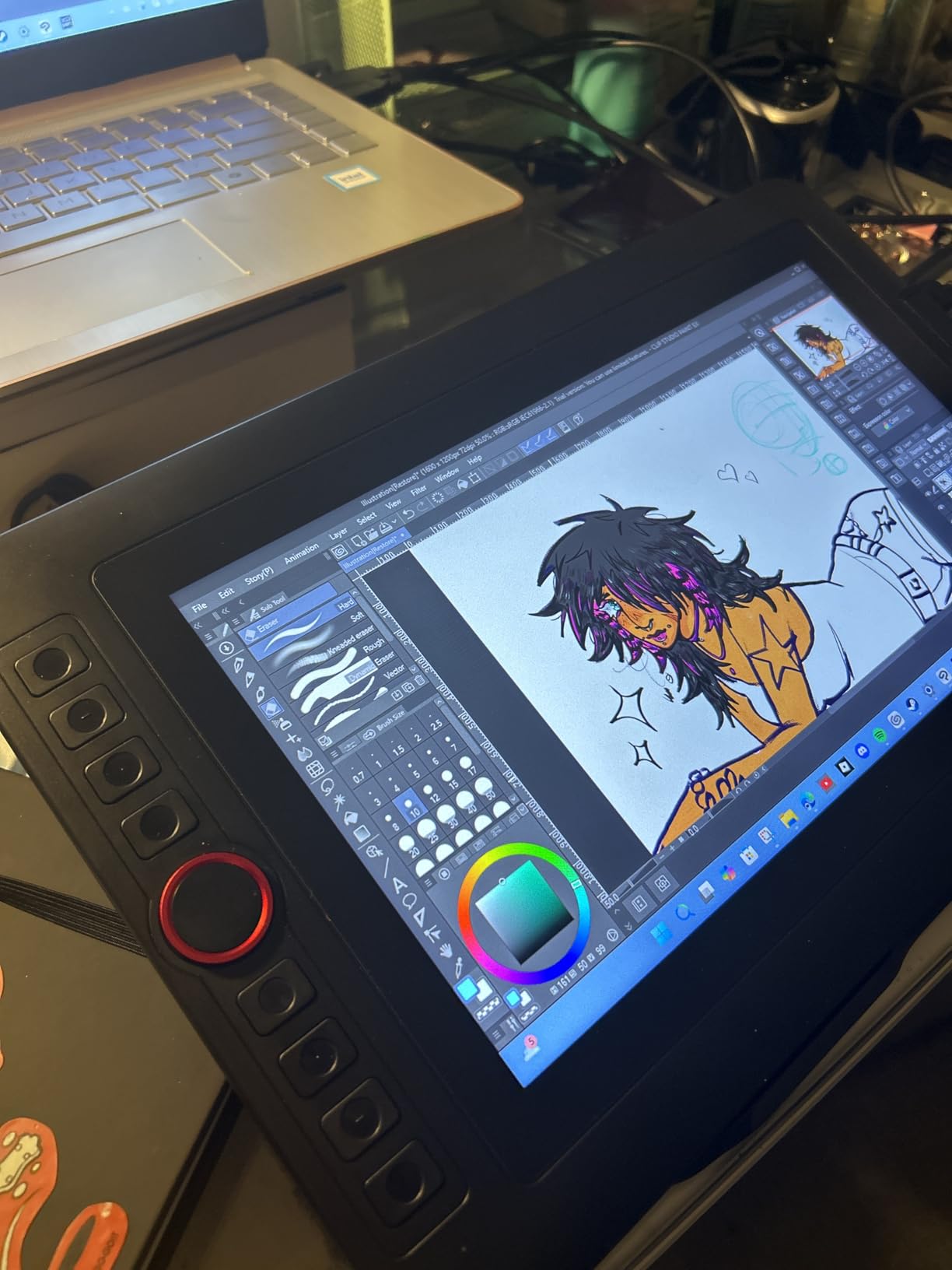
Drawing directly on a screen for the first time is a revelation, and the XPPen Artist12 Pro is an excellent way to experience it without spending a fortune. The 11.6 inch Full HD display is crisp and bright enough for indoor use. The fully-laminated screen means there is virtually no gap between where the pen tip touches and where the line appears on screen, which eliminates the parallax problem that plagues cheaper display tablets.
I spent a full weekend sketching portraits on the Artist12 Pro, and the experience felt remarkably close to drawing on paper. The pen responds to 8192 levels of pressure and supports 60-degree tilt, so you can shade with angled strokes just like you would with a real pencil. The red dial on the side of the display is a clever addition that I quickly grew dependent on for zooming and adjusting brush sizes.
The 72% NTSC color gamut covers a decent range for the price. Colors look vibrant and consistent across the display, though professional colorists may want something wider. The 8 shortcut keys flanking the display give you quick access to tools without reaching for the keyboard. XPPen includes an adjustable stand, a pen holder that doubles as a stand, and extra nibs.
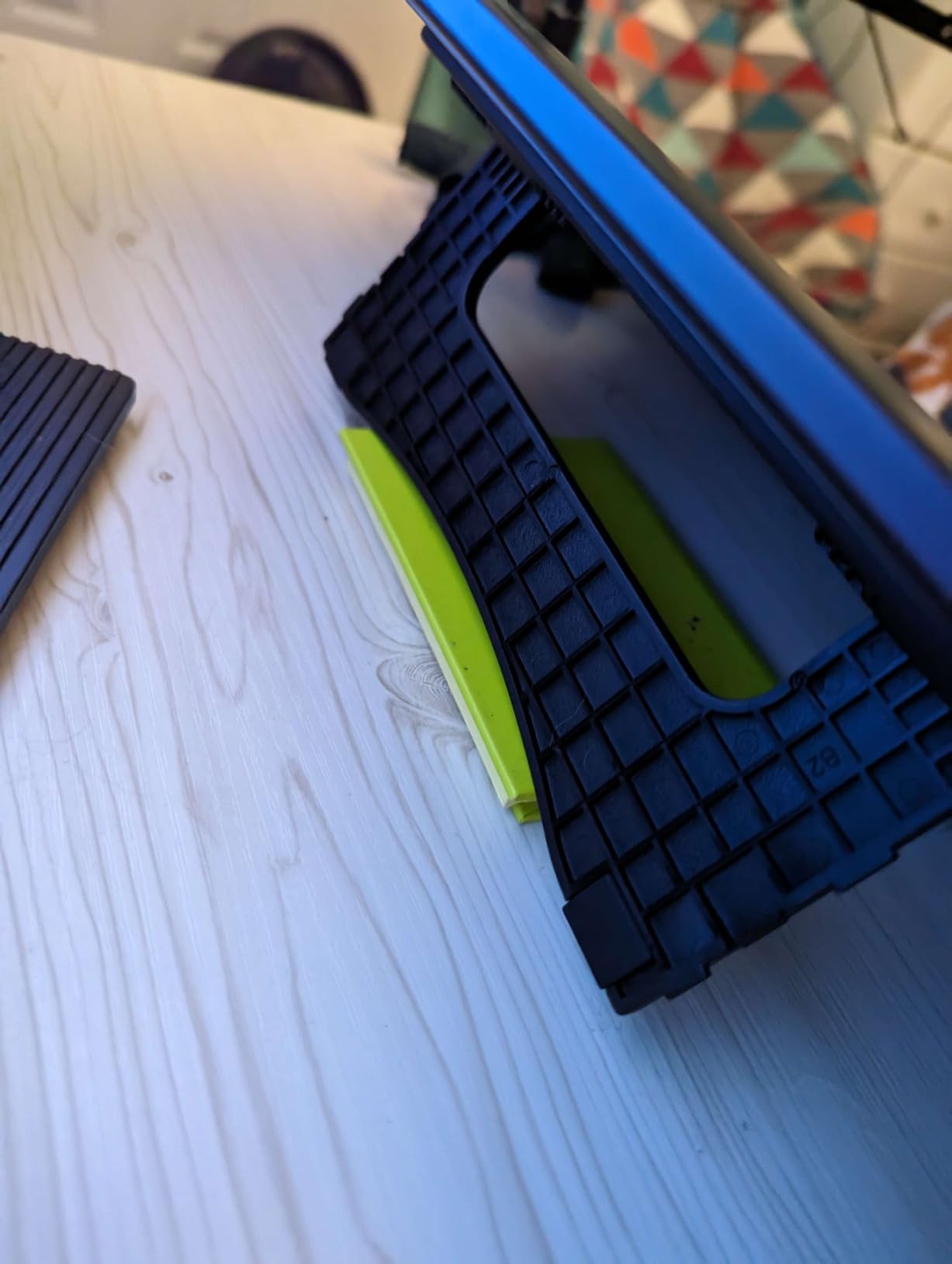
The main trade-off with any pen display is cable management. The 3-in-1 cable carries power, data, and video signal in one bundle. It works, but it adds clutter to your desk and limits placement flexibility. The included stand has only one angle position, which some artists find too flat for comfortable long sessions.
Who should buy this display tablet
The XPPen Artist12 Pro is the best drawing tablet with a screen for artists making the jump from pen tablets to pen displays. If you have been drawing on a tablet while looking at a monitor and want to draw directly on the surface, this is the most affordable way to do it well. The fully-laminated display and tilt support make it feel like a much more expensive device.
Students in art programs who need accurate line placement for figure drawing, character design, or storyboarding will benefit greatly from the direct-screen drawing experience. The 11.6 inch size is compact enough for dorm desks and small workspaces.
Who should look elsewhere
If you need a standalone device that works without a computer, this is not it. The Artist12 Pro requires a wired connection to a PC or Mac. For standalone drawing, consider an iPad with Procreate. If you want a larger display with wider color coverage, the XPPen Artist13.3 Pro or the HUION Kamvas 13 Gen 3 are better options.
Artists working in bright environments may find the screen brightness insufficient. The display is adequate for indoor use with controlled lighting, but direct sunlight or very bright offices can wash out the colors.
6. XPPen Artist13.3 Pro – Best Color Accuracy in a Drawing Display
XPPen Drawing Tablet with Screen Full-Laminated Graphics Drawing Monitor Artist13.3 Pro Graphics Tablet with Adjustable Stand and 8 Shortcut Keys (8192 Levels Pen Pressure, 123% sRGB)
16384 Pressure Levels
13.3 inch Full HD Display
123% sRGB Color
Full-Laminated
Red Dial
Pros
- Outstanding 123% sRGB color accuracy
- 16384 pressure levels
- Full-laminated zero parallax screen
- Comprehensive accessories included
- Easy setup and driver installation
Cons
- Wired connection only
- Bulky 3-in-1 cable
- Single-angle stand
- Calibration issues with some adapters
The XPPen Artist13.3 Pro takes everything good about the Artist12 Pro and scales it up. The 13.3 inch display gives you noticeably more workspace, and the color performance is where this tablet really shines. With 123% sRGB coverage and 88% NTSC, the colors on this display are vibrant and accurate enough for professional illustration and photo editing work.
I tested the color accuracy by loading reference photos and comparing them side by side with a calibrated IPS monitor. The Artist13.3 Pro held up remarkably well. Skin tones looked natural, gradients were smooth, and the color consistency across the screen was solid. For artists who need reliable color representation for client work, this display delivers at a fraction of what Wacom charges.
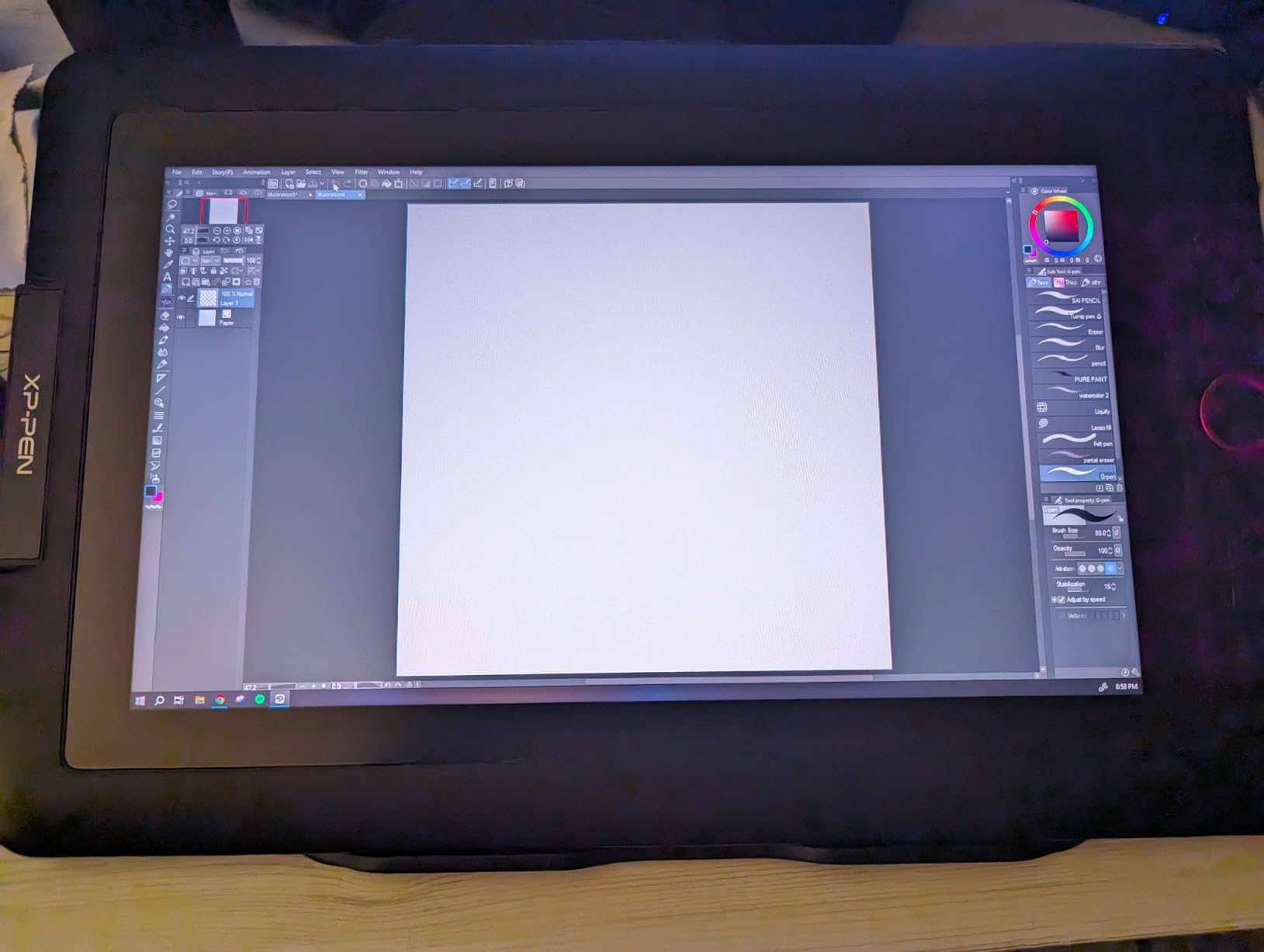
The 16384 pressure levels provide the same nuanced control I praised on the XPPen Deco 01 V3. Combined with 60-degree tilt support and the full-laminated display, the drawing experience feels natural and responsive. The red dial returns here and is just as useful for zooming, scrolling, and adjusting brush parameters on the fly.
XPPen includes a generous accessory bundle: an adjustable stand, a multifunction pen case that doubles as a pen holder, replacement nibs, and an artist glove. Setup was straightforward on both Windows and Mac. The driver software recognized the tablet immediately and offered calibration tools, pressure curve adjustment, and shortcut key programming.
Who should buy this display tablet
The XPPen Artist13.3 Pro is the best drawing tablet for artists who need professional-grade color accuracy without the professional-grade price tag. Illustrators, concept artists, and photo editors who work with color-sensitive projects will benefit from the 123% sRGB coverage. The 13.3 inch size strikes a great balance between workspace and desk footprint.
Anyone upgrading from a smaller pen display like the Artist12 Pro will appreciate the extra screen real estate. The jump from 11.6 to 13.3 inches may not sound like much, but it translates to roughly 30% more drawing surface, which is significant for detailed work.
Who should look elsewhere
If you want the most premium drawing experience regardless of cost, the Wacom Cintiq line or the HUION Kamvas 13 Gen 3 with its Canvas Glass 2.0 may offer better build quality and screen texture. Artists who need a standalone device should look at iPads or Android tablets rather than a tethered pen display.
The 3-in-1 cable is bulky and can be awkward to manage on smaller desks. If cable clutter bothers you, consider a pen tablet without a display instead. The stand also offers limited adjustability, which may be uncomfortable for artists who draw for many hours at a time.
7. HUION Kamvas 13 (Gen 3) – Best Pen Display with Canvas Glass 2.0
HUION Kamvas 13 (Gen 3) Drawing Tablet with Screen,13.3″ Full-Laminated Art Tablet with Anti-Sparkle Canvas Glass 2.0, 99% sRGB, PenTech 4.0, 16384 Pen Pressure, Dual Dial for PC, Mac, Android, Black
16384 Pressure Levels
13.3 inch LCD Display
99% sRGB
Canvas Glass 2.0
Dual Dial
PenTech 4.0
Pros
- Anti-sparkle Canvas Glass 2.0 display
- Advanced PenTech 4.0 with 16384 levels
- Dual dial controls for workflow
- Factory calibration report included
- USB-C single cable option
Cons
- Screen brightness only 200 nits
- Can get warm after extended use
- Not touch compatible
- Driver setup can be finicky initially
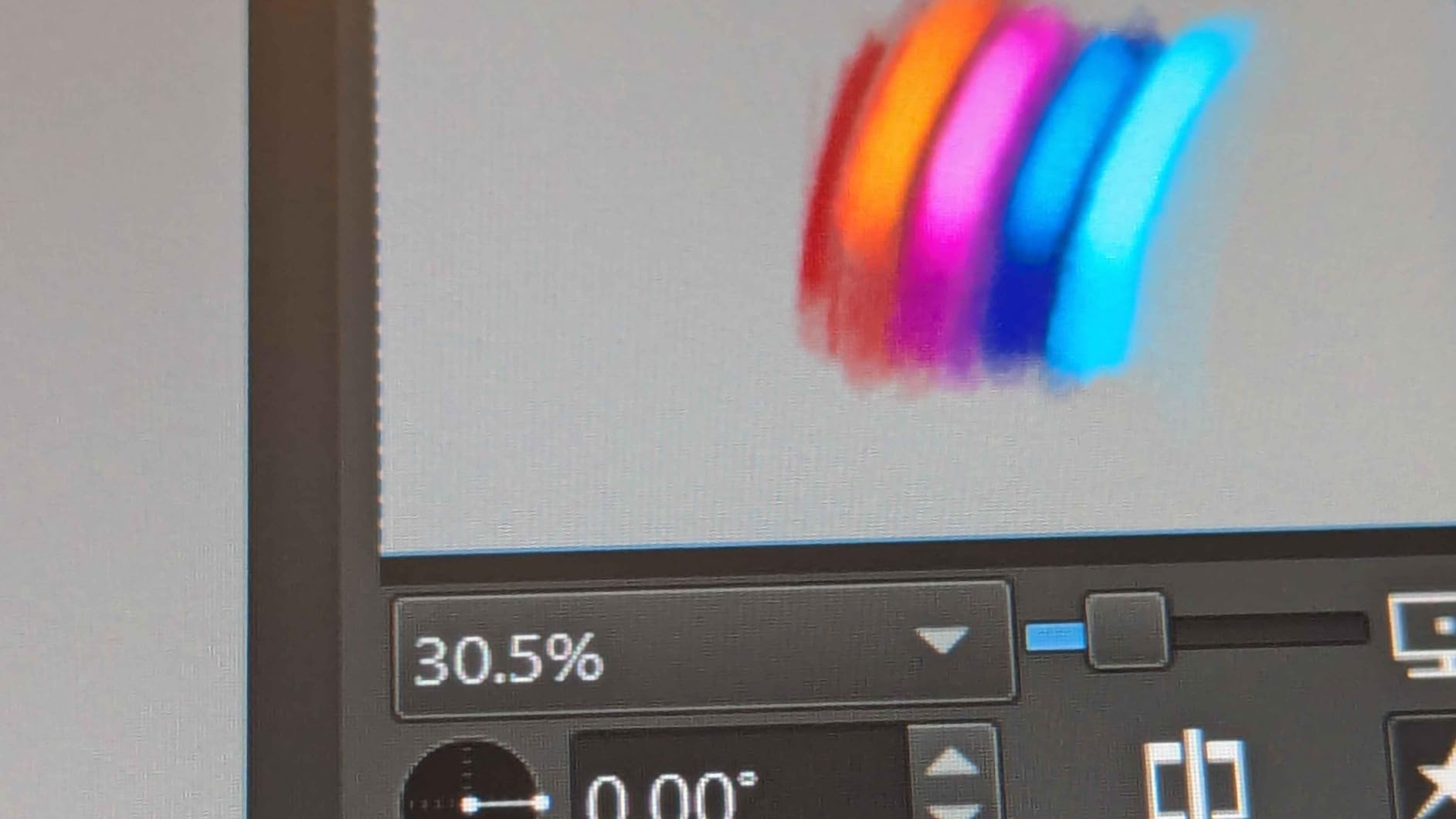
The HUION Kamvas 13 (Gen 3) is the newest tablet in our lineup, and it brings some genuinely exciting innovations. The Canvas Glass 2.0 is the headline feature, and it makes a real difference. The anti-sparkle etched glass surface reduces glare while providing a slightly textured feel that closely mimics drawing on paper. After using glossy display tablets for weeks, the Canvas Glass felt like a breath of fresh air.
The PenTech 4.0 stylus with 16384 pressure levels is the most responsive pen I have used from HUION. The initial activation force is just 2 grams, which means the pen registers input from the lightest touch. I could produce whisper-thin lines that gradually built into bold strokes with barely any pressure change. The pen has three programmable side buttons, giving you more customization options than the standard two.
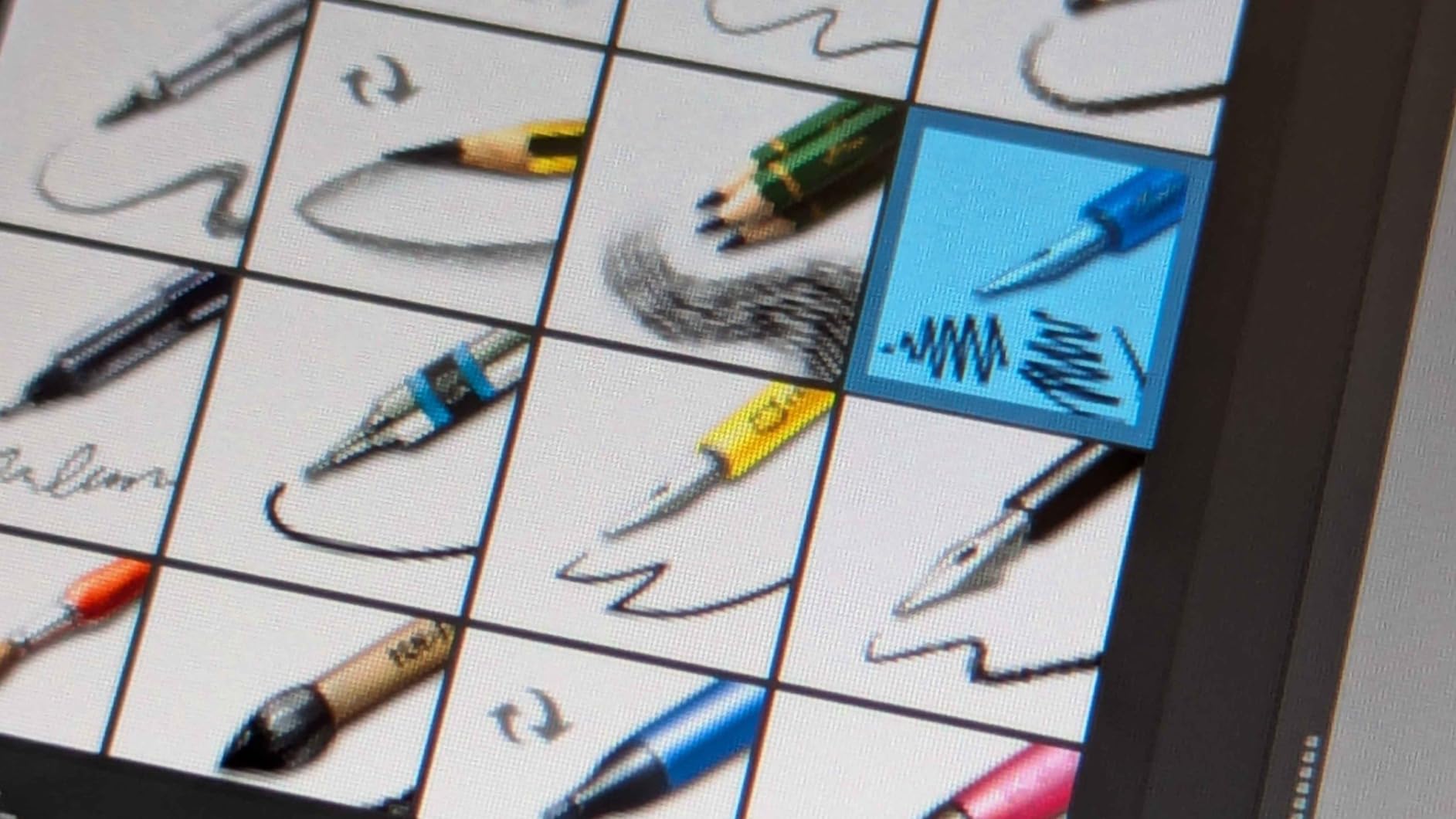
The dual dial controls are a unique addition that sets this tablet apart. I mapped one dial to zoom and the other to brush size, and having two separate controls for my most-used functions eliminated the need to switch dial modes. The 5 programmable shortcut keys round out the control options. The 99% sRGB coverage with a factory calibration report (average Delta E less than 1.5) means the colors you see are accurate from day one.
The USB-C single cable connection option is a major convenience when used with a compatible computer. Instead of the bulky 3-in-1 cable, you can run a single USB-C cable for power, data, and video. This dramatically simplifies desk setup. However, the screen brightness maxes out at 200 nits, which is adequate for dim to moderate lighting but struggles in bright environments. I also noticed the left side of the display warming up after three hours of continuous use.
Who should buy this display tablet
The HUION Kamvas 13 (Gen 3) is the best drawing tablet with a screen for artists who prioritize the drawing surface feel. If you dislike the glossy, slippery feel of most display tablets and want something closer to paper texture, the Canvas Glass 2.0 delivers. Professional illustrators and animators who work long hours will appreciate the comfortable drawing surface and dual dial workflow.
Artists who value color accuracy out of the box will appreciate the included factory calibration report. You get documented proof that your display meets specific color standards, which is rare at this price point and invaluable for client-facing work.
Who should look elsewhere
If you work in a brightly lit studio or near windows, the 200-nit screen will be a problem. The XPPen Artist13.3 Pro offers better visibility in bright environments. Artists who want touch functionality for pinch-to-zoom and navigation gestures should note that this display is pen-only, with no touch sensitivity.
The initial driver setup can be temperamental on some systems. If you are not comfortable troubleshooting driver conflicts or following installation guides carefully, a Wacom product with their more polished driver ecosystem might save you some frustration.
8. Wacom Intuos Pro Medium – Best Professional Drawing Tablet
Wacom Intuos Pro Medium Bluetooth Professional Graphic Drawing Tablet with Pro Pen 3, Compatible with Mac, Windows – 2025 Edition
8192 Pressure Levels
8.7x5.8 inch Active Area
Bluetooth 5.3
10 ExpressKeys
Pro Pen 3
4mm Thin
Pros
- Industry-leading Pro Pen 3 with customizable grips
- Bluetooth 5.3 wireless connectivity
- Magnesium construction for durability
- 2 mechanical dials
- Excellent precision and lag-free tracking
Cons
- Premium price point
- Touch sensitivity removed from 2025 model
- Bluetooth issues on some Windows 11 setups
- No eraser button on Pro Pen 3
The Wacom Intuos Pro Medium (2025 Edition) is the tablet working professionals reach for, and after testing it extensively, I understand why. The Pro Pen 3 is the best stylus I have ever used, full stop. It ships with three interchangeable grip sections (slim, straight, and flared) so you can customize the barrel shape to fit your hand. The pen balances perfectly, tracks without any perceptible lag, and registers 8192 levels of pressure with absolute consistency.
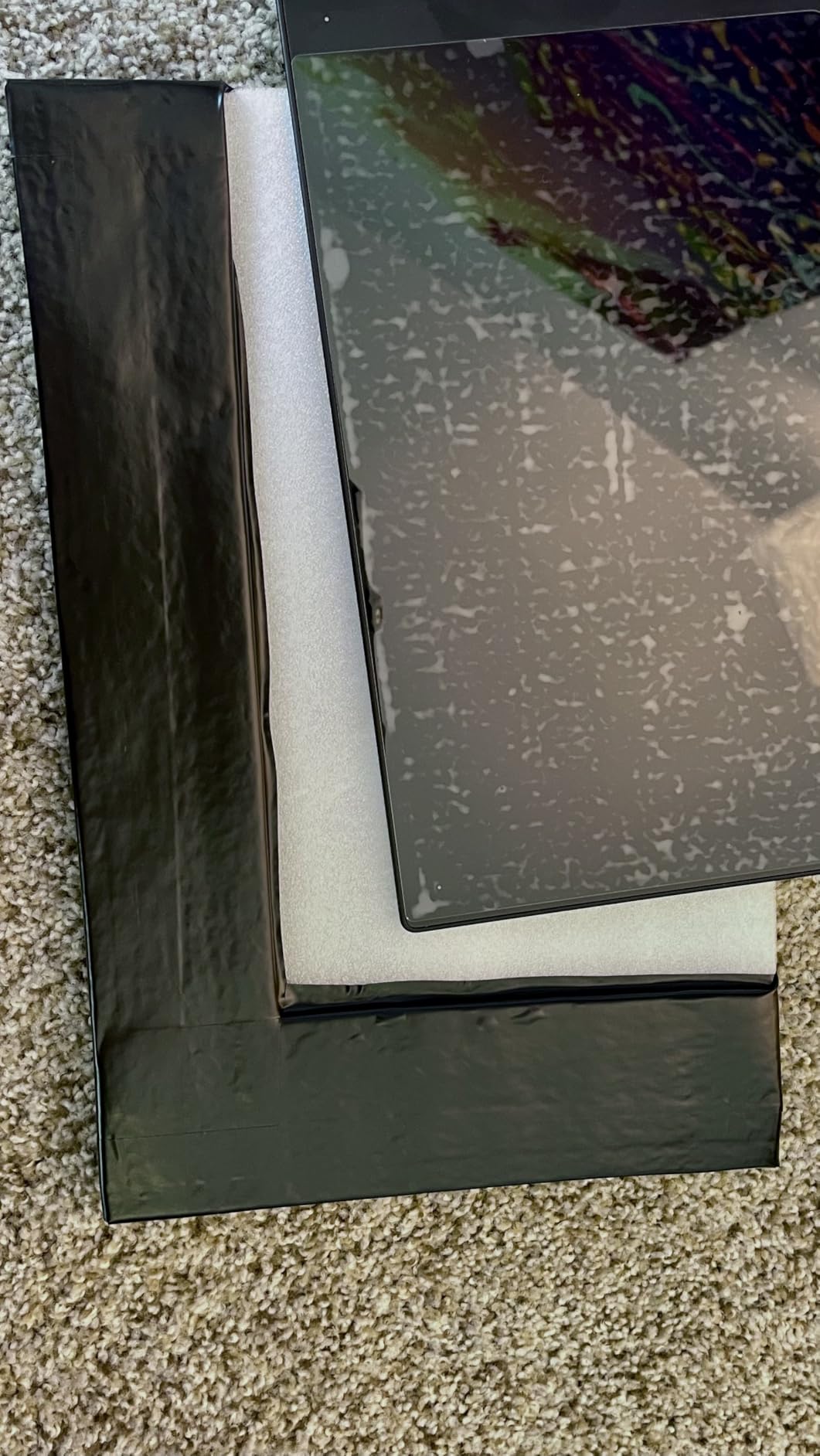
The magnesium body feels premium in a way that plastic tablets simply cannot match. At 4mm thick and under a pound, it is remarkably thin and light for a professional tool. The 8.7 by 5.8 inch active area hits the sweet spot for medium-format work, and the 16:9 aspect ratio maps perfectly to modern widescreen monitors without distortion.
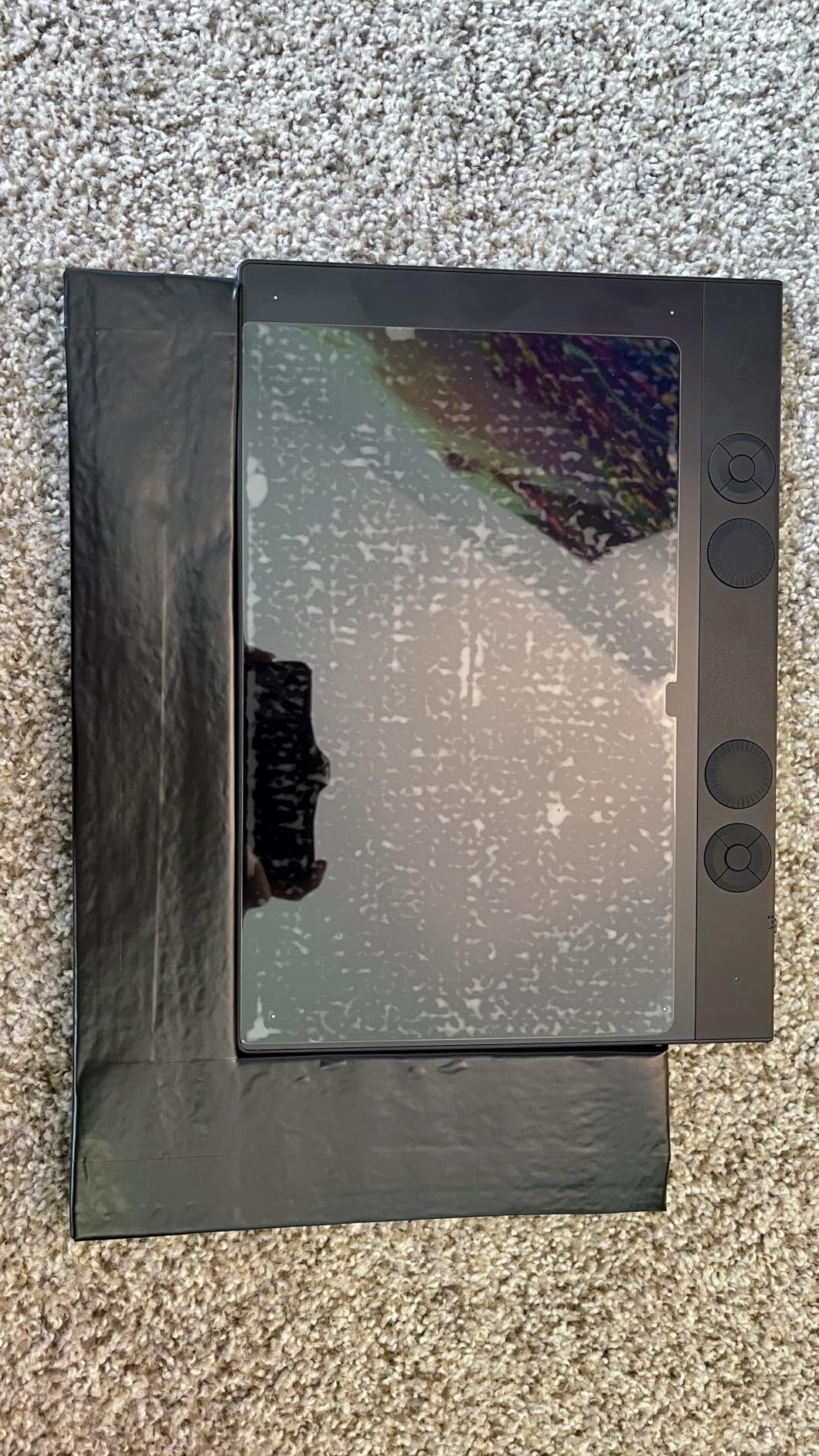
Bluetooth 5.3 connectivity worked flawlessly during my testing on macOS. I connected the tablet to my MacBook Pro, switched to a second computer, and reconnected without any dropouts or noticeable input latency. The 10 ExpressKeys and 2 mechanical dials give you extensive customization options. The mechanical dials are a significant upgrade over the digital dials on the previous generation, with solid detents and a satisfying click with each rotation.
The biggest change in this 2025 model is the removal of touch sensitivity. Wacom decided to drop multi-touch input, which means you can no longer use finger gestures for pinch-to-zoom or scroll. For some artists this is a non-issue since they rarely used touch, but others will miss the convenience. Wacom also moved the ExpressKeys to the top edge and removed the comfortable bevels that let you rest your hand on the tablet border, which changes the ergonomics.
Who should buy this tablet
The Wacom Intuos Pro Medium is for working professionals who need absolute reliability and the best pen experience available. If you earn your living creating digital art, animation, or design, this tablet justifies its price through consistency and build quality. Studios and agencies standardizing on Wacom will find this model a worthy successor to the previous generation.
Artists who work across multiple computers will love the Bluetooth multi-device switching. I tested switching between a Mac desktop and a Windows laptop, and the transition was seamless. The included 2-year manufacturer warranty also provides peace of mind for a professional tool that gets heavy daily use.
Who should look elsewhere
If you are a hobbyist or student on a budget, the price premium is hard to justify when tablets like the XPPen Deco 01 V3 or HUION Inspiroy 2 Large offer excellent performance for much less. You would be paying for build quality and the Wacom name rather than a dramatic difference in drawing capability.
Windows 11 users should be aware of reported Bluetooth connectivity issues. If you primarily work on Windows, test the wireless connection during the return window. And if you relied on touch gestures with the previous Intuos Pro, you will need to adjust your workflow since this model drops that feature entirely.
How to Choose the Best Drawing Tablet for Your Needs?
Picking the right drawing tablet comes down to understanding a few key decisions. Our team broke down the most important factors so you can narrow your options quickly and confidently.
Pen Tablet vs Pen Display: Which Type Do You Need?
Pen tablets (also called graphics tablets) have no screen. You draw on the tablet surface while looking at your computer monitor. They cost less, are more portable, and many experienced artists actually prefer them because your hand does not block your view of the canvas. The Wacom Intuos Small, XPPen Deco 01 V3, HUION Inspiroy H640P, HUION Inspiroy 2 Large, and Wacom Intuos Pro Medium are all pen tablets.
Pen displays have a built-in screen that you draw on directly. They provide a more intuitive experience because you see your strokes appear right under the pen tip, similar to traditional drawing. They cost more, require more cables, and take up more desk space. The XPPen Artist12 Pro, XPPen Artist13.3 Pro, and HUION Kamvas 13 Gen 3 are pen displays.
Pressure Sensitivity: How Many Levels Do You Actually Need?
Pressure sensitivity determines how many distinct levels of pressure the pen can detect. The tablets in this guide range from 4096 to 16384 levels. Based on extensive testing and forum discussions on Reddit, most artists cannot tell the difference between 4096 and higher levels in everyday drawing. What matters more is the quality of the pressure curve and the consistency of the sensor.
Wacom’s 4096-level tablets often feel smoother than cheaper tablets with 8192 levels because Wacom’s sensor technology is more refined. That said, if two tablets are otherwise equal, higher pressure levels give you more headroom for subtle expression. Beginners do not need to worry about this spec much.
Active Area: Size Matters More Than You Think
The active area is the portion of the tablet surface that responds to the pen. A larger active area lets you make bigger arm movements, which many artists find more natural. It also provides finer control when mapped to a large monitor because each millimeter of tablet movement covers fewer pixels on screen.
For beginners, a 6 by 4 inch area (like the Wacom Intuos Small or HUION H640P) is workable. Intermediate and advanced artists generally prefer 10 by 6 inches or larger. If you work with multiple monitors, a larger active area helps maintain reasonable mapping ratios.
Connectivity: Wired vs Wireless
Most drawing tablets connect via USB cable. This is reliable and introduces zero latency. USB-C is the modern standard and offers reversible plug orientation. Some older and budget models still use Micro USB, which is less convenient. Among the tablets we reviewed, only the Wacom Intuos Pro Medium offers Bluetooth wireless connectivity.
Wireless connectivity is convenient if you move your tablet between locations or want a cleaner desk. The trade-off is potential connectivity issues and the need to charge the tablet. For most artists, a wired connection is perfectly fine and avoids potential reliability problems.
Software Compatibility: Does It Work with Your Apps?
All the tablets in this guide work with major creative software including Adobe Photoshop, Illustrator, Clip Studio Paint, Krita, GIMP, and Blender. Wacom tends to have the most stable drivers across operating systems, which is a genuine advantage. HUION and XPPen have improved their driver quality significantly in recent years, but occasional quirks still pop up with OS updates.
Linux users should pay special attention to compatibility. The XPPen Deco 01 V3 has notably good Linux support out of the box. HUION tablets also generally work well with Linux distributions. Wacom has official Linux drivers but they can lag behind the latest kernel updates.
Brand Comparison: Wacom vs HUION vs XP-Pen
Wacom is the established leader with decades of experience, the most refined pen technology, and the best driver stability. Their tablets frequently last 10+ years according to Reddit users, and their customer support is generally reliable. You pay a premium for the Wacom name, but the consistency is real.
HUION has become a serious competitor by offering similar features at significantly lower prices. Their PenTech 3.0 and 4.0 technologies are genuine advancements. Build quality has improved steadily, and their innovation pace (scroll wheels, dual dials, canvas glass) shows they are pushing the industry forward.
XP-Pen occupies a strong middle ground with competitive specs and aggressive pricing. Their 16384 pressure levels lead the industry on paper. The red dial design is unique and genuinely useful. Driver quality has improved but still trails Wacom slightly in consistency.
Long-Term Durability and Lifespan
One factor most buying guides ignore is how long these tablets actually last. Based on forum discussions across Reddit and artist communities, Wacom tablets regularly survive 10 or more years of heavy professional use. The build quality and component selection justify the premium pricing when you amortize the cost over a decade.
HUION and XP-Pen tablets are newer to the market in their current form, so long-term durability data is still accumulating. User reports from the past few years are encouraging, with most budget and mid-range tablets holding up well for 3 to 5 years and counting. The pen nibs are the most common wear item across all brands, and replacements are inexpensive.
Frequently Asked Questions About Drawing Tablets
What is the best drawing tablet for beginners?
The Wacom Intuos Small is the best drawing tablet for beginners because it combines Wacom’s industry-leading pen technology with an affordable price. It includes free creative software and training materials, has a compact design that works in any space, and offers the most stable driver experience available. If you want a larger drawing area on a budget, the XPPen Deco 01 V3 is also an excellent beginner option with its 10 by 6.25 inch surface and 16384 pressure levels.
Is Wacom or Huion better?
Wacom offers superior driver stability, better long-term durability, and more refined pen technology. Their tablets regularly last 10+ years with heavy use. HUION competes by offering similar features at 50-70% lower prices and innovating faster with features like scroll wheels, dual dials, and canvas glass surfaces. Choose Wacom for maximum reliability and professional use. Choose HUION for better value and more experimental features.
What is the difference between a drawing tablet and a graphic tablet?
The terms are largely interchangeable and refer to the same category of devices. Technically, a graphic tablet (or pen tablet) has no screen and requires you to look at a separate monitor while drawing on the tablet surface. A drawing tablet can refer to either a pen tablet without a screen or a pen display with a built-in screen. Some people use drawing tablet specifically for display models, but in common usage both terms describe the same type of input device.
Do I need a screen on my drawing tablet?
Not necessarily. Many professional artists prefer pen tablets without screens because your hand does not block the view of your canvas, they cost significantly less, they are more portable, and they produce less eye strain during long sessions. Pen displays with screens offer a more intuitive drawing experience because you draw directly on the surface, which feels closer to traditional media. Beginners should start with a pen tablet without a screen to save money and decide later if they want to upgrade to a display model.
How long do drawing tablets typically last?
Drawing tablets from reputable brands typically last 5 to 10+ years depending on usage intensity. Wacom tablets have a particularly strong reputation for longevity, with many Reddit users reporting 10 or more years of daily professional use. HUION and XP-Pen tablets generally hold up well for 3 to 5 years minimum. The most common wear item across all brands is the pen nib, which needs periodic replacement but costs very little. The tablet surfaces and electronics are durable enough to withstand years of normal use.
Final Thoughts on the Best Drawing Tablets
After testing 8 tablets across every price range and skill level, three models stand out. The Wacom Intuos Small is the best drawing tablet for beginners thanks to its unmatched pen feel and driver stability. The XPPen Deco 01 V3 offers the best value with its massive drawing area and industry-leading pressure sensitivity. For professionals who want the absolute best, the Wacom Intuos Pro Medium delivers with its premium Pro Pen 3 and wireless connectivity.
Choose the tablet that matches your current needs and budget. You can always upgrade later as your skills and requirements grow. The most important thing is to start drawing. Any tablet on this list will serve you well in 2026.