Finding the right capture card can feel overwhelming when you are staring at dozens of options ranging from $15 budget sticks to $300 professional-grade units. I have spent the last several months testing capture cards across different consoles, PCs, and streaming setups to figure out which ones actually deliver on their promises. Whether you want to stream PS5 gameplay on Twitch, record Nintendo Switch sessions for YouTube, or turn your DSLR into a webcam, this guide covers the best capture cards you can buy in 2026.
A capture card sits between your video source and your computer, grabbing the HDMI signal and converting it into data your streaming software can use. The difference between a good one and a bad one comes down to latency, resolution support, and how reliably it works with OBS, Streamlabs, or whatever software you prefer. I have tested 10 of the most popular options on the market right now, and the results surprised me in a few places.
In this guide, I will walk you through each card I tested, what it does well, where it falls short, and who it is built for. I will also break down the key specs that actually matter when you are shopping for a capture card for streaming, recording, or content creation.
Table of Contents
Top 3 Picks for Capture Cards

10 Best Capture Cards in 2026
| Product | Specifications | Action |
|---|---|---|
 Elgato 4K X Elgato 4K X |
|
Check Latest Price |
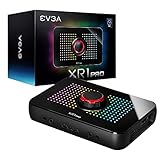
| EVGA XR1 Pro |
|
Check Latest Price |
 Elgato HD60 S+ Elgato HD60 S+ |
|
Check Latest Price |
 Elgato 4K S Elgato 4K S |
|
Check Latest Price |
 Elgato 4K Pro Elgato 4K Pro |
|
Check Latest Price |
 AVerMedia GC571 Live Streamer AVerMedia GC571 Live Streamer |
|
Check Latest Price |
 Elgato Cam Link 4K Elgato Cam Link 4K |
|
Check Latest Price |
| Guermok Video Capture Card |
|
Check Latest Price |
 UGREEN Video Capture Card UGREEN Video Capture Card |
|
Check Latest Price |
 Rybozen HDMI Capture Card Rybozen HDMI Capture Card |
|
Check Latest Price |
1. Elgato 4K X – Best Overall Capture Card with HDMI 2.1
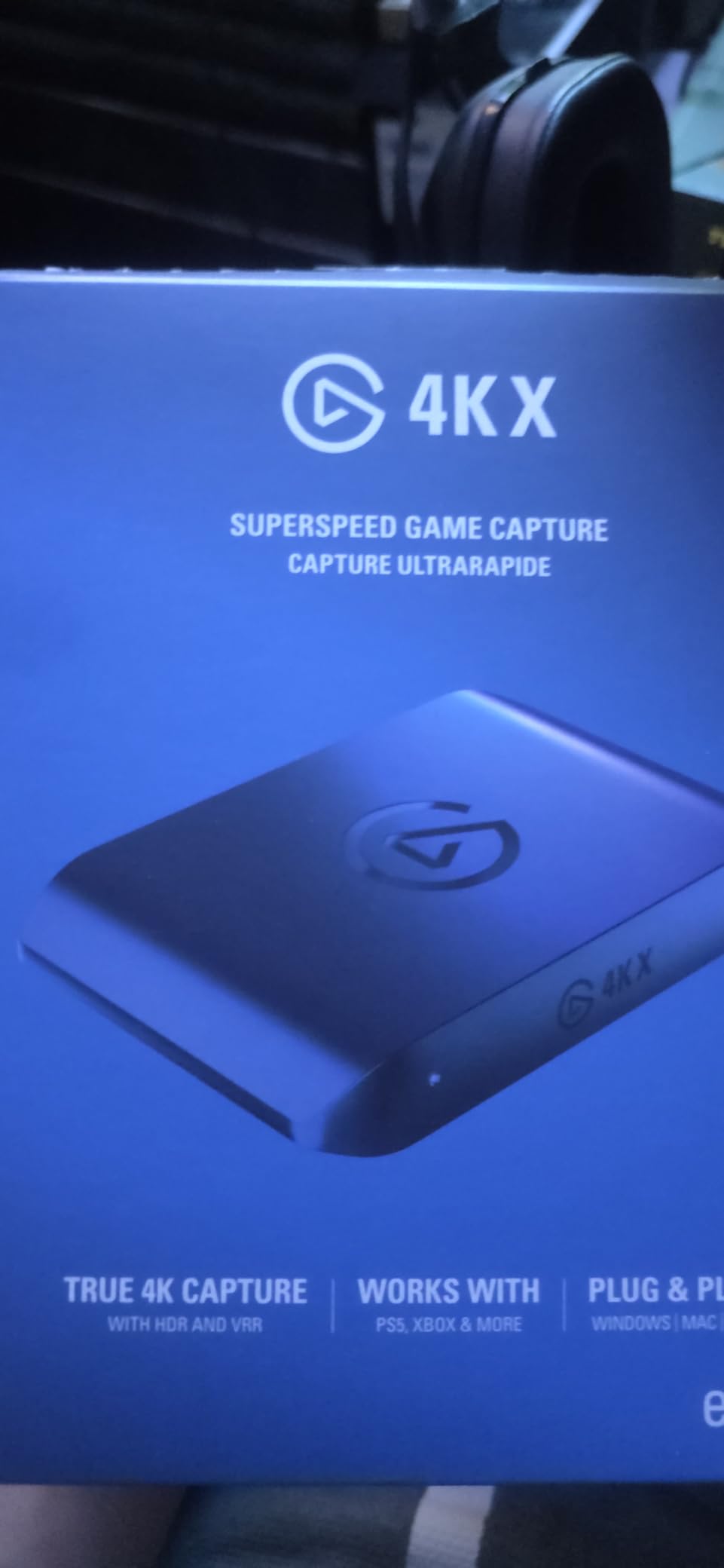
Elgato 4K X Capture Card, HDMI 2.1, 4K144 Ultra-Low Latency
4K144 Capture
HDMI 2.1
VRR Passthrough
USB 3.2 Gen 2
0.67 x 4.41 x 2.83 in
Pros
- 4K144 capture is class-leading
- HDMI 2.1 with 1080p240 support
- VRR passthrough for tear-free gaming
- Seamless OBS integration
Cons
- HDCP can block some services
- Requires disabling HDCP on consoles
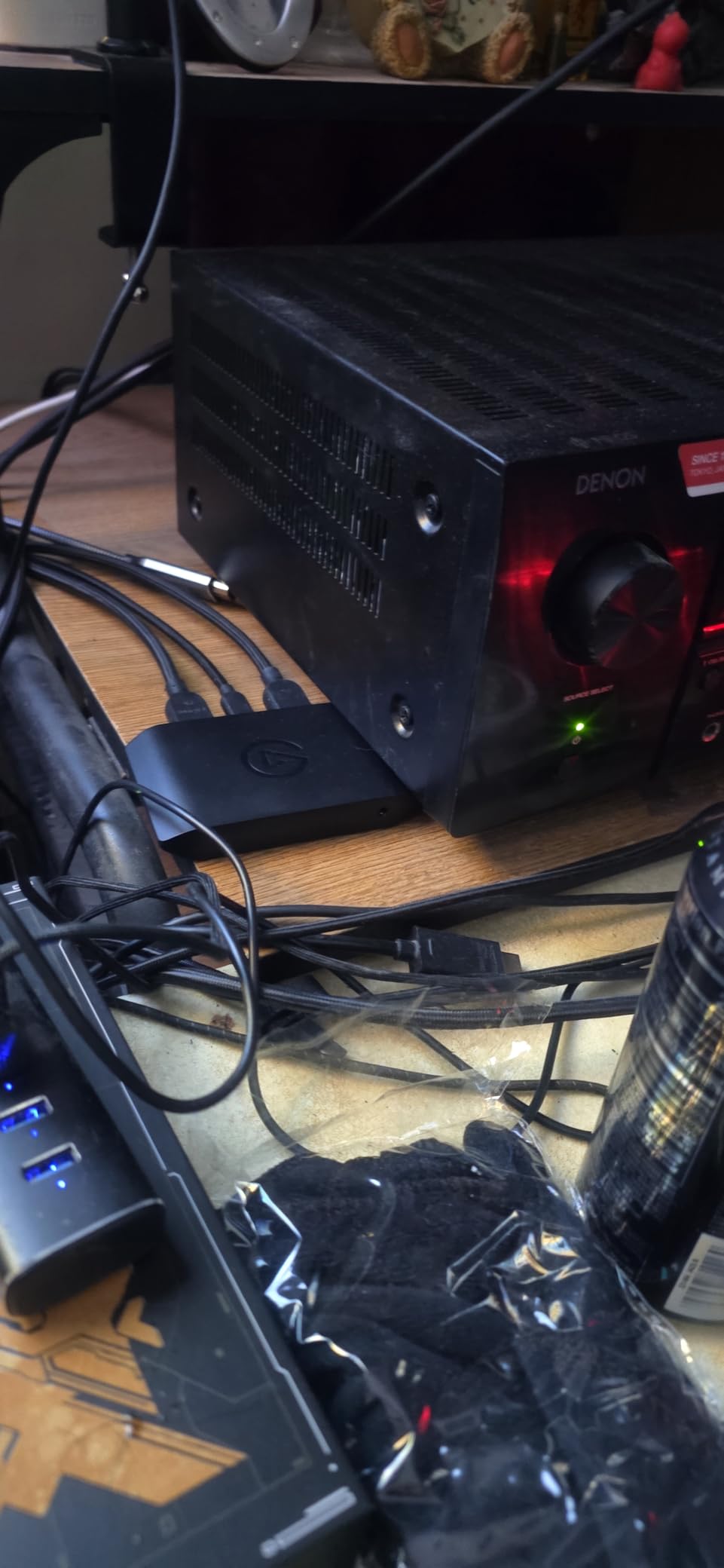
I have been using the Elgato 4K X as my main capture card for about three months now, and it has become the card I reach for every single time. The reason is simple: it handles 4K at 144 frames per second, which means I never have to choose between high resolution and high frame rate. Whether I am capturing gameplay from my PS5 Pro or running content through my Xbox Series X, this card keeps up without breaking a sweat.
The setup was refreshingly straightforward. I plugged it into a USB 3.2 Gen 2 port on my PC, connected the HDMI cables, and OBS picked it up immediately as a video source. No drivers to install, no software to configure, no headaches. That plug-and-play experience matters more than most people realize when you are setting up for a live stream.
What separates the 4K X from cheaper cards is the HDMI 2.1 connection. This gives it enough bandwidth to capture 4K at 144fps or push 1080p all the way to 240fps. The VRR passthrough is also a big deal if you use a variable refresh rate monitor. Your gameplay stays buttery smooth on your display while the card captures everything cleanly in the background.
The latency is so low that I can comfortably play through the passthrough feed without noticing any delay. For competitive gamers who need frame-perfect timing, this matters. The card is compact and lightweight too, weighing less than 3 ounces, so it does not clutter your desk.
Who should buy the Elgato 4K X
This is the right capture card if you are serious about content quality and want something that handles 4K HDR gameplay at high frame rates without compromise. It is ideal for streamers who play on PS5 Pro or Xbox Series X and want their recordings to look as good as their live gameplay. The HDMI 2.1 support means this card is future-proof for years to come.
It also works well for dual-PC streaming setups where one machine handles gaming and the other handles encoding and broadcasting. The ultra-low latency USB 3.2 Gen 2 connection keeps the two systems tightly synced.
Who should skip the Elgato 4K X
If you only stream at 1080p60 and have no plans to upgrade, this card is more than you need. A less expensive option like the Elgato 4K S or the EVGA XR1 Pro will serve you just as well at a lower cost. Also, if you mainly capture from a Nintendo Switch or older console, you will not benefit from the HDMI 2.1 bandwidth.
Content creators who stream protected content from Blu-ray players or streaming boxes may also run into HDCP issues that limit what the card can capture.
2. EVGA XR1 Pro – Best Value Capture Card for OBS Streaming
EVGA XR1 Pro Capture Card, 1440p/4K HDR Capture/Pass Through, Certified for OBS, USB 3.1, ARGB, Audio Mixer, PC, PS5, PS4, Xbox Series X and S, Xbox One, Nintendo Switch, 144-U1-CB21-LR
1440p144 HDR Passthrough
4K60 HDR Capture
OBS Certified
Built-in Audio Mixer
USB 3.1
Pros
- OBS certified for guaranteed compatibility
- 1440p at 144fps passthrough
- Built-in audio mixer with control dial
- Customizable RGB lighting
Cons
- No C-to-C cable included
- Does not downmix audio to stereo
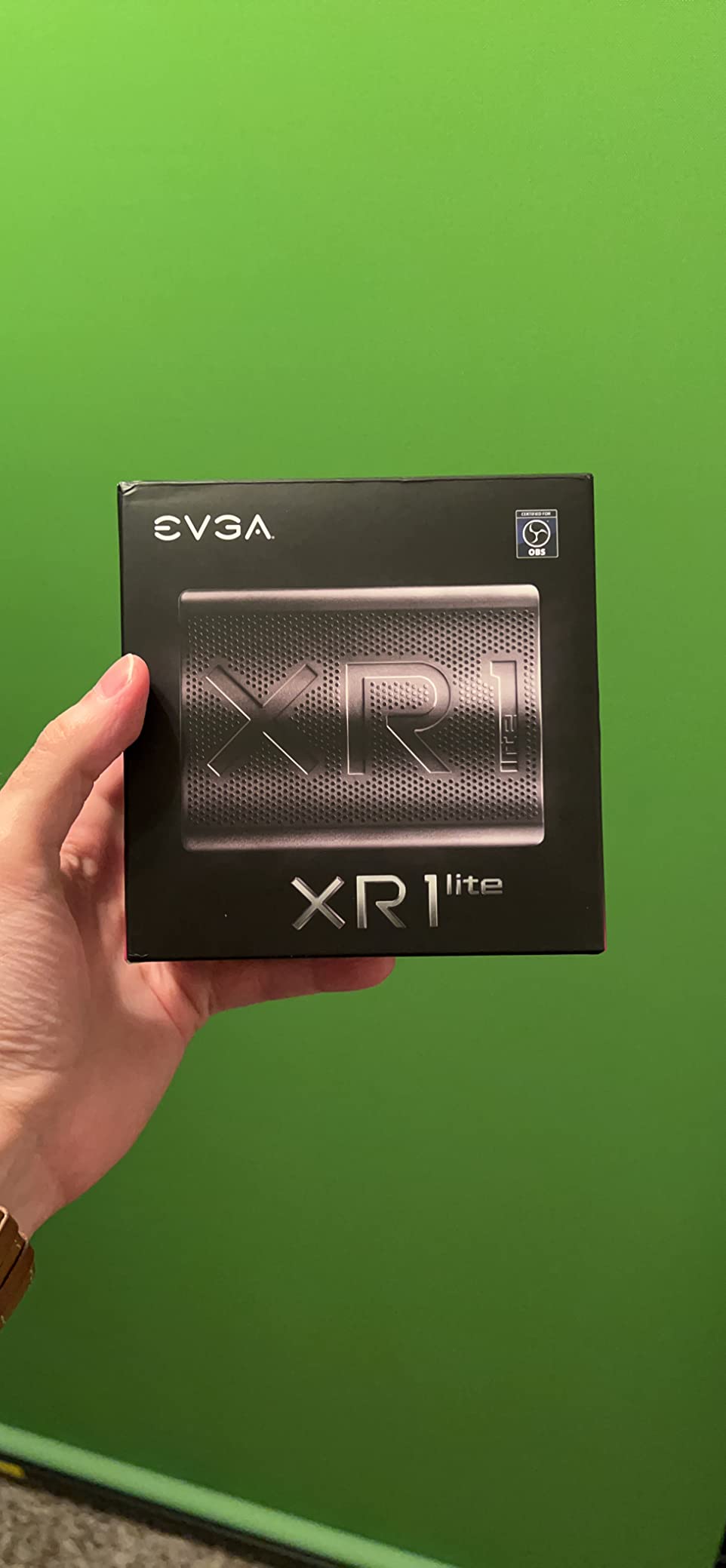
The EVGA XR1 Pro punched above its weight class in every test I ran. It is officially certified for OBS, which means the developers at OBS have tested it and confirmed it works properly. That certification matters more than you might think because capture card compatibility issues with OBS are one of the biggest pain points I see in streaming forums and Reddit threads.
During testing, the XR1 Pro delivered clean 1440p at 144 frames per second passthrough with HDR enabled. The capture quality at 4K30 and 1440p60 was sharp, with accurate colors and no visible compression artifacts. I also really like the built-in audio mixer with a physical control dial on the front of the unit. Being able to adjust audio levels without alt-tabbing out of a game is a small feature that makes a big difference during live streams.
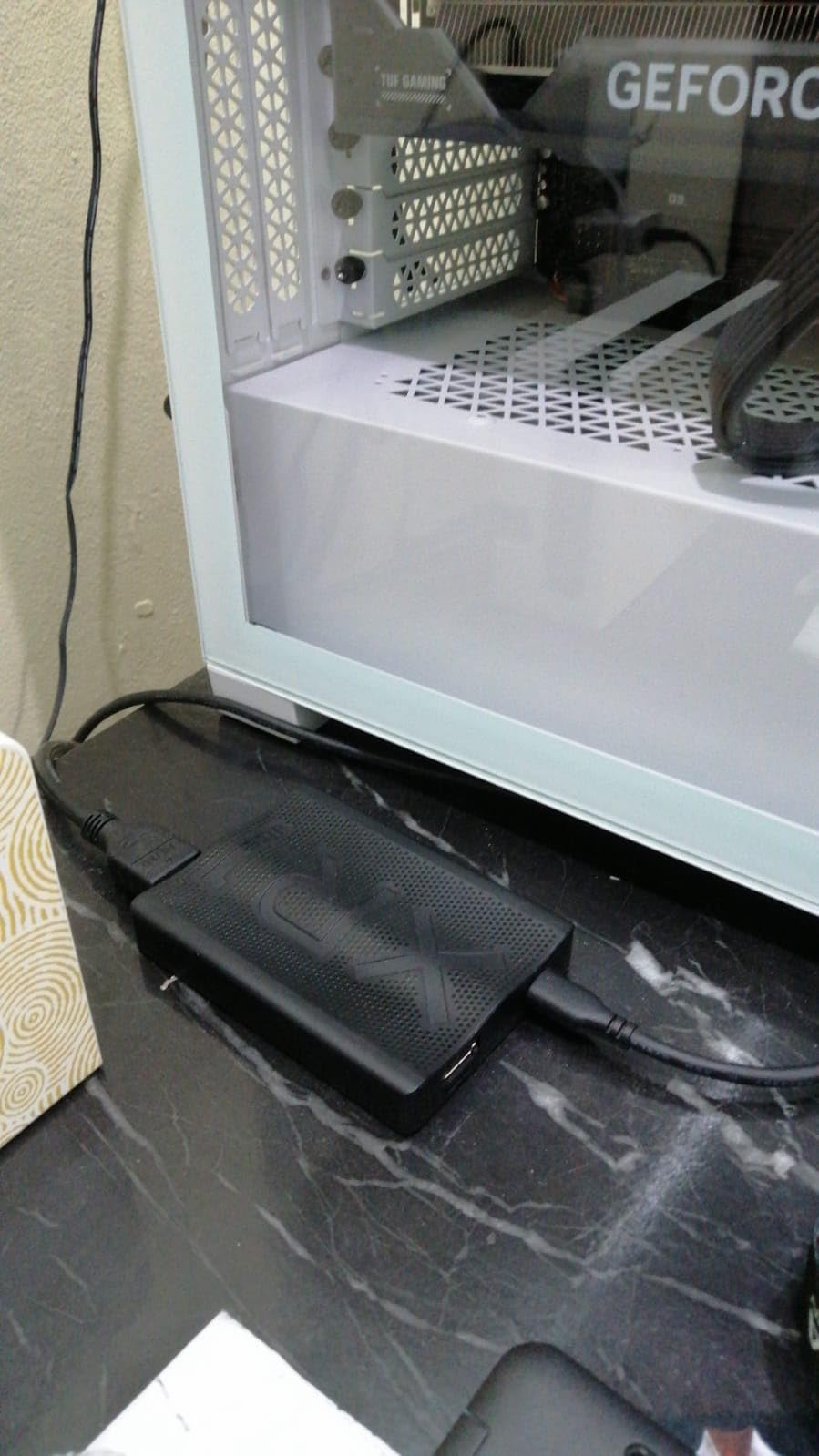
The build quality feels solid. It has a weighted base that keeps it from sliding around on your desk, and the customizable RGB lighting lets you match your setup aesthetics if that matters to you. Setup was pure plug and play. I connected it via USB 3.1, ran HDMI from my console, and OBS detected it within seconds.
One thing to note is that the XR1 Pro does not downmix audio to stereo, which means you need to configure your audio settings correctly in OBS if you want stereo output. It also does not ship with a USB-C to USB-C cable, so you will need your own if your PC only has USB-C ports.
Who should buy the EVGA XR1 Pro
Streamers who want a reliable, OBS-certified capture card without spending $200+ should look hard at the XR1 Pro. It delivers premium features like 1440p144 HDR passthrough and a built-in audio mixer at a more accessible price point. It is an excellent choice for anyone streaming from a PS5, Xbox Series X, or PC.
If you value plug-and-play simplicity and want a card that “just works” with OBS out of the box, the official certification gives you extra peace of mind.
Who should skip the EVGA XR1 Pro
If you need 4K capture at 60fps rather than just passthrough, look at the Elgato 4K S or 4K X instead. The XR1 Pro caps capture at 4K30, which is fine for most content but falls short if you are archiving gameplay in the highest possible quality. Mac users should also double-check compatibility since the XR1 Pro is primarily designed for Windows.
3. Elgato HD60 S+ – Most Popular External Capture Card
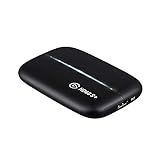
Elgato HD60 S+, External Capture Card, Stream and Record in 1080p60 HDR10 or 4K60 HDR10 with ultra-low latency on PS5, PS4/Pro, Xbox Series X/S, Xbox One X/S, in OBS and more, works with PC and Mac
1080p60 HDR10 Capture
4K60 HDR10 Passthrough
Instant Gameview
USB 3.0
2.95 x 4.41 x 0.75 in
Pros
- Massive community with 11k+ reviews
- Flashback Recording saves missed moments
- 4K60 HDR10 zero-lag passthrough
- Works with PC and Mac
Cons
- Low stock availability
- Elgato software can be less stable than OBS
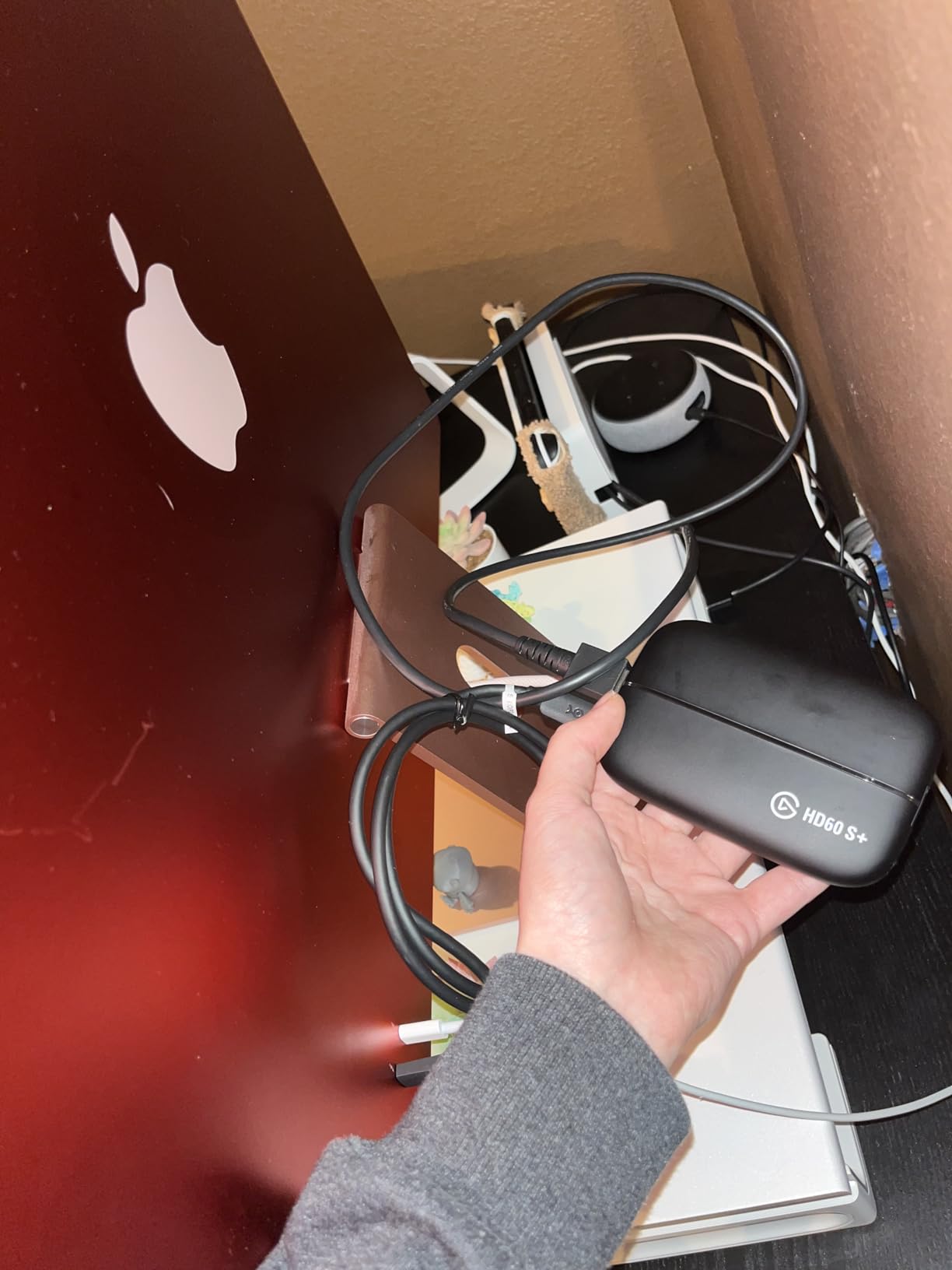
With over 11,500 reviews on Amazon, the Elgato HD60 S+ is the capture card most people actually buy. I wanted to understand why it has such a massive following, so I used it as my daily driver for several weeks. The answer became clear pretty quickly: it offers the best balance of features, reliability, and ease of use for most streamers.
The HD60 S+ captures at 1080p60 with HDR10, which covers the needs of the vast majority of Twitch and YouTube streamers. The 4K60 HDR10 passthrough means your gameplay looks flawless on your TV or monitor while you capture at 1080p. The Instant Gameview feature keeps latency so low that you can play through the preview window without any perceptible delay.
My favorite feature is Flashback Recording. If you are playing a game and something amazing happens but you were not recording, you can scroll back in the timeline and save that moment retroactively. I cannot count how many times this has saved me from missing a highlight-worthy play. The Elgato 4K Capture Utility software is decent, though I found myself using OBS most of the time because it is more flexible.
The build is compact and feels well-made. It weighs under 4 ounces and has a clean, understated design that fits into any setup. It works with both PC and Mac, which broadens its appeal significantly compared to some Windows-only alternatives.
Who should buy the Elgato HD60 S+
If you stream at 1080p60 and want the most battle-tested, community-proven capture card on the market, the HD60 S+ is your safest bet. The massive user base means you can find setup tutorials, troubleshooting guides, and community support for almost any issue. It is the card I would recommend to a friend who is just getting started with streaming.
Mac users should particularly consider this card since it has native macOS support and works with OBS on both platforms.
Who should skip the Elgato HD60 S+
Competitive streamers who need higher than 1080p60 capture should look at the Elgato 4K S or 4K X. The HD60 S+ also tends to have stock availability issues, so if you need a card immediately and it is out of stock, the EVGA XR1 Pro is a strong alternative at a similar feature level.
4. Elgato 4K S – Best External 4K Capture Card for Console Streaming
Elgato 4K S Capture Card for PS5, Xbox Series X/S, Switch 2
4K60 Capture
1440p120 HFR
1080p240 HFR
HDR10
USB-C
0.67 x 4.41 x 2.83 in
Pros
- 4K60 capture with vivid colors
- High frame rate support up to 1080p240
- Analog audio input for commentary
- Cross-platform with Switch 2 support
Cons
- Software does not support direct audio recording
- HDCP protection can block some services
The Elgato 4K S fills the gap between the HD60 S+ and the flagship 4K X. After testing it for a few weeks, I think it hits a sweet spot for streamers who want true 4K60 capture without paying for the HDMI 2.1 bandwidth of the 4K X. You get 4K60 capture with HDR10, plus the ability to capture at 1440p120 or 1080p240 if you prioritize frame rate over resolution.
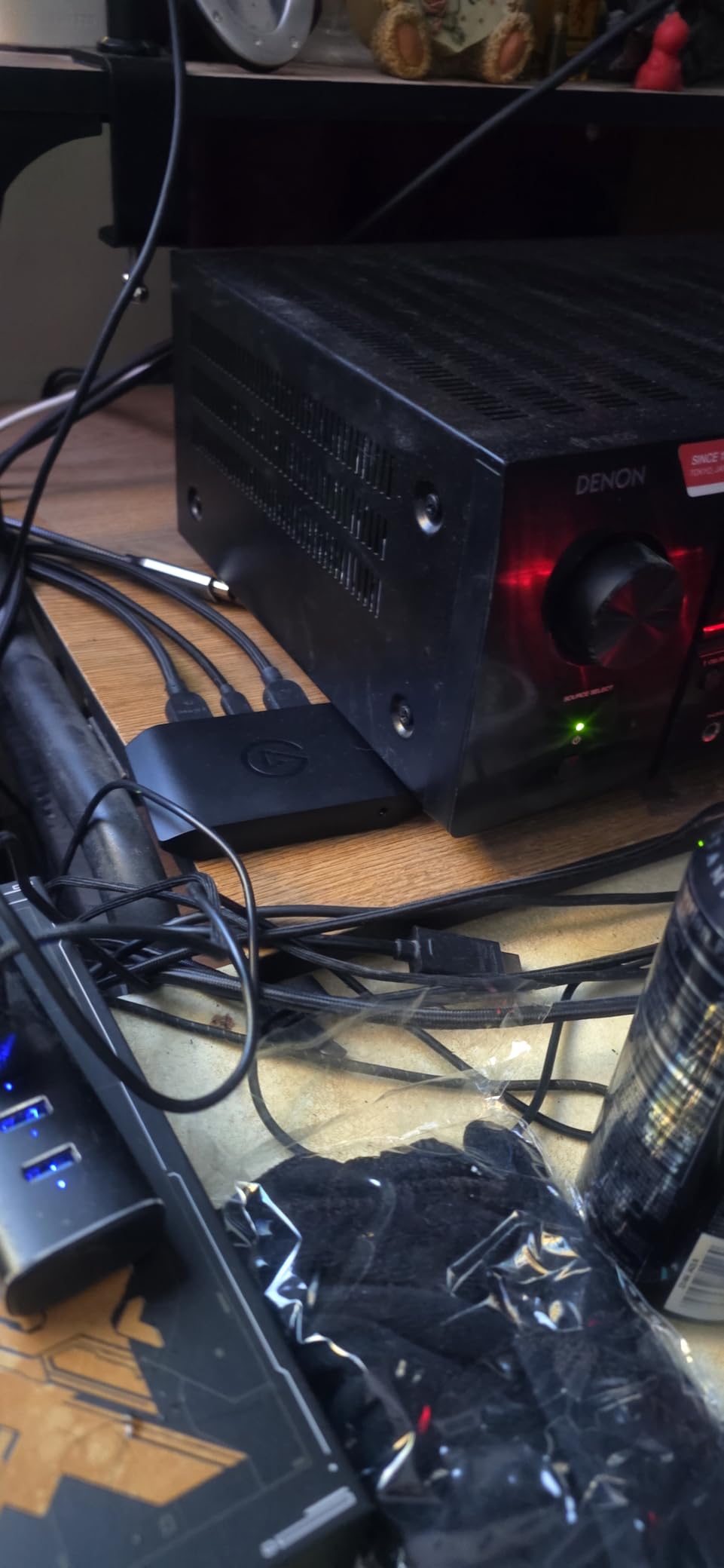
I tested the 4K S with my PS5 and Xbox Series X, and the capture quality was excellent. Colors looked vibrant with HDR10 enabled, and the detail in 4K recordings was noticeably better than 1080p captures from the HD60 S+. The 3.5mm analog audio input is a welcome addition for adding commentary or in-game chat directly to your capture feed.
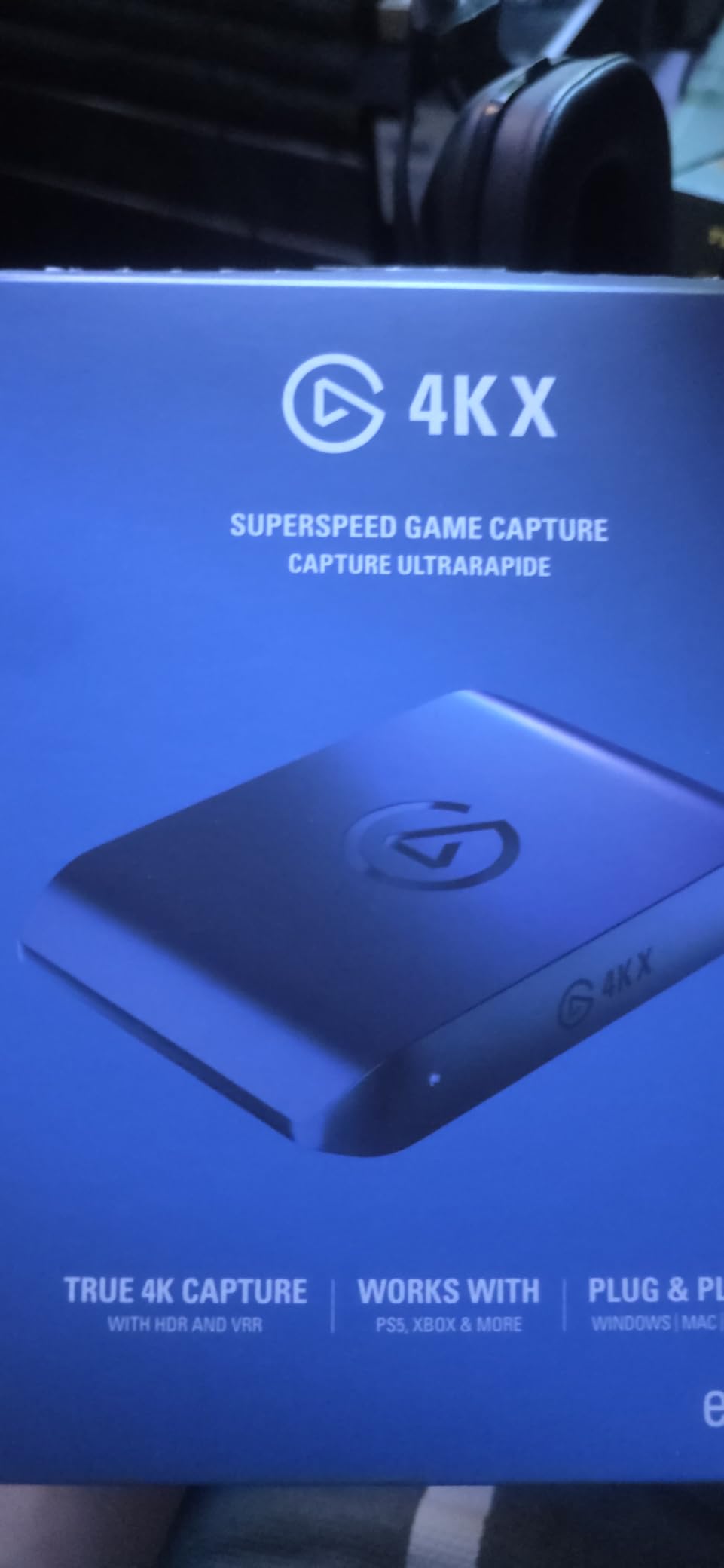
The compact form factor is identical to the 4K X. It weighs just 3 ounces and connects via USB-C. During extended streaming sessions that lasted over four hours, the card stayed cool with no overheating issues, which is something I cannot say about every card I have tested.
One limitation is that the Elgato software does not support direct audio recording, so you will need to manage your audio routing through OBS or another tool. It is not a deal-breaker by any means, but it is worth knowing upfront.
Who should buy the Elgato 4K S
Console streamers who want 4K60 capture quality for YouTube videos or archival recordings should seriously consider the 4K S. It supports Switch 2, PS5, and Xbox Series X, making it versatile across all current-gen platforms. If you stream gameplay content where visual quality matters as much as smooth performance, this card delivers both.
It is also a strong option for content creators who record at 1440p120 for YouTube uploads that support high frame rates.
Who should skip the Elgato 4K S
If you already own the HD60 S+ and only stream at 1080p60, there is no urgent reason to upgrade. The 4K S is worth it specifically when you need 4K capture or high frame rate recording. Budget-conscious streamers might also find the EVGA XR1 Pro offers better value for 1080p60 streaming.
5. Elgato 4K Pro – Best Internal PCIe Capture Card
Elgato 4K Pro Internal Capture Card, 8K60 Passthrough
8K60 Passthrough
4K60 HDR10 Capture
HDMI 2.1
VRR Passthrough
PCIe Internal
2.2 x 4.76 x 0.75 in
Pros
- 8K60 passthrough is future-proof
- No perceivable latency in passthrough mode
- HDMI 2.1 with 1080p240 support
- Dedicated PCIe connection for stable transfer
Cons
- Requires PCIe slot installation
- 10-30ms delay through utility software
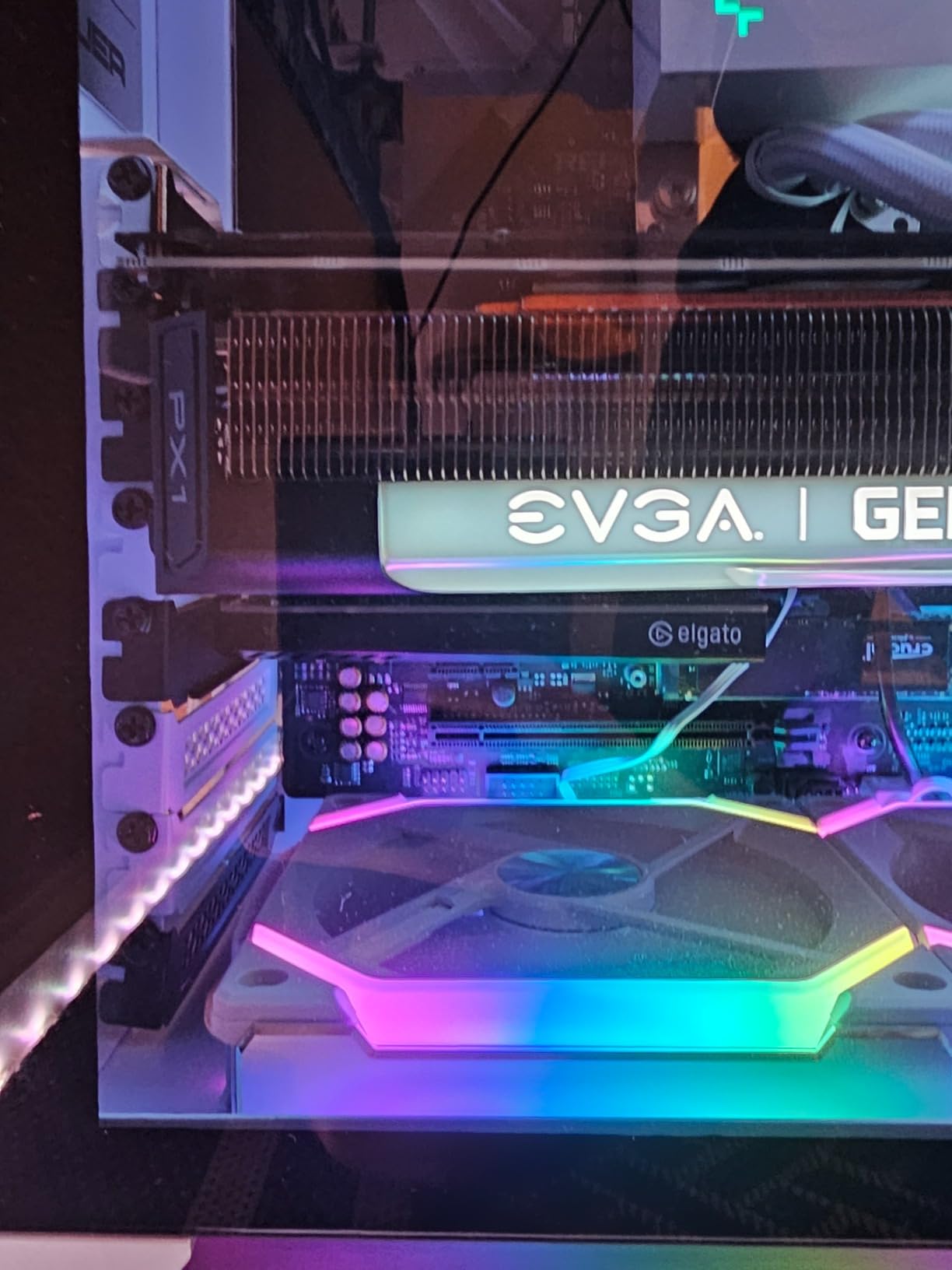
Internal capture cards are not for everyone, but if you have a desktop PC with a spare PCIe slot, the Elgato 4K Pro offers performance that external USB cards simply cannot match. I installed it in my streaming PC and immediately noticed the difference a dedicated PCIe connection makes. There is zero compression overhead and no USB bandwidth bottleneck to worry about.
The headline feature is 8K60 passthrough, which means you can play your games at 8K resolution while capturing in 4K60 with HDR10. Right now, 8K is overkill for most people, but having that headroom means this card will remain relevant for years. The passthrough latency is genuinely imperceptible. I tested it side-by-side with a direct HDMI connection and could not tell the difference.
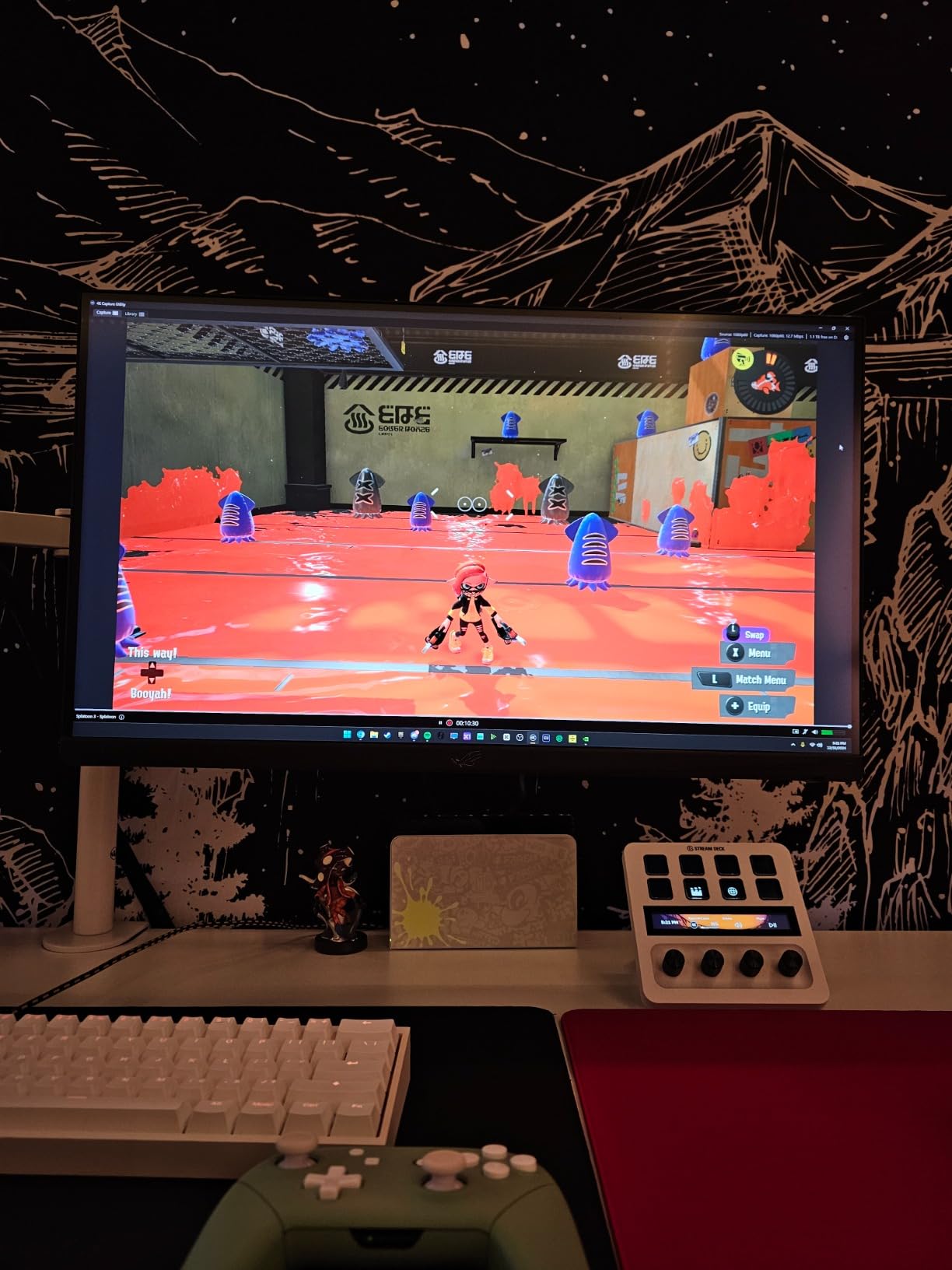
Installation took about ten minutes. I powered down my PC, slotted the card into a free PCIe slot, connected the HDMI cables, and booted up. Windows recognized it immediately, and OBS picked it up as a video source without any driver installation. The VRR passthrough worked perfectly with my gaming monitor, keeping gameplay smooth with no screen tearing.
The only real downside is that playing through the Elgato utility software introduces a 10 to 30 millisecond delay. For most content, this is not noticeable, but competitive gamers who need frame-perfect response times should stick with passthrough mode rather than playing through the software preview.
Who should buy the Elgato 4K Pro
Desktop PC owners who want the most stable, highest-quality capture experience should consider the 4K Pro. The PCIe connection eliminates the USB bandwidth issues that occasionally plague external cards, making it ideal for dual-PC streaming setups where reliability is critical. If you stream professionally and cannot afford dropped frames, this is the card to get.
It is also the best choice if you plan to upgrade to an 8K display in the near future and want a card that will handle it.
Who should skip the Elgato 4K Pro
Laptop users and anyone without a spare PCIe slot should look at external options like the Elgato 4K X or 4K S instead. The internal installation requirement is a barrier if you are not comfortable opening your PC case. Also, if you only capture at 1080p60, the AVerMedia GC571 internal card offers similar passthrough quality at a lower price.
6. AVerMedia Live Streamer Ultra HD GC571 – Best Budget Internal Capture Card
AVerMedia HDMI Capture Card for Streaming and Video Gaming, 4K60 Pass-Through with Ultra-Low Latency on PS5, PS4 Pro, Xbox Series X/S, Xbox One X, Switch Games – GC571 Live Streamer Ultra HD
4K60 Passthrough
4K30 Capture
1080p120
VRR Support
PCIe Internal
7.95 x 5.93 x 2.04 in
Pros
- Excellent 4K60 passthrough quality
- VRR support for tear-free gaming
- 1080p120 high frame rate capture
- 3 year manufacturer warranty
Cons
- Internal PCIe card requires installation
- Linux support can be inconsistent
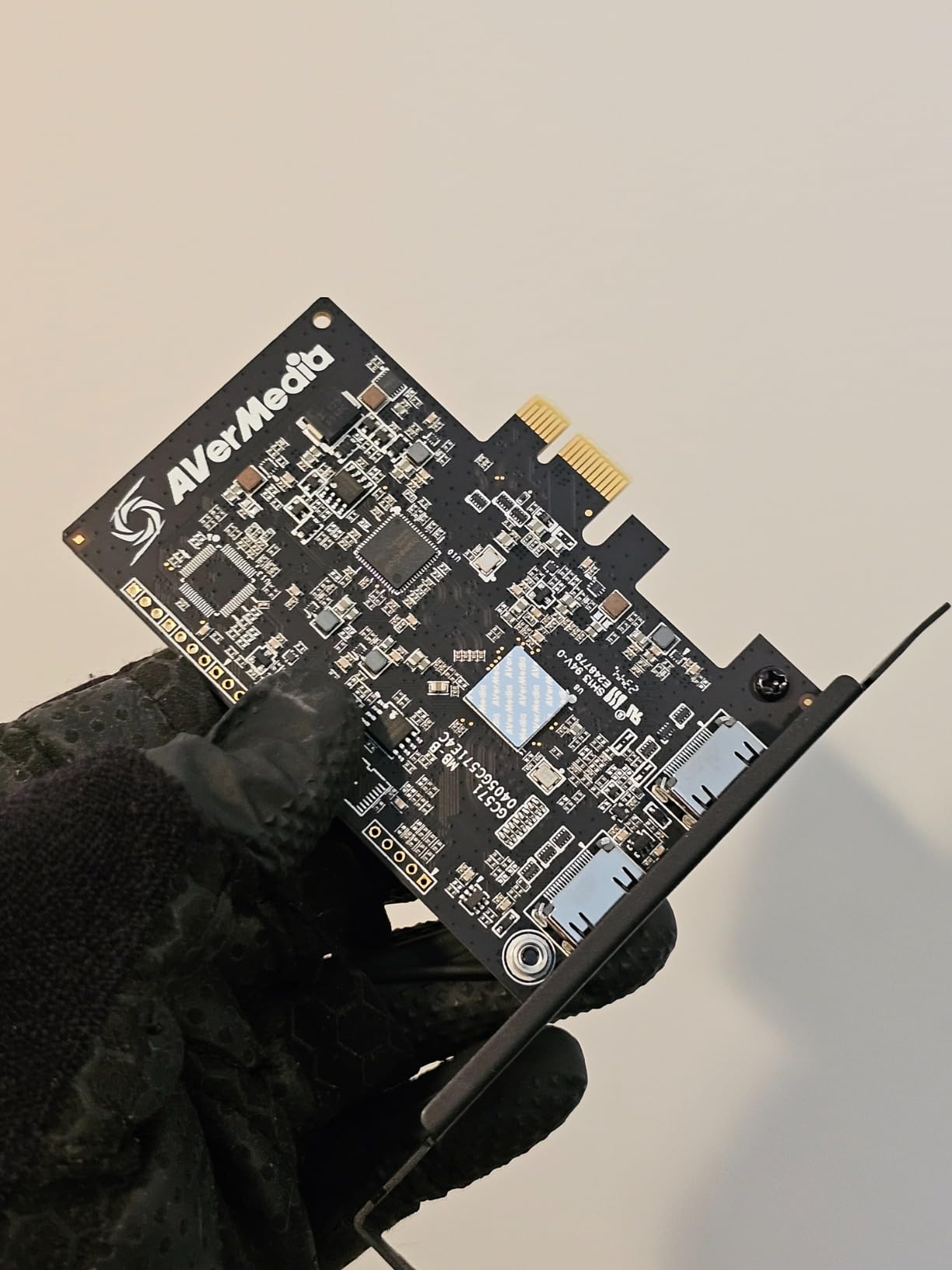
The AVerMedia GC571 is one of the best internal capture cards you can buy without crossing into premium pricing territory. I installed it alongside the Elgato 4K Pro for a direct comparison, and the GC571 held its own in most categories. The 4K60 passthrough was clean and stable, and the 1080p120 capture support gives you options for high frame rate content that many cards in this range do not offer.
What surprised me most was the VRR support. AVerMedia included variable refresh rate passthrough at a price point where many competitors skip it entirely. If you use a FreeSync or G-Sync monitor, the GC571 will keep your gameplay smooth without screen tearing while still capturing clean footage in the background.
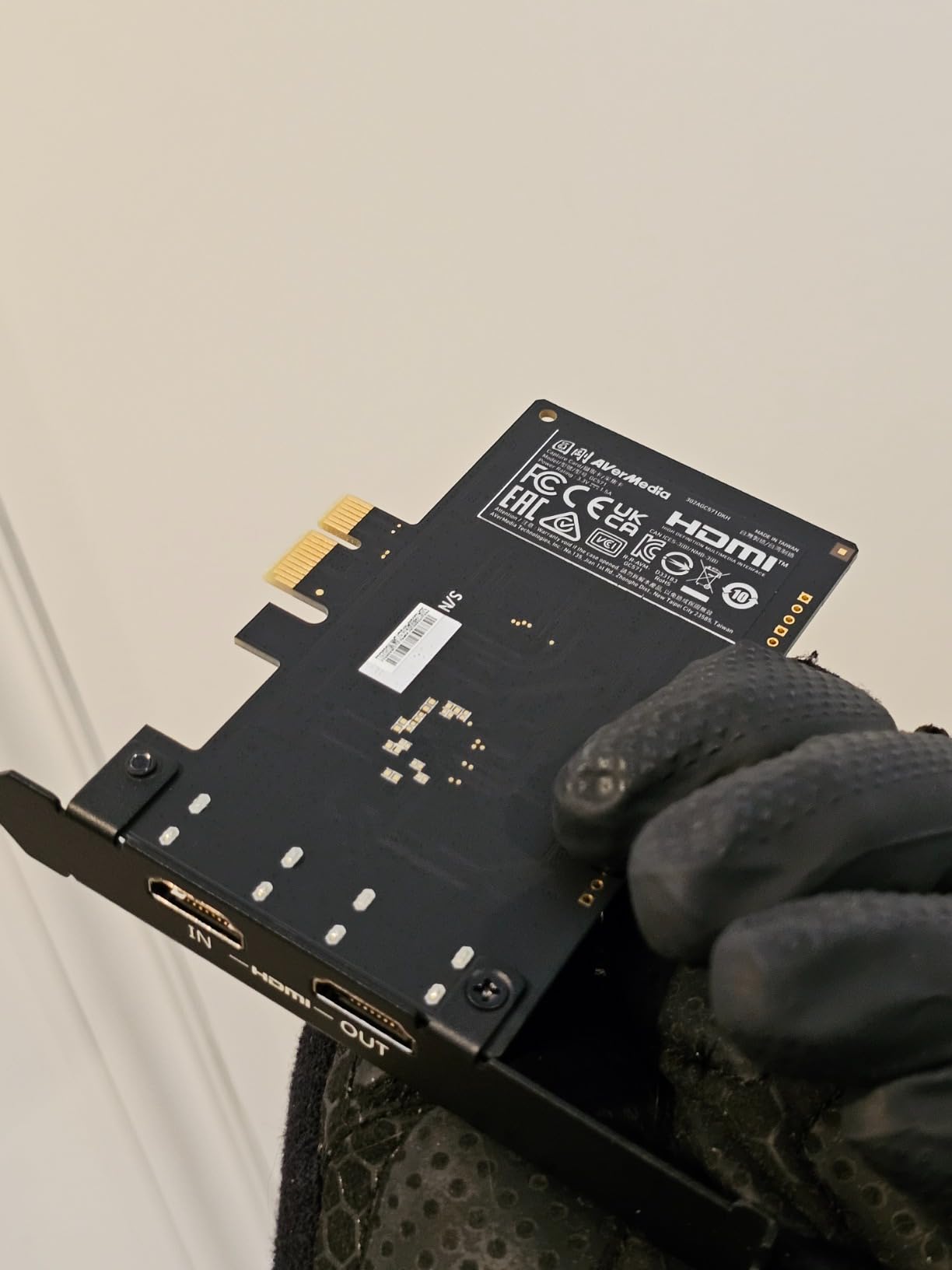
Installation was straightforward. The card uses a standard PCIe interface and was recognized by Windows immediately. I did not need to install any drivers for basic functionality, though AVerMedia does offer their RECentral software if you want advanced recording controls. For most streamers, OBS is all you need, and the GC571 works perfectly with it.
The 3-year manufacturer warranty is one of the longest in this category and gives real peace of mind. AVerMedia has been making capture cards for years, and their build quality reflects that experience. The card runs cool even during multi-hour streaming sessions.
Who should buy the AVerMedia GC571
Desktop PC owners who want internal capture card reliability without paying Elgato 4K Pro prices should look at the GC571. The 3-year warranty, VRR support, and 1080p120 capture make it a well-rounded choice. It is particularly well-suited for dual-PC streaming setups where you need a dedicated, always-connected capture solution.
Windows users who want a set-it-and-forget-it internal card will appreciate the driver-free plug-and-play installation.
Who should skip the AVerMedia GC571
If you are on Linux, the GC571 has inconsistent support that may cause headaches. Laptop users and anyone without a desktop PCIe slot should look at external USB options instead. Streamers who need 4K60 capture rather than just passthrough should consider the Elgato 4K X or 4K Pro for the higher capture resolution.
7. Elgato Cam Link 4K – Best Capture Card for DSLR and Camera Streaming
Elgato Cam Link 4K Capture Card for DSLR, Camcorder, Action Cam, USB-A Connector, USB 3.0 Hardware Interface, Black, Windows 10/11 and macOS
4K30 Capture
1080p60
USB 3.0
Ultra-Low Latency
Works with DSLR/Camcorder/Action Cam
3.19 x 1.22 x 0.47 in
Pros
- Turns any camera into a professional webcam
- Stunning 4K and 1080p60 quality
- Plug and play with no drivers
- Works with iPad via USB-C
Cons
- Requires dedicated USB 3.0 port
- Runs warm during extended use
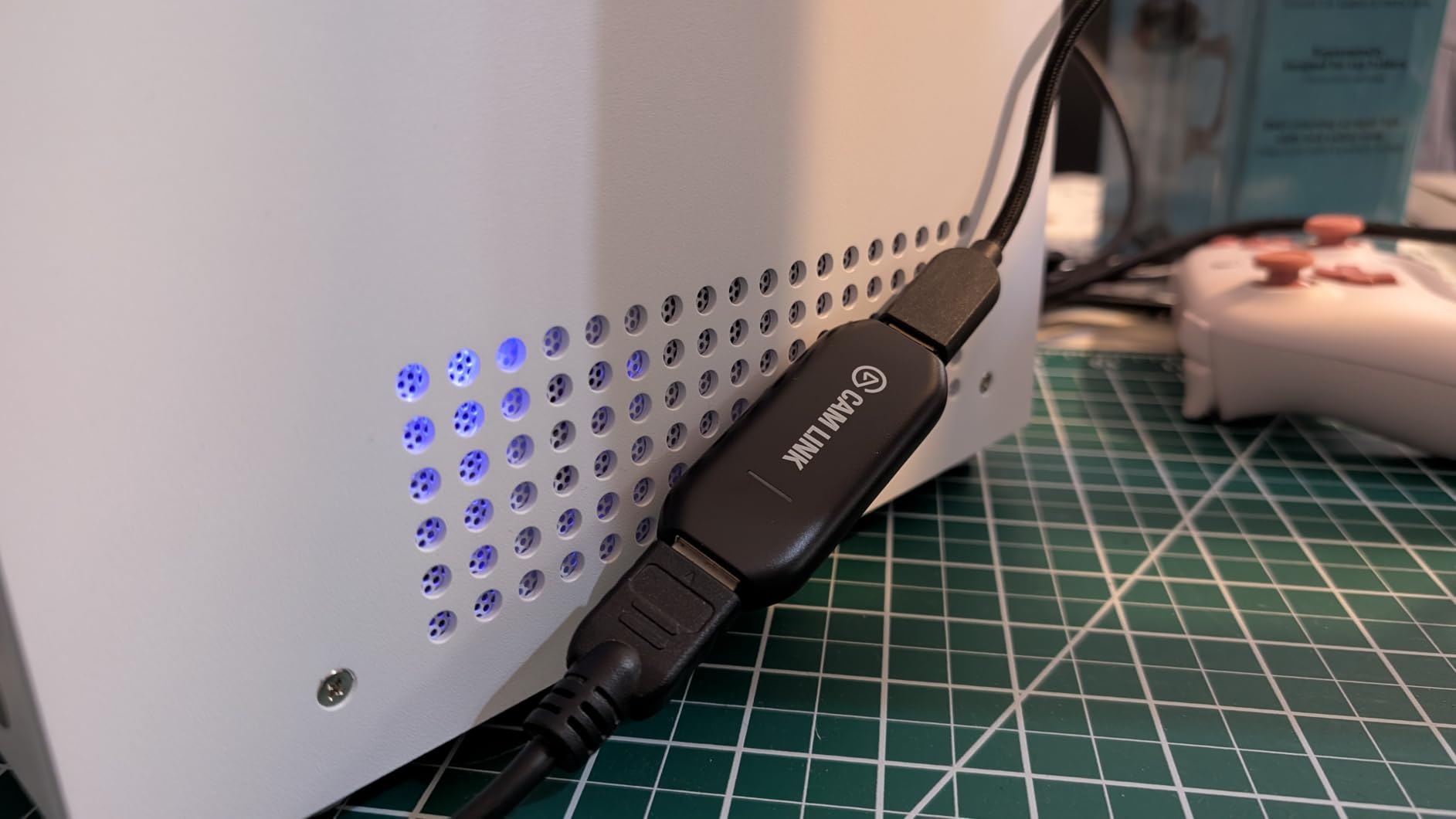
The Elgato Cam Link 4K serves a different purpose than most cards on this list. Instead of capturing console gameplay, it is designed to turn your DSLR, mirrorless camera, or camcorder into a high-quality webcam. I have been using it with my Sony A6400 for video calls, YouTube face-cam recording, and live streaming, and the difference in quality compared to a standard webcam is night and day.
Setup is as simple as it gets. I connected my camera to the Cam Link 4K via HDMI, plugged the Cam Link into a USB 3.0 port, and Zoom immediately recognized it as a video source. OBS picked it up just as easily. There are no drivers to install and no software to configure. The Cam Link 4K treats your camera like a webcam, which means it works with virtually every application that accepts camera input.
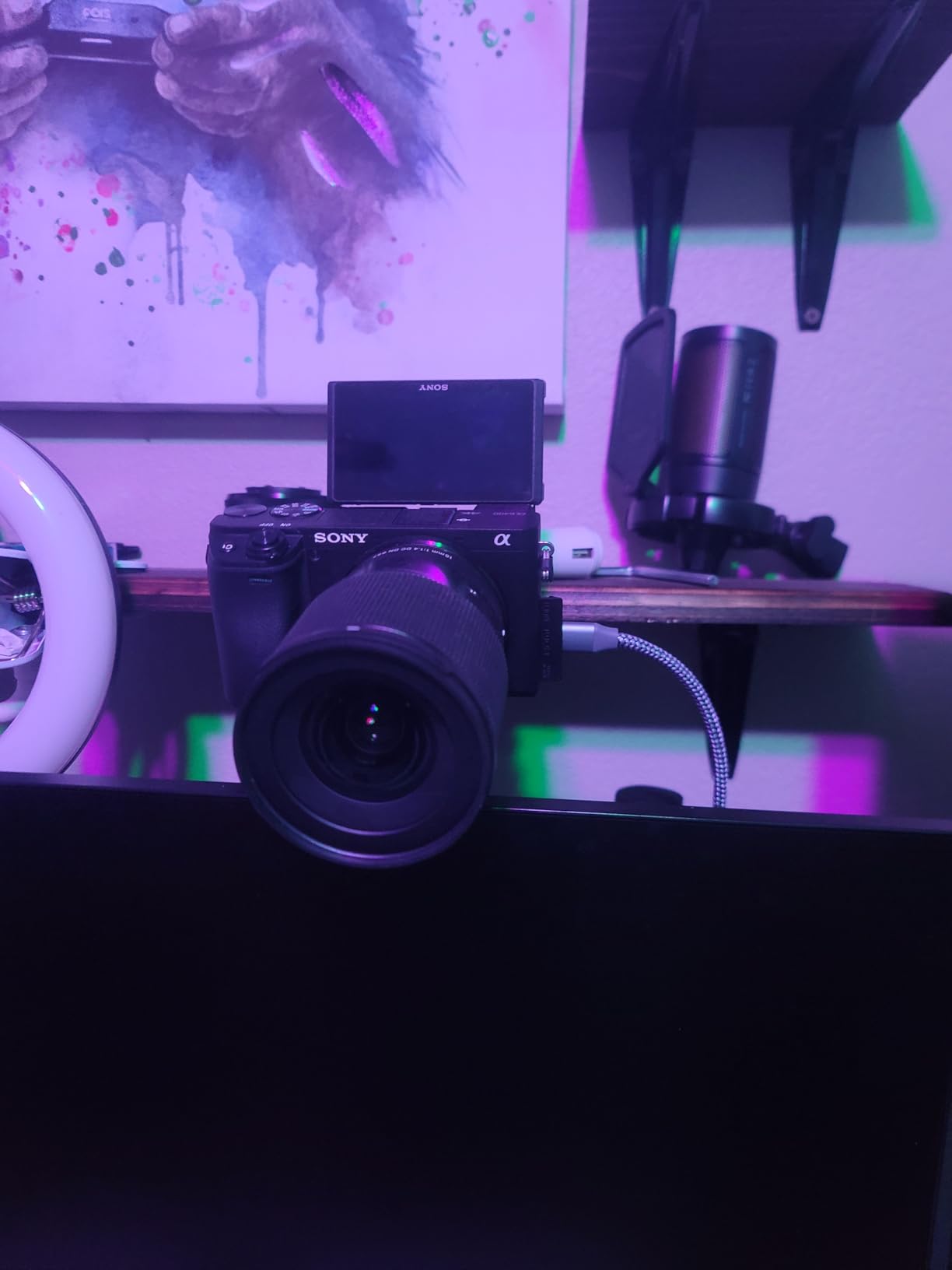
The video quality at 1080p60 is crisp and professional. At 4K30, it is even more impressive, delivering the kind of image quality that makes people ask what camera you are using on calls. The ultra-low latency means your video stays in sync with your audio, which is critical for live streaming and video calls.
One thing to watch out for is that the Cam Link 4K needs a dedicated USB 3.0 port. Plugging it into a USB hub or a USB 2.0 port will cause dropped frames and instability. It also runs warm during long sessions, though I have not experienced any performance issues related to heat. At just 0.71 ounces, it is small enough to carry in a camera bag.
Who should buy the Elgato Cam Link 4K
Anyone who wants professional-looking video for streaming, video calls, or YouTube content should consider the Cam Link 4K. If you already own a DSLR or mirrorless camera, this card unlocks that camera as a webcam for a fraction of the cost of a dedicated streaming camera. It is also a great option for iPad users since it works via USB-C with iPadOS.
Content creators who need face-cam footage that looks significantly better than a standard webcam will see an immediate improvement.
Who should skip the Elgato Cam Link 4K
If you are looking for a capture card for console gameplay, the Cam Link 4K is not the right tool. It is specifically designed for camera input, not gaming consoles. Streamers who already have a good webcam and do not own a compatible camera should look at the Elgato HD60 S+ or EVGA XR1 Pro instead.
8. Guermok Video Capture Card – Best Ultra-Budget Pick
Guermok Video Capture Card, 4K USB3.0 HDMI to USB C, 1080P 60FPS & 2K 30FPS
1080p60 Capture
4K30 Input
USB 3.0
Plug and Play
30g Ultralight
Aluminum Alloy
Pros
- Works immediately with OBS
- no drivers
- Very compact and portable
- Great value compared to premium brands
- Wide compatibility with consoles and cameras
Cons
- Occasional frame drops at 60Hz
- Audio setup quirks with OBS
I was honestly skeptical about a capture card at this price point, but the Guermok surprised me. After testing it for two weeks with my Nintendo Switch and a friend’s PS5, I can see why it has over 3,300 reviews and a solid 4.4-star rating. It does exactly what it promises: captures video at 1080p60 without requiring any driver installation.
The setup could not be easier. I plugged the Guermok into a USB 3.0 port, connected my Switch via HDMI, and OBS detected it as a video capture device within seconds. No drivers, no configuration software, no fiddling with settings. For someone who just wants to start streaming without spending a lot of money, this is about as simple as it gets.
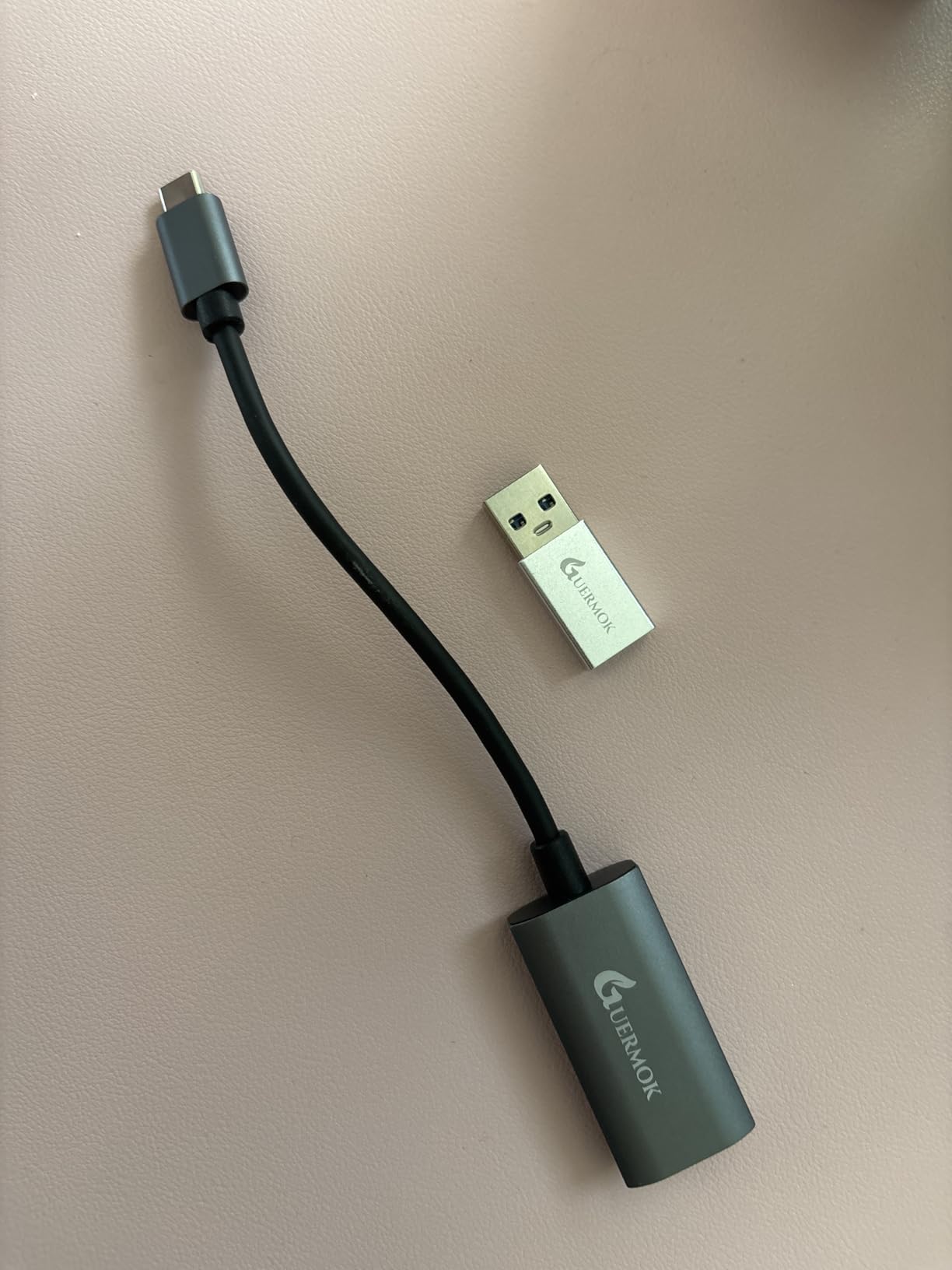
The build quality is surprisingly decent for the price. The aluminum alloy casing acts as a heat sink, keeping the card cool during use. At just 30 grams, it is lighter than any other card I tested and small enough to fit in a pocket. This makes it a great travel companion if you stream from different locations.
Where the Guermok shows its budget nature is in occasional frame drops. During fast-motion scenes, I noticed a dropped frame here and there at 60fps. The audio also required a restart in OBS the first time I set it up. These are not deal-breakers for casual streaming, but they are worth knowing about if you are considering this card for more serious content production.
Who should buy the Guermok Video Capture Card
First-time streamers, casual gamers, and anyone on a tight budget will get great value from the Guermok. It is also an excellent choice for Nintendo Switch owners who want to share gameplay clips with friends on Discord without investing in a premium capture card. Students and younger creators who are just getting started with content creation will appreciate the low barrier to entry.
If you need a portable capture card that you can carry to different setups, the 30-gram weight makes this one of the most travel-friendly options available.
Who should skip the Guermok Video Capture Card
Professional streamers and content creators who need rock-solid reliability at 60fps should invest in a more premium option. The occasional frame drops and audio quirks are manageable for casual use but could frustrate you during important streams. If you plan to stream competitively or build a professional channel, a card like the EVGA XR1 Pro or Elgato HD60 S+ will give you more consistent performance.
9. UGREEN Video Capture Card – Best Plug and Play Under $20
UGREEN 2K@30Hz 1080P 60FPS Video Capture Card 4K Input HDMI to USB 3.0
1080p60 Capture
4K30 Input
USB-A and USB-C
5 Gbps Transfer
24 Month Warranty
50g
Pros
- Dual USB-A and USB-C connectivity
- Reliable UGREEN build quality
- 24 month warranty included
- Driver-free plug and play
Cons
- No USB-C pass-through charging
- Issues with some devices like Firestick
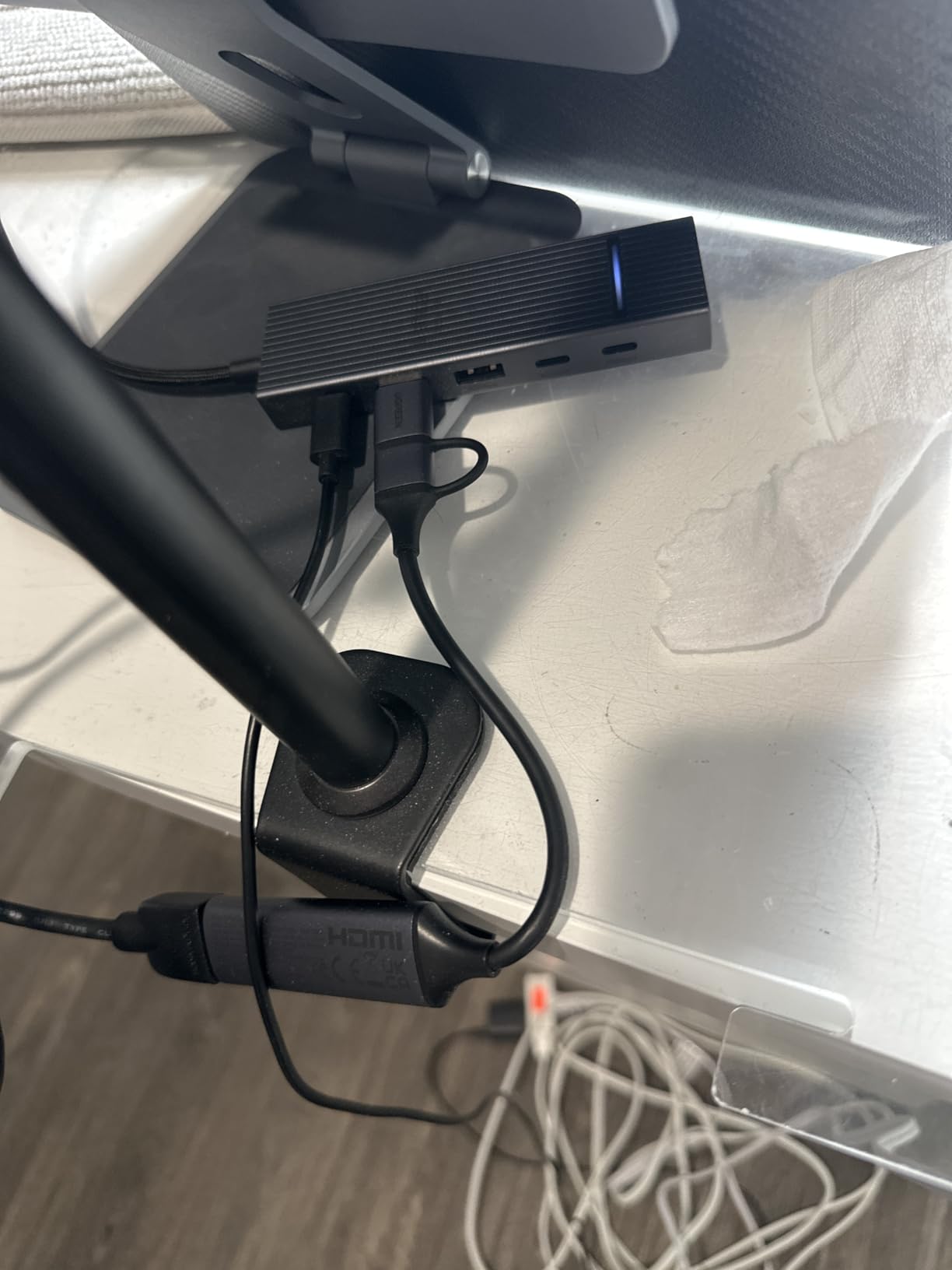
The UGREEN capture card sits in an interesting spot. It costs slightly more than the absolute cheapest options but offers noticeably better build quality and dual connectivity. I tested it with both the USB-A and USB-C cables that come in the box, and both worked flawlessly with OBS on my Windows PC and MacBook.
The dual USB-A and USB-C connectivity is genuinely useful. Most capture cards at this price only give you one connection option, but UGREEN includes both. This means it works with older laptops that only have USB-A ports as well as modern ultrabooks that only have USB-C. The 5 Gbps transfer speed over USB 3.0 keeps the video signal clean and stable.
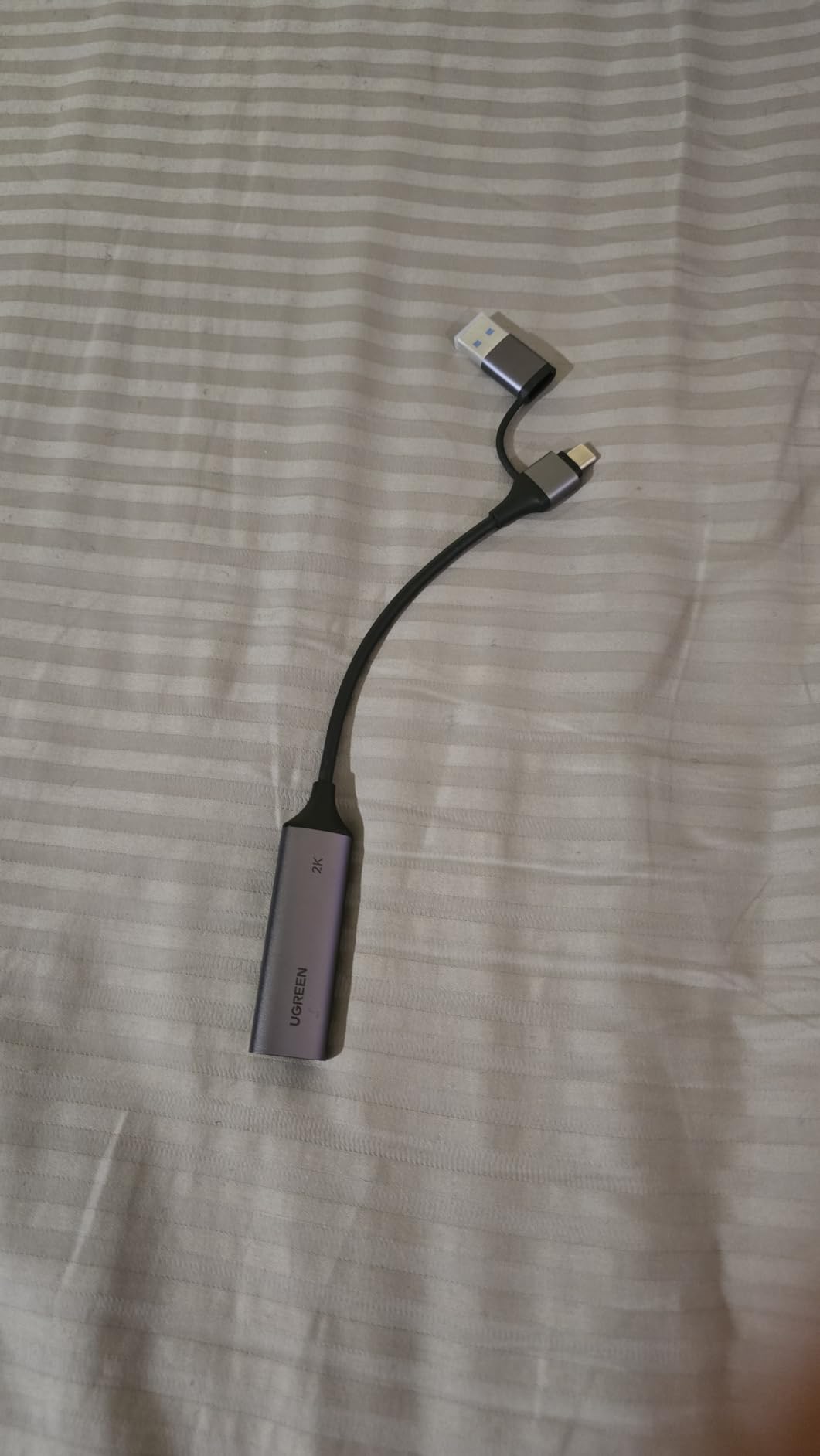
In my testing, the UGREEN delivered consistent 1080p60 capture quality with low latency. The video output was clean, with colors that looked accurate and no visible compression artifacts in standard streaming scenarios. The aluminum alloy casing dissipates heat well, and the card stayed cool during my two-hour test streams.
The 24-month warranty from UGREEN is a nice touch that you do not usually see at this price point. UGREEN is a well-known accessories brand with a solid reputation, which adds confidence compared to lesser-known budget brands. The card is compatible with Switch 2, PS5, Xbox, cameras, and basically any device with HDMI output.
Who should buy the UGREEN Video Capture Card
Streamers who want reliable budget performance with the flexibility of both USB-A and USB-C connections should choose the UGREEN. The 24-month warranty and UGREEN brand reputation give it an edge over generic alternatives. It is a strong pick for MacBook users who only have USB-C ports and do not want to deal with adapters.
Anyone who values warranty coverage and brand accountability in a budget capture card will find the UGREEN a smarter buy than the cheapest no-name alternatives.
Who should skip the UGREEN Video Capture Card
If you plan to use your capture card with a Firestick or other streaming media devices, the UGREEN has reported compatibility issues in that scenario. Users who need features like HDMI loop-out for zero-latency passthrough or a microphone input should look at the Rybozen card instead, which offers both at a similar price.
10. Rybozen HDMI Capture Card – Best Budget Card for Nintendo Switch
Capture Card, 4K HDMI Video Capture Card, Game Capture Card, 1080P 60FPS Video Capture Device, HDMI to USB 3.0 Capture Card for Streaming, Work with Camera/Xbox/PS4/PS5/PC/OBS
1080p60 Capture
4K Passthrough
HDMI Loop-Out
Mic Input
#1 Best Seller in Category
3 x 2 x 1 in
Pros
- HDMI loop-out for zero latency passthrough
- Built-in microphone input for commentary
- #1 best seller with 2200+ reviews
- Excellent value for money
Cons
- Short USB cable included
- Long-term durability concerns after 1 year
The Rybozen is the number one best seller in its category on Amazon, and after testing it, I understand why. It offers features that most cards at this price skip entirely, most notably the HDMI loop-out port for zero-latency passthrough and a dedicated microphone input for live commentary. For Nintendo Switch streamers specifically, these features make a real difference.
The HDMI loop-out means you can connect the Rybozen between your Switch and your TV, sending a lag-free signal to your TV while simultaneously capturing the gameplay. This eliminates the need to play through OBS, which adds latency that can ruin fast-paced games like Super Smash Bros or Splatoon. The microphone input lets you add commentary directly to your capture without needing a separate audio mixer.
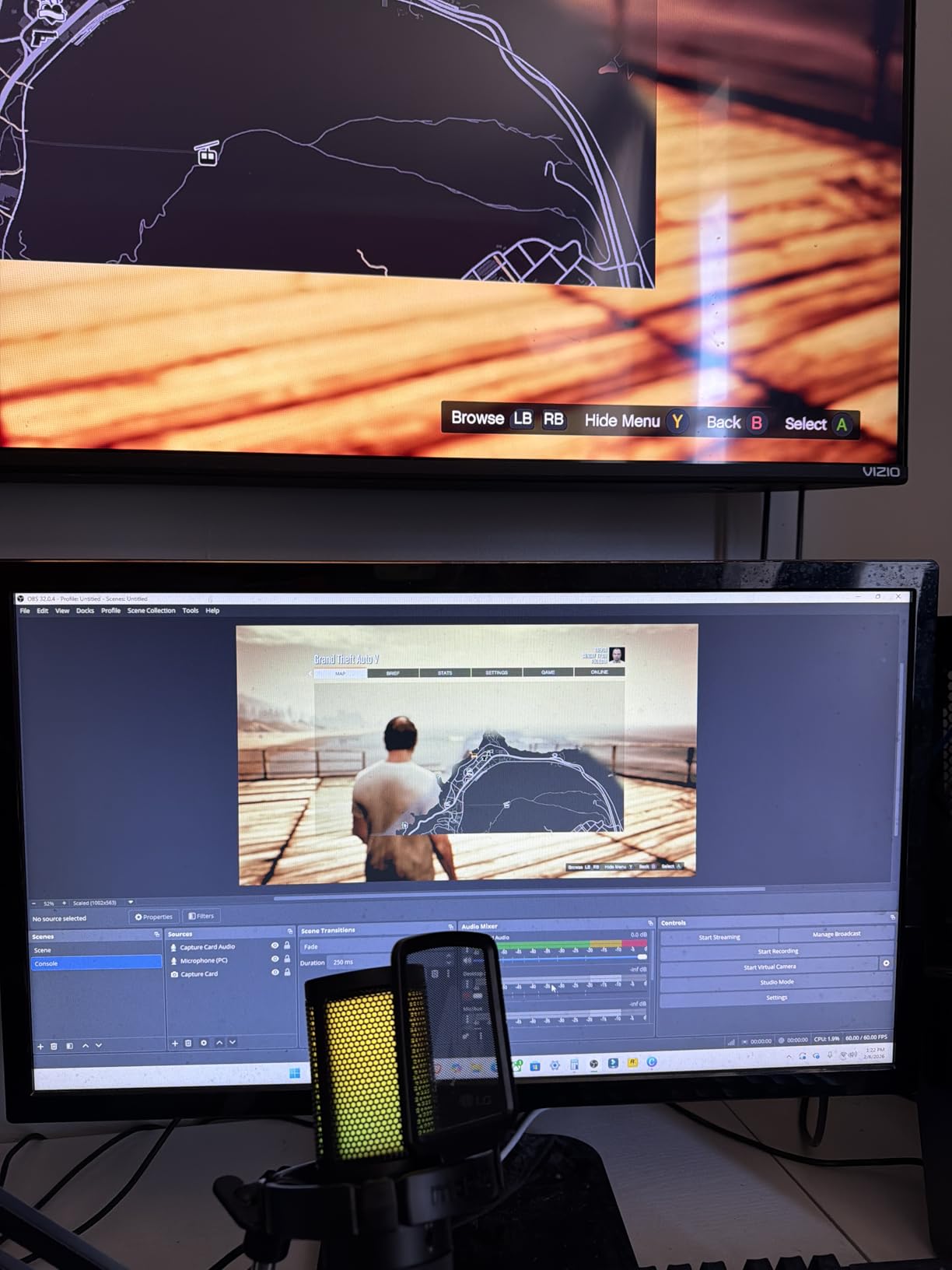
Video quality at 1080p60 was clean and consistent in my testing. The 4K passthrough support means your games will look great on a 4K TV even though the capture resolution maxes out at 1080p. Setup was simple with no driver installation required. OBS detected the card immediately and I was streaming within minutes of unboxing.
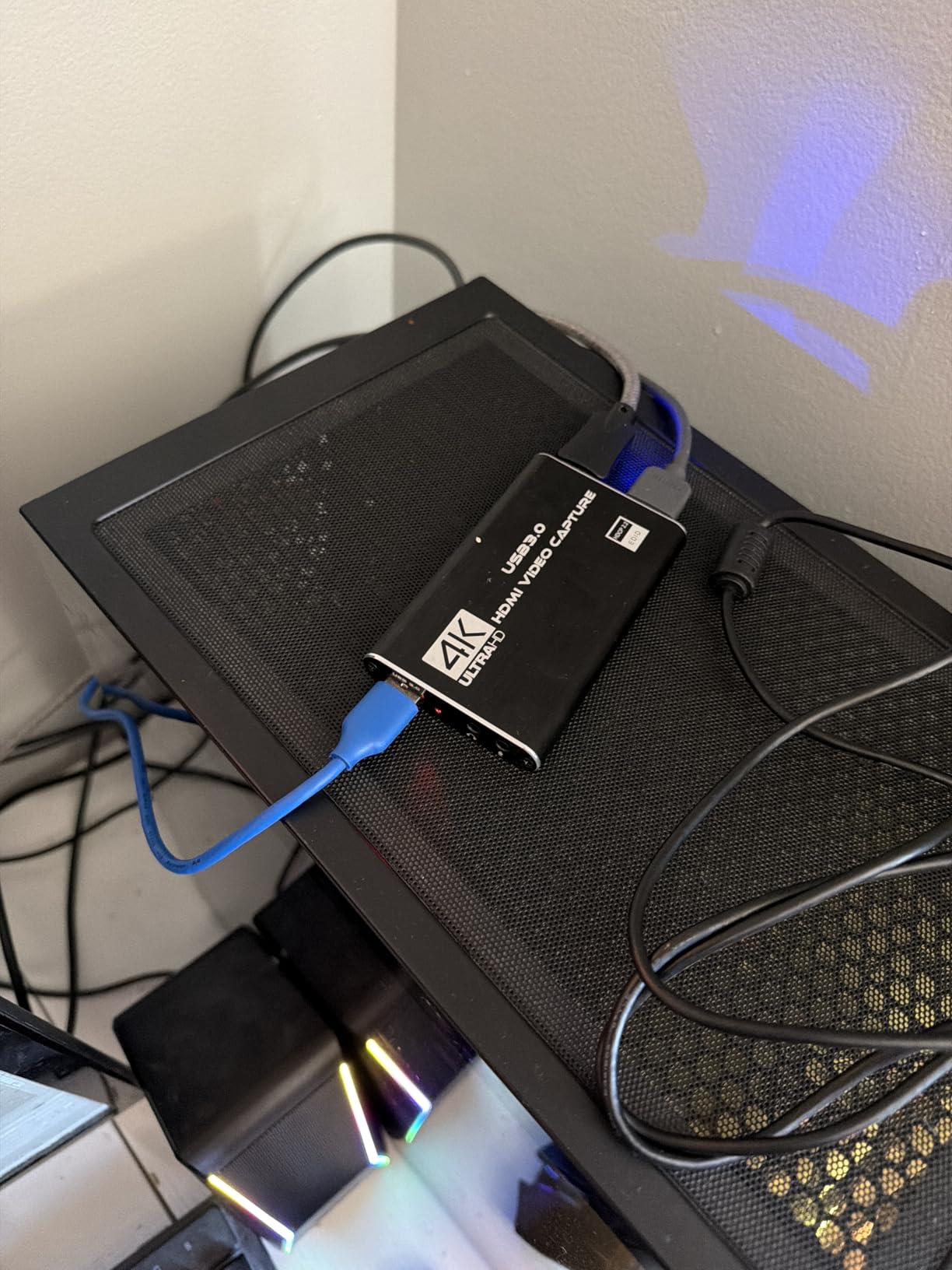
The main downside is the short USB cable. It is barely long enough to reach from my Nintendo Switch dock to my PC, so I had to rearrange my setup to make it work. Some users also report that the card may develop issues after a year or more of regular use, which is something to keep in mind for long-term reliability.
Who should buy the Rybozen HDMI Capture Card
Nintendo Switch owners who want to stream or record gameplay with zero-latency passthrough and live commentary should put the Rybozen at the top of their list. The HDMI loop-out and microphone input are features that usually cost significantly more. It is also a strong option for anyone who plays on a TV and needs passthrough to their display while capturing to a PC.
Content creators who want to add voice commentary to their gameplay recordings without a separate audio interface will benefit from the built-in mic input.
Who should skip the Rybozen HDMI Capture Card
If you need a capture card for daily professional streaming, the long-term durability concerns are worth considering. The short USB cable is also limiting if your PC and console are not right next to each other. Streamers who do not need the HDMI loop-out feature might get better value from the Guermok or UGREEN options, which offer similar capture quality at a lower price.
How to Choose the Right Capture Cards?
Picking the best capture card comes down to matching the card’s capabilities to what you actually need. I see too many people overspending on features they will never use or underspending and ending up frustrated with performance issues. Here is what actually matters when making your decision.
Internal vs External Capture Cards
Internal PCIe capture cards like the Elgato 4K Pro and AVerMedia GC571 offer more stable performance because they connect directly to your motherboard. There is no USB bandwidth limitation, and once installed, you never need to plug or unplug anything. The trade-off is that you need a desktop PC with a free PCIe slot, and installation requires opening your case.
External USB capture cards like the Elgato 4K X, HD60 S+, and EVGA XR1 Pro are far more versatile. You can move them between computers, use them with laptops, and set them up without opening any cases. USB 3.0 and USB 3.2 connections provide plenty of bandwidth for 4K capture, though you need to make sure you are using a dedicated port rather than a hub.
Resolution and Frame Rate: What You Actually Need
Most Twitch streamers only need 1080p60 capture. YouTube creators who upload in 4K will benefit from a 4K60 card. Competitive gamers who play at high refresh rates should look for cards that support 1440p144 or 1080p240 passthrough. The key is matching your capture resolution to your output resolution.
Do not pay for 4K144 capture if you only stream at 1080p60. The extra capability goes unused and costs you money. On the other hand, if you are building a channel that focuses on visual quality and you upload 4K content to YouTube, investing in a 4K capture card will make a noticeable difference in your final output.
HDMI 2.0 vs HDMI 2.1: Does It Matter?
HDMI 2.0 supports up to 4K60, which is enough for most current-gen console gaming. HDMI 2.1 unlocks higher bandwidth, enabling 4K144 and 1080p240. If you play on a PS5 Pro, Xbox Series X with a high-refresh monitor, or plan to upgrade your display in the near future, HDMI 2.1 capture cards like the Elgato 4K X and 4K Pro are worth the investment.
For Nintendo Switch, Steam Deck, or 1080p gaming, HDMI 2.0 is perfectly adequate. The Elgato HD60 S+, EVGA XR1 Pro, and all the budget cards use HDMI 2.0 and handle these use cases without issues.
Software Compatibility: OBS and Beyond
OBS Studio is the standard for streaming software, and every card on this list works with it. Cards that are OBS certified, like the EVGA XR1 Pro, have been tested by the OBS team for guaranteed compatibility. This is worth considering if you want to avoid troubleshooting headaches.
Some cards also work with proprietary software from their manufacturers. Elgato’s 4K Capture Utility offers features like Flashback Recording, and AVerMedia’s RECentral provides advanced recording controls. However, most experienced streamers end up using OBS for its flexibility, so compatibility with OBS should be your primary consideration.
Console-Specific Considerations
PS5 and Xbox Series X streamers should look for cards with 4K60 passthrough and HDR support to get the best visual quality while playing. Nintendo Switch owners do not need 4K passthrough since the Switch outputs at 1080p maximum, but an HDMI loop-out port is valuable for zero-latency gameplay on a TV. Steam Deck users can use any USB capture card since the Deck outputs via USB-C to HDMI.
For dual-PC streaming setups, internal PCIe cards in the streaming PC provide the most reliable capture. External cards work too, but you need to manage cable routing between two machines. Cards with low-latency USB 3.2 connections like the Elgato 4K X minimize the delay between your gaming PC and streaming PC.
Frequently Asked Questions About Capture Cards
What capture card do most streamers use?
Most popular streamers use Elgato capture cards, specifically the HD60 S+ and 4K X models. Elgato dominates the streaming market because of its reliable plug-and-play setup, excellent OBS integration, and strong community support. The Elgato HD60 S+ alone has over 11,500 reviews on Amazon, making it the most widely adopted external capture card among content creators. However, many experienced streamers also recommend the EVGA XR1 Pro as a strong alternative, especially for its OBS certification and built-in audio mixer at a lower price point.
Is Elgato the best capture card?
Elgato makes excellent capture cards, but whether it is the best depends on your needs. Elgato leads in external USB capture cards with models like the 4K X and HD60 S+, offering top-tier performance and software. However, AVerMedia produces competitive internal PCIe cards like the GC571 that sometimes outperform Elgato on value. EVGA also offers strong alternatives like the XR1 Pro, which is OBS certified and includes a built-in audio mixer. Elgato’s biggest advantage is its ecosystem and community support rather than raw performance superiority.
Should I use Elgato or OBS?
These are not competing products. Elgato makes hardware capture cards, while OBS is free streaming and recording software. You use them together: your Elgato capture card sends video to OBS, which handles the encoding and broadcasting. Some Elgato cards also work with Elgato’s own 4K Capture Utility software, which offers features like Flashback Recording, but most streamers prefer OBS for its flexibility, plugin support, and customization options.
How much is a decent capture card?
A decent capture card costs between $15 and $160 depending on your needs. Budget options like the Guermok and UGREEN cards handle 1080p60 capture well for under $25. Mid-range cards like the EVGA XR1 Pro and Elgato 4K S offer 4K passthrough and advanced features between $100 and $170. Premium cards like the Elgato 4K X with HDMI 2.1 and 4K144 capture sit around $215. For most new streamers, a $20 to $50 card is a perfectly reasonable starting point.
Do I need a capture card if I stream from PC?
If you stream PC gameplay directly from the same computer, you do not need a capture card. OBS and other streaming software can capture your screen directly using game capture or display capture sources. Capture cards are necessary when you want to stream from a separate device like a console (PS5, Xbox, Switch), use a DSLR camera as your webcam, or set up a dual-PC streaming configuration where one PC handles gaming and another handles the encoding and broadcasting.
Final Thoughts on the Best Capture Cards
After testing all 10 of these capture cards across different consoles, PCs, and streaming scenarios, the Elgato 4K X stands out as the best overall pick for 2026. Its combination of 4K144 capture, HDMI 2.1 support, and ultra-low latency makes it the most capable external capture card you can buy right now. For most streamers who do not need that level of performance, the EVGA XR1 Pro delivers outstanding value with OBS certification and a built-in audio mixer.
Budget-conscious creators have great options too. The Guermok and UGREEN cards prove that you do not need to spend much to get a functional capture card for streaming. For Nintendo Switch owners specifically, the Rybozen with its HDMI loop-out and mic input punches well above its weight class.
The best capture card is the one that matches your actual needs. Figure out what resolution and frame rate you stream at, what devices you need to capture from, and what your budget looks like. Then pick the card from this list that aligns with those requirements. Any of the 10 cards here will serve you well for the right use case.