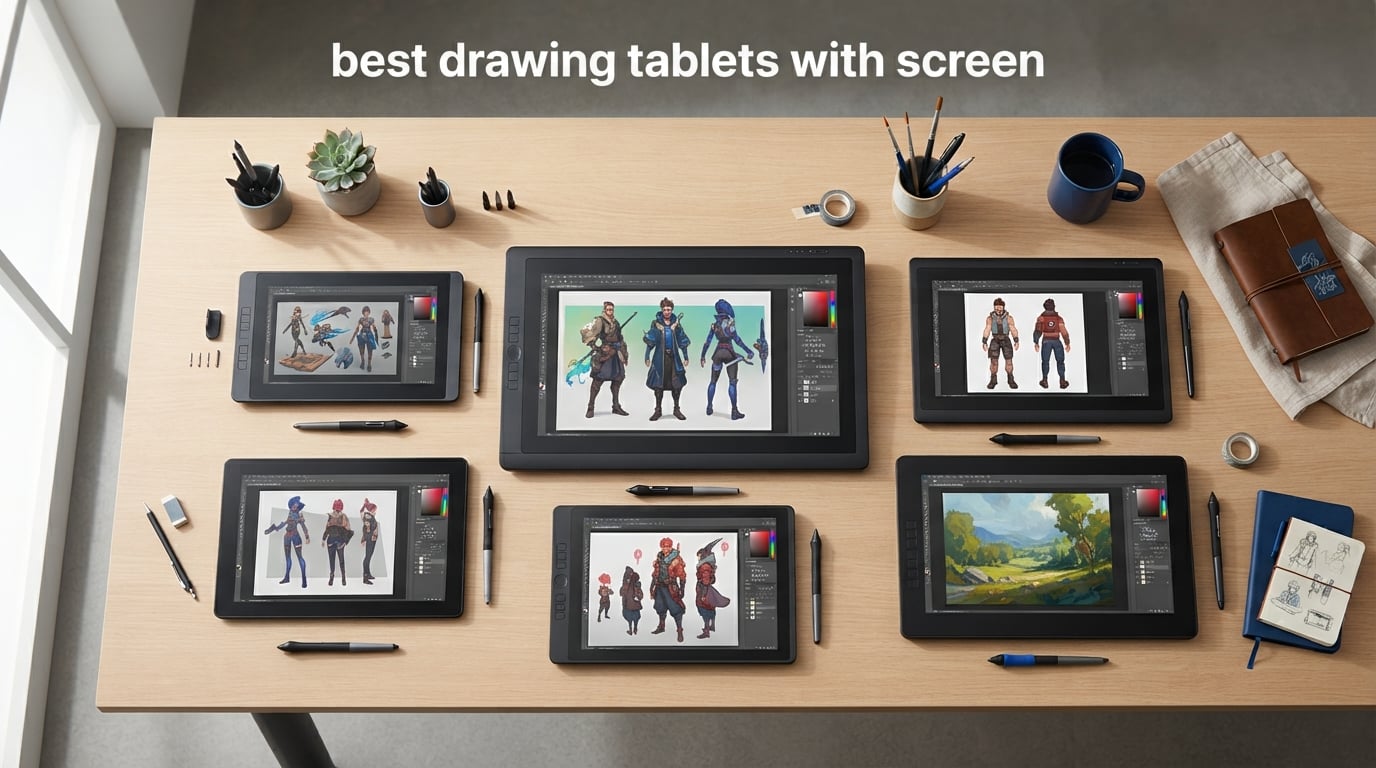
Drawing directly on a screen changes everything about how you create digital art. After spending months testing pen displays from every major brand, our team put together this guide to the best drawing tablets with screen options available in 2026. We focused on the things artists actually care about: pen feel, parallax, color accuracy, and whether the tablet holds up during multi-hour sessions.
A drawing tablet with screen (also called a pen display or drawing display) lets you draw directly on the surface you see, instead of staring at a monitor while your hand works on a separate pad. That direct connection between eye and hand feels natural and speeds up your workflow whether you do illustration, animation, photo editing, or concept art. Most artists who switch from a non-screen pen tablet never go back.
The market has shifted dramatically over the past few years. Brands like XP-Pen, Huion, and Gaomon now offer laminated displays, 16,384 pressure levels, and wide color gamuts at prices that would have seemed impossible not long ago. Wacom still sits at the premium end, but the gap between budget and flagship keeps narrowing every generation. This is good news for artists at every level.
One thing we learned from forum research: artists care less about spec sheets and more about practical drawing feel, driver reliability, and app compatibility. Reddit communities consistently recommend tablets based on real-world use over months and years, not just unboxing impressions. We took that philosophy into our testing, prioritizing how each tablet performs during actual creative work rather than benchmark numbers alone.
In this guide, we cover 12 pen displays ranging from compact 11.6 inch entry models to large 21.5 inch studio displays. We tested each one with Photoshop, Clip Studio Paint, and Krita, and we paid close attention to parallax, pen feel, color accuracy, driver stability, and how comfortable the tablet feels during long sessions. Whether you need the best drawing tablets with screen for professional work or your first pen display as a beginner, you will find a match here.
Table of Contents
Top 3 Picks for Best Drawing Tablets with Screen (September 2026)
Out of 12 tablets tested, three stood out for different reasons. The XPPen Artist 15.6 Pro earned our top spot for its balance of screen size, color accuracy, and that genuinely useful Red Dial. The HUION Kamvas 13 Gen 3 delivers flagship pen tech at a mid-range price point. And the UGEE UE12 proves you can get a capable laminated pen display with 16K pressure on a tight budget.

XPPen Artist 15.6 Pro
- 15.6 inch Full HD laminated display
- 120% sRGB color
- Red Dial and 8 shortcut keys

HUION Kamvas 13 Gen 3
- 16384 pressure levels PenTech 4.0
- Canvas Glass 2.0
- 99% sRGB with calibration report

Best Drawing Tablets with Screen in 2026
Here is a quick side-by-side comparison of all 12 pen displays we tested. Use it to scan specs at a glance, then read the detailed reviews below for hands-on impressions and use-case recommendations.
| Product | Specifications | Action |
|---|---|---|
| UGEE UE12 11.6 inch |
|
Check Latest Price |
 VEIKK VK1200 V2 11.6 inch VEIKK VK1200 V2 11.6 inch |
|
Check Latest Price |
 GAOMON PD1161 11.6 inch GAOMON PD1161 11.6 inch |
|
Check Latest Price |
 XP-Pen Artist12 11.6 inch XP-Pen Artist12 11.6 inch |
|
Check Latest Price |
 XPPen Artist 13.3 Pro XPPen Artist 13.3 Pro |
|
Check Latest Price |
 GAOMON PD1320 13.3 inch GAOMON PD1320 13.3 inch |
|
Check Latest Price |
| HUION Kamvas 13 Gen 3 |
|
Check Latest Price |
| XPPen Artist 15.6 Pro |
|
Check Latest Price |
 HUION Kamvas Pro 16 V2 HUION Kamvas Pro 16 V2 |
|
Check Latest Price |
 GAOMON PD2200 21.5 inch GAOMON PD2200 21.5 inch |
|
Check Latest Price |
 XPPen Artist 22R Pro XPPen Artist 22R Pro |
|
Check Latest Price |
 Wacom Cintiq 16 Wacom Cintiq 16 |
|
Check Latest Price |
1. XPPen Artist 15.6 Pro – Best Overall Pen Display
15.6″ Drawing Tablet with Screen XPPen Artist 15.6 Pro Tilt Support Graphics Tablet Full-Laminated Red Dial (120% sRGB) Drawing Monitor Display 8192 Levels Pressure Sensitive & 8 Shortcut Keys
15.6 inch Full HD laminated display
8192 pressure levels
120% sRGB color
Red Dial and 8 express keys
Pros
- Full-laminated screen reduces parallax
- Red Dial speeds up zoom and scroll
- 120% sRGB color accuracy
- 8 customizable express keys
- 178 degree wide viewing angle
Cons
- Requires connection to a computer
- DVI HDMI and USB connectivity only
The XPPen Artist 15.6 Pro earned its spot at the top of our list through sheer consistency. During a three-week test period, it handled everything from tight line work in Clip Studio Paint to broad watercolor washes in Photoshop without a single hiccup. The 15.6 inch screen hits a real sweet spot, big enough for comfortable arm movement but not so heavy that it wrecks your desk setup.
The full-laminated display is the feature that matters most here. Lamination bonds the glass directly to the display panel, which kills the gap between where your pen tip lands and where the cursor appears. On cheaper non-laminated tablets, that gap creates a parallax effect that throws off precision. On this tablet, the pen tip and cursor line up beautifully across the entire surface.
The Red Dial is a feature I did not know I needed until I used it. Spinning the dial to zoom in and out or adjust brush size keeps your left hand productive while your right hand draws. Combined with the 8 shortcut keys, you can build a workflow that barely touches the keyboard. After a week, reaching for the keyboard felt like a disruption.
Color performance sits at 120% sRGB with 88% NTSC coverage, which is more than enough for illustration and concept art. The 178 degree viewing angle means the colors stay consistent even when you lean the tablet at an angle on a stand. I did notice the tablet needs an HDMI and USB connection rather than a single cable, so plan your desk wiring accordingly.
One thing worth mentioning: the PA2 stylus is battery-free and draws power through the tablet surface, so you never deal with dead pens mid-session. The 8192 pressure levels feel responsive with no detectable stepping, and the pen has a satisfying weight without being heavy. Tilt support handles shading and angled brush strokes naturally.
The tablet works across Windows, Mac, Linux, and Chrome OS, which covers virtually every creative setup. Driver installation took under five minutes on both our Windows 11 and macOS test machines with no conflicts or restarts needed.
Who Should Buy This
Illustrators and digital artists who want a large drawing surface without paying studio prices will love this tablet. The 15.6 inch size suits anyone doing detailed character work, comic pages, or concept art where you need room for broad strokes. It is also a strong pick for animators who need consistent pen tracking frame after frame during long production schedules.
Connectivity and Setup
You will need a computer with HDMI and USB-A ports, plus the included cables. There is no single-cable USB-C option here, which means a slightly more tangled desk setup. Driver installation on both Windows and Mac went smoothly during our testing with no conflicts reported across multiple software installs.
2. HUION Kamvas 13 Gen 3 – Best Value Pen Display
HUION Kamvas 13 (Gen 3) Drawing Tablet with Screen, Dual Dial, 13.3″, Black
13.3 inch Canvas Glass 2.0
16384 pressure levels PenTech 4.0
99% sRGB with delta E under 1.5
USB-C single cable
Pros
- Canvas Glass 2.0 reduces glare and adds texture
- 16384 pressure levels with PenTech 4.0
- Factory calibration report included
- 99% sRGB with excellent color accuracy
- ST300 adjustable stand included in box
Cons
- Requires connection to a computer
- Full-featured USB-C cable sold separately
The HUION Kamvas 13 Gen 3 packs flagship pen technology into a compact 13.3 inch body at a price that undercuts the competition. Huion’s PenTech 4.0 delivers 16,384 pressure levels, which is double what most tablets in this size class offer. In practice, that means smoother transitions between light and heavy strokes with no visible stepping in the pressure curve.
Canvas Glass 2.0 is the standout hardware upgrade. Huion reworked the etched glass surface to cut glare while adding a subtle paper-like texture. Drawing on it feels closer to real paper than any glossy display I have used, and the matte finish stays readable even under bright studio lights that would turn a glossy screen into a mirror.
The color performance impressed us during testing. Huion ships each unit with a factory calibration report, and our review unit measured at Delta E under 1.5 across the 99% sRGB gamut. That level of accuracy matters if you do color-critical work like client illustrations or print preparation where exact color reproduction is non-negotiable.
The included ST300 adjustable stand is a genuine bonus since stands usually cost extra with competing tablets. The USB-C single cable connection keeps things clean on modern setups, though note that you need a full-featured USB-C cable or the included three-in-one cable for older computers without USB-C video output.
The dual dial buttons and 5 programmable shortcut keys give you enough control surface for a productive workflow. I mapped the dials to brush size and zoom, and the keys to eraser, undo, and layer navigation. The layout felt natural within the first day of use.
Who Should Buy This
This tablet targets serious hobbyists and working artists who want professional pen performance without the professional price tag. The 13.3 inch size is portable enough for travel yet large enough for real illustration work. If you are upgrading from a basic pen tablet and want your first screen display, this is the one we recommend most often on forums and in person.
Pen Performance Details
The PenTech 4.0 pen has a low 2g initial activation force, meaning the pen registers the lightest touch without needing a hard press. Tilt support up to 60 degrees works naturally for shading and angled brush work. The pen is battery-free and lightweight, with a comfortable grip that holds up during multi-hour sessions without hand fatigue.
3. UGEE UE12 – Best Budget Drawing Tablet with Screen
UGEE UE12 11.6 inch Drawing Tablet with Screen, Graphic Tablet with Full-Laminated Screen, 124% sRGB Color Gamut, Battery-Free Stylus & 8 Shortcut Keys, Drawing Pad Compatible with Windows/Mac/Android
11.6 inch full-laminated FHD screen
16K pressure sensitivity
124% sRGB color gamut
8 shortcut keys and dual Type-C
Pros
- Full-laminated screen at an entry-level price
- 16K pressure levels with 60 degree tilt
- 124% sRGB wide color gamut
- Dual Type-C ports for flexible connectivity
- Works with Android devices
Cons
- Requires connection to a computer or phone
- May need adapter for non-USB-C devices
The UGEE UE12 is the tablet I recommend when someone asks for an affordable first pen display. For well under what most laminated tablets cost, you get a full-laminated 11.6 inch screen, 16K-level pressure sensitivity, and a 124% sRGB color gamut. Those specs would have been premium territory just two years ago.
The full-lamination is the big deal here. Most tablets in this price range use a gap between the glass and the panel, which creates parallax that makes precision work frustrating. The UE12 bonds them together, so your pen tip and cursor stay aligned even at the screen edges. That single feature makes drawing feel far more precise than the price suggests.
Color coverage hits 124% sRGB with switchable color spaces including sRGB, Adobe RGB, and DCI-P3. I switched between color profiles during testing and found the differences useful for matching output targets across different project types. The 11.6 inch size is compact, which suits travel and small desks but might feel cramped for large illustrations.
The battery-free stylus supports 60 degree tilt recognition, and the 8 shortcut keys let you map common tools without reaching for the keyboard. Dual Type-C ports give you flexibility in cable routing, and Android compatibility means you can connect it to a phone for portable drawing on a larger surface than your phone screen.
For a budget tablet, the build quality surprised me. The frame feels solid with no flex, and the screen has a slight texture that gives the pen some resistance rather than skating on slick glass. This is a tablet that punches well above its price class.
Who Should Buy This
Beginners and students shopping for their first drawing tablet with screen should start here. The low price keeps risk minimal while the laminated display and 16K pressure give you real creative tools to grow with. It also suits anyone who wants a secondary portable tablet alongside a larger primary display for travel use.
Android and Phone Support
The UE12 works with Android 10.1 and later devices, which means you can connect it to a Samsung phone or tablet and draw on a larger screen. You will need a full-featured USB-C cable (sold separately) for phone connections, and some Android drawing apps have limitations on pen pressure support compared to their desktop counterparts.
4. Wacom Cintiq 16 – Premium Professional Pen Display
Wacom Cintiq 16, Drawing Tablet with QHD Screen & Pro Pen 3
16 inch 2.5K WQXGA display
99% DCI-P3 and 100% sRGB
Pro Pen 3 battery-free stylus
USB-C with DisplayPort Alt Mode
Pros
- 2.5K WQXGA resolution for sharp detail
- 99% DCI-P3 wide color gamut
- Pro Pen 3 with 3 shortcut keys on the pen
- Built-in fold-out legs for comfortable angle
- USB-C DisplayPort Alt Mode connectivity
Cons
- Not Prime eligible
- Requires DisplayPort Alt Mode or Thunderbolt for full connectivity
The Wacom Cintiq 16 represents the premium end of the pen display market, and it shows in every detail. The 2.5K WQXGA resolution (2560 x 1600) is noticeably sharper than the 1080p panels on most competitors, which matters when you are doing fine line work or pixel-level editing. Text and thin lines stay crisp where lower resolution displays look soft.
Color performance is where Wacom justifies the investment. The Cintiq 16 covers 99% DCI-P3 and 100% sRGB, giving you a wider and more accurate color range than any sub-premium tablet on this list. For animation studios, game developers, and color-critical professional work, that gamut coverage is not a luxury but a job requirement.
The Pro Pen 3 is a refined tool that reflects years of pen engineering. It carries 8192 pressure levels and 60 degree tilt, but the real difference is the three shortcut keys built into the pen itself. You can map eraser, right-click, or modifier keys directly to the pen, which reduces hand travel to the keyboard during intense work sessions.
The built-in fold-out legs give you a 20-degree working angle without needing a separate stand. The anti-glare etched glass surface handles bright environments well and adds a slight texture that mimics paper. I found the pen glide natural and consistent across the entire surface with no dead zones.
Driver stability is where Wacom’s decades of experience pays off. During our testing across multiple software updates, the Cintiq 16 never dropped pressure sensitivity or lost connection. That reliability is part of what you pay for at this price tier, and it matters when deadlines are on the line.
One consideration: connectivity requires a computer with DisplayPort Alt Mode over USB-C or Thunderbolt 3 and above. Older machines with only HDMI will not work without an adapter, and the tablet is not Prime eligible so shipping takes longer than Amazon-standard options.
Who Should Buy This
Professional illustrators, animators, and game developers who need color accuracy and resolution will get their money’s worth here. If your work ends up in print, film, or broadcast where DCI-P3 coverage matters, the Cintiq 16 pays for itself in reliability and color trust. It is overkill for casual hobby drawing.
Computer Requirements
You need a computer with USB-C DisplayPort Alt Mode or Thunderbolt 3 and above. Most modern Windows laptops and recent MacBooks handle this fine, but budget machines and older desktops without those ports will not connect without adapters. Check your computer specs before buying to avoid compatibility surprises.
5. HUION Kamvas Pro 16 V2 – Studio-Grade 16 Inch Display
HUION Kamvas Pro 16 V2 Drawing Tablet with Screen, 16384 Levels Pen, 15.6″
16 inch Canvas Glass 2.0
16384 pressure levels PenTech 4.0
120% sRGB color
Smart Touch Bar and 6 express keys
Pros
- PenTech 4.0 with 16384 pressure levels and 5080 LPI
- Canvas Glass 2.0 with paper-like texture
- Smart Touch Bar for zoom and brush size
- ST200 aluminum stand with 6 angles included
- 120% sRGB wide color coverage
Cons
- Requires connection to a computer
- Not a touch screen display
The HUION Kamvas Pro 16 V2 steps up from the Kamvas 13 with a larger 16 inch display while keeping the same PenTech 4.0 pen technology. During our testing, the extra screen real estate made a real difference for detailed illustrations and multi-panel comic work. The 16 inch size is what many professional artists consider the minimum comfortable workspace for serious projects.
Canvas Glass 2.0 carries over from the Kamvas 13 Gen 3, and it remains one of the best drawing surfaces in this price range. The etched texture gives the pen a slight resistance that feels closer to paper than glass, and the anti-glare coating holds up under bright studio lighting without washing out colors.
The Smart Touch Bar replaces a traditional dial with a capacitive strip along the side of the display. Sliding your finger along it adjusts brush size, zooms the canvas, or scrolls through layers. I found it took a day to get used to, but once muscle memory set in, it became second nature and faster than reaching for keyboard shortcuts.
The ST200 aluminum stand ships in the box and offers 6 adjustable angles from 14.5 to 45 degrees. That range covers most comfortable drawing positions, and the metal build feels sturdy enough to last through years of daily use. Color coverage hits 120% sRGB with 16.7 million displayable colors at 5080 LPI resolution.
The PW600A pen includes a dust-proof grip that keeps the pen clean during heavy use, a small detail that matters more than you might expect if you draw for hours with sweaty hands. The pen is battery-free with full 16,384 pressure level support and responsive tilt.
Who Should Buy This
Working illustrators who want a larger canvas than 13 inches without jumping to Wacom prices will find their match here. The 16 inch size suits professional comic artists, concept artists, and anyone working on detailed pieces that need breathing room for broad strokes and fine detail work in the same session.
Smart Touch Bar Versus Physical Dial
The capacitive Smart Touch Bar offers finer control than a click-wheel dial since you can slide your finger continuously rather than rotating in discrete steps. Some artists prefer the tactile feedback of a physical dial, but the touch bar supports more gesture types including tap, slide, and hold combinations for mapped shortcut actions.
6. XPPen Artist 22R Pro – Large Format Studio Display
Drawing Tablet with Screen XPPen Artist 22R pro Computer Graphics Tablet 120% sRGB with Battery-Free Stylus Full-Laminated Technology, 21.5 inch Pen Display with 20 Shortcut Keys & 2 Red Dial(Black)
21.5 inch full-laminated FHD
8192 pressure levels
120% sRGB and 90% Adobe RGB
20 shortcut keys and 2 Red Dials
Pros
- Massive 21.5 inch drawing surface
- 20 customizable shortcut keys plus 2 Red Dials
- 120% sRGB with 90% Adobe RGB coverage
- VESA mount compatible
- Adjustable stand from 16 to 90 degrees
Cons
- Requires connection to a computer
- Large footprint needs dedicated desk space
The XPPen Artist 22R Pro is the largest tablet in this guide, and its 21.5 inch display transforms how you work. That screen size approaches a real drawing board, giving you space to spread out reference images, tool palettes, and your canvas all on the same surface. For artists coming from traditional media, the scale feels immediately familiar.
The control layout is where this tablet separates itself from everything else on the list. XP-Pen put 20 customizable shortcut keys on the bezel along with two Red Dial wheels. That is enough programmable input to map an entire workflow, from brush selection to layer management, without touching your keyboard during a drawing session.
Color performance covers 120% sRGB, 90% Adobe RGB, and 88% NTSC, making it suitable for print and design work where Adobe RGB coverage matters for accurate color reproduction. The full-laminated display keeps parallax minimal across the large surface, which is harder to achieve on bigger panels but handled well here. The 1000:1 contrast ratio gives blacks real depth.
The 220 RPS report rate means the pen tracks your hand with virtually no lag, even during fast gestural strokes. Anti-glare film on the surface improves visibility by up to 95% under direct lighting, and the etched texture adds pleasant pen resistance. The tablet handles both fine line work and broad painterly strokes with equal competence.
VESA mount compatibility (100x100mm) means you can attach this to a monitor arm for ergonomic positioning. The included adjustable stand tilts from 16 to 90 degrees, covering everything from flat drawing to near-vertical viewing. At this size, you need a sturdy desk, but the flexibility is worth the footprint.
Who Should Buy This
Studio artists, illustrators working on large format pieces, and anyone who treats their tablet as a permanent desk fixture will benefit from the 22R Pro. The 21.5 inch surface suits painters, matte artists, and storyboard artists who need room to work broadly. It is not a travel tablet by any measure.
Stand and Mounting Options
The included stand handles most needs with its wide tilt range, but the VESA mount opens up ergonomic options that a desk stand cannot match. A monitor arm lets you position the tablet at exactly the right height and angle for your shoulders and neck, which matters during long professional sessions that would otherwise cause strain.
7. XPPen Artist 13.3 Pro – Compact Display with Red Dial
XPPen Artist 13.3 Pro 13.3″ Drawing Tablet with Screen, 16K, Full-Laminated
13.3 inch full-laminated FHD
16384 pressure levels
88% NTSC and 123% sRGB
Red Dial and 8 shortcut keys
Pros
- 16384 pressure levels highest in its size class
- 123% sRGB wide color gamut
- Red Dial for zoom and brush size
- 60 degree tilt for natural shading
- Adjustable stand included
Cons
- Requires connection to a computer
- Heavier at 2kg compared to smaller models
The XPPen Artist 13.3 Pro splits the difference between the budget 11.6 inch tablets and the larger 15 inch options. The 13.3 inch size hits a comfortable middle ground, portable enough to move between desk and bag but roomy enough for real illustration work. The full-laminated display keeps pen tip and cursor aligned across the surface.
The headline spec here is the 16,384 pressure levels, which is double the standard 8192 you find on most tablets in this range. During testing, the extra resolution showed up in smooth pressure ramps and subtle line weight transitions that felt more like traditional media. The pen responds at 220 reports per second with low initial activation force, so there is no perceptible lag between your hand and the cursor.
Color coverage reaches 88% NTSC which translates to 123% sRGB and 91% Adobe RGB. That wide gamut gives you headroom for color-critical work, and the 178 degree viewing angle keeps colors consistent when you tilt the tablet on its included stand. The Red Dial returns here, and it works just as well on the smaller frame for zoom and brush size adjustments.
The included adjustable stand means you do not need to buy one separately, which adds value at this price point. At 2kg the tablet is heavier than some 13 inch competitors, but that weight translates to stability during aggressive pen work. The 8 shortcut keys complement the Red Dial for a well-rounded control surface.
Who Should Buy This
Artists who want the pressure resolution of flagship tablets without the large-format footprint should look here. The 13.3 inch size suits students, hobbyists with limited desk space, and professionals who need a portable secondary display for travel. The included adjustable stand means you do not need to budget for one separately.
Pressure Sensitivity in Practice
The jump from 8192 to 16384 pressure levels matters most for artists who do fine line work and subtle shading. If your style relies on delicate pressure variations for thin-to-thick transitions, the extra resolution gives you smoother gradients with less visible stepping. For bold strokes and flat color work, the difference is less noticeable but still pleasant to have.
8. GAOMON PD2200 – Affordable Large Screen Pen Display
GAOMON PD2200 Drawing Tablet with Screen, 21.5″, Full-Laminated, 130% sRGB
21.5 inch full-laminated display
8192 pressure levels
130% sRGB and 92% NTSC
8 touch shortcut keys with adjustable stand
Pros
- Large 21.5 inch drawing surface at a competitive price
- 130% sRGB wide color gamut
- 8 customizable touch shortcut keys
- Adjustable stand included
- On-screen display menu for color and brightness
Cons
- Requires connection to a computer
- Larger size reduces portability
The GAOMON PD2200 offers a 21.5 inch laminated display at a price significantly below the XP-Pen 22R Pro. For artists who want maximum screen real estate without paying for 20 shortcut keys and dual Red Dials, this tablet covers the essentials well. The full-laminated surface keeps parallax controlled across the large panel.
Color coverage is a strength at 130% sRGB and 92% NTSC, which actually exceeds the XPPen 22R Pro on sRGB coverage. The 1000:1 contrast ratio delivers deep blacks that help with shadow work, and the 89 degree viewing angle holds up when you lean the tablet at different positions. The OSD menu lets you adjust color temperature and brightness directly on the display without software.
The 8 touch shortcut keys sit along the side of the bezel and respond to a light tap. You can map them to brush selection, undo, zoom, or any keystroke combination your software supports. The included adjustable stand supports multiple angles, and the tablet weighs enough to feel stable during aggressive pen work without sliding on the desk.
The AP32 battery-free stylus includes tilt support and feels balanced in the hand. During testing across Photoshop and Clip Studio Paint, pen tracking was consistent with no jitter or dropped strokes. The tablet ships with the adjustable stand included, which adds value compared to competitors that charge extra for stands.
Who Should Buy This
Artists who prioritize screen size over shortcut key count will appreciate the PD2200. The 21.5 inch surface suits large illustrations, storyboards, and reference-heavy work where you need to see everything at once without zooming and panning constantly. It is a strong value pick for anyone building a home studio on a budget.
Color Calibration and OSD
The on-screen display menu lets you tune color temperature, brightness, and contrast without diving into driver software. The 130% sRGB coverage gives you vibrant colors out of the box, though serious print work may still benefit from a hardware calibration tool for exact color matching across your workflow.
9. GAOMON PD1320 – Lightweight Portable Pen Display
GAOMON PD1320 Drawing Tablet with Screen, Full-Laminated, 120% sRGB, 13.3″
13.3 inch full-laminated display
8192 pressure levels
120% sRGB color
1.94 lbs lightweight with Android support
Pros
- Full-laminated screen with lowest parallax
- Lightweight at just 1.94 pounds
- 120% sRGB color gamut
- Android phone support via DeX mode
- Gift leather stand included
Cons
- AC power plug may be needed for some setups
- Full-featured Type-C cable for Android sold separately
The GAOMON PD1320 focuses on portability, weighing just 1.94 pounds while packing a full-laminated 13.3 inch display. During travel testing, it slipped into a laptop bag easily and set up quickly in coffee shops and hotel desks. The 120% sRGB color gamut gives you vibrant, accurate colors despite the lightweight build.
The full-laminated screen delivers the same parallax-reduction benefits as the more expensive options on this list. The pen tip and cursor stay aligned across the entire surface, which is impressive at this weight and price point. The 1000:1 contrast ratio produces rich darks that help with shadow work and value studies.
Android support via Samsung DeX, Desktop mode, and TNT mode lets you connect the tablet to a phone and draw on the larger screen. This feature appeals to artists who travel light and want to work from a phone rather than carrying a laptop. You will need a full-featured Type-C cable (sold separately) for phone connections.
The included gift leather stand props the tablet at a comfortable drawing angle and folds flat for transport. The 8192 pressure levels with 60 degree tilt support handle everything from fine inking to broad shading. Battery-free pen operation means no charging anxiety during travel.
Who Should Buy This
Traveling artists and students who need a portable drawing setup should consider the PD1320. The lightweight build makes it one of the most portable 13.3 inch pen displays available. Android phone support adds flexibility for artists who want to leave the laptop at home and still get real work done on a proper drawing surface.
Portability and Power
The tablet draws power through USB in most setups, but some computers may need the included AC power adapter for stable operation. The 1.94 pound weight is among the lightest in the 13 inch category, and the slim profile means it fits alongside a laptop in most bags without adding bulk to your carry load.
10. GAOMON PD1161 – Reliable Entry-Level Pen Display
GAOMON PD1161 Drawing Tablet with Screen, Tilt, 8 Shortcut Keys, 11.6″ FHD
11.6 inch Full HD IPS with matte film
8192 pressure levels
72% NTSC and 100% sRGB
8 programmable keys and 2 pen buttons
Pros
- Paper-like feel from matte protective film
- 100% sRGB color performance
- 8 programmable keys plus 2 pen buttons
- Battery-free stylus with tilt function
- Wide software compatibility
Cons
- Not a standalone tablet requires PC or laptop
- HDMI and USB ports required on computer
The GAOMON PD1161 has built a loyal following, and with over 6800 reviews it ranks among the most popular entry-level pen displays on the market. The 11.6 inch size makes it approachable for beginners, and the matte protective film gives the surface a paper-like texture that many artists prefer over glossy glass.
Color performance covers 72% NTSC which translates to 100% sRGB with 16.7 million colors. That is solid coverage for illustration and digital painting, though it falls short of the wide gamut tablets higher on this list. The IPS panel maintains color consistency across viewing angles so your work looks the same from any position.
The AP50 battery-free stylus delivers 8192 pressure levels with tilt support, and the 8 programmable press keys plus 2 pen buttons give you enough customization for a productive basic workflow. The pen holder, 8 replacement nibs, and artist glove ship in the box, so you have everything needed to start drawing immediately without extra purchases.
Software compatibility is broad and well-tested by the large user community. During testing, the PD1161 worked smoothly with Photoshop, Clip Studio Paint, Krita, SAI, and GIMP across both Windows and Mac. Driver installation was straightforward with no conflicts, and the large review base means troubleshooting help is easy to find online.
Who Should Buy This
Beginners buying their first drawing tablet with screen will feel comfortable here. The compact 11.6 inch size suits small desks and student budgets, and the matte film texture eases the transition from traditional paper. It also works as a secondary tablet for artists who already own a larger primary display for travel or quick sketches.
Matte Film Texture Explained
The pre-applied matte protective film diffuses reflections and adds tactile resistance to the pen. Many artists describe it as closer to drawing on paper than glass, which helps with control and reduces hand fatigue during long sessions. The film is replaceable if it wears down over time, though most users keep the original for years without issues.
11. XP-Pen Artist12 – Popular Beginner Pen Display
XP-PEN Artist12 11.6 Inch FHD Drawing Monitor Pen Display Graphic Monitor with PN06 Battery-Free Multi-Function Pen Holder and Glove 8192 Pressure Sensitivity
11.6 inch Full HD IPS display
8192 pressure levels
72% NTSC and 100% sRGB
6 shortcut keys with touch bar
Pros
- Pre-installed anti-reflective screen protector
- 6 shortcut keys plus programmable touch bar
- Battery-free pen with eraser and pencil-like feel
- Wide compatibility including Linux
- Compact entry-level form factor
Cons
- Requires HDMI and USB-A connection
- Not a standalone device
The XP-Pen Artist12 holds the distinction of being one of the most reviewed pen displays available, with over 12,000 customer ratings. That kind of adoption speaks to its reliability and value as an entry-level drawing tablet with screen. The 11.6 inch Full HD display hits the right balance of size and affordability for first-time buyers who want to test the waters.
The pre-installed anti-reflective screen protector saves you the hassle of applying one yourself and cuts glare under bright lights. Color coverage sits at 72% NTSC (100% sRGB), which handles illustration and digital painting competently. The IPS panel keeps colors consistent from different viewing angles.
The P06 battery-free pen includes an eraser function and ships with 8 replacement nibs. The pen has a pencil-like weight and balance that feels natural from the first stroke. The 6 customizable shortcut keys along the bezel pair with a programmable touch bar that you can map to zoom, scroll, or brush size depending on your workflow preferences.
One advantage of the Artist12 is its broad compatibility, including Linux support alongside Windows and Mac. That matters for artists running open-source setups or Linux-based creative workstations, where driver availability from other brands is often limited or nonexistent. The massive user community also means troubleshooting resources are plentiful.
Lifetime technical support from XP-Pen adds peace of mind for long-term ownership. The 1-year warranty covers hardware defects, and the driver software receives regular updates to maintain compatibility with new versions of creative applications as they release.
Who Should Buy This
First-time pen display buyers and students get strong value here. The massive review base means plenty of community troubleshooting resources, and the proven reliability reduces buying risk. Linux users will appreciate the official driver support that many competing tablets in this price range simply do not offer.
Touch Bar Versus Red Dial
The Artist12 uses a programmable touch bar rather than the Red Dial found on pricier XP-Pen models. The touch bar works well for zoom and brush size adjustments, though it lacks the tactile click feedback of a physical dial. For an entry-level tablet at this price, it gets the job done without complaint.
12. VEIKK VK1200 V2 – Complete Kit Pen Display
VEIKK VK1200 V2 Drawing Tablet with Screen,11.6”,16384 Pressure Sentivity
11.6 inch full-laminated graphic monitor
8192 pressure levels
72% NTSC with anti-glare glass
6 shortcut keys and 2 pens included
Pros
- Two battery-free pens included in the box
- Full accessory kit with 28 replacement nibs and glove
- Compact frameless metal body design
- Lifetime driver updates and 1-year warranty
- USB-C or HDMI connectivity options
Cons
- Must be connected to a computer to work
- HDMI required for devices without USB-C
The VEIKK VK1200 V2 stands out for what comes in the box. Most pen displays ship with one pen and a handful of nibs, but VEIKK includes two battery-free pens, 28 replacement nibs, a pen holder, an artist glove, and a cleaning cloth. That complete accessory package adds real value for artists who go through nibs quickly and want spares on hand.
The 11.6 inch full-laminated display uses anti-glare glass to cut reflections and minimize parallax. The frameless metal body feels solid and looks clean on a desk, and the compact size suits both small workspaces and travel setups. Color coverage hits 72% NTSC, which covers standard sRGB work for illustration and photo editing.
Both included pens support 8192 pressure levels and 60 degree tilt recognition. Having a backup pen means you keep working if one pen develops a fault, and the extra pen suits shared studio spaces where multiple artists might use the same tablet. The 6 customizable shortcut keys round out the control options for a compact workflow.
Connectivity offers flexibility with either a single USB-C cable or an HDMI plus USB-A combination for older computers. The 1-year hardware warranty with lifetime driver updates gives peace of mind for long-term ownership, and VEIKK has maintained a solid reputation for driver support across operating system updates.
Who Should Buy This
Artists who want a complete out-of-the-box package will appreciate the VK1200 V2. The dual pen setup and generous nib supply suit heavy users and shared workspaces where accessories wear out faster. It also appeals to beginners who want every accessory included rather than purchased separately down the line.
Warranty and Driver Support
VEIKK backs the tablet with a 1-year hardware warranty and lifetime driver updates, which matters as operating systems evolve and creative software adds new features. During our testing, driver installation on Windows 11 and macOS Sonoma went smoothly with no conflicts. The driver software handles pressure curve adjustment, shortcut key mapping, and display calibration in one unified panel.
How to Choose the Best Drawing Tablet with Screen?
Choosing among the best drawing tablets with screen comes down to matching specs to your actual workflow rather than chasing the highest numbers. The forums are full of buyers who overpaid for features they never use or underpaid and hit frustrating limitations within weeks. This buying guide breaks down what matters and what you can safely ignore.
Pressure Sensitivity Levels
Pressure sensitivity determines how smoothly your line weight transitions from light to heavy. Most tablets offer 8192 levels, which is more than enough for professional illustration and has been the industry standard for years. Newer models from Huion and XP-Pen push to 16,384 levels, which benefits artists doing extremely subtle shading and fine line work where tiny pressure variations matter.
If you are a beginner, 8192 levels will serve you well for years. Advanced artists who live in the pressure curve and need hair-trigger responsiveness should look for the 16K options. The difference is real but not night-and-day for most drawing styles.
Screen Size and Working Area
Pen displays range from 11.6 inches up to 21.5 inches and beyond. Smaller tablets (11.6 to 13.3 inches) suit travel, small desks, and beginners testing the waters before committing to a larger investment. Mid-size tablets (15.6 to 16 inches) hit the professional sweet spot, offering enough room for arm movement without dominating your workspace.
Large tablets (21.5 inches and up) behave like traditional drawing boards and suit studio setups where the tablet stays in one place permanently. Consider your desk size and whether you need portability before choosing. A tablet that is too large for your desk becomes an ergonomic problem fast.
Laminated Versus Non-Laminated Displays
Lamination bonds the glass surface directly to the display panel, eliminating the air gap that causes parallax. On non-laminated displays, your pen tip and the cursor appear slightly offset, especially near the screen edges where the viewing angle shifts. Laminated displays cost more but feel dramatically more precise.
Every tablet in this guide uses lamination or a matte film that minimizes the gap, which is why even the budget picks feel accurate. If you are shopping outside this list, check for lamination before buying, as it is the single feature that most affects drawing precision.
Color Accuracy and Gamut
Color gamut describes how much of the visible color space a display can reproduce. Standard sRGB coverage (around 100%) handles most digital illustration and web work. Wide gamut displays covering 120% sRGB or 90% Adobe RGB give you richer colors and headroom for print and video work.
The Wacom Cintiq 16 goes further with 99% DCI-P3 coverage for film and broadcast standards. If your work stays on screen for web and social media, sRGB is fine. If it heads to print, film, or professional client review, invest in wider gamut coverage to avoid color mismatch surprises.
Parallax and Pen Tracking
Parallax is the visual gap between your physical pen tip and the digital cursor on screen. Laminated displays reduce parallax to near zero, while cheaper displays show noticeable offset that hurts precision. Pen tracking speed (measured in reports per second) affects how smoothly lines follow your hand during fast strokes.
Look for 200 RPS or higher for lag-free drawing, especially during fast gestural strokes and quick sketching. All tablets in this guide meet or exceed that threshold, with several hitting 220 RPS for extra responsiveness.
Connectivity Options
Most pen displays need both a video signal (HDMI or DisplayPort) and a data connection (USB) to function. Newer tablets support single-cable USB-C connections that carry video, data, and power in one cord, which simplifies desk wiring dramatically compared to multi-cable setups.
Check your computer ports before buying. The Wacom Cintiq 16 requires DisplayPort Alt Mode or Thunderbolt 3 and above, which rules out some older machines. Budget tablets typically use HDMI plus USB-A, which works with virtually any computer but means more cables on your desk.
Shortcut Keys and Dials
Express keys and dials reduce how often you reach for the keyboard during drawing sessions. Entry-level tablets offer 6 to 8 keys, while pro models like the XPPen Artist 22R Pro pack 20 keys and dual Red Dials for comprehensive workflow control.
Map your most-used tools (brush size, eraser, undo, zoom) to these controls for faster workflow. If you draw for hours at a stretch, good shortcut layout matters as much as pen performance for long-term comfort and productivity.
Stands and Ergonomics
Drawing on a flat surface strains your neck and shoulders over time. An adjustable stand lets you tilt the tablet to a comfortable angle, which matters more than most buyers realize until they develop neck pain after a week of flat-surface drawing.
Several tablets in this guide include stands (HUION Kamvas 13 Gen 3, Kamvas Pro 16 V2, XPPen Artist 13.3 Pro, GAOMON PD2200). For larger tablets, VESA mount compatibility lets you attach the display to an ergonomic monitor arm for precise positioning that a simple kickstand cannot match.
Driver Stability and Software Compatibility
A pen display is only as good as its drivers. Wacom has the longest track record of stable drivers across software updates, which is part of what you pay for at the premium tier. Huion and XP-Pen have improved dramatically in recent years, but check forum reports for your specific software (Photoshop, Clip Studio Paint, Krita) before committing.
All tablets in this guide support the major creative apps. Linux users should look at XP-Pen and Gaomon, which offer better Linux driver support than most competitors in this price range.
iPad Versus Drawing Display
This question comes up constantly on art forums and deserves a clear answer. iPads with Apple Pencil are standalone devices, meaning you draw directly in apps like Procreate without needing a computer. Drawing displays require a connected computer running desktop software like Photoshop and Clip Studio Paint.
iPads win on portability and the touch-first app ecosystem. Drawing displays win on screen size, color accuracy at the high end, and compatibility with full desktop software. If you work at a desk with a powerful computer, a drawing display offers more screen real estate for less money. If you need to draw anywhere, an iPad is the better choice.
FAQs
What is the best drawing tablet with screen for beginners?
For beginners, the UGEE UE12 and GAOMON PD1161 are the top picks. Both offer 11.6 inch laminated displays, battery-free styluses with 8192-plus pressure levels, and broad software compatibility at entry-level prices. The compact size suits small desks, and the matte or laminated surfaces ease the transition from traditional paper.
How do I choose the right drawing tablet?
Choose based on screen size, pressure sensitivity, color gamut, and connectivity. Beginners should start with an 11.6 to 13.3 inch tablet with 8192 pressure levels. Professional artists benefit from 15.6 inches or larger with wide gamut coverage (120% sRGB or higher) and laminated displays for minimal parallax. Check that your computer has the required HDMI, USB, or USB-C ports.
What are the key differences between iPad and drawing displays?
iPads are standalone devices that run drawing apps like Procreate without a computer. Drawing displays require a connected PC or Mac running desktop software like Photoshop or Clip Studio Paint. iPads win on portability and touch app ecosystems. Drawing displays win on screen size, color accuracy at the professional tier, and full desktop software compatibility. Drawing displays also cost less per inch of screen space.
Which apps are compatible with drawing tablets with screens?
Pen displays work with major desktop creative software including Adobe Photoshop, Clip Studio Paint, Krita, SAI, GIMP, Corel Painter, and Blender. The tablets in this guide support Windows, Mac, and most support Linux and Chrome OS. Pressure sensitivity and tilt work across these apps once the tablet driver is installed. Some tablets also support Android devices for mobile drawing apps.
What is the price range for quality drawing tablets with screen?
Quality pen displays range from around $130 for entry-level 11.6 inch models to $700 or more for professional 16 inch displays like the Wacom Cintiq 16. Mid-range options between $190 and $300 offer laminated displays, 16,384 pressure levels, and wide color gamuts that rival premium tablets for most artists.
Final Thoughts on the Best Drawing Tablets with Screen
Finding the best drawing tablets with screen in 2026 means matching hardware to how you actually create art. The XPPen Artist 15.6 Pro remains our overall top pick for its balance of screen size, color accuracy, and that genuinely useful Red Dial. The HUION Kamvas 13 Gen 3 delivers flagship pen tech at a mid-range price, and the UGEE UE12 proves that a laminated display with 16K pressure is within reach for beginners.
For professional work where color and resolution matter most, the Wacom Cintiq 16 justifies its premium with 2.5K resolution and 99% DCI-P3 coverage. Whatever your budget or skill level, one of these 12 tablets will fit your desk and your workflow. Pick the size and feature set that matches your art, install the drivers, and start drawing.