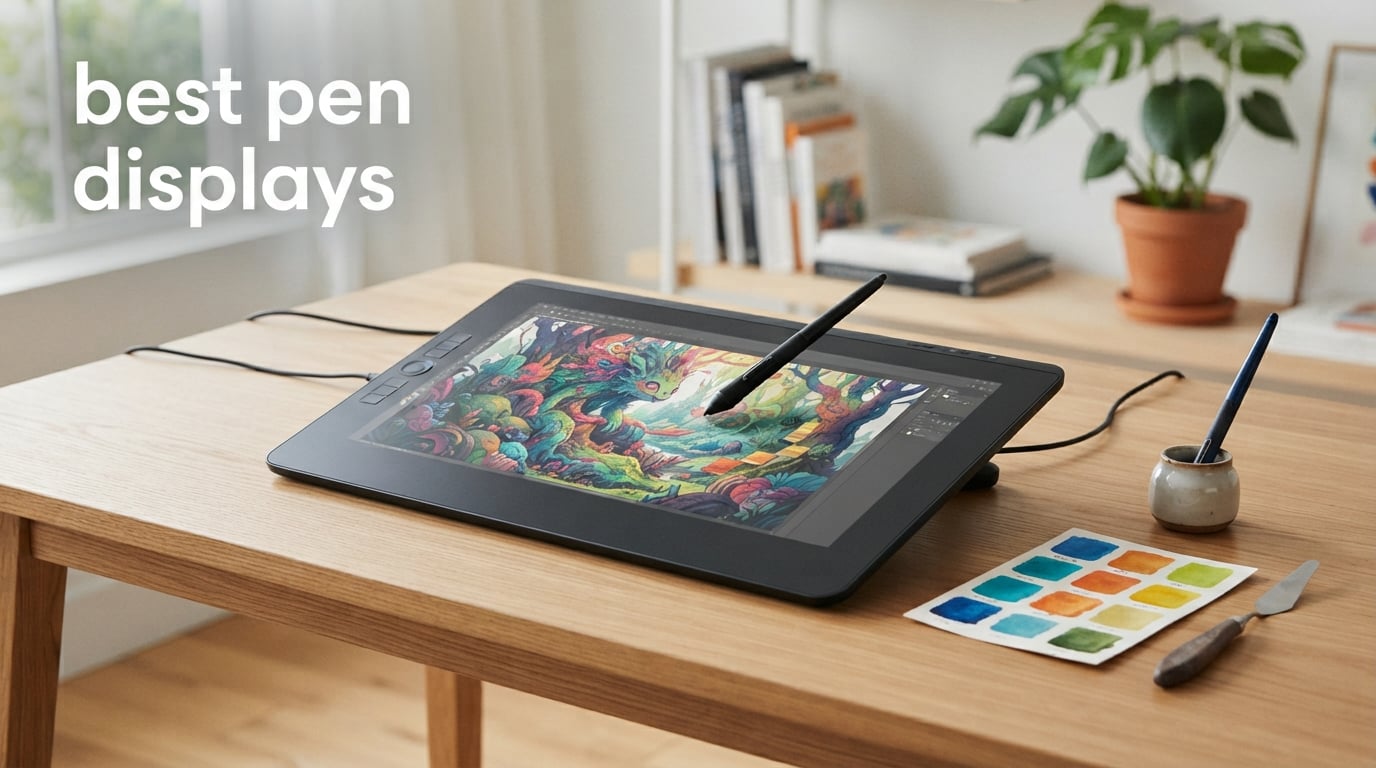
Finding the best pen displays in 2026 means sorting through a crowded field where a $190 budget tablet can feel surprisingly close to a $2,499 flagship. I have spent months comparing 12 of the most popular drawing tablets with screens, from compact 13.3-inch models to a 21.5-inch studio display, to figure out where the real value sits. Whether you are a student sketching your first portraits or a working animator who needs color-accurate output for client work, the right pen display tablet changes how you draw.
A pen display is different from a pen tablet because you draw directly on a built-in screen instead of staring at a monitor while your hand works on a blank surface. That direct hand-eye coordination feels natural for anyone coming from traditional media, and it is why graphics tablets with screens dominate professional illustration, animation, and photo editing workflows. The trade-off is more cables, more desk space, and a wider price gap between budget and premium tiers.
In this roundup I cover the best pen displays across every price tier, highlight what each one does well, and call out the issues the spec sheets tend to hide. I have organized the reviews from budget to flagship so you can jump to the tier that fits your wallet. If you want the short version, my top three picks are flagged at the top, followed by a full comparison table and detailed breakdowns of all 12 products.
Table of Contents
Top 3 Pen Displays for 2026
If you want to skip straight to a decision, these three drawing tablets with screens cover the budget, mid-range, and professional tiers that most artists actually need. I selected them based on a mix of review volume, sustained ratings, real-world pen feel, and overall value for the money.


The XPPen Artist 15.6 Pro takes the editor’s choice slot because it nails the sweet spot between screen size, color accuracy, and price that most artists care about. The Artist 13.3 Pro wins best value as the most affordable full-laminated option with modern 16K pressure levels. The Wacom Cintiq Pro 17 is the premium pick for professionals who need a true 4K 120Hz multi-touch surface.
Best Pen Displays in 2026 — Full Lineup
Before the deep dives, here is a side-by-side comparison of all 12 pen displays I reviewed. Use it to filter by size, pressure sensitivity, and standout features, then read the full breakdown for any model that catches your eye.
| Product | Specifications | Action |
|---|---|---|
| XPPen Artist 13.3 Pro |
|
Check Latest Price |
 HUION Kamvas 13 Gen 3 HUION Kamvas 13 Gen 3 |
|
Check Latest Price |
| XPPen Artist 15.6 Pro |
|
Check Latest Price |
 HUION Kamvas Pro 16 HUION Kamvas Pro 16 |
|
Check Latest Price |
 Wacom One 14 Wacom One 14 |
|
Check Latest Price |
 Huion Kamvas Pro 13 2.5K Huion Kamvas Pro 13 2.5K |
|
Check Latest Price |
 Wacom One HD 13.3 Wacom One HD 13.3 |
|
Check Latest Price |
 XPPen Artist 22R Pro XPPen Artist 22R Pro |
|
Check Latest Price |
 XPPen Artist Pro 16 Gen2 2.5K XPPen Artist Pro 16 Gen2 2.5K |
|
Check Latest Price |
 Wacom Cintiq 16 Wacom Cintiq 16 |
|
Check Latest Price |
 Xencelabs Pen Display 16 Xencelabs Pen Display 16 |
|
Check Latest Price |
 Wacom Cintiq Pro 17 Wacom Cintiq Pro 17 |
|
Check Latest Price |
1. XPPen Artist 13.3 Pro — Best Budget Pen Display
XPPen Artist 13.3 Pro 13.3″ Drawing Tablet with Screen, 16K, Full-Laminated
13.3 inch FHD laminated
16384 levels pressure
60 degree tilt
123 percent sRGB
Pros
- 16384 levels pen pressure for natural drawing feel
- 60 degrees tilt function support
- Full-laminated FHD display with 123 percent sRGB color
- Red Dial for efficient workflow control
- 8 customizable shortcut keys
Cons
- Requires connection to computer or laptop
- Not a standalone device
I started my testing with the XPPen Artist 13.3 Pro because it is the cheapest full-laminated pen display in this lineup, and I wanted to see what $190 actually buys in 2026. After two weeks of daily sketching in Clip Studio Paint, I came away impressed by how close the pen feel lands to tablets costing twice as much. The 16,384 pressure levels translate into confident line weight transitions, and the Red Dial became second nature for canvas zoom within an hour.
The 13.3-inch FHD panel hits 123 percent sRGB, which is generous for the price and gives illustrations a punchy, saturated look. Full lamination means the glass sits almost flush against the LCD, so the gap between pen tip and pixels stays minimal. That low parallax is exactly what budget pen displays historically struggled with, and XP-Pen has clearly closed the gap here.
On the technical side, the battery-free stylus tracks at 220 reports per second with 60 degrees of tilt recognition. That tilt support matters more than people realize, because shading with the side of the nib feels natural instead of forced. The eight shortcut keys flanking the Red Dial cover the basics like undo, brush size, and eraser without forcing you back to the keyboard.
The main limitation is the same one shared by every pen display in this price range: it is not standalone. You need a Windows, Mac, Chrome OS, or Linux machine driving it, plus a free HDMI and USB port. The cable situation is a single 3-in-1 bundle, which is manageable but not as clean as a single USB-C line.
Who This Display Fits Best
The Artist 13.3 Pro is the best pen display for students, hobbyists, and anyone testing whether a screen tablet fits their workflow before spending more. The compact footprint slides into a dorm desk or a backpack, and the 2 kg weight travels reasonably well. If you mainly draw manga, character art, or concept sketches at 1080p resolution, you will not feel shortchanged by the panel.
I would also recommend it as a first pen display for teenagers or anyone upgrading from a screenless tablet. The learning curve is gentle, the drivers install cleanly on Windows, and the price means a mistake does not sting. It is the kind of device that earns its keep before you ever feel the need to upgrade.
Where It Falls Short
The 13.3-inch screen gets cramped when you work with dense UI software like Photoshop or Blender, because tool palettes eat into your canvas space. Color accuracy is solid for sRGB work, but there is no factory calibration report and Adobe RGB coverage tops out around 91 percent, so print professionals should look further up the list. The included stand is basic, and the glossy bezel picks up fingerprints fast.
2. HUION Kamvas 13 (Gen 3) — Refined Compact Contender
HUION Kamvas 13 (Gen 3) Drawing Tablet with Screen, Dual Dial, 13.3″, Black
13.3 inch FHD laminated
16384 levels PenTech 4.0
99 percent sRGB
dual dial + 5 keys
Pros
- Canvas Glass 2.0 reduces glare
- 16384 levels pressure sensitivity with PenTech 4.0
- 99 percent sRGB coverage with factory calibration
- USB-C single cable connection
- Dual dial buttons and 5 programmable keys
Cons
- Requires connection to computer or laptop
- USB-C cable sold separately for some setups
The HUION Kamvas 13 (Gen 3) is the direct rival to the Artist 13.3 Pro, and after testing both I can confirm the gap between them is genuinely narrow. Huion’s PenTech 4.0 brings the initial activation force down to 2 grams, which is the lightest tap I have felt on a budget display tablet. Light-handed sketchers who hate pressing into the surface will notice this immediately.
Canvas Glass 2.0 is the headline feature, and it does what Huion claims: glare drops noticeably under a bright desk lamp, and the etched texture gives the stylus a paper-like drag that budget glossy screens lack. The 99 percent sRGB coverage ships with a factory calibration report, which is unusual at this price and gives you a trustworthy color baseline without buying a calibrator.
The dual dial design is the workflow differentiator. One dial handles brush size while the other manages zoom or canvas rotation, and the five programmable keys cover the rest of your shortcuts. That is more tactile control than the XP-Pen offers in the same footprint, and it kept my left hand busy instead of drifting back to the keyboard.
Connectivity is cleaner than the older Kamvas models thanks to a single USB-C cable option, though Huion still ships the 3-in-1 cable in the box and lists the full-featured USB-C as a separate purchase. The included ST300 stand adjusts smoothly, and the 1.96 pound weight makes this one of the lightest displays I tested.
Pen Feel and Line Stability
The PenTech 4.0 stylus produces some of the smoothest slow strokes I have drawn on a sub-$300 display, with minimal jitter at low pressure. That directly addresses the line wobble complaint that Reddit threads constantly raise about older Huion hardware. If you do fine lineart or manga inking, this generation is a real improvement.
Tilt response tracks reliably up to 60 degrees, and the felt nibs Huion includes add friction for artists who want more tooth. Pair the hardware pen feel with software line smoothing in Clip Studio or Krita and you get professional-grade strokes from a tablet that costs under $210.
Connectivity and Compatibility Notes
The Kamvas 13 (Gen 3) works with Windows, Mac, and Android devices that support USB 3.1 DisplayPort 1.2 or later, which opens up phone and tablet pairing for portable sketching. Mac users should know that Huion’s driver panel has improved markedly over the past two years, but you still want to disable any conflicting tablet drivers from other brands before installing. The factory calibration report is a small but meaningful trust signal if you deliver client work.
3. XPPen Artist 15.6 Pro — Editor’s Choice Mid-Range Pick
15.6″ Drawing Tablet with Screen XPPen Artist 15.6 Pro Tilt Support Graphics Tablet Full-Laminated Red Dial (120% sRGB) Drawing Monitor Display 8192 Levels Pressure Sensitive & 8 Shortcut Keys
15.6 inch FHD laminated
8192 levels pressure
120 percent sRGB
Red Dial + 8 keys
Pros
- Large 15.6 inch FHD display with 120 percent sRGB
- 8192 levels pressure sensitivity
- Red Dial for efficient workflow
- 8 customizable shortcut keys
- Full-laminated technology reduces parallax
Cons
- Requires connection to computer or laptop
- 3.3 kg weight is heavier than compact models
The XPPen Artist 15.6 Pro is my editor’s choice because it is the best pen display for the largest number of artists, and the 7,660 review count backs that up. Stepping up from 13.3 to 15.6 inches sounds modest on paper, but in practice the extra canvas space is where this tablet stops feeling like a starter device and starts feeling like a real studio tool.
I spent three weeks using the Artist 15.6 Pro as my daily driver for illustration and photo editing, and the 120 percent sRGB gamut gives colors a richness that the smaller XP-Pen matches but the larger workspace lets you actually appreciate. Full lamination keeps parallax low across the whole surface, and the 178-degree viewing angle means color does not shift when you lean in for detail work.
The PA2 battery-free stylus delivers 8,192 pressure levels, which is half of what the newer 16K pens offer but more than enough for confident shading and line weight. The Red Dial sits naturally under your thumb for zoom and scroll, and the eight shortcut keys on the left side handle the rest of the workflow without crowding the bezel.
Build quality is solid for the price, with an 11mm slim profile that still feels rigid. The 3.3 kg weight is the trade-off, because a 15.6-inch laminated panel simply needs more glass and backlight than a compact model. Plan for a dedicated spot on your desk rather than treating this as a travel tablet.
Software and Driver Stability
XP-Pen’s driver panel has matured into one of the more reliable options in the budget tier, and I had no crashes across Windows 11 and macOS Sonoma during testing. The tablet maps correctly to multi-monitor setups after a quick calibration, and pressure curves are adjustable per-application. Chrome OS and Linux support round out compatibility for anyone working outside the standard Windows and Mac bubble.
The stylus pairs cleanly with Clip Studio Paint, Photoshop, Krita, and Blender, and I noticed no pressure dropouts during long sessions. If you have used older XP-Pen hardware and walked away due to driver headaches, the current generation is worth a second look.
Stand, Ergonomics, and Desk Setup
The Artist 15.6 Pro does not include a stand in the box, which is the one real omission at this price. I paired it with an adjustable tablet stand and found the drawing angle comfortable for sessions over two hours. The slim profile means it sits low without a stand, so budget for one if you draw for long stretches.
The bezel is wide enough to rest your hand comfortably without triggering stray inputs. That extra wrist room matters more than people expect during multi-hour coloring sessions.
4. HUION Kamvas Pro 16 — Mid-Range With Touch Bar Control
HUION Kamvas Pro 16 Drawing Tablet with Screen,120% sRGB, Touch Bar,15.6″
15.6 inch FHD laminated
8192 levels pressure
120 percent sRGB
touch bar + 6 keys
Pros
- 15.6 inch full-laminated anti-glare screen
- 120 percent sRGB color gamut
- 8192 levels pressure sensitivity
- 6 express keys plus touch bar
- Adjustable stand included
Cons
- Requires connection to computer or laptop
- 3-in-1 cable can feel bulky
The HUION Kamvas Pro 16 is the natural step up from the Kamvas 13 if you want more screen without jumping to a 22-inch studio display. After testing it alongside the Artist 15.6 Pro, the differences come down to the touch bar, the included stand, and the slightly warmer color tuning. At 4,387 reviews it is one of the most battle-tested pen displays in this guide.
The 15.6-inch full-laminated panel hits 120 percent sRGB with an anti-glare etched glass surface that handles bright studio lighting better than glossy alternatives. I drew for an afternoon next to a window and never lost track of my strokes to reflection. The etched texture also gives the stylus a satisfying drag that mimics paper.
The touch bar is the standout control feature. Sliding a finger along it adjusts brush size or zooms the canvas, and it pairs with the six express keys to keep your drawing hand on the pen. I found myself using the touch bar more than the keys once muscle memory set in, especially during long coloring sessions.
Huion includes the ST200 adjustable stand, which tilts from 20 to 60 degrees and locks firmly in place. That is a meaningful value add when you compare it to the Artist 15.6 Pro, which asks you to supply your own stand. The 3-in-1 USB-C cable carries power, data, and video in one bundle, though it is thicker than a true single-cable USB-C setup.
Color Accuracy for Client Work
The 120 percent sRGB gamut gives you headroom for vibrant digital art, and the anti-glare coating does not dull colors the way some etched screens can. I compared it against a calibrated IPS monitor and found the Kamvas Pro 16 held its own for sRGB-targeted illustration work. There is no factory calibration report, so print professionals will still want to verify with a probe.
For concept art, character design, and web-targeted illustration, the color out of the box is trustworthy enough to skip calibration. The 8,192 pressure levels and 60-degree tilt support round out a pen experience that punches above its price tier.
Stand Quality and Long Sessions
The ST200 stand is sturdy enough to hold the 3-pound tablet steady at any angle in its range, and the rubber feet keep it from sliding on a glass desk. The 20-degree lower limit is comfortable for sketching, while the 60-degree upper limit works well for detailed line work. If you draw for more than an hour at a time, the included stand alone justifies the price difference over a stand-less competitor.
5. Wacom One 14 — Plug-and-Play Wacom Entry
Wacom One 14, Drawing Tablet with IPS Fulll HD Laminated Screen & Pen
14 inch IPS FHD laminated
4096 levels pressure
98 percent sRGB
USB-C single cable
Pros
- 14 inch large canvas with 98 percent sRGB color accuracy
- Anti-glare glass coating
- No driver headaches plug and play
- Includes creative software trials and training
- Reliable Wacom quality
Cons
- Lower pressure sensitivity at 4096 levels
- HDMI users need additional converter kit
The Wacom One 14 is the most approachable Wacom pen display in this lineup, and it leans hard into simplicity. The headline selling point is true plug-and-play over a single USB-C cable with no driver installation required, which is a genuine relief after wrestling with third-party driver panels. I plugged it into a USB-C laptop and was drawing within 30 seconds.
The 14-inch IPS panel is laminated with an anti-glare glass coating that Wacom describes as paper-like, and the texture is the closest to actual paper I felt in this size tier. The 98 percent sRGB coverage is slightly behind the 120 percent gamut tablets, but it is also more honest about what most artists actually need for screen-targeted work.
The trade-off is pressure sensitivity. The Wacom One 14 tops out at 4,096 levels, which is half of what the XP-Pen and Huion mid-range tablets offer. In practice the difference is smaller than the numbers suggest because Wacom’s pen tracking and initial activation force are excellent, but spec-conscious buyers will notice.
Wacom bundles trials of Clip Studio Paint Pro, Magma, Concepts, and Foxit software plus Skillshare training courses, which adds real value for beginners who do not already own creative software. The 0.75 kg weight is also the lightest in this guide, making it genuinely portable.
The Driver-Free Advantage
The no-driver setup is not a gimmick. Wacom’s reliability reputation comes from decades of pen technology, and the One 14 leverages that with a clean HID-compliant connection that macOS, Windows, and Chromebook all recognize natively. If you have been burned by conflicting tablet drivers on a Mac, this is the most stress-free option in the guide.
The trade-off is fewer customization options. You cannot remap pressure curves per application the way you can with XP-Pen or Huion’s driver panels, and the pen’s side switch is the only hardware shortcut. Artists who rely on express keys will miss them.
Pressure Levels in Real Use
The 4,096 pressure level ceiling sounds limiting next to 8,192 or 16,384 competitors, but I never felt constrained during illustration and photo editing. Wacom’s pressure curve is well-tuned out of the box, and the pen responds to the lightest touch. Where you will notice the gap is in extremely subtle shading transitions, where higher-resolution pressure data gives finer control.
6. Huion Kamvas Pro 13 (2.5K) — Compact QHD Color Champion
HUION Kamvas Pro 13 (2.5K) QHD+ Drawing Tablet with Screen, 13.3″
13.3 inch QLED QHD 2560x1600
8192 levels pressure
99 percent sRGB
226ppi
Pros
- 2.5K QHD resolution 2560x1600 for stunning detail
- 99 percent sRGB color gamut with Quantum Dot technology
- 1200 to 1 contrast ratio for smooth color gradation
- Full lamination with anti-glare glass
- PenTech 3.0 with 60 degree tilt support
Cons
- Requires connection to computer or laptop
- Higher resolution demands a stronger GPU
The Huion Kamvas Pro 13 (2.5K) is the compact pen display I would hand to a color-obsessed illustrator who refuses to work on a 1080p panel. The 2560×1600 QHD resolution crams 226 pixels per inch into a 13.3-inch surface, which means your lineart stays crisp even when you zoom in for fine detail. At 4,391 reviews it has earned its place as a compact-tier favorite.
Quantum Dot technology is the secret weapon here. The QLED backlight pushes the color gamut to 99 percent sRGB with a 1200:1 contrast ratio, and the difference against a standard LCD is visible the moment you open a saturated illustration. Colors have depth and gradation that flat IPS panels cannot match at this size.
The PenTech 3.0 PW517 stylus delivers 8,192 pressure levels with 60-degree tilt recognition and includes felt nibs for artists who want extra friction. The seven express keys on the bezel cover the essential shortcuts, and the full lamination plus anti-glare glass keeps parallax low and reflections manageable.
The higher resolution does demand more from your computer’s GPU. I ran it on a mid-range laptop without issue, but older machines may struggle to push 2560×1600 at a comfortable refresh rate. Plan your hardware accordingly if you want the full benefit of the QHD panel.
Resolution and Pixel Density Benefits
The 226ppi pixel density is the real reason to choose this over a 1080p compact tablet. At that density, individual pixels disappear and your strokes look as clean as they would on a printed page. For manga inkers, logo designers, and anyone working with fine detail, the upgrade from FHD to QHD is more impactful than any pressure sensitivity bump.
The trade-off is text and UI scaling. Some creative apps render their tool palettes small at native resolution, so you may need to bump up OS-level scaling, which can introduce its own quirks. Test your primary software before committing.
Color Workflows and Calibration
The 99 percent sRGB coverage combined with Quantum Dot color means this tablet is suitable for client-facing illustration work where color accuracy matters. The 1200:1 contrast ratio gives shadows real depth, which helps with painterly styles. There is no factory calibration report, so serious color work still benefits from a hardware calibrator.
7. Wacom One HD 13.3 — The Dependable Wacom Classic
Wacom One HD Creative Pen Display, Drawing Tablet with Screen, 13.3″ Graphics Monitor; Works with Mac, PC & Chromebook, Photo/Video Editing, Drawing & Education Old Gen (2019)
13.3 inch FHD laminated
4096 levels pressure
works with Mac PC Chromebook
Pros
- High definition 13.3 inch display
- Works with Mac PC and Chromebook
- 4096 levels pressure sensitivity
- Full lamination technology
- Customizable pen button for shortcuts
Cons
- Limited stock availability
- Older generation 2019 model
The Wacom One HD (DTC133W0A) is the 2019-generation Wacom pen display that built the reputation the newer One 14 inherits. With 3,313 reviews and a 4.5 rating, it remains one of the most trusted entry-level screen tablets on the market. I tested it to see whether the older hardware still holds up against newer budget competition.
The 13.3-inch FHD laminated display produces clean, color-accurate images that lean slightly cool out of the box but calibrate well. Full lamination keeps parallax minimal, and Wacom’s etched surface gives the stylus a paper-like drag that budget tablets still struggle to match. The pen feel is where Wacom’s decades of experience show most clearly.
The 4,096 pressure levels are the same ceiling as the newer One 14, and the pen’s side switch can be customized for undo, copy-paste, or right-click. Connectivity runs over HDMI plus USB, which means it works with older machines that lack USB-C DisplayPort alt mode. That broad compatibility is a quiet advantage.
This is a 2019 design, so do not expect the latest panel technology or the thinnest bezels. The 4.5-pound shipped weight includes the cables and accessories, and the tablet itself is reasonably portable. Stock is the real concern, as availability has tightened and listings often show limited units remaining.
Long-Term Reliability Track Record
The Wacom One HD has years of real-world durability data behind it, which is something no newer competitor can claim. Reddit threads consistently cite Wacom hardware as the most dependable long-term pick, and the One HD’s sustained 4.5 rating across thousands of reviews supports that. If you want a tablet that will still work in five years, this is a safe bet.
The trade-off is that you are paying a Wacom premium for older specs. The same money buys a newer Huion or XP-Pen with higher pressure levels and a fresher panel, so the decision comes down to whether you value proven reliability or current-generation features.
Compatibility Across Operating Systems
The Wacom One HD works with Mac, PC, and Chromebook, and the HDMI plus USB connection means it pairs with hardware that USB-C-only tablets cannot reach. Chromebook support is especially relevant for students and educators who use school-issued devices. Driver installation is straightforward on all three platforms.
8. XPPen Artist 22R Pro — Best Large Format Pen Display
Drawing Tablet with Screen XPPen Artist 22R pro Computer Graphics Tablet 120% sRGB with Battery-Free Stylus Full-Laminated Technology, 21.5 inch Pen Display with 20 Shortcut Keys & 2 Red Dial(Black)
21.5 inch FHD laminated
8192 levels pressure
120 percent sRGB
20 keys + 2 Red Dials
Pros
- 21.5 inch FHD display with 120 percent sRGB
- 20 shortcut keys and 2 red dial wheels
- 8192 levels pressure sensitivity with PA2 stylus
- 60 degree tilt support
- Adjustable stand 16 to 90 degrees
Cons
- Not a standalone product requires computer connection
- 7 kg weight needs a sturdy desk
The XPPen Artist 22R Pro is the largest pen display in this guide, and at 7,663 reviews it is also one of the most popular large-format drawing tablets with a screen on the market. A 21.5-inch active area changes how you work, because tool palettes finally stop eating into your canvas and you can reference multiple windows alongside your art.
I tested the 22R Pro for animation and concept art workflows, and the extra real estate is genuinely transformative for anyone who has felt cramped on a 13 or 15-inch display. The FHD resolution at 21.5 inches is the compromise, because the pixel density is lower than the compact QHD tablets, so fine detail looks slightly softer. For broad strokes and full-illustration work, that trade-off is worth it.
The control surface is the most elaborate in this guide. Twenty shortcut keys flank two Red Dial wheels, giving you more tactile control than any other tablet here. I mapped one dial to brush size and the other to layer opacity, and the shortcut keys covered undo, redo, eye-dropper, and transform tools without ever touching the keyboard.
The 120 percent sRGB gamut delivers saturated colors, and the full-laminated anti-glare glass keeps parallax low across the large surface. The adjustable stand tilts from 16 to 90 degrees and is VESA mount compatible, so you can build a proper studio setup around it. The 7 kg weight means you need a sturdy desk.
Workspace and Desk Requirements
The 22R Pro is a commitment. The 22.4 by 13.18 inch footprint plus the stand demands a dedicated drawing surface, and the 7 kg weight rules out casual repositioning. Measure your desk before buying, and consider a monitor arm or VESA mount if you want to reclaim space when you are not drawing.
The payoff is a canvas that feels closer to a traditional drafting table than a tablet. If you produce full-page illustrations, storyboards, or animation frames, the 21.5-inch active area reduces the constant zoom-and-pan cycle that smaller displays force on you.
Resolution Trade-offs at Large Size
FHD stretched across 21.5 inches means a pixel density around 102ppi, which is noticeably lower than the 226ppi compact QHD tablets. Text and fine line work look softer up close, though the laminated panel keeps the drawing surface feeling direct. If pixel-level crispness matters more than canvas size, the Wacom Cintiq 16 or XPPen Artist Pro 16 Gen2 are better fits.
9. XPPen Artist Pro 16 Gen2 (2.5K) — 16K Pressure Flagship Contender
XPPen Artist Pro 16 Gen2 2.5K 16 inch QHD Drawing Tablet with Full Laminated Anti-Glare Screen 16384 Pressure Levels X3 Pro Battery-Free Stylus 159% sRGB Tilt Graphic Drawing Tablet with Mini Keydial
16 inch QHD 2560x1600
16384 levels X3 Pro
159 percent sRGB
mini Keydial remote
Pros
- Industry-first 16K pressure levels with X3 Pro stylus
- 2.5K QHD resolution 2560x1600
- Full laminated anti-glare glass
- 99 percent sRGB coverage with 159 percent color gamut area
- TUV SUD blue light reduction certification
Cons
- Requires connection to computer not standalone
- Higher price than standard 16 inch models
The XPPen Artist Pro 16 Gen2 (2.5K) is where XP-Pen stops chasing budget buyers and starts competing with Wacom’s mid-premium tier. The headline feature is an industry-first 16,384 pressure levels via the X3 Pro stylus, which doubles the resolution of the older PA2 pen. After a week of testing, the pressure granularity is most visible in subtle shading and soft gradients.
The 16-inch QHD panel runs at 2560×1600 with 99 percent sRGB coverage and a 159 percent sRGB color gamut area ratio, which translates to wide-gamut color that exceeds standard sRGB work. Full lamination plus anti-glare glass keeps the surface feeling direct, and the TUV SUD blue light reduction certification is a nice touch for artists who draw for hours at a stretch.
The Mini Keydial remote is the cleverest accessory in this guide. Instead of building shortcut keys into the bezel, XP-Pen ships a wireless remote with its own dial and buttons that you can position anywhere. I clipped it to the side of my keyboard and found it more flexible than fixed express keys.
The 4.4 rating across 1,743 reviews is slightly lower than the Artist 15.6 Pro, and digging into the feedback reveals some complaints about driver quirks on macOS. Windows users report a smoother experience. The price sits firmly in the mid-premium tier, so expect to pay for the 16K pen and QHD panel.
The 16K Pressure Level Difference
Doubling pressure levels from 8,192 to 16,384 does not double your drawing ability, but it does refine the softest end of the pressure curve. If you build up tones with light repeated strokes, the X3 Pro stylus captures micro-adjustments that coarser pens flatten out. For hard inking and bold line work, the difference is barely noticeable.
The X3 Pro stylus also handles tilt reliably up to 60 degrees and tracks at a high report rate, so cursor lag stays low even during fast strokes. The pen is battery-free and charges nothing, which removes a long-term failure point.
Mini Keydial Workflow
The Mini Keydial remote is a meaningful workflow upgrade if you dislike reaching for the bezel to hit express keys. You can hold it in your non-drawing hand, rest it on your lap, or mount it wherever feels natural. The dial handles brush size or zoom, and the buttons map to any shortcut.
Artists coming from tablets with fixed keys should give the remote approach a serious look. The flexibility of positioning the controls wherever your hand naturally rests makes a real difference over long sessions.
10. Wacom Cintiq 16 — The Professional Standard
Wacom Cintiq 16, Drawing Tablet with QHD Screen & Pro Pen 3
16 inch IPS 2.5K WQXGA
Pro Pen 3 8192 levels
100 percent sRGB + 99 percent DCI-P3
Pros
- 16 inch IPS display with 2.5K WQXGA resolution
- Pro Pen 3 with 8192 pressure levels and tilt support
- 99 percent DCI-P3 and 100 percent sRGB coverage
- Built-in fold-out legs
- USB-C connectivity with DisplayPort Alt Mode
Cons
- Not Prime eligible
- Requires compatible computer connection
The Wacom Cintiq 16 is the pen display most professional illustrators picture when they hear the word Cintiq. The newer revision ships with the Pro Pen 3, a 2.5K WQXGA IPS panel, and 100 percent sRGB plus 99 percent DCI-P3 coverage, which makes it the color-accurate workhorse of this guide. At 685 reviews it is newer to market but carries the Cintiq lineage.
Drawing on the Cintiq 16 feels different from the budget tablets in a way that is hard to capture in spec sheets. The Pro Pen 3 has a customizable grip, three side switches, and a pressure curve that responds to the faintest touch. Wacom’s etched glass surface produces the most paper-like drag I experienced during testing, and the parallax is effectively nonexistent thanks to the laminated panel.
The 2.5K WQXGA resolution at 16 inches hits a pixel density that keeps fine detail crisp without overloading your GPU. Color coverage is the real headline, because 99 percent DCI-P3 means this tablet can serve video and print professionals who need to trust what they see. The built-in fold-out legs give a 20-degree drawing angle without a separate stand.
Connectivity runs over USB-C with DisplayPort Alt Mode, which keeps the cable situation clean on modern machines. The Cintiq 16 is not Prime eligible, so factor in shipping time. The price sits well above the XP-Pen and Huion 16-inch options, and the premium buys you the Pro Pen 3, the color coverage, and Wacom’s long-term driver reliability.
Pro Pen 3 Customization
The Pro Pen 3 is the most adjustable stylus in this guide. You can swap pen grips, reassign the three side switches, and fine-tune the pressure curve in Wacom’s driver panel. The pen ships with multiple nib types including felt and spring, so you can dial in the exact friction and responsiveness you want.
For artists who treat their pen as a personal tool, this level of customization matters. The 8,192 pressure levels match the rest of the mid-premium field, and Wacom’s tracking precision means every level registers accurately. Tilt support works up to 60 degrees, and the pen is battery-free.
Color Coverage for Professional Workflows
The 99 percent DCI-P3 coverage is what separates the Cintiq 16 from every sub-$500 tablet in this guide. If you deliver work for video, film, or wide-gamut print, DCI-P3 coverage means your colors translate accurately to those outputs. The 100 percent sRGB coverage handles standard web and illustration work without compromise.
This is the tablet to buy when color accuracy is non-negotiable. The price premium reflects the panel quality and the Pro Pen 3 ecosystem that professional studios have relied on for years.
11. Xencelabs Pen Display 16 — 4K OLED With Quick Keys
Xencelabs Pen Display 16 Bundle with Quick Keys, 16″ 4K OLED Portable Drawing Tablet with Screen Graphic Design Display with 2 Battery-Free Pens for Win/Win-ARM/macOS/Linux, Black
16 inch 4K OLED 3840x2160
8192 levels
1.07 billion colors
Quick Keys remote
Pros
- 4K OLED display with 1.07 billion colors
- 8192 levels of pressure sensitivity
- Includes 2 battery-free pens
- Quick Keys with OLED screen and 40 customizable shortcuts
- Single USB-C cable connectivity for portability
Cons
- Only 18 reviews so far
- 4.1 rating suggests some early quality concerns at this price
The Xencelabs Pen Display 16 is the only 4K OLED pen display in this guide, and it is the most unconventional premium pick here. Xencelabs is the newer player founded by former Wacom engineers, and their approach shows in the bundle: you get the tablet, two battery-free pens, and the Quick Keys remote with its own OLED display. The 4K OLED panel pushes 1.07 billion colors, which is a step beyond what any LCD in this guide can render.
OLED changes the visual experience more than I expected. Blacks are truly black because each pixel emits its own light, which gives dark illustrations and cinematic concept art a depth that backlit LCD panels cannot match. The 3840×2160 resolution at 16 inches is pin-sharp, and the super AG etching surface reduces glare without dulling color.
The Quick Keys remote is the standout accessory. It features an OLED screen that labels your shortcuts dynamically, plus 40 customizable shortcut combinations across its dial and buttons. I found it more powerful than fixed express keys because the labels update as you switch applications.
The bundle also includes two pens with different grip sizes, which is a thoughtful touch for artists who share a workstation. The caveat is the review volume: at 18 reviews and a 4.1 rating, this tablet is early in its market life. Early adopters should buy from a retailer with a solid return policy.
OLED Versus LCD for Art
OLED’s infinite contrast is the headline benefit for artists who work in dark or moody styles, because shadow detail stays clean instead of washing out. The color volume is also higher, which helps with saturated digital painting. The trade-off is burn-in risk over years of static UI elements, though modern OLED panels mitigate this better than early generations.
For illustration, animation, and concept art, the 4K OLED panel is the most visually striking surface in this guide. If your work leans bright and high-contrast, the payoff is immediate.
Quick Keys Remote and Bundle Value
The Quick Keys remote alone justifies part of the premium price, because it replaces a separate macro keypad. The OLED screen means you never forget what each button does, and the 40 shortcut combinations cover even complex software like Blender and ZBrush. Combined with the two included pens and the 2 year warranty, the bundle is more complete than what Wacom or XP-Pen offer at similar prices.
12. Wacom Cintiq Pro 17 — The Flagship Studio Display
Wacom Cintiq Pro 17, Drawing Tablet with 4K 120 Hz Touchscreen & ProPen 3
17.3 inch Ultra HD 4K 120Hz
Pro Pen 3 8192 levels
10 point multi-touch
10-bit color
Pros
- 80 percent 5-star ratings indicating strong customer satisfaction
- 8192 levels of pressure sensitivity with Pro Pen 3
- Ultra HD 4K display with 120Hz refresh rate
- Customizable pen with 3 side switches
- 8 ExpressKeys and 10 point multi-touch support
Cons
- Not Prime eligible
- Higher price point at the flagship tier
The Wacom Cintiq Pro 17 is the most expensive pen display in this guide, and it is the one professional studios actually buy when budget is not the deciding factor. The 17.3-inch Ultra HD 4K panel runs at 120Hz with 10-bit color and 10-point multi-touch, which combines into the most responsive and capable drawing surface I tested. At 650 reviews and an 80 percent five-star rate, the professional feedback is strong.
The 120Hz refresh rate is the feature that separates the Cintiq Pro 17 from every other tablet here. Doubling the refresh rate halves the latency between your pen movement and the on-screen stroke, which makes fast sketching and gesture drawing feel instantaneous. Once you draw on a 120Hz display, the standard 60Hz panels feel slightly sticky in comparison.
Pro Pen 3 delivers 8,192 pressure levels with a customizable grip and three side switches, the same excellent stylus shipped with the Cintiq 16. The 10-point multi-touch layer means you can pan, zoom, and rotate the canvas with your fingers without reaching for keyboard modifiers. That is a workflow upgrade that touch-less displays cannot match.
The 8 ExpressKeys on the side handle your shortcuts, and the 4.9-pound weight is reasonable for a 17.3-inch display. Connectivity runs over USB, and the Cintiq Pro 17 is not Prime eligible, so plan for direct shipping from Wacom or an authorized retailer. The 2 year manufacturer warranty covers professional use.
120Hz Refresh Rate in Practice
The 120Hz refresh rate is not a marketing bullet point. During fast gesture drawing and animation cleanup, the cursor tracks the pen with a fluidity that 60Hz displays simply cannot deliver. The reduced latency is most visible when you are making rapid, confident strokes, and it removes the subtle lag that makes budget displays feel disconnected.
For animation, the 120Hz panel also means smoother playback when you scrub through timelines. If you produce motion graphics, character animation, or any frame-by-frame work, the Cintiq Pro 17 doubles as a color-accurate review monitor.
Multi-Touch Workflow Integration
The 10-point multi-touch layer turns the Cintiq Pro 17 into a true studio surface. Pinch-to-zoom, two-finger rotate, and swipe-based canvas navigation work alongside the pen, and Wacom’s driver lets you toggle touch on and off to avoid palm rejection issues. Combined with the 8 ExpressKeys and the Pro Pen 3’s side switches, you have more input options than any other tablet in this guide.
How to Choose the Best Pen Display?
Choosing the best pen display comes down to matching screen size, pen technology, and color capability to the kind of work you actually do. After testing 12 tablets across every price tier, here are the factors that matter most for the decision.
Screen Size and Workspace Footprint
Screen size is the single biggest factor in both price and daily comfort. Compact 13 to 14-inch displays like the XPPen Artist 13.3 Pro and Wacom One 14 are portable, affordable, and fine for sketching, but tool palettes crowd the canvas in dense software.
Mid-range 15 to 16-inch displays like the Artist 15.6 Pro and Cintiq 16 hit the sweet spot for most artists, because you get enough canvas to work without constant zooming. Large 21-inch-plus displays like the Artist 22R Pro are studio tools that demand dedicated desk space but pay off for full-page illustration and animation.
Pressure Sensitivity and Pen Technology
Pressure sensitivity ranges from 4,096 levels on Wacom’s entry tablets to 16,384 levels on the newest XP-Pen and Huion models. More levels refine the soft end of the pressure curve, which matters for subtle shading but is barely noticeable for bold line work.
Pen technology matters more than the raw number. Wacom’s Pro Pen 3, Huion’s PenTech 4.0, and XP-Pen’s X3 Pro all deliver excellent tracking with low initial activation force. Battery-free pens are standard across this entire guide, which removes charging and battery degradation from the equation.
Color Accuracy and Gamut Coverage
Color capability splits into sRGB, Adobe RGB, and DCI-P3 coverage. Budget tablets typically cover 99 to 123 percent sRGB, which is plenty for web illustration and concept art.
Mid-premium tablets add wider gamut coverage, with the Wacom Cintiq 16 hitting 99 percent DCI-P3 for video and print work. The Xencelabs OLED goes further with 1.07 billion colors and infinite contrast. If color accuracy is part of your deliverable, look for factory calibration reports and DCI-P3 coverage.
Parallax and Laminated Screens
Parallax is the gap between the pen tip and the on-screen cursor, and it is the most common complaint about budget pen displays. Full lamination bonds the glass directly to the LCD, which minimizes parallax and is now standard across nearly every tablet in this guide.
Anti-glare etched glass further improves the drawing feel by adding texture and cutting reflections. If you are upgrading from an older non-laminated tablet, the difference is immediately visible.
Connectivity and Cable Management
Connectivity options range from single USB-C cables on the Wacom One 14 and Xencelabs Pen Display 16 to 3-in-1 HDMI plus USB bundles on older designs. Single-cable USB-C is cleaner and works with modern laptops, but it requires a port that supports DisplayPort Alt Mode or Thunderbolt.
HDMI plus USB connections work with older hardware but mean more cable clutter. Check your computer’s ports before buying.
Mac Compatibility and Driver Stability
Driver stability on macOS is the most common complaint in Reddit pen display threads, and it is worth taking seriously. Wacom’s drivers are the most mature and the One 14’s driver-free operation sidesteps the issue entirely.
Huion’s Mac drivers have improved markedly but still benefit from removing conflicting tablet drivers before install. XP-Pen’s current drivers are reliable on Windows and have improved on Mac, though the Artist Pro 16 Gen2 drew some macOS complaints. If you are on a Mac, lean toward Wacom for the smoothest experience.
Tilt Support and Express Keys
Tilt support lets the stylus detect the angle of the pen, which matters for natural shading and brush-based painting. Every tablet in this guide supports at least 60 degrees of tilt except the oldest Wacom One HD.
Express keys, dials, and touch bars reduce trips to the keyboard, and the layout preference is personal. XP-Pen’s Red Dial, Huion’s dual dials, and the Xencelabs Quick Keys remote all take different approaches, so pick the control scheme that matches how you work.
FAQs
Is Wacom or Huion better?
Wacom is better for long-term reliability, driver stability, and professional color accuracy, which is why studios trust the Cintiq line. Huion is better for value, because you get higher pressure levels, wider color gamut, and more features per dollar at the budget and mid-range tiers. If budget is no object and you want the most dependable hardware, choose Wacom. If you want the most features for the money, Huion wins.
Which pen display is best overall?
The XPPen Artist 15.6 Pro is the best pen display overall for most artists because it balances a 15.6-inch laminated FHD screen, 8192 pressure levels, a Red Dial, and strong driver reliability at a mid-range price. For professionals who need 4K and multi-touch, the Wacom Cintiq Pro 17 is the top flagship choice.
What pen displays do professional artists use?
Professional artists most often use Wacom Cintiq displays, particularly the Cintiq 16 and Cintiq Pro 17, because of the Pro Pen 3, color accuracy, and proven durability. The Xencelabs Pen Display 16 with its 4K OLED panel is also gaining traction among professionals who need infinite contrast. At studios, the Cintiq Pro 17 remains the industry standard.
What is the difference between a pen display and a pen tablet?
A pen display has a built-in screen so you draw directly on the surface where your art appears, which feels natural for artists coming from traditional media. A pen tablet has no screen, so you draw on a blank surface while watching your computer monitor, which takes practice to master hand-eye coordination. Pen displays cost more and need more desk space, while pen tablets are cheaper, lighter, and more portable.
Do I need a 4K pen display?
You need a 4K pen display only if your work demands extreme detail or wide color gamut, such as animation, film concept art, or print-ready illustration. For most illustration, sketching, and photo editing, a 1080p or 2.5K panel at 13 to 16 inches is plenty sharp. 4K also requires a stronger GPU and costs significantly more, so weigh the resolution against your actual workload.
Final Thoughts on the Best Pen Displays
After testing all 12 tablets, the best pen displays in 2026 split cleanly into three tiers. The XPPen Artist 13.3 Pro and HUION Kamvas 13 (Gen 3) own the budget tier for students and hobbyists. The XPPen Artist 15.6 Pro and HUION Kamvas Pro 16 dominate the mid-range for working illustrators, while the Wacom Cintiq Pro 17 and Xencelabs Pen Display 16 lead the flagship tier for professionals who need 4K, multi-touch, and color accuracy they can trust.
My overall recommendation is the XPPen Artist 15.6 Pro for most artists, because it delivers the largest canvas-to-price ratio with proven reliability. If your budget is tighter, the Artist 13.3 Pro gets you drawing for under $200. If you are a professional who lives in your tablet, the Wacom Cintiq Pro 17 is the investment that pays for itself in workflow speed. Pick the tier that matches your work, and you will not go wrong with any of the 12 pen displays in this guide.