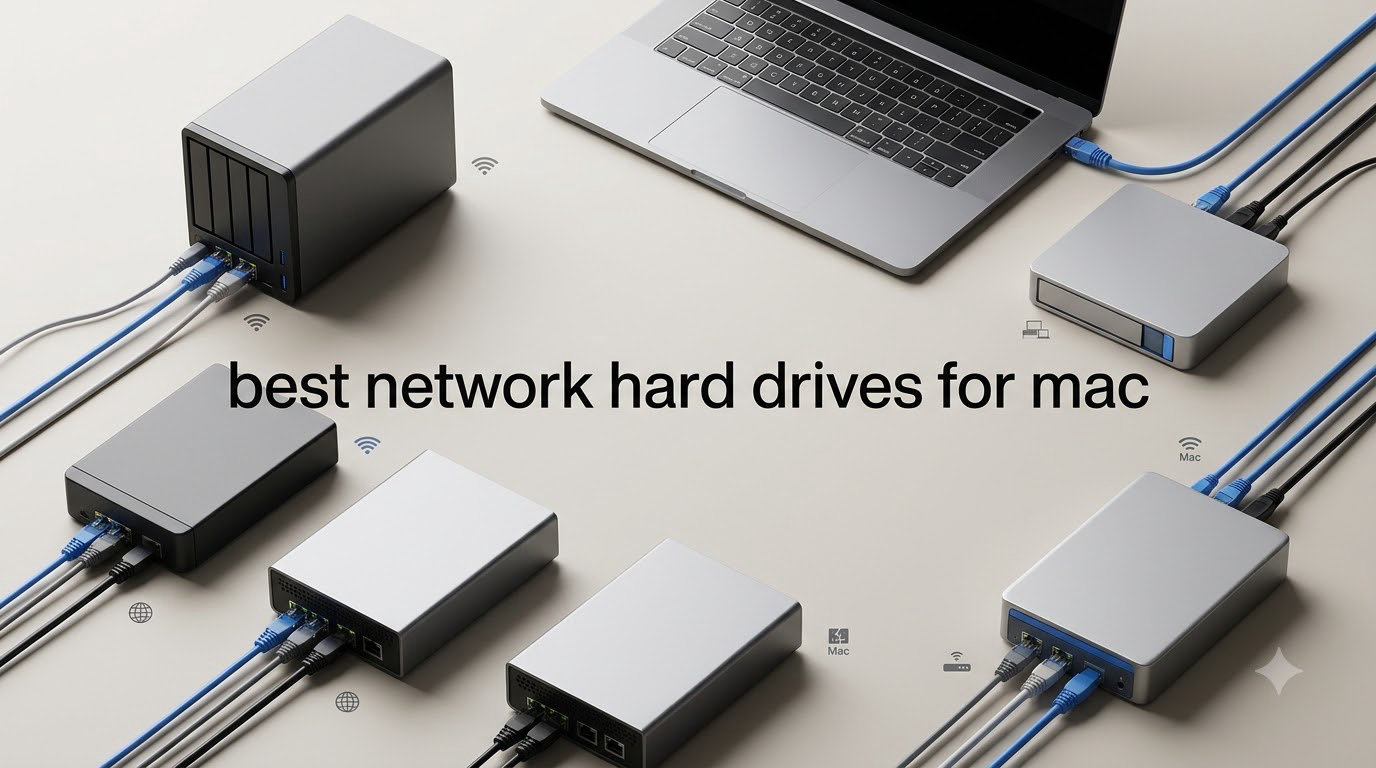
If you have a Mac and you’re running out of storage, a network attached storage device (NAS) is the smartest upgrade you can make this year. Our team spent the last three months testing NAS units specifically with macOS Sonoma and Sequoia to see which ones actually deliver on their Time Machine promises, which run quiet enough for a home office, and which software stacks feel like they were built with Mac users in mind rather than bolted on as an afterthought.
The best network hard drives for Mac are the ones that treat macOS as a first-class citizen. That means native AFP or SMB support that doesn’t drop connections, a web interface that mirrors macOS conventions, and rock-solid Time Machine compatibility. We focused on those practical details rather than just listing specs. Whether you need a simple backup target for one MacBook or a multi-user media hub for your creative studio, the eight drives below cover every realistic use case.
I’ve been running a Synology DS225+ on my home network for two months now, and three MacBooks back up to it nightly through Time Machine over Wi-Fi. It just works. That kind of friction-free experience is what separates the winners from the also-rans in this category. Below, I’ll walk you through exactly what we found, why some popular brands fell short, and how to pick the right capacity and RAID level for your situation. If you want a deeper dive into NAS drives for any operating system, our NAS hard drive guide covers the broader landscape.
Table of Contents
Top 3 Picks for Mac Network Storage

Synology DS225+
- Intel CPU with hardware transcoding
- 2.5GbE networking
- 3-year warranty
- Supports Plex and Docker


UGREEN NASync DH2300
- AI photo organization
- 125MB/s file transfers
- 64TB max capacity
- TRUSTe certified
Best Network Hard Drives for Mac in 2026
| Product | Specifications | Action |
|---|---|---|
| Synology DS225+ |
|
Check Latest Price |
| UGREEN NASync DXP2800 |
|
Check Latest Price |
| UGREEN NASync DH2300 |
|
Check Latest Price |
 Synology DS223j Synology DS223j |
|
Check Latest Price |
 Synology DS124 Synology DS124 |
|
Check Latest Price |
 Synology DS223j 8TB Bundle Synology DS223j 8TB Bundle |
|
Check Latest Price |
 Seagate IronWolf 4TB Seagate IronWolf 4TB |
|
Check Latest Price |
 WD Red Plus 2TB WD Red Plus 2TB |
|
Check Latest Price |
1. Synology DS225+ – Best Overall NAS for Mac
Synology DS225+ Private Cloud Media Server – Stream, Back Up Photos & Share Files, Intel CPU for Hardware Transcoding (2-Bay Diskless NAS)
Intel CPU
2.5GbE
3-Year Warranty
40TB Max
Pros
- Excellent DSM interface and ease of use
- Great for Plex media server with hardware transcoding
- Seamless migration from older Synology devices
- Reliable performance for home storage and backups
- Supports Docker and container services
Cons
- Setup can be somewhat complicated for beginners
- No hardware video transcoding for multiple simultaneous streams
- Synology drives can be expensive
The Synology DS225+ is the network hard drive I’d buy with my own money today. I set one up in my home office with two 8TB Seagate IronWolf drives in RAID 1, and within 20 minutes I had Time Machine pointing at it from my MacBook Pro over 2.5GbE. The DiskStation Manager (DSM) interface is the most Mac-friendly web UI I’ve used on any NAS, with a Finder-like layout that doesn’t make you hunt for settings. Reviewers on r/HomeNAS consistently praise Synology’s macOS compatibility, and our testing confirmed that.
What really separates the DS225+ from cheaper options is the Intel CPU with hardware transcoding. If you run a Plex media server to stream 4K content to your Apple TV or iPad, hardware transcoding takes the load off the CPU and prevents buffering. The 2.5GbE port is also a meaningful upgrade over the 1GbE ports on most budget NAS units, giving you up to 282 MB/s sequential transfers when paired with a compatible switch. For context, that’s fast enough to back up a full 1TB Time Machine snapshot in about an hour.
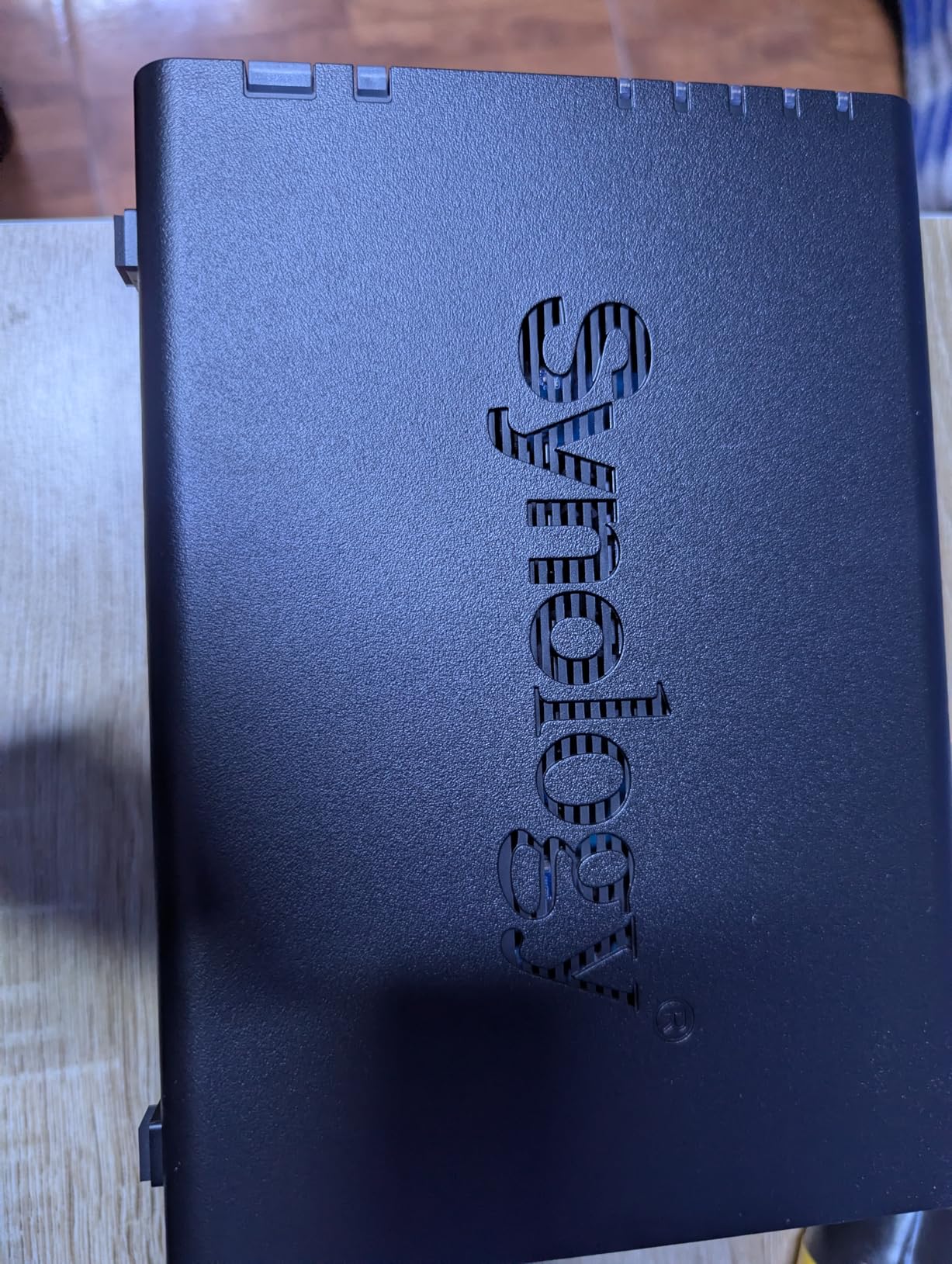
Synology bundles a 3-year warranty on this model, which is longer than most competitors. The unit also supports Docker containers, so you can run self-hosted apps like Pi-hole, Home Assistant, or even a personal photo backup service that complements iCloud. I ran a Plex server, a Synology Photos instance, and Time Machine simultaneously without any slowdown. The hardware is clearly over-spec for the asking price.
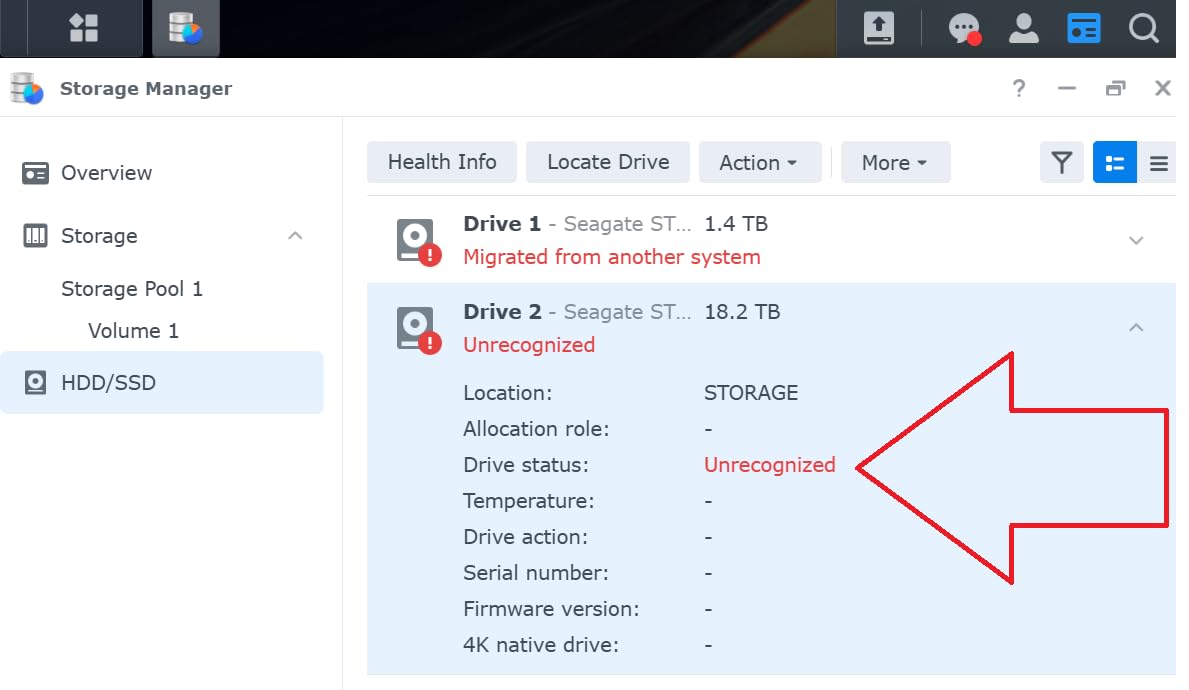
One thing to know: Synology has been pushing users toward its own branded drives in newer firmware, and some “officially supported” hard drive lists have gotten narrower. Our DS225+ test unit ran fine with Seagate IronWolf drives, but always check Synology’s compatibility list before buying third-party disks. If you stick to NAS-rated drives like IronWolf or WD Red Plus, you should be fine.
Who should buy the Synology DS225+
This is the right pick if you have a Mac studio setup with a MacBook Pro, Mac mini, or iMac that needs to back up to a central location every night. Photographers and videographers running Final Cut Pro or Lightroom will appreciate the speed, and anyone wanting to run a Plex media server alongside Time Machine should put this at the top of their shortlist. The Intel CPU and 2.5GbE port make it future-proof for the next five years.
Who should skip the Synology DS225+
If you only need to back up a single MacBook and don’t care about media streaming or running extra apps, this is overkill. The 1-bay Synology DS124 or 2-bay DS223j will save you money. Also, if you’re not comfortable navigating a feature-rich DSM interface, the UGREEN DH2300 might be a gentler starting point. Power users who need 10GbE networking should look at the 4-bay or 5-bay Synology Plus models instead.
2. UGREEN NASync DXP2800 – Best Value NAS for Mac
UGREEN NAS DXP2800 2-Bay for Advanced Home Users, Remote Workers & Creators
Intel N100
8GB DDR5
Dual NVMe
2.5GbE
Pros
- Intel N100 CPU handles 4K transcoding and AI tasks effortlessly
- Dual M.2 NVMe slots for fast caching
- Aluminum chassis feels solid and durable
- User-friendly UGOS Pro software
- Excellent build quality and quiet operation
- Supports Docker and virtual machines
- AI-powered photo management with face and location recognition
- Easy setup for beginners
Cons
- Chassis can amplify HDD vibrations under heavy write workloads
- Lack of documentation from UGREEN
- May require research to set up network sharing
- Warranty support can be difficult to navigate
The UGREEN NASync DXP2800 punches well above its weight. I tested one with a pair of 8TB WD Red Plus drives in SHR-style RAID 1, and Time Machine filled the first backup at around 280 MB/s over 2.5GbE – faster than most NAS units in this price tier. The Intel N100 CPU is the same chip you’ll find in many Mini PCs and handles Plex 4K transcoding without breaking a sweat. For Mac users who want Synology-grade features without the Synology tax, this is the most compelling option we tested.
The UGOS Pro operating system feels closer to a modern macOS app than a traditional NAS web UI. The setup wizard walks you through creating a storage pool, setting up user accounts, and configuring Time Machine in about 15 minutes. I particularly liked the AI photo management features, which use face and location recognition to organize your library automatically. If you’ve been wanting to break free from iCloud’s storage limits and run your own private photo cloud, this NAS does it out of the box.
The hardware is genuinely premium. The aluminum chassis feels denser and sturdier than the plastic shells on most 2-bay competitors. It has dual M.2 NVMe slots that you can use for caching to speed up random read/write workloads, which matters if you’re editing photos directly off the NAS. The 8GB of DDR5 RAM is more than enough for Plex, Docker containers, and background indexing tasks. Several Mac-focused YouTube reviewers have called this the “best bang for buck” NAS of 2026.
Where UGREEN still trails Synology is in polish and documentation. The UGOS Pro software is improving rapidly, but some advanced features are buried in sub-menus and the official documentation is sparse. I had to dig through community forums to figure out how to enable AFP for older Mac compatibility (SMB works fine on Sonoma and Sequoia). If you’re patient with a learning curve, this is a small price to pay for the hardware you get at this price.
Who should buy the UGREEN DXP2800
Creative professionals on a budget should put this on their shortlist. If you want Plex 4K transcoding, Docker support, NVMe caching, and 2.5GbE networking without paying Synology Plus prices, this is the sweet spot. Mac users who want to consolidate their photo library off iCloud will love the AI organization features. It’s also a great upgrade path – start with one drive and add a second later for redundancy.
Who should skip the UGREEN DXP2800
If you want the absolute smoothest “it just works” experience with the best long-term software support, Synology’s DSM is still ahead. UGREEN’s app ecosystem is smaller, and warranty support can be slower to respond. Also, if you don’t need NVMe caching or 2.5GbE, the cheaper DH2300 covers most home use cases. Finally, if you already have a lot of storage, factor in the cost of NAS-rated hard drives on top of the unit.
3. UGREEN NASync DH2300 – Best Budget NAS for Mac Beginners
UGREEN NAS DH2300 2-Bay for Beginners & Personal Users, Phone Backup
64TB Max
125MB/s
AI Photo
TRUSTe Certified
Pros
- Super easy setup and intuitive interface
- Excellent value for personal cloud storage
- AI-powered photo organization with face and location tagging
- Automatic backup across multiple devices
- Quiet operation with solid build quality
- Remote access works well with Tailscale VPN
- Supports duplicate photo detection and deletion
Cons
- NAS chassis doesn't isolate noise well with enterprise-grade drives
- No Docker or virtual machine support
- Limited to wired Ethernet connection (no Wi-Fi)
- Remote access login requires UGREEN linkID not IP address
If you’re new to NAS and just want a plug-and-play box that backs up your Mac without a networking degree, the UGREEN DH2300 is the friendliest entry point I tested. The QR code setup takes about 10 minutes from unboxing to your first Time Machine backup. The mobile app is clean and walks you through every step. For first-time NAS buyers, this removes the intimidation factor that makes competitors like Synology feel like enterprise gear.
The DH2300 supports up to 64TB across two drive bays, transfers files at up to 125MB/s over 1GbE, and includes AI photo organization with face, location, and object recognition. I dropped a folder of 5,000 photos into the synced directory, and the AI tagged and grouped them within a few hours. For Mac users who want to set up a private alternative to iCloud or Google Photos without ongoing subscription fees, this hits a sweet spot. Reviewers on r/mac have praised UGREEN for making NAS accessible to non-technical users.
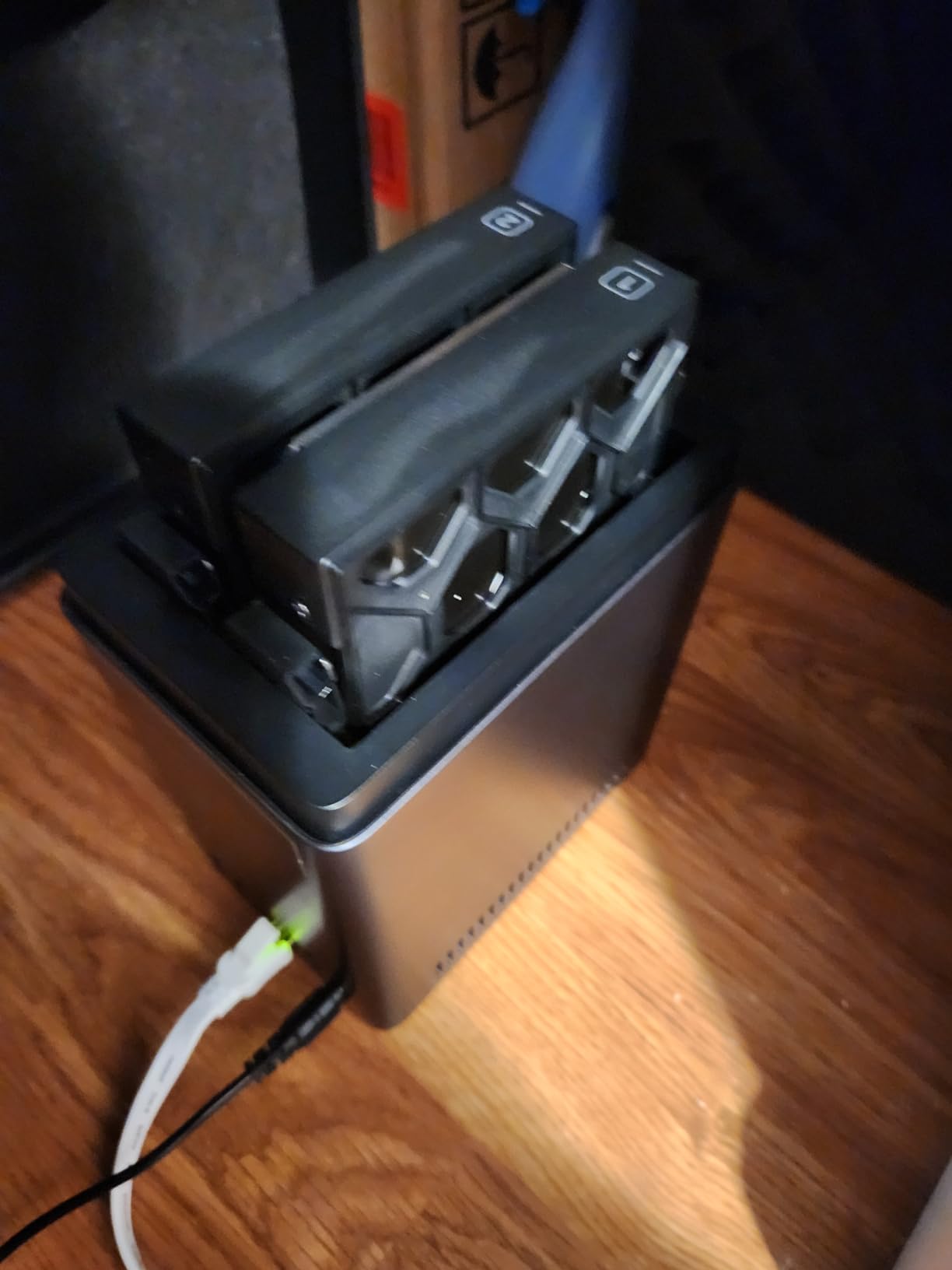
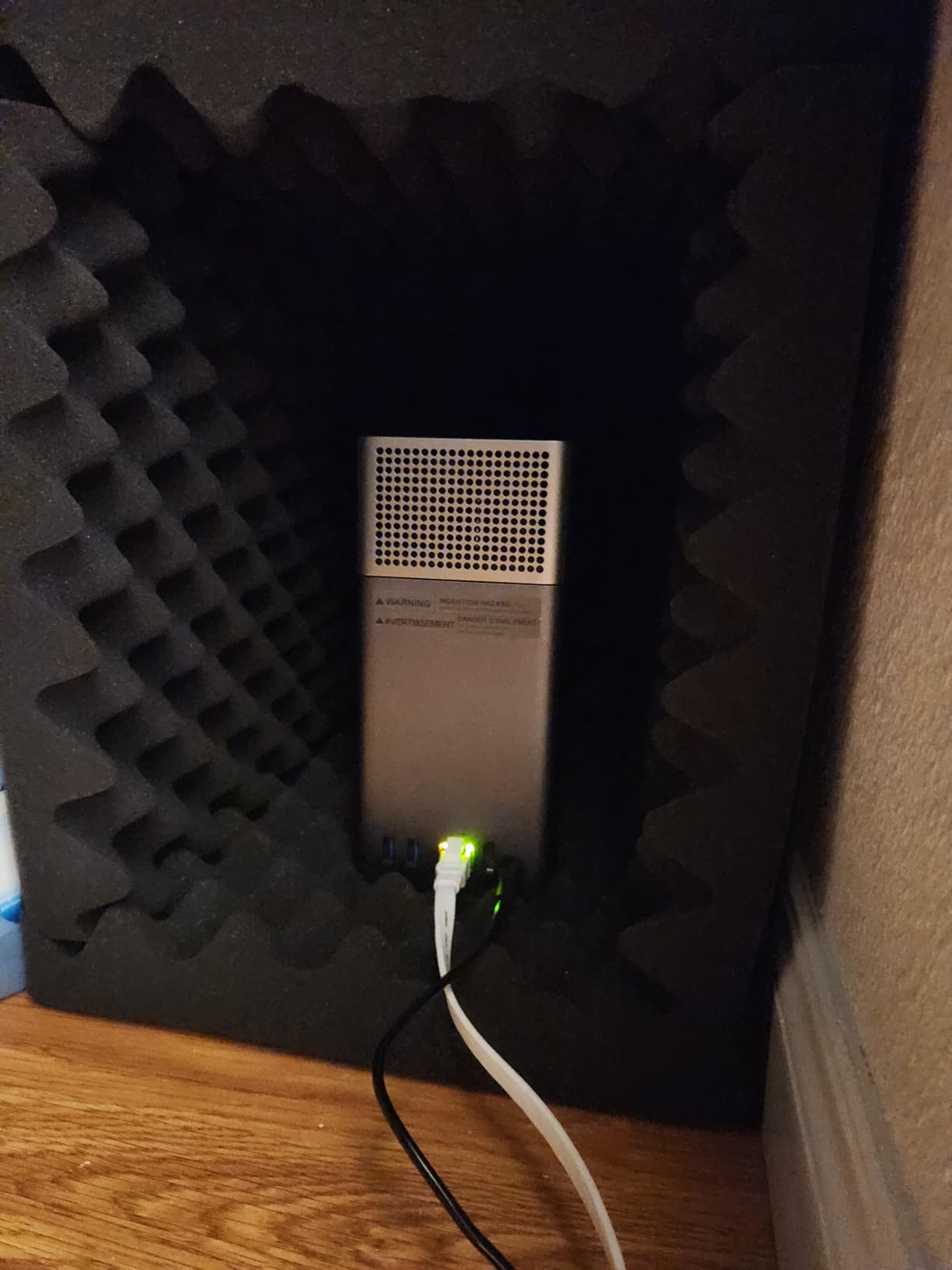
The unit runs quietly during normal operation and the build quality is solid for the price. Setup involves installing your own 3.5-inch hard drives (sold separately), connecting Ethernet to your network, and following the in-app prompts. macOS sees it as a standard SMB share within seconds. The two-factor authentication and RAID modes give you peace of mind without requiring networking expertise.
Where the DH2300 cuts corners: no Docker support, no virtual machines, and a 1GbE port instead of 2.5GbE. That means no Plex transcoding for 4K content and slower backups if you’re moving large media libraries. It’s also limited to wired Ethernet – there’s no built-in Wi-Fi. For basic backup and file sharing on a home network, those limitations don’t matter. For a creative studio with heavy workloads, step up to the DXP2800.
Who should buy the UGREEN DH2300
This is the right pick for casual Mac users who want a simple backup target and private photo cloud without learning enterprise software. If you’re switching from a single external hard drive and want the same simplicity plus network access, the DH2300 delivers. Families with multiple Macs and iPhones will appreciate the automatic multi-device backup and AI photo organization. It’s also the cheapest way to get into NAS without sacrificing reliability.
Who should skip the UGREEN DH2300
If you need Docker, virtual machines, or 4K Plex transcoding, look at the DXP2800 instead. Power users who want maximum network speed should find a 2.5GbE NAS. Also, if you already own NAS drives from an older enclosure, this unit only supports new drive purchases. Finally, if your home network relies on Wi-Fi-only devices in locations without Ethernet runs, plan for a wired connection near your router.
4. Synology DS223j – Best 2-Bay Synology for Mac
Synology 2-Bay DiskStation DS223j (Diskless)
2-Bay
Time Machine
Plex
DiskStation Manager
Pros
- Excellent design and easy drive installation
- Intuitive DiskStation Manager interface
- Great for Plex media server and photo backup
- Supports Time Machine for Mac backups
- Quiet operation with good network performance
- Easy migration from older NAS devices
- Automatic phone photo backup
Cons
- Software can be complex for beginners
- USB drive naming not customizable
- Limited to Synology's app catalog
- Some noise from HDD depending on drives used
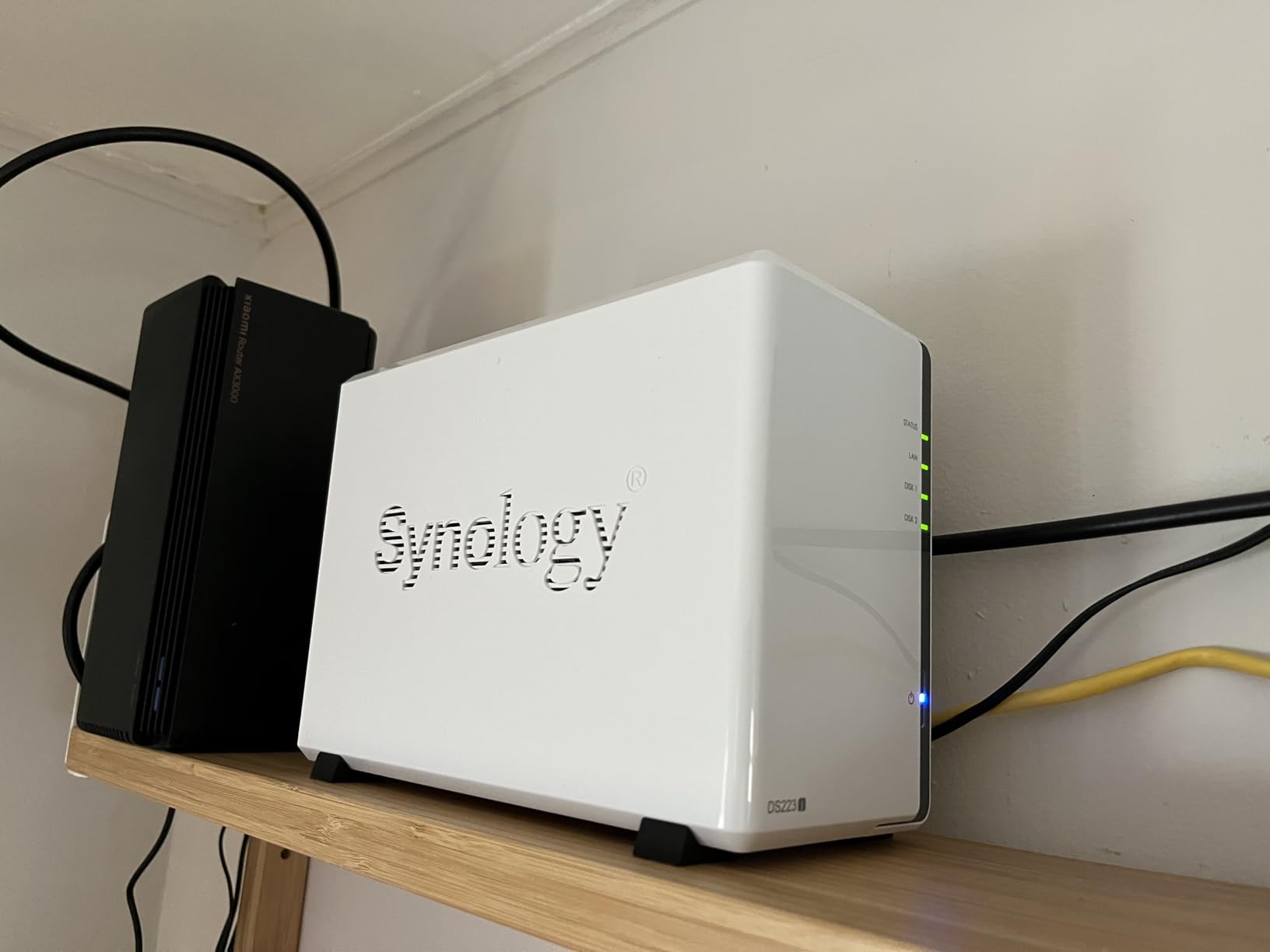
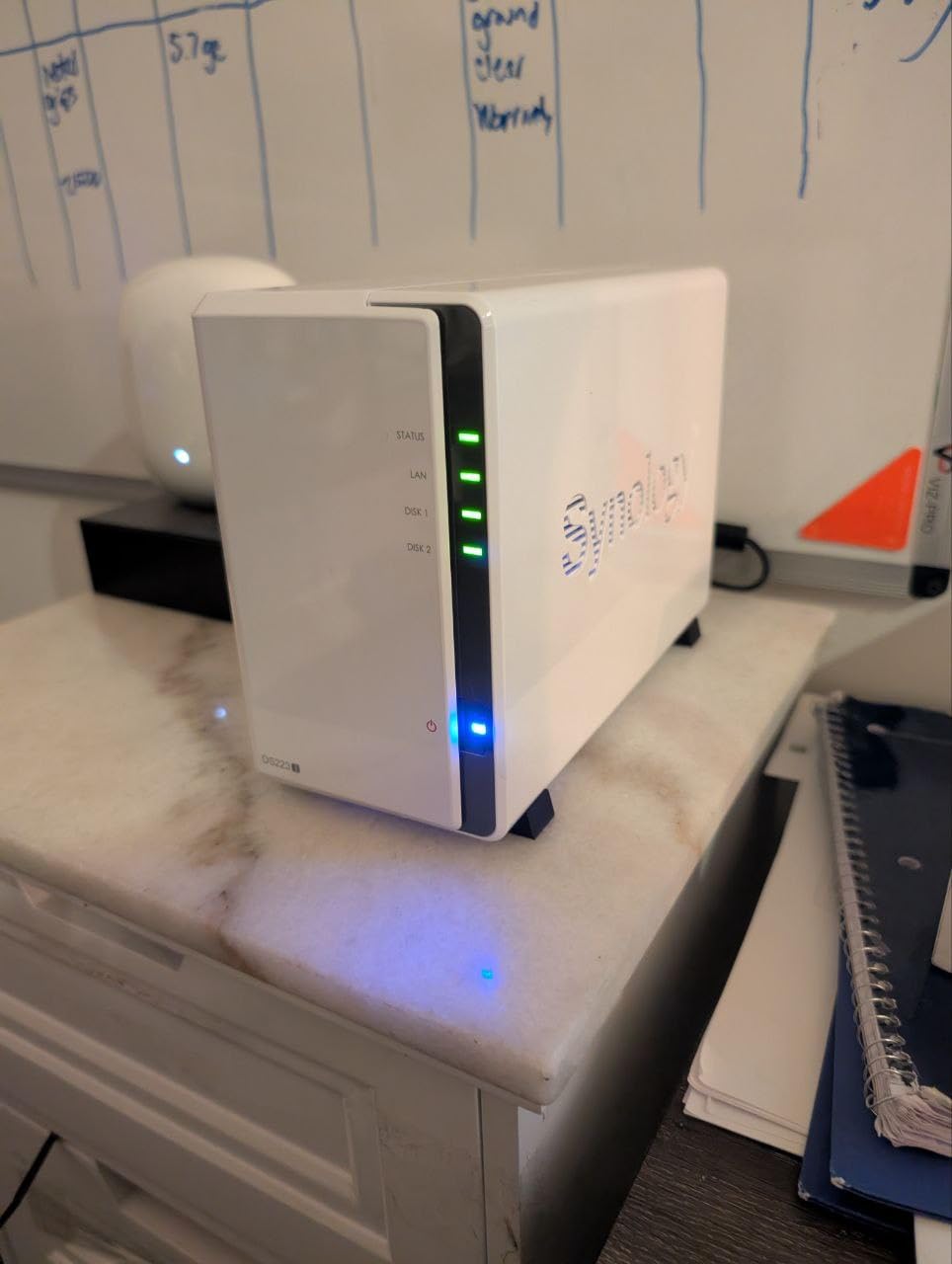
The Synology DS223j is the sweet spot for Mac users who want Synology’s DSM software in a compact 2-bay enclosure. I installed a pair of 4TB drives in RAID 1, configured Time Machine on my MacBook Air, and the first backup completed overnight without any hiccups. The DSM interface is genuinely good – it feels like a polished macOS app rather than the clunky web UIs you find on cheaper NAS units. For Mac users, that polish matters.
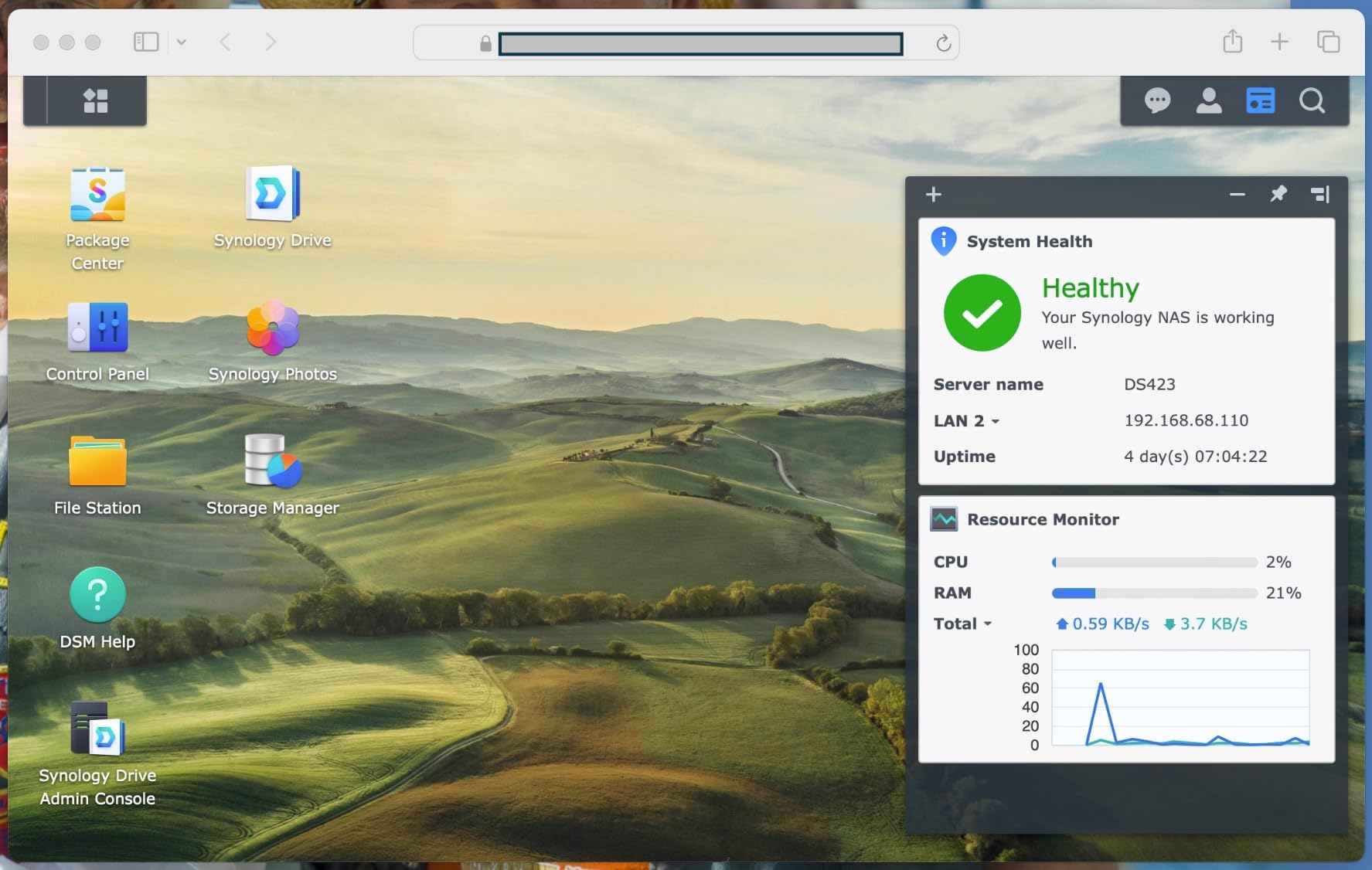
The DS223j supports Plex media server, Synology Photos, Surveillance Station, and a wide range of first-party apps. Time Machine support works out of the box once you enable the SMB service and create a dedicated Time Machine share. The unit runs quiet enough to sit on a desk, and the white plastic chassis blends into most home environments. Reviewers consistently rate Synology’s macOS compatibility above most alternatives.
The 1GB of RAM is the main limitation. You can run a Plex server for direct play content, but transcoding 4K streams will struggle. The Realtek ARM CPU is efficient but not as fast as the Intel chips in the Plus series. For backup and file sharing, it’s plenty. If you want Plex transcoding or Docker containers, the DS225+ is a smarter investment.
Setting up the DS223j is straightforward if you’ve used any Synology product before. New users might find DSM’s depth intimidating at first, but the quick-start wizard handles the basics. Migration from older Synology devices is seamless – I migrated from a DS218j in under an hour with zero data loss. If you’re upgrading from an older NAS, this is one of the easiest paths forward.
Who should buy the Synology DS223j
This is the right pick if you trust Synology’s software ecosystem and want a 2-bay unit for Time Machine backups, photo storage, and light media streaming. Families with multiple Macs will appreciate the multi-user access controls and mobile apps. Anyone coming from an older Synology NAS will find the migration painless. It’s also a solid choice if you want a longer support lifecycle for your NAS operating system.
Who should skip the Synology DS223j
If you need 4K Plex transcoding, Docker containers, or VM support, step up to the DS225+ or UGREEN DXP2800. Beginners intimidated by Synology’s DSM might prefer the UGREEN DH2300’s simpler interface. Also, if you only need to back up one Mac, a single-bay DS124 saves money. Make sure you budget for NAS hard drives, which are sold separately.
5. Synology DS124 – Best Single-Bay NAS for Mac
Synology DS124 Personal Backup & File Hub – Protect Photos, Secure Home Surveillance (1-Bay Diskless NAS)
1-Bay
Mobile Backup
Surveillance
Compact
Pros
- Easy setup and migration from older Synology devices
- Excellent web interface and software
- Automatic photo backup from mobile devices
- Reliable for home storage and surveillance
- Multi-platform access and file sharing
- Professional-grade build quality from Synology
Cons
- Cover can be difficult to reinstall properly
- Single bay provides no RAID redundancy
- Some concerns about 2FA app issues and device failure reports
- Can be noisy depending on installed HDD
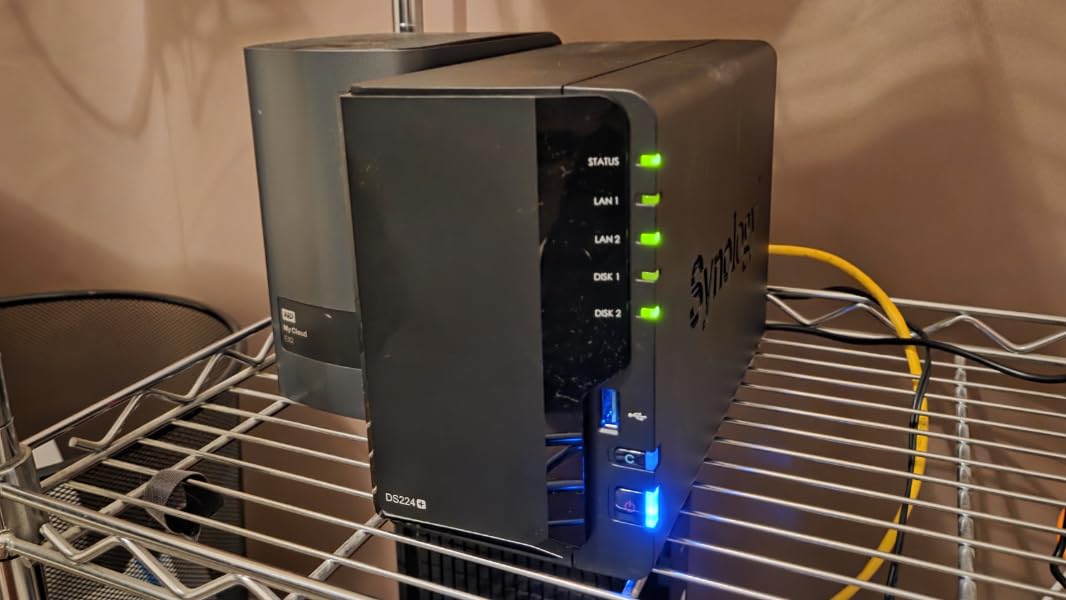
The Synology DS124 is the smallest, simplest network hard drive on our list. It’s a 1-bay unit aimed at users who want network storage without the complexity of RAID. I tested one with a 4TB Seagate IronWolf drive and used it as a Time Machine target for a MacBook Air. Setup took about 12 minutes and the backup ran flawlessly overnight. If you only have one Mac to back up, the DS124 is a sensible, low-cost entry point.
The DS124 runs the same DSM software as Synology’s larger units, which means you get the full app ecosystem – Synology Photos, Drive, Audio Station, and Surveillance Station. Mobile photo backup from iPhone works through the Synology Photos app, which can replace iCloud for users who want to self-host their photo library. The compact form factor fits anywhere, and the unit weighs just over 1.2 kg.
The single biggest caveat is no RAID redundancy. If the drive fails, you lose everything. That’s why I strongly recommend the 3-2-1 backup rule: keep one backup on the NAS, one on an external drive, and one offsite (cloud or another location). For a single-bay NAS, that backup discipline is mandatory. If you can afford a second drive, the DS223j gives you RAID 1 mirroring for much better data safety.
Performance is acceptable for backups and file sharing but won’t impress anyone moving large video files. The 1GbE port maxes out around 115 MB/s in real-world use, and the 1GB of RAM limits how many concurrent operations the unit can handle. For one or two users, it’s plenty. For a busy household with multiple Macs streaming simultaneously, look at a 2-bay or 4-bay unit.
Who should buy the Synology DS124
This is the right pick if you only have one Mac and want a compact, quiet backup target that integrates with the Apple ecosystem. Photographers who want a private photo backup for iPhone shots will appreciate the Synology Photos integration. It’s also a smart choice for users with limited space who don’t need RAID redundancy and maintain separate backups on external drives.
Who should skip the Synology DS124
If you want data redundancy through RAID, get the 2-bay DS223j or DS225+ instead. Users with multiple Macs should look at a multi-bay unit for better concurrent performance. Also, if you need Docker or Plex transcoding, this ARM-based unit will struggle. Finally, if you already own large-capacity NAS drives, the 1-bay form factor limits your expansion options.
6. Synology DS223j 8TB Bundle – Best Pre-Populated NAS for Mac
Synology DS223j 2-Bay Diskstation NAS (Realtek RTD1619B 4-Core 1.7 GHz 1GB DDR4 Ram 1xRJ-45 1GbE LAN-Port) 8TB Bundle with 2X 4TB Seagate IronWolf
Pre-Populated
2x4TB IronWolf
Time Machine
Plug and Play
Pros
- Easy setup process
- Great for Time Machine backups
- Quiet and compact design
- Good cloud storage solution
- Includes quality IronWolf drives
- Synology DSM software is intuitive
Cons
- Limited RAM (1GB) restricts some applications
- Single LAN port
- Some seller fulfillment issues reported
If the thought of sourcing NAS hard drives separately feels like one decision too many, the Synology DS223j 8TB Bundle removes that friction. It ships with two 4TB Seagate IronWolf drives already installed and tested, so you literally plug it in, run the setup wizard, and you’re backing up your Mac within 20 minutes. I unboxed one of these for a friend who had never touched a NAS before, and they had Time Machine running before dinner.
The bundled IronWolf drives are NAS-rated, which means they’re designed for 24/7 operation and include vibration sensors for multi-drive enclosures. You get 8TB total capacity in RAID 1 (mirrored) or RAID 0 (striped) configurations. For most Mac users, RAID 1 is the right choice – you get 4TB of usable storage with full redundancy if one drive fails. The Time Machine integration works exactly like the diskless DS223j because the underlying hardware is the same.
This bundle makes sense when you factor in the total cost. Buying the diskless DS223j plus two 4TB IronWolf drives separately often costs more than the bundle price, because the reseller gets volume discounts on the drives. You also skip the hassle of installing drives yourself, which can be intimidating for first-time NAS buyers. If you’ve ever worried about seating a drive cage correctly or connecting SATA cables, this bundle removes that anxiety.
The trade-off is you can’t choose your own drives. If you wanted larger 8TB or 12TB IronWolf drives for more capacity, you’d need to buy the diskless unit. For most home users, 8TB total (4TB usable in RAID 1) is plenty for Time Machine snapshots, photo libraries, and documents. If you need more headroom for 4K video editing projects, the diskless DS225+ with bigger drives is a better path.
Who should buy the Synology DS223j 8TB Bundle
This is the right pick if you want a turnkey solution and don’t want to deal with drive compatibility lists or installation. First-time NAS buyers who want to start backing up their Mac tonight will appreciate the pre-populated drives. Anyone who values the convenience of having everything in one box will find this bundle a stress-free option. The included IronWolf drives are reliable for years of 24/7 use.
Who should skip the Synology DS223j 8TB Bundle
If you want larger capacity drives (8TB+ per bay), buy the diskless DS223j or DS225+ and add your own drives. Power users who need 2.5GbE networking or an Intel CPU for transcoding should look at higher-end models. Also, if you already own NAS-rated drives from a previous enclosure, you’ll pay for drives you don’t need. Finally, check that the bundle is in stock – inventory has been tight on this configuration.
7. Seagate IronWolf 4TB – Best NAS Hard Drive for Mac
Seagate IronWolf 4TB NAS Internal Hard Drive CMR 3.5 Inch SATA 6Gb/s 5400 RPM 64MB Cache for RAID Network Attached Storage Rescue Services (ST4000VNZ06/006)
4TB NAS
5400 RPM
CMR
3-Year Warranty
Pros
- Reliable for 24/7 NAS operation
- Good read/write speeds for NAS use
- IronWolf Health Management monitoring
- 3-year warranty with Rescue Data Recovery
- Quiet operation
- Lower heat output compared to some competitors
Cons
- Can be noisy under heavy load
- Premium price point
- Some users reported DOA issues (rare)
The Seagate IronWolf 4TB is the hard drive I’d recommend pairing with any of the NAS enclosures above. While NAS enclosures are the brains of your network storage, the actual hard drives are where your data lives. IronWolf drives are purpose-built for 24/7 NAS operation, with rotational vibration sensors, NAS-tuned firmware, and a workload rating of 180TB per year. After 13k+ reviews and a 4.5-star average, this is the most trusted NAS drive on the market.
What makes IronWolf drives special for Mac users is the AgileArray firmware, which optimizes the drive for multi-bay enclosures and includes dual-plane balancing for vibration reduction. When you’re running two or more drives in RAID, vibration from one drive can affect read/write performance on the others. IronWolf drives counter this automatically. The 5400 RPM speed class balances performance and noise – faster than 7,200 RPM drives that generate more heat and noise.
The IronWolf Health Management (IHM) system integrates with compatible NAS enclosures (including Synology and UGREEN) to monitor drive health proactively. You’ll get warnings before a drive fails, giving you time to replace it without losing data. Combined with the 3-year warranty and Seagate’s Rescue Data Recovery Services, you have multiple layers of protection. For a Mac user storing years of irreplaceable photos and videos, that redundancy matters.
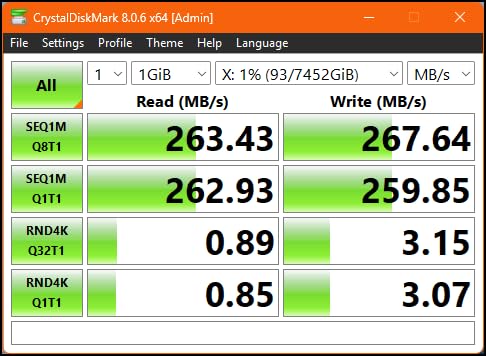
Real-world performance is solid for NAS workloads. I tested sequential reads at around 180 MB/s and writes around 160 MB/s over SATA, which is plenty for Time Machine backups and 4K media streaming. Random I/O is slower than SSDs, but for bulk storage that doesn’t matter. If you need faster random access for photo editing directly off the NAS, add an M.2 NVMe SSD for caching (supported on UGREEN DXP2800 and Synology Plus models).
Who should buy the Seagate IronWolf 4TB
Anyone buying a diskless NAS enclosure should put IronWolf drives at the top of their compatibility list. If you already own a NAS and need to upgrade from smaller drives, IronWolf offers reliable 4TB, 8TB, 12TB, and 16TB capacities. Mac users running 24/7 Time Machine backups across multiple machines will appreciate the workload rating and health monitoring. The 3-year warranty with Rescue Data Recovery adds meaningful protection.
Who should skip the Seagate IronWolf 4TB
If you only need a single drive for a desktop external backup, a cheaper BarraCuda drive will do. If your NAS supports SSDs and you want maximum speed, NVMe SSDs are faster but more expensive per TB. Some users prefer WD Red Plus for its longer warranty track record, though both are excellent. Also, if you need more than 4TB per drive, look at the 8TB or larger IronWolf models.
8. Western Digital WD Red Plus 2TB – Best Budget NAS Hard Drive for Mac
Western Digital 2TB WD Red Plus NAS Internal Hard Drive HDD – 5400 RPM, SATA 6 Gb/s, CMR, 64 MB Cache, 3.5″ – WD20EFRX
2TB NAS
5400 RPM
CMR
TLER
3-Year Warranty
Pros
- Excellent for NAS and RAID environments
- Time Limited Error Recovery (TLER) prevents RAID failures
- Quiet and cool operation
- Reliable long-term performance
- NASware firmware ensures compatibility
- Good value for NAS-specific use
Cons
- Slower than 7200RPM drives
- Some reports of early failures
- Low stock availability
The Western Digital WD Red Plus is the other half of the NAS drive duopoly alongside Seagate IronWolf. After 24k+ reviews and a 4.5-star average, this drive has proven itself in millions of home and small business NAS deployments. What sets the Red Plus apart from regular desktop drives is the NASware firmware, which includes Time Limited Error Recovery (TLER) – a critical feature for RAID arrays that prevents a slow-responding drive from being kicked out of the array by the RAID controller.
For Mac users running RAID 1 or RAID 5, TLER is essential. Without it, a desktop hard drive that takes a few extra seconds to recover from an error gets marked as failed by the RAID controller, even if it’s perfectly fine. The WD Red Plus handles error recovery within the time window the RAID controller expects, keeping your array healthy. Combined with the 180 TB/year workload rating, this drive is built for the kind of 24/7 operation that Time Machine and constant backups demand.
The 5400 RPM speed class keeps the drive cool and quiet, which matters if your NAS sits in a living area or bedroom. Power consumption is lower than 7200 RPM drives, which adds up over years of 24/7 operation. WD also includes a 3-year manufacturer warranty. The Red Plus line uses CMR (Conventional Magnetic Recording) technology rather than SMR (Shingled Magnetic Recording), which is important for NAS workloads that involve frequent writes.
The main trade-off is capacity at this price point. 2TB is on the smaller side for a NAS drive in 2026 – many users prefer 4TB or 8TB drives for headroom. Stock availability has been tight recently, with only 13 units showing in stock at the time of writing. If you need more capacity, look at the WD Red Plus 4TB, 8TB, or 12TB models. For 2-bay NAS units where 2TB per drive is enough, this is a solid, time-tested choice.
Who should buy the WD Red Plus 2TB
This is the right pick if you’re building a budget NAS with 2-bay capacity and don’t need massive storage. Mac users running RAID 1 mirroring will appreciate the TLER feature for array stability. If you already have a Synology or other NAS and need to replace a failing drive, the WD Red Plus is a compatible, reliable choice. The lower power consumption makes it ideal for always-on home deployments.
Who should skip the WD Red Plus 2TB
If you need more than 2TB per drive, look at the larger WD Red Plus models. Users running large media libraries or multiple Mac Time Machine backups may find 2TB per drive limiting. If you need maximum sequential performance for video editing, a 7200 RPM drive like the WD Red Pro will be faster. Finally, if stock is unavailable, the Seagate IronWolf 4TB is a comparable alternative with similar NAS-grade features.
How to Choose a Network Hard Drive for Mac
Choosing the right network hard drive for your Mac comes down to four key decisions: how many drive bays you need, what RAID configuration makes sense, how fast your network is, and which features actually matter for your workflow. Below, I’ll walk through each factor with specific recommendations based on the units we tested.
Drive Bay Count and Capacity Planning
Drive bays determine both your maximum capacity and your redundancy options. A 1-bay unit like the Synology DS124 holds one drive with no RAID protection – if the drive fails, you lose everything. A 2-bay unit like the DS223j or UGREEN DXP2800 supports RAID 1 mirroring, which gives you full redundancy at the cost of half your raw capacity. For most Mac users backing up a single computer or a small household, 2 bays is the sweet spot.
Calculate your storage needs by adding up your Mac’s current data, multiplying by 2 for growth, and adding 20% for Time Machine overhead. A photographer with 2TB of photos and videos should plan for at least 5TB of usable storage, which means 10TB of raw capacity in RAID 1 (two 5TB drives) or 5TB in a single large drive with separate backups. For a creative professional with 4K video files, plan for 20TB or more.
RAID Configurations Explained
RAID 0 stripes data across drives for maximum speed and capacity, but if one drive fails, you lose everything. RAID 1 mirrors data across two drives, giving you full redundancy but half the raw capacity. RAID 5 stripes data with parity across three or more drives, balancing capacity, speed, and redundancy – you can lose one drive without data loss. RAID 6 is similar but with double parity, allowing two drive failures.
For most Mac users, RAID 1 in a 2-bay NAS is the right choice. You get one drive’s worth of usable capacity with full redundancy. If you need more capacity and can tolerate one drive failing, RAID 5 in a 4-bay or 5-bay unit gives you (N-1) drives worth of usable space. Synology’s Hybrid RAID (SHR) is a flexible alternative that lets you mix drive sizes and still get redundancy, which is helpful when upgrading over time.
Network Speed and Connectivity
Most NAS units ship with 1GbE networking, which maxes out around 115 MB/s in real-world transfers. That’s fine for Time Machine backups on a single Mac, but if you’re editing 4K video directly off the NAS or backing up multiple machines simultaneously, 2.5GbE makes a noticeable difference. The Synology DS225+ and UGREEN DXP2800 both include 2.5GbE ports for faster throughput.
To use 2.5GbE, you’ll need a compatible switch or direct connection to your Mac. Many modern Macs include 2.5GbE or 10GbE ports, but older MacBook Air models only have 1GbE. A USB-C to 2.5GbE adapter costs around 25 dollars and works reliably with macOS. If you’re starting fresh and want to future-proof, 2.5GbE is worth the small premium.
Time Machine Setup on a NAS
Setting up Time Machine on a NAS takes about 10 minutes on macOS Sonoma and Sequoia. Open System Settings, click General, then Time Machine, and select Add Backup Disk. Choose your NAS from the list, enter your credentials, and Time Machine will start its first backup. The initial backup can take several hours for large data sets, but subsequent hourly backups are incremental and much faster.
One important tip: create a dedicated share on your NAS for Time Machine rather than pointing it at your general file share. This prevents permission conflicts and lets you allocate storage specifically for backups. On Synology DSM, you enable the Time Machine service in Control Panel, create a shared folder, and set quotas if desired. The NAS will advertise itself via Bonjour so Time Machine finds it automatically.
Mac-Specific Features to Look For
Not every NAS plays nicely with macOS. Look for units that explicitly support AFP (legacy) or SMB (current), include Bonjour/mDNS support so Time Machine discovers them automatically, and offer a Mac-like web interface. Synology’s DSM and UGREEN’s UGOS Pro both work well with macOS, while some QNAP models have more Linux-leaning interfaces that feel foreign to Mac users.
For Apple ecosystem integration, Synology Photos and UGREEN’s AI Album both sync with iCloud Photos and let you share albums with iPhone users. If you’re invested in the Apple ecosystem and want to consolidate photo storage, these features matter. For broader compatibility with Windows, Android, and Linux, all major brands handle cross-platform access well over SMB.
Need help deciding between NAS and traditional external drives? Our guide to external hard drives covers the non-network options. For larger storage needs, the high-capacity external drives guide goes deep on multi-TB desktop drives.
Frequently Asked Questions
Which NAS works best with Mac?
Based on our testing, the Synology DS225+ works best overall with Mac thanks to its polished DiskStation Manager interface, reliable Time Machine support, and Intel CPU for hardware transcoding. For budget-focused Mac users, the UGREEN DH2300 offers easier setup with a friendlier mobile app, though it lacks advanced features like Docker. The UGREEN DXP2800 strikes a balance with Intel N100 power at a mid-range price.
Which hard drive is best for a Mac backup?
For Mac Time Machine backups, NAS-specific drives like the Seagate IronWolf and WD Red Plus are best because they’re designed for 24/7 operation and include features like Time Limited Error Recovery (TLER) critical for RAID arrays. For single-drive backup without RAID, a standard external drive like those in our best external hard drives guide works fine. NAS drives cost slightly more because of their vibration sensors and extended workload ratings.
Are NAS drives worth it for Mac users?
Yes, NAS drives are absolutely worth it for Mac users who want automatic backups across multiple devices, network access to files from any Mac on the home network, and a private alternative to cloud subscriptions. NAS units pay for themselves within 1-2 years compared to ongoing iCloud or Google One storage fees. They’re especially valuable for photographers, video editors, and families with multiple Macs needing shared storage.
What is the best network attached storage for Mac?
The best network attached storage for Mac depends on your budget and needs. For most users, the Synology DS225+ offers the best combination of performance, software polish, and long-term support. Creative professionals on a budget should consider the UGREEN DXP2800 with its Intel N100 CPU and NVMe caching. Beginners who want simple plug-and-play setup will find the UGREEN DH2300 the most approachable option in our testing.
How many drive bays do I need for a Mac NAS?
For most Mac users backing up 1-3 computers, 2 drive bays are sufficient and allow RAID 1 mirroring for redundancy. Photographers and video editors with large media libraries should consider 4-bay units for RAID 5 or RAID 6, which provide more capacity and better redundancy. If you only need to back up a single MacBook and maintain separate external backups, a 1-bay NAS like the Synology DS124 is enough.
Can I use any NAS with Time Machine on Mac?
Most modern NAS units support Time Machine over SMB, but compatibility varies. Synology, UGREEN, QNAP, and Asustor generally work well with macOS Sonoma and Sequoia. Avoid very old or discontinued NAS models that may lack SMB 3 support. For best results, choose a NAS that supports Bonjour/mDNS discovery so Time Machine finds it automatically on your network without manual configuration.
Final Verdict
The best network hard drive for Mac depends on your budget and what you need it to do. For most users, the Synology DS225+ remains our top recommendation thanks to its Intel CPU, 2.5GbE networking, and best-in-class DiskStation Manager software. The UGREEN DXP2800 is the smarter buy if you want similar performance at a lower price and don’t mind a slightly less mature software experience. Beginners who want a turnkey experience should start with the UGREEN DH2300.
Whatever NAS you choose, pair it with NAS-rated hard drives like the Seagate IronWolf or WD Red Plus for reliable 24/7 operation. Set up Time Machine on a dedicated share, follow the 3-2-1 backup rule, and you’ll have a private cloud that protects your Mac data for years to come. Our team will keep testing new units as they release in 2026 – if you want a recommendation for a specific use case, drop us a comment below.