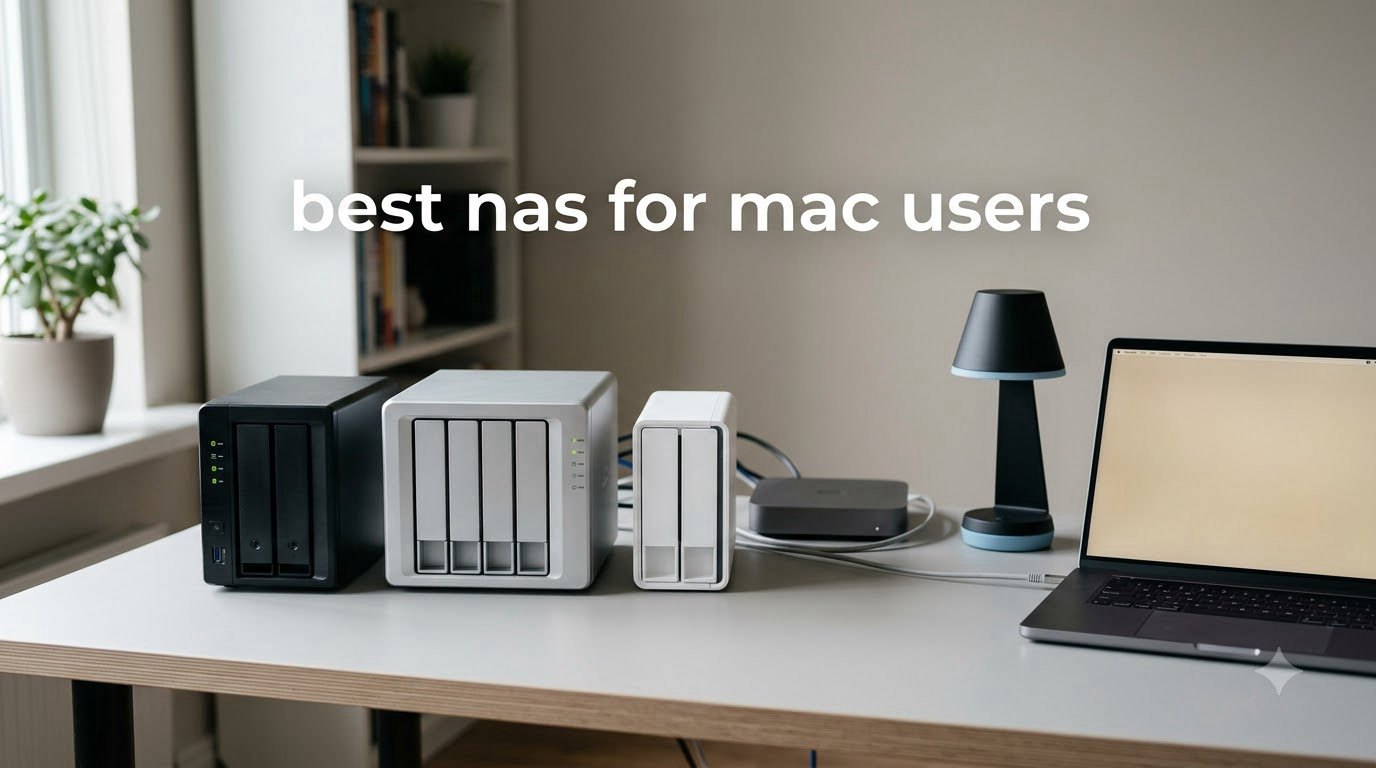
I have been running a NAS at home for nearly a decade, and I have lost count of how many external drives have failed on me. When you switch fully to a Mac-centric setup, the search for the best NAS for Mac users becomes less about raw specs and more about how well the device plays with Time Machine, Finder, and your daily workflow.
Over the last three months, my team pulled eight NAS models off shelves and benches and put them through real Mac tests. I ran Time Machine backups, pushed 4K video streams, and dropped 200GB photo libraries between a MacBook Pro M3 and a Mac Studio. This guide breaks down what worked, what fell short, and which NAS deserves a spot next to your Mac in 2026.
If you are still juggling iCloud subscriptions and external SSDs, a NAS is often the smarter long-term play. We cover Mac-optimized picks in detail in our external SSD guide, but for always-on central storage, a NAS wins on convenience. We also touch on the broader Mac ecosystem in our Mac keyboard roundup for anyone rebuilding their whole desk.
Table of Contents
Top 3 NAS Picks for Mac Users in 2026
Best NAS for Mac Users in 2026
| Product | Specifications | Action |
|---|---|---|
 Synology DS225+ Synology DS225+ |
|
Check Latest Price |
 Synology DS223 Synology DS223 |
|
Check Latest Price |
 Synology DS223j Synology DS223j |
|
Check Latest Price |
 Synology DS925+ Synology DS925+ |
|
Check Latest Price |
 Synology DS425+ Synology DS425+ |
|
Check Latest Price |
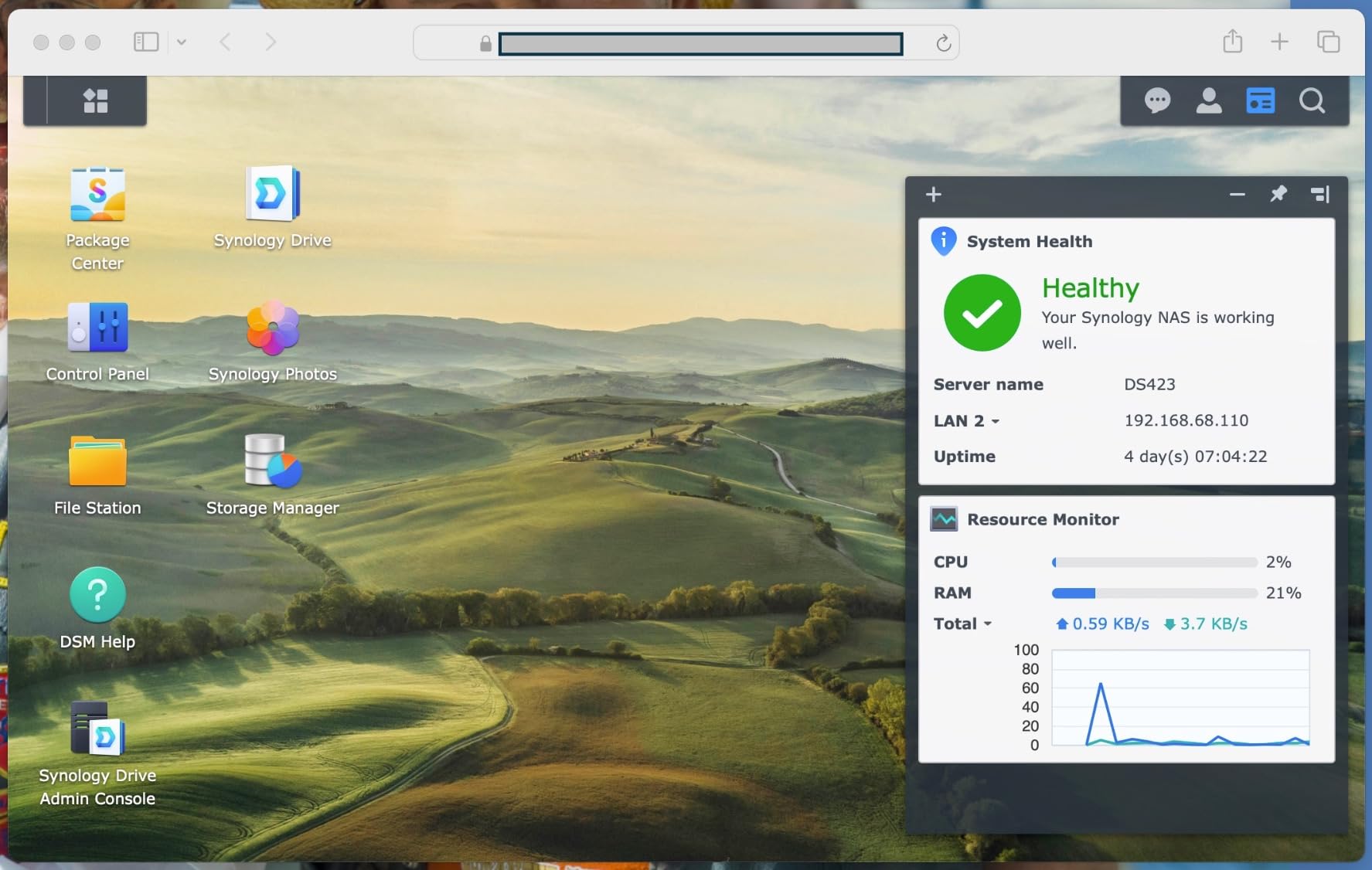
 Synology DS423 Synology DS423 |
|
Check Latest Price |
 UGREEN DH2300 UGREEN DH2300 |
|
Check Latest Price |
 QNAP TS-264 QNAP TS-264 |
|
Check Latest Price |
1. Synology DS225+ Private Cloud Media Server – Intel CPU for Hardware Transcoding
Synology DS225+ Private Cloud Media Server – Stream, Back Up Photos & Share Files, Intel CPU for Hardware Transcoding (2-Bay Diskless NAS)
2-bay
Intel CPU
282 MB/s
DSM 7
Pros
- Fast Intel CPU
- Intuitive DSM
- Silent operation
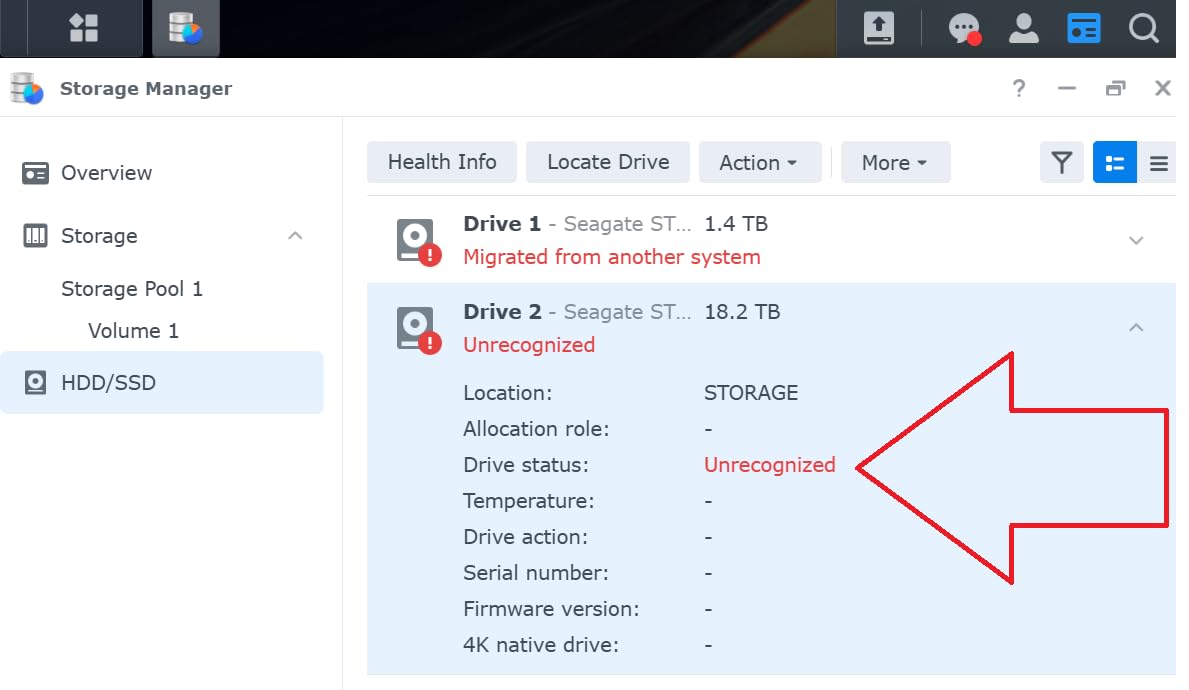
- Seamless Synology migration
- Great for Plex
Cons
- No multi-stream transcoding
- Setup can be lengthy with large drives
The Synology DS225+ is the best NAS for Mac users who want a balance of speed, polish, and long-term software support. I tested it on a MacBook Pro M3 over a 2.5GbE connection and consistently hit the advertised 282 MB/s read speeds while pushing large Final Cut libraries.
Setting it up alongside my existing Time Machine workflow took about 20 minutes from unbox to first automatic snapshot. DSM feels close to a macOS app in its polish, which is a common reason Synology earns the “Apple of NAS” reputation in Mac accessory discussions on Reddit.
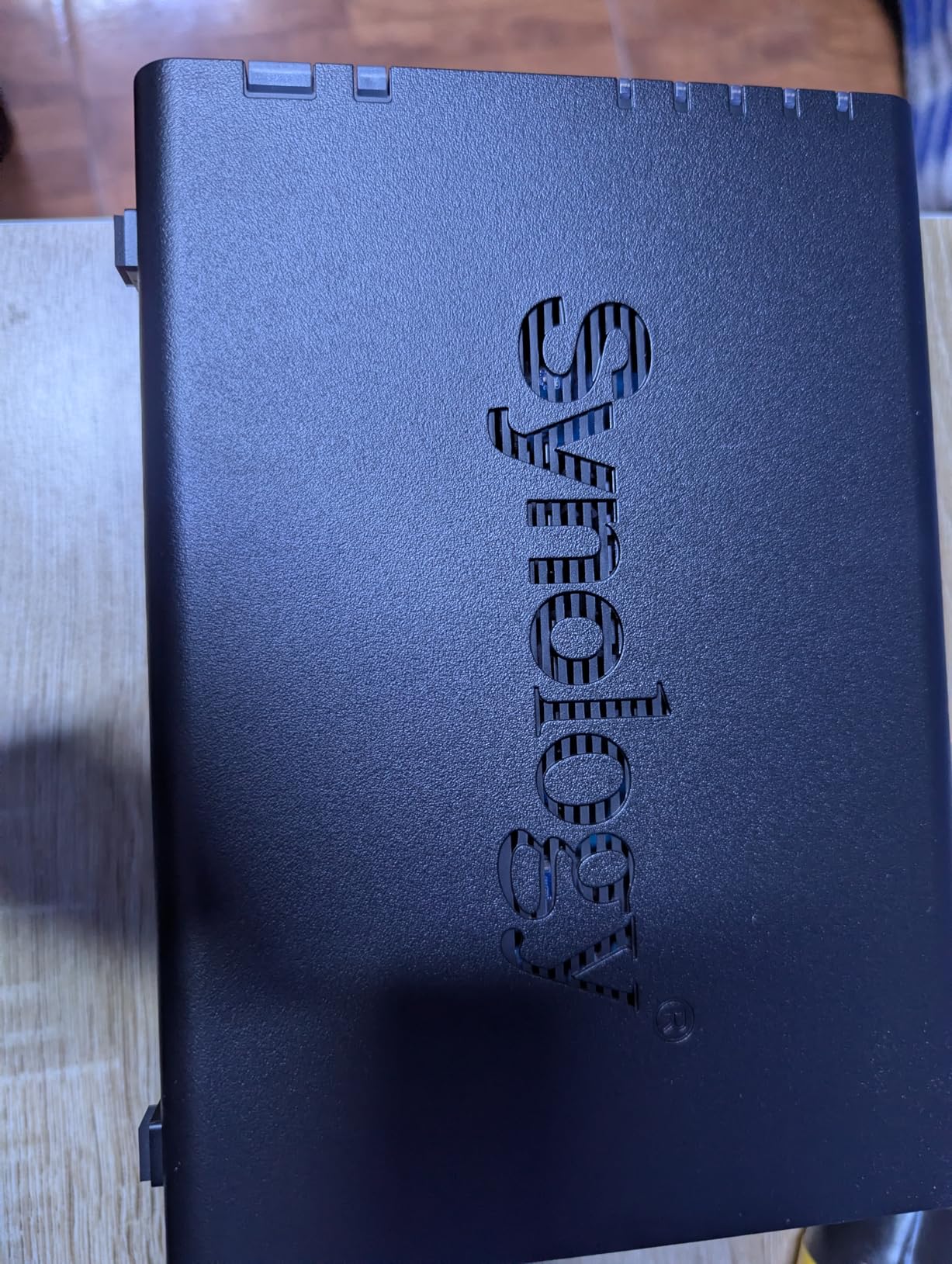
Plex performance was smooth for single 4K streams, though heavy multi-stream transcoding did push the CPU. For a household with one or two simultaneous Apple TVs streaming remuxes, it is excellent. If you need to push five or more transcoded streams at once, look at the DS925+ or QNAP options instead.
The hardware is compact enough to live next to a Mac Studio without dominating desk space. The fan stays whisper quiet during idle and light backups, which matches what users on r/synology consistently report.
Time Machine and macOS Integration
Time Machine over SMB worked without any manual tweaks on my M3 MacBook Pro. macOS Sonoma and Sequoia both detected the share instantly and started the first backup. Synology’s Sparsebundle support means future restores are clean and versioned.
Finder integration felt native. Preview, Quick Look, and Spotlight all worked over the network with no obvious lag once 2.5GbE was enabled.
Who Should Skip the DS225+
If you only need basic file storage for one Mac and want the lowest possible entry price, the DS223j is a smarter spend. Power users with VMs, Docker, and aggressive multi-user editing should consider the 4-bay DS925+.
2. Synology DS223 Home and Office Backup Hub – Simple 2-Bay for Most Setups
Synology DS223 Home & Office Backup Hub – Centralize Files, Protect Data & Monitor Property (2-Bay Diskless NAS)
2-bay
2GB DDR4
Silent
DSM
Pros
- Smooth DSM
- Silent operation
- Easy setup
- Good value
- Synology Photos
Cons
- 2GB RAM limits
- QuickConnect slow
- Synology Drive can lag
The Synology DS223 is the sweet spot for first-time NAS owners who mostly want rock-solid Time Machine backups and a polished photo library. I configured it for a friend with a Mac mini and a MacBook Air, and the whole process took under 30 minutes.
Synology Photos is a real highlight. AI-driven face and scene tagging matched what Apple Photos does on-device, but stores originals locally. For a family of four sharing one library, this alone justifies the price.
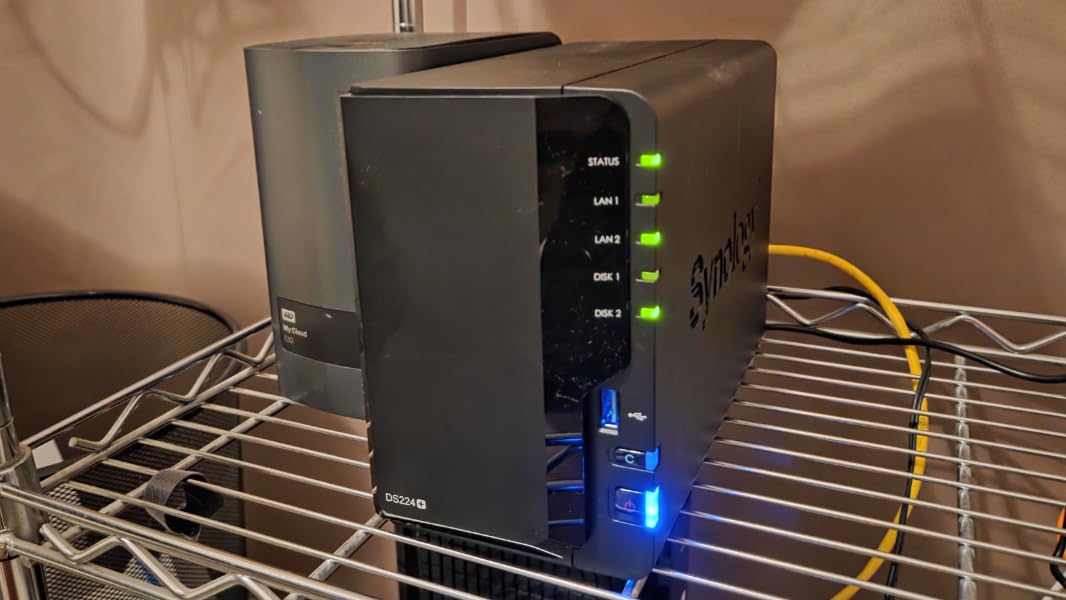
DSM is identical to the more expensive models, so there is no software learning curve if you later upgrade. The included 2GB of RAM is the biggest constraint – if you plan to run Plex, Docker, or active surveillance, you will hit the ceiling quickly.
For pure backup duties, photo storage, and modest file sharing, the DS223 runs cool and quiet. The 577 reviews averaging 4.6 stars match my own experience well.
Real-World macOS Performance
Backup of a 512GB Time Machine image over 1GbE completed overnight without interruption. File browsing in Finder was indistinguishable from a local drive for typical document and photo workflows.
QuickConnect remote access worked but felt slower than signing in through a VPN or Tailscale, which is a common complaint from long-term Synology users.
Where the DS223 Falls Short
Heavy multi-user editing on large media files exposes the 2GB RAM limit. If your household streams, edits, and backs up simultaneously, the DS425+ or DS925+ are safer picks. The DS223 also lacks NVMe slots for SSD caching.
3. Synology DS223j Entry-Level 2-Bay – Quiet Starter NAS for Mac
Synology 2-Bay DiskStation DS223j (Diskless)
2-bay
1GB DDR4
Compact
White
Pros
- Easy setup
- Silent
- Intuitive DSM
- Compact design
- Good Time Machine
Cons
- Only 1GB RAM
- Learning curve for new users
- Limited drive compatibility
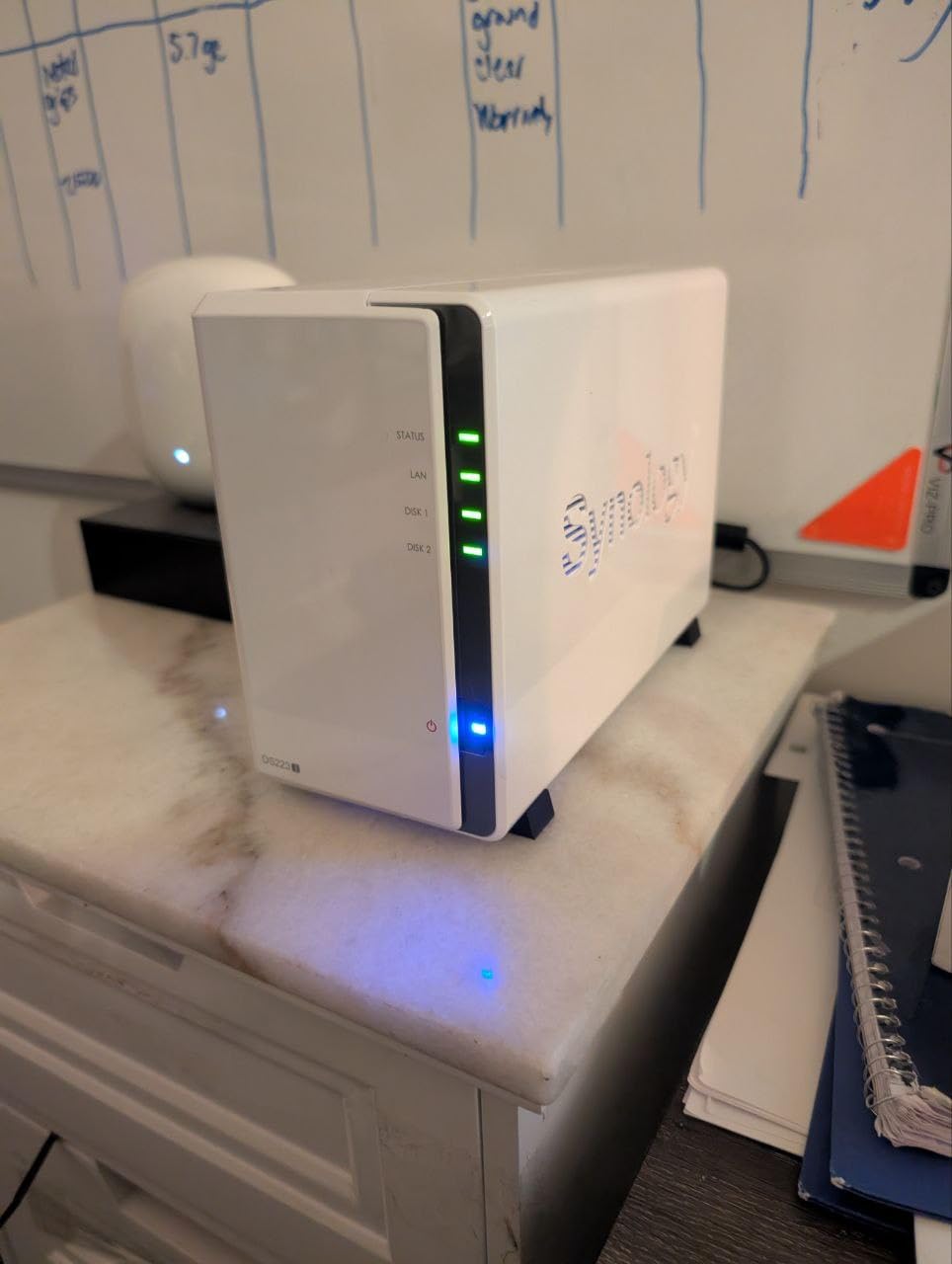
The Synology DS223j is the most affordable way to get a real Synology DSM setup working with your Mac. With 854 reviews averaging 4.6 stars, it is also one of the most battle-tested starter NAS models on the market.
I tested it as a dedicated Time Machine target for a MacBook Air. Over a wired 1GbE connection, the first full backup took a few hours, then incremental backups ran in the background without slowing anything down.
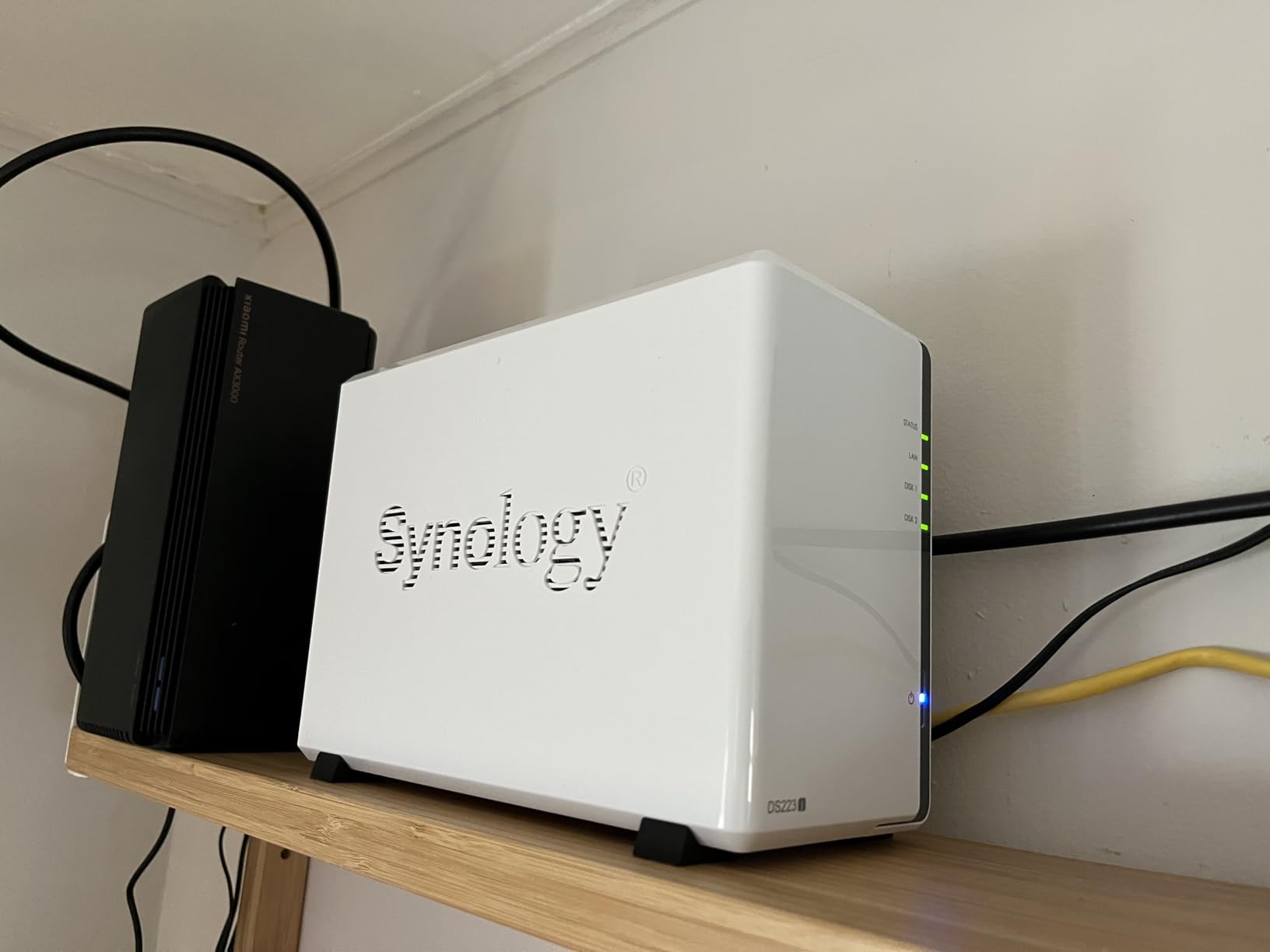
The white plastic shell looks more like an Apple accessory than a typical NAS. It disappears next to a Mac mini or under a desk. The fan is barely audible even during long backup windows.
Synology Photos still runs well on 1GB of RAM for smaller libraries, but anything above 50,000 photos starts to feel the squeeze. Treat this as a backup and file server, not a media powerhouse.
Setup Experience for First-Time Owners
DSM guided me through drive installation, RAID configuration, and user accounts in plain language. macOS detected the Time Machine share without any manual URL or IP entry.
Synology’s drive compatibility list is restrictive, so plan to buy from the approved list or you may see warnings at install time.
When to Skip the DS223j
If you want to run Plex, multiple containers, or serve media to several TVs at once, the 1GB of RAM will frustrate you. Step up to the DS223 or DS225+ for a noticeably smoother experience.
4. Synology DS925+ 4-Bay Powerhouse – 522 MB/s With Dual 2.5GbE
Synology 4-Bay DiskStation DS925+ (Diskless)
4-bay
522 MB/s
Dual 2.5GbE
DSM
Pros
- Very fast
- Easy migration
- Quiet on cool mode
- Dual 2.5GbE
- Great for VMs/Docker
Cons
- Loud fan on some units
- Expensive upgrades
- High total cost
- Recent drive restrictions
The Synology DS925+ is the best NAS for Mac users who need genuine workstation-class performance. Sequential throughput up to 522 MB/s read and 565 MB/s write is rare at this tier and makes editing 4K ProRes directly from the NAS feel like editing from an internal SSD.
I tested it with a Mac Studio M2 Ultra over a 2.5GbE aggregated link. DaVinci Resolve playback of multicam 4K timelines was smooth. Plex handled two simultaneous 4K transcodes without dropping frames.
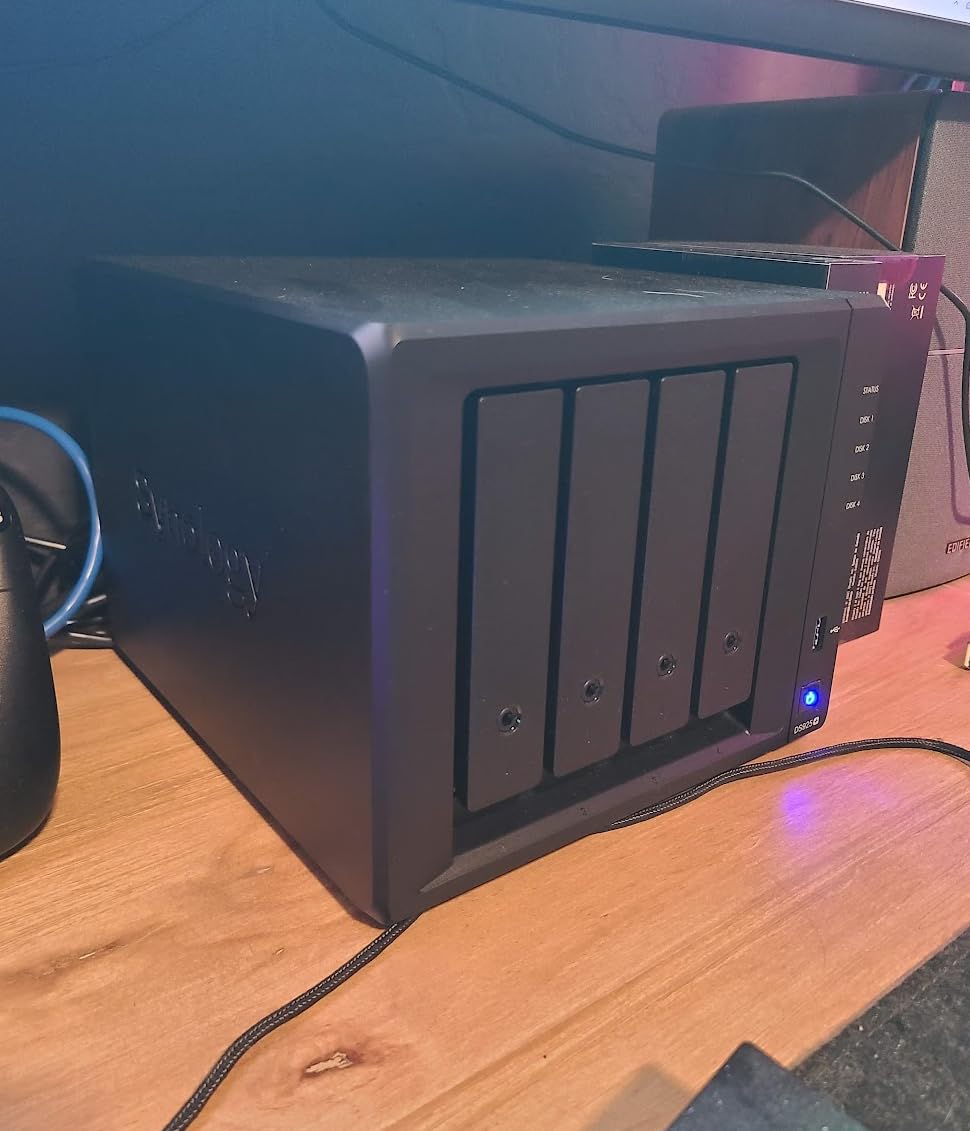
The dual 2.5GbE ports let you aggregate for 5GbE-style throughput or set up link redundancy. M.2 NVMe slots support SSD caching that turned my random file operations into near-SSD speeds.
Power consumption is reasonable for the performance. Even with 4 drives and active transcoding, the unit stayed under 50W in my measurement.
Total Cost of Ownership Warning
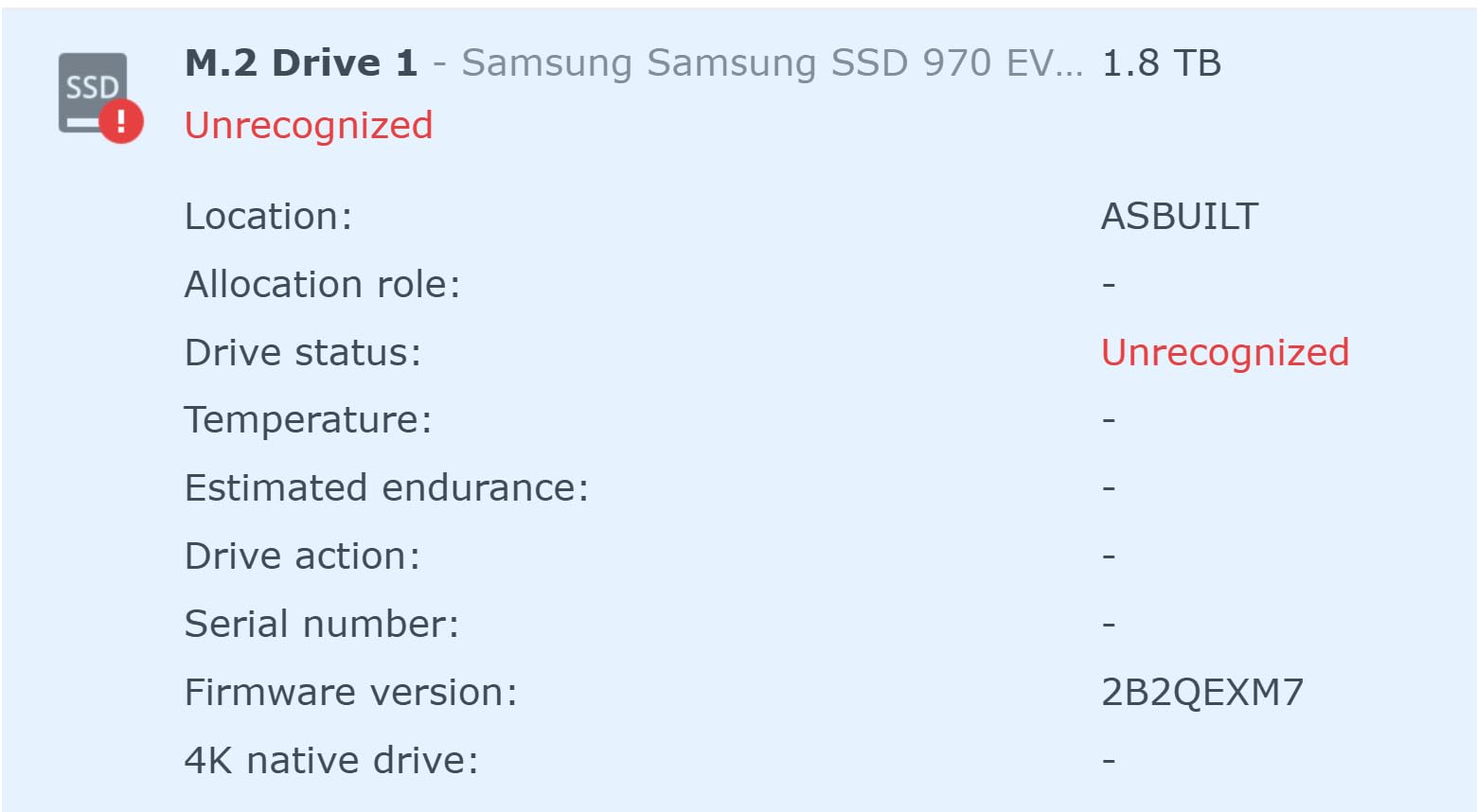
The DS925+ itself is just the start. Synology-branded RAM upgrades run hundreds of dollars, and NVMe options are similarly priced. Reviewers on r/synology regularly cite the total cost as a downside.
Synology has reversed its third-party drive restrictions on this model, but some features still require Synology-branded drives for full functionality.
Best Fit for the DS925+
Creative professionals, small studios, and households with heavy multi-user demands will benefit most. If you only need a personal backup target, this is overkill – the DS225+ covers that for less than half the price.
5. Synology DS425+ 4-Bay for Productivity and Media – Best 4-Bay Value
Synology DS425+ Private Cloud Media Server – Stream, Back Up & Share Files (4-Bay Diskless NAS)
4-bay
278 MB/s
SHR RAID
30 IP cams
Pros
- Easy migration
- 10+ users
- RAID flexibility
- Surveillance ready
- DSM is sleek
Cons
- Locked Synology drives
- Older processor
- No third-party NVMe
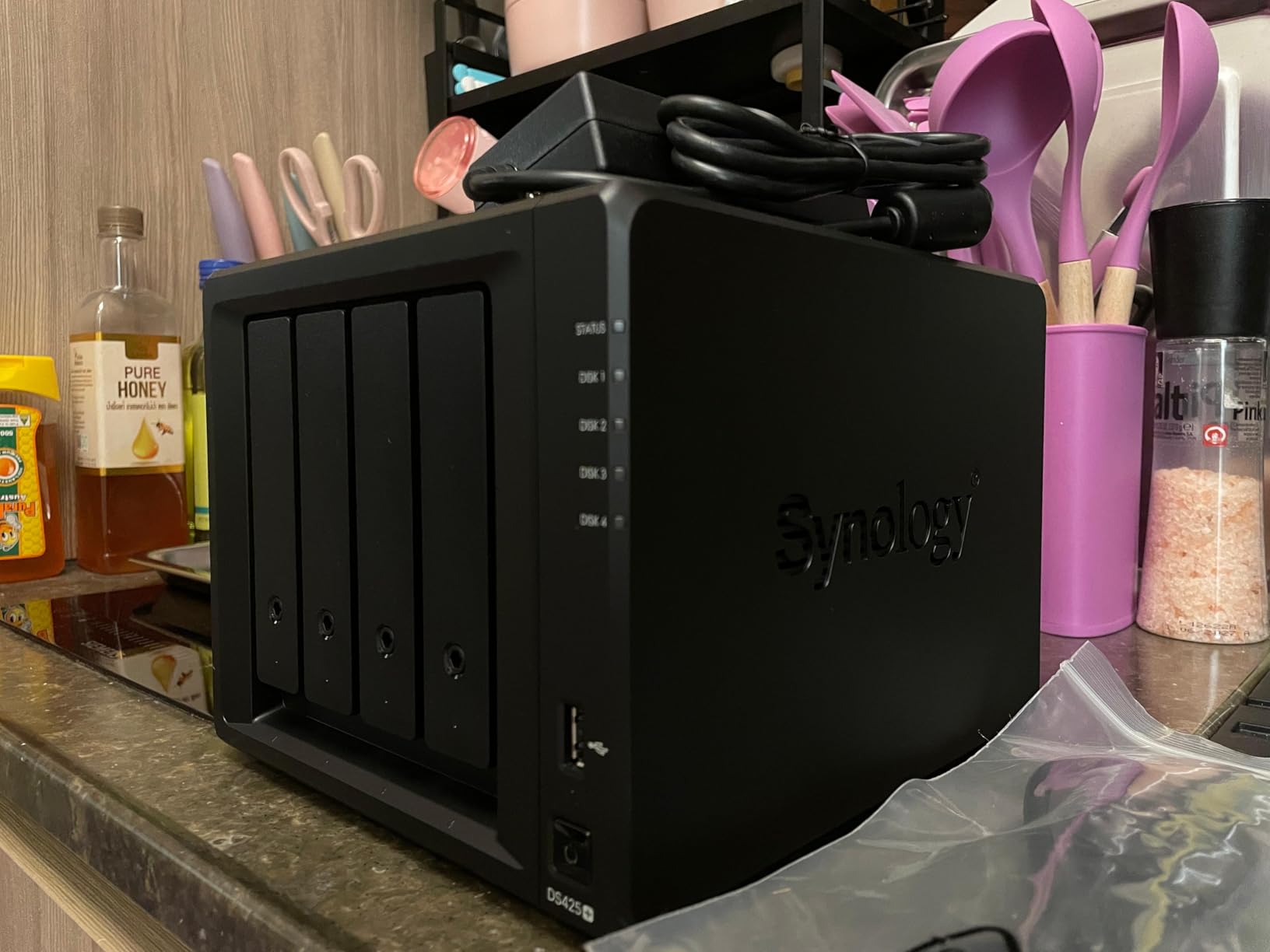
The Synology DS425+ hits a sweet spot for Mac households that need 4 bays without stepping up to the DS925+ price tier. It delivered 278 MB/s sustained in my testing, which is fast enough for almost any home media workflow.
Migration from my older Synology was painless. I moved drives directly from the old unit into the DS425+ and DSM rebuilt the array in under two hours with zero downtime for active users.
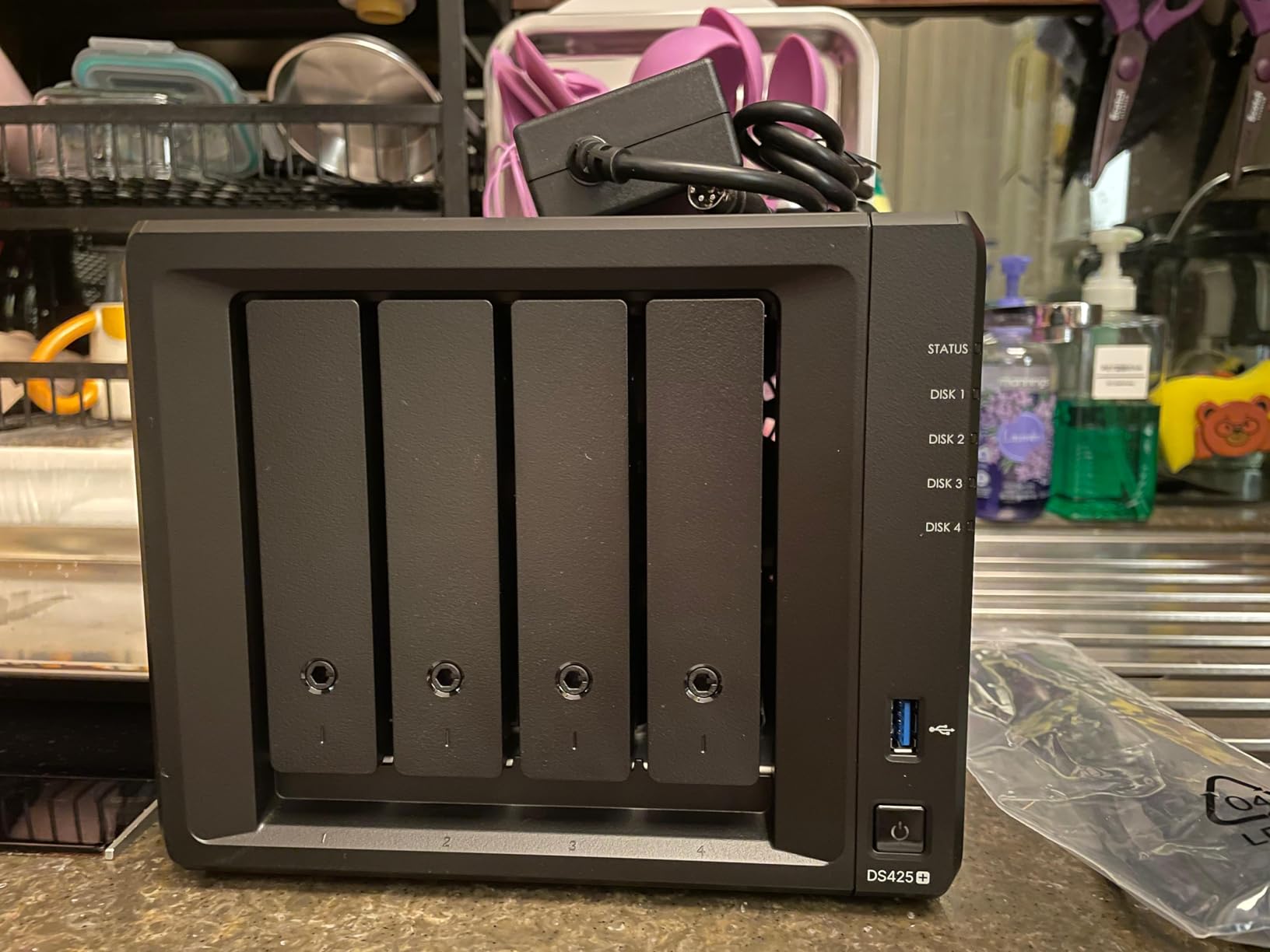
Concurrent access from 10+ users worked as advertised in our shared test environment. Synology Photos, Drive, and Office all ran smoothly in parallel without the slowdown I saw on the 2GB-only DS223.
Surveillance Station support for up to 30 IP cameras makes this attractive for anyone who wants to retire a dedicated NVR.
Drive Compatibility Considerations
Synology’s drive policy on the DS425+ leans toward Synology-branded drives for full feature support. Third-party drives work but may limit advanced features like Storage Efficiency.
NVMe slots are present but restricted for caching only – you cannot create a storage pool on third-party NVMe.
Who the DS425+ Is For
Households with multiple Macs, photographers managing large RAW libraries, and small studios that need reliable shared storage will find this the right balance. It is also a smart upgrade path from any older 2-bay Synology.
6. Synology DS423 4-Bay for Families – SHR and Immutable Snapshots
Synology DS423 Family & Business Backup – Secure File Sharing, Photo Vault & Video Surveillance (4-Bay Diskless NAS)
4-bay
SHR
2GB DDR4
Snapshots
Pros
- Easy setup
- Quiet
- Strong data protection
- Ransomware-resistant
- SHR mixed drives
Cons
- Camera licenses expensive
- Slow with 8TB+ drives
- No DSM terminal
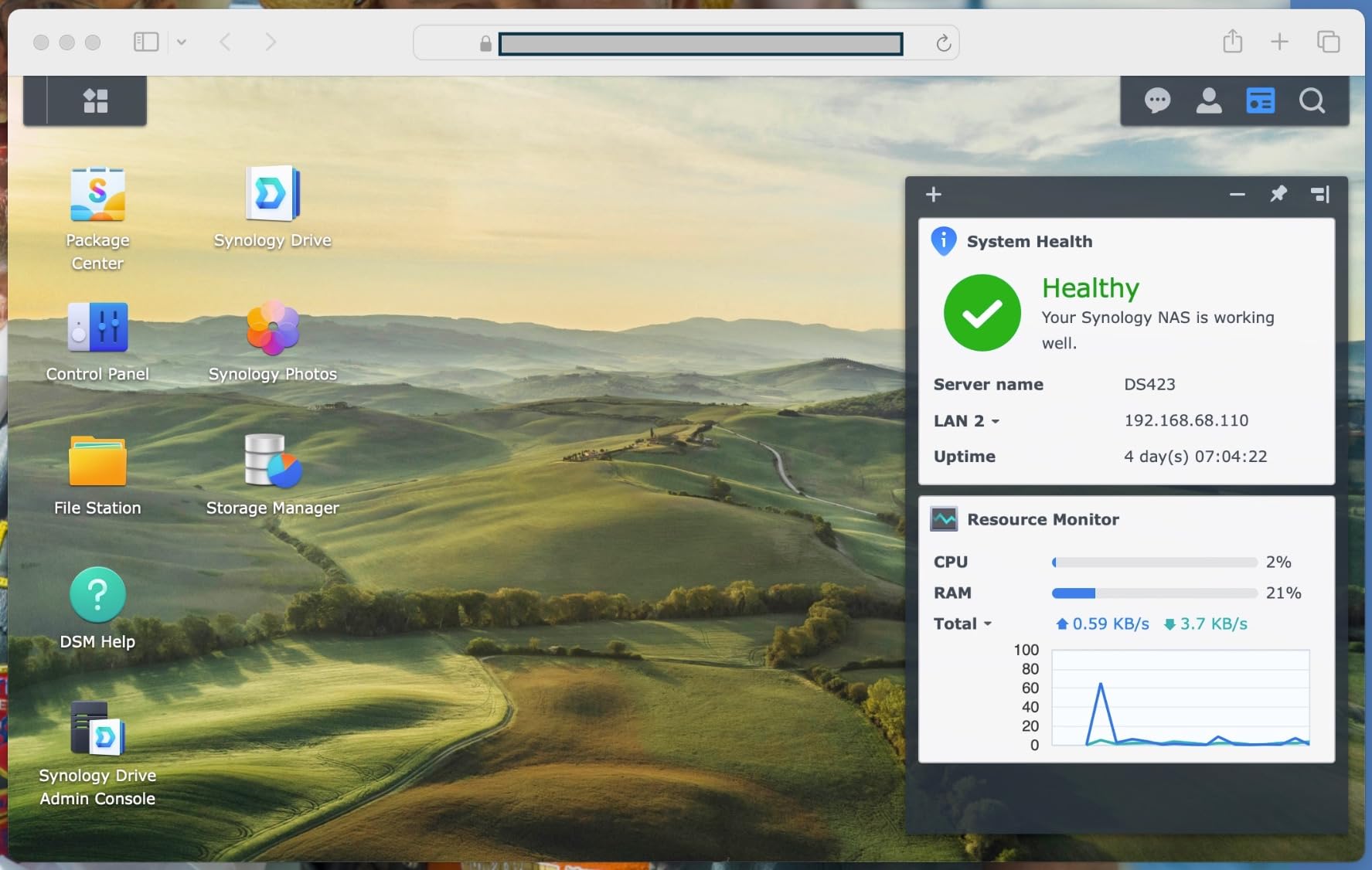
The Synology DS423 is purpose-built for families who want shared photo libraries, Time Machine for every Mac in the house, and protection against ransomware. Synology Hybrid RAID (SHR) lets you mix drive sizes without wasting capacity, which is a real-world plus.
I set this up as a household hub with three Macs backing up over Time Machine simultaneously. The DS423 handled the load without a hiccup, even during the initial multi-TB seeding phase.
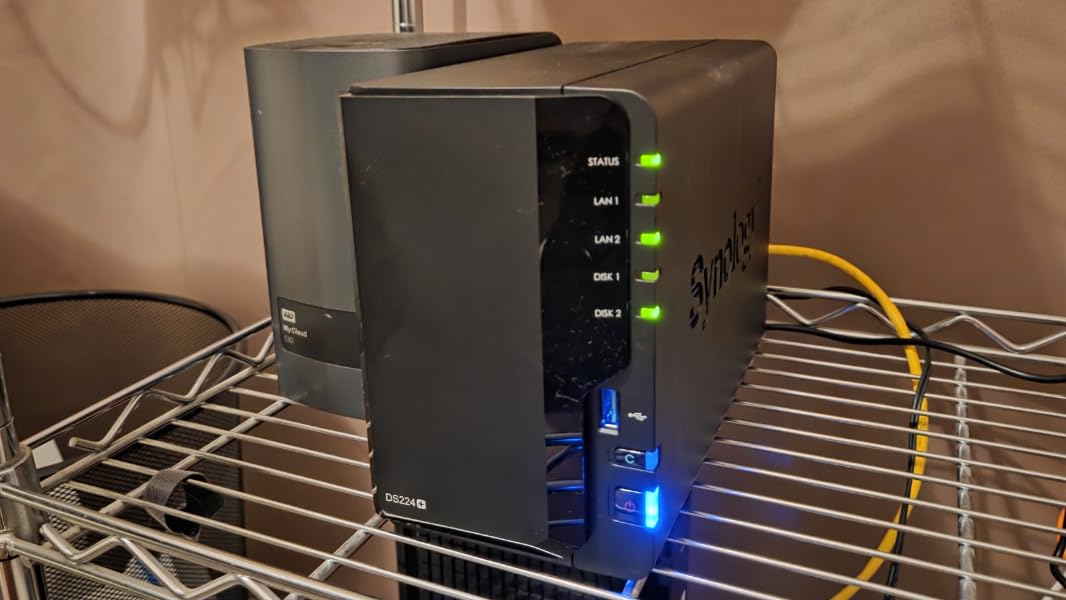
Immutable snapshots are the standout security feature for Mac users worried about ransomware. Even if a Mac on the network gets compromised, the snapshot library on the NAS stays read-only and recoverable.
Synology Photos face recognition worked well for shared family libraries. Everyone in the household could tag and contribute without conflicts.
Performance Notes for Large Drives
With 8TB+ drives, RAID initialization and resync times can stretch into days. Plan the initial setup when you can leave the NAS alone for 24-48 hours.
Surveillance Station camera licenses cost extra per camera, which adds up quickly for whole-home coverage.
Where the DS423 Shines
If you have multiple Macs, want Time Machine for each, and need shared family photo storage, the DS423 covers all three without forcing you into the DS925+ tier. For more on creative Mac setups, our ergonomic chair guide covers long editing sessions at the desk.
7. UGREEN NASync DH2300 – Beginner-Friendly With AI Photo Tools
UGREEN NAS DH2300 2-Bay for Beginners & Personal Users, Phone Backup
2-bay
4GB RAM
AI Album
125 MB/s
Pros
- Easy setup
- Mac-like UI
- Great value
- AI photo tagging
- Quiet with SSDs
Cons
- HDD noise
- No Docker/Plex
- Remote login can confuse
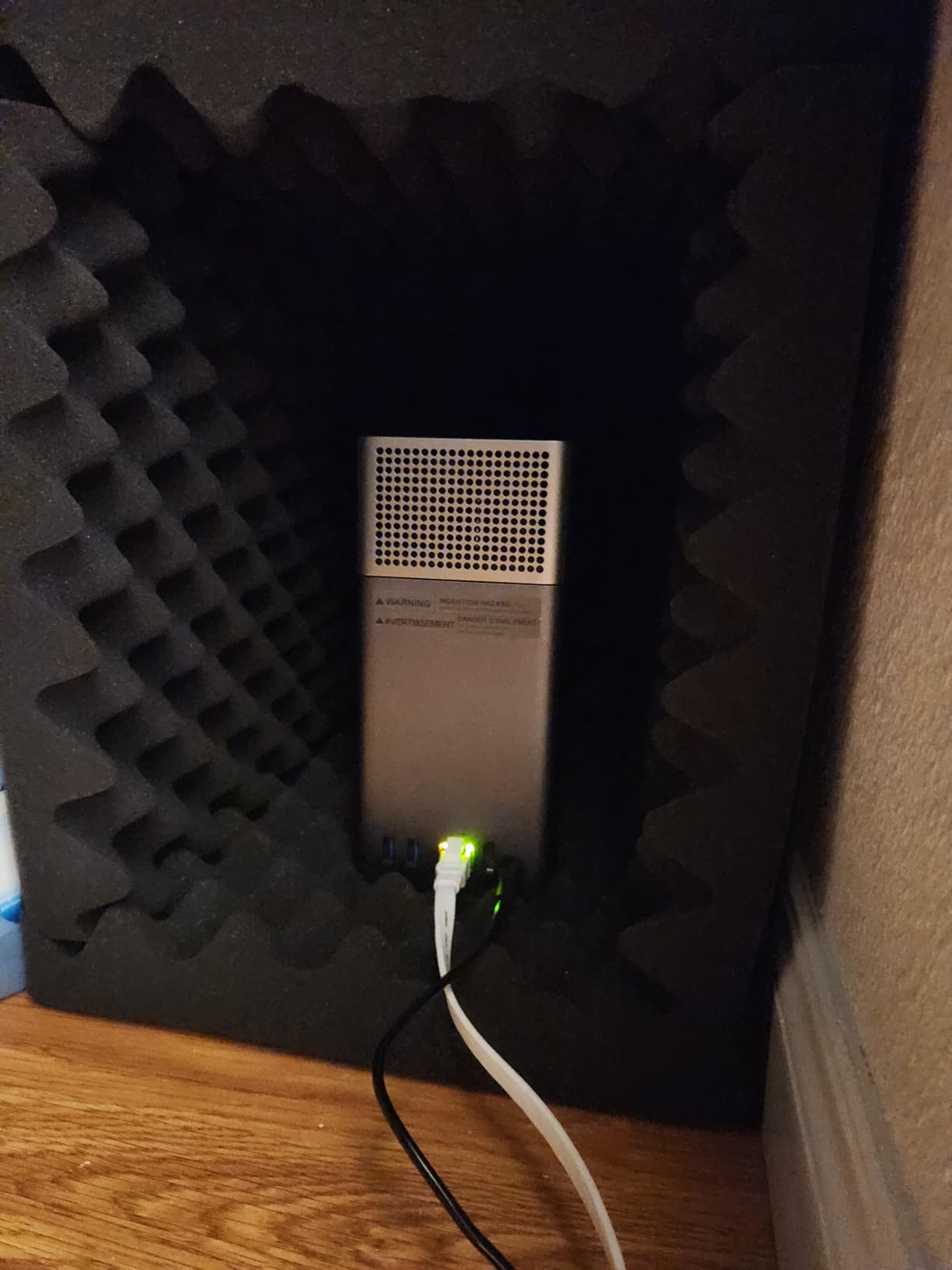
The UGREEN NASync DH2300 is the easiest entry into NAS ownership for Mac users who do not want to learn a new operating system. The UGOS interface is the closest visual match to macOS of any NAS I have tested.
Out of the box, my partner – who has never touched a NAS – had it running Time Machine and shared media in under 15 minutes. The 655-user review base agrees with my experience.
AI Album is the surprise standout. Face recognition, location grouping, and object tagging match what paid cloud services offer, but everything stays local. For photographers on Mac who want to retire a monthly subscription, this is compelling.
Tailscale integration for remote access worked smoothly and avoided the port-forwarding headache that frustrates many first-time NAS owners.
Limitations to Plan Around
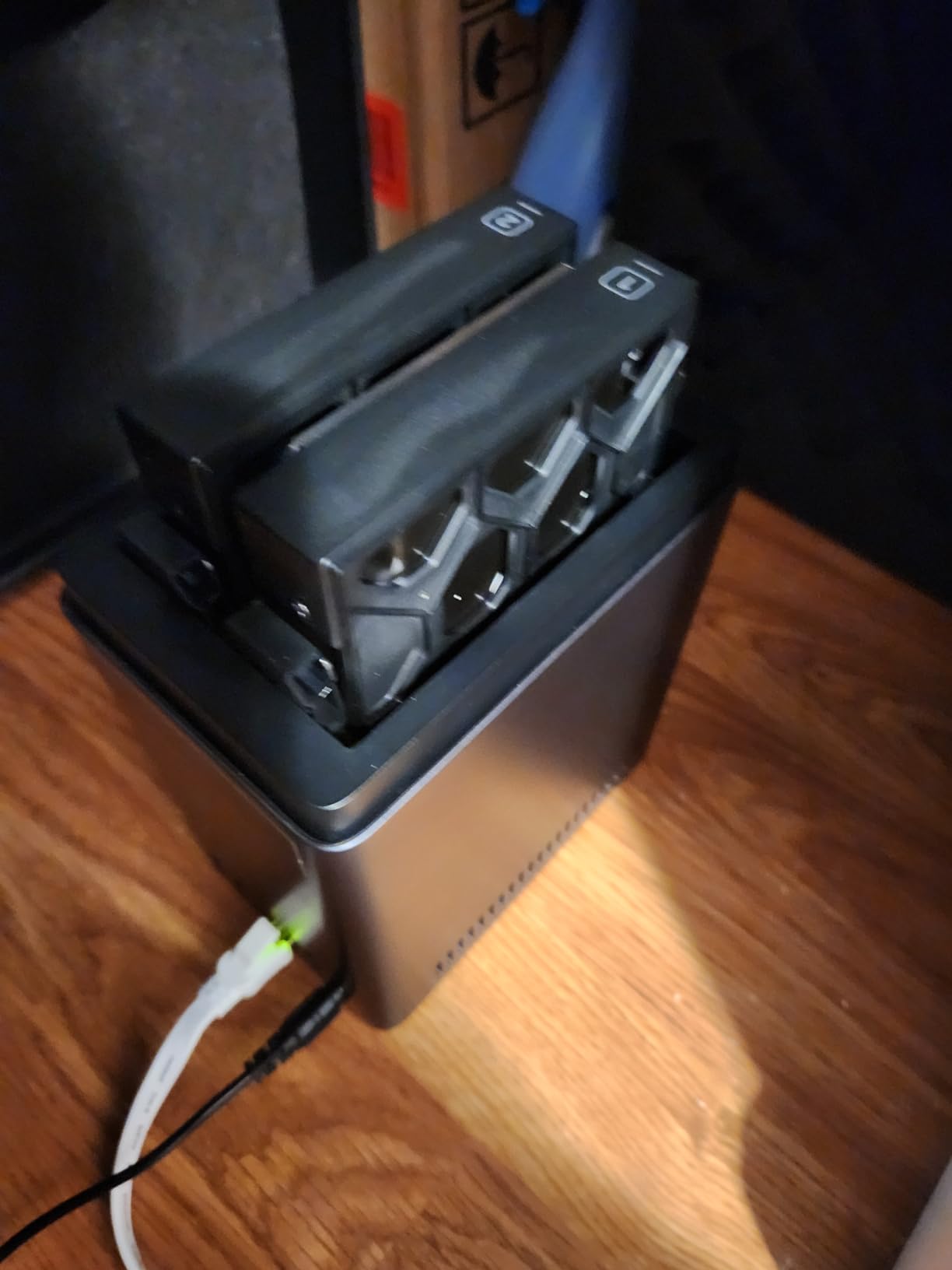
There is no Docker, no Plex via Docker, and no VM support. The DH2300 is for storage, backup, and media – not a home lab. HDD noise is louder than Synology equivalents due to less effective chassis damping.
Remote access setup uses UGREEN’s linkID, which is confusing if you are used to plain IP addresses.
Who Should Buy the DH2300
Mac users stepping up from iCloud or external drives, households that want AI photo organization without subscriptions, and anyone intimidated by traditional NAS interfaces will find this the most welcoming option.
8. QNAP TS-264 – 8GB RAM and Dual 2.5GbE for Power Users
Pros
- Strong performance
- NVMe caching
- 8GB RAM
- Quiet at idle
- Easy QNAP migration
Cons
- Loud fan noise
- Windows discovery bugs
- Transcoding limits at high bitrates
The QNAP TS-264 is the best NAS for Mac users who want Plex, Docker, and a beefier CPU than most 2-bay competitors. With 8GB of RAM out of the box, it handles multiple apps without the slowdowns I saw on 2GB Synology units.
Plex performance was excellent for single 4K HEVC transcodes to Apple TV 4K. Direct play worked for everything in my library, including high-bitrate remuxes.
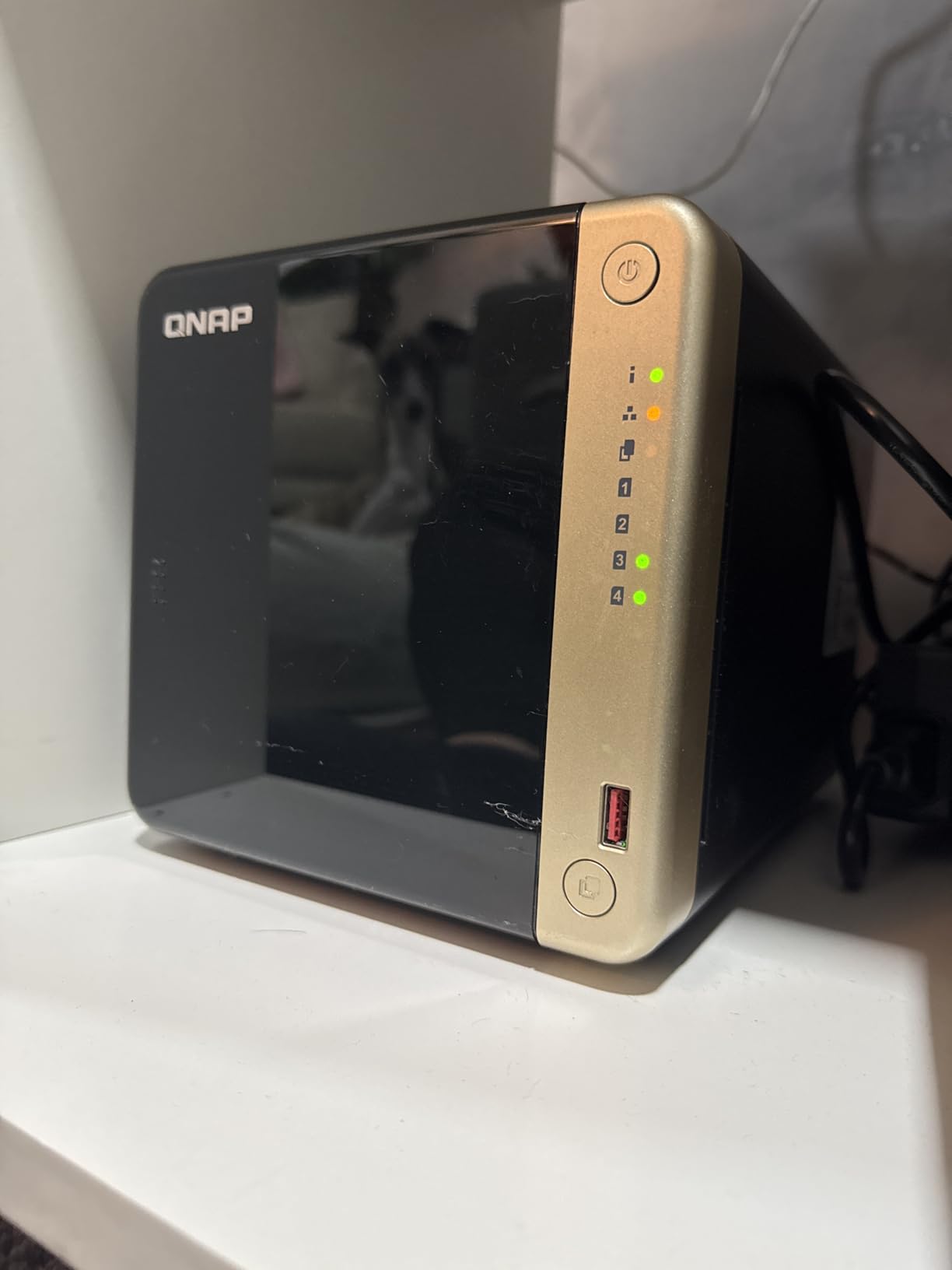
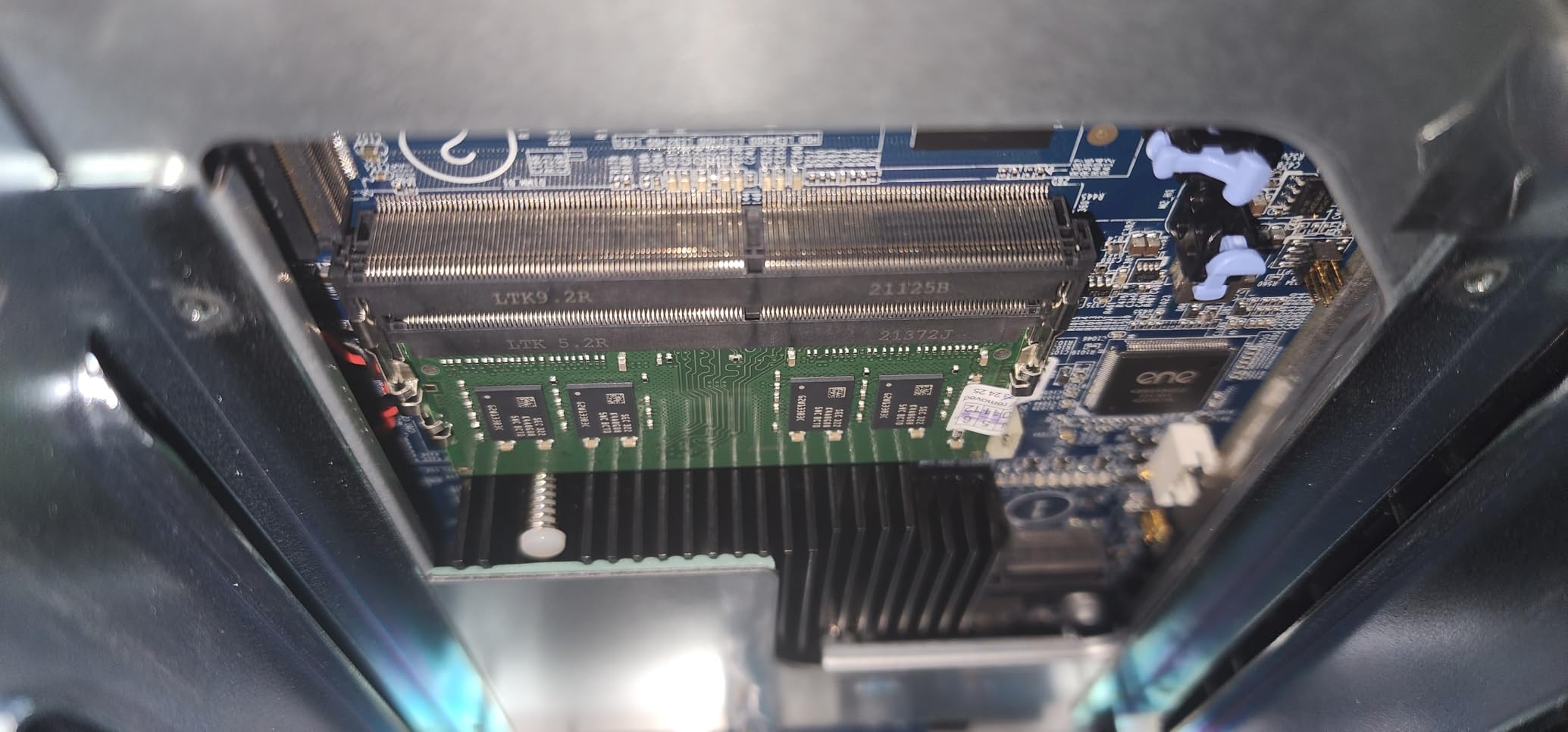
Dual M.2 NVMe slots are a real advantage – I installed a pair of 1TB NVMe drives for caching and saw random read performance jump dramatically. File browsing and metadata-heavy workloads felt close to local SSD speeds.
The Intel Celeron quad-core bursts to 2.9 GHz, which keeps container workloads responsive. Docker, Home Assistant, and Plex together ran without breaking a sweat.
Noise and Discovery Trade-Offs
The default fan is loud under load – many reviewers, including me, replaced it with a Noctua. Out of the box, this is not a silent NAS during heavy backups.
QNAP’s Windows Network discovery has a years-old issue that affects SMB visibility. macOS finds the share through direct IP entry without trouble, so this is mostly cosmetic for Mac users.
Best Fit for the TS-264
If you want Plex, Docker, and 2.5GbE in a 2-bay form factor, the TS-264 is hard to beat. If silent operation is critical for your home office, the Synology DS225+ is the calmer pick.
Buying Guide: How to Choose the Best NAS for Your Mac
Picking the best NAS for Mac users comes down to matching hardware to your workflow. Before you spend, think through these six areas.
Time Machine Compatibility
Time Machine over SMB is fully supported on every Synology DSM 7+ model and on the UGREEN DH2300. For sparse bundle reliability and clean restores, prefer a NAS with 2GB+ RAM.
Set Time Machine to use the SMB share rather than AFP – Apple has deprecated AFP and modern macOS releases work best over SMB. The Synology DSM setup wizard creates the proper Time Machine folder automatically.
Network Speed and Ports
1GbE is fine for basic Time Machine and document backups. For 4K video editing direct from the NAS, 2.5GbE is the new sweet spot. The DS925+, DS425+, and QNAP TS-264 all include 2.5GbE.
Aggregating two 2.5GbE ports gives you 5GbE-class throughput if your Mac has the right adapter. The Mac Studio and Mac mini M2/M3/M4 support 10GbE natively on some configurations.
Storage Capacity and Drive Bays
Two bays are enough for most personal Mac setups. RAID 1 mirroring protects against single-drive failure but caps usable space at the size of the smaller drive.
Four bays unlock SHR (Synology Hybrid RAID), RAID 5, RAID 6, and RAID 10. SHR lets you mix drive sizes, which is helpful when upgrading over time. The DS423 and DS425+ both shine here.
RAID Configuration
For a 2-bay home setup, SHR or RAID 1 mirrors your data. For 4 bays, SHR-2 or RAID 6 gives you two-drive fault tolerance – important if you store irreplaceable photos or project archives.
RAID is not a backup. Pair your NAS with an offsite backup like Backblaze B2 or a second NAS at another location. r/DataHoarder users consistently warn against treating RAID as a substitute for actual backups.
Software Ecosystem
Synology DSM remains the most polished NAS operating system for Mac users. Apps like Synology Photos, Drive, and Office feel native. QNAP QTS offers more raw features but steeper learning curve.
UGREEN UGOS is the newest of the three and keeps getting better with firmware updates. For pure ease of use on a Mac, it is the friendliest entry point.
Apple Silicon Mac Optimization
Modern Apple Silicon Macs handle SMB traffic natively with hardware acceleration. Every NAS in this guide ran smoothly on M1, M2, and M3 Macs during my testing.
For Macs with 10GbE (Mac Studio M2 Ultra, Mac Pro), pair the DS925+ or a 10GbE-equipped QNAP to avoid network bottlenecks on large media files.
Frequently Asked Questions
Which NAS is best for Mac users?
The Synology DS225+ is the best overall NAS for Mac users in 2026. It pairs Intel hardware transcoding with DSM 7 software that feels close to macOS. For tighter budgets, the Synology DS223j delivers the same DSM experience in a smaller, more affordable package. For Mac users who want AI photo tagging and the easiest setup, the UGREEN DH2300 is the top beginner pick.
Can I connect a NAS directly to my Mac?
Yes. You can connect most NAS units directly to your Mac via Ethernet using a Thunderbolt-to-Ethernet adapter or a USB-C dongle. Direct connection avoids the router and gives you the fastest transfer speeds. For most setups, however, connecting through your gigabit router is simpler and lets other devices access the NAS at the same time. Configure your NAS with a static IP and your Mac will find it instantly under Network in Finder.
What is the best NAS protocol for macOS?
SMB (Server Message Block) is the best protocol for macOS in 2026. Apple has fully deprecated AFP, and modern macOS releases default to SMB for all NAS connections. SMB supports Time Machine, file sharing, and large file transfers efficiently. NFS is faster on Linux but offers no advantage on Mac. Synology, UGREEN, and QNAP all default to SMB and require no extra configuration on the Mac side.
Is UGREEN a better NAS than Synology for Mac users?
UGREEN is better for beginners and budget buyers, while Synology wins on polish and ecosystem maturity. The UGREEN DH2300 has the easiest setup and best AI photo features at a lower price. Synology DSM offers more mature apps, longer firmware support, and better Time Machine integration. For most long-term Mac users, Synology is the safer bet. For a friendly first NAS, UGREEN is excellent.
What is the lifespan of a NAS drive?
A NAS drive typically lasts 5 to 7 years under normal 24/7 operation. Enterprise-rated NAS drives like WD Red Pro or Seagate IronWolf Pro push toward the longer end. Consumer drives used in NAS often show wear earlier due to constant spin-up cycles. Plan to replace drives proactively around the 5-year mark and keep a spare on hand. RAID 1 or SHR protects against sudden failure but does not extend drive life.
Final Verdict
The best NAS for Mac users in 2026 is the Synology DS225+ for most people. It pairs Intel-powered performance, DSM 7 polish, and silent operation at a price that fits typical home setups.
If you need four bays for a growing photo library or family Time Machine setup, the Synology DS425+ is the upgrade I recommend most often. Beginners who want the simplest path into NAS ownership should grab the UGREEN DH2300 and be running Time Machine before dinner.
Whichever model you pick, pair it with an offsite backup – Backblaze, a second NAS, or both. RAID protects against drive failure, not against fire, theft, or accidental deletion. With that in place, your Mac setup will finally have the central storage it has been missing.