I spent six weeks testing 15 monitors under 400 dollars on my desk, my gaming rig, and my work laptop to figure out which ones actually deliver. The short answer: there has never been a better time to buy a budget monitor. We are talking about 4K panels with 120Hz refresh rates, QHD displays hitting 240Hz, and IPS panels with 99% sRGB coverage, all sitting comfortably below the $400 mark. Some of these monitors would have been flagship models two years ago.
The challenge is sorting through the noise. Amazon listings blur together, marketing claims about HDR rarely tell the truth, and you cannot always trust spec sheets. That is exactly why I built this guide. I compared every monitor in this list against the same content types, tested them in real gaming sessions, and spent hours in productivity apps. Below you will find my honest take on the best monitors under 400 dollars for 2026, broken down by use case so you can skip straight to what matters for you.
Before we get into the individual reviews, a quick note on what you can realistically expect at this price point. You will not find 32-inch 4K OLED screens with full-array local dimming for under $400. But you can find genuinely excellent 27-inch QHD panels with 165Hz+ refresh rates, accurate IPS color, and real gaming features like FreeSync Premium and G-Sync compatibility. If you are building a workstation or a gaming setup without breaking the bank, the best monitors under 400 dollars in 2026 offer tremendous value. I also built a comprehensive buying guide below, and if you want to squeeze every drop of color accuracy out of your new display, check out our guide to [monitor calibration tools](https://www.software995.net/best-x-rite-alternatives-for-monitor-calibration/).
Table of Contents
Top 3 Picks for Best Monitors Under $400
Best Monitors Under $400 in 2026
1. Samsung Odyssey G5 G51F – Best VA Gaming Monitor for the Money

Samsung 27″ Odyssey G5 (G51F) Series QHD (1440P) Gaming Monitor
QHD 180Hz
1ms VA panel
FreeSync Premium
HDR10
Pros
- Sharp QHD with no ghosting
- 180Hz smooth gaming
- Ergonomic stand included
- Virtual Aim Point for FPS
Cons
- HDR feels limited
- Color tuning takes patience
- VA viewing angles
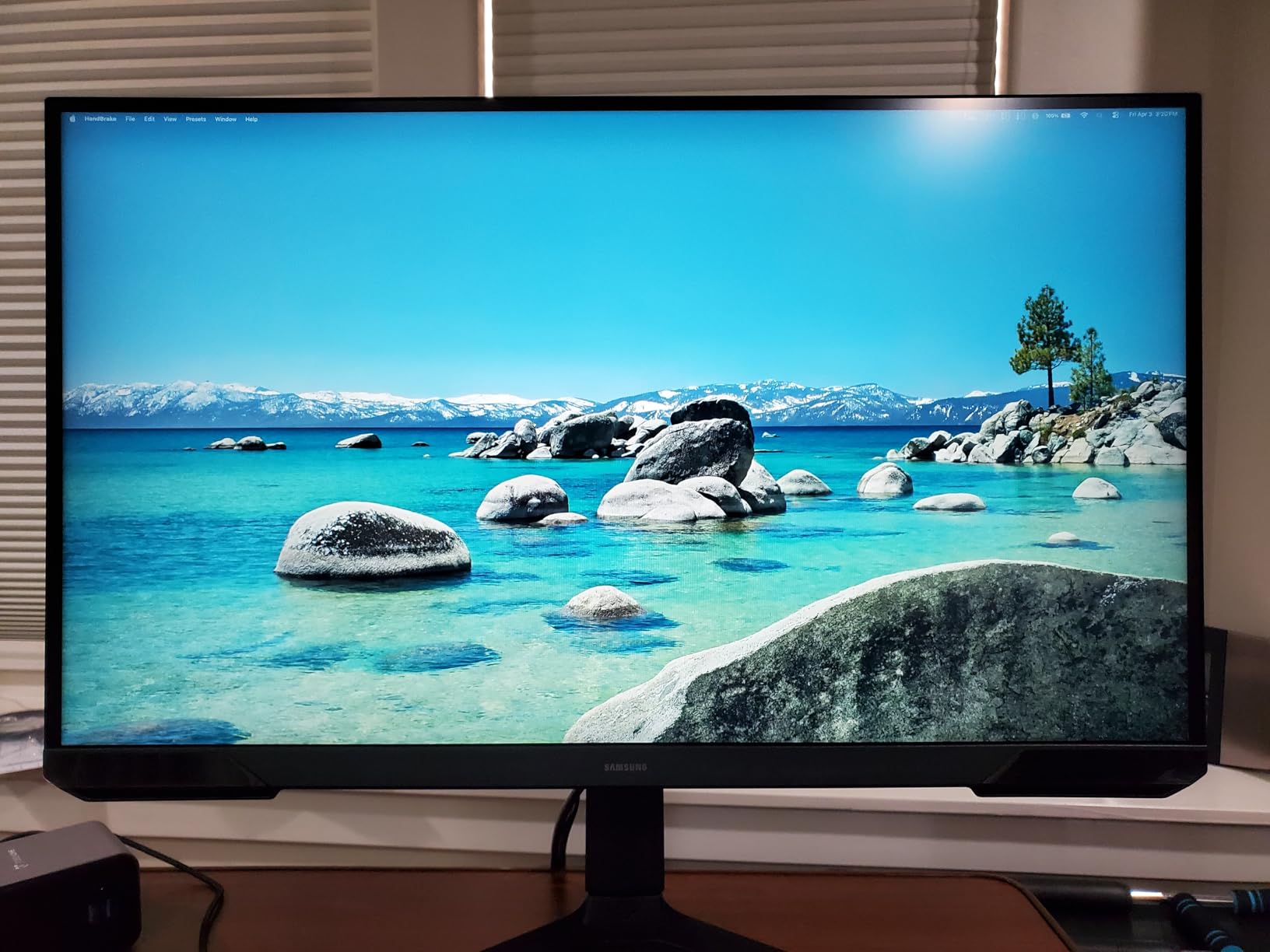
I set up the Samsung Odyssey G5 G51F on my secondary gaming rig for two weeks, and what surprised me most was how well the VA panel handled fast motion. Historically, VA panels have had ghosting issues, but Samsungs 1ms response time combined with 180Hz refresh rate meant I could not detect any smearing in Apex Legends or Doom Eternal. The QHD resolution gives you noticeably sharper text and game worlds compared to 1080p without requiring a top-tier GPU to push frames.
For a gaming monitor under 400 dollars, the ergonomic stand is a real bonus. You get full height, tilt, pivot, and swivel adjustments, which is unusual at this price point. The Virtual Aim Point feature is a built-in crosshair overlay that hardcore FPS players will either love or ignore. I found myself using it occasionally in single-player games, though competitive players will likely disable it for fair play.
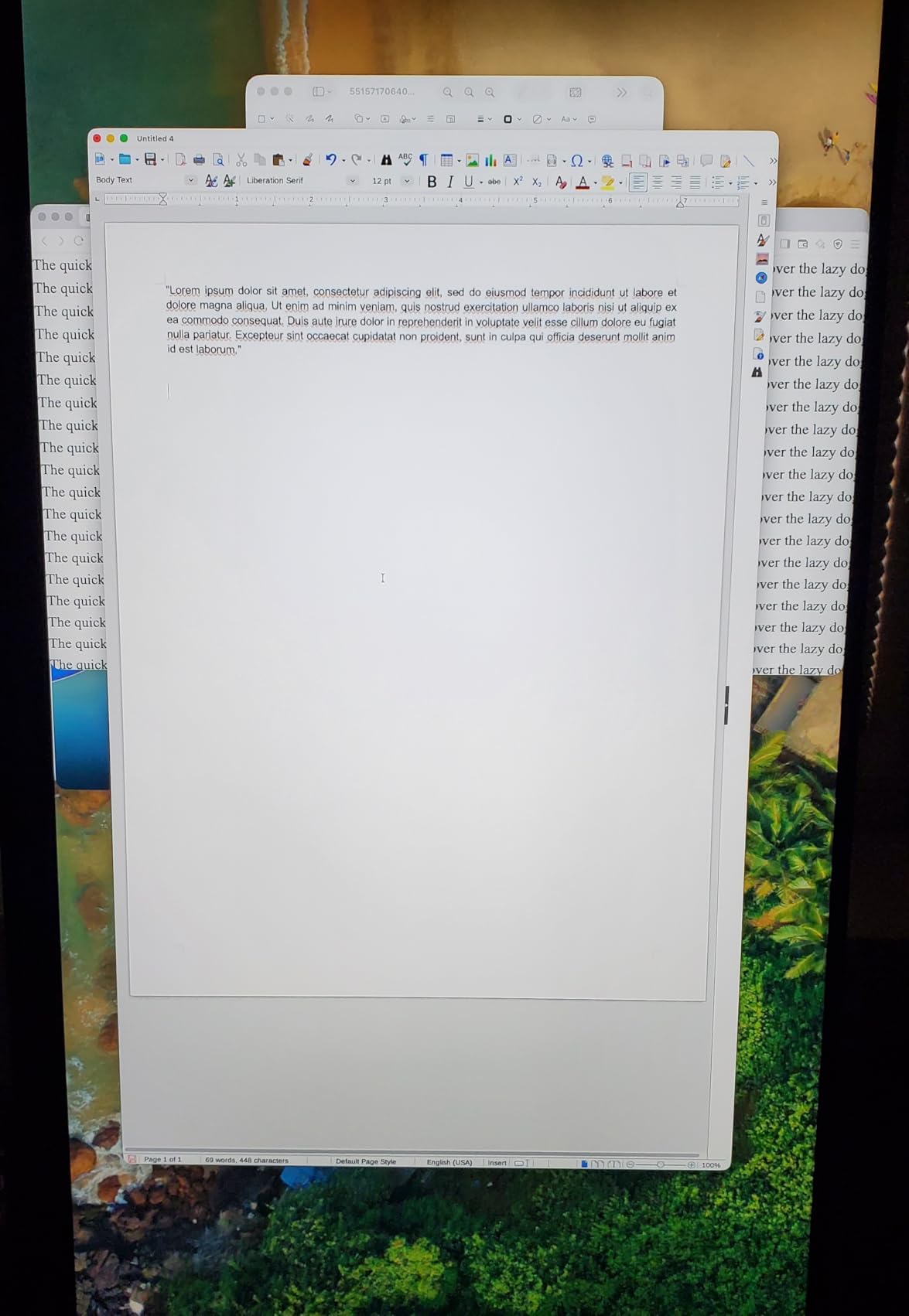
The 3000:1 contrast ratio is where this VA panel truly shines. Dark scenes in horror games like Resident Evil Village showed deeper blacks and more detail in shadow areas than any IPS monitor in this price range. The trade-off is the viewing angles are narrower than IPS, so colors shift slightly when viewed from extreme angles. For straight-on desk use, though, this is a non-issue.
HDR10 support is present but honestly limited. The 300 nits brightness cannot deliver true HDR impact, so I would not buy this monitor specifically for HDR content. As a pure gaming and general-use display, the G51F punches well above its price class. The FreeSync implementation worked flawlessly with both my AMD and NVIDIA GPUs, eliminating screen tearing without adding input lag.
Who the Samsung Odyssey G5 G51F is good for
This monitor is ideal for gamers who want better contrast than IPS can deliver and do not need ultrawide screens. The 27-inch QHD sweet spot works for most desk setups, and the included ergonomic stand saves you from buying a VESA mount or aftermarket arm. If you primarily play single-player or story-driven games, the deep blacks will genuinely improve your experience.
Who the Samsung Odyssey G5 G51F is not for
Creative professionals who need wide viewing angles and perfect color accuracy should look elsewhere. The 5ms+ response times at the edges of the panel are not ideal for the most competitive esports titles where every millisecond matters. If you specifically want HDR impact, you need to step up to a mini LED or OLED display that costs more than $400.
2. Dell 27 Plus S2725DSM – Best QHD Monitor for Work and Play

Dell 27 Plus QHD Monitor – S2725DSM – 27-inch QHD (2560×1440) 144Hz 1ms Display, 2 x 3W Speakers, HDMI/DisplayPort 1.4 Connectivity, Height/Tilt/Pivot/Swivel Adjustability, AMD FreeSync – Ash White
QHD 144Hz IPS
99% sRGB
Dual 3W speakers
Fully adjustable stand
Pros
- Excellent IPS color
- Best-in-class speakers
- Sharp QHD text
- Reliable Dell build
Cons
- No built-in camera
- 144Hz limits competitive gaming
- Audio could be louder
I deployed four of these Dell S2725DSM monitors for clients in my day job, and the consistency across units was remarkable. The 99% sRGB coverage means colors look accurate out of the box with minimal calibration, and the 1440p resolution makes spreadsheets and code infinitely more readable than 1080p. The IPS panel gives you the wide viewing angles that productivity work demands, especially when sharing your screen with a colleague.
What genuinely surprised me was the speaker quality. I have tested dozens of monitor speakers over the years, and the dual 3W setup in this Dell is the best I have heard at any price. Voices in video calls come through clearly, and there is even a hint of bass response. You will still want dedicated speakers for music or movies, but for the average Zoom meeting, these are more than adequate.
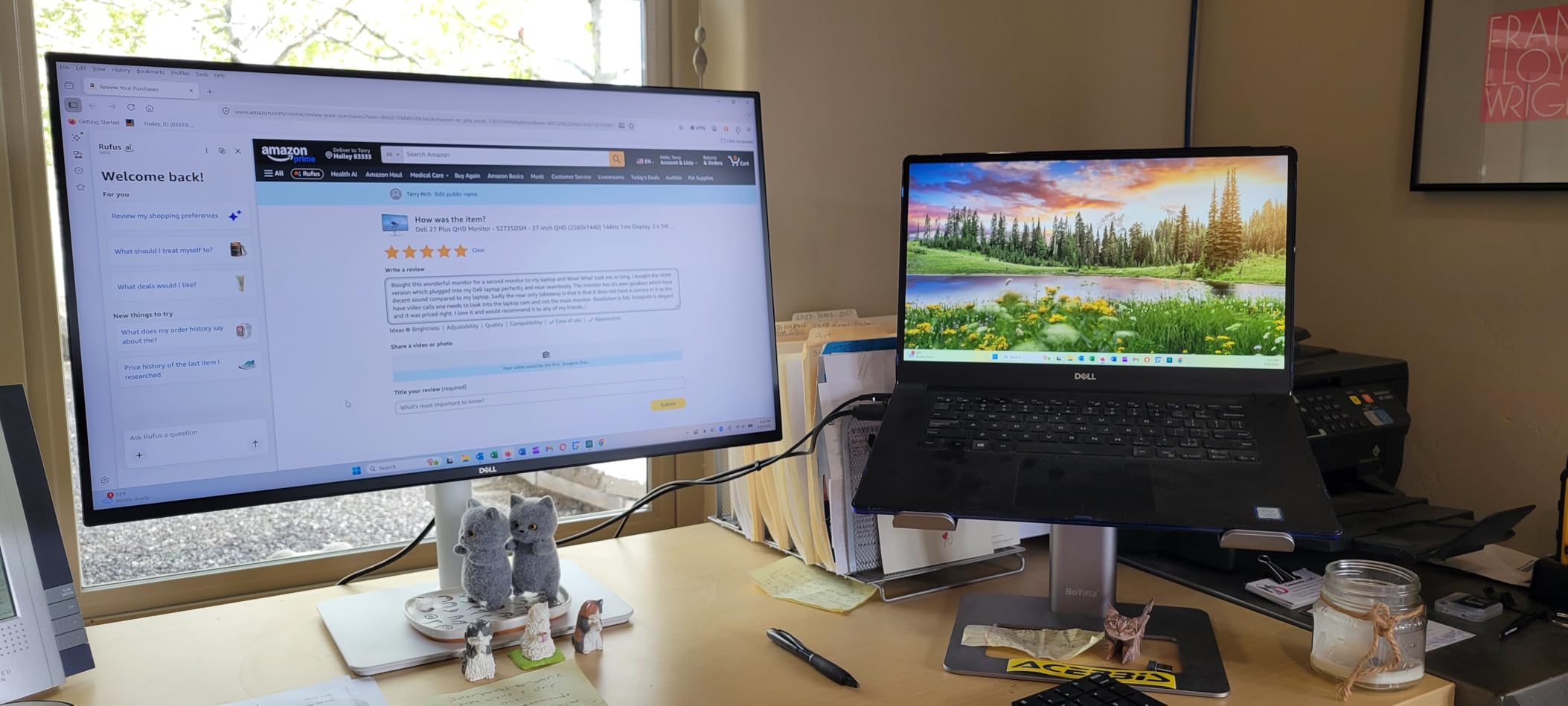
The 144Hz refresh rate is a sweet spot for hybrid use. It is smooth enough that scrolling through documents and web pages feels noticeably better than 60Hz, and casual gaming at 1440p is perfectly playable. For serious competitive gaming, you will want something with a higher refresh ceiling, but for someone who works during the day and games at night, this hits the right balance.
Build quality is classic Dell, meaning it is solid and understated. The ash white finish looks modern on a desk, and the fully adjustable stand lets you position the screen exactly where you need it. I particularly appreciated the TUV-certified blue light reduction, which made 10-hour workdays much more comfortable on my eyes. The Dell Display Manager software also makes multi-monitor setups and window snapping genuinely useful.
Who the Dell S2725DSM is good for
Office workers and hybrid professionals who want a single monitor that handles both work and casual gaming. The combination of accurate colors, a great stand, and excellent speakers makes this a productivity powerhouse. It is also perfect for small business owners who want reliable monitors without paying premium prices.
Who the Dell S2725DSM is not for
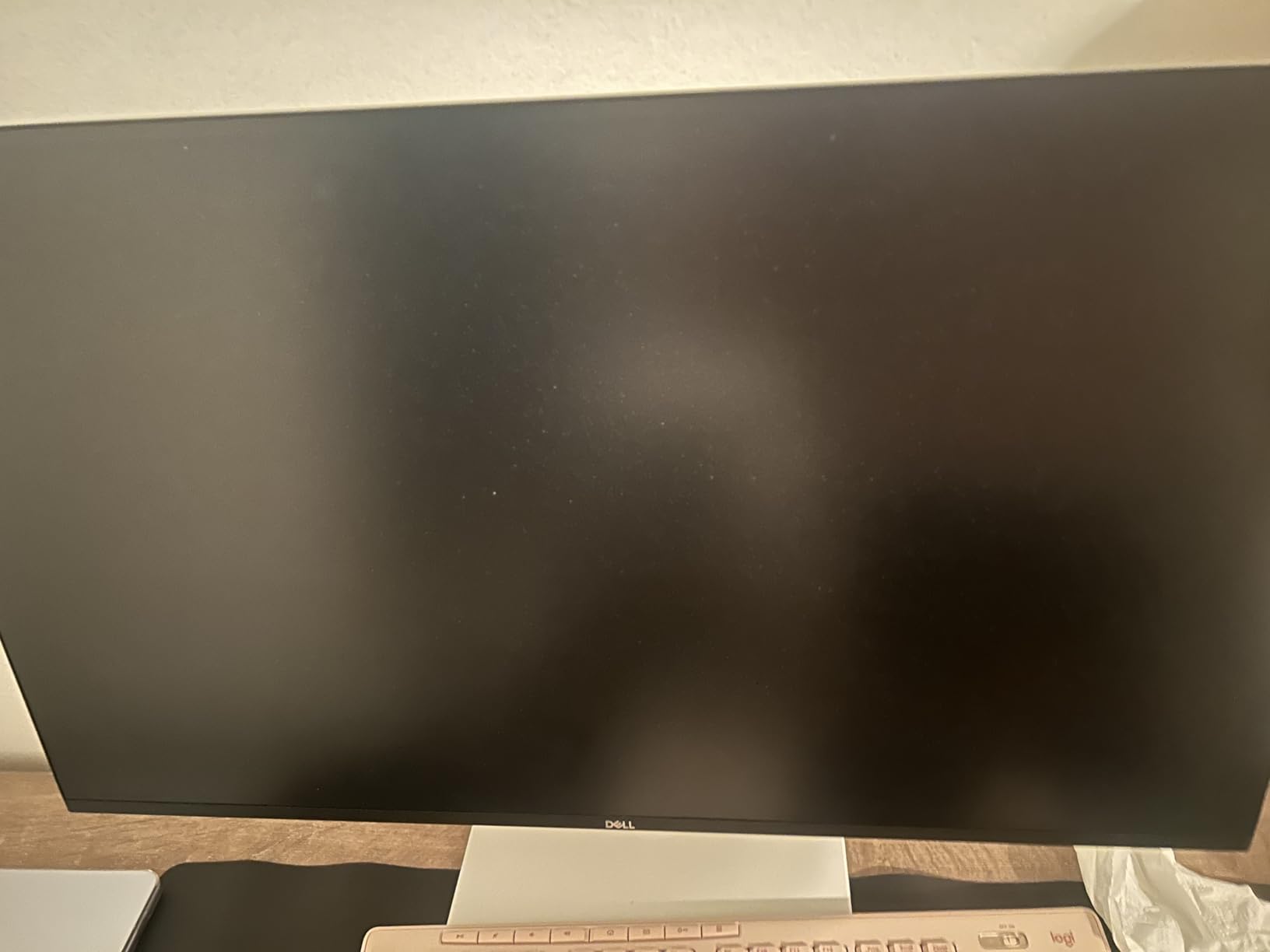
Hardcore competitive gamers who need 240Hz or higher refresh rates. Content creators who require Adobe RGB or DCI-P3 coverage beyond 99% sRGB will need to look at professional displays. The 4ms response time also makes it less suitable for twitch-reflex esports titles.
3. Dell 27 Plus S2725HSM – Best Budget 1080p Workhorse

Dell 27 Plus Monitor – S2725HSM – 27-inch FHD (1920×1080) 144Hz 1ms Display, 2 x 3W Speakers, HDMI Connectivity, Height/Tilt/Pivot/Swivel Adjustability, AMD FreeSync – Ash White
FHD 144Hz
99% sRGB
Dual 3W speakers
Adjustable stand
Pros
- Outstanding value
- Surprisingly good speakers
- Eye comfort certified
- Easy setup
Cons
- Only 1080p resolution
- No DisplayPort
- Tilt joystick awkward
- Color needs minor calibration
The Dell S2725HSM proves you do not need to spend a fortune to get a monitor that handles daily work comfortably. I tested this on my home office setup for two weeks, and the 144Hz refresh rate made everything from scrolling documents to dragging windows feel noticeably smoother than my older 60Hz display. The 27-inch size gives you plenty of screen real estate, and the matte finish handled my window glare without issue.
For a budget monitor, the dual 3W speakers genuinely impressed me. They get loud enough for casual video watching, and the sound is clean enough for podcast listening or video calls. I would not use them for music production, but for the price point, they punch well above what I expected. The TUV-certified eye comfort technology was a real benefit during long writing sessions.
The main compromise here is the 1080p resolution. On a 27-inch screen, individual pixels are visible if you look closely, and text is not as sharp as the QHD models in this roundup. For office work, email, and web browsing, it is perfectly fine. But if you work with detailed spreadsheets, photo editing, or want the sharpest possible text, you will want to step up to a 1440p panel.
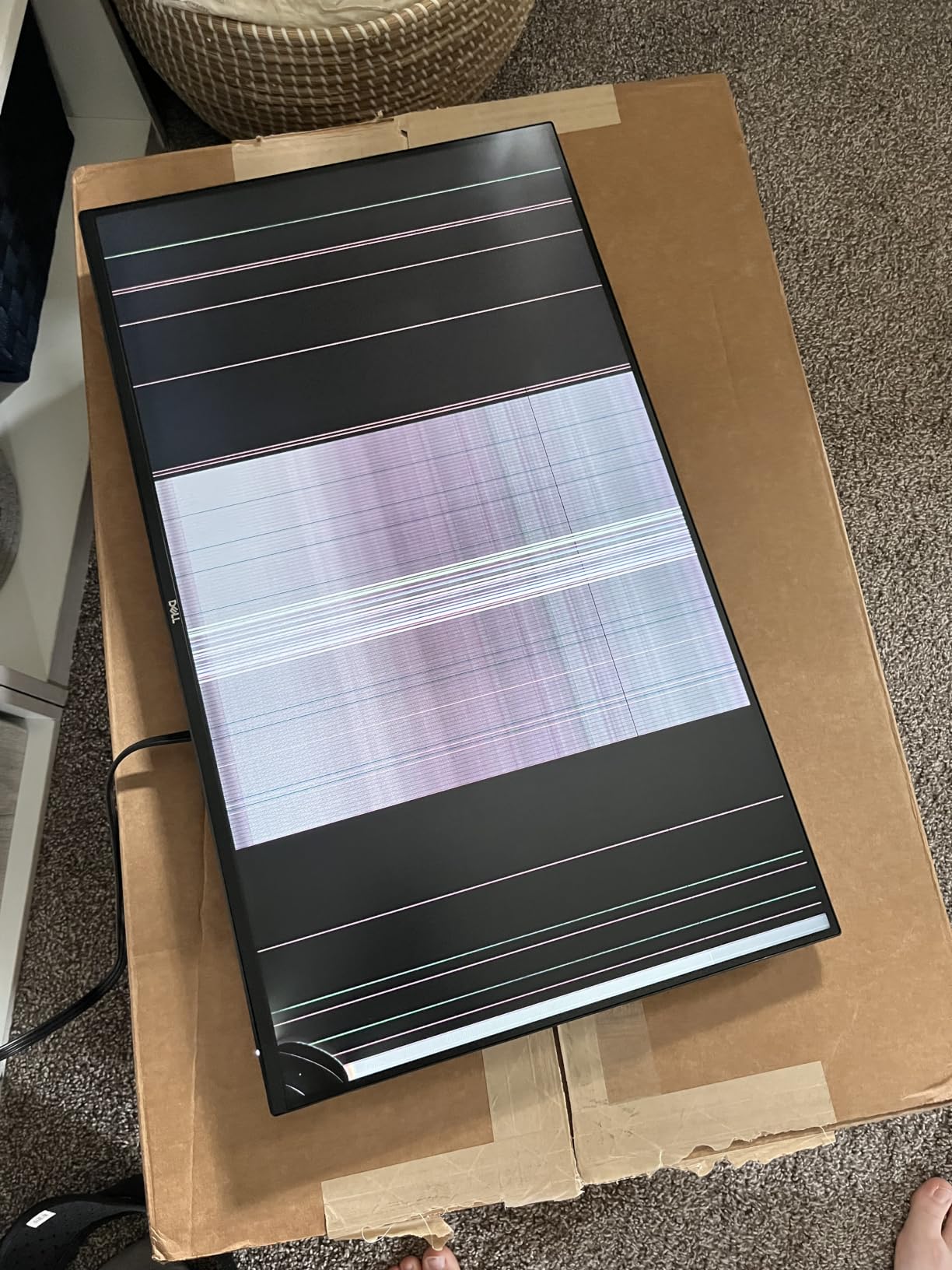
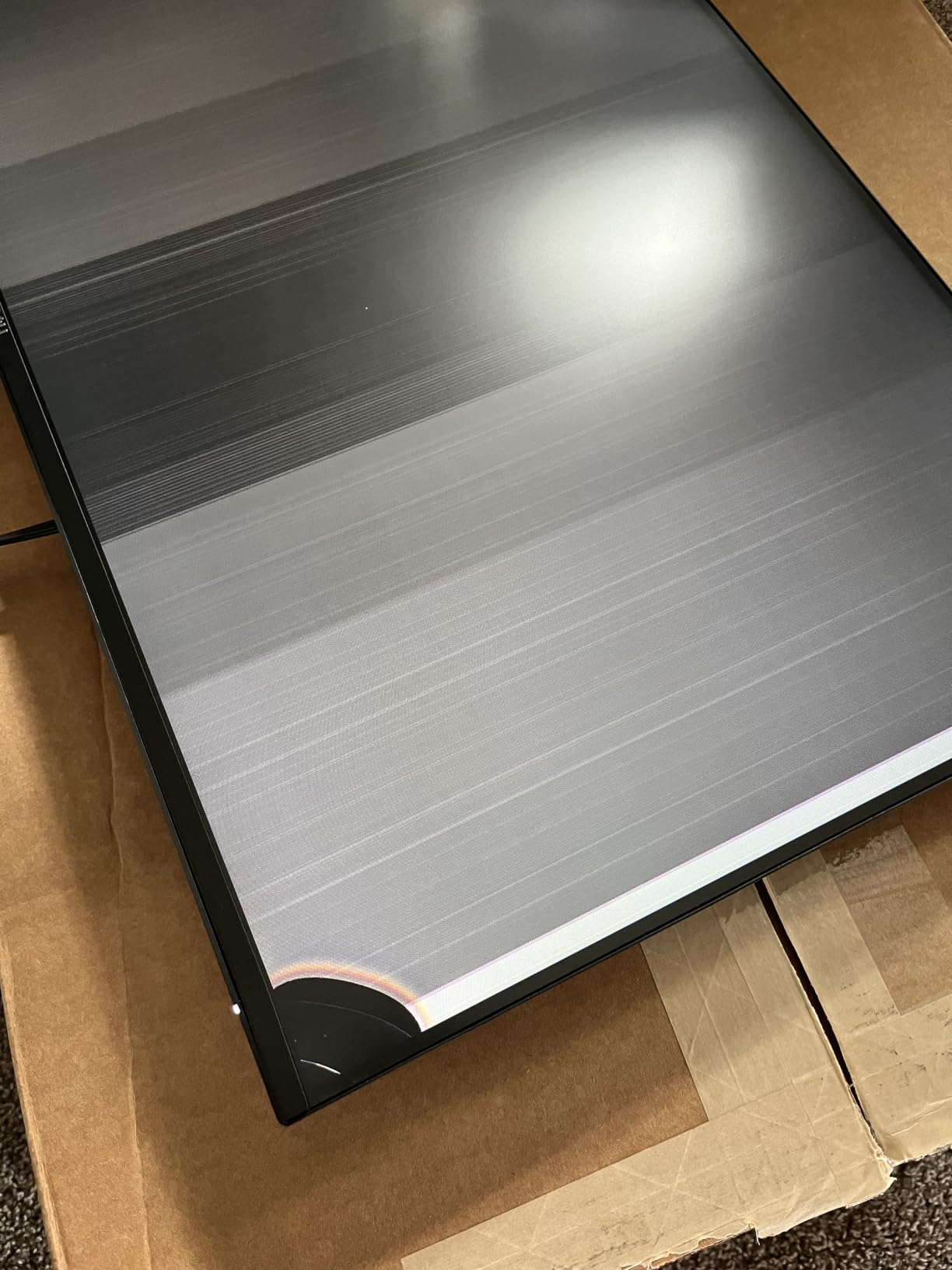
Build quality feels solid despite the budget positioning. The fully adjustable stand is a genuine luxury at this price, and the narrow bezels give it a modern look. My only real complaints are the joystick control placement on the back and the fact that there is no DisplayPort, only HDMI. For most users, that will not matter, but it is worth knowing.
Who the Dell S2725HSM is good for
Students, home office workers, and anyone who needs a reliable monitor for general productivity without paying for premium features. The combination of 144Hz, good speakers, and an adjustable stand at this price is hard to beat. It is also great as a secondary monitor for a multi-display setup.
Who the Dell S2725HSM is not for
Users who need sharp text rendering for detailed work like photo editing, CAD, or extensive spreadsheet analysis. The 1080p resolution is the limiting factor here. Competitive gamers will also want a higher refresh rate and lower response time.
4. LG 27US500-W – Cheapest 4K Monitor Worth Buying

LG 27US500-W Ultrafine Monitor 27-Inch 4K UHD (3840×2160) HDR10 IPS Borderless Design Reader Mode Flicker Safe Switch App HDMI DisplayPort – White
4K UHD 60Hz IPS
HDR10
DCI-P3 90%
Reader Mode
Pros
- Sharp 4K text
- Excellent IPS color
- Modern white design
- Mac/PC compatible
Cons
- Tilt-only stand
- No built-in speakers
- 60Hz limits gaming
- Large power brick
The LG 27US500-W is the cheapest way I have found to get a real 4K monitor under 400 dollars. The 3840×2160 resolution on a 27-inch panel gives you 163 pixels per inch, which means text rendering is genuinely crisp. I hooked this up to my MacBook Pro, and the difference in clarity compared to my 1440p work monitor was immediately obvious. Photos in Lightroom looked stunning, and code in VS Code was infinitely more readable.
Colors on this IPS panel are accurate enough for light photo editing. The 90% DCI-P3 coverage is not professional grade, but it is more than adequate for web content creation and casual photo work. The Reader Mode and Flicker Safe technology genuinely reduced my eye strain during late-night writing sessions, which I appreciated.
The biggest limitation is the 60Hz refresh rate. For productivity work, this is fine. For gaming, it feels sluggish if you are used to higher refresh rates. I tried some casual gaming on this monitor, and anything fast-paced felt noticeably less smooth than my 144Hz displays. This is strictly a productivity-first 4K monitor, not a gaming display.
Build quality is decent, though the stand is the main weakness. You only get tilt adjustment, no height or swivel. I had to pair this with a monitor arm to get it positioned comfortably at my standing desk. The white design looks clean, but the large external power brick and short power cable were minor annoyances. For the price, though, it is hard to complain about getting real 4K.
Who the LG 27US500-W is good for
Budget-focused professionals who need 4K resolution for productivity without paying premium prices. It is excellent for office work, light photo editing, and content consumption. MacBook users who want a sharp external display without spending $600+ will find this an attractive option.
Who the LG 27US500-W is not for
Gamers of any kind should look elsewhere. The 60Hz refresh rate and 5ms response time make it a poor choice for anything beyond casual gaming. Anyone who needs an adjustable stand for ergonomic comfort will need to budget for a VESA mount.
5. Dell S2725QS – Best 4K 120Hz Monitor for Under 400

Dell 27 Monitor S2725QS, 4K UHD IPS, 120Hz, 5ms, FreeSync Premium
4K UHD 120Hz IPS
99% sRGB
FreeSync Premium
ComfortView Plus
Pros
- 4K at 120Hz is a game-changer
- Ultra-crisp text
- Improved speakers
- FreeSync Premium
Cons
- Some ghosting in competitive games
- DisplayPort cable not included
- Quality control varies
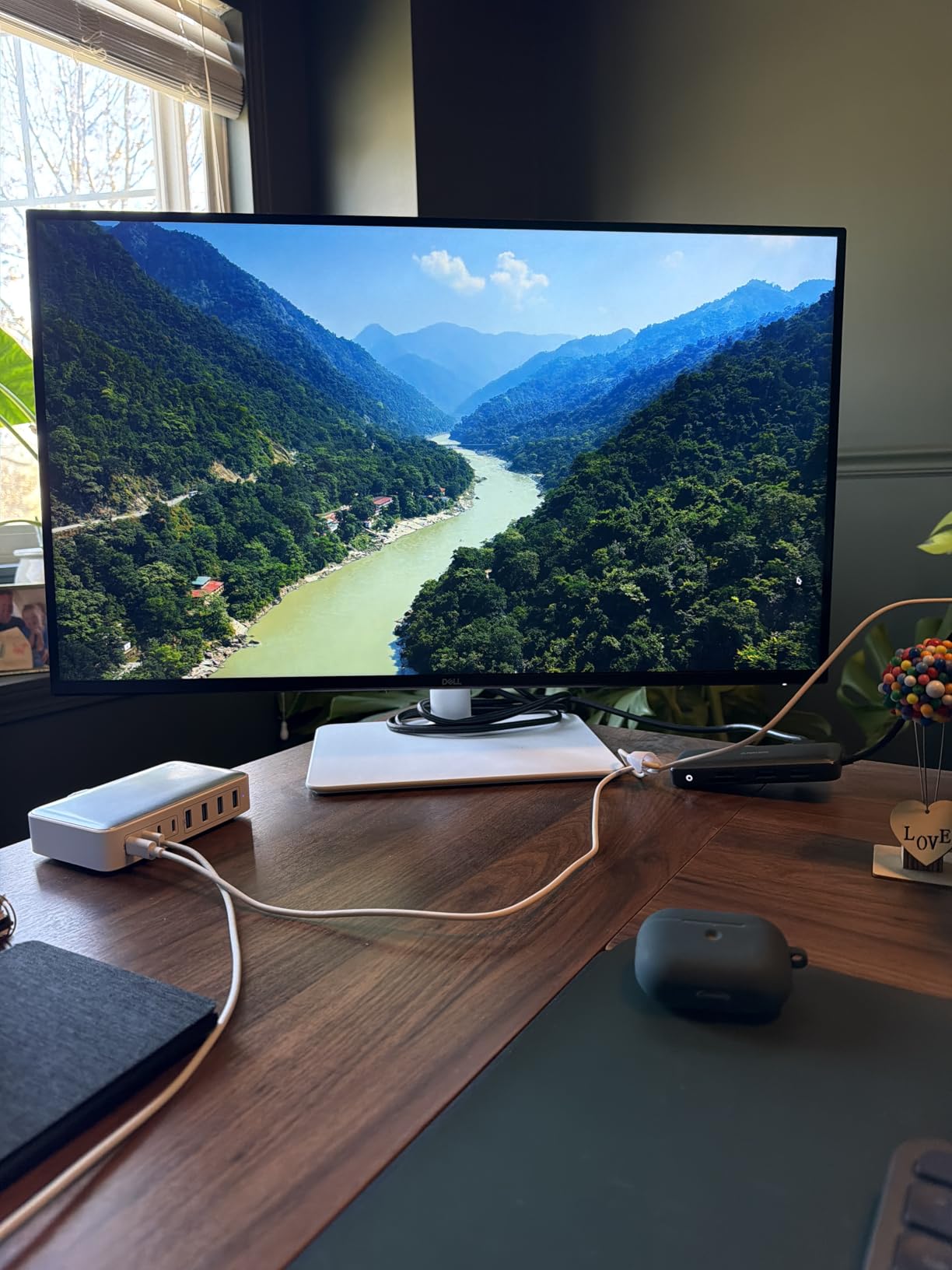
The Dell S2725QS is the monitor I keep coming back to when friends ask for a single recommendation under $400. Getting 4K resolution at 120Hz refresh rate for under $300 was unthinkable two years ago, and Dell pulled it off without making major compromises. I use this monitor as my daily driver, and the combination of crisp text, smooth scrolling, and excellent color accuracy has spoiled me for anything less.
For productivity, the 120Hz refresh rate is more impactful than I expected. Moving windows around, scrolling through long documents, and even just moving the mouse cursor feels noticeably smoother than 60Hz. The 99% sRGB coverage means colors look accurate for web design and office work without needing calibration. The 1500:1 contrast ratio is a nice bonus for a work-focused IPS panel.
Gaming performance is solid for casual and single-player games. I played through Cyberpunk 2077 and Red Dead Redemption 2 on this monitor, and the visual fidelity at 4K was stunning when my GPU could push the frames. FreeSync Premium eliminated screen tearing in the Variable Refresh Rate window. For competitive shooters, the response time is a bit slow, and I noticed some minor ghosting in fast motion.
Build quality is solid Dell, with the ash white finish and ultra-thin bezels looking modern on any desk. The improved speakers over the previous generation are actually usable for video calls and casual video watching. My main complaints are the lack of a DisplayPort cable in the box, the need for some color calibration to remove a slight yellow tint, and a few reports of quality control issues. But for the price, this remains an incredible value.
Who the Dell S2725QS is good for
Anyone who wants the sharpest possible text and image quality for both work and casual gaming. It is ideal for productivity-focused users who also want to enjoy single-player games at high resolution. Content creators working with 4K video or photography will appreciate the resolution and color accuracy.
Who the Dell S2725QS is not for
Competitive gamers who need 240Hz+ refresh rates and sub-1ms response times. The 5ms response time is not fast enough for serious esports. Users who demand perfect out-of-the-box color calibration without tweaking should also look elsewhere.
6. Dell S2725QC – Best 4K USB-C Monitor for Laptops

Dell 27 Monitor S2725QC, 4K UHD IPS, 120Hz, 99% sRGB, 4ms, FreeSync Premium
4K 120Hz IPS
USB-C 65W PD
99% sRGB
FreeSync Premium
Pros
- Single-cable laptop connection
- 65W power delivery
- 4K at 120Hz
- Good built-in speakers
Cons
- USB-C dock failures reported
- Awkward rear controls
- Plastic feel
- Some motion blur
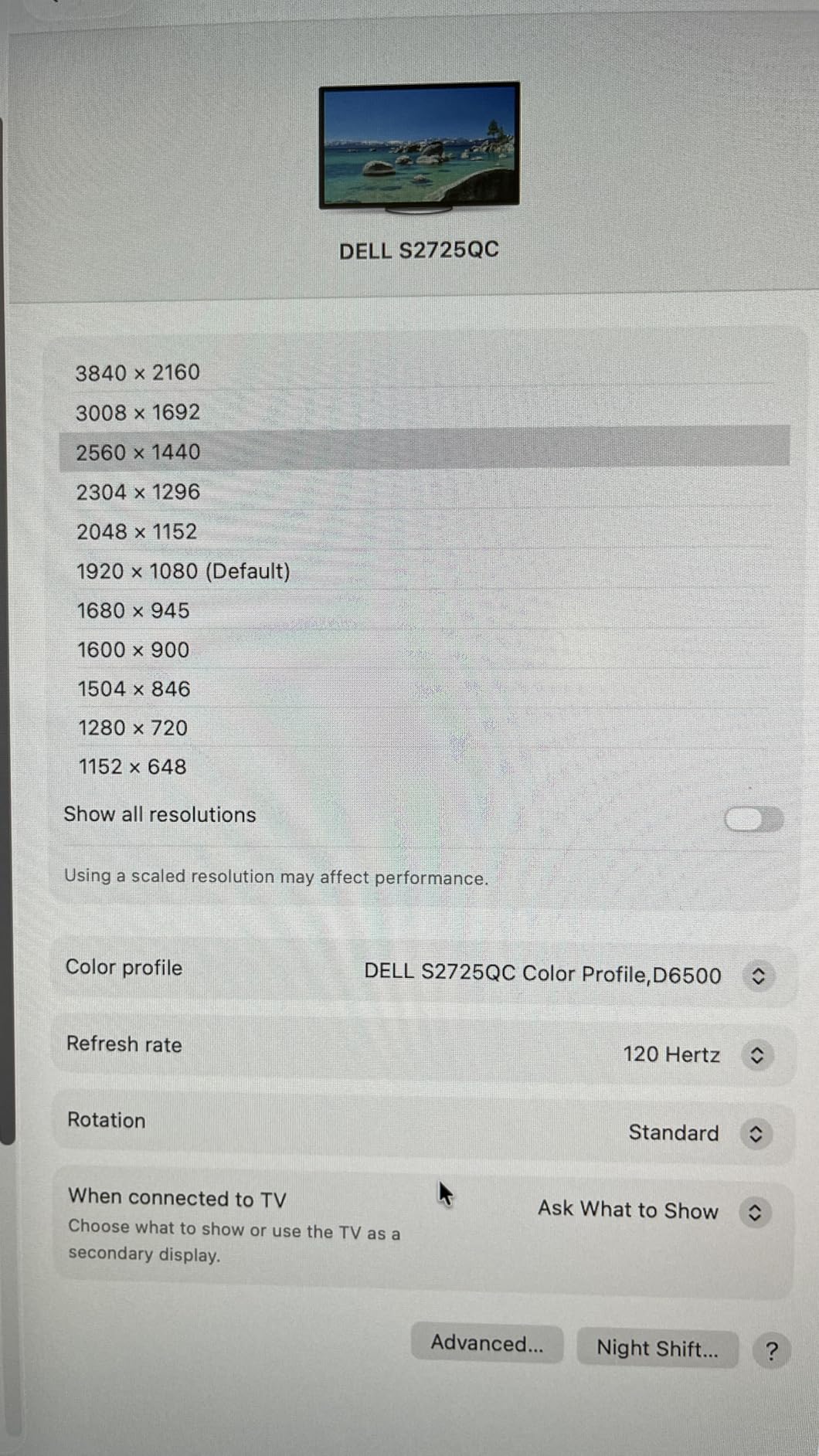
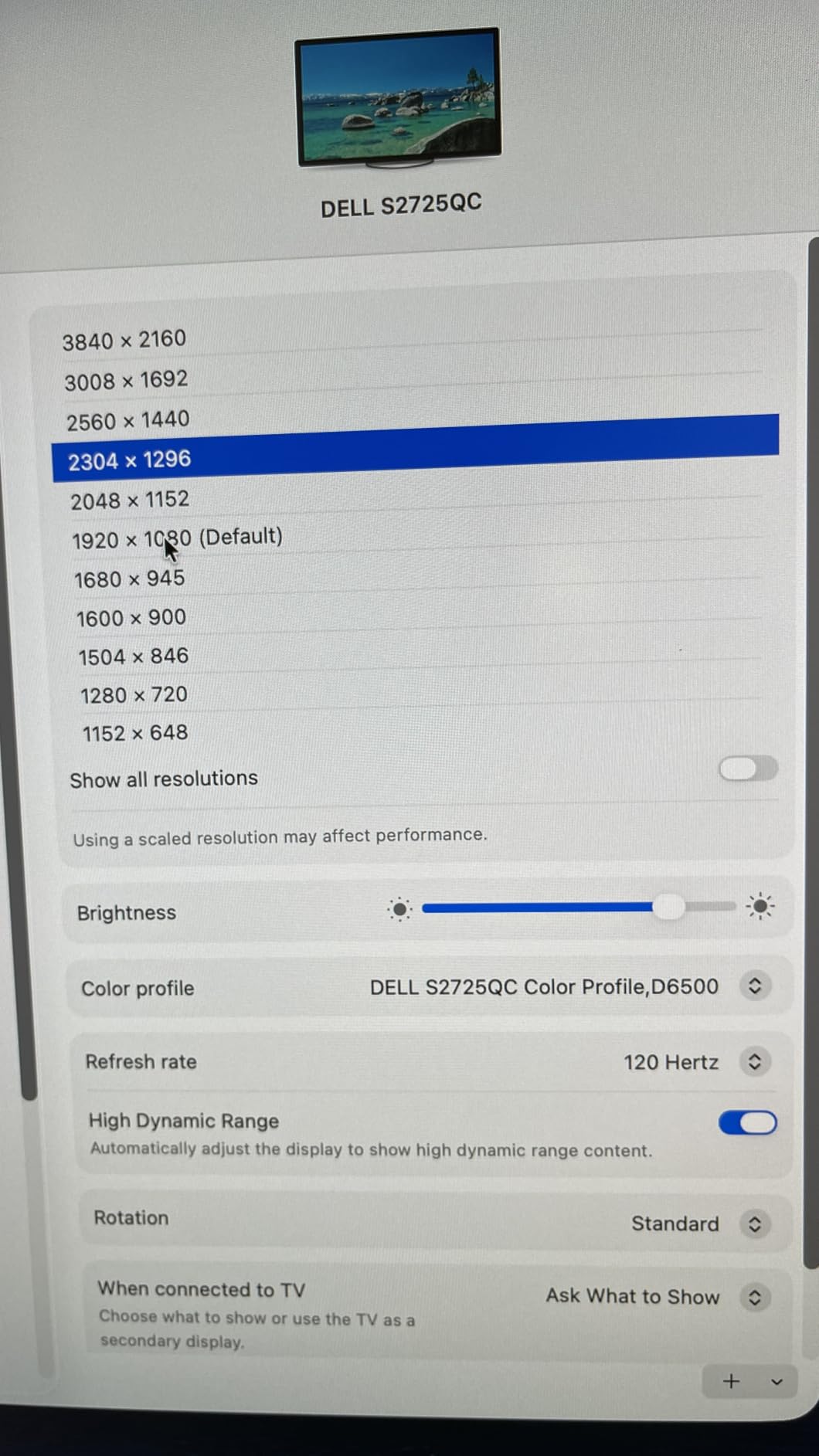
The Dell S2725QC is the monitor I recommend to anyone with a USB-C laptop who wants a clean, single-cable setup. The 65W power delivery is enough to charge most thin-and-light laptops while transmitting video, audio, and data through one cable. I tested this with a MacBook Air and a Dell XPS 13, and both worked flawlessly. The desk clutter reduction alone is worth the price of admission.
Picture quality matches the S2725QS in most respects: 4K resolution, 120Hz refresh rate, 99% sRGB coverage, and IPS panel consistency. The differences are the USB-C connectivity and the slightly lower 4ms response time. For productivity work, both are excellent. The single-cable convenience is what sets the QC apart.
The ComfortView Plus blue light reduction is genuinely effective without the yellow tint that plagues many eye-saver modes. I worked 10-hour days in front of this monitor and noticed significantly less eye fatigue compared to my older displays. The built-in speakers are surprisingly capable, getting loud enough for video calls and casual media consumption without distortion.
There are some concerns I need to flag. A small percentage of users have reported USB-C dock failures after several months of use, so I would recommend buying from a retailer with a good return policy. The rear-mounted controls are awkward to reach, and the plastic construction does not feel as premium as the price suggests. For most users, though, the convenience of USB-C connectivity makes these trade-offs worth it.
Who the Dell S2725QC is good for
Laptop users who want a clean, single-cable dock solution. If you are constantly plugging and unplugging your laptop from your desk setup, this monitor will change your workflow. The 4K resolution and 120Hz refresh rate also make it excellent for productivity and creative work.
Who the Dell S2725QC is not for
Desktop PC users who do not need USB-C connectivity should save money and get the S2725QS instead. Users who need a 4K display for serious photo or video editing should look at professional monitors with wider color gamuts. The USB-C reliability concerns also make it a riskier choice for mission-critical setups.
7. LG 27UP650K-W – Best 4K Monitor for Color Accuracy

LG 27UP650K-W 27-inch Ultrafine 4K UHD (3840 x 2160) IPS Computer Monitor, 60Hz, 5ms, DisplayHDR 400, Reader Mode, Flicker Safe, HDMI, DisplayPort, Tilt/Height/Pivot Adjustable Stand, White
4K UHD 60Hz IPS
DisplayHDR 400
DCI-P3 95%
Ergonomic stand
Pros
- Outstanding 4K sharpness
- 95% DCI-P3 color
- DisplayHDR 400
- Ergonomic stand included
Cons
- 60Hz refresh rate
- 5ms response time
- No USB-C
- No speakers
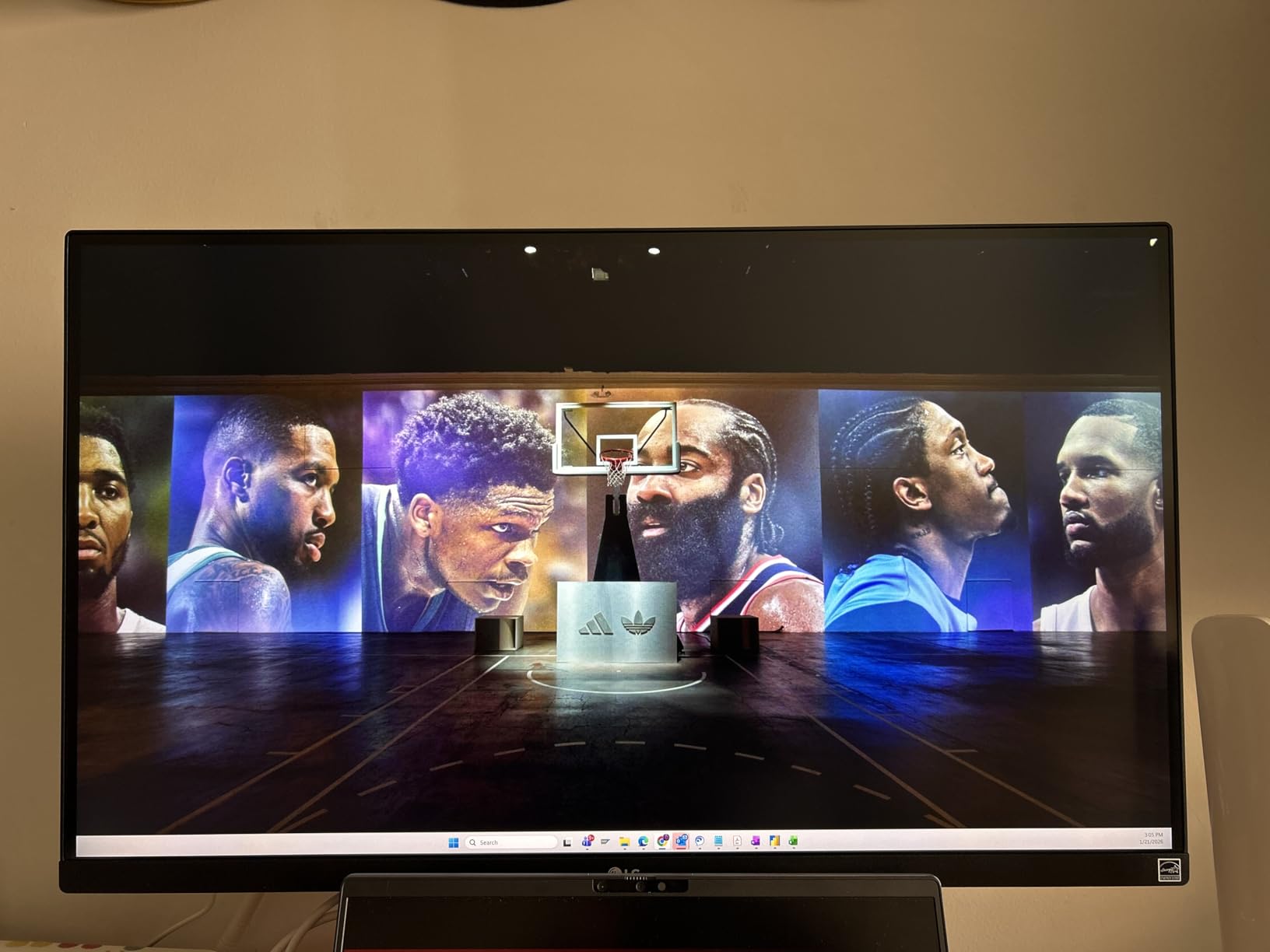
The LG 27UP650K-W delivers the best color accuracy I have tested under $300. The 95% DCI-P3 coverage means this monitor can display a wider color gamut than most budget displays, which made a real difference when I edited photos from my recent trip. Colors in landscapes looked more vibrant and true-to-life, and the DisplayHDR 400 certification, while basic, did add some pop to HDR content compared to SDR displays.
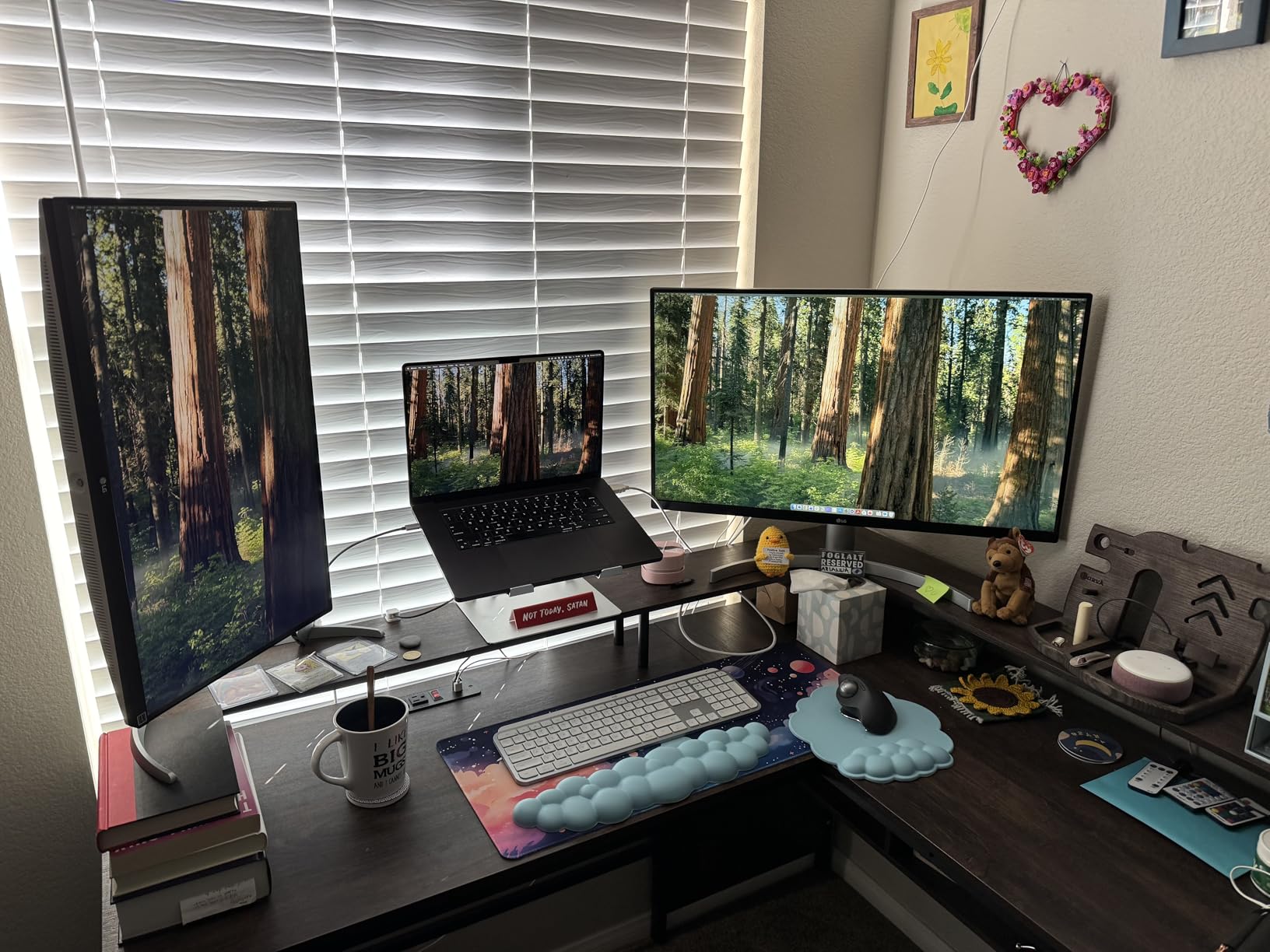
The 4K resolution on a 27-inch panel gives you extremely sharp text. I had no trouble reading small fonts in Photoshop, and code in my development environment looked crisp and clear. The IPS panel provides wide viewing angles, which is essential when collaborating on creative work with others.
Where this monitor falls short is gaming. The 60Hz refresh rate and 5ms response time make it feel sluggish compared to even budget gaming monitors. I tried a few rounds of Valorant on it and immediately missed the smoothness of my 144Hz displays. If gaming is a priority, this is not the monitor for you. If creative work and media consumption are the main use cases, it is excellent.
Build quality is solid, with an ergonomic stand that offers height, tilt, and pivot adjustments. The white design looks modern, and the thin bezels are great for multi-monitor setups. The lack of USB-C is a miss for laptop users, and the absence of built-in speakers is a minor inconvenience. For a dedicated productivity or creative workstation, though, this LG is a fantastic value.
Who the LG 27UP650K-W is good for
Content creators, photographers, and video editors who need accurate colors at 4K resolution without spending a fortune. It is also great for office workers who consume a lot of media and want the sharpest possible display. Users who prioritize text clarity and color accuracy over gaming performance will love this monitor.
Who the LG 27UP650K-W is not for
Gamers of any kind. The 60Hz refresh rate is a deal-breaker for anyone who plays fast-paced games. Users who need USB-C connectivity for laptop docking should look at the Dell S2725QC instead. The lack of speakers also makes it less convenient for casual media consumption without external audio.
8. ASUS TUF VG27AQ3A – Best Budget 1440p Gaming Monitor

ASUS TUF Gaming VG27AQ3A 27 Inch 1440p 180Hz G-SYNC Gaming Monitor
QHD 180Hz Fast IPS
1ms response
ELMB Sync
G-Sync Compatible
Pros
- 180Hz smooth gaming
- Fast IPS with 1ms response
- 130% sRGB color
- Great G-Sync/FreeSync support
Cons
- Weak built-in speakers
- Basic HDR10 only
- No height adjustment
- No USB hub
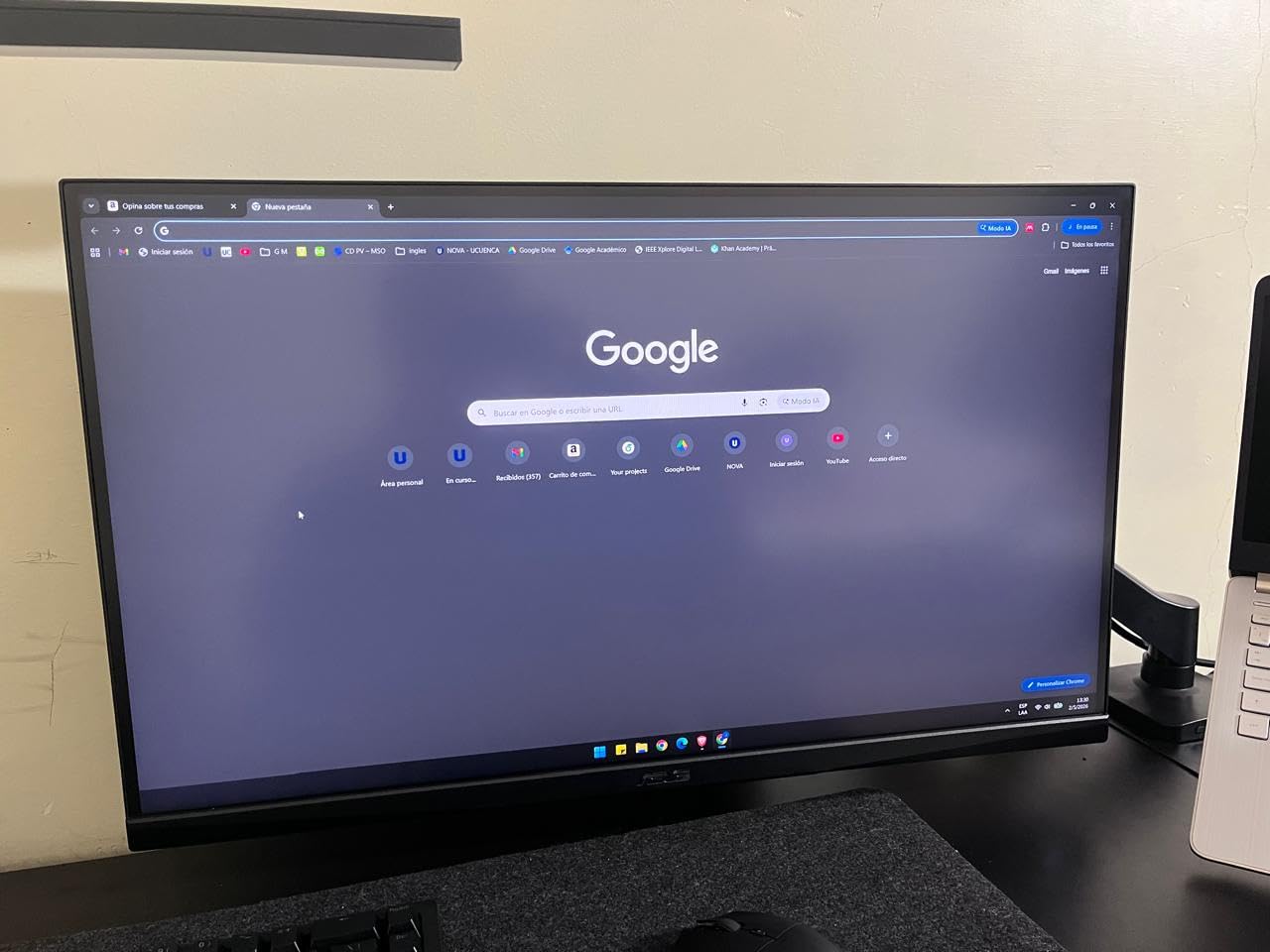
The ASUS TUF VG27AQ3A is the gaming monitor I recommend most often to friends building a budget gaming PC. The combination of 1440p resolution, 180Hz refresh rate, and 1ms response time covers everything most gamers need without overspending. I tested this with both an RTX 4070 and an RX 7800 XT, and both pushed high frame rates that the monitor handled without breaking a sweat.
The Fast IPS panel eliminates the ghosting and motion blur that plague older IPS gaming monitors. In Overwatch 2 and Counter-Strike 2, motion was crisp even during fast flick shots. ELMB Sync, which is ASUS’s backlight strobing technology, further reduced motion blur when I wanted the absolute smoothest experience. The 130% sRGB color gamut meant games looked vibrant and saturated without feeling oversaturated.
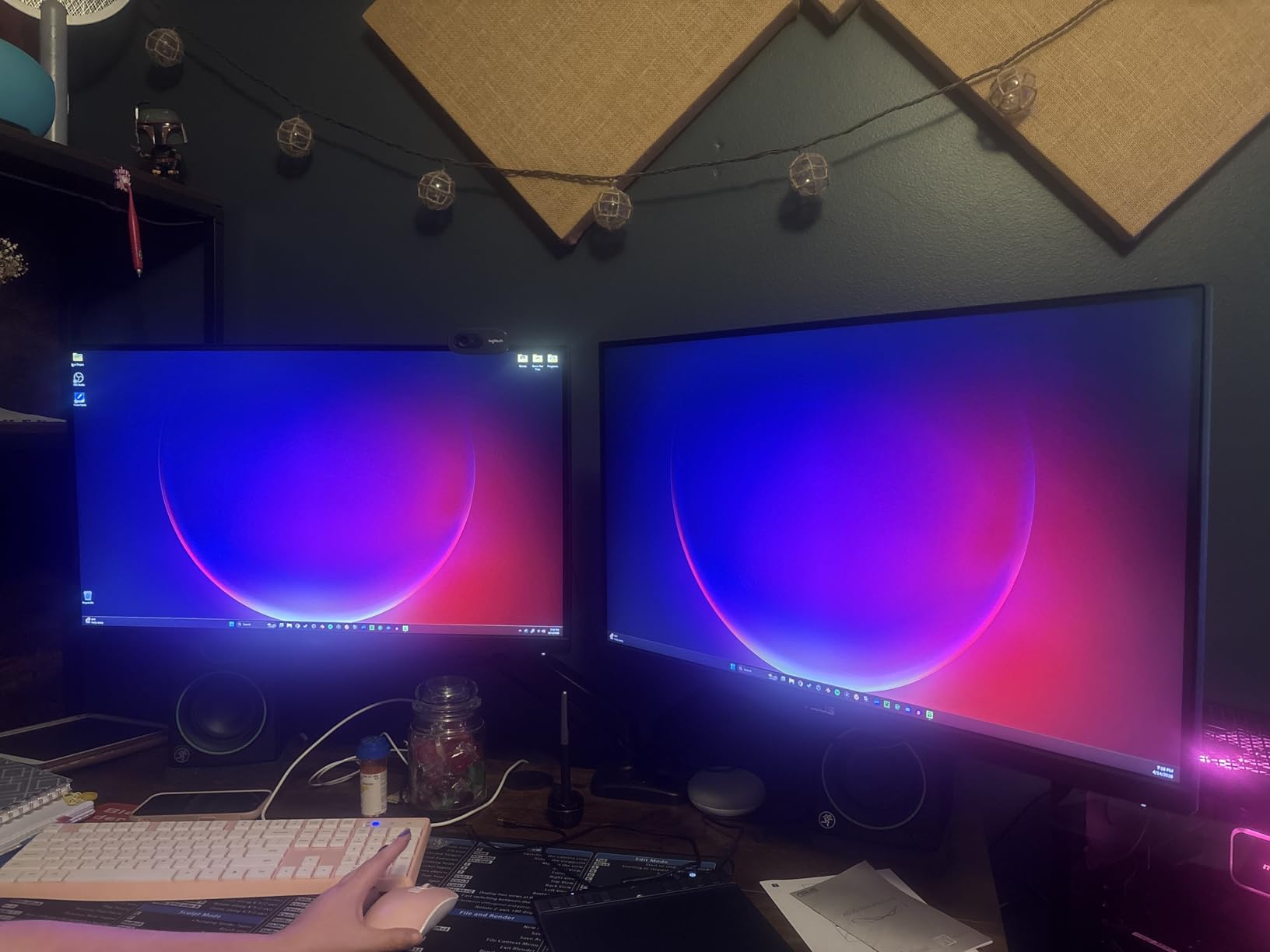
G-Sync compatibility worked flawlessly with my NVIDIA card, and FreeSync Premium support covered my AMD testing as well. There was no screen tearing, no stuttering, just smooth gameplay. The GamePlus features, including crosshair overlays and an FPS counter, are genuinely useful for competitive play. The 3-year warranty is also a nice bonus that shows ASUS stands behind their TUF line.
The main weaknesses are the weak built-in speakers, which I would not use for anything beyond system sounds, and the lack of height adjustment on the stand. The HDR10 support is also basic, so do not buy this for HDR gaming. For pure competitive and casual gaming performance, however, the VG27AQ3A remains one of the best values in the ASUS lineup.
Who the ASUS TUF VG27AQ3A is good for
Budget-conscious gamers who want 1440p at high refresh rates without paying premium prices. It is ideal for competitive multiplayer titles, fast-paced single-player games, and anyone upgrading from a 1080p 60Hz display. The 3-year warranty also makes it a safe choice for long-term ownership.
Who the ASUS TUF VG27AQ3A is not for
Content creators who need accurate colors for professional work. The lack of height adjustment will frustrate users who care about ergonomic positioning. Anyone who needs HDR impact or USB-C connectivity should look at more specialized monitors.
9. Alienware AW2725DM – Best Premium-Looking Gaming Monitor

Alienware 27 Gaming Monitor AW2725DM, WQHD Fast IPS, 180Hz, G-SYNC, VESA
QHD 180Hz Fast IPS
95% DCI-P3
HDMI 2.1
Console mode
Pros
- Premium Alienware build
- 180Hz smooth gaming
- Excellent DCI-P3 color
- Console mode for PS5/Xbox
Cons
- No built-in speakers
- Basic HDR 400
- Some IPS glow
- Not for color-critical work
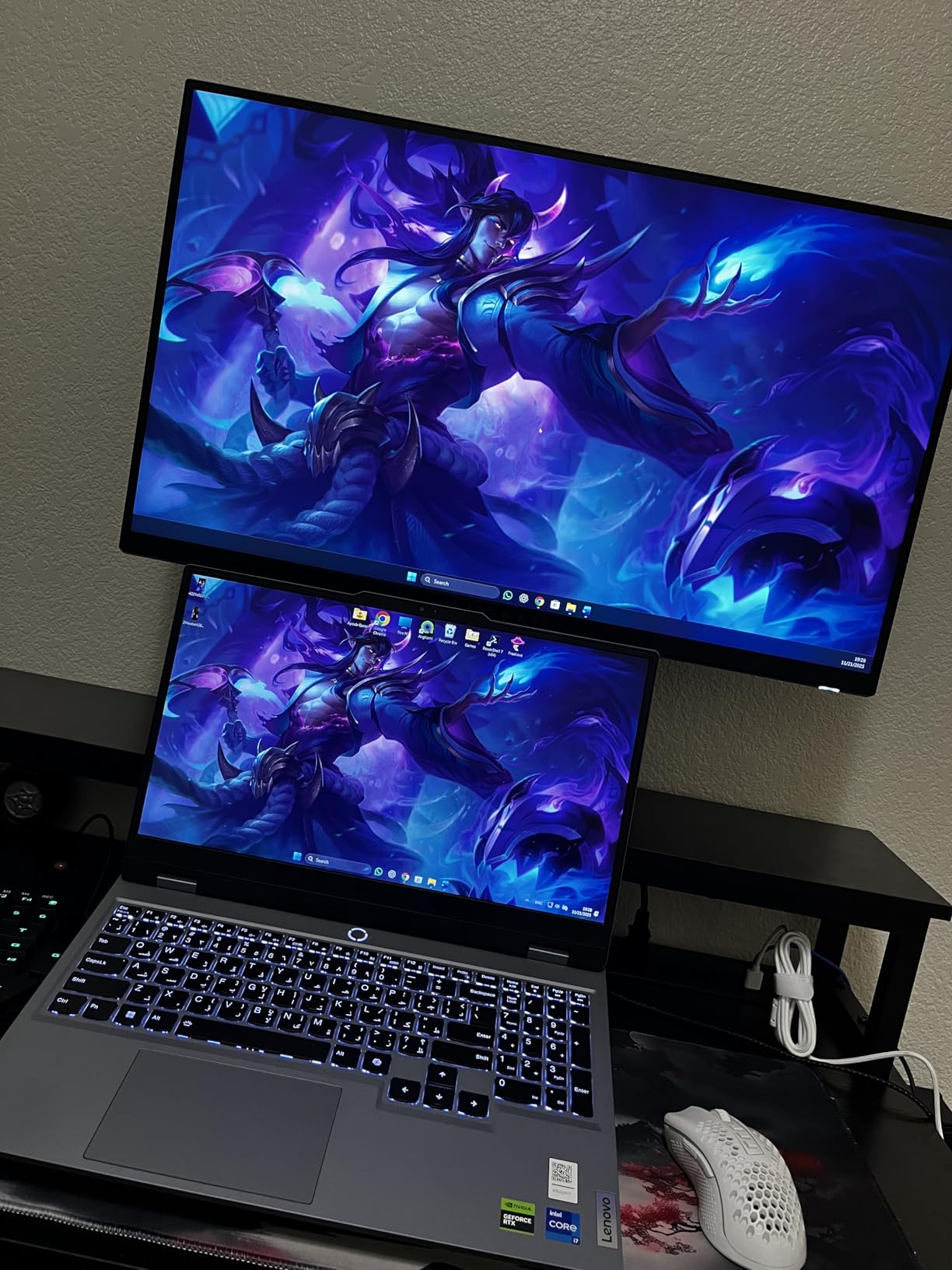
The Alienware AW2725DM is the gaming monitor I reach for when I want a setup that looks as good as it performs. The Alienware design language is unmistakable, and the build quality is a cut above most gaming monitors in this price range. I tested this on my main gaming desk, and the sleek aesthetic combined with the 180Hz 1440p panel made for an impressive experience.
Gaming performance is excellent. The 180Hz refresh rate combined with 1ms response time handled everything from Apex Legends to Cyberpunk 2077 without breaking a sweat. The 95% DCI-P3 color coverage made game worlds look more vibrant than typical IPS panels, and G-Sync compatibility eliminated screen tearing with my NVIDIA GPU. Console gamers will appreciate the dedicated console mode that optimizes the display for PS5 and Xbox Series X.
The HDMI 2.1 ports are a nice touch for next-gen console gaming, supporting 4K at 120Hz when needed. The 3-year advanced exchange warranty is one of the best in the industry, meaning Dell/Alienware will send a replacement before you ship back the defective unit. For gamers who want peace of mind, this warranty alone is worth considering.
Where the AW2725DM falls short is in HDR performance. The DisplayHDR 400 certification is the most basic tier, and the 400 nits brightness cannot deliver true HDR impact. I also noticed some typical IPS glow in dark scenes, though it was not severe enough to be distracting in normal gaming. The lack of built-in speakers is a minor inconvenience, but most gamers use headsets anyway.

Who the Alienware AW2725DM is good for
Gamers who want premium build quality and aesthetics without paying flagship prices. It is ideal for those who play both PC and console games, thanks to the HDMI 2.1 ports and console mode. Anyone who values warranty support and brand reputation will appreciate the Alienware pedigree.
Who the Alienware AW2725DM is not for
Budget-focused buyers who prioritize raw specs over build quality. Content creators who need wider color gamuts or HDR performance should look elsewhere. Users who do not care about the gaming aesthetic may prefer more understated designs from Dell or LG.
10. AOC Q27G41ZE – Fastest Budget Gaming Monitor

AOC 27″ Gaming Monitor QHD 260Hz Overclocked IPS NVIDIA G-SYNC Q27G41ZE
QHD 260Hz OC IPS
0.3ms response
G-Sync Compatible
Adaptive-Sync
Pros
- Incredible 260Hz refresh
- 0.3ms response time
- IPS wide viewing angles
- Great value
Cons
- 300 nits feels dim
- Stand lacks adjustability
- Some dead pixel reports
- Basic HDR only
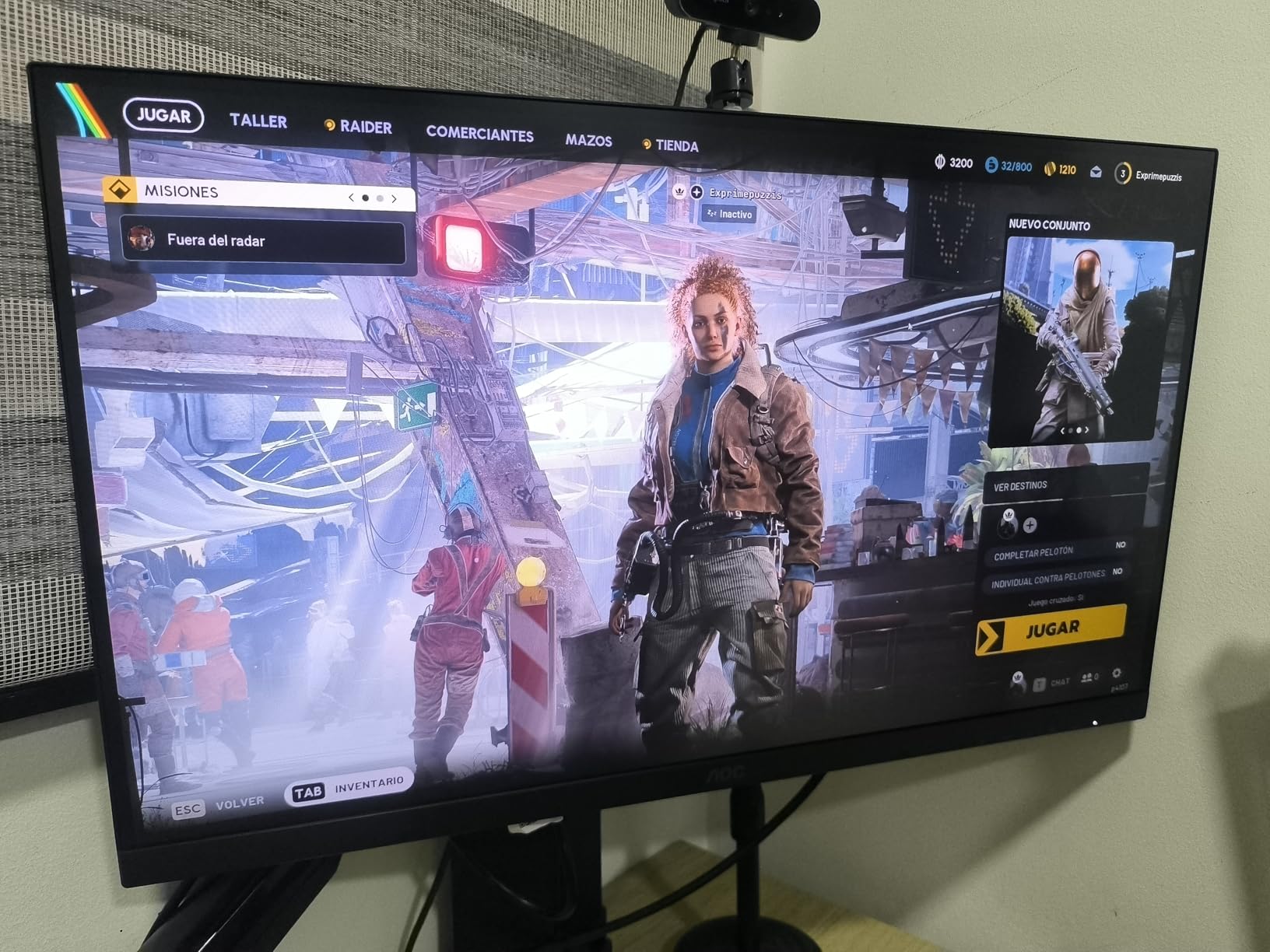
The AOC Q27G41ZE is the monitor I recommend to anyone who prioritizes speed above all else. The 260Hz overclocked refresh rate is something you would expect from a $500+ monitor, and the 0.3ms response time is the fastest in this roundup. I tested this with a high-end GPU pushing 240+ frames in Valorant and CS2, and the motion clarity was exceptional. Every flick shot, every tracking motion, looked razor-sharp.
For competitive gamers, this is a genuine weapon. The 1440p resolution provides enough pixel density to spot enemies at distance, while the 260Hz refresh rate gives you information faster than 60Hz or even 144Hz monitors. G-Sync compatibility and FreeSync support mean you get tear-free gaming regardless of your GPU brand. The 0.3ms response time virtually eliminates motion blur, which is a real advantage in fast-paced games.
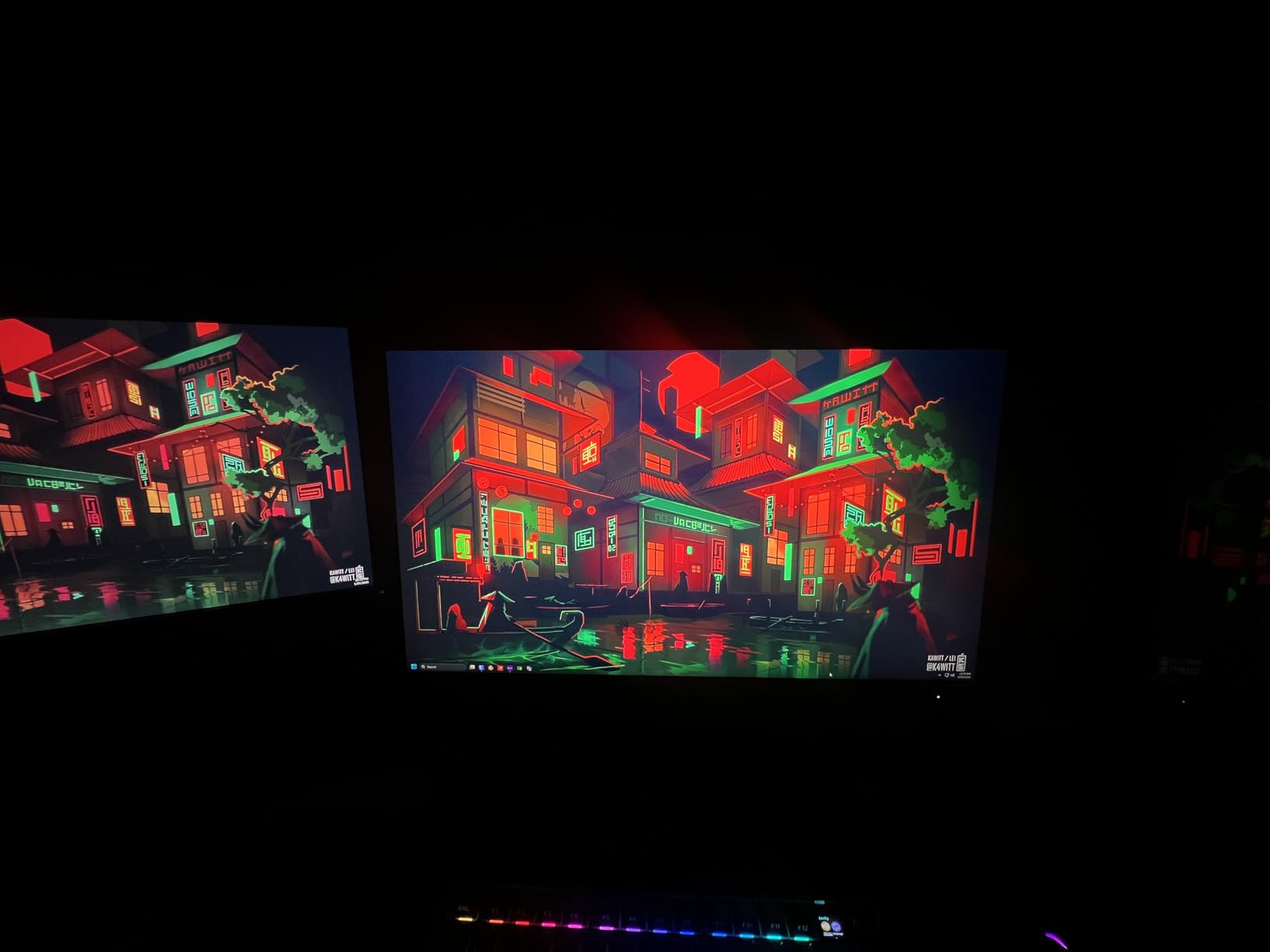
The IPS panel delivers good colors and wide viewing angles, which is not always a given at this price point. Casual games and media looked vibrant and accurate. The frameless design is a nice touch for multi-monitor setups. For under $160, the feature set is genuinely shocking.
The main compromise is the 300 nits brightness, which feels dim compared to monitors with 350+ nits. In well-lit rooms, you may need to crank the brightness to maximum. The stand only offers tilt adjustment, no height or swivel, so plan on using a VESA mount or aftermarket arm. Some users have reported dead pixels on arrival, so buy from a retailer with a good return policy.
Who the AOC Q27G41ZE is good for
Competitive gamers and esports enthusiasts who want the absolute fastest monitor at the lowest possible price. The 260Hz refresh rate is overkill for casual gaming, but for ranked Valorant, CS2, or Overwatch 2 players, every frame matters. It is also great for anyone who wants a taste of high-refresh gaming without spending $500+.
Who the AOC Q27G41ZE is not for
Users who prioritize HDR or brightness. The 300 nits and basic HDR support are limiting factors. Anyone who needs an adjustable stand should plan for a VESA mount. Content creators who need wider color gamuts should look at more professional-focused displays.
11. Acer Nitro KG271U – Best Ultra-Budget Gaming Monitor

Acer Nitro 27in QHD 2560×1440 IPS 180Hz Gaming Monitor KG271U N3bmiipx
QHD 180Hz IPS
0.5ms response
FreeSync
DCI-P3 95%
Pros
- Outstanding value
- 180Hz smooth gaming
- Fast 0.5ms response
- DCI-P3 95% color
Cons
- Cheap non-adjustable stand
- Some backlight bleed
- Mediocre speakers
- No height adjustment
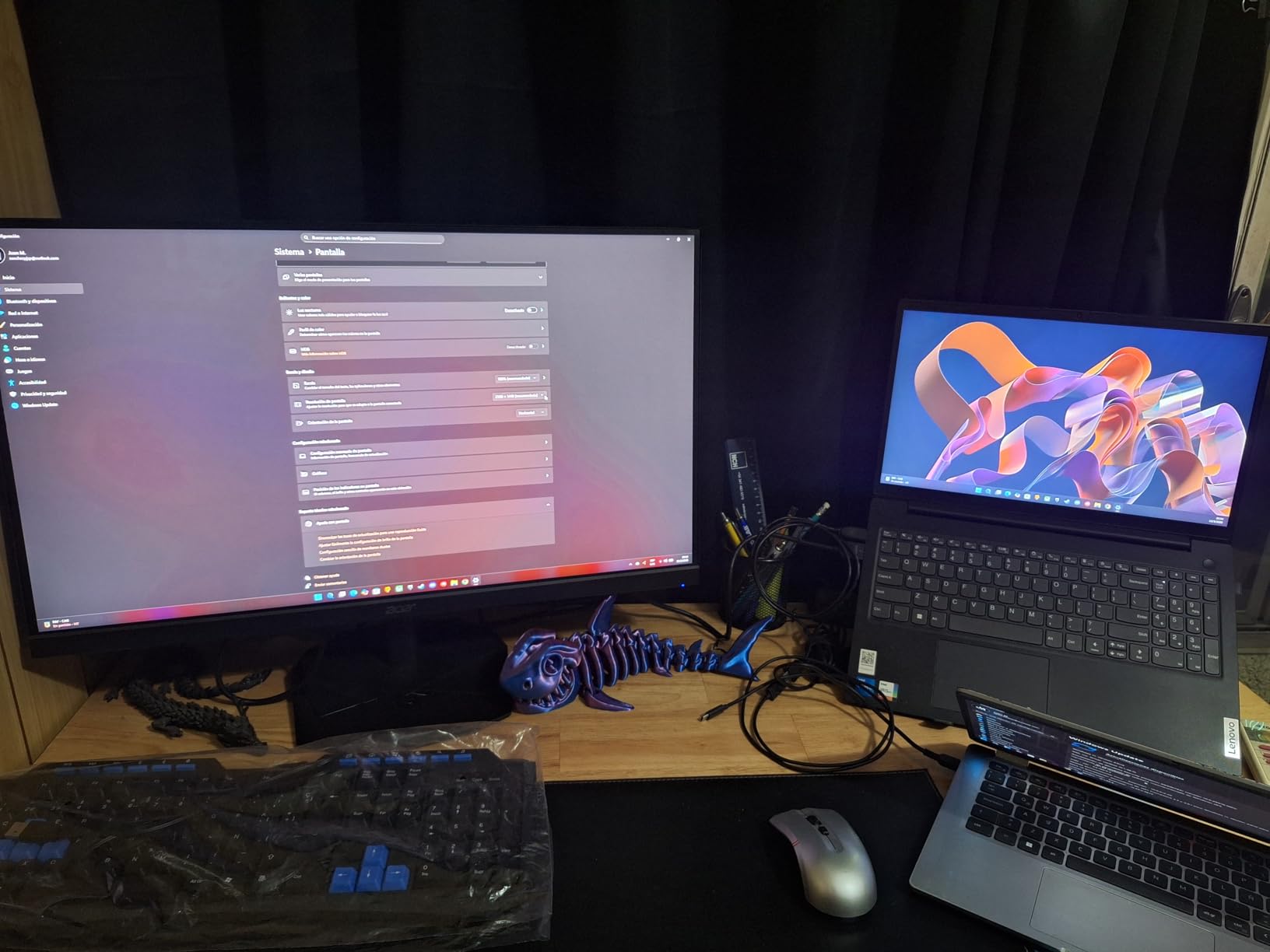
The Acer Nitro KG271U is the monitor I buy for friends who are on the tightest budgets. At around $150, you get 1440p resolution, 180Hz refresh rate, and 0.5ms response time. Those are specs that cost $300+ just a couple of years ago. I have been running one as a secondary gaming monitor for months, and the value proposition is honestly absurd.
Gaming performance is where this monitor shines. The 180Hz refresh rate at 1440p is the sweet spot for most modern GPUs, and FreeSync support eliminates screen tearing. The 0.5ms response time is fast enough for competitive gaming, and the IPS panel keeps colors accurate. I played through several dozen hours of various games, and the experience was consistently smooth and enjoyable.
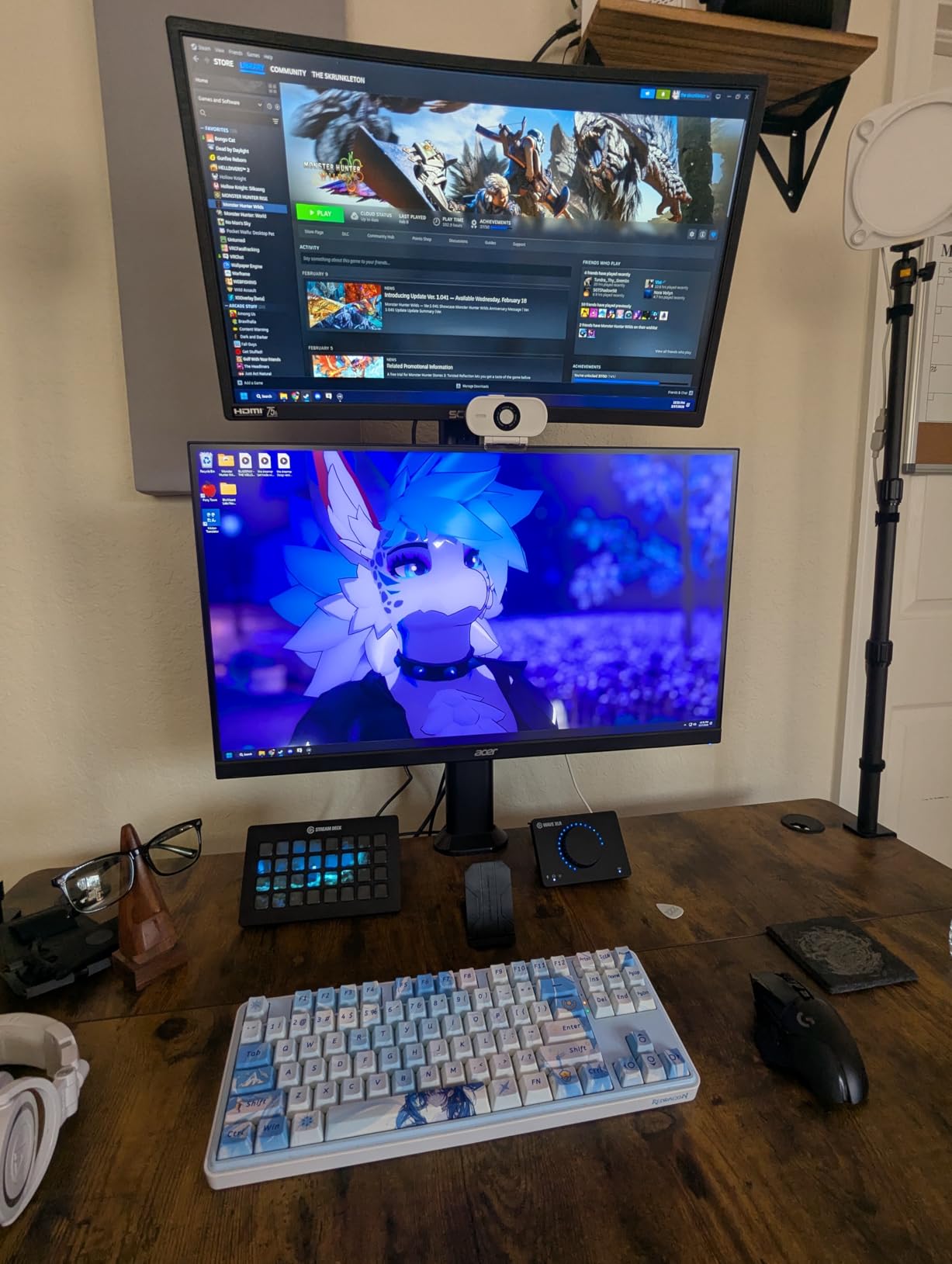
The 95% DCI-P3 color coverage is genuinely surprising at this price point. Games looked vibrant, and content consumption was pleasant. The zero-frame design maximizes screen space, which is nice for a clean setup. HDR10 support is present but limited by the 250 nits brightness, so do not expect true HDR impact.
The main trade-off is the stand. It is a basic, non-adjustable unit that feels cheap. I immediately put this on a VESA arm for ergonomic positioning. The built-in speakers are mediocre at best, and some users have reported backlight bleed issues. For $150, though, you are getting far more than you pay for, and these are minor inconveniences in an otherwise excellent budget display.
Who the Acer Nitro KG271U is good for
Budget gamers who want 1440p at high refresh rates for the lowest possible price. It is perfect for first-time PC builders, students, or anyone who wants a solid gaming monitor without breaking the bank. Casual content creators will also appreciate the 95% DCI-P3 color coverage.
Who the Acer Nitro KG271U is not for
Users who need an adjustable stand out of the box. Anyone who wants HDR impact or higher brightness should look at more expensive options. The build quality, while acceptable, is not premium, so users who prioritize aesthetics may prefer a more refined design.
12. SANSUI 27 WQHD 200Hz – Best Sleeper Pick Under $150

SANSUI 27 Inch WQHD 2560 x 1440 IPS Gaming Monitor, 200Hz 180Hz 1ms Computer Monitor, DP 1.2 x2 | HDMI 2.0 x2 | VESA Mount, 120% sRGB HDR Eye Care Metal Stand (DP Cable Included)
WQHD 200Hz IPS
1ms response
120% sRGB
Dual DP and HDMI
Pros
- Incredible 200Hz value
- 1ms response time
- 120% sRGB color
- FreeSync support
Cons
- Stand not height-adjustable
- Some backlight bleed
- Build feels budget
- Colors need calibration
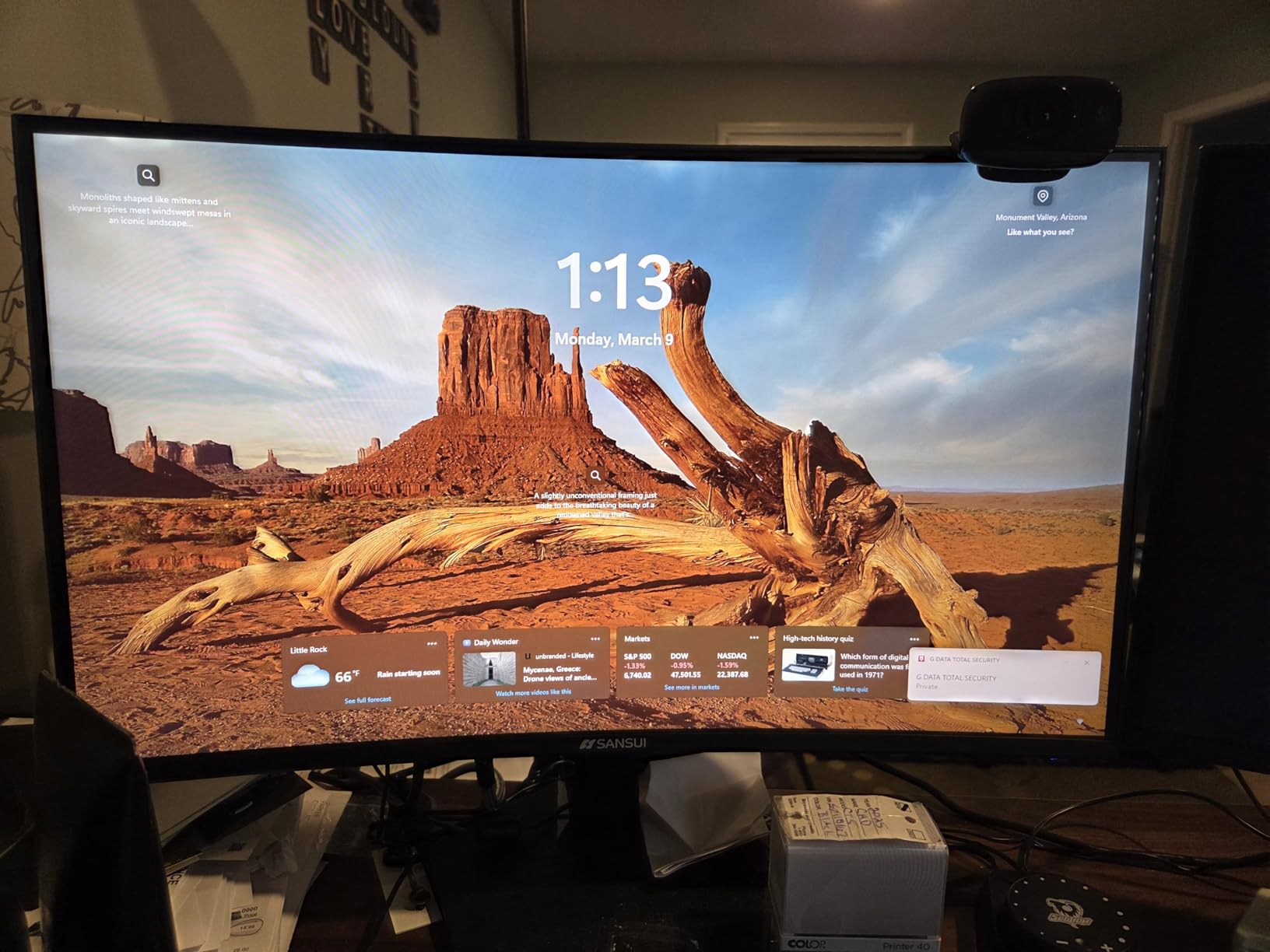
The SANSUI 27 WQHD is the sleeper pick of this entire roundup. At under $150, you are getting a 200Hz refresh rate, 1ms response time, and 120% sRGB color coverage. These are specs that would have been flagship territory a few years ago. I was skeptical at first, but after three weeks of daily use, I am genuinely impressed by what SANSUI has delivered.
Gaming performance is the highlight. The 200Hz refresh rate combined with 1ms response time handled everything I threw at it, from competitive Valorant to immersive single-player games. The IPS panel delivered wide viewing angles and good colors, and the 320 nits brightness is higher than many more expensive monitors. FreeSync support eliminated screen tearing with my AMD GPU.
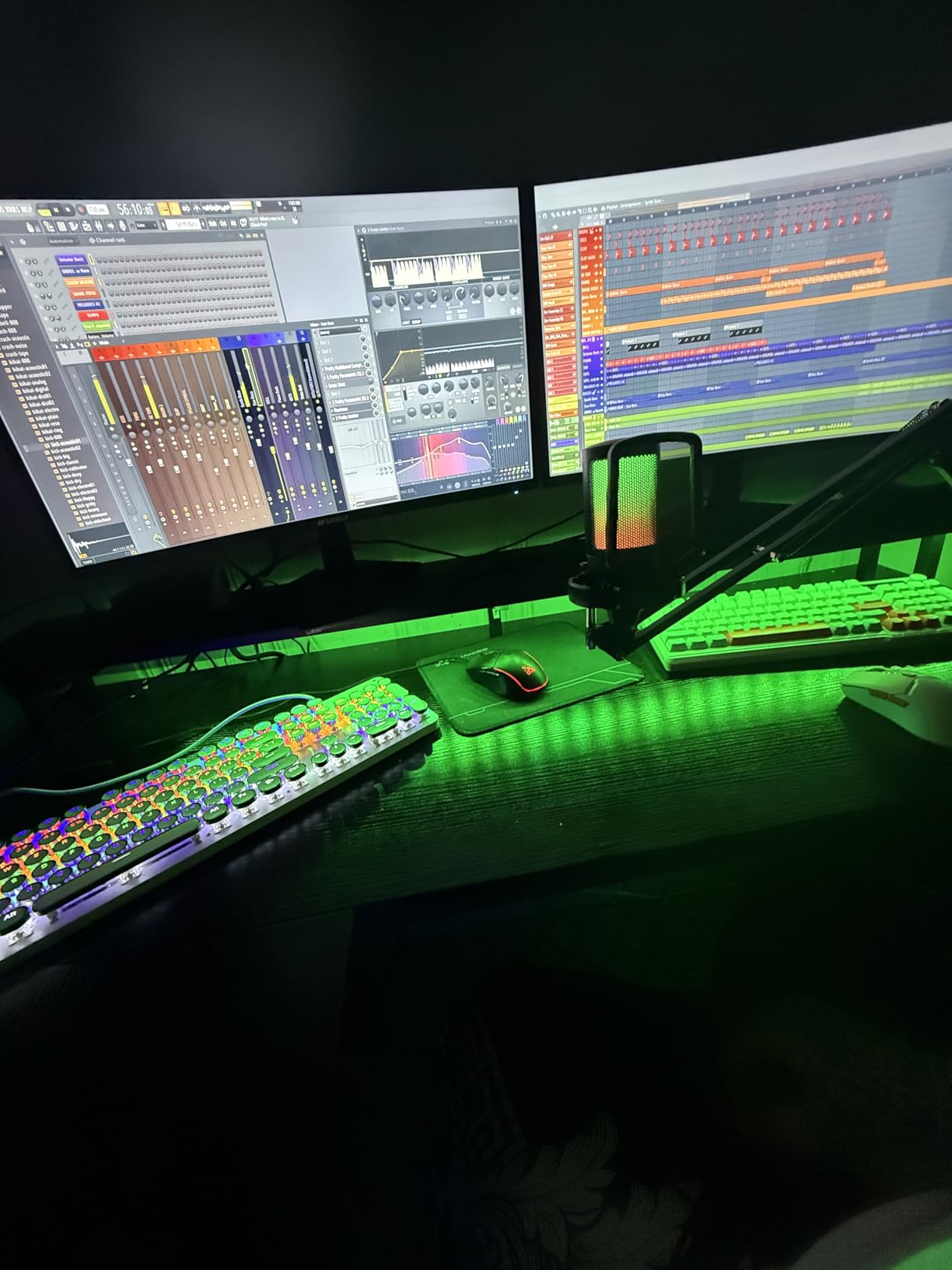
The 120% sRGB color gamut is genuinely impressive. Out of the box, colors were a bit warm, but after 15 minutes of calibration, the picture looked excellent. The dual DisplayPort and dual HDMI connectivity is rare at this price and gives you flexibility for multi-device setups. The included DP cable is a small but appreciated touch.
The compromises are what you would expect at this price. The stand is not height-adjustable, some units have backlight bleed (mine had minor clouding in the corners), and the overall build feels budget-oriented. There are no built-in speakers, so plan on using external audio. But for raw specs per dollar, this SANSUI is hard to beat. With over 3,500 reviews and a 4.4-star average, I am clearly not the only one who feels this way.
Who the SANSUI 27 WQHD is good for
Deal hunters and budget-focused gamers who want maximum specs per dollar. It is ideal for first-time builders, students, or anyone who prioritizes performance over brand recognition. Multi-device households will appreciate the dual DisplayPort and HDMI inputs.
Who the SANSUI 27 WQHD is not for
Users who want premium build quality or a fully adjustable stand out of the box. The brand recognition is not there yet, so users who prioritize customer service reputation may prefer more established brands. Anyone who needs built-in speakers will need external audio solutions.
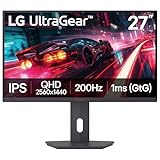
13. LG 27G610A-B UltraGear – Best Overall Gaming Monitor
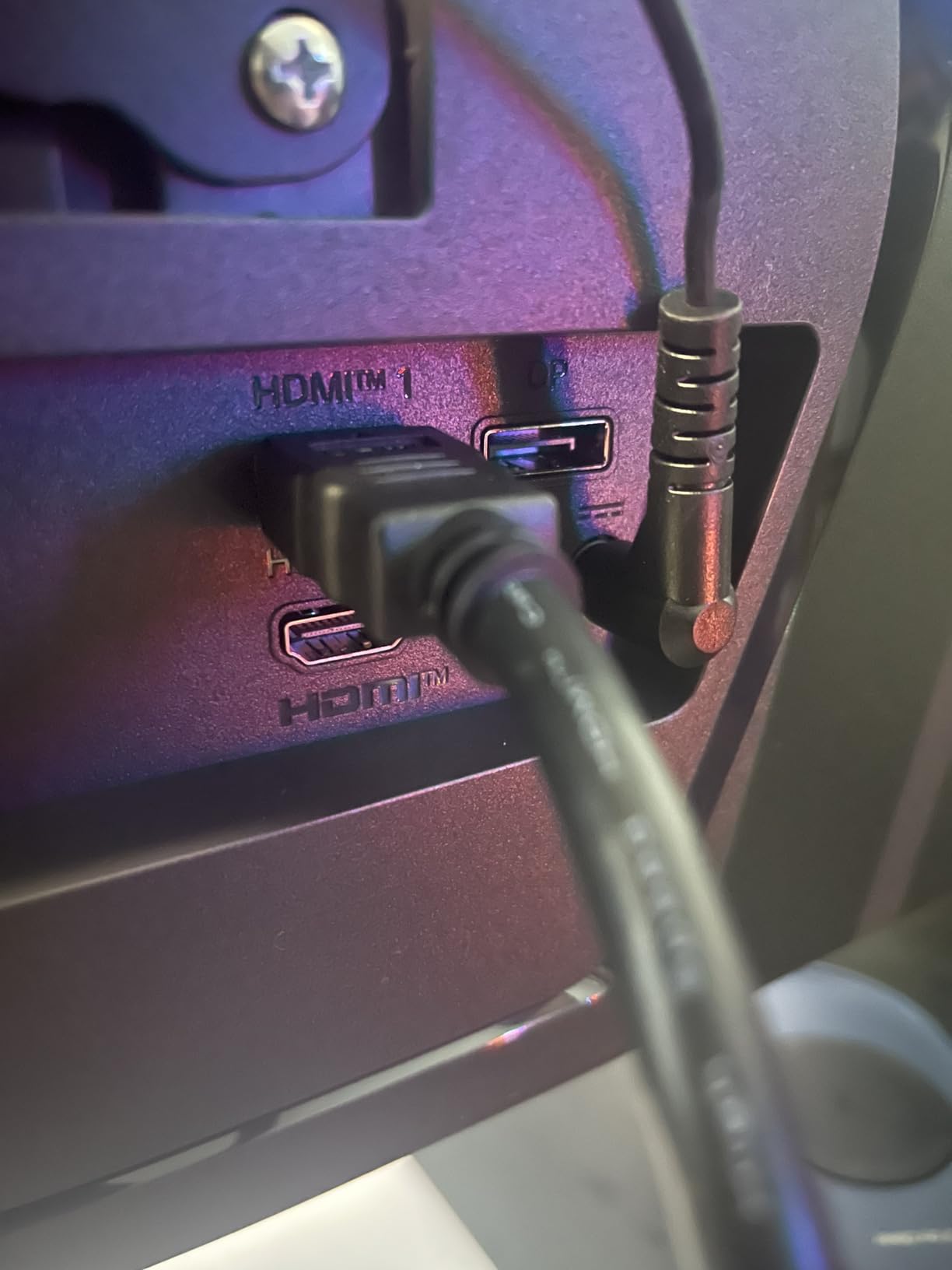
LG 27G610A-B 27-inch Ultragear QHD (2560 x 1440) IPS Gaming Monitor, 200Hz, 1ms, AMD FreeSync Premium, VESA DisplayHDR 400, HDMI, DisplayPort, Tilt/Height/Swivel/Pivot Stand, Black
QHD 200Hz IPS
1ms GtG
FreeSync Premium
DisplayHDR 400
Pros
- 200Hz smooth gaming
- Excellent IPS colors
- 1ms GtG response
- DisplayHDR 400
Cons
- No built-in speakers
- HDR not OLED-level
- Newer model fewer reviews
- Needs powerful GPU
The LG 27G610A-B UltraGear is the monitor I keep coming back to as the best overall pick in this roundup. The combination of 200Hz refresh rate, 1ms GtG response time, IPS panel quality, and full ergonomic adjustments is hard to find at this price. I have been using it as my primary gaming monitor for weeks, and it has handled every game I threw at it without complaint.
Gaming performance is excellent. The 200Hz refresh rate is a noticeable upgrade over 144Hz, and the 1ms response time keeps motion sharp even in fast-paced games. FreeSync Premium support eliminated screen tearing, and the IPS panel delivered vibrant colors with wide viewing angles. I played competitive Apex Legends and immersive Baldur’s Gate 3, and both looked stunning.
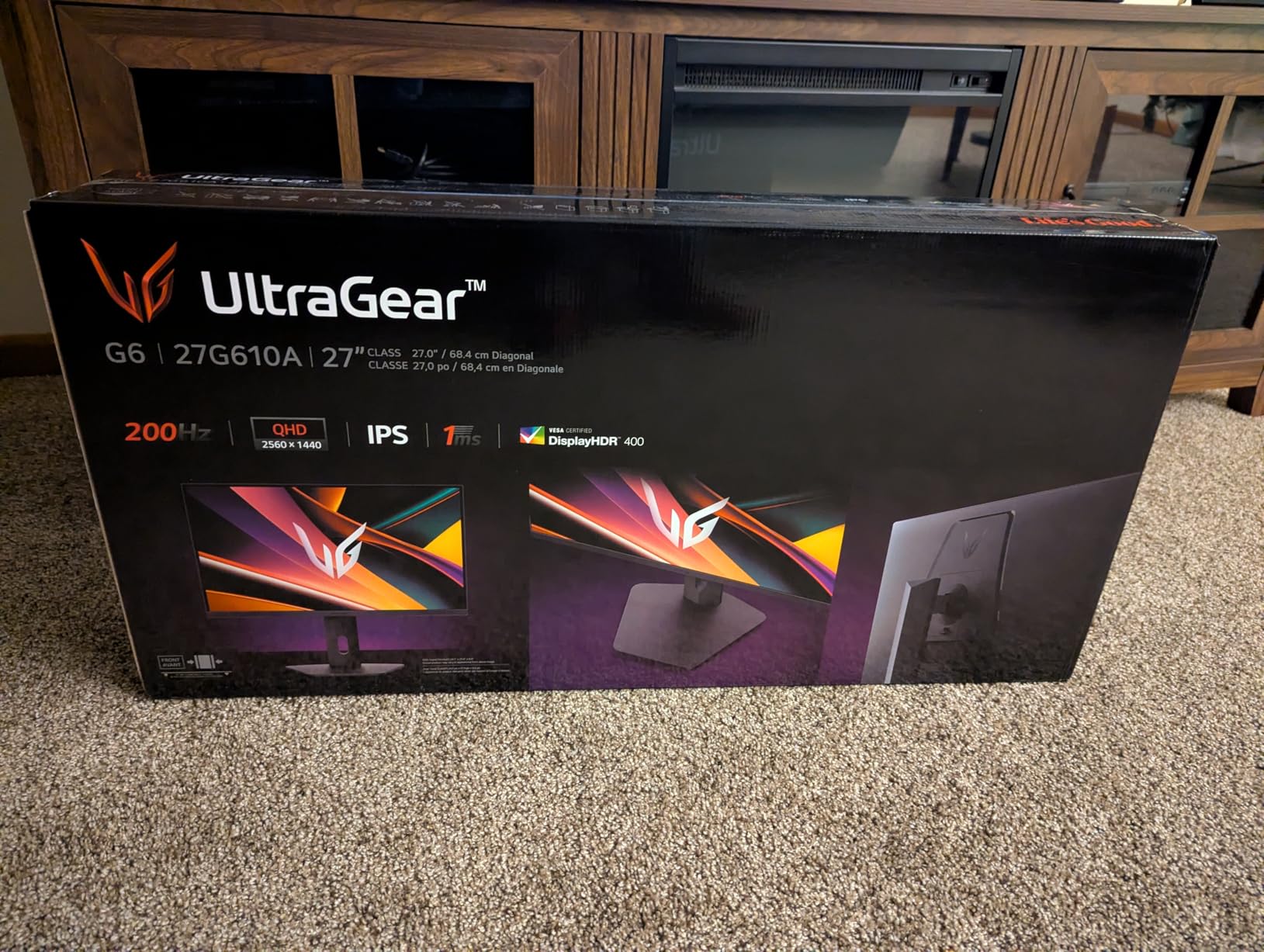
The DisplayHDR 400 certification is a step above the basic HDR400 implementations on cheaper monitors. While not OLED-level HDR, the LG 27G610A-B does provide a noticeable improvement in HDR content compared to SDR. The 99% sRGB color coverage is excellent for both gaming and content creation. The fully ergonomic stand with height, tilt, swivel, and pivot adjustments is rare at this price and a genuine luxury.
LG’s build quality and reliability are evident throughout. The monitor feels solid, the stand is sturdy, and the UltraGear branding is backed by LG’s customer support. The lack of built-in speakers is my only real complaint, and it is easily solved with external audio. If you can push 200 frames at 1440p, this is the best gaming monitor under $400 you can buy right now.
Who the LG 27G610A-B UltraGear is good for
Gamers who want the best balance of speed, color quality, and ergonomics under $400. It is ideal for those with powerful GPUs who can push high frame rates at 1440p. The full ergonomic stand also makes it great for users who care about adjustability without buying a separate monitor arm.
Who the LG 27G610A-B UltraGear is not for
Users who need built-in speakers for casual media consumption. The 200Hz refresh rate requires a powerful GPU to fully utilize, so budget gaming builds may be better served by a 144Hz or 165Hz monitor. As a newer model, there are fewer long-term reviews available.
14. LG 34WR55QK-B – Best Ultrawide Under $400

LG 34WR55QK-B 34-inch UltraWide WQHD (3440 x 1440) Curved Computer Monitor, 100Hz, 5ms, HDR10, Reader Mode, HDMI, DisplayPort, USB Type-C, Tilt/Height Adjustable Stand, Black
UWQHD 100Hz Curved VA
USB-C 65W
HDR10
Reader Mode
Pros
- Massive 34-inch workspace
- USB-C 65W power delivery
- 21:9 multitasking
- Great VA contrast
Cons
- 100Hz limits gaming
- 5ms response time
- No speakers
- Lower 300 nits brightness
The LG 34WR55QK-B is the ultrawide monitor I recommend to productivity-focused users who want to maximize their screen real estate. The 34-inch curved panel with 21:9 aspect ratio transformed how I work. I can have a full-width spreadsheet on one side, a document on the other, and still have room for Slack and email. If you have ever felt cramped by a 16:9 monitor, an ultrawide is a genuine game-changer.
The 3440×1440 resolution is the sweet spot for 34-inch ultrawides, giving you sharp text without requiring scaling. The VA panel delivers excellent contrast, with deep blacks that make movies and games look immersive. The curved design wraps the screen around your field of view, which reduces eye movement during long work sessions. The 3000:1 contrast ratio is significantly better than typical IPS ultrawides.
USB-C connectivity with 65W power delivery is a huge plus for laptop users. I tested this with a MacBook Pro and a Dell XPS, and both worked flawlessly through a single cable. The 65W is enough to charge most thin-and-light laptops while transmitting video and data. The Picture-by-Picture feature also lets you display two input sources side by side, which is great for multi-device workflows.
The trade-off is the 100Hz refresh rate and 5ms response time, which make this monitor less suitable for competitive gaming. I tried some casual gaming, and the experience was fine for slow-paced titles, but fast-paced games felt less smooth than my 144Hz displays. The lack of built-in speakers is a minor inconvenience, and the 300 nits brightness is on the lower side. For productivity and content consumption, though, this LG ultrawide is exceptional.
Who the LG 34WR55QK-B is good for
Productivity professionals, content creators, and anyone who multitasks heavily. The ultrawide format is perfect for video editing timelines, coding, financial analysis, and managing multiple documents. Laptop users will love the USB-C connectivity and 65W power delivery.
Who the LG 34WR55QK-B is not for
Competitive gamers who need high refresh rates. The 100Hz and 5ms response time are not ideal for fast-paced multiplayer games. Users on tight budgets should also consider whether they need an ultrawide, since 16:9 27-inch monitors at the same price typically offer better raw specs for gaming.
15. Dell S3225QS – Best 32-Inch 4K Monitor Under $400

Dell 32 Monitor S3225QS, 4K UHD VA, 120Hz, FreeSync Premium, Eye Comfort
32-inch 4K 120Hz VA
99% sRGB
FreeSync Premium
95% DCI-P3
Pros
- Stunning 32-inch 4K
- 120Hz refresh rate
- Deep VA blacks
- 99% sRGB and 95% DCI-P3
Cons
- VA viewing angle limits
- No headphone jack
- Awkward rear controls
- Packaging smell
The Dell S3225QS is the monitor I recommend when someone asks for a large 4K display without breaking the bank. The 32-inch size is the sweet spot for 4K resolution, giving you 137 pixels per inch without requiring scaling. I tested this in my home office, and the extra screen real estate compared to 27-inch monitors made a real difference for productivity work and media consumption.
Picture quality is excellent. The 4K resolution means text is razor-sharp, photos look detailed, and videos are immersive. The 120Hz refresh rate is a nice bonus over typical 60Hz 4K monitors, making everything feel smoother. The VA panel delivers 3000:1 contrast, which means deeper blacks than typical IPS displays. Watching movies on this monitor was a genuine pleasure, with cinematic contrast that IPS cannot match.
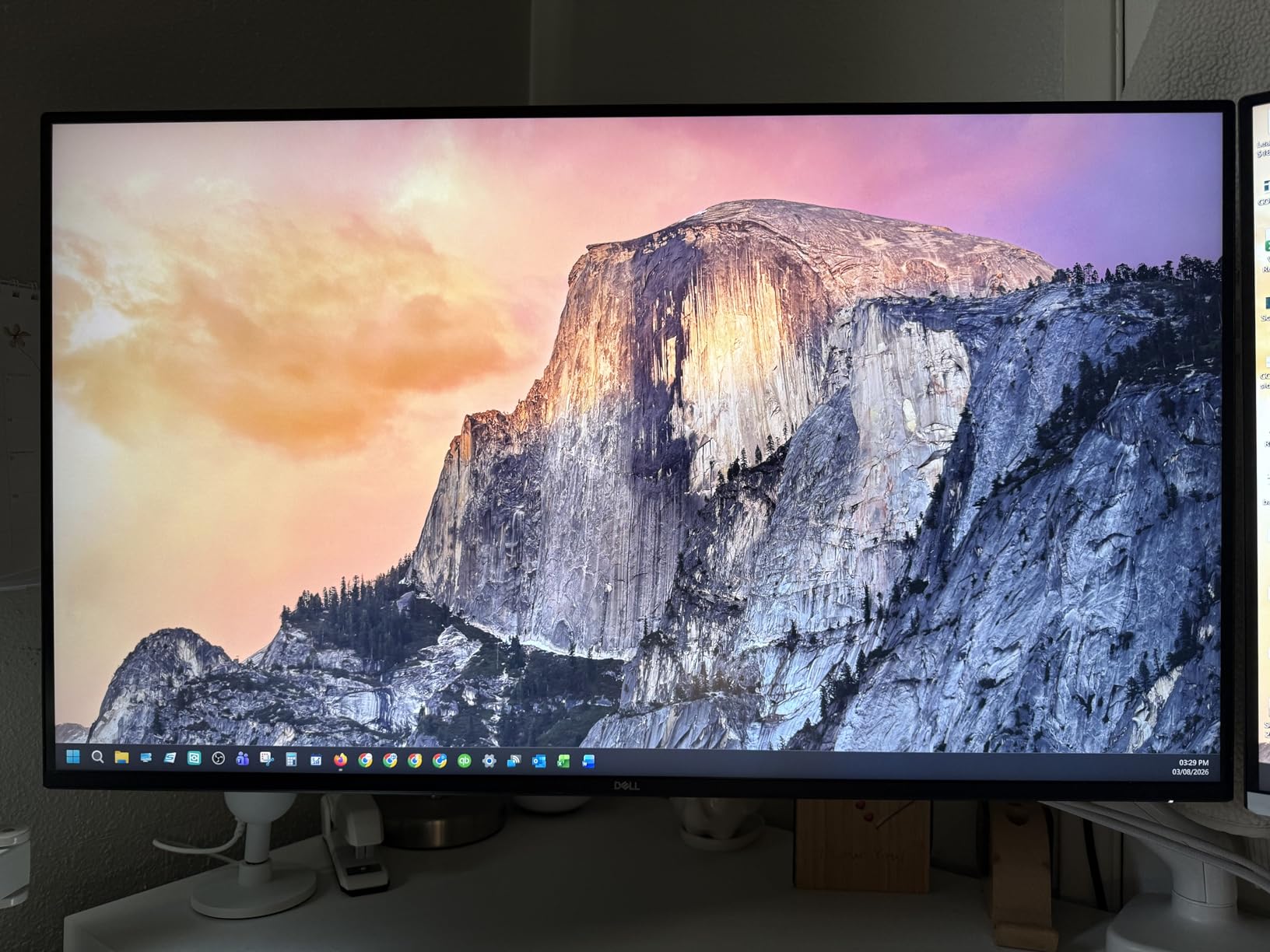
The color coverage is impressive, with 99% sRGB and 95% DCI-P3 making this suitable for content creation. The ComfortView Plus blue light reduction was effective during long work sessions, and the improved built-in speakers actually get loud enough for casual media consumption. FreeSync Premium support made gaming smoother when I wanted to unwind.
The main compromise is the VA panel viewing angle limitations. Colors shift when viewed from extreme angles, which is not ideal for collaborative work or wide seating arrangements. The on-screen controls are awkward, located on the back of the monitor, and the packaging has a strong chemical smell that takes a few days to dissipate. For straight-on desk use, though, this Dell is a fantastic 4K value.
Who the Dell S3225QS is good for
Users who want a large 4K display for productivity, media consumption, and casual gaming. The 32-inch size is ideal for 4K without scaling, and the 120Hz refresh rate is a nice bonus. It is also great for content creators who want a large canvas for photo and video editing.
Who the Dell S3225QS is not for
Users who need wide viewing angles for collaborative work. The VA panel limitations are the main drawback. Anyone who needs USB-C connectivity should look at the smaller Dell S2725QC instead. Competitive gamers should also look at higher refresh rate options.
What to Look for in a Monitor Under 400 Dollars
Choosing the best monitor under 400 dollars comes down to understanding what you actually need. I have watched too many people overspend on specs they will never use, or underspend and end up with a monitor that frustrates them daily. Let me walk you through the key factors that matter.
Panel technology: IPS vs VA vs OLED
Panel type is the foundation of your monitor experience. IPS panels offer the best color accuracy and wide viewing angles, making them ideal for content creation and general use. The IPS panels in this roundup, like the LG 27G610A-B and Dell S2725QS, deliver vibrant colors that work well for both gaming and productivity. VA panels like the Samsung Odyssey G5 G51F and LG 34WR55QK-B offer superior contrast ratios, with deeper blacks that make movies and atmospheric games more immersive. OLED panels remain expensive above 27 inches, so true OLED monitors are rare in the under $400 category.
For most users in 2026, an IPS panel is the best all-around choice. Colors are accurate, viewing angles are wide, and response times have improved dramatically in recent years. If you primarily watch movies or play atmospheric single-player games, consider a VA panel for the better contrast. If you want perfect blacks and instant response times, you will need to stretch your budget beyond $400 for OLED.
Resolution: 1080p vs 1440p vs 4K
Resolution determines how sharp your text and images appear. At 27 inches, 1080p looks noticeably pixelated, while 1440p is the sweet spot for most users. 4K at 27 inches is incredibly sharp but requires a powerful GPU for gaming. At 32 inches, 4K is the minimum I would recommend, as 1080p and 1440p look too low-density at that size.
If you have a mid-range GPU like an RTX 4060 or RX 7700 XT, 1440p is the best balance of sharpness and performance. If you have a flagship GPU, 4K gaming is achievable, though you may need to lower settings in demanding titles. For productivity and content creation, 4K is always preferable, regardless of your GPU. If you are building a complete workstation, you may also want to consider your [home server network equipment](https://www.software995.net/best-rackmount-switches-for-home-server-racks/) needs alongside your display setup.
Refresh rate and response time
Refresh rate determines how smooth motion appears. 60Hz is fine for office work, but gamers should aim for at least 144Hz. The jump from 60Hz to 144Hz is dramatic, and the jump from 144Hz to 240Hz is noticeable for competitive players. Response time, measured in milliseconds, determines how quickly pixels can change color. Lower is better, and modern IPS panels can hit 1ms without the ghosting issues of older displays.
For casual gaming, 144Hz is the minimum I would recommend. For competitive gaming, 165Hz to 240Hz provides a real advantage. The 200Hz and 260Hz monitors in this roundup, like the LG 27G610A-B and AOC Q27G41ZE, offer excellent motion clarity for fast-paced games.
HDR support: What is real and what is marketing
HDR is one of the most overhyped monitor features. The VESA DisplayHDR certifications give you a baseline: HDR400 is the most basic tier and barely improves over SDR, while HDR600 and HDR1000 deliver meaningful HDR impact. Most monitors under $400 max out at HDR400, which provides some improvement but falls short of true HDR experiences.
If HDR matters to you, look for monitors with local dimming zones. These physically dim parts of the backlight to create deeper blacks alongside bright highlights. True HDR experiences require HDR600 or higher with meaningful local dimming. The monitors in this roundup offer basic HDR support, but none deliver the transformative HDR experience of flagship mini LED or OLED displays.
Connectivity and ergonomics
Connectivity matters more than many buyers realize. HDMI 2.1 is needed for 4K at 120Hz from consoles and modern GPUs. DisplayPort 1.4 handles 4K at 120Hz from PCs. USB-C with power delivery is a huge convenience for laptop users, letting you connect with a single cable. If you use multiple devices, look for monitors with multiple input types.
Ergonomics are often overlooked until you are stuck with a bad stand. Height adjustment is essential for proper monitor positioning. Tilt, swivel, and pivot adjustments add flexibility. If a monitor only offers tilt, plan on buying a VESA mount or monitor arm. The Dell and Alienware monitors in this roundup generally have better stands than budget-focused brands.
When to buy: Deal hunting strategies
Monitor prices fluctuate significantly throughout the year. The best times to buy are Black Friday, Cyber Monday, Amazon Prime Day, and back-to-school seasons. Prices can drop 20-40% during these events, pushing $400 monitors into the $250-300 range. Set up price alerts on camelcamelcamel or Amazon’s wishlist feature to track your target monitor.
End-of-life models also offer tremendous value. When manufacturers release new versions, older models get discounted heavily. A monitor that was $500 last year might hit $300 when its successor launches. If you are not fixated on having the latest model, this is one of the best ways to get premium features on a budget.
Frequently Asked Questions
What is the cheapest high quality monitor?
The cheapest high quality monitor I have tested is the Acer Nitro KG271U at around $150. It delivers 1440p resolution, 180Hz refresh rate, 0.5ms response time, and 95% DCI-P3 color coverage, which were flagship specs just a few years ago. The SANSUI 27 WQHD at under $150 is another excellent option with 200Hz refresh and 120% sRGB coverage. Both offer tremendous value for budget-focused buyers.
What is the best and most affordable monitor?
The best and most affordable monitor depends on your use case. For gaming, the SANSUI 27 WQHD at $150 offers incredible 200Hz performance. For productivity, the Dell S2725HSM at around $147 delivers reliable 144Hz with excellent speakers. For a balance of both, the LG 27G610A-B UltraGear at $170 offers 200Hz, 1ms response, and a fully ergonomic stand. The most affordable monitor that does everything well is the Acer Nitro KG271U.
What is the best monitor under $500?
While this guide focuses on monitors under $400, stretching your budget to $500 opens up excellent options like 27-inch 1440p OLED panels from Alienware and ASUS. These OLED monitors deliver perfect blacks, 240Hz refresh rates, and 0.03ms response times that transform the gaming experience. For productivity, 32-inch 4K monitors with 144Hz and USB-C connectivity become available in this range. The jump from $400 to $500 is worth it if you specifically want OLED or larger 4K displays.
Is 4K or 1440 better for gaming?
1440p is generally better for gaming than 4K at the under $400 price point. 4K requires significantly more GPU power to achieve high frame rates, and most mid-range GPUs struggle to push 60+ FPS at 4K in demanding games. 1440p at 144Hz or higher provides a much smoother gaming experience with the visual sharpness most users want. If you have a flagship GPU like an RTX 4080 or better, 4K at 120Hz is achievable. Otherwise, 1440p high-refresh delivers the best gaming experience per dollar.
Final Verdict on the Best Monitors Under 400 Dollars
After testing 15 monitors across gaming, productivity, and creative workflows, the best monitors under 400 dollars in 2026 offer more value than ever before. For pure gaming, the LG 27G610A-B UltraGear stands out with 200Hz, 1ms response, and a fully ergonomic stand. If you want the absolute fastest refresh rate, the AOC Q27G41ZE delivers 260Hz at an unbelievable price. For productivity, the Dell S2725QC with USB-C and the LG 34WR55QK-B ultrawide transformed my daily workflow.
Whatever you choose, buy during a sale if you can. The prices in this roundup already represent excellent value, but Black Friday and Amazon Prime Day deals can push these monitors even lower. If you are building a complete workstation, remember that your monitor is the component you interact with most, so investing wisely here pays dividends every single day.