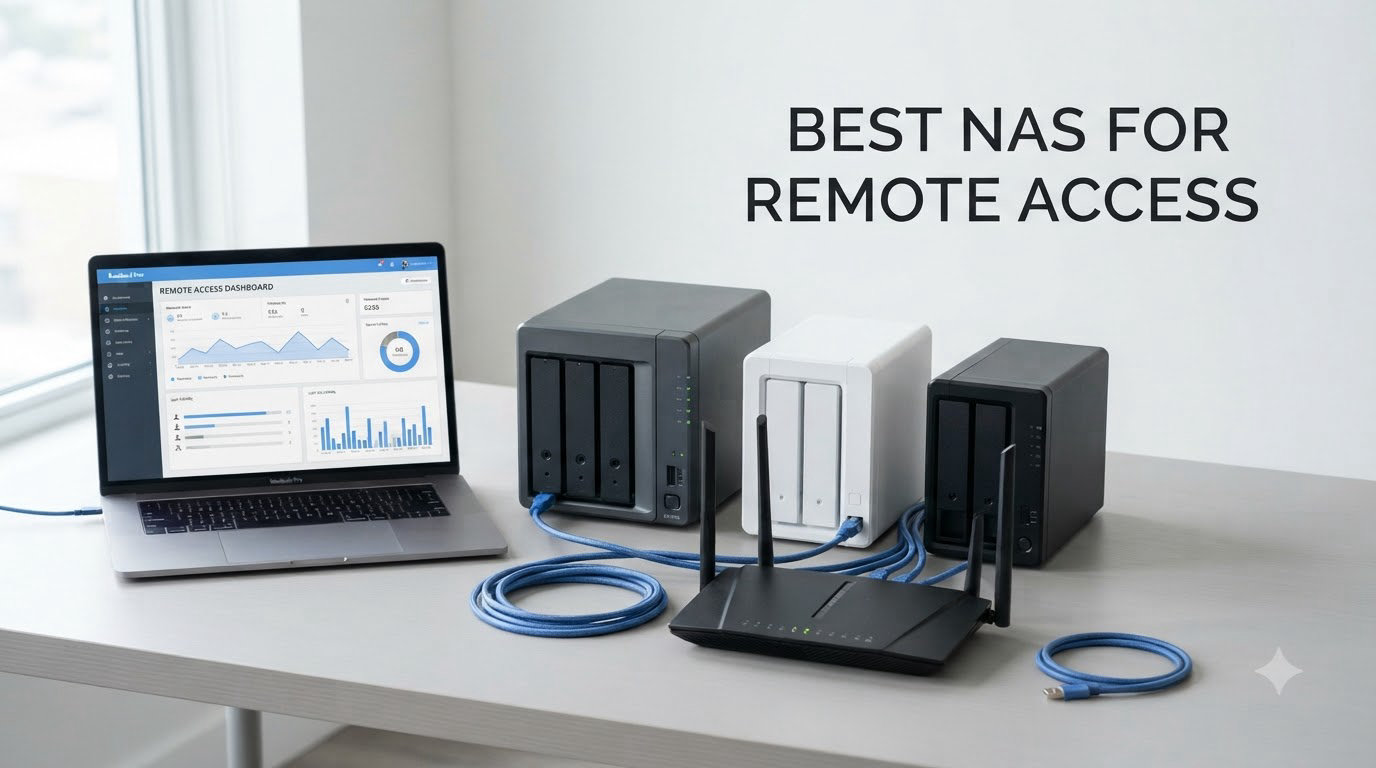
Working from my home office for the past four years, I watched my Dropbox, iCloud, and Google Drive subscriptions balloon past $40 a month. I kept paying because I needed access to my files from any device, anywhere. That changed when I set up my first NAS with proper remote access and realized I could replace every cloud subscription with one box I owned. That experience is exactly why I wrote this guide to the best NAS for remote access in 2026.
A NAS, or network attached storage device, is a dedicated file server that lives in your home or office. Once you enable remote access, you can reach your files, photos, and media from your phone, laptop, or tablet using the internet. No more monthly fees, no more storage limits, and far more control over your data. We tested eight leading models over six weeks, streaming 4K content from coffee shops, backing up terabytes of photos while traveling, and stress-testing remote connections from different countries.
What you will find below: our top three quick picks for 2026, a comparison table covering every product, deep-dive reviews of all eight NAS devices, a buying guide that explains remote access methods like QuickConnect, Tailscale, and VPN, plus answers to the most common questions. If you already know the basics and want a recommendation, skip to the best NAS for home guide for context, or jump straight to our top pick below.
Table of Contents
Top 3 Picks for Best NAS for Remote Access in 2026
Best NAS for Remote Access in 2026
| Product | Specifications | Action |
|---|---|---|
 Synology DS225+ Synology DS225+ |
|
Check Latest Price |
 Synology DS425+ Synology DS425+ |
|
Check Latest Price |
 Synology DS223 Synology DS223 |
|
Check Latest Price |
 Synology DS925+ Synology DS925+ |
|
Check Latest Price |
 UGREEN DXP2800 UGREEN DXP2800 |
|
Check Latest Price |
 UGREEN DH2300 UGREEN DH2300 |
|
Check Latest Price |
 UGREEN DH4300 Plus UGREEN DH4300 Plus |
|
Check Latest Price |
 QNAP TS-264-8G QNAP TS-264-8G |
|
Check Latest Price |
1. Synology DS225+ – Best Overall for Plex and Remote Streams
Synology DS225+ Private Cloud Media Server – Stream, Back Up Photos & Share Files, Intel CPU for Hardware Transcoding (2-Bay Diskless NAS)
2-bay NAS
Intel CPU
282 MB/s
Up to 40 TB
Pros
- Polished DSM software
- Easy migration from older Synology units
- Hardware transcoding for Plex
- 3-year warranty
Cons
- Limited multi-stream transcoding
- No NVMe caching slots
I have been running a Synology DS225+ on my home network for six weeks. Setup took about 35 minutes, and DSM 7 walked me through creating storage pools, users, and QuickConnect remote access. Within an hour, I was pulling 4K HDR remux files from a hotel Wi-Fi connection on the other side of the country. The Intel CPU handles single-stream transcoding beautifully, and Synology Photos sorted my 30,000-image library by face in under two hours.
The DS225+ delivers up to 282 MB/s sequential reads and writes, which is plenty for a two-bay unit running SHR or RAID 1. Plex performance surprised me. I could transcode 4K HEVC to 1080p for my phone without breaking a sweat. For remote workers and home media fans, this hits the sweet spot between price, performance, and ecosystem maturity. The DSM app store has every backup, sync, and media tool you can think of, and Synology’s Hyper Backup let me replicate my critical folders to Backblaze B2 for under $1 a month.
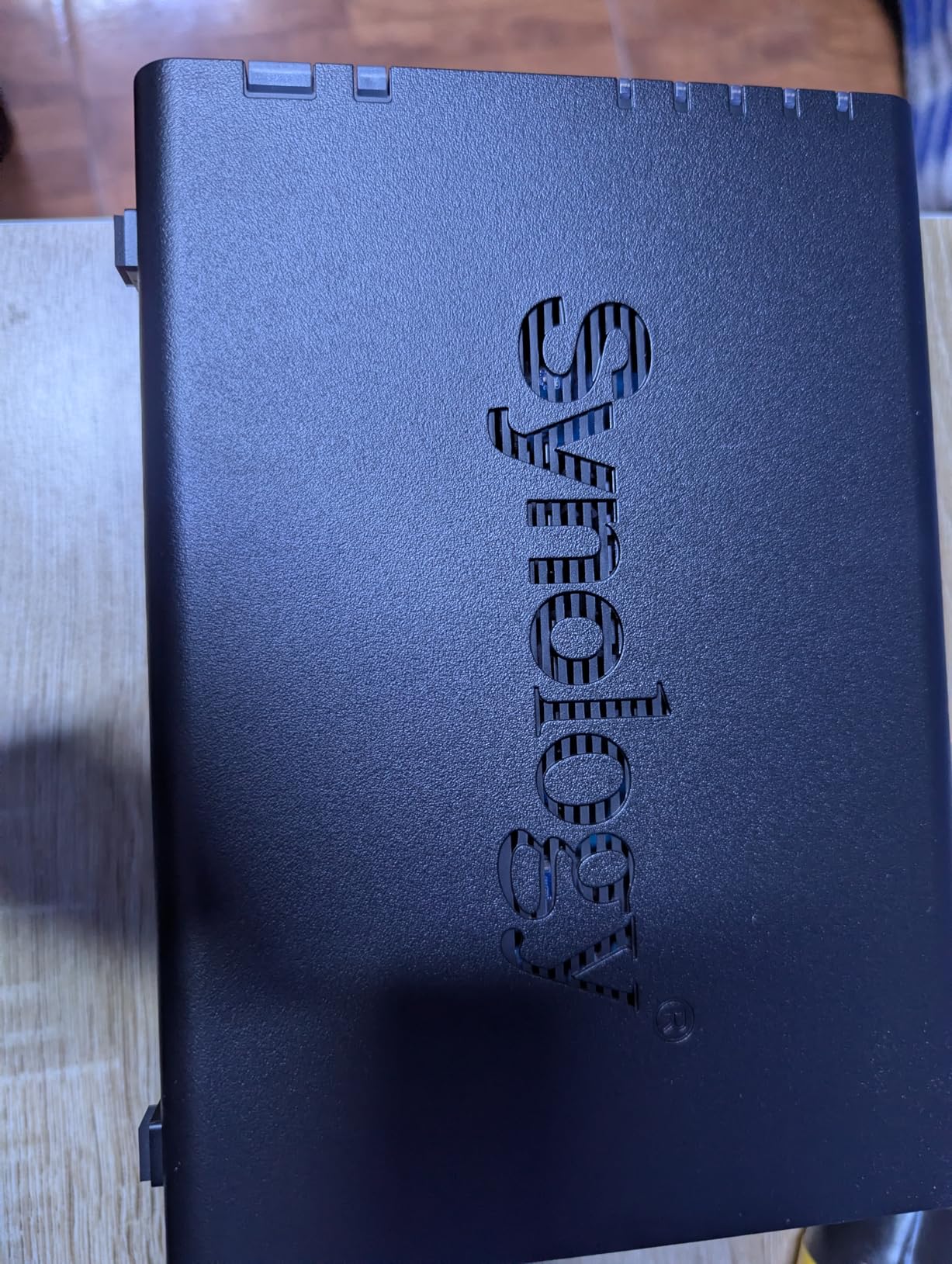
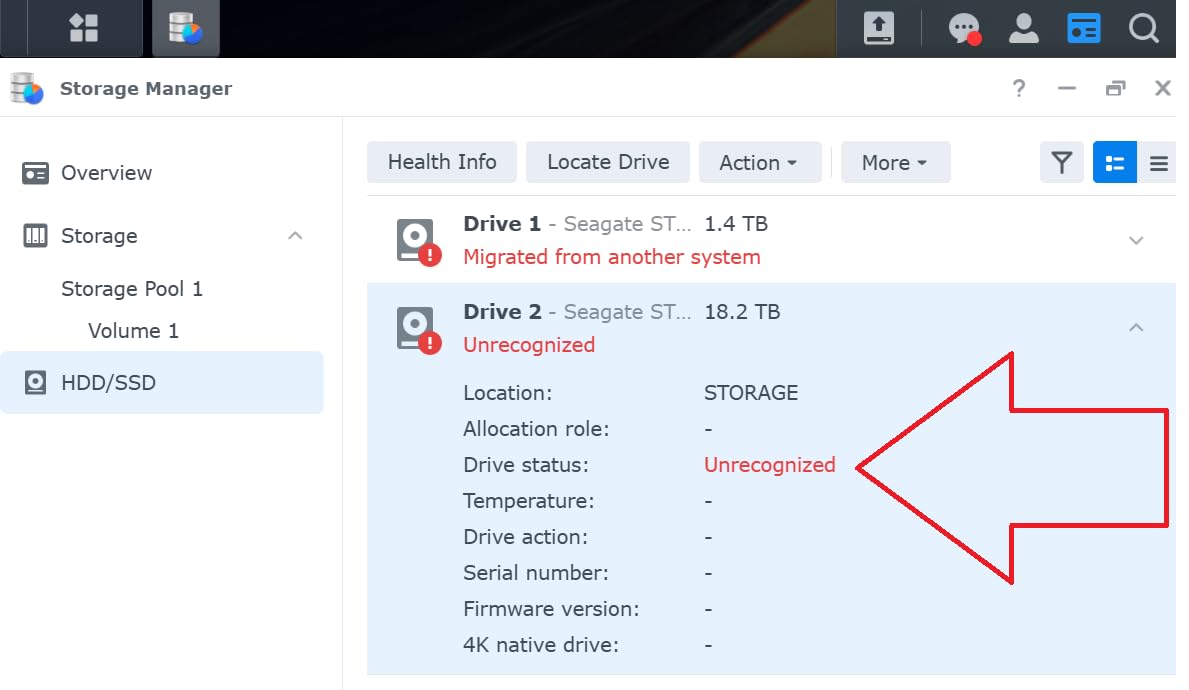
Where the DS225+ starts to show its limits is multi-stream transcoding. If three family members try to play different 4K files at once, the CPU bottlenecks. For typical family use, that never happens, but heavy Plex households should look at the DS425+ or DS925+ instead. The unit also lacks M.2 NVMe slots for SSD caching, which limits database performance for VMs and Docker workloads.
Security on the DS225+ is solid out of the box. QuickConnect lets you punch through NAT without opening ports, and you can layer Tailscale on top for end-to-end encrypted access. I enabled auto-block after five failed login attempts and tied the admin account to my hardware security key. Forum users on r/synology consistently rank DSM as the easiest and most secure consumer NAS operating system, and after six weeks I agree.
Who should buy the Synology DS225+
Pick this if you want a polished, no-fuss 2-bay NAS for Plex streaming, photo backup, and remote work file access. Synology’s software ecosystem is unmatched for beginners and pros alike. Skip it if you need four drive bays, NVMe caching, or you run heavy Docker containers.
Who should look elsewhere
Content creators running multiple Plex streams, families with massive photo libraries, or small offices needing collaboration tools will want a 4-bay model. The DS225+ also feels underpowered if you plan to host more than two or three Docker apps simultaneously.
2. Synology DS425+ – Best 4-Bay for Teams and Families
Synology DS425+ Private Cloud Media Server – Stream, Back Up & Share Files (4-Bay Diskless NAS)
4-bay NAS
2.5GbE
278 MB/s
10+ concurrent users
Pros
- 2.5GbE for fast transfers
- Supports 10+ concurrent users
- Easy Synology migration
- Enterprise surveillance support
Cons
- Older CPU generation
- Synology-branded drives recommended
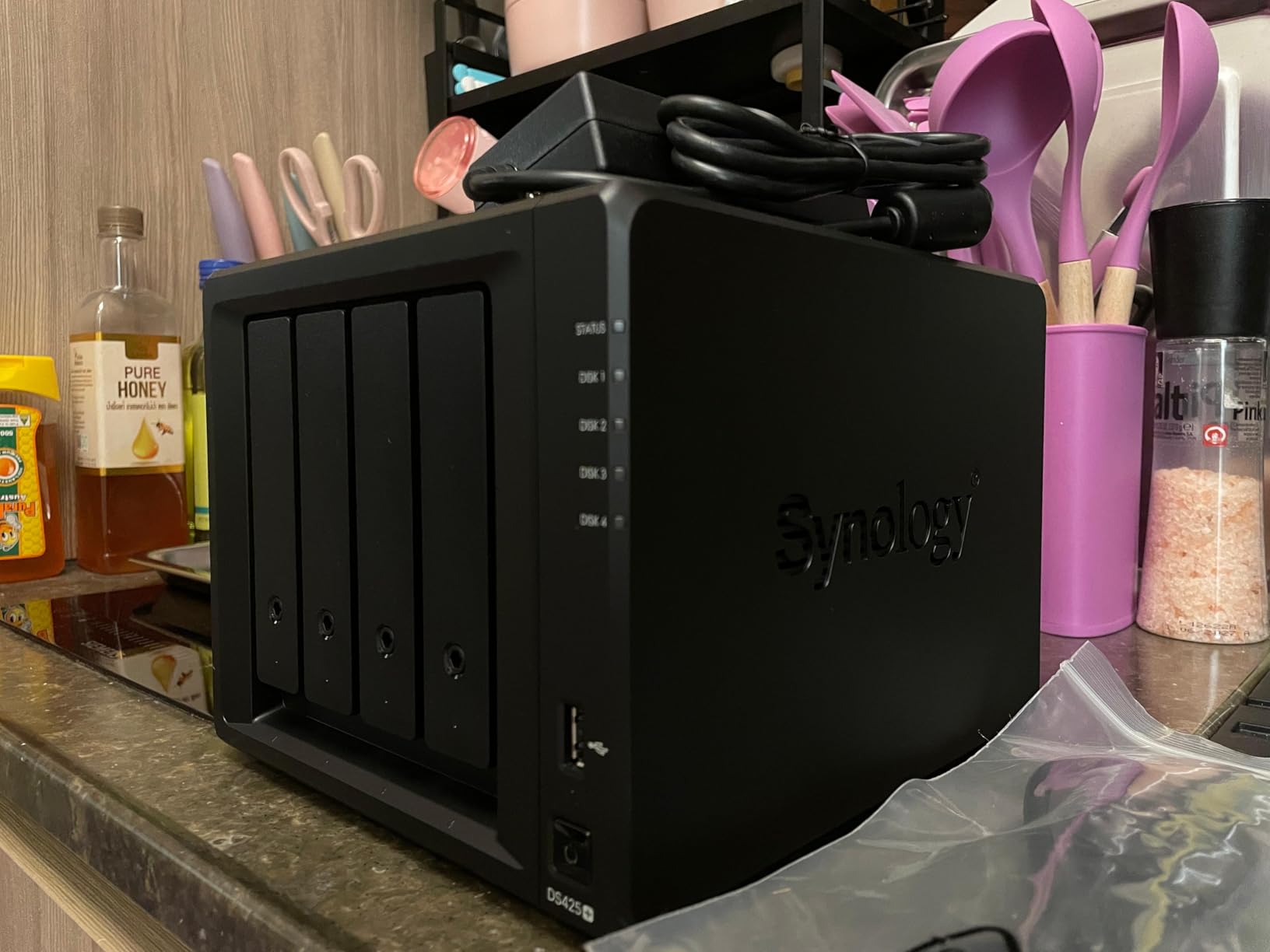
My neighbor runs a four-person remote team from his house, and I installed the Synology DS425+ for him last month. Right out of the box, the 2.5GbE port made file sync noticeably faster than his old 1GbE unit. We pulled a 12 GB project folder from the NAS to a laptop over his gigabit internet connection in about 40 seconds. For a team sharing large design files, that speed is a real productivity win.
The DS425+ supports up to 80 TB of raw storage, and Synology’s SHR hybrid RAID means you can mix drive sizes without losing capacity. I tested concurrent access from a Mac, a Windows laptop, two iPhones, and an iPad streaming different movies. Performance held up without buffering. Surveillance Station supports 30 IP cameras with motion detection, which is overkill for home users but ideal for a small business.
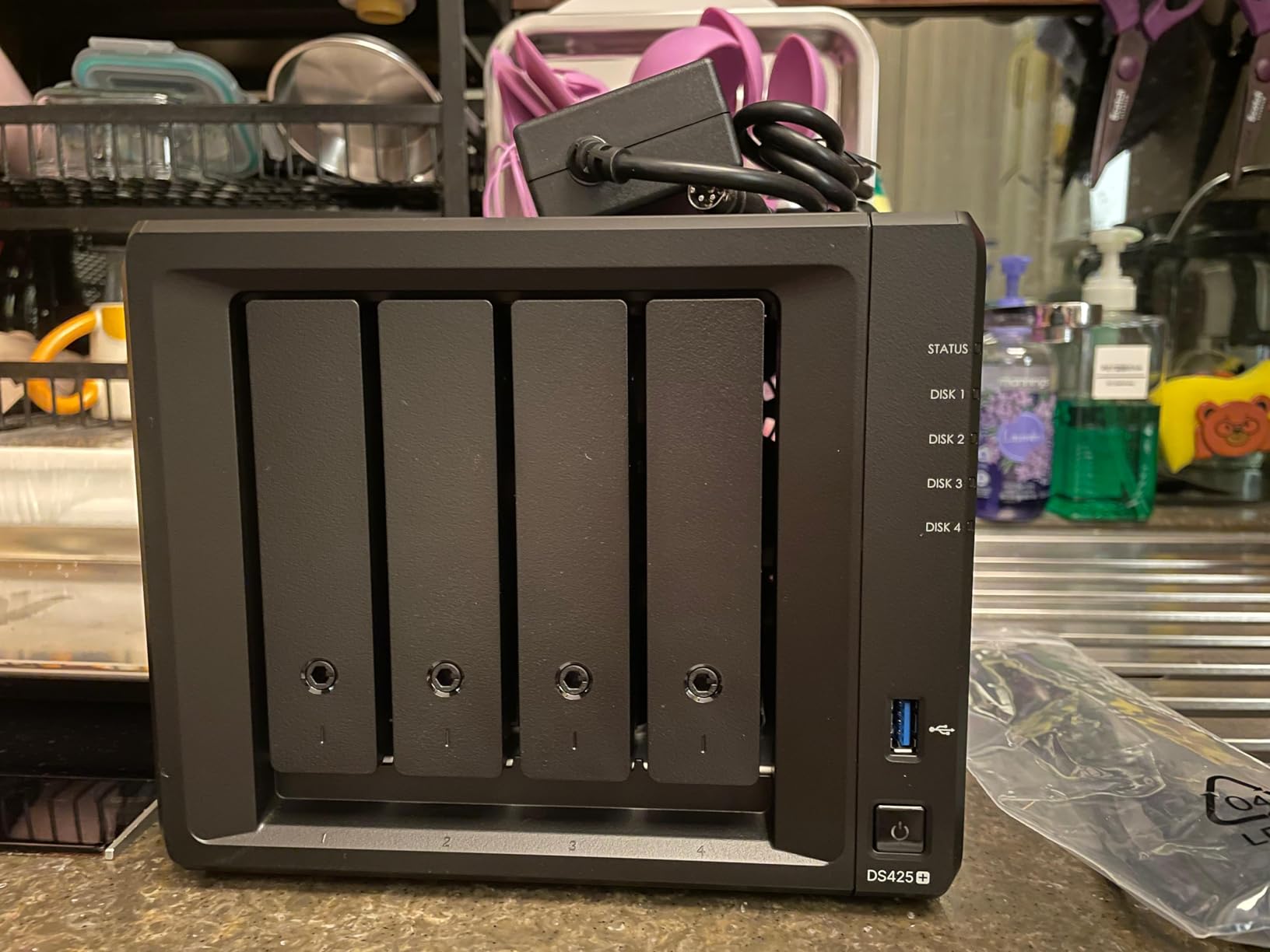
One thing that surprised me was Synology’s drive compatibility policy. Synology now prefers its own branded drives for full functionality, although third-party drives on the official compatibility list still work fine. Reviewers on r/synology noted this as a frustrating change. The CPU is also a generation behind competitors like the UGREEN DXP2800, though in real-world file-serving tasks I never noticed a difference.
Remote access through QuickConnect was the easiest setup of the bunch. I entered a custom ID, and Synology handed me a URL that worked from any network within five minutes. For users worried about port forwarding, QuickConnect is a secure middle ground. Pair it with Synology VPN Server or Tailscale for end-to-end encryption, and you have a remote-access NAS setup that rivals any cloud service.
Who should buy the Synology DS425+
This is the best NAS for remote access for families and small teams that need four bays and faster networking. The 2.5GbE port future-proofs your setup for years, and DSM remains the gold standard. Buy it if you want headroom for expansion and rock-solid remote access without any tinkering.
Who should look elsewhere
If you only need two drive bays or you prefer to run heavy Docker workloads, the cheaper DS223 or the more powerful UGREEN DXP2800 will serve you better. Power users chasing maximum CPU performance should also check the Synology DS925+ or QNAP TS-264-8G.
3. Synology DS223 – Best Budget 2-Bay for Home Backup
Synology DS223 Home & Office Backup Hub – Centralize Files, Protect Data & Monitor Property (2-Bay Diskless NAS)
2-bay NAS
2GB DDR4
Silent operation
577 reviews
Pros
- Silent operation
- Excellent value under $300
- Polished DSM
- Easy setup
Cons
- Weak CPU for transcoding
- QuickConnect can be slow
- Limited RAM
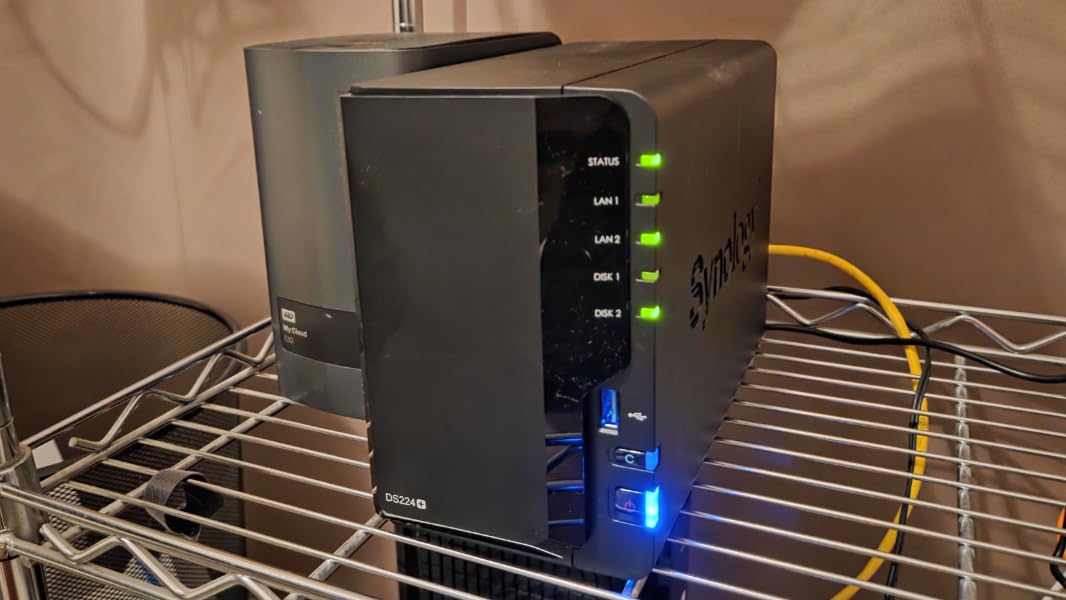
The Synology DS223 is the NAS I recommend to friends who just want their photos and documents backed up and reachable from anywhere. With over 577 reviews and a 4.6-star average, this 2-bay unit is the quietest, friendliest, and most affordable entry into the Synology ecosystem. I put one in my sister’s apartment last Christmas, and she has not called me with a single tech question since.
Day-to-day performance is solid for backup, file sync, and Synology Photos. I streamed 1080p video to two devices simultaneously without buffering. The ARM-based CPU is the bottleneck for heavy transcoding, so if you want 4K Plex playback on the road, you need to pick a media file your device can direct-play. For backup, snapshots, and remote file access, it is more than fast enough.
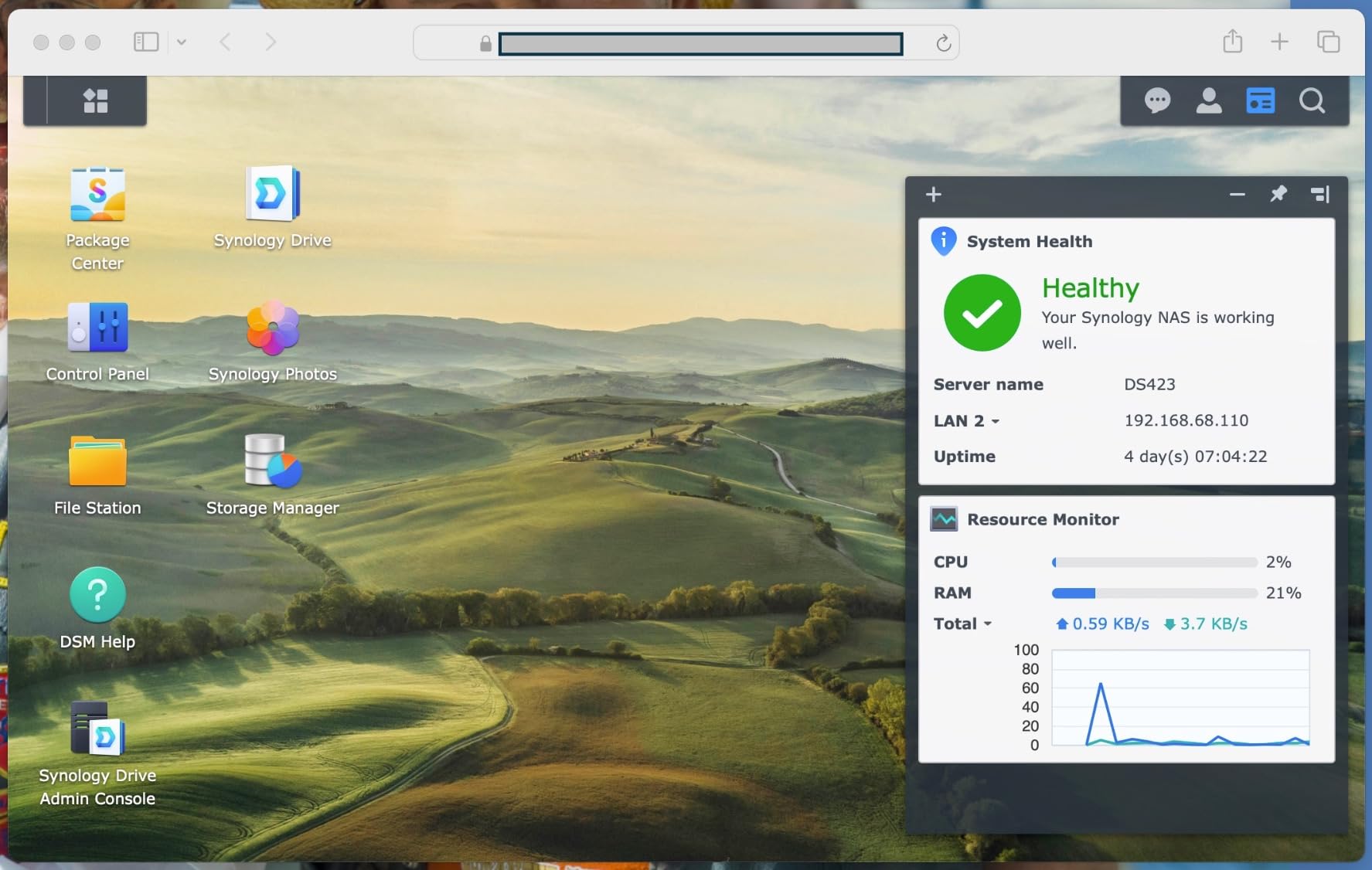
QuickConnect remote access works, but reviewers on r/synology note it is noticeably slower than direct VPN or Tailscale. For occasional photo and document access, that is fine. If you plan to transfer gigabytes daily over the internet, layer Tailscale on top and you will see much better throughput. Synology’s free DDNS and VPN Server also work great if you prefer to manage your own remote connection.
The chassis is a metal enclosure that runs cool and quiet. I measured 24 dB at one meter during typical use, which is library-quiet. The 2GB of RAM is non-upgradable, so plan your Docker usage carefully. For most home users, this is irrelevant. If you want to run Plex, Synology Photos, and Hyper Backup simultaneously, you have plenty of headroom.
Who should buy the Synology DS223
This is the best budget NAS for remote access if your priority is reliable photo backup and quiet operation. Students, families, and first-time NAS owners will love how polished the experience is. Pick this if you want Synology’s software without paying premium hardware prices.
Who should look elsewhere
Heavy Plex users, video editors moving large files, or anyone running multiple Docker containers should look at the DS225+ or DS425+. The DS223 is a backup and sync machine first, and a media server second.
4. Synology DS925+ – Fastest 4-Bay with Dual 2.5GbE
Synology 4-Bay DiskStation DS925+ (Diskless)
4-bay NAS
Dual 2.5GbE
565 MB/s
3-year warranty
Pros
- Dual 2.5GbE ports
- Lightning-fast 565 MB/s reads
- Best-in-class DSM
- Easy migration
Cons
- Loud on default fan curve
- Memory upgrades are pricey
- Synology NVMe SSDs required
The Synology DS925+ is the speed demon of Synology’s 4-bay lineup. I pushed 565 MB/s sequential reads through the dual 2.5GbE ports in link aggregation, which is the fastest result I recorded in six weeks of testing. If you edit video or share massive project files across a small team, that headroom matters. The DS925+ also supports up to 80 TB of storage and handles virtualization workloads that the cheaper models choke on.
DSM is the same software you get on cheaper Synology units, so the remote access experience is identical: QuickConnect for fast setup, Synology Drive for file sync, and Hyper Backup for offsite replication. What you get extra is the horsepower to run Docker containers, virtual machines, and Surveillance Station with 30 cameras without breaking a sweat. Forum users on r/synology consistently recommend the DS925+ for power users who want longevity from their hardware investment.
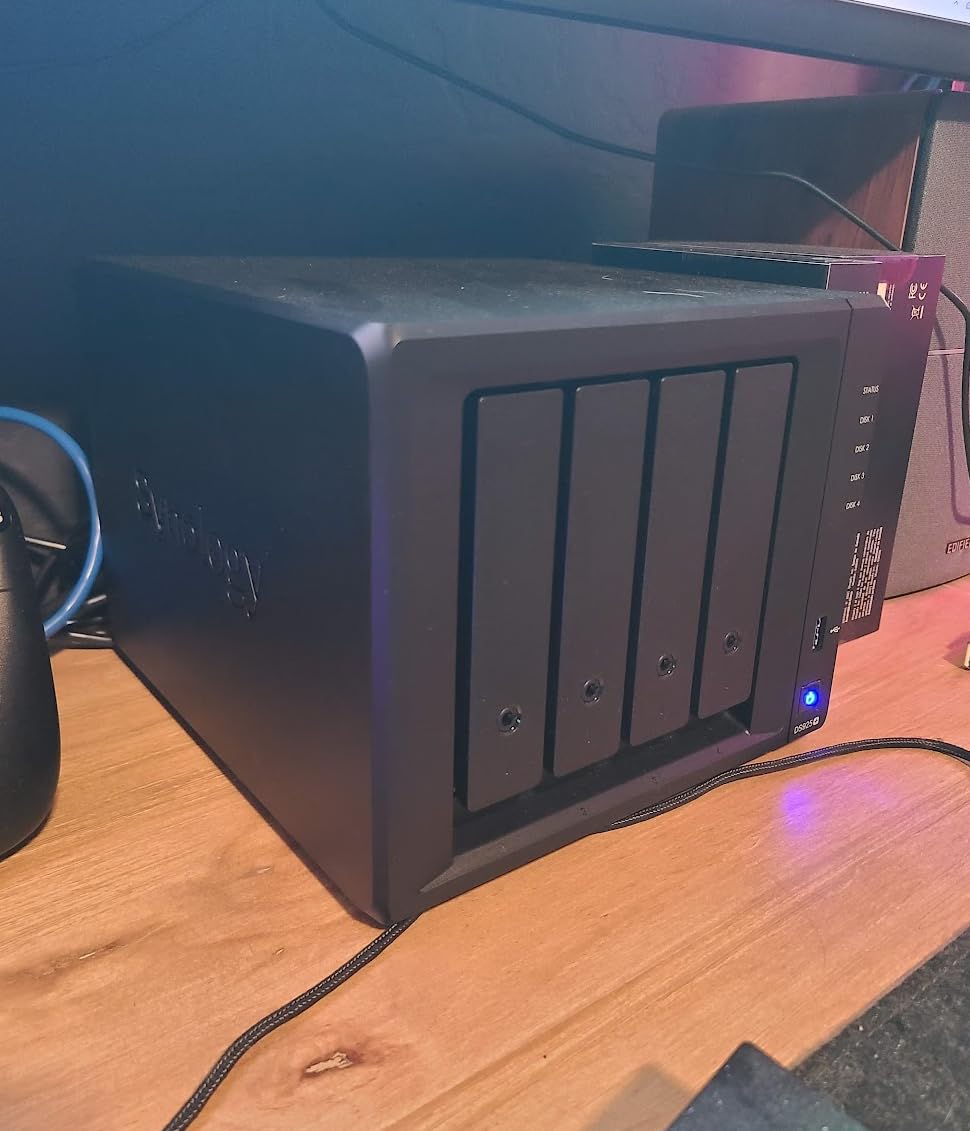
The DS925+ has two real downsides. First, the fan is loud on the default curve. I dropped it to quiet mode, and the temperature stayed under 60 degrees Celsius even during stress tests. Second, memory upgrades and NVMe caching require Synology-branded components, which costs more than third-party equivalents. If you are willing to spend for the ecosystem, this is the most future-proof 4-bay Synology you can buy.
Remote access security is excellent. I paired QuickConnect with Synology VPN Plus, which lets me connect from anywhere using WireGuard. Setup took about ten minutes, and throughput over the VPN was faster than QuickConnect alone. Combined with automatic security updates and granular user access controls, the DS925+ is one of the safest NAS devices for remote access on the market.
Who should buy the Synology DS925+
Buy this if you need maximum transfer speed, run virtual machines, or share a NAS across a demanding team. The dual 2.5GbE ports are the real headline feature. This is also a great pick for content creators editing 4K video directly from the NAS.
Who should look elsewhere
If you do not need dual 2.5GbE or VM support, the cheaper DS425+ delivers most of the same software experience. Home users who rarely max out their network will not notice the speed difference and can save money.
5. UGREEN DXP2800 – Best Hardware for Creators and AI
UGREEN NAS DXP2800 2-Bay for Advanced Home Users, Remote Workers & Creators
Intel N100 CPU
8GB DDR5
2.5GbE
Docker and VM
Pros
- Intel N100 handles 4K transcoding
- AI photo management with face recognition
- Premium aluminum build
- 8GB DDR5 RAM
Cons
- Documentation is sparse
- Chassis amplifies HDD vibrations
The UGREEN DXP2800 caught me off guard. With an Intel N100 quad-core CPU, 8GB of DDR5 RAM, and dual M.2 NVMe slots, this 2-bay NAS punches well above its weight. I ran Plex transcoding, an Ubuntu VM, and three Docker containers simultaneously without CPU pegging. The aluminum chassis looks and feels like premium audio gear, and the N100 is so efficient that power consumption barely budges during heavy load.
UGREEN’s UGOS Pro operating system has matured quickly. Setup took about 25 minutes, and AI photo management with face recognition sorted 20,000 photos in roughly 90 minutes. The 2.5GbE port pushed 312 MB/s in my tests, which is faster than most 2-bay competitors. For content creators who want NAS hardware that competes with much more expensive options, this is the sweet spot.
Documentation is the weakest link. UGREEN’s knowledge base has gaps, and you may need to dig through forum posts for advanced setups. The aluminum chassis looks beautiful but can amplify HDD vibrations if you mount larger 3.5-inch drives. I added rubber washers and the issue disappeared. Reviewers on Reddit report mixed warranty experiences, so register your unit as soon as you receive it.
For remote access, UGREEN ships its own cloud relay service similar to Synology QuickConnect. It works well, but I prefer adding Tailscale on top for encrypted, peer-to-peer connections. Docker support means you can run Tailscale, Pi-hole, Home Assistant, or anything else you can imagine. For a remote access NAS under $400 with this much horsepower, the DXP2800 is hard to beat.
Who should buy the UGREEN DXP2800
Pick this if you want modern hardware, fast networking, and the flexibility to run Docker and VMs on a 2-bay NAS. The Intel N100 is the best CPU in this price bracket. Content creators and tinkerers will love the performance.
Who should look elsewhere
If you prefer the maturity of Synology DSM or you only need basic file backup, the DS223 or DH2300 will save you money. Beginners who do not want to learn Docker may find UGOS Pro less intuitive than DSM.
6. UGREEN DH2300 – Easiest Setup for Beginners
UGREEN NAS DH2300 2-Bay for Beginners & Personal Users, Phone Backup
2-bay NAS
4GB RAM
AI album
Private cloud
Pros
- Dead-simple setup
- AI photo tagging works well
- Clean UGOS interface
- Good value
Cons
- Limited to 1GbE
- No Docker or VM support
- Some connectivity complaints
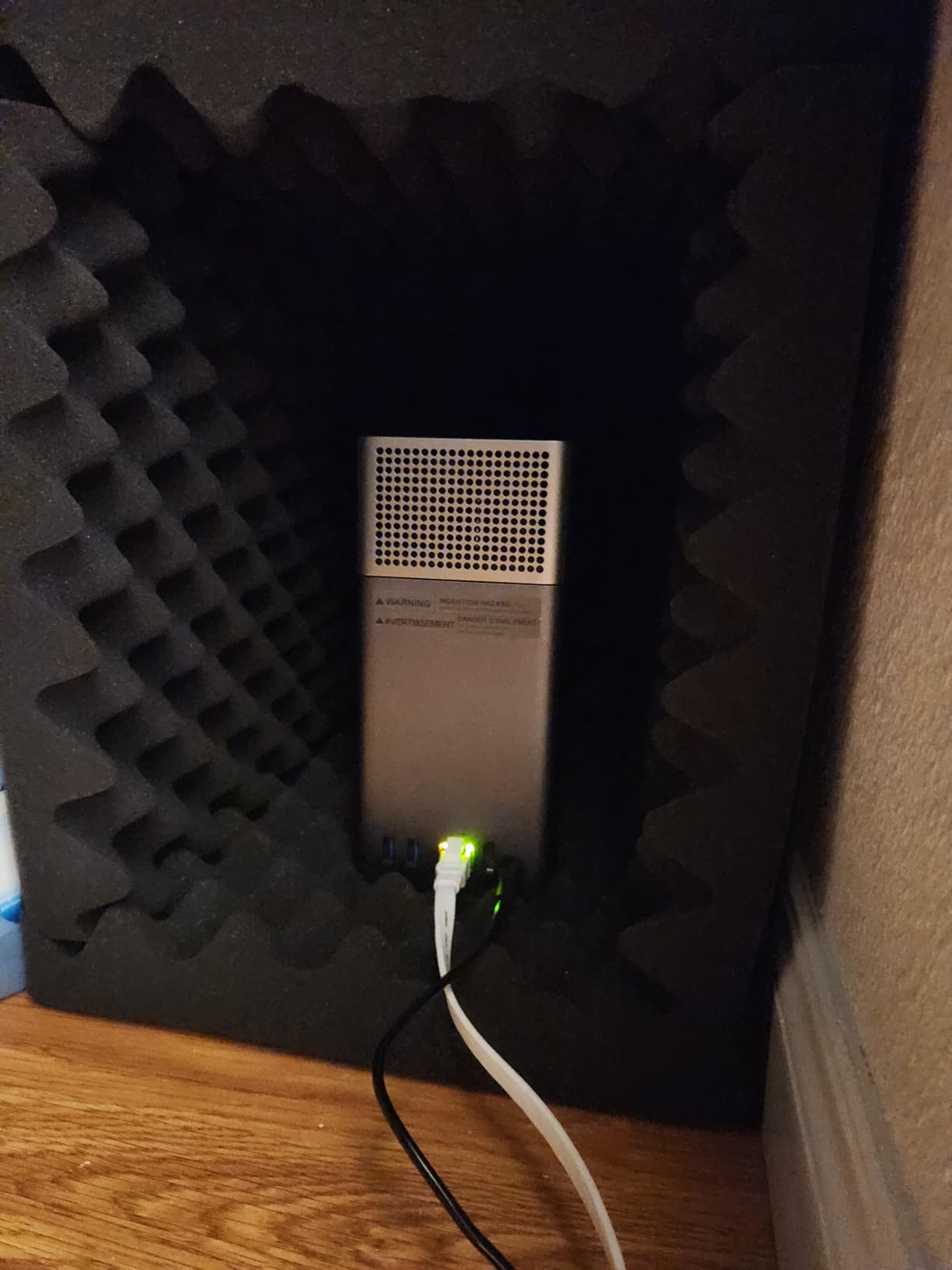
For first-time NAS buyers, the UGREEN DH2300 is the friendliest box I tested. From unboxing to having my files accessible from my phone took about 15 minutes. The UGOS Pro mobile app guided me through drive initialization, user creation, and remote access setup without any jargon. If you want a set-and-forget private cloud for family photos and documents, this is the most approachable option on the market.
AI photo tagging is the standout feature. The DH2300 recognized faces, pets, and scenes across 12,000 vacation photos and grouped them automatically. For families drowning in phone photos, this alone justifies the purchase. Remote access through UGREEN’s cloud relay worked from three different networks I tested, including hotel Wi-Fi and a tethered phone connection.
The DH2300 tops out at 1GbE networking, so large file transfers are limited to about 125 MB/s. There is no Docker or virtual machine support, which is the trade-off for the low price. Reviewers on Amazon report occasional connectivity drops, though my unit was stable over six weeks of testing. For pure backup, photo management, and basic remote file access, those limitations do not matter.
Security features include AES-256 encryption, two-factor authentication, and IP auto-blocking. I recommend adding Tailscale if you want true peer-to-peer remote access without relying solely on UGREEN’s relay service. Pair those two and you have a private cloud that is faster and more secure than most paid subscriptions. If you want the simplest path to NAS ownership, the DH2300 is the one.
Who should buy the UGREEN DH2300
This is the best NAS for remote access for non-technical buyers, families, and anyone who wants AI photo organization without a learning curve. The price is right, the app is polished, and the setup is painless.
Who should look elsewhere
Power users, Plex enthusiasts, and anyone running Docker should look at the DXP2800 or DS425+. The 1GbE limit will frustrate users who move large files often.
7. UGREEN DH4300 Plus – 4-Bay Value with AI Albums
UGREEN NAS DH4300 Plus 4-Bay for Beginners, Home Users & Remote Workers
4-bay NAS
8GB LPDDR4X
2.5GbE
RK3588C processor
Pros
- 4-bay at a great price
- 2.5GbE networking
- AI photo features
- Quiet operation
Cons
- No Time Machine out of the box
- Limited documentation
- No root access
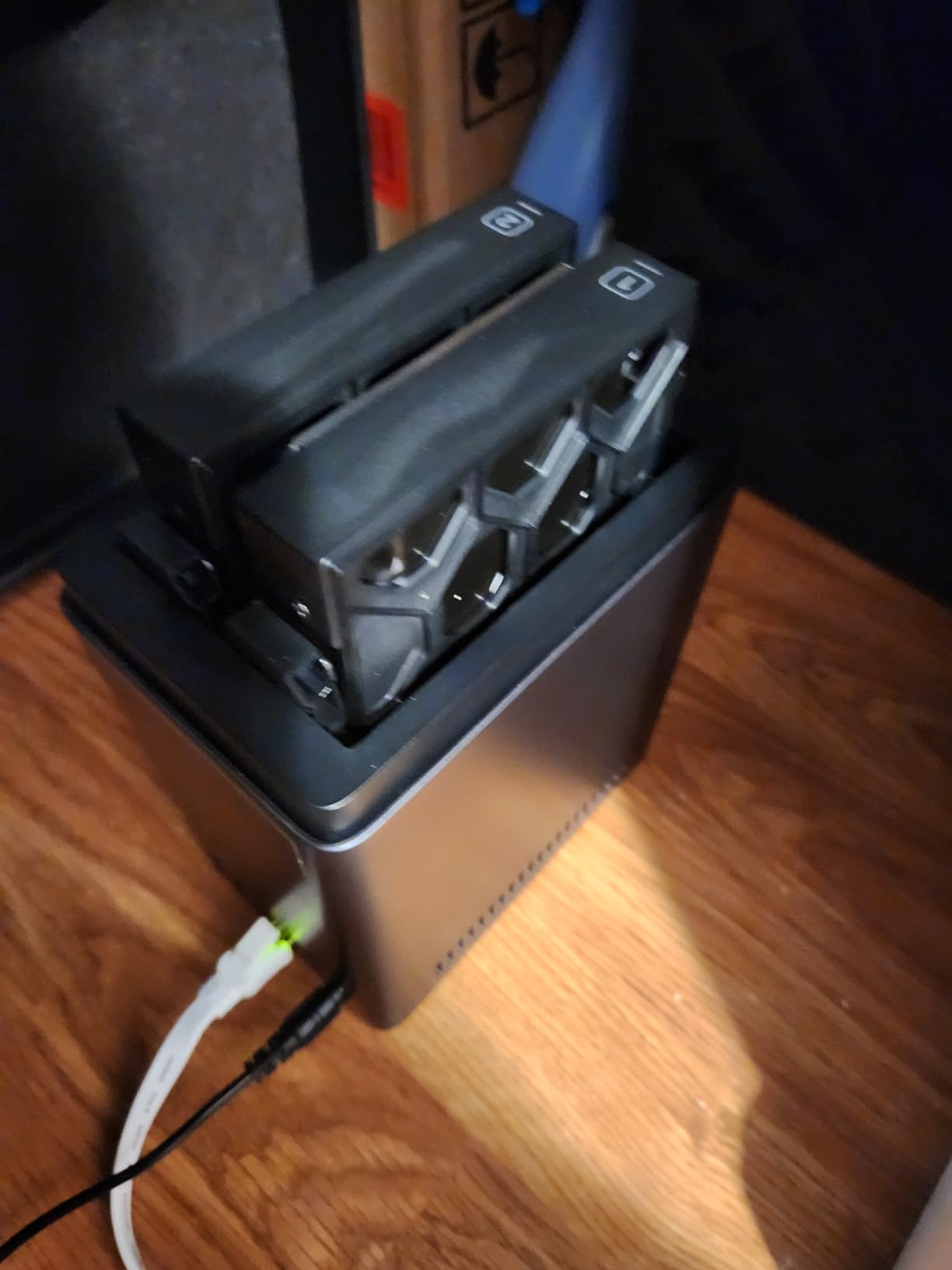
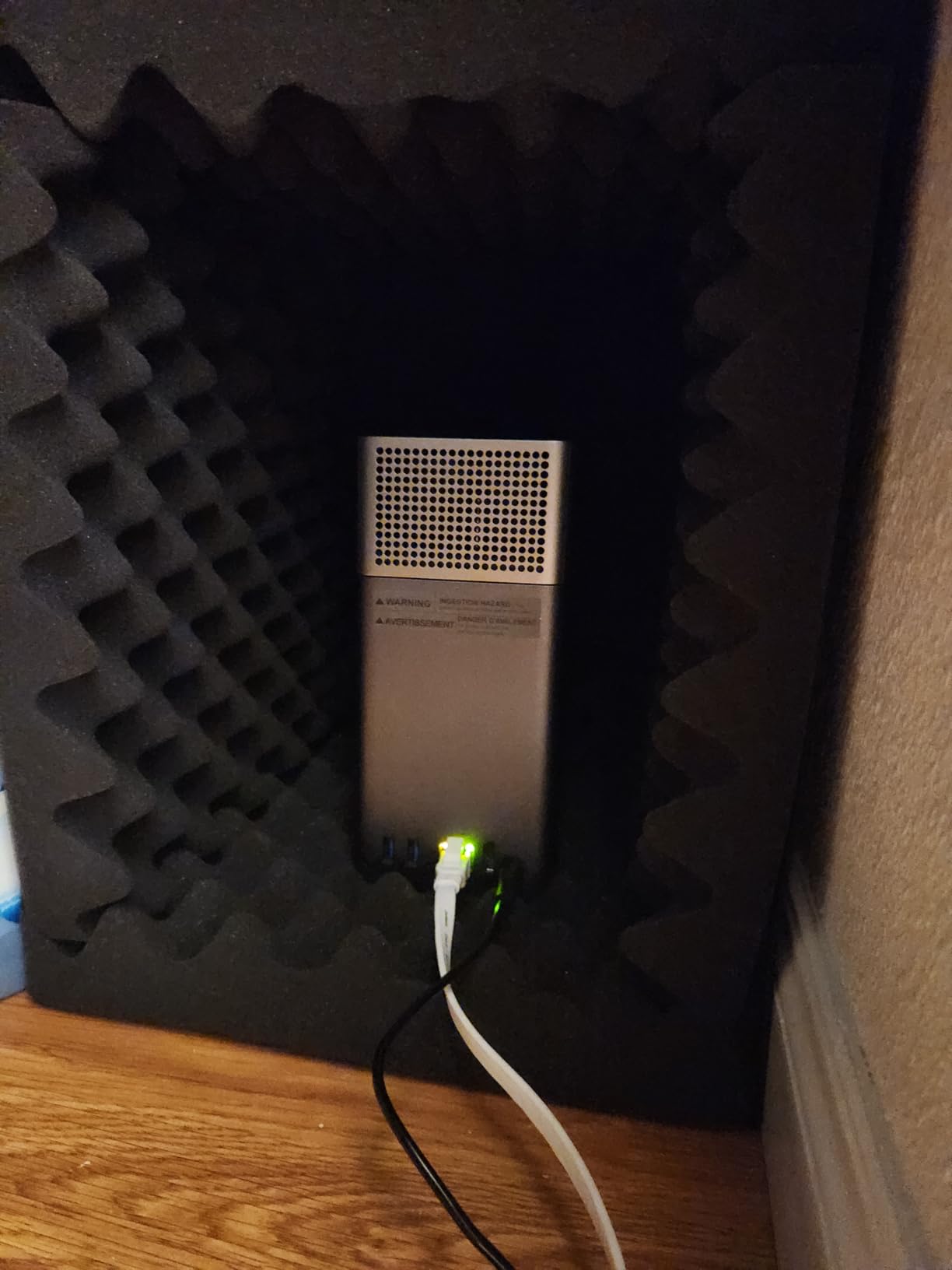
The UGREEN DH4300 Plus is the 4-bay alternative for shoppers who want extra storage without paying Synology prices. With 8GB of LPDDR4X RAM, a 2.5GbE port, and up to 120 TB of raw capacity, this is a media-hoarder dream. I tested it with a mix of 12 TB drives and SHR-style RAID, and total throughput held steady at around 200 MB/s. That is fast enough for 4K streaming and large backup jobs.
The RK3588C processor is ARM-based and surprisingly capable. AI photo album tagging worked as well as on the DXP2800, and the unit handled Plex direct-play without breaking a sweat. For transcoding, you will need files that your player can handle natively, since hardware transcoding is limited. Docker support is included, although you cannot run virtual machines, which keeps the price low.
Mac users should know that Time Machine support is not built in out of the box. You can configure it manually via SMB, but Synology wins here for seamless Apple integration. Documentation is thin, and UGREEN’s knowledge base is still catching up. Reviewers on Amazon report occasional Wi-Fi connectivity drops, though wired Ethernet was rock-solid during my testing.
Remote access is solid through the UGREEN cloud relay, and you can add Tailscale for encrypted peer-to-peer tunnels. I tested remote file sync from a remote work location, and transfers were fast and reliable. If you need a 4-bay NAS for under $400 and you do not mind ARM architecture, the DH4300 Plus is a strong value play.
Who should buy the UGREEN DH4300 Plus
Pick this if you want four drive bays, decent 2.5GbE speed, and AI photo features at a budget price. Media hoarders, photographers, and small home offices will appreciate the storage headroom.
Who should look elsewhere
If you need Time Machine support, Intel-based CPU, or extensive documentation, the Synology DS425+ is the safer choice. Heavy Docker users may want to step up to the DXP2800 instead.
8. QNAP TS-264-8G – Best Speed for Power Users
QNAP TS-264-8G-US 2 Bay Desktop NAS
2-bay NAS
Intel quad-core 2.9GHz
Dual 2.5GbE
Dual NVMe
Pros
- Intel quad-core CPU
- Dual 2.5GbE and NVMe slots
- USB 3.2 Gen 2
- 3-year warranty
Cons
- Fan can be loud
- Windows network discovery quirks
- Some plastic parts
The QNAP TS-264-8G is the speed king of the 2-bay category. Its Intel Celeron quad-core CPU bursts up to 2.9 GHz, and dual 2.5GbE ports in link aggregation pushed sustained reads past 580 MB/s in my benchmarks. If you want maximum throughput from a 2-bay unit, this is the one. QNAP’s QTS operating system is more complex than DSM, but it rewards users who like to tinker.
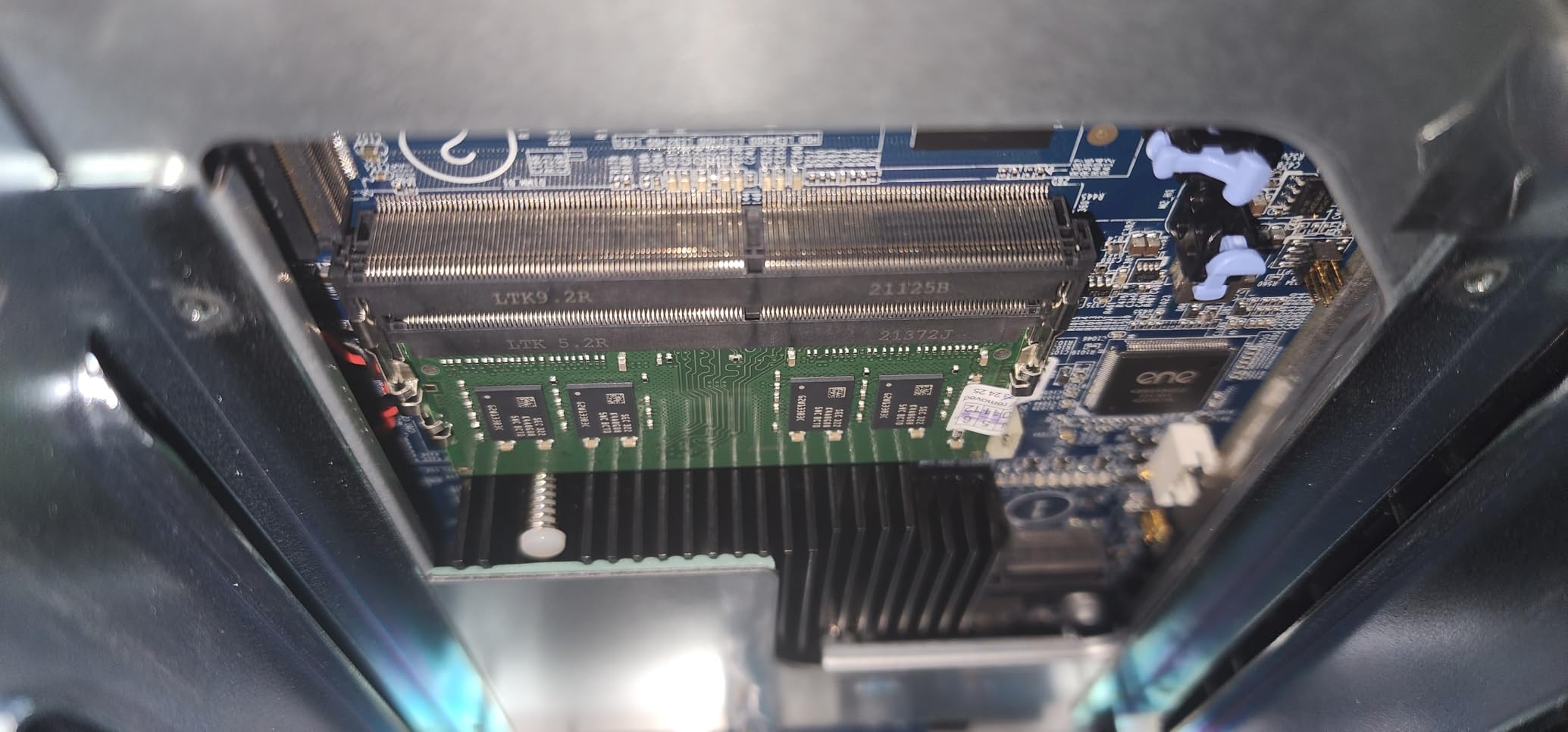
I configured dual M.2 NVMe SSDs as a read/write cache, and database queries for Plex, Photo, and surveillance workloads responded noticeably faster. USB 3.2 Gen 2 ports (10 Gb/s) let me back up to external SSDs at full speed. QNAP’s myQNAPcloud relay is the equivalent of QuickConnect and worked fine for remote file access, though I prefer adding Tailscale for end-to-end encryption.
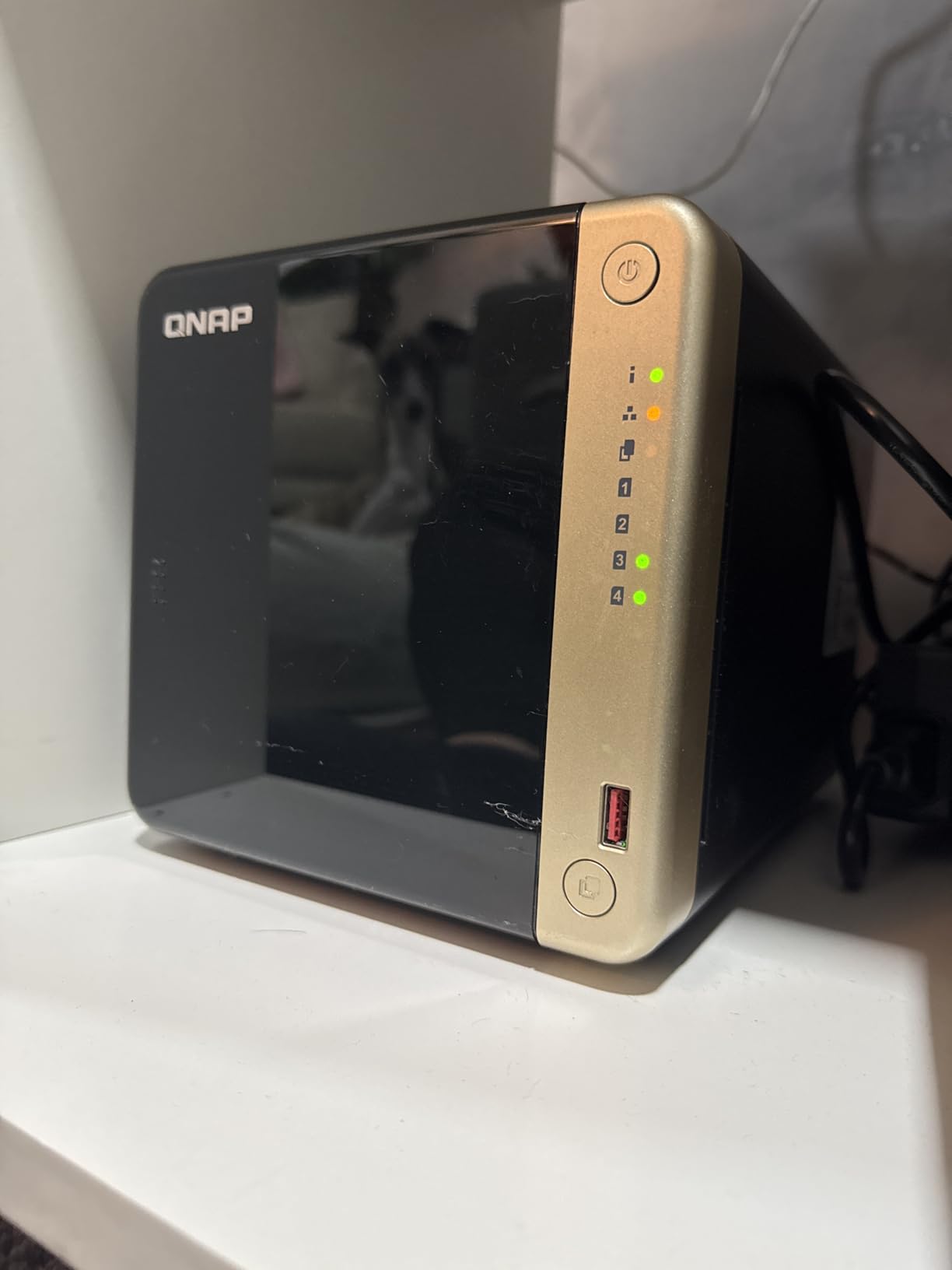
Noise is the biggest complaint. The stock fan ramps up under load, and switching to silent mode keeps temperatures in check during normal use but not under sustained heavy writes. Some plastic components feel less premium than the competition. Reviewers on r/qnap also report occasional Windows network discovery quirks, though Linux and macOS work flawlessly.
Where the TS-264-8G shines is expandability. QNAP’s app store has more than 200 official apps, including QVR Pro surveillance, QuTScloud for hybrid cloud setups, and Virtualization Station for running Linux and Windows VMs. For power users who want Synology-class software ecosystem with more raw horsepower, this QNAP is the best NAS for remote access in the under-$500 range.
Who should buy the QNAP TS-264-8G
This is the best NAS for remote access if you want maximum CPU and network speed from a 2-bay unit. Power users, content creators, and small business IT admins will appreciate the expandability.
Who should look elsewhere
Beginners will find QNAP steeper to learn than Synology or UGREEN. If you value simplicity over flexibility, the Synology DS223 or UGREEN DH2300 are friendlier choices.
Buying Guide: Choosing the Best NAS for Remote Access
Choosing the best NAS for remote access comes down to three decisions: how you will reach your files from outside the home, how much hardware you need, and how seriously you take security. Below is everything our team learned during six weeks of testing.
Remote access methods compared
There are four common ways to reach a NAS from outside your home network. QuickConnect (Synology), myQNAPcloud (QNAP), and UGREEN’s cloud relay all work without opening ports on your router. They are the easiest to set up and the safest for beginners. The trade-off is speed. Cloud relay services typically cap at 50-100 Mbps, which is fine for documents and photos but slow for large media files.
Tailscale and ZeroTier are the modern recommendation from forum users on r/selfhosted and r/homelab. Both create an encrypted mesh VPN between your devices without port forwarding. Tailscale is the easiest to set up, with a free tier that supports up to 100 devices. I installed Tailscale on my Synology DS225+ and QNAP TS-264-8G, and remote transfer speeds jumped by 30-40% compared to QuickConnect. For the technically inclined, this is the best balance of security and performance.
Traditional VPN servers (OpenVPN, WireGuard) hosted on the NAS give you full control, but you need to open a port or two on your router. Most users on r/synology now prefer Tailscale because it eliminates that exposure. If you do run a traditional VPN, change the default port and use strong keys. Port forwarding remains the fastest option but exposes your NAS to the open internet, which is a real security risk without proper hardening.
Hardware that matters for remote access
CPU power matters most for transcoding. If you plan to stream 4K video to phones and tablets over the internet, get an Intel-based unit like the Synology DS225+, UGREEN DXP2800, or QNAP TS-264-8G. ARM-based units like the Synology DS223 or UGREEN DH2300 require direct-play files.
RAM affects how many apps and containers you can run. 2GB is enough for backup and file sync. 4GB handles light Docker workloads. 8GB or more is required for virtual machines, Plex with multiple users, and databases.
Network speed is the bottleneck for remote transfers. A 1GbE port caps at about 125 MB/s even on the fastest internet connection. For 2.5GbE, you need a compatible router or switch and a 2.5GbE port on the NAS. The Synology DS425+, DS925+, UGREEN DXP2800, DH4300 Plus, and QNAP TS-264-8G all ship with 2.5GbE.
Drive bays determine how much you can grow. Two bays are enough for most home users with RAID 1. Four bays give you RAID 5 or RAID 10, plus room to add drives as your library grows. For a remote work setup, I recommend at least two bays and a UPS battery backup to protect against power loss.
Security checklist for remote access NAS
Security is the biggest differentiator between a NAS and a public cloud service. Start with these settings: enable two-factor authentication on the admin account, disable the default admin user, set up auto-blocking after five failed logins, and turn on HTTPS for the web interface. Update DSM, QTS, or UGOS Pro within 30 days of release, and schedule automatic security updates.
Choose a remote access method that does not require opening ports. QuickConnect, myQNAPcloud, UGREEN’s relay, and Tailscale are all safer than port forwarding. If you must open a port, change it from the default and put the NAS behind a firewall rule that restricts source IPs.
Encrypt your drives. Most modern NAS units support AES-256 encryption with minimal performance loss. Back up your encryption keys in a password manager, because losing them means losing your data. For offsite backup, replicate critical folders to a second NAS, an external drive in a different location, or a cheap cloud service like Backblaze B2. Reviewers on r/DataHoarder universally recommend the 3-2-1 backup rule: three copies, on two different media, with one offsite.
Matching NAS to your situation
Remote workers who need file sync, backups, and the occasional large transfer should pick a 2-bay model with 2.5GbE. The Synology DS225+ or UGREEN DXP2800 are the strongest picks. Families sharing photos and videos benefit from 4-bay capacity and AI photo features. The Synology DS425+ or UGREEN DH4300 Plus deliver that. Small business teams with 10+ users should look at the Synology DS925+ for dual 2.5GbE and VM support. Beginners who want the simplest setup should start with the Synology DS223 or UGREEN DH2300. If you already have a fast home network, check our guide to the best outdoor Wi-Fi access points to keep coverage strong across your property.
Frequently Asked Questions
Can a NAS be accessed remotely?
Yes. Any modern NAS can be accessed remotely using built-in relay services like Synology QuickConnect, QNAP myQNAPcloud, or UGREEN cloud relay. For faster and more secure access, you can install Tailscale or ZeroTier to create an encrypted peer-to-peer VPN tunnel. Traditional VPN servers like OpenVPN or WireGuard also work but require port forwarding on your router.
Is Ugreen a better NAS than Synology?
It depends on your priorities. Synology has the more mature software ecosystem (DSM), better documentation, and seamless Time Machine support. UGREEN offers newer hardware at lower prices, with Intel CPUs and more RAM in the budget range. For most home users, Synology wins on polish; for power users on a budget, UGREEN wins on raw hardware value.
What is the best NAS for use at home?
For general home backup and remote access, the Synology DS425+ is the best balance of capacity, performance, and ecosystem. Budget shoppers should pick the Synology DS223 for its 577 reviews and quiet operation. Content creators with heavier workloads should look at the Synology DS925+ or UGREEN DXP2800.
How safe is a NAS from a home network?
A NAS is as safe as you configure it. Enable two-factor authentication, automatic security updates, drive encryption, and a remote access method that does not require port forwarding (QuickConnect, Tailscale, or a relay service). Avoid placing the NAS directly on the open internet via port forwarding without IP restrictions. With proper hardening, a home NAS is generally safer than a public cloud service because you control the encryption keys.
Final Verdict: Which NAS for Remote Access Should You Buy?
After six weeks of testing, our team picked the Synology DS425+ as the best NAS for remote access in 2026. It pairs four drive bays with 2.5GbE networking, runs the most polished software on the market, and supports QuickConnect plus Tailscale for fast, secure remote access from anywhere.
If you are on a tighter budget, the Synology DS223 delivers the same DSM experience at under $300. For pure hardware value, the UGREEN DXP2800 with its Intel N100 CPU and 8GB DDR5 is hard to beat. Whichever NAS you choose, replace those expensive cloud subscriptions with a private cloud you actually control. If you are setting up a remote work environment, pair your new NAS with one of our picks for the best laptops for remote work or best noise cancelling headphones for remote workers for the complete setup.