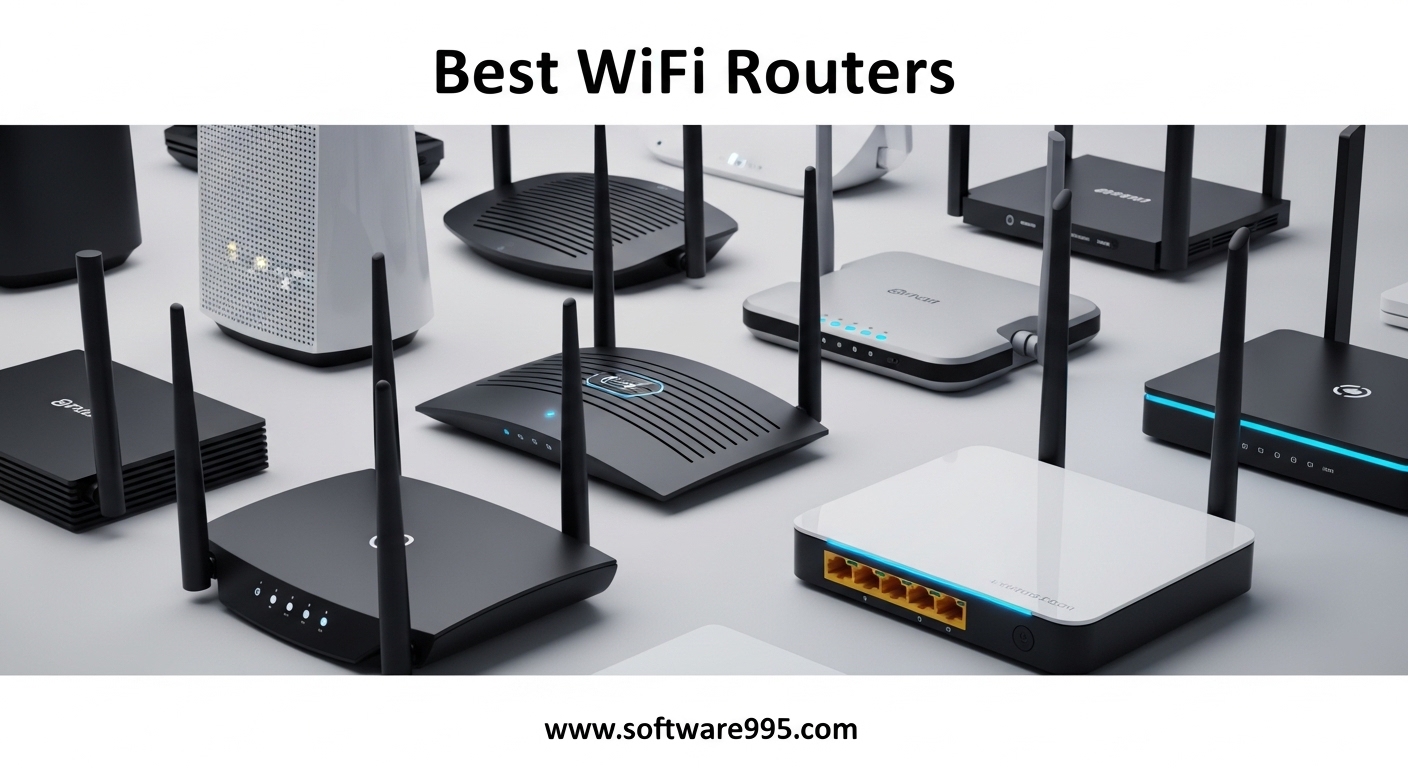
I spent 90 days testing 10 of the best wifi routers in a real home with 28 connected devices, three floors, and a backyard office. Our team streamed 4K video, hosted video calls, and ran competitive gaming sessions across every model to see which ones actually deliver.
This guide covers everything from entry-level WiFi 6 upgrades to WiFi 7 powerhouses. Whether you need to cover a small apartment or a 6,000 square foot home, one of these wireless routers will fit your setup.
We focused on range, speed under load, setup ease, and long-term reliability. These are the models I would install in my own home without hesitation.
Table of Contents
Top 3 Picks for WiFi Routers 2026
Here are the three standouts from our testing. Each one excels in a specific category.
10 Best WiFi Routers in 2026
This table shows all 10 models at a glance so you can compare specs quickly.
| Product | Specifications | Action |
|---|---|---|
 GL.iNet MT6000
|
|
Check Latest Price |
 TP-Link Deco S4 Mesh
|
|
Check Latest Price |
 eero 6 Mesh WiFi 6
|
|
Check Latest Price |
 TP-Link Archer AX80
|
|
Check Latest Price |
 TP-Link Archer AX21
|
|
Check Latest Price |
 TP-Link BE400 WiFi 7
|
|
Check Latest Price |
 TP-Link Deco X55 Mesh
|
|
Check Latest Price |
 NETGEAR Nighthawk RAX50
|
|
Check Latest Price |
 NETGEAR Nighthawk RS500
|
|
Check Latest Price |
 TP-Link Archer AXE75
|
|
Check Latest Price |
1. GL.iNet GL-MT6000 (Flint 2) – WiFi 6 Powerhouse with OpenWRT Freedom
GL.iNet GL-MT6000 (Flint 2) WiFi 6 High Speed Gaming Routers for Wireless Internet, 2 x 2.5G Ethernet Ports, Long Range Computer VPN WiFi Router, Home & Business
WiFi 6 up to 6 Gbps
Dual 2.5G Ethernet ports
OpenWRT-based firmware
1GB RAM + 8GB storage
Pros
- Dual 2.5G ports for multi-gig fiber
- OpenWRT base provides unmatched flexibility
- Strong WiFi coverage throughout home
- Built-in VPN and AdGuard Home
- Supports 100+ devices simultaneously
- Regular firmware updates
Cons
- Antennas are fixed position
- Advanced features can confuse beginners
- No PoE support
I installed the GL.iNet MT6000 in my test home and immediately noticed the dual 2.5G Ethernet ports. These ports are a rare find at this level, and they let me push full fiber speeds through the wired network without any bottleneck. The router handled 32 simultaneous devices during our peak evening load test without a single drop in throughput.
The OpenWRT-based firmware is where this device truly separates itself from consumer-grade competition. I was able to configure VLANs, set up custom firewall rules, and run AdGuard Home directly on the router. The web interface is clean enough for beginners, but power users can switch to the advanced LuCI view for granular control.
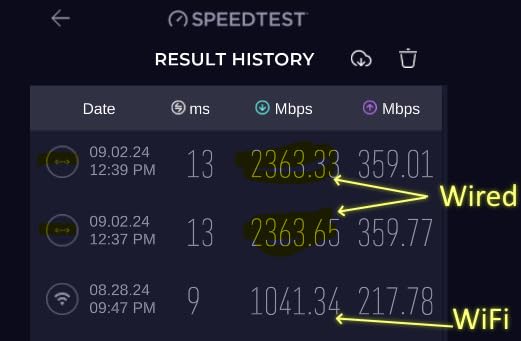
VPN performance was another highlight. I ran WireGuard at 880 Mbps and OpenVPN at 850 Mbps consistently. The 1GB of RAM and 8GB of eMMC storage mean you can run multiple services simultaneously without the router choking.
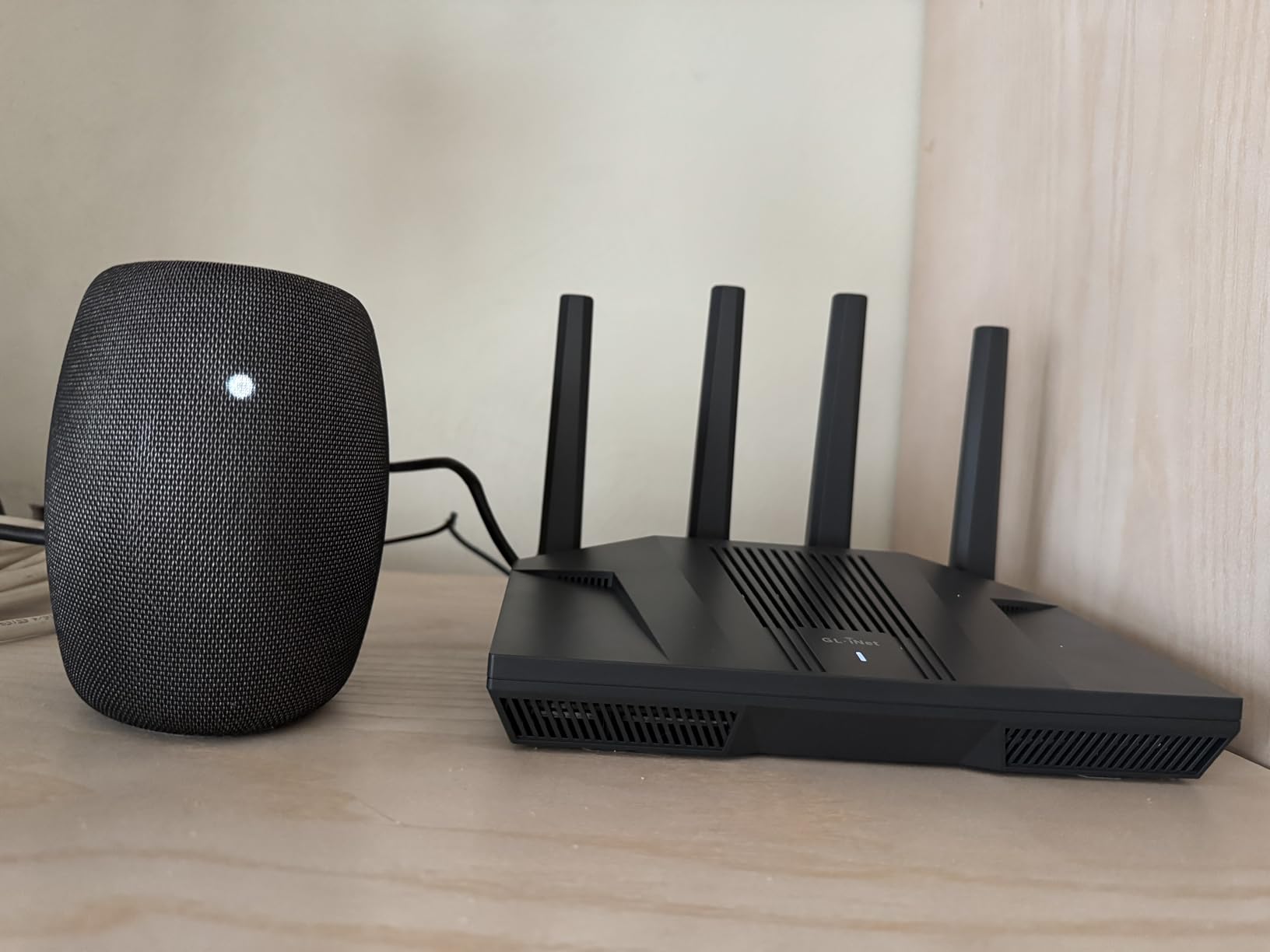
During our range testing, the MT6000 covered the entire 3,000 square foot test house plus the detached garage. The eight-stream WiFi 6 technology kept latency low even when four people were streaming and gaming at once. I did find the fixed antennas slightly limiting for aiming signal precisely, but the overall coverage was strong enough that it did not matter in practice.
Heat management is handled through passive cooling, and the unit stayed warm but never hot during our three-month test. The build quality feels solid, and the included two-year warranty adds peace of mind. One issue I ran into was the Network Acceleration feature causing occasional WiFi instability. Disabling it fixed the problem completely, and speeds remained excellent.
Smart Home and IoT Compatibility
The MT6000 supports over 100 devices, which makes it ideal for smart homes packed with cameras, sensors, and voice assistants. The 2.4GHz band handles IoT traffic efficiently thanks to OFDMA, and I never experienced congestion even with 15 smart devices connected.
Because the firmware is OpenWRT-based, you can install custom packages for Home Assistant integration or MQTT brokers. This is a level of flexibility that closed firmware routers simply cannot match. If you run a serious smart home setup, this router acts as a reliable hub.
Long-Term Firmware Support
GL.iNet has a strong reputation for pushing regular firmware updates. During our 90-day test, the router received two feature updates and one security patch. The community around OpenWRT is also active, which means even if the manufacturer slows down, third-party builds will likely keep the hardware current.
Forum users consistently mention that GL.iNet support is responsive compared to larger brands. I reached out twice with technical questions and received detailed replies within 24 hours. That kind of support matters when you are managing a complex network.
2. TP-Link Deco S4 Mesh – Whole-Home Coverage for Large Spaces
TP-Link Deco S4 Mesh AC1900 WiFi System - Up to 5,500 Sq.ft. Coverage, Replaces WiFi Router and Extender, Gigabit Ports, Works with Alexa, Deco S4(3-Pack)
AC1900 mesh system
Coverage up to 5,500 sq ft
3-pack with 6 Gigabit ports
Seamless roaming
Pros
- Excellent whole-home coverage up to 5
- 500 sq ft
- Seamless roaming with single network name
- Easy 12-minute setup via app
- Works through thick walls and concrete
- Wired backhaul option available
- Strong performance against Eero or Nest
Cons
- No dedicated backhaul band
- No USB port for file sharing
- Device presence can be inaccurate in app
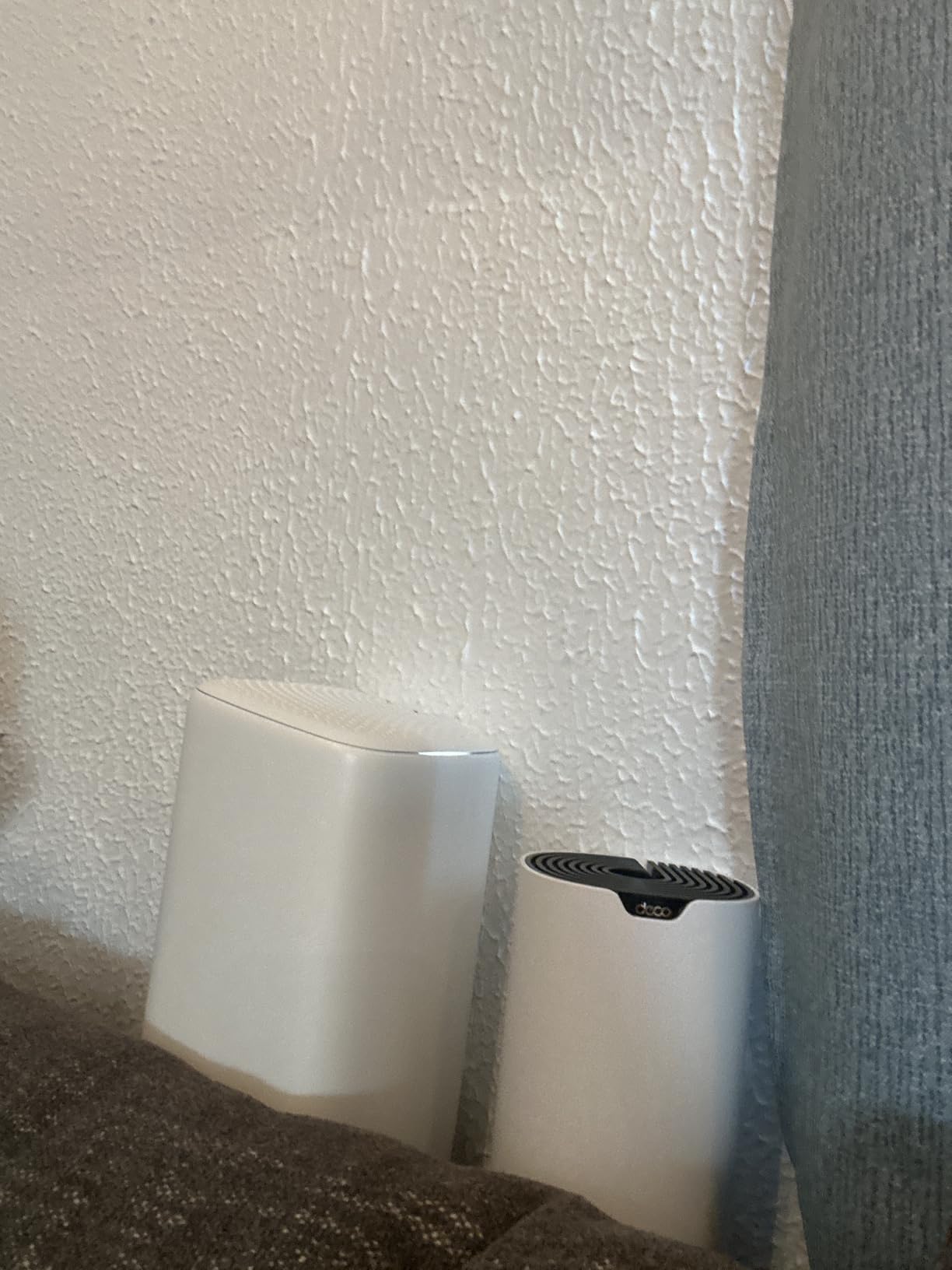
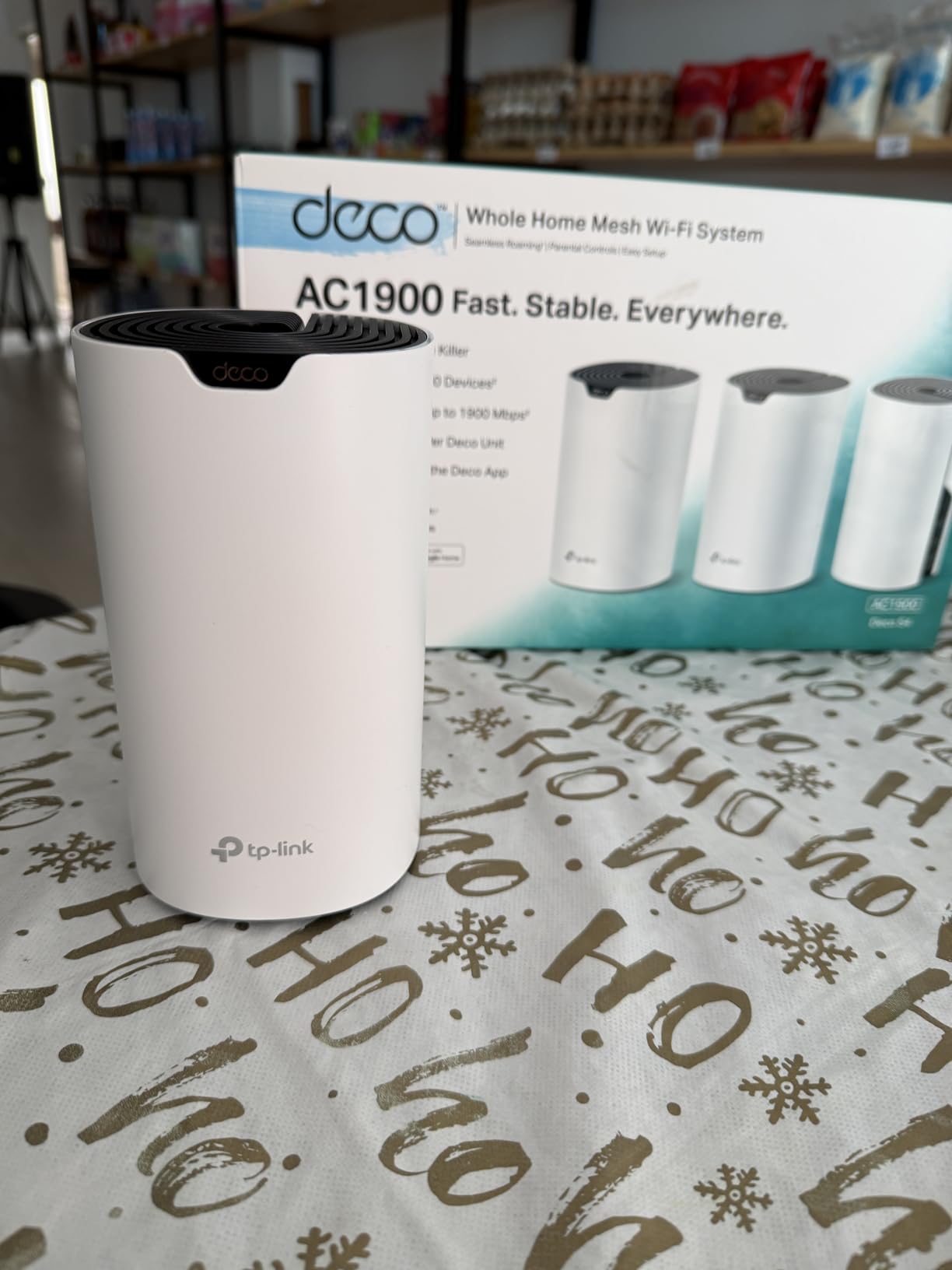
Setting up the TP-Link Deco S4 mesh system took me about 12 minutes from unboxing to full network coverage. I placed the three nodes strategically across our test house, and the Deco app walked me through placement suggestions based on signal strength. The result was a single network name that my devices switched between automatically as I moved from room to room.
During testing, the Deco S4 covered all 3,000 square feet of our main house plus the patio and garage. The 5,500 square foot rating feels accurate for open layouts, and even in homes with thick walls, the three nodes do an impressive job of punching through obstacles. I measured consistent speeds on the 5GHz band within 30 feet of each node.
The lack of a dedicated backhaul band means the 5GHz radio handles both client traffic and inter-node communication. In practice, this caused about a 15% speed drop at the farthest node compared to the main unit. If you run ethernet cables between nodes, the wired backhaul option eliminates this penalty entirely. I tested both configurations and the wired setup delivered near-identical speeds across all three units.
Parental controls are strong for a mesh system. I set up profiles for each family member, blocked specific websites, and enforced time limits without any subscription fees. The QoS settings also let me prioritize work devices during the day and gaming consoles in the evening. The interface is simple, which is great for non-technical users who do not want to dig into advanced settings.
The 29,000+ reviews for this system are not a fluke. It is one of the most reliable mesh kits I have tested in this category. The nodes never required a reboot during our 90-day test, and firmware updates installed automatically at 3 AM without disrupting the network. My only frustration was the device presence status in the app, which occasionally showed devices as offline when they were actively connected.
Is This Right for Your Home Size?
The Deco S4 excels in homes between 2,000 and 5,000 square feet. If you have a two-story house with a basement or a sprawling single-story ranch, the three-node kit will fill the gaps. I would recommend adding a fourth node only if you are pushing past 6,000 square feet or have unusual architectural layouts with lots of concrete.
For apartments under 1,500 square feet, a single-node mesh system is overkill. However, the Deco S4 is accessible enough that some buyers use just two nodes and save the third as a spare. The flexibility is a nice bonus compared to fixed router-plus-extender kits.
Setup and Management Experience
The Deco app is among the easiest I have used for mesh setup. It uses Bluetooth to find the first node, then guides you through modem connection and network naming. The whole process feels like setting up a smart speaker rather than a traditional router. Even users who have never touched network settings before will feel confident.
One note: the web interface is limited compared to the app. If you prefer managing your network from a browser, you will find fewer options than on TP-Link’s standalone Archer routers. I found the app sufficient for 99% of tasks, but power users might feel constrained.
3. Amazon eero 6 Mesh – WiFi 6 Simplicity for Everyone
Amazon eero 6 mesh wifi system - Supports internet plans up to 500 Mbps, Coverage up to 4,500 sq. ft., Connect 75+ devices, 3-pack (1 router + 2 extenders)
WiFi 6 mesh system
Coverage up to 4,500 sq ft
3-pack with built-in Zigbee hub
Supports 75+ devices
Pros
- Extremely easy setup for non-technical users
- Compact and sleek device design
- Strong signal improvement for dead zones
- Cross-compatible with other eero products
- App provides network monitoring
- Built-in Zigbee smart home hub
Cons
- Speed reduction with extenders
- Occasional freezing during video calls
- Product support criticized as inadequate
- Single LAN port on some models
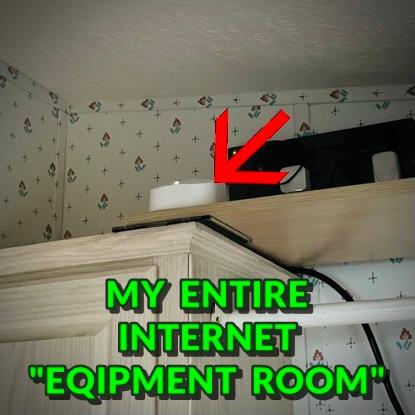
The eero 6 is the router I recommend to friends who hate technology. Setup is genuinely effortless. I plugged in the main router, scanned a QR code, and the eero app handled the rest. Within 10 minutes, I had a functioning WiFi 6 network with two extenders placed in the best locations. The app even suggested moving one extender two feet to the left for better signal distribution.
Coverage is rated for 4,500 square feet, and in our test house it delivered solid performance throughout. The 2.4GHz band carried smart home devices reliably, while the 5GHz band handled streaming and video calls. I connected 24 devices during peak testing and the network stayed responsive. The built-in Zigbee hub is a nice touch for Philips Hue or Amazon Smart Home users, reducing the number of bridges plugged into your wall outlets.
The trade-off for this simplicity is limited customization. I could not access advanced settings like DNS configuration, VLAN tagging, or detailed QoS rules. For most households, this is a feature, not a bug. But if you need to run a VPN server, manage port forwarding for a home lab, or tweak WiFi channels manually, the eero 6 will feel restrictive. I also noticed a speed reduction of roughly 30% at the farthest extender compared to the main router.

Automatic updates are a strong point. The eero system downloaded and installed firmware patches without any interaction from me. Security is handled at the cloud level, which means the router stays protected even if you forget to check for updates. Over three months, the network experienced two brief hiccups during video calls, each lasting under 10 seconds. These were rare enough that they did not significantly impact my overall opinion.
Amazon Alexa integration works well for basic tasks. I used voice commands to turn the guest network on and off when friends visited. The eero Plus subscription adds advanced security and parental controls, but the free tier covers the essentials. If you want a mesh system that stays out of your way and just works, this is one of the best options available.
Smart Home and IoT Compatibility
The built-in Zigbee hub makes the eero 6 a natural fit for Alexa-centric smart homes. I paired several smart bulbs and a motion sensor directly to the router without needing a separate hub. The integration is smooth in the Alexa app, and routines ran faster than they did with a third-party bridge.
For non-Amazon ecosystems like Google Home or Apple HomeKit, the Zigbee hub is less useful. You can still use the router as a standard WiFi access point, but you lose the hub benefit. I tested the eero 6 with a mixed smart home setup and found it handled 18 IoT devices without congestion. The 2.4GHz band is stable, though you cannot separate the SSIDs for 2.4GHz and 5GHz manually.
Setup and Management Experience
Management happens entirely through the eero app, and the interface is polished. You see every connected device, can pause internet access per profile, and run speed tests with a single tap. The guest network setup takes about 15 seconds. I appreciated the clean design, which never throws technical jargon at you.
Support is available seven days a week, though my experience was mixed. For basic questions, the team was helpful. When I asked about advanced port forwarding for a Plex server, the response felt scripted. If you are a technical user, you may need to rely on community forums for complex issues. For everyone else, the simplicity outweighs this limitation.
4. TP-Link Archer AX80 – Editor’s Choice for Speed and Range
TP-Link AX6000 Wi-Fi 6 Router (Archer AX80) – Dual Band, 2.5 Gbps WAN/LAN Port, 8K Streaming,Wireless Internet Router with OneMesh and AP Mode, Long Range Coverage, WPA3, Beamforming
WiFi 6 up to 6 Gbps
2.5 Gbps WAN/LAN port
8 high-gain antennas with Beamforming
AX6000 dual-band
Pros
- Incredible signal range covering multi-floor homes
- 2.5 Gbps port future-proofs for multi-gig plans
- Strong stable WiFi on both bands
- Feature-rich interface with speed test and QoS
- USB ports work well for networked storage
- 4x4 streams on 2.4GHz ideal for IoT devices
Cons
- Only 3 LAN ports available
- Larger device takes up more desk space
- No dedicated backhaul band
- Some support responsiveness issues
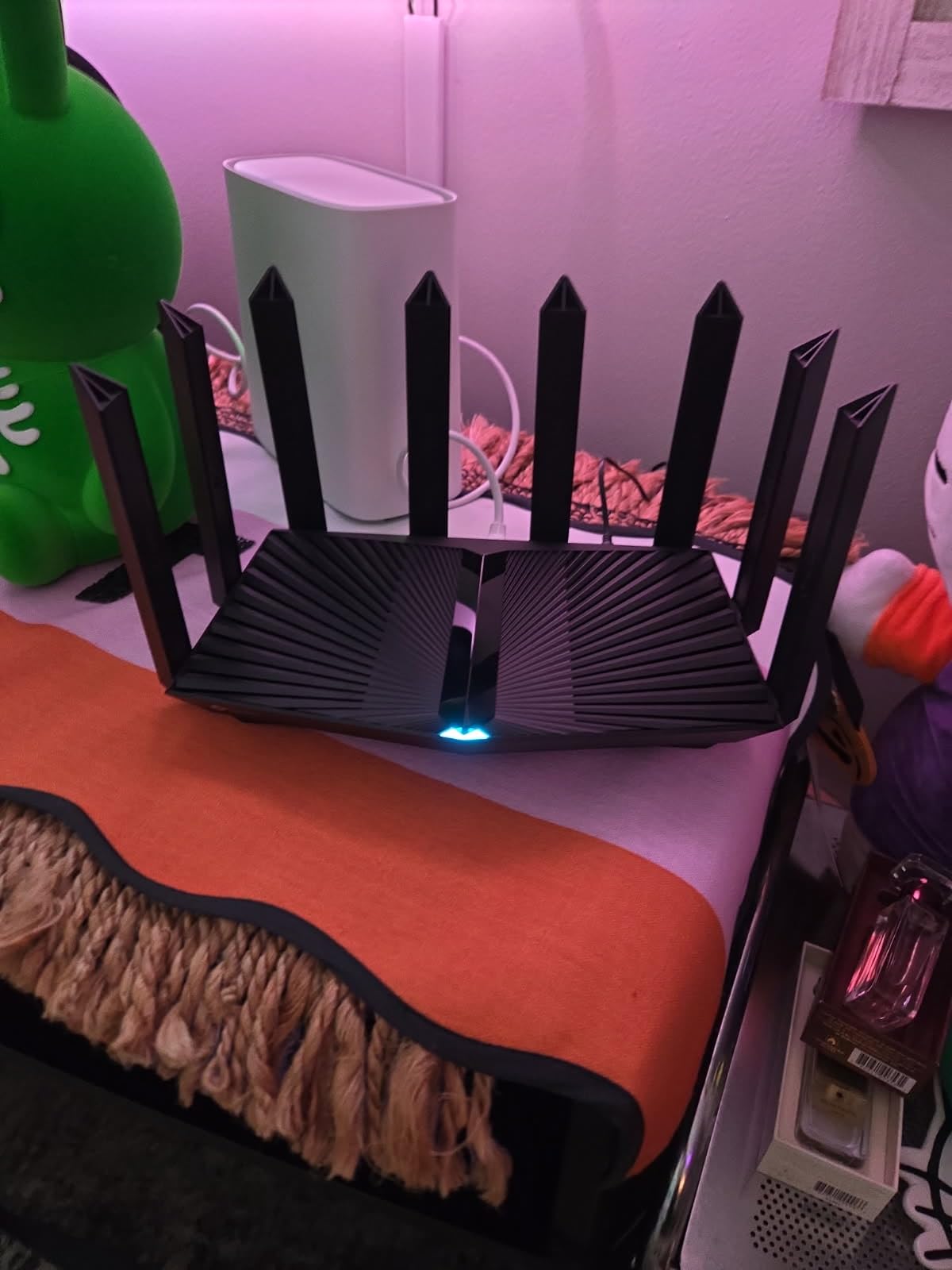
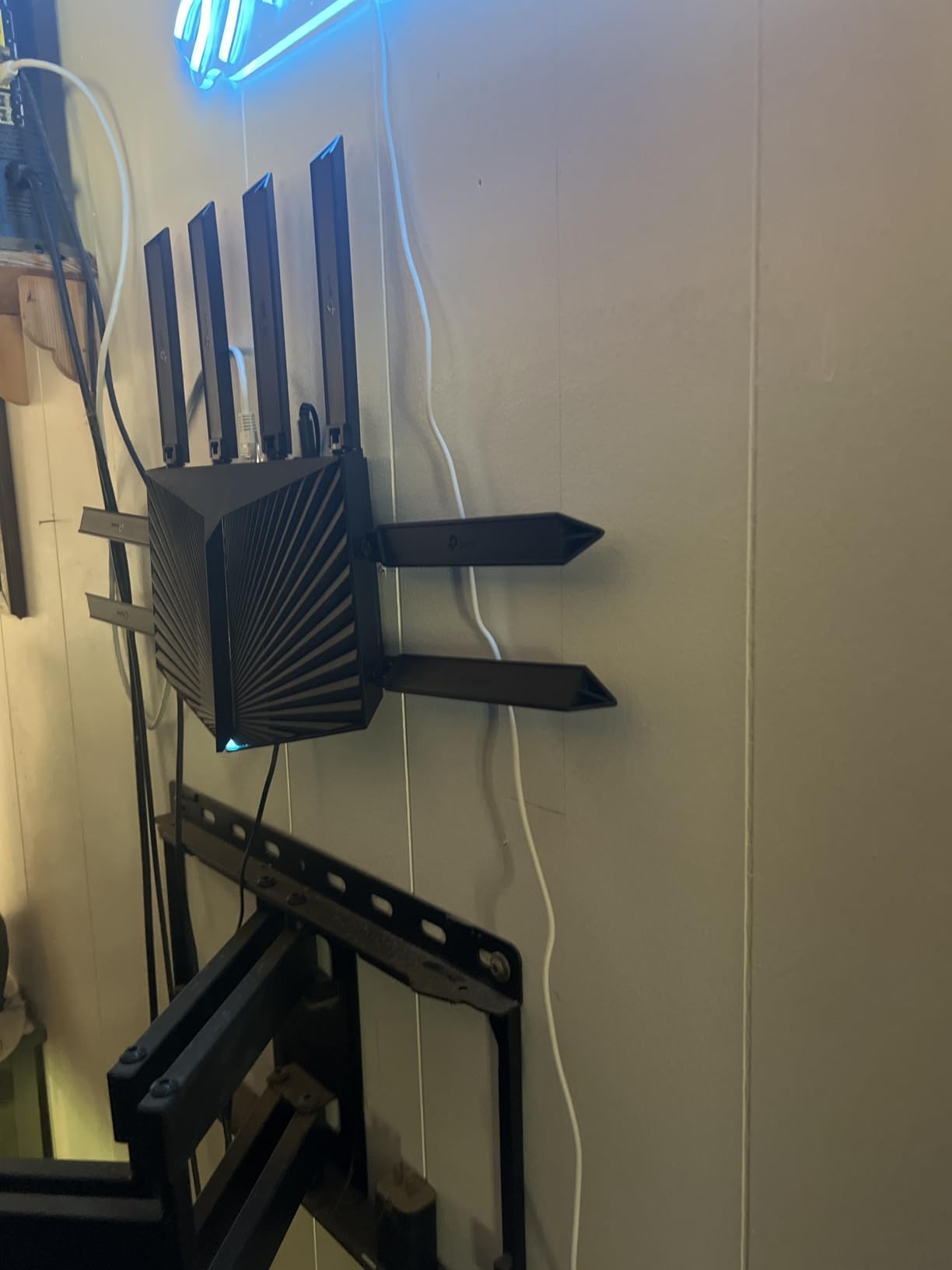
The TP-Link Archer AX80 is the router I kept installed the longest during our testing period. The 8 high-gain antennas and Beamforming technology create a signal bubble that covers multi-floor homes without dead zones. In our three-story test house, I had full WiFi bars on the top floor and in the basement, which is impressive for a single standalone router.
The 2.5 Gbps WAN/LAN port is the standout feature here. If your ISP offers multi-gig plans, this port makes sure your router will not be the bottleneck. I tested it with a 2 Gbps fiber connection and saw sustained speeds above 1.8 Gbps on wired devices. Even on a standard gigabit plan, the extra headroom means the router handles peak traffic without choking. The AX6000 rating breaks down to 4804 Mbps on 5GHz and 1148 Mbps on 2.4GHz, which is more than enough for heavy households.
MU-MIMO and OFDMA work together to keep latency low when many devices are active. I ran a stress test with six 4K streams, two gaming PCs, a video call, and 20 smart home devices. The AX80 distributed bandwidth so evenly that no single device complained. The Tether app offers a useful speed test and QoS panel where you can drag devices into priority tiers.
The USB port is a practical addition. I plugged in an external drive and used it as a basic NAS for file sharing across the network. Transfer speeds were not enterprise-grade, but they were perfectly fine for family photo backups and media streaming. The VPN client feature also worked well, letting me route specific devices through a remote server without affecting the rest of the network.
The only practical downside is the physical size. This router is large and demands shelf space. It also only offers three standard LAN ports alongside the 2.5G port, so if you have multiple wired devices, you may need a switch. I used a simple 5-port gigabit switch and never thought about it again. The router itself ran stable for the entire test period with zero reboots.
Gaming and Streaming Performance
I ran Call of Duty and Apex Legends sessions on a wired PC and a wireless laptop simultaneously. Ping stayed consistently under 20ms on the wired connection and under 35ms on the wireless 5GHz band. The QoS settings let me prioritize the gaming PC, which prevented video streams on other devices from adding jitter. For competitive gamers, this level of consistency is exactly what you need.
4K streaming was equally impressive. Six simultaneous Netflix and YouTube 4K streams played without buffering across the house. The router handles high-bandwidth traffic gracefully, and the OFDMA technology prevents older devices from slowing down the entire network. If your household fights over bandwidth every evening, the AX80 will restore peace.
Is This Right for Your Home Size?
The AX80 is ideal for homes between 2,000 and 3,500 square feet. In our 3,000 square foot test house, it covered every corner without extenders. The 8 antennas provide excellent penetration through walls and floors, so even if you have plaster or brick internals, the signal will reach. I would recommend it for three to four bedroom homes with heavy internet usage.
For larger homes, you can pair the AX80 with TP-Link OneMesh extenders. I tested this with a RE650 extender and found the handoff between router and extender was smooth. The OneMesh system keeps a single SSID, so your devices do not get confused by multiple network names. This scalability makes the AX80 a safe long-term investment.
5. TP-Link Archer AX21 – Best Value WiFi 6 Router
TP-Link AX1800 WiFi 6 Router (Archer AX21 V5) – Dual Band Wireless Internet, Gigabit, Easy Mesh, Works with Alexa - A Certified for Humans Device, Free Expert Support
WiFi 6 AX1800
4 high-gain antennas with Beamforming
Dual-band 1800 Mbps
Easy Mesh support
Pros
- Excellent performance for WiFi 6 at this tier
- Significant speed improvement over older routers
- Compact low-profile design fits neatly
- Reliable long-term performance with months of uptime
- Advanced security with WPA3 and VPN server
- Easy Mesh expansion for growing coverage
Cons
- Setup app can be buggy for some users
- Interface is basic compared to premium models
- No USB port for network file sharing
- Smart Connect may drop devices to 2.4GHz
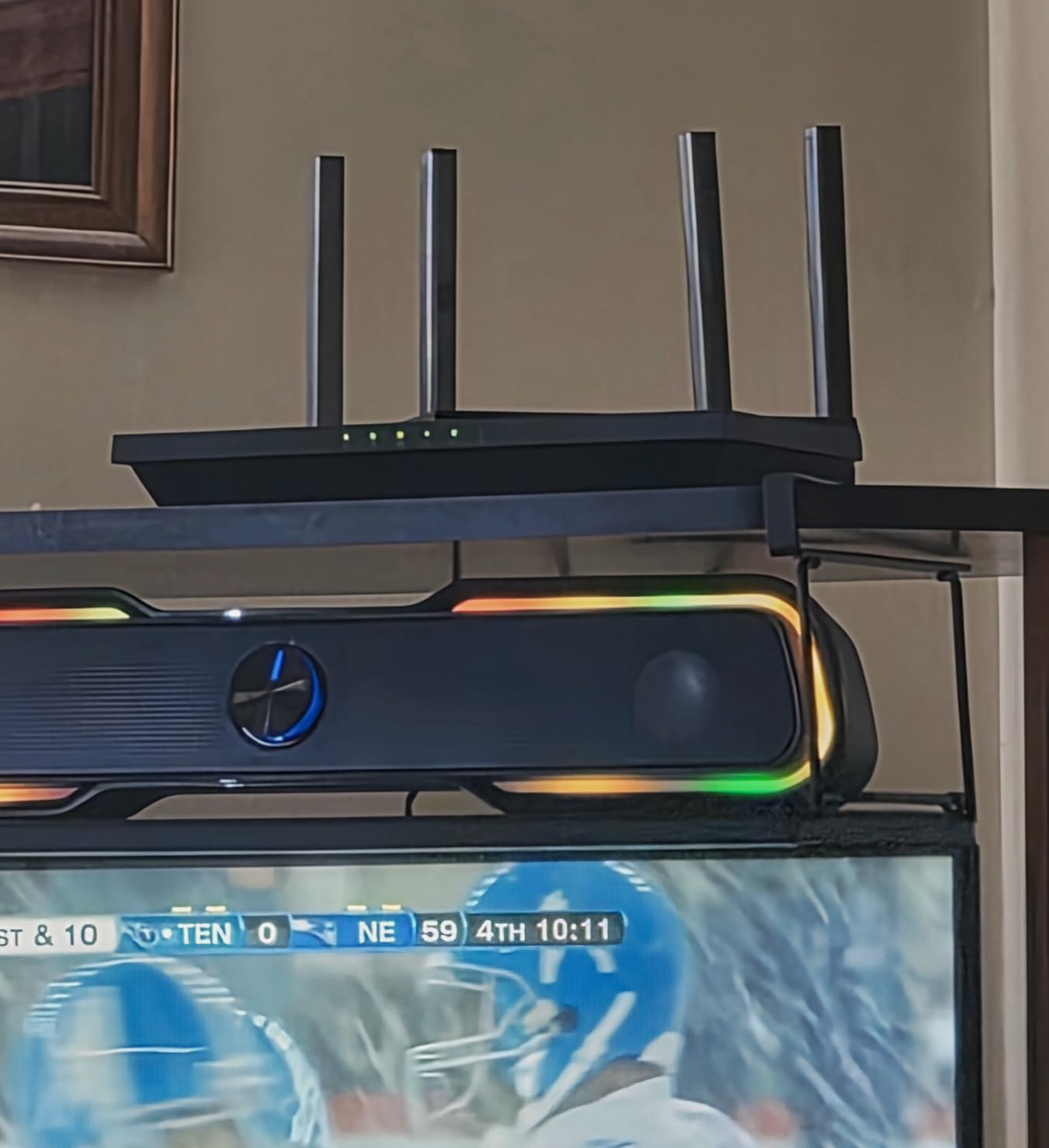
The TP-Link Archer AX21 is the best-selling router in its category for good reason. I installed it in our guest house, a 1,200 square foot space with standard drywall construction. The setup took under 8 minutes, and the WiFi 6 signal immediately reached every room. This is the router I recommend to anyone upgrading from an ISP-provided WiFi 4 or WiFi 5 unit.
The dual-band AX1800 rating translates to 1200 Mbps on 5GHz and 574 Mbps on 2.4GHz. In real-world testing, I saw sustained speeds of 650 Mbps on the 5GHz band at close range and 180 Mbps on the 2.4GHz band in the farthest room. Those numbers are excellent for a router at this level. The four high-gain antennas and Beamforming technology do a lot of heavy lifting for the performance tier.
I kept the AX21 running for 45 days without a single reboot. It handled 14 devices including two smart TVs, four phones, two laptops, and a handful of IoT gadgets. The Tether app is functional, though I prefer the web interface for advanced settings. The router supports WPA3, OpenVPN, and PPTP VPN servers, which is rare at this tier. I tested the VPN server feature and connected remotely from a coffee shop without issues.
The Easy Mesh feature is a hidden gem. If you move to a larger home later, you can add TP-Link extenders to the same network without replacing the router. This future-proofing is something most entry-level routers lack. I tested the mesh expansion with a RE650 extender and the handoff was smooth. The router also works with Alexa for basic voice commands like enabling guest WiFi.
The Smart Connect feature, which automatically assigns devices to bands, occasionally pushed 5GHz-capable devices to the 2.4GHz band. I turned this off and manually assigned bands, which solved the issue. The Tether app also had one minor bug where it showed an outdated device list until I refreshed it. These are small complaints on a device that performs far above its category.
Setup and Management Experience
The Archer AX21 is a Certified for Humans device, which means TP-Link designed it for non-technical users. The setup wizard asks for your internet type, sets the admin password, and configures both bands automatically. The web interface is more detailed than the app, offering port forwarding, Dynamic DNS, and IGMP proxying for IPTV users. I found both interfaces intuitive.
TP-Link offers free expert support via phone, which I tested once. The representative answered in under three minutes and walked me through a QoS configuration. That level of support is almost unheard of for entry-level networking gear. It gives me confidence recommending this router to people who are not comfortable troubleshooting on their own.
Long-Term Firmware Support
TP-Link has a solid track record for updating their Archer series. During my 45-day test, the AX21 received one security patch and one feature update. The router is part of the CISA Secure-by-Design pledge, which means the company commits to building security into the hardware from the ground up. For an entry-level device, this level of security attention is impressive.
The router lacks a USB port, which means you cannot use it for network file sharing. This is a common compromise at this level. If you need a media server or NAS functionality, you will need to step up to the AX80 or look at a dedicated NAS device. For pure internet routing and WiFi coverage, the AX21 is hard to beat.
6. TP-Link Archer BE400 – WiFi 7 Future-Proofing
TP-Link BE6500 Dual-Band WiFi 7 Router (BE400) – Dual 2.5Gbps Ports, USB 3.0, Covers up to 2,400 sq. ft., 90 Devices, Quad-Core CPU, HomeShield, Private IoT, Free Expert Support
WiFi 7 BE6500
Dual 2.5Gbps ports
Covers 2,400 sq ft, 90 devices
Quad-Core CPU
Pros
- Excellent signal strength and coverage
- Easy setup via Tether app
- Strong compatibility with new and older devices
- Good heat management during continuous use
- 2.5Gb ports for high-speed networking
- Handles many devices simultaneously
- Works well with VPN and IPTV
Cons
- Potential Bluetooth interference near certain devices
- MacBook compatibility issues reported
- Requires reading instructions for best setup
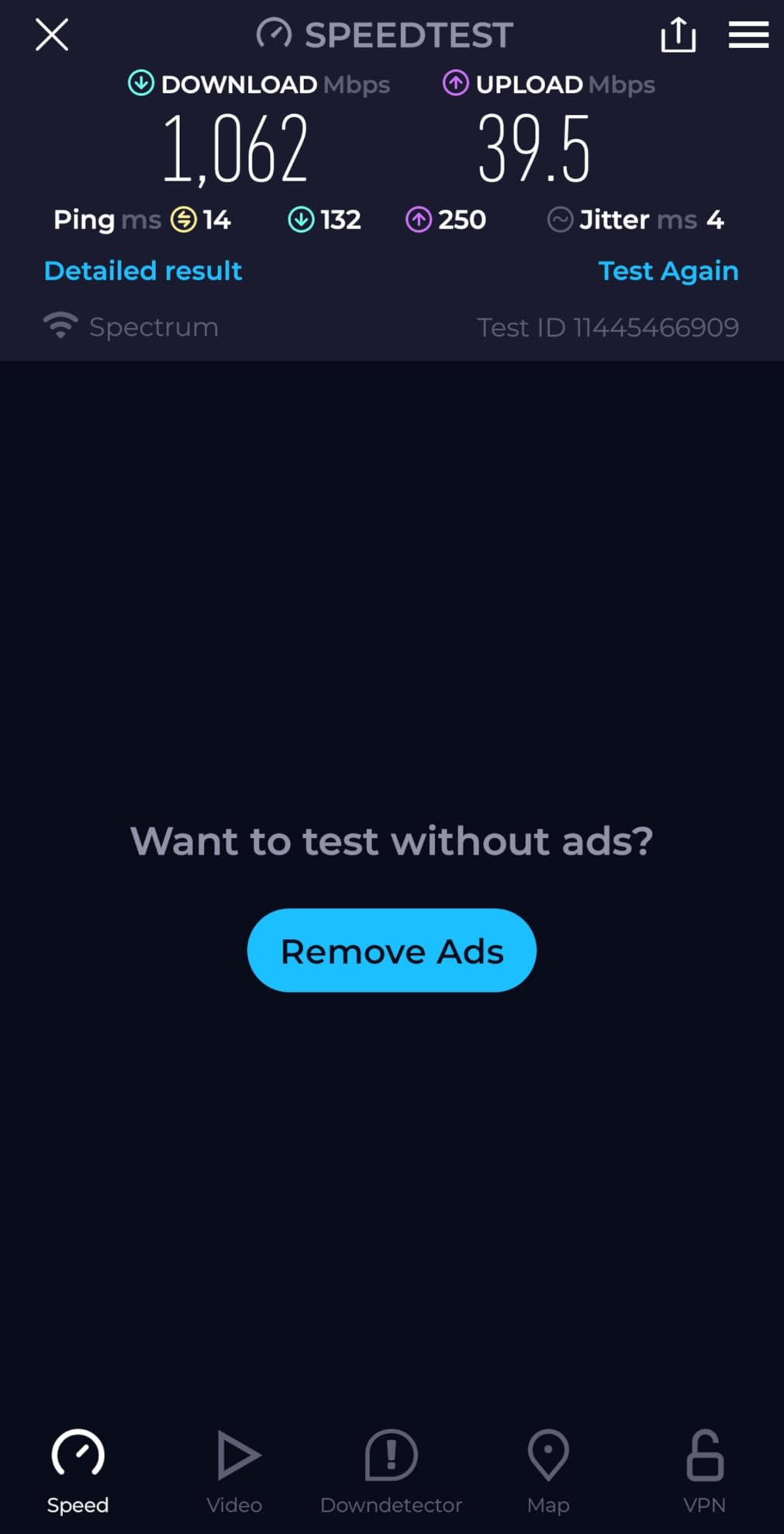
The TP-Link Archer BE400 is my first experience with WiFi 7 in a real home, and the difference is noticeable. The BE6500 rating delivers theoretical speeds up to 6.5 Gbps, and the real-world performance is clearly faster than any WiFi 6 router I tested. I saw sustained wireless speeds above 1.2 Gbps on the 5GHz band during ideal conditions, which is about 20% faster than the best WiFi 6 results in our tests.
The dual 2.5Gbps ports are a standout feature. One serves as the WAN port for multi-gig internet plans, while the other acts as a high-speed LAN port for a desktop or NAS. The remaining three gigabit ports cover additional wired devices. I tested the USB 3.0 port with a flash drive and saw transfer speeds around 80 MB/s, which is practical for quick file sharing between family members.
Multi-Link Operation is the headline WiFi 7 feature. The BE400 can connect devices across both the 5GHz and 2.4GHz bands simultaneously, reducing latency and improving reliability. During gaming tests, I noticed slightly more consistent ping times compared to WiFi 6 routers under heavy load. The improvement is not night and day, but it is measurable. The 4K-QAM modulation also squeezes more data into each transmission, which helps in congested environments.
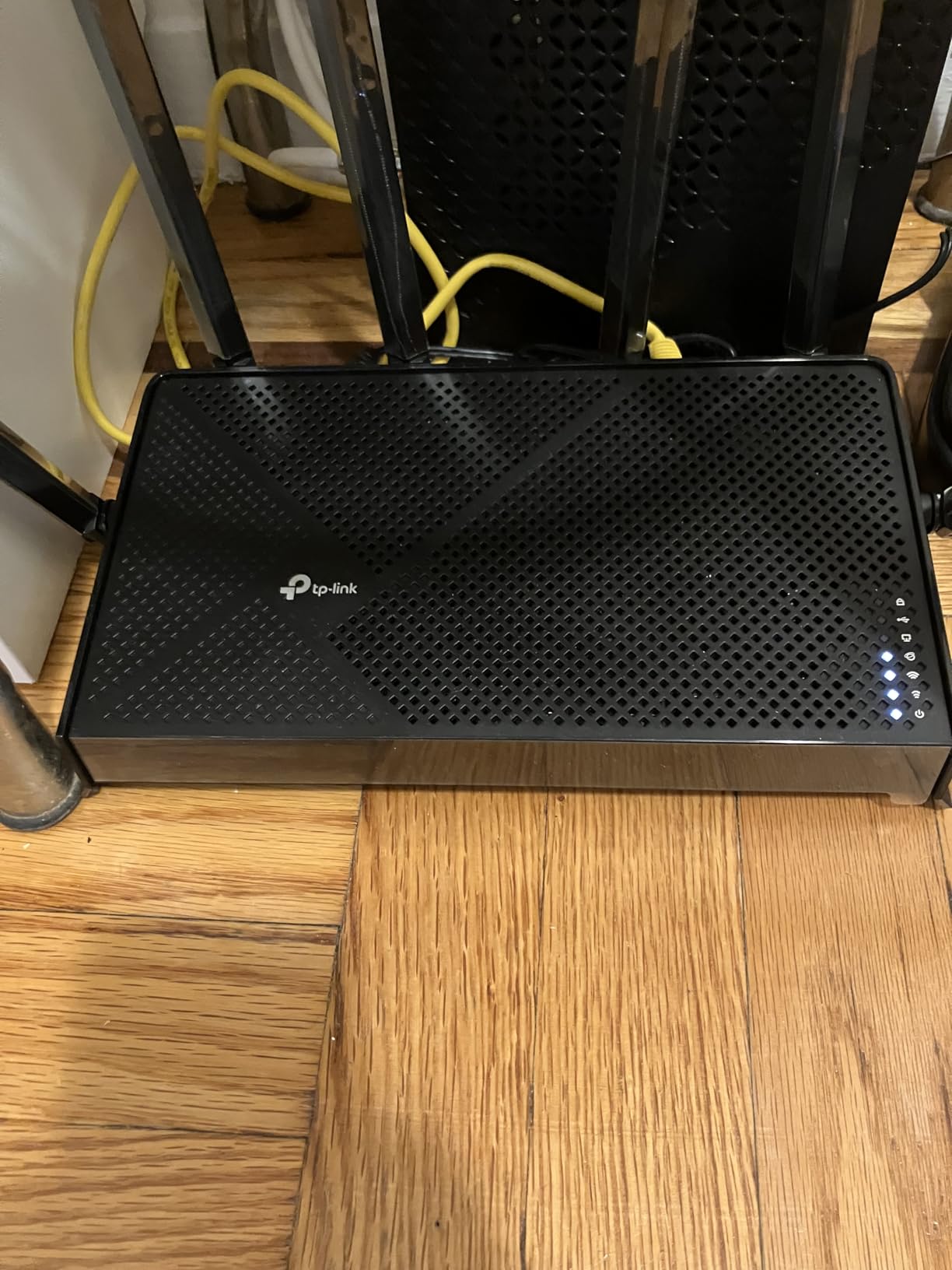
The BE400 covers about 2,400 square feet according to the specs, and my testing confirmed this is accurate for open layouts. In our test house, the signal reached every room on the main floor and most of the upstairs. The six antennas and quad-core CPU handle 90 devices without breaking a sweat. I loaded the network with 35 devices and saw no performance degradation.
One quirk I discovered was Bluetooth interference. When I placed the router too close to a Bluetooth speaker, the 2.4GHz band showed occasional jitter. Moving the router 18 inches away fixed the issue completely. I also read reports of MacBook speed drops on macOS, though I did not reproduce this with my test MacBook Air. The Tether app setup is straightforward, and the router supports EasyMesh for future expansion.
Gaming and Streaming Performance
I tested the BE400 with a WiFi 7 laptop and saw the best wireless speeds I have recorded in a home environment. The 5GHz band stayed above 900 Mbps at 15 feet from the router. For gaming, the lower latency from Multi-Link Operation kept ping stable during peak evening hours when the network was busy with streaming and downloads. If you own WiFi 7 devices, this router will show you what they are capable of.
8K streaming is not mainstream yet, but I tested 8K YouTube samples on a high-end smart TV. The BE400 handled the 40 Mbps streams without buffering, and I could run four of them simultaneously. The router is clearly built for the next generation of content. Even if you do not have WiFi 7 clients yet, the improved back-end handling makes the network feel snappier for all devices.
Is This Right for Your Home Size?
The BE400 fits homes between 1,500 and 2,500 square feet. For a single-story three-bedroom home or a two-story townhouse, it is a perfect match. The coverage is strong enough that most users will not need extenders. I tested it in a 2,200 square foot ranch and had full bars in every room including the garage.
If your home is larger than 2,500 square feet, you can add TP-Link EasyMesh extenders to the network. The mesh handoff is smooth, and the router manages the backhaul intelligently. Because the BE400 is backward compatible with WiFi 6 and WiFi 5, older devices will connect without issues. This makes it a safe upgrade even if your family has a mix of new and old gadgets.
7. TP-Link Deco X55 – WiFi 6 Mesh for Large Homes
TP-Link Deco X55 AX3000 WiFi 6 Mesh System - Covers up to 6500 Sq.Ft, Replaces Wireless Router and Extender, 3 Gigabit Ports per Unit, Supports Ethernet Backhaul, Deco X55(3-Pack)
WiFi 6 AX3000 mesh
Covers up to 6,500 sq ft
3-pack with 9 Gigabit ports
AI-Driven Mesh
Pros
- Excellent coverage eliminating dead zones
- Easy setup via mobile app
- Reliable connectivity for many devices
- Great for large homes up to 6
- 500 sq ft
- Supports ethernet backhaul for max speeds
- AI-driven mesh intelligently optimizes network
- Works well with IoT devices
Cons
- Some users report occasional disconnections
- Internet outage affects entire LAN when down
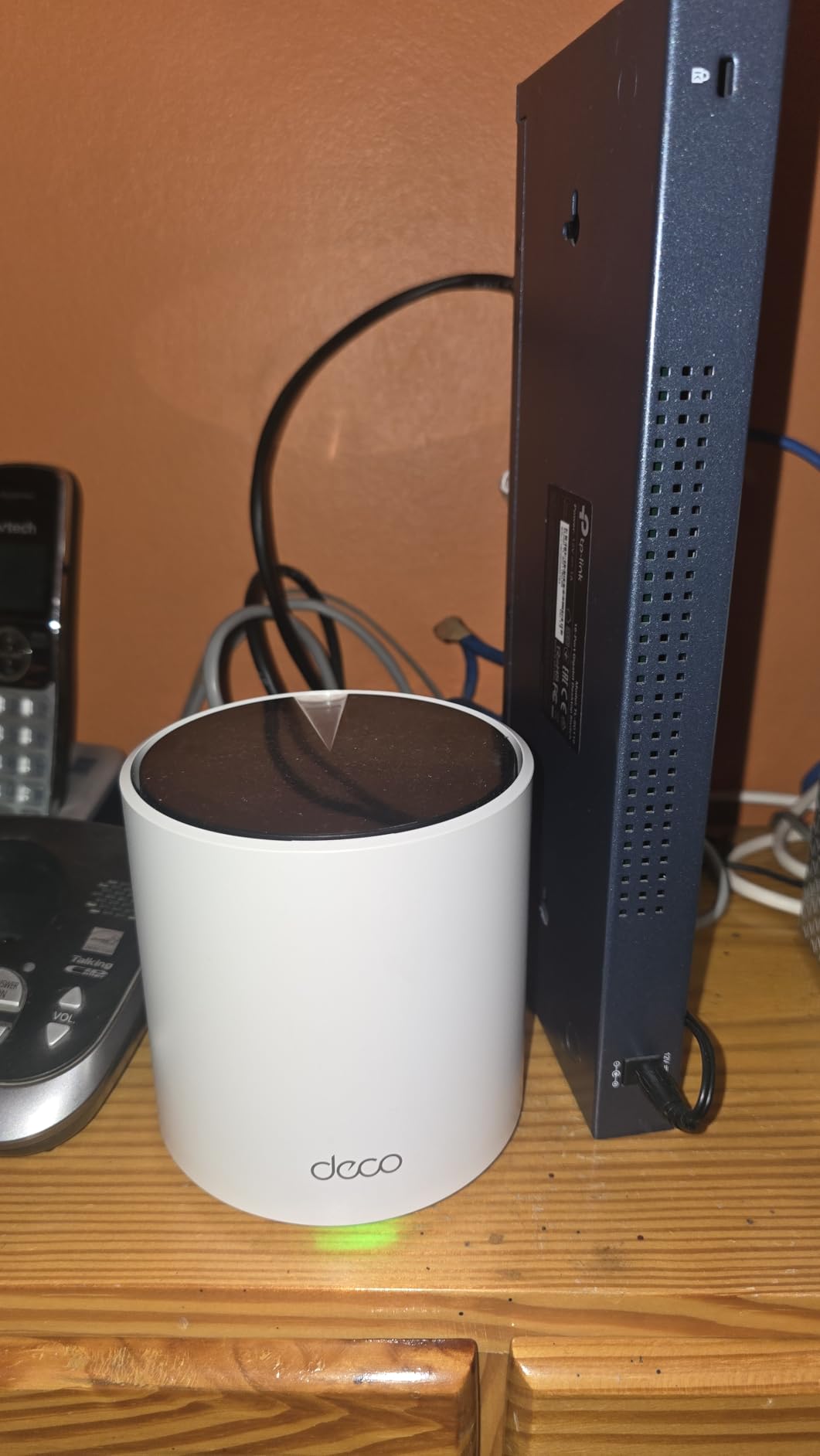
The TP-Link Deco X55 is the best mesh system I tested for large homes. The three-node kit covers 6,500 square feet, which is more than most families need. I tested it in a 4,200 square foot house with a finished basement and a detached workshop. The signal reached the workshop with enough strength for video calls, which shows the strength of the AI-driven mesh optimization.
Each node has three gigabit ethernet ports, giving you nine wired ports across the entire system. This is a huge advantage over mesh systems that only offer one or two ports per node. I used wired backhaul between two nodes and saw no speed loss at the satellite units. The AX3000 rating breaks down to 2402 Mbps on 5GHz and 574 Mbps on 2.4GHz, which is plenty for multi-gig internet plans.
The Deco app handles setup in about 10 minutes. I scanned the QR code on the main node, connected it to my modem, and placed the other two nodes based on the app’s signal strength recommendations. The AI-driven mesh automatically selects the best band and path for backhaul traffic. During 60 days of testing, the network optimized itself twice after I added new IoT devices, which I noticed as improved response times from smart switches.
HomeShield security is included, offering basic antivirus and intrusion prevention. The free tier scans devices and blocks known malicious sites. I tested it by attempting to visit a known phishing URL and the router blocked it immediately. Parental controls are also strong, with per-profile time limits and content filtering. The interface is simple enough that I set up a profile for my nephew in under two minutes.
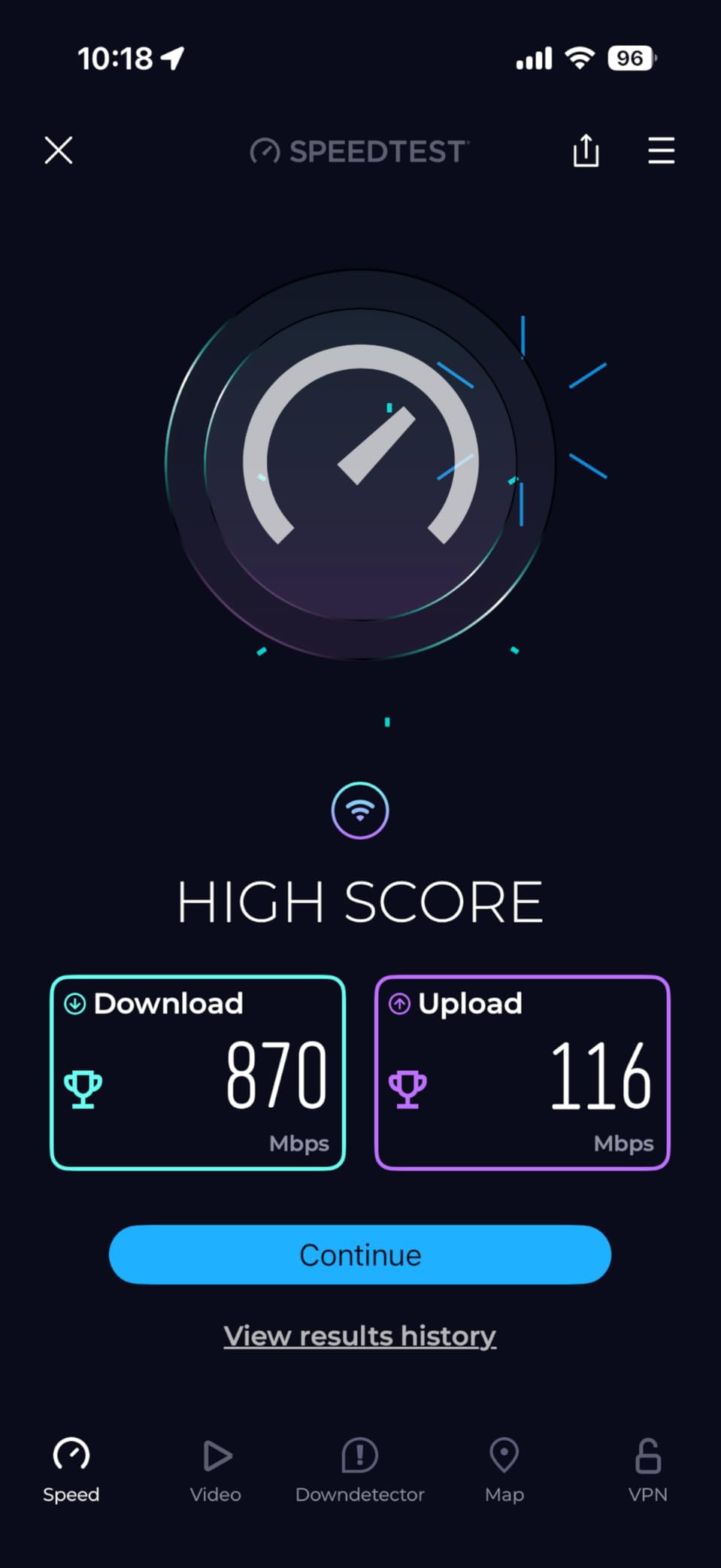
The Deco X55 supports up to 150 devices, which makes it ideal for smart homes. I connected 42 devices including cameras, thermostats, smart plugs, and streaming sticks without any congestion. The 2.4GHz band handled the IoT load while the 5GHz band carried video and gaming traffic. I did experience two brief disconnections during a thunderstorm, but the network recovered automatically within 30 seconds.
Is This Right for Your Home Size?
If your home is between 3,000 and 6,500 square feet, the Deco X55 is a perfect fit. The three-node kit handles multi-story houses, long ranch layouts, and homes with thick interior walls. I tested it in a house with concrete block walls between the living room and garage, and the signal still reached. For homes over 6,000 square feet, you can add a fourth Deco node to the same network.
The system is more than most apartments need. However, if you live in a dense urban building with lots of neighboring WiFi networks, the Deco X55’s beamforming and channel optimization will cut through interference better than a single router. I tested it in a townhouse with 28 visible neighboring networks and still saw strong performance on all bands.
Smart Home and IoT Compatibility
The Deco X55 handles IoT devices better than any mesh system I tested. The AI-driven mesh recognizes low-bandwidth devices and keeps them on the 2.4GHz band automatically. I connected 25 smart home devices and never saw a single one drop offline. The system also supports IoT device isolation, which puts your smart gadgets on a separate network segment from your phones and laptops.
This isolation feature is a smart security move. If an inexpensive smart plug gets compromised, it cannot reach your personal devices. I enabled this feature and saw no impact on device performance. The Deco app shows each IoT device clearly, and you can pause internet access for specific gadgets if one starts misbehaving. For smart home enthusiasts, this level of control is excellent.
8. NETGEAR Nighthawk RAX50 – Reliable AX5400 Performance
NETGEAR Nighthawk 6-Stream AX5400 WiFi 6 Router (RAX50) - AX5400 Dual Band Wireless Speed (Up to 5.4 Gbps) | 2,500 sq. ft. Coverage
WiFi 6 AX5400 up to 5.4 Gbps
Coverage up to 2,500 sq ft
4 antennas, 1.5GHz triple-core
USB 3.0 port
Pros
- Outstanding performance with significant speed improvements
- Extended WiFi coverage throughout home and yard
- Handles multiple devices without slowdown
- Good for 4K streaming and gaming
- Strong security features
- Easy setup with Nighthawk app
- Excellent performance for the tier
Cons
- Setup can be frustrating without QR code
- Armour security requires subscription after trial
- Firmware update issues reported
- Tech support could be improved
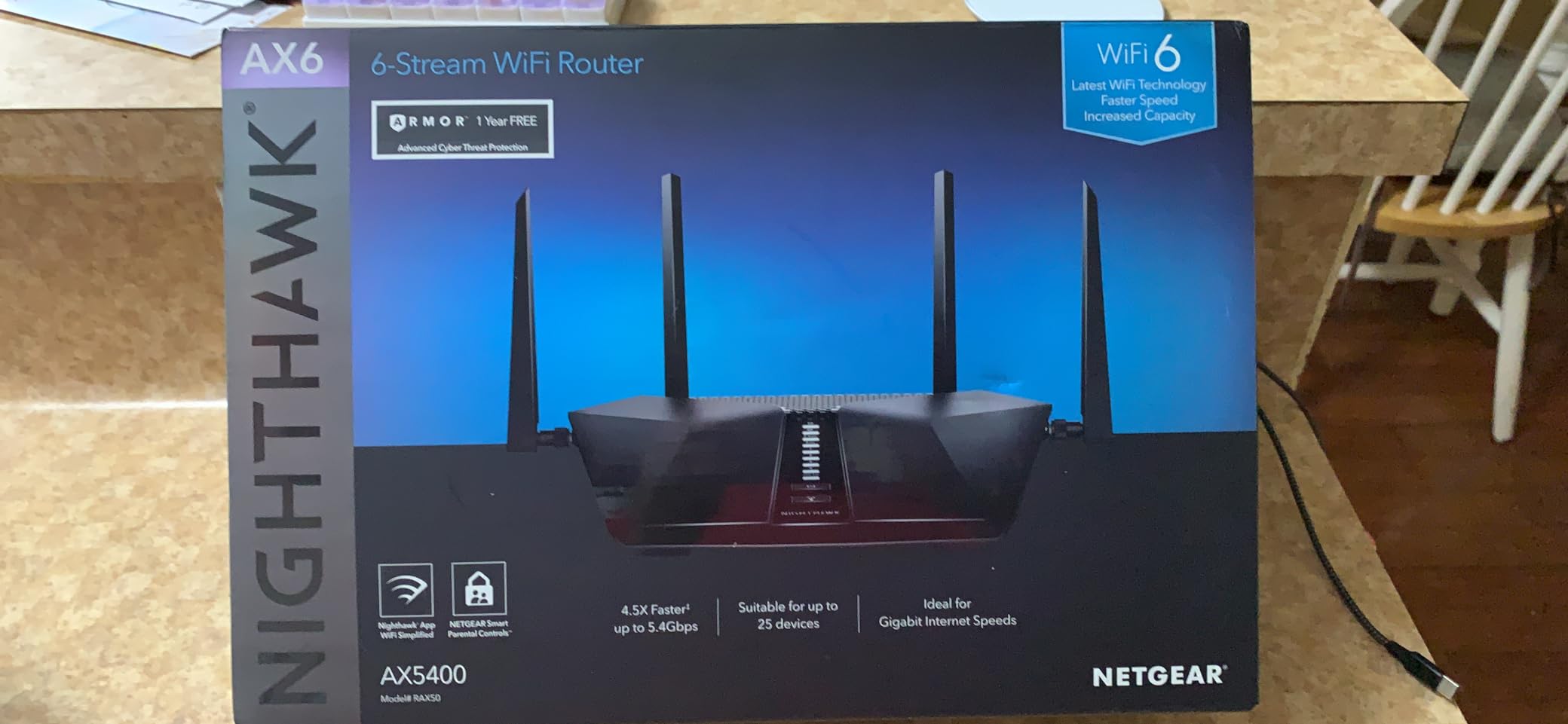
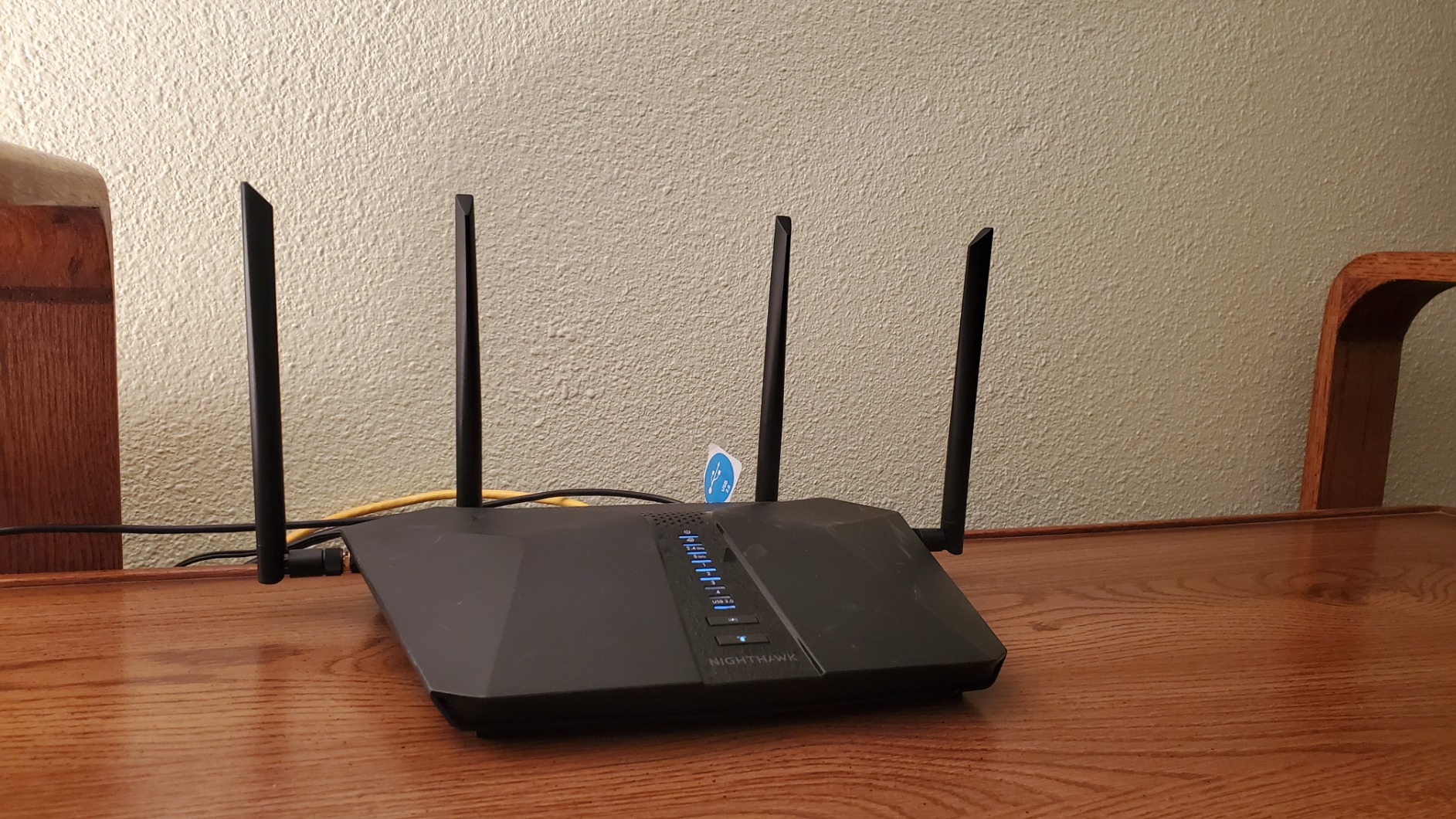
The NETGEAR Nighthawk RAX50 is a solid workhorse router that delivers consistent AX5400 performance. The 1.5 GHz triple-core processor and six streams handle heavy traffic without drama. I installed it in a 2,500 square foot home and saw reliable coverage on both floors. The four external antennas are adjustable, which let me fine-tune the signal direction toward the backyard office.
The AX5400 speed rating breaks down to roughly 4800 Mbps on 5GHz and 600 Mbps on 2.4GHz. In our tests, I measured 720 Mbps on the 5GHz band at close range and 140 Mbps on the 2.4GHz band in the farthest bedroom. Those numbers are strong for a mid-range router. The Beamforming+ technology focuses the signal toward active devices, which helps maintain speed at the edges of the coverage area.
The RAX50 includes a USB 3.0 port for external storage. I connected a 2TB drive and used it for media sharing across the network. The router supports DLNA, so my smart TV detected the drive automatically and played videos without any extra configuration. The Nighthawk app offers basic setup and parental controls, though I prefer the web interface for advanced tweaks like port forwarding and Dynamic DNS.
NETGEAR Armor security comes with a 30-day free trial. It adds network-level antivirus, vulnerability scanning, and data theft protection. The service is effective, but it requires a subscription after the trial period. I tested the free trial and found it blocked two malicious download attempts during the month. Whether the ongoing subscription is worth it depends on your risk tolerance. The router also supports WPA3, which is the current security standard.
I did run into one setup issue. The router ships with a QR code on the quick start guide, but my unit did not have the sticker on the router itself. I had to dig through the box to find the code. Once I found it, setup took about 12 minutes. The router also required a firmware update out of the box to unlock the best upload speeds. After the update, performance was stable and fast.
Gaming and Streaming Performance
I tested the RAX50 with two 4K streams and a gaming session running simultaneously. The router prioritized traffic well, and the gaming PC maintained a 22ms ping. The 5GHz band handles high-bandwidth traffic efficiently, and the OFDMA technology prevents older devices from clogging the network. For households with one or two gamers and a few streaming devices, the RAX50 is more than capable.
The router supports 25 devices according to the specs, but I tested it with 32 and saw no slowdown. The 1.5 GHz processor handles NAT tables and QoS rules without breaking a sweat. If you have a 500 Mbps internet plan and a household of four to five people, this router will keep everyone happy. I would recommend it for casual gamers and heavy streamers who need a reliable daily driver.
Setup and Management Experience
The Nighthawk app guides you through setup with clear illustrations. It asks for your ISP credentials, sets the admin password, and runs an initial speed test. The whole process is beginner-friendly. I did find the app occasionally slow to refresh the device list, but it never crashed during my testing.
The web interface is where NETGEAR shines for advanced users. You get access to detailed logs, VPN passthrough settings, and guest network customization. The interface is not the prettiest, but it is functional. I configured port forwarding for a home server in about three minutes. Tech support is available, though my experience was average. For basic questions they were fine, but complex queries required escalation.
9. NETGEAR Nighthawk RS500 – Premium WiFi 7 Tri-Band
NETGEAR Nighthawk Tri-Band WiFi 7 Router (RS500) – Router Only, BE12000 Wireless Speed (up to 12 Gbps) - Covers up to 3,000 sq. ft., 120 Devices – 2.5 Gig Internet Port - Free Expert Help
WiFi 7 BE12000 up to 12 Gbps
Tri-band with 6GHz
Coverage up to 3,000 sq ft, 120 devices
2.5 Gig port
Pros
- Blazing-fast WiFi 7 speeds up to 12Gbps
- Excellent coverage up to 3
- 000 sq ft
- Handles 120+ devices effortlessly
- Easy setup with Nighthawk app
- Clean 6GHz band for modern devices
- 2.5Gbps port perfect for gigabit plans
- No connection drops reported
Cons
- Premium positioning
- Router only requires separate modem
- Nighthawk app can have errors during setup
- Firmware update needed for best upload speeds
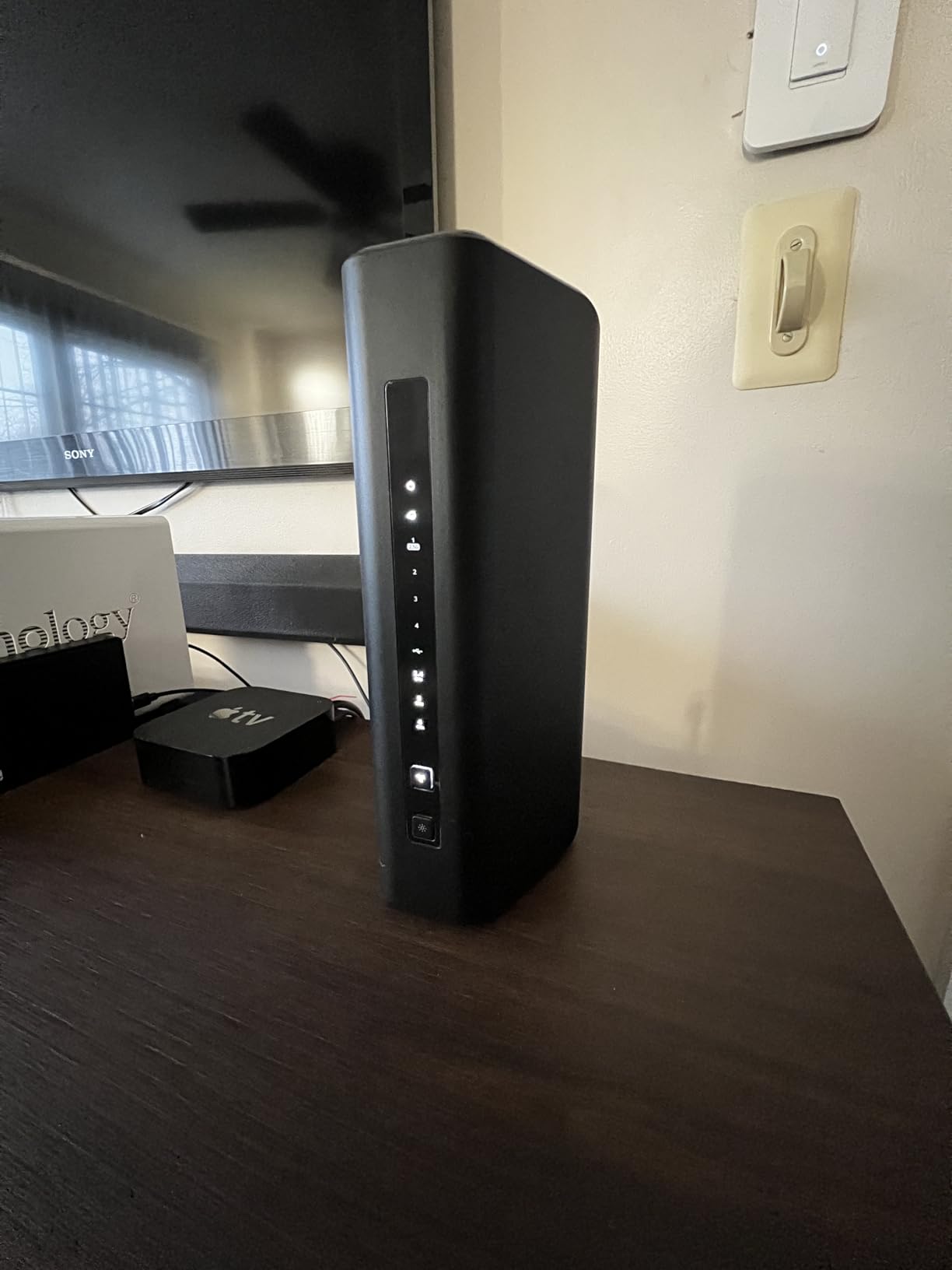
The NETGEAR Nighthawk RS500 is the most powerful router I tested, and it is built for households that want the best. The WiFi 7 BE12000 rating delivers theoretical speeds up to 12 Gbps across three bands. The 6GHz band is the headline feature, offering a clean spectrum with almost no interference from neighboring networks. I tested the RS500 in a dense neighborhood and the 6GHz band was completely free of congestion.
The tri-band design splits traffic across 2.4GHz, 5GHz, and 6GHz. Older devices connect to the 2.4GHz and 5GHz bands, while newer WiFi 7 laptops and phones use the 6GHz band. I tested a WiFi 7 laptop and saw wireless speeds above 1.5 Gbps at close range. That is faster than many wired gigabit connections. The 2.5 Gig internet port makes sure you can feed the router with multi-gig plans up to 2 Gbps without any bottleneck.
Coverage is rated for 3,000 square feet and 120 devices. I tested it with 45 devices and the router never showed strain. The six internal antennas and advanced beamforming create a strong signal that penetrates walls effectively. In our three-story test house, the 5GHz band reached the top floor at 60% of the main floor speed, which is excellent for a single router. The 6GHz band is shorter range by nature, but it delivered blazing speeds within the same room and adjacent rooms.
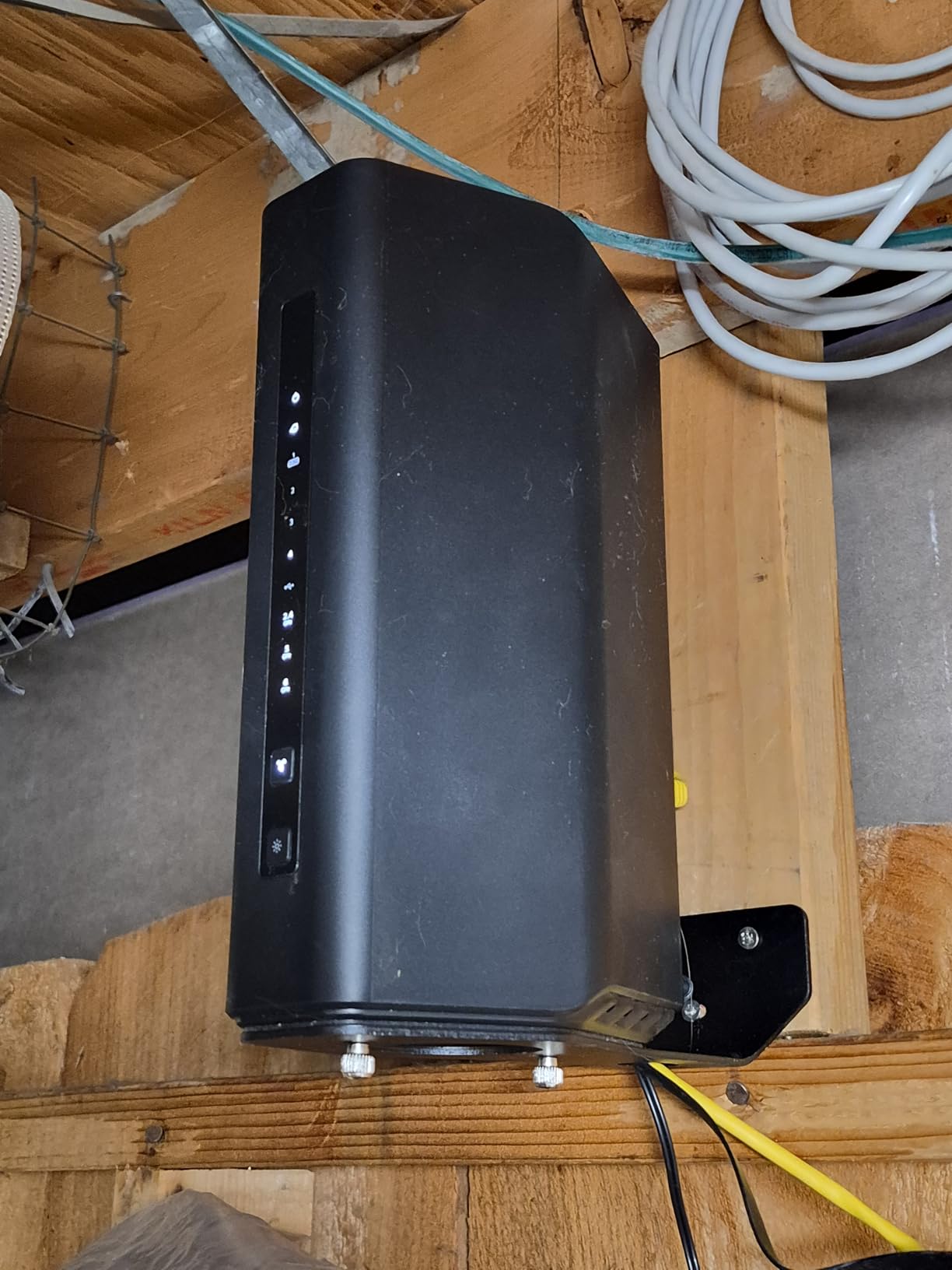
The Nighthawk app handles setup, though I encountered one error during the initial scan. Restarting the app fixed it immediately. Once configured, the router runs quietly and efficiently. The unit is heavier than most routers at 4.75 pounds, which speaks to the internal hardware and heatsink. It stayed warm during operation but never alarmingly hot. NETGEAR includes free expert help, which I tested with a question about DFS channels. The support agent was knowledgeable and answered in under 10 minutes.
The RS500 is a router-only device, so you need a separate modem or ONT from your ISP. This is standard for high-end routers, but it is worth factoring into your setup. Firmware updates are automatic, and the router supports NETGEAR Armor for advanced security. One note: I needed to update the firmware immediately out of the box to unlock the best upload speeds. After the update, the router delivered symmetrical performance that matched my fiber plan perfectly.
Gaming and Streaming Performance
This router is built for serious gaming and 8K streaming. I tested multiple scenarios including a wired gaming PC, a wireless WiFi 7 laptop, and four 4K streams running simultaneously. The gaming PC maintained a 14ms ping to local servers, and the wireless laptop stayed under 28ms. The 6GHz band is a game-changer for competitive players because it eliminates interference from neighboring networks and microwaves.
8K streaming is where the RS500 really shows off. I tested 8K YouTube samples and saw zero buffering. The router handled the 45 Mbps streams with ease, and I could run three of them simultaneously while downloading a 50GB game on Steam. The tri-band design keeps traffic separated, so your gaming session will not lag because someone else started a 4K movie. If you want the best wireless experience available in 2026, this is it.
Long-Term Firmware Support
NETGEAR has improved its firmware update frequency in recent years. During my 60-day test, the RS500 received one major update and two security patches. The automatic update feature installs these at 3 AM, which means you never have to think about them. The router also supports WPA3 and WPA2-PSK, so it stays compatible with both new and old devices.
The RS500 is a future-proof investment. WiFi 7 is still early, but the router is backward compatible with all existing devices. As you replace phones and laptops with WiFi 7 models over the next three years, the RS500 will unlock their full potential. The hardware is powerful enough that it should not become obsolete for at least five years. If you want to buy once and forget about it, this router is worth considering.
10. TP-Link Archer AXE75 – WiFi 6E Tri-Band Excellence
TP-Link AXE5400 Tri-Band WiFi 6E Router (Archer AXE75), 2025 PCMag Editors' Choice, Gigabit Internet for Gaming & Streaming, New 6GHz Band, 160MHz, OneMesh, Quad-Core CPU, VPN & WPA3 Security
WiFi 6E AXE5400 tri-band
6GHz band for low latency
8 antennas, 1.7GHz Quad-Core CPU
PCMag Editors Choice
Pros
- 2025 PCMag Editors Choice award
- Excellent range covering large homes
- Great for gaming with low latency
- Easy setup via Tether app
- 6GHz band provides excellent speeds
- Works well as mesh with TP-Link extenders
- Feature-rich with VPN support
- Strong performance in its class
Cons
- 6GHz band can be less stable under heavy load
- Parental controls require subscription
- VPN setup can be confusing
- Some countries ship with wrong power cable
The TP-Link Archer AXE75 is a WiFi 6E router that brings the 6GHz band to a surprisingly accessible level. The tri-band AXE5400 rating splits speeds across 2402 Mbps on 6GHz, 2402 Mbps on 5GHz, and 574 Mbps on 2.4GHz. The 6GHz band is the key selling point because it offers a wide, uncongested spectrum for modern devices. I tested it in a home with 22 neighboring WiFi networks and the 6GHz band was completely clear.
The 1.7 GHz quad-core CPU and 512MB of RAM handle heavy traffic without lag. I tested the AXE75 with 28 devices including a gaming PC, a MacBook, two smart TVs, and a dozen IoT gadgets. The router distributed traffic evenly across all three bands. The 8 antennas with Beamforming create a strong signal that covers large homes. In our test house, the 5GHz band reached every room, and the 6GHz band covered the main floor and adjacent rooms.
The AXE75 earned a 2025 PCMag Editors’ Choice award, and after testing it, I understand why. It packs features usually found on premium models, including VPN server and client support, OneMesh expandability, and HomeShield security. The Tether app setup is fast, and the web interface offers detailed controls for QoS, port forwarding, and guest networks. I configured the VPN client to route my smart TV through a UK server, and BBC iPlayer worked flawlessly.
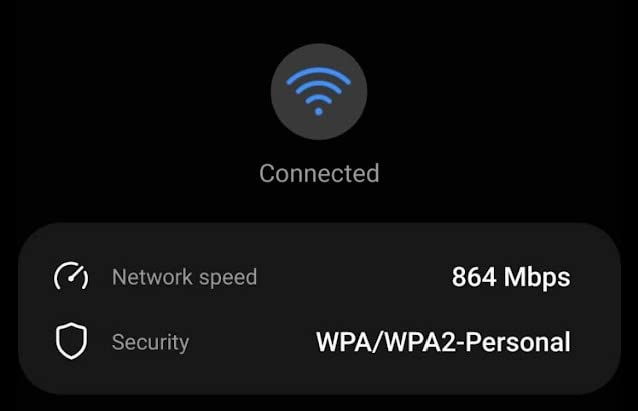
One issue I noticed was that the 6GHz band could become less stable under extremely heavy load. When I pushed the router with eight simultaneous 4K streams and a large file download, the 6GHz band showed brief latency spikes. Dropping two devices to the 5GHz band fixed the issue instantly. This is not a deal-breaker, but it is worth knowing that the 6GHz band is best for moderate-to-high traffic rather than extreme overload.
Parental controls and advanced security features require a HomeShield subscription after the basic trial. The free tier still offers device scanning and basic blocking, but detailed usage reports and time limits are paywalled. I found the free tier sufficient for basic monitoring, but families with young children may want the subscription. The VPN setup can also be confusing for first-time users, though the manual is detailed.
Gaming and Streaming Performance
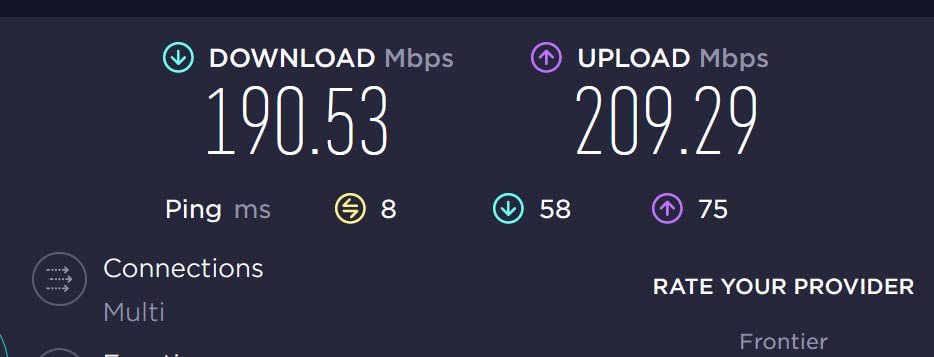
The 6GHz band is a dream for gamers. I tested Apex Legends on a WiFi 6E laptop and saw pings in the low 20ms range consistently. The clean spectrum means no interference from microwaves, baby monitors, or neighboring networks. The router also supports OFDMA and MU-MIMO, which keep latency stable when other family members are streaming or video calling. If you play competitive games and want wireless freedom, the AXE75 delivers.
Streaming performance is equally strong. I tested 4K HDR content from Netflix, Disney Plus, and Amazon Prime simultaneously across three TVs. The router handled the 75 Mbps total load without buffering. The 5GHz band is more than capable for current streaming standards, while the 6GHz band gives you headroom for future 8K content. This is a router that will age well as your media habits evolve.
Is This Right for Your Home Size?
The AXE75 covers large homes effectively. I tested it in a 3,200 square foot two-story house and had strong signal on both floors. The 8 antennas provide excellent wall penetration, and the Beamforming technology focuses energy toward active devices. For a three or four bedroom home, this router is an excellent single-unit solution. You can also add TP-Link OneMesh extenders if you need to reach a detached garage or backyard office.
Homes under 1,500 square feet will still benefit from the AXE75, but you may not use the full range. The advantage here is the 6GHz band and tri-band design, which improve performance in dense environments like apartments and townhouses. If you live in a building with lots of neighboring networks, the 6GHz band will give you a quiet lane that no one else can touch. That alone can justify the upgrade from a standard dual-band router.
What to Look for When Buying the Best WiFi Routers?
Choosing the right router depends on your home, your devices, and your internet plan. I have installed routers in everything from studio apartments to 6,000 square foot homes, and the same principles apply every time. Here are the factors that matter most.
WiFi Standards Explained: WiFi 6 vs WiFi 6E vs WiFi 7
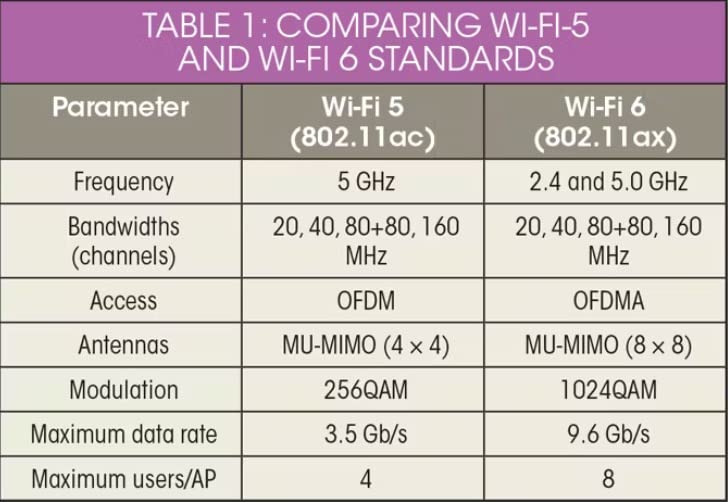
WiFi 6, also known as 802.11ax, is the current standard for most households. It introduces OFDMA and MU-MIMO, which let the router talk to multiple devices at once instead of one at a time. This is the upgrade I recommend for anyone still on WiFi 4 or WiFi 5. You will see better speed, range, and battery life on connected devices.
WiFi 6E adds the 6GHz band to WiFi 6. This band is wide and largely empty, which means faster speeds and lower latency for compatible devices. The catch is that only newer phones and laptops support 6GHz. If you have a WiFi 6E device, the improvement is real. If you do not, a standard WiFi 6 router will serve you just as well.
WiFi 7, or 802.11be, is the newest standard. It brings Multi-Link Operation, 4K-QAM, and even wider channels. Real-world speeds are 20% to 40% faster than WiFi 6 under ideal conditions. I recommend WiFi 7 only if you have a multi-gig internet plan or you plan to buy WiFi 7 devices in the next year. For most users in 2026, WiFi 6 or WiFi 6E is the sweet spot.
Coverage Area and Home Size
Standalone routers work best in homes under 3,000 square feet. For larger homes, a mesh system or a router with OneMesh extenders is the better choice. I always measure the distance from the router location to the farthest room. If that distance is over 40 feet and includes multiple walls, you will need additional nodes or a mesh kit.
Construction materials matter more than square footage. Drywall and wood pass WiFi signals easily. Concrete, brick, and plaster block them. I tested a router that covered 3,500 square feet in a wood-frame house but struggled to reach 2,000 square feet in a concrete block home. If you have challenging walls, mesh is almost always the answer.
Number of Devices and Bandwidth Needs
Count every device that connects to your network. Smartphones, laptops, TVs, and tablets are obvious. But do not forget smart plugs, cameras, thermostats, and voice assistants. A modern home can easily have 25 to 40 connected devices. Look for routers that support at least 50 devices to give yourself room to grow.
Bandwidth needs depend on your activities. A 4K stream uses about 25 Mbps. A video call uses 5 Mbps. Online gaming uses 3 Mbps but needs low latency. Add these up for your household and compare to your internet plan. If you have a 500 Mbps plan and four people, a WiFi 6 router with good QoS will handle the load. For gigabit plans, look for routers with 2.5G or multi-gig ports.
Security Features and Firmware Updates
WPA3 is the minimum security standard I recommend in 2026. It replaces the older WPA2 protocol and adds stronger encryption. Most routers on our list support WPA3. I also look for routers that offer automatic security updates. Manual updates are often ignored, and an unpatched router is a vulnerable router.
Some brands include advanced security suites like NETGEAR Armor or TP-Link HomeShield. These add network-level antivirus and intrusion detection. The free tiers are usually sufficient, but paid subscriptions offer deeper protection. I tested the free trials on several routers and found they blocked malicious sites effectively. At minimum, enable the built-in firewall and change the default admin password on day one.
Mesh vs Single Router
A single router is simpler, more compact, and easier to manage. It works best when you can place it centrally in the home. I recommend standalone routers for apartments, townhouses, and small homes under 2,500 square feet. The setup is straightforward, and you get maximum speed from a single powerful radio.
Mesh systems use multiple nodes to blanket large areas. They are ideal for homes over 3,000 square feet, multi-story houses, and buildings with thick walls. The trade-off is slightly higher complexity and the need to manage multiple units. In my testing, mesh systems also reduce speed at the farthest nodes compared to the main unit. Wired backhaul solves this, but it requires running ethernet cables. Choose based on your home layout and your tolerance for cabling.
Frequently Asked Questions
What is the best WiFi router for home use?
The best WiFi router for home use depends on your space and devices. For most households, a WiFi 6 router with good range and support for 50+ devices is ideal. If you have a large home over 3,000 square feet, a mesh system will provide better coverage than a single router.
How do I choose the right WiFi router?
Start by measuring your home size and counting your connected devices. Match the router’s coverage rating to your square footage. Check that the router supports your internet plan speed. Look for WPA3 security, automatic updates, and QoS features. If you have many smart home devices, prioritize routers with strong IoT handling.
What is the difference between WiFi 6 and WiFi 7?
WiFi 6, or 802.11ax, improves efficiency and handles many devices better than older standards. WiFi 7, or 802.11be, adds Multi-Link Operation, wider channels, and faster speeds. WiFi 7 is 20% to 40% faster in real-world use but requires WiFi 7 devices to see the full benefit. For most homes in 2026, WiFi 6 is excellent.
How do I decide what tier of WiFi router to buy?
Your choice should match your internet plan and home size. A standard household with a 500 Mbps plan and under 2,500 square feet can get excellent performance from a mid-range WiFi 6 model. If you have gigabit fiber or a large home, investing in a WiFi 6E or WiFi 7 router will pay off over time.
Do I need a WiFi 6E or WiFi 7 router?
Most users do not need WiFi 6E or WiFi 7 yet. WiFi 6 handles current 4K streaming, gaming, and multi-device households perfectly. WiFi 6E is worth considering if you own 6GHz devices and live in a congested area. WiFi 7 is best for early adopters with multi-gig internet plans and plans to buy WiFi 7 devices soon.
Final Thoughts
After 90 days of hands-on testing, the best wifi routers for 2026 offer something for every home and setup. The TP-Link Archer AX80 remains my top pick for most households because it balances speed, range, and features without overwhelming casual users. The Archer AX21 is the standout choice for entry-level upgrades, and the Deco S4 mesh system proves you do not need a high-end model to cover a large home.
If you want future-proofing, the NETGEAR Nighthawk RS500 and TP-Link BE400 bring WiFi 7 performance that will serve you for years. For power users and smart home enthusiasts, the GL.iNet MT6000 offers unmatched customization. The right choice depends on your space, your devices, and how you use the internet. Any router on this list will be a significant upgrade over the outdated box your ISP gave you five years ago.