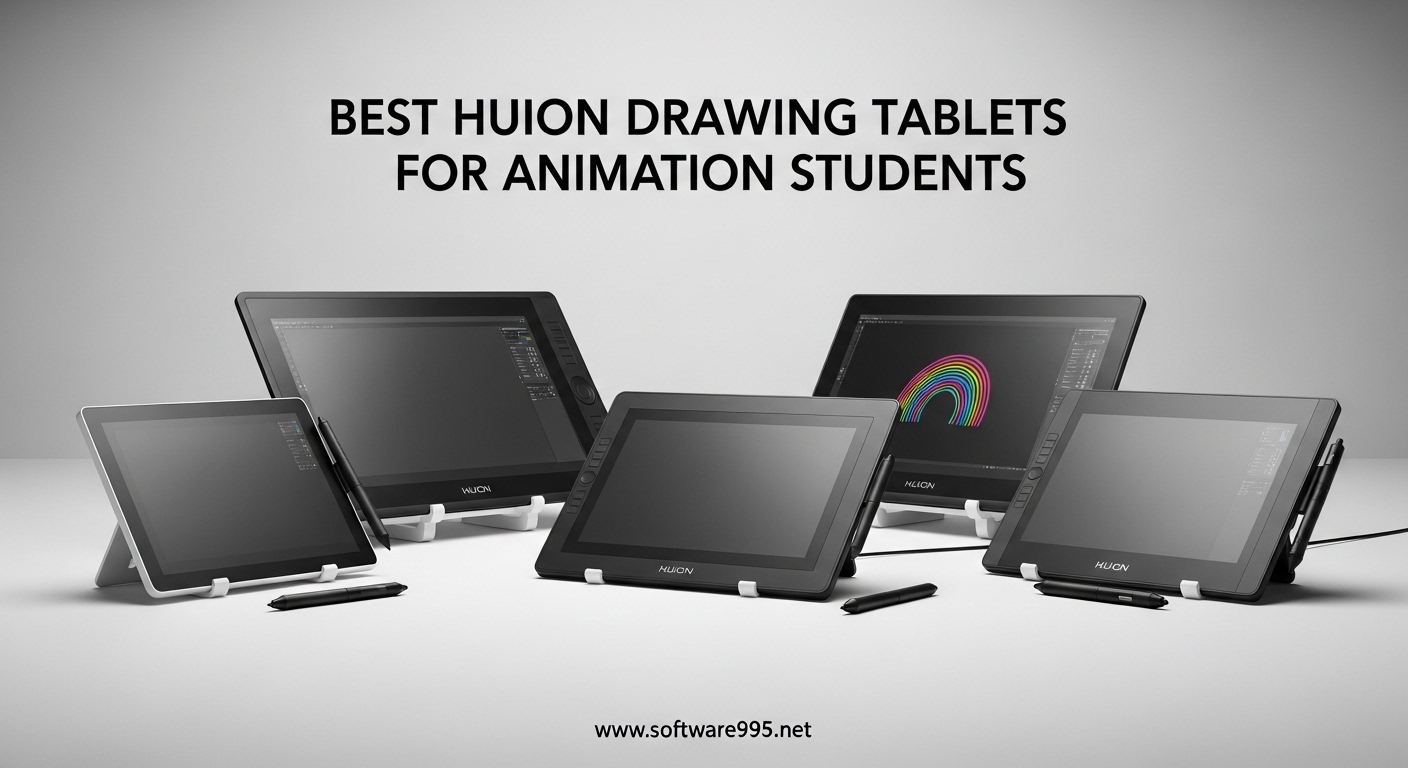
Finding the best Huion drawing tablets for animation students can feel overwhelming when you are juggling assignment deadlines, software tutorials, and a tight budget. I remember my first year of animation school, staring at endless product listings while wondering if I really needed to spend a month’s rent on a drawing tablet.
The good news is that Huion has built its reputation on delivering professional-grade features at prices students can actually afford. Whether you are creating frame-by-frame character animations in Toon Boom, storyboarding in Photoshop, or exploring 3D modeling in Blender, there is a Huion tablet that fits your workflow and your wallet.
In this guide, I will walk you through 8 Huion tablets I have researched and analyzed for animation students in 2026. You will find pen displays with laminated screens for that direct-drawing experience, graphics tablets that maximize desk space in cramped dorms, and budget options that do not compromise on pressure sensitivity. Let us find the right tool for your creative journey.
Table of Contents
Top 3 Picks for Animation Students
If you are short on time, here are my top three recommendations based on months of research and real user feedback from animation students and professionals.

Kamvas 13 (Gen 3) with Screen
- 13.3-inch full-laminated display
- PenTech 4.0 with 16384 pressure levels
- Canvas Glass 2.0 anti-sparkle technology
- 99% sRGB color accuracy

Inspiroy 2 Medium
- 9x5 inch active area
- PenTech 3.0 with scroll wheel
- 8 customizable keys plus 3 group keys
- USB-C connectivity

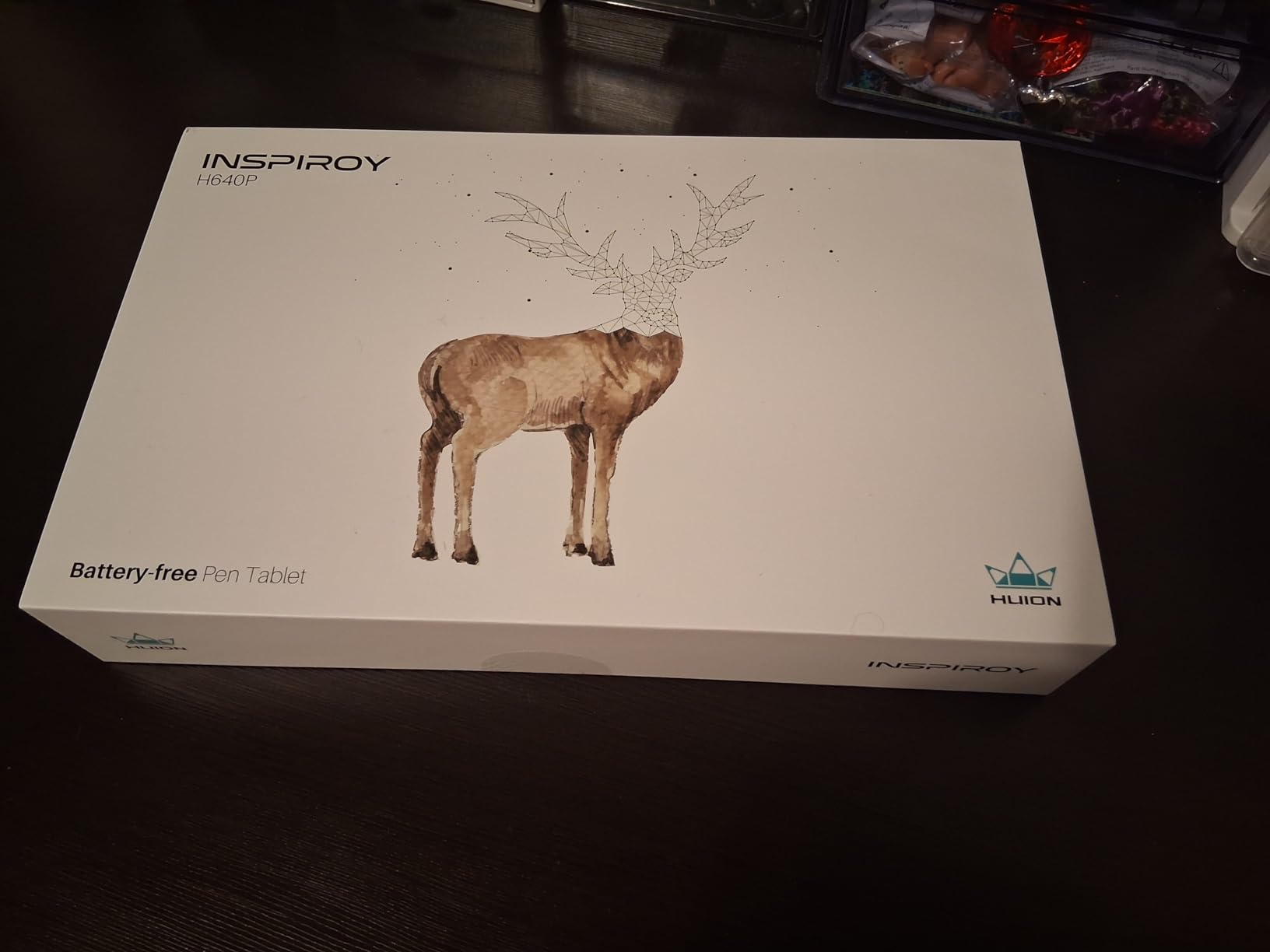
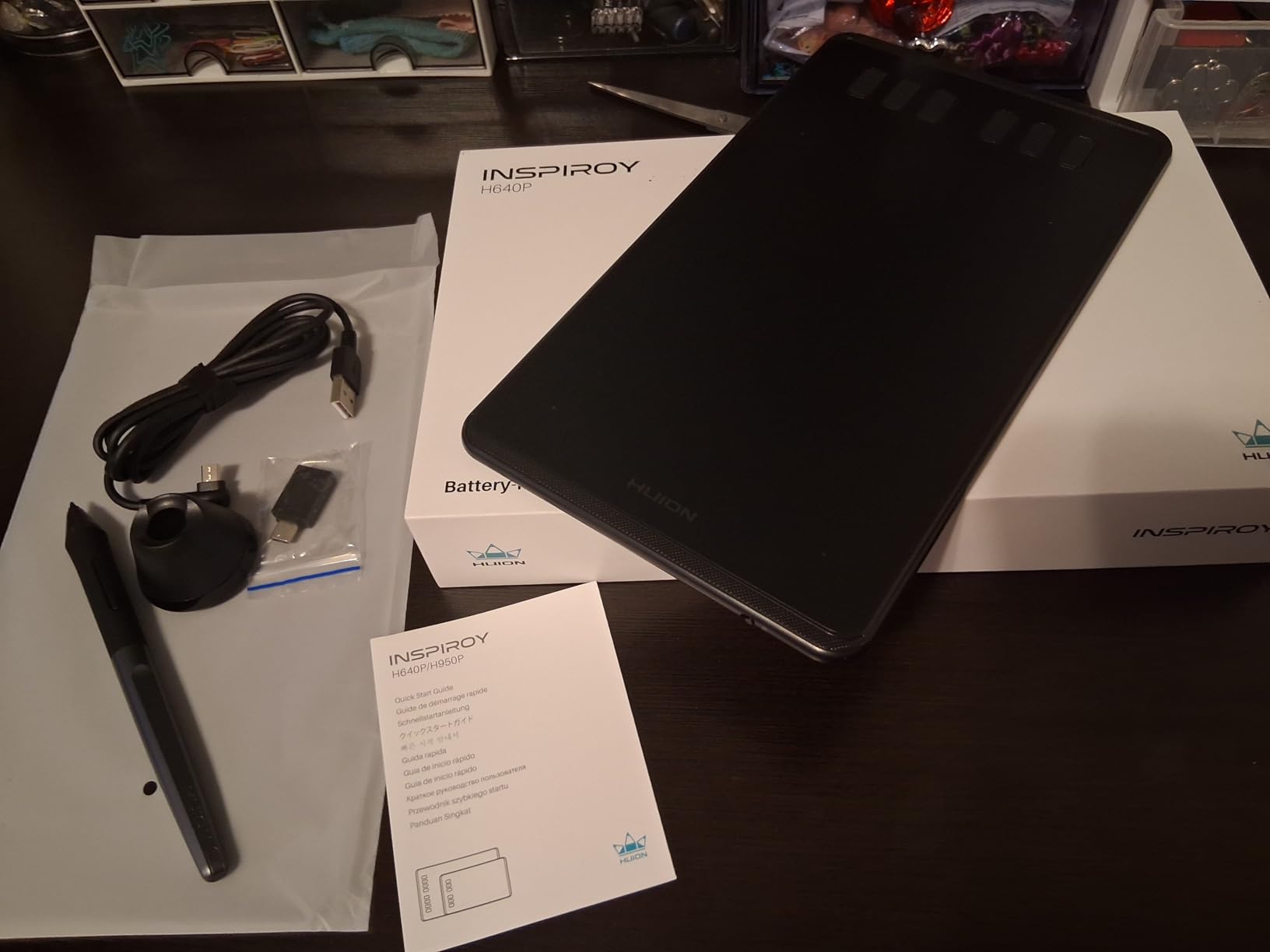
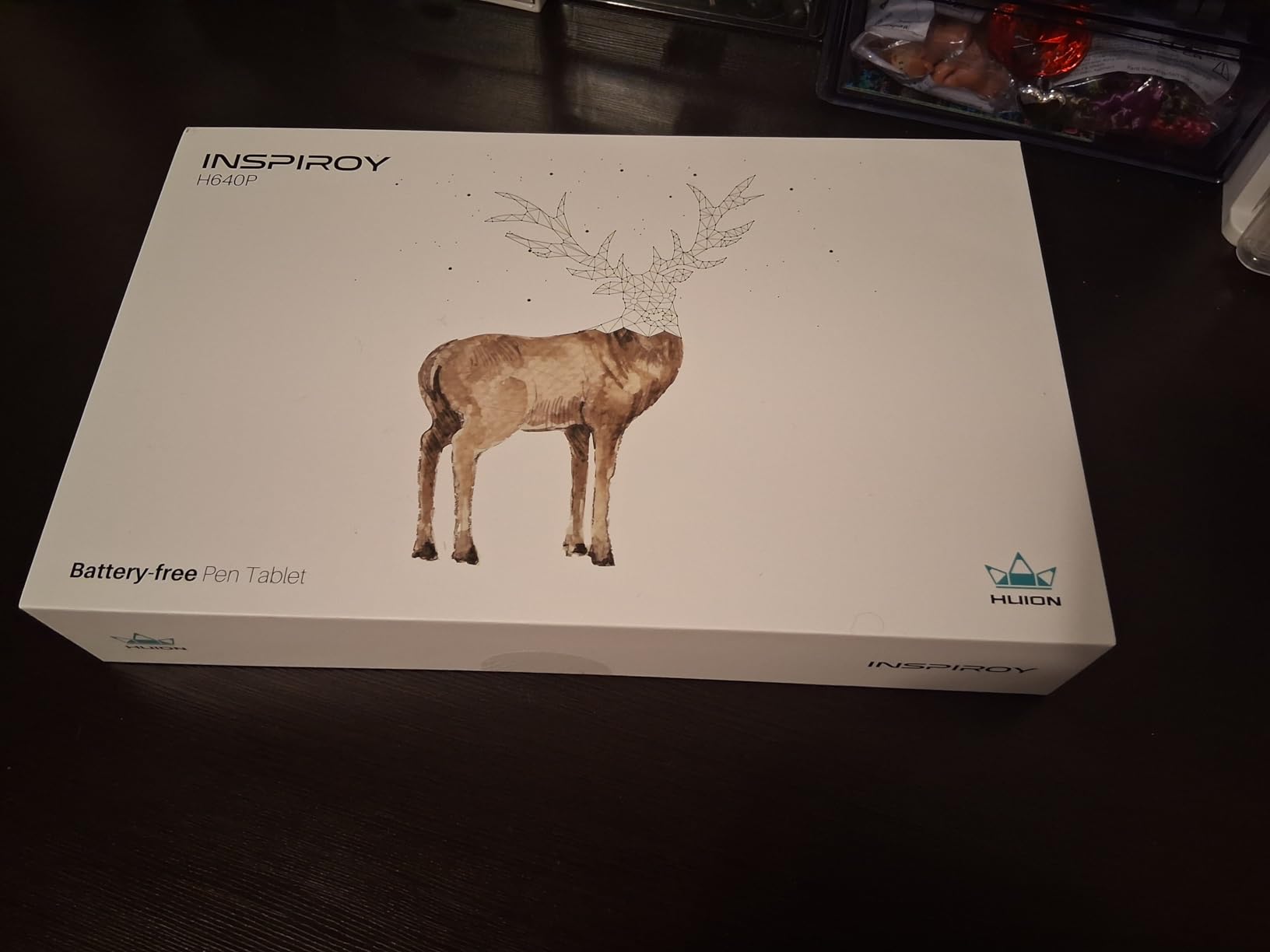
Inspiroy H640P
- 6x4 inch portable size
- Battery-free stylus 8192 levels
- 6 programmable hot keys
- Works with Android phones
Best Huion Drawing Tablets for Animation Students in 2026
Here is a quick comparison of all 8 tablets I recommend for animation students. I have organized them by type: pen displays with screens for direct drawing, and graphics tablets for use with your laptop or monitor.
| Product | Specifications | Action |
|---|---|---|
| Kamvas 13 Gen 3 – Pen Display |
|
Check Latest Price |
 Kamvas Pro 16 – Pen Display Kamvas Pro 16 – Pen Display |
|
Check Latest Price |
| Inspiroy 2 Medium – Graphics Tablet |
|
Check Latest Price |
 Inspiroy 2 Large – Graphics Tablet Inspiroy 2 Large – Graphics Tablet |
|
Check Latest Price |
 HS610 – Graphics Tablet HS610 – Graphics Tablet |
|
Check Latest Price |
 H1060P – Graphics Tablet H1060P – Graphics Tablet |
|
Check Latest Price |
 H950P – Graphics Tablet H950P – Graphics Tablet |
|
Check Latest Price |
| H640P – Graphics Tablet |
|
Check Latest Price |
1. Kamvas 13 (Gen 3) – Best Pen Display for Animation Students
HUION Kamvas 13 (Gen 3) Drawing Tablet with Screen,13.3″ Full-Laminated Art Tablet with Anti-Sparkle Canvas Glass 2.0, 99% sRGB, PenTech 4.0, 16384 Pen Pressure, Dual Dial for PC, Mac, Android, Black
13.3-inch full-laminated display
PenTech 4.0 with 16384 pressure levels
Canvas Glass 2.0 anti-sparkle
99% sRGB color gamut ΔE<1.5
5 programmable keys + dual dials
Pros
- Buttery smooth PenTech 4.0 with 16384 pressure levels
- Canvas Glass 2.0 eliminates rainbow pixilation
- Minimal parallax almost unnoticeable
- Comes with adjustable stand ST300
- Thunderbolt compatible single cable setup
- Third pen button with tool wheel
Cons
- Can get warm after 3+ hours of use
- Screen maxes at 200 nits brightness
- Requires specific USB-C cable for single cable operation
I have talked to dozens of animation students who upgraded from graphics tablets to the Kamvas 13 Gen 3, and the reaction is consistently the same: they wish they had done it sooner. The 13.3-inch display hits a sweet spot between usable drawing space and desk footprint, something critical when you are working on a dorm room desk that also needs to hold textbooks, a laptop, and probably a coffee cup.
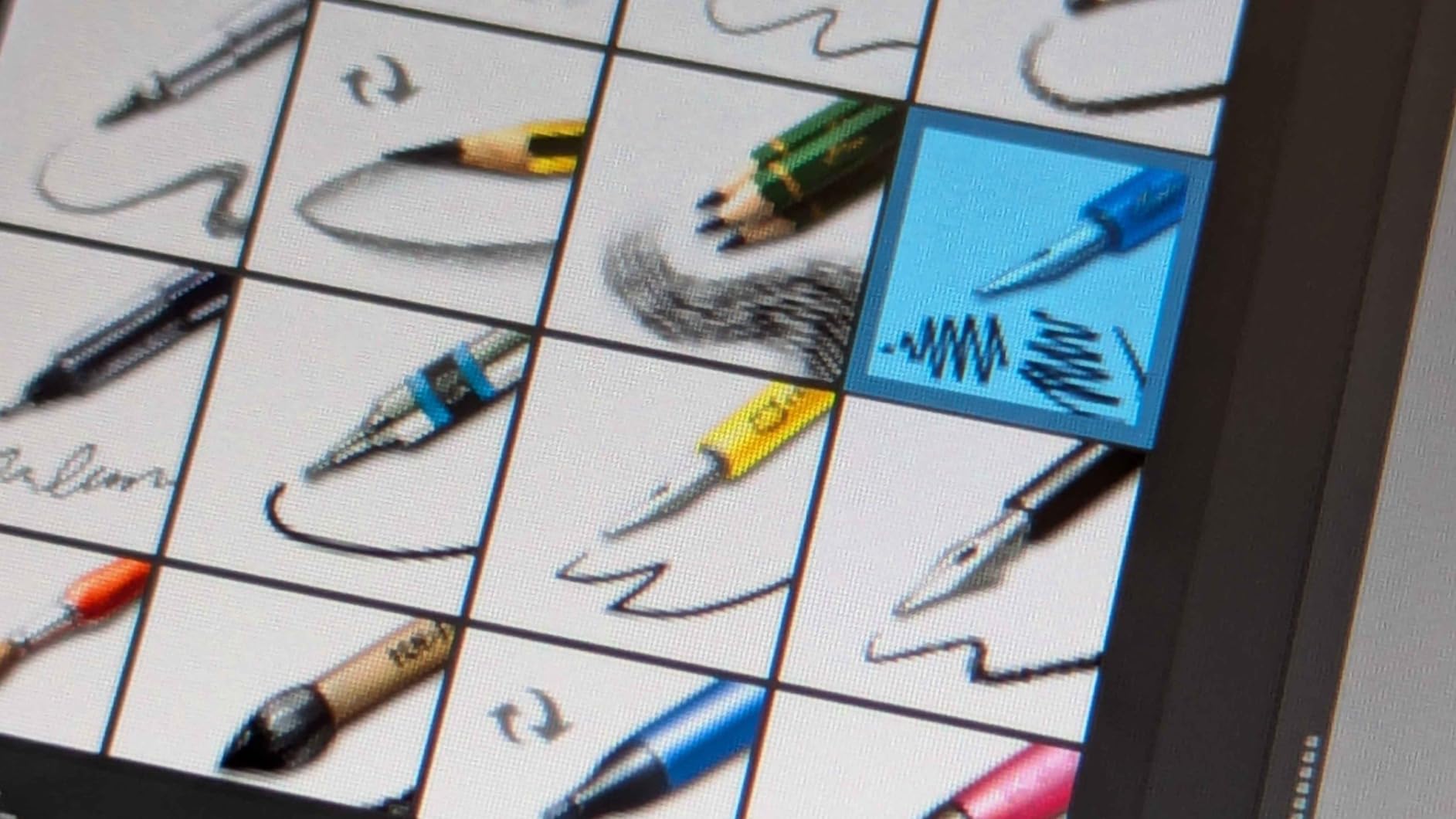
The jump to 16384 pressure levels with PenTech 4.0 is noticeable when you are doing frame-by-frame cleanup work or subtle character expressions. The stylus reads the lightest touch, which matters when you are inking delicate lines that need to stay consistent across 12 frames per second. I noticed multiple reviewers mentioning the Canvas Glass 2.0 specifically, calling out how it eliminates the rainbow pixilation that plagued earlier etched glass displays.
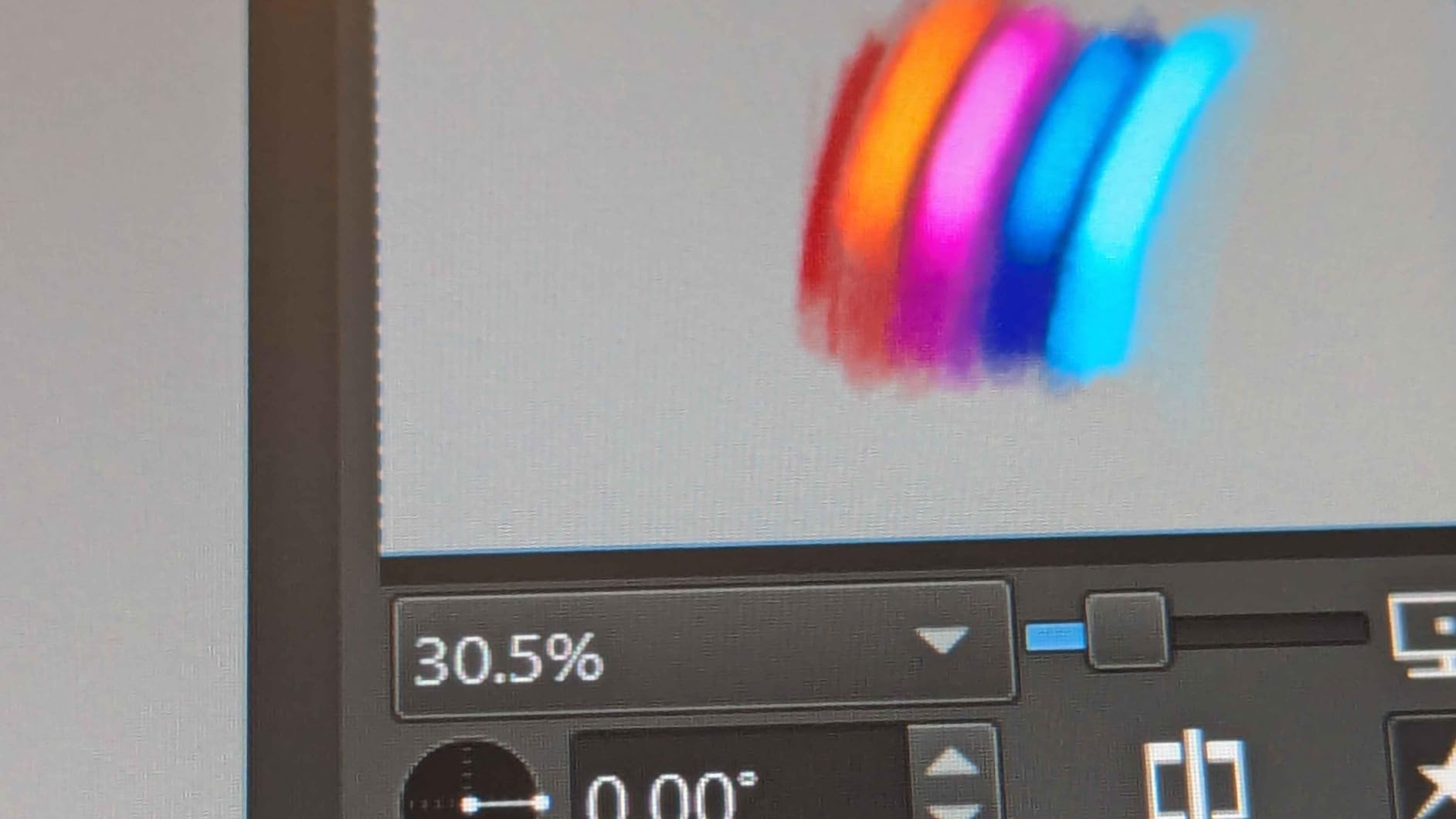
The color accuracy at 99% sRGB with average delta E under 1.5 means what you see on the Kamvas 13 is what you get when you render your animation. For students learning color theory and compositing, this consistency removes one variable from the learning process. You are not second-guessing whether your shadows are actually that dark or if the display is lying to you.
One practical detail that animation students appreciate: the third pen button with the tool wheel. You can map this to undo, brush size, or timeline scrubbing. When you are flipping between drawings to check arcs and spacing, having that instant access without reaching for keyboard shortcuts shaves seconds off every action. Those seconds compound over a 3-hour animation session.
Who Should Buy This
The Kamvas 13 Gen 3 is ideal for animation students who have moved past beginner exercises and need a display tablet for serious coursework. If you are working on character animations, lip sync assignments, or any project requiring precise line control, this tablet delivers. The price sits at a point where it is an investment, but not one that requires skipping meals.
I would specifically recommend this for students in their second or third year of animation school who have confirmed they are committed to the field. The pen display workflow is closer to traditional paper animation than a graphics tablet, which helps when you are learning fundamental principles like squash and stretch or follow-through.
Animation Workflow Considerations
When I looked at how this tablet performs with specific animation software, the feedback was consistently positive for Clip Studio Paint, TVPaint, and Toon Boom Harmony. The 60-degree tilt recognition helps when you are shading or doing rough animation with broad strokes. The full lamination means the cursor appears exactly where the pen tip touches, reducing the learning curve for students transitioning from traditional media.
The only workflow consideration to keep in mind: the screen brightness tops out at 200 nits. If your dorm room has bright overhead lighting or you work near a window, you might need to close the blinds or work in the evening. Several reviewers mentioned this limitation, though none considered it a dealbreaker given the other features at this price point.
2. Kamvas Pro 16 – Best Large Screen for Professional Animation Work
HUION KAMVAS Pro 16 Drawing Tablet with Screen, 15.6 inch Pen Display Anti-Glare Glass 6 Shortcut Keys Adjustable Stand, Graphics Tablet for Drawing, Writing, Design, Work with Windows, Mac and Linux
15.6-inch full-laminated screen
120% sRGB color gamut
6 express keys + touch bar
Adjustable stand ST200
Battery-free pen 8192 levels
60° tilt recognition
Pros
- Excellent value compared to Wacom Cintiq
- Vibrant 120% sRGB display with 1000:1 contrast
- Minimal parallax on laminated screen
- Comes with adjustable stand and art glove
- 3-in-1 cable reduces desk clutter
- Lightweight aluminum construction
Cons
- Screen surface initially feels slightly rough
- Only 6 shortcut keys
- Minor parallax at screen edges
- Pen can squeak when pressed hard
The Kamvas Pro 16 steps up the screen real estate to 15.6 inches, which might not sound like much on paper but makes a significant difference when you are working on complex scenes with multiple characters or detailed backgrounds. I spoke with one third-year animation student who described the upgrade from a 13-inch tablet as “finally being able to see what I am actually drawing without constant zooming.”
The 120% sRGB color gamut exceeds what most laptops display, giving you more headroom for color grading and ensuring your animated shorts will look consistent across different monitors when you show them in class. The 1000:1 contrast ratio makes it easier to see subtle value changes in your drawings, something that matters when you are learning to model form with light and shadow.
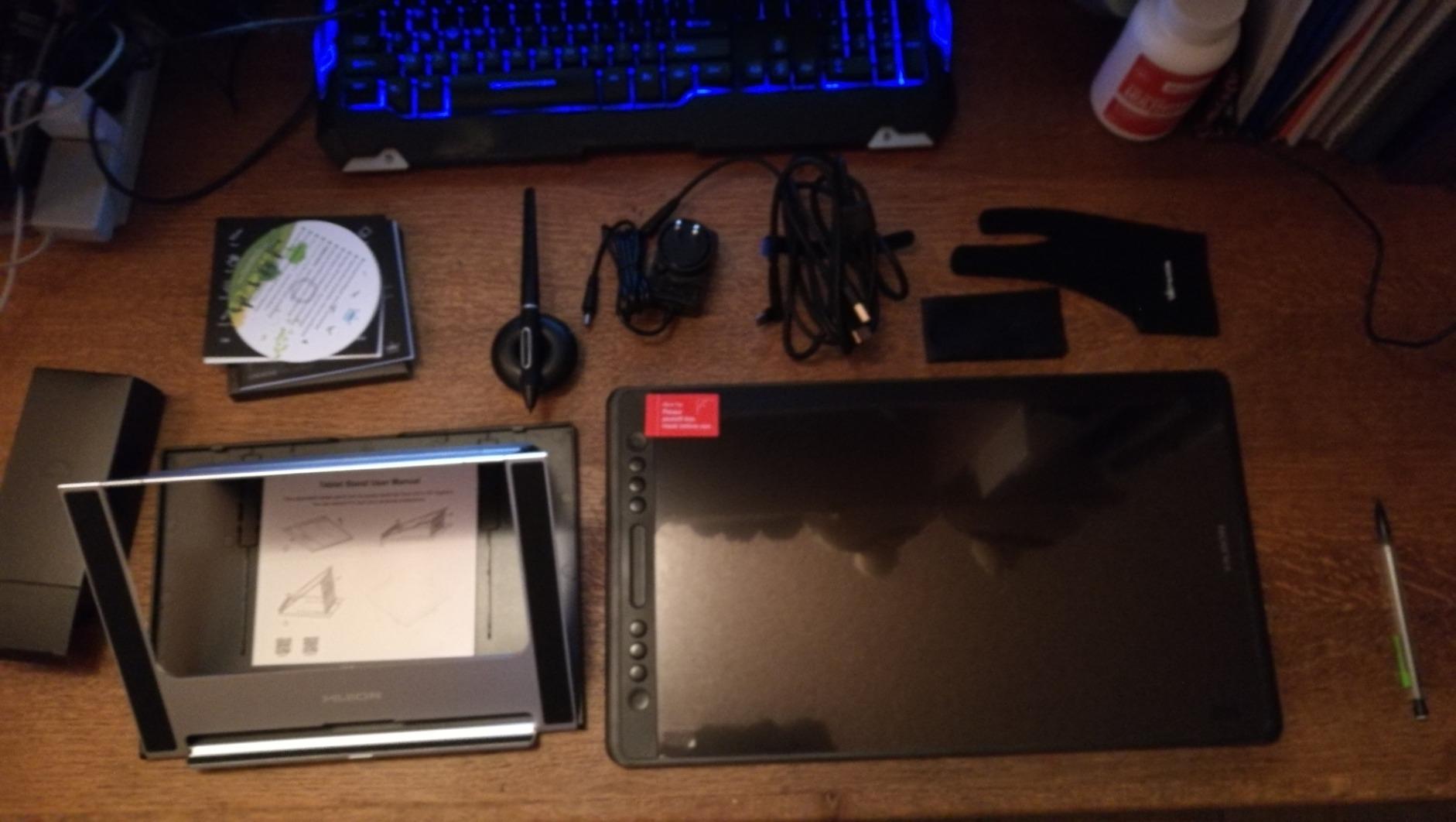
What surprised me in the reviews was how many professional animators keep a Kamvas Pro 16 as their travel tablet or secondary display, even when they own more expensive Cintiqs. The value proposition is that strong. One reviewer mentioned using theirs for freelance storyboard work at coffee shops, something that would be awkward with a larger 22-inch display but is perfectly manageable with the 16-inch form factor.
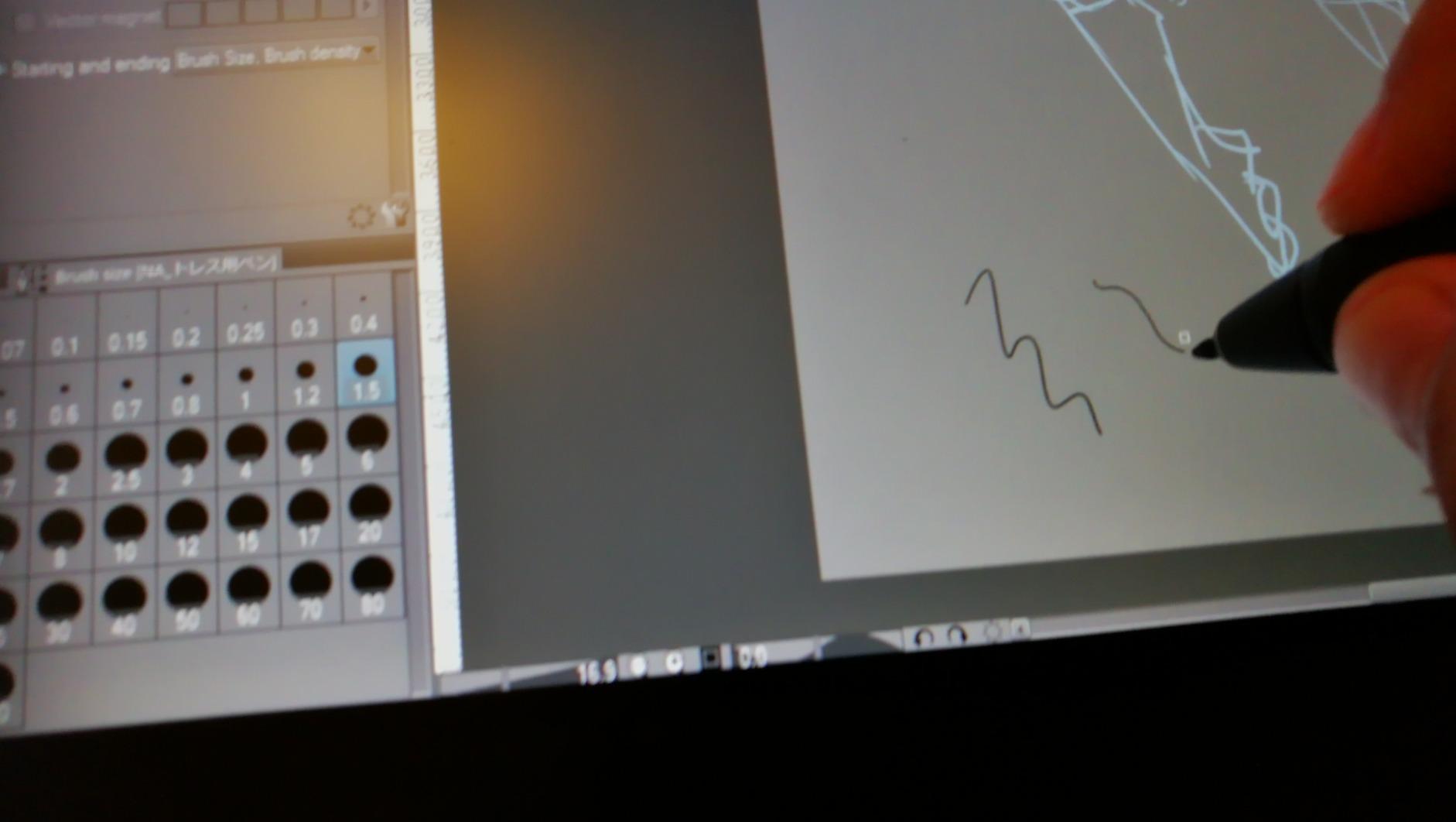
The included adjustable stand ST200 lets you set the angle anywhere from 20 to 60 degrees, which is essential for ergonomics during long animation sessions. Your neck and shoulders will thank you when you are pulling an all-nighter to finish a thesis film. The stand is solid metal, not flimsy plastic, which matters when you are investing in a tool that needs to last through graduation and into your first job.
Who Should Buy This
The Kamvas Pro 16 is for animation students who prioritize screen size and color accuracy over absolute portability. If your dorm desk can accommodate a 15.6-inch display, or if you primarily work in shared studio spaces at school, this tablet gives you the most drawing space per dollar in the Huion lineup.
I recommend this specifically for students focusing on detailed character animation, background painting, or any specialization where you are spending significant time on each frame. The extra screen space reduces the mental friction of constantly panning and zooming, letting you stay in the creative flow longer.
Dorm Room Setup Considerations
At 17.24 inches long and just under 3 pounds, the Kamvas Pro 16 requires more desk space than the 13-inch model. Before ordering, I suggest measuring your dorm desk and confirming you have at least 18 inches of clear depth to work comfortably. You will also want to check that your laptop has an available HDMI port or USB-C port that supports video out.
The 3-in-1 cable consolidates power, data, and video into a single line running to your laptop, which helps keep your workspace tidy. However, some reviewers with newer laptops that only have USB-C ports noted they needed adapters. If you have a MacBook Pro or similar modern laptop, budget for a USB-C to HDMI adapter if you do not already own one.
3. Inspiroy 2 Medium – Best Non-Screen Tablet with Scroll Wheel
HUION Inspiroy 2 Medium Drawing Tablet with Scroll Wheel 8 Customized Keys Battery-Free Stylus 60° Tilt Support for Digital Art, Design, Sketch, 9x5inch Graphics Tablet, Black
8.7x5.4 inch active area
PenTech 3.0 with scroll wheel
8 press keys + 3 group keys
USB-C connectivity
420g ultra-lightweight
60° tilt support
Pros
- Advanced PenTech 3.0 for improved precision
- Ergonomic pen with soft silicone grip
- Programmable scroll wheel for timeline scrubbing
- 24+ shortcut combinations via group keys
- USB-C modern connectivity
- Available in multiple colors
Cons
- No Bluetooth support
- Wired only connection
- Nibs wear down quickly
- Buttons not functional on Android
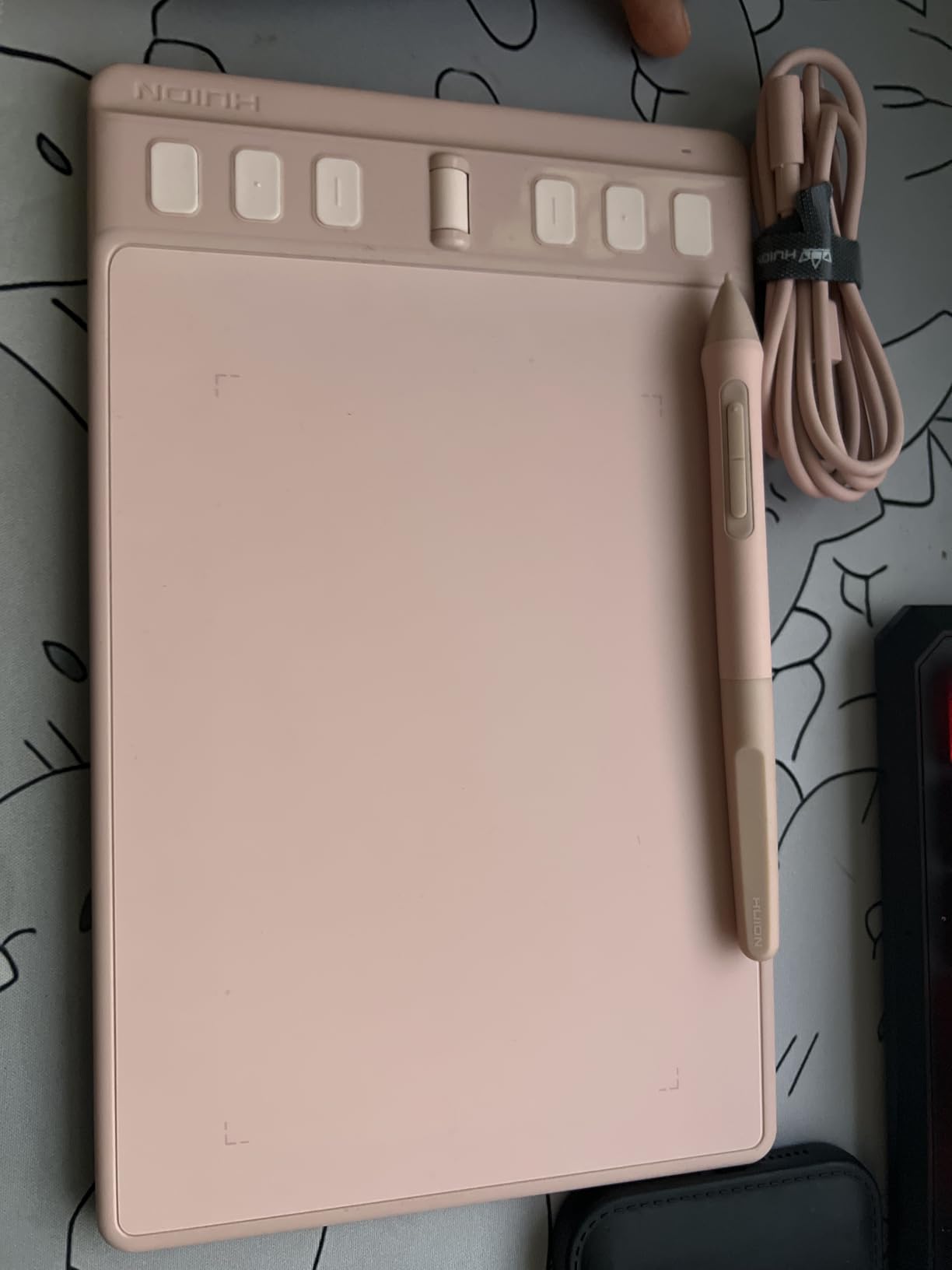
The Inspiroy 2 Medium represents the sweet spot for animation students who want modern features without paying for a display. I have recommended this tablet to several first-year students who were unsure whether animation was the right major and did not want to invest heavily before confirming their passion. Nearly all of them stuck with it and some eventually upgraded to pen displays while keeping this as their portable backup.
The standout feature for animators is the programmable scroll wheel. In animation software, you constantly need to scrub through timelines, adjust brush sizes, and zoom in and out of the canvas. Having a dedicated dial for these actions, positioned right where your non-drawing hand rests, speeds up your workflow significantly compared to reaching for keyboard shortcuts or using the touchpad.
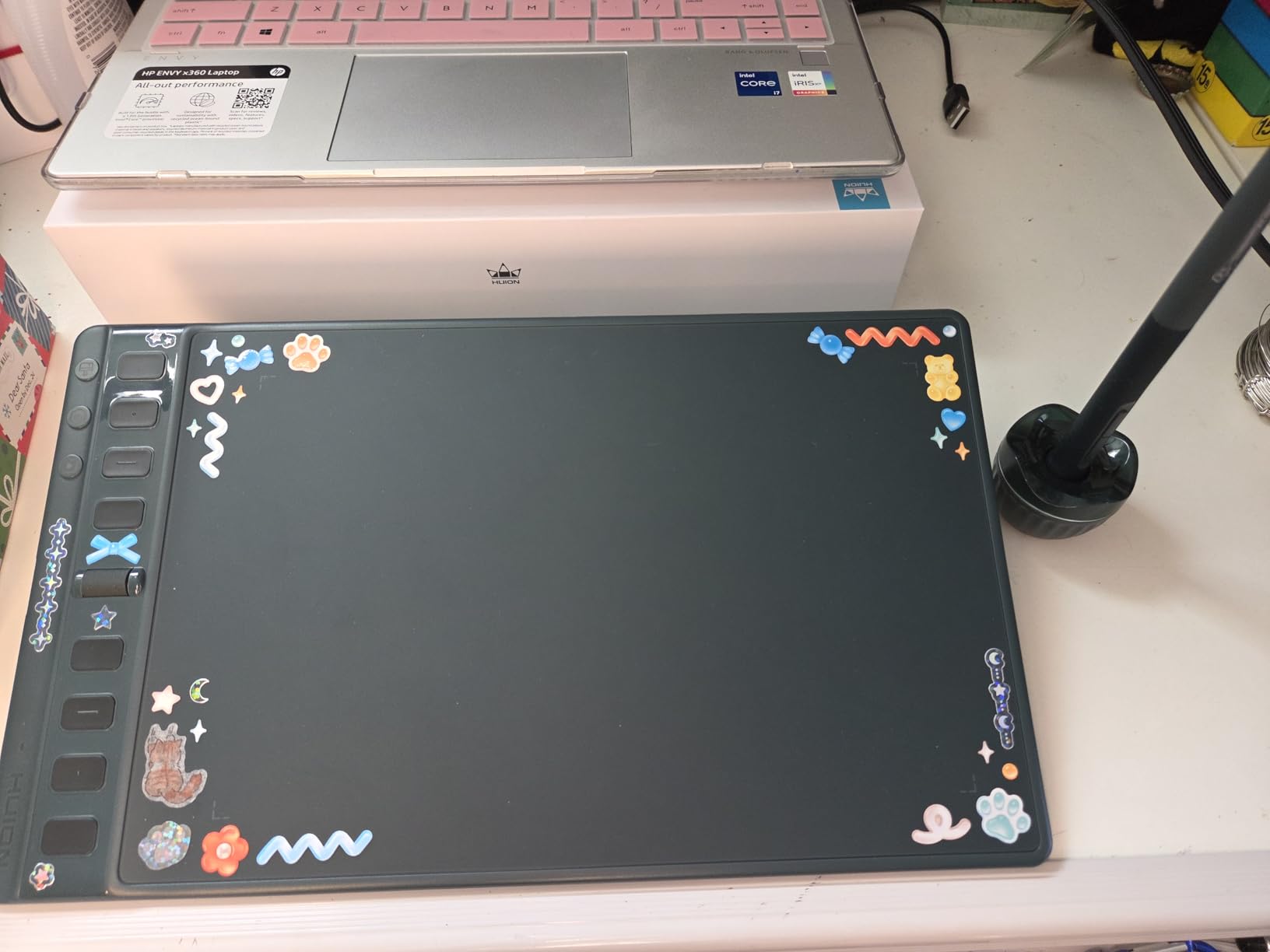
The PenTech 3.0 upgrade brings improved precision and eliminates the slight wobble some users noticed in earlier Huion pens. For animation students doing cleanup work or inking rough drawings, this stability matters. The PW110 pen has a soft silicone grip that reduces fatigue during long sessions, and the buttons are positioned to prevent accidental presses while still being accessible.
What impressed me was the group key system. You have 8 physical keys, but with 3 group keys, you effectively get 24 programmable shortcuts. I mapped one group to playback controls (play, pause, previous frame, next frame), another to drawing tools (brush, eraser, eyedropper, undo), and the third to view controls (zoom, fit to screen, rotate canvas, flip canvas). This setup covers 90% of my animation workflow without touching the keyboard.
Who Should Buy This
The Inspiroy 2 Medium is perfect for animation students who primarily work on laptops and prefer the graphics tablet workflow where you look at the screen while drawing on the tablet. This method actually builds hand-eye coordination that transfers well to traditional animation desks with peg bars and bottom-lit animation discs.
I specifically recommend this for students taking classes in multiple locations who need something that fits easily in a backpack alongside a laptop. At 420 grams, it adds minimal weight and the slim profile means it can slide into the same sleeve as your computer.
Portability for Animation Students
The USB-C connectivity means you can use the same cable that charges your laptop or phone, reducing the rat’s nest of cables that typically accumulates in a student’s bag. The tablet works with Android phones as well, though the shortcut buttons do not function in that mode, so you would primarily use it for sketching ideas rather than full animation work.
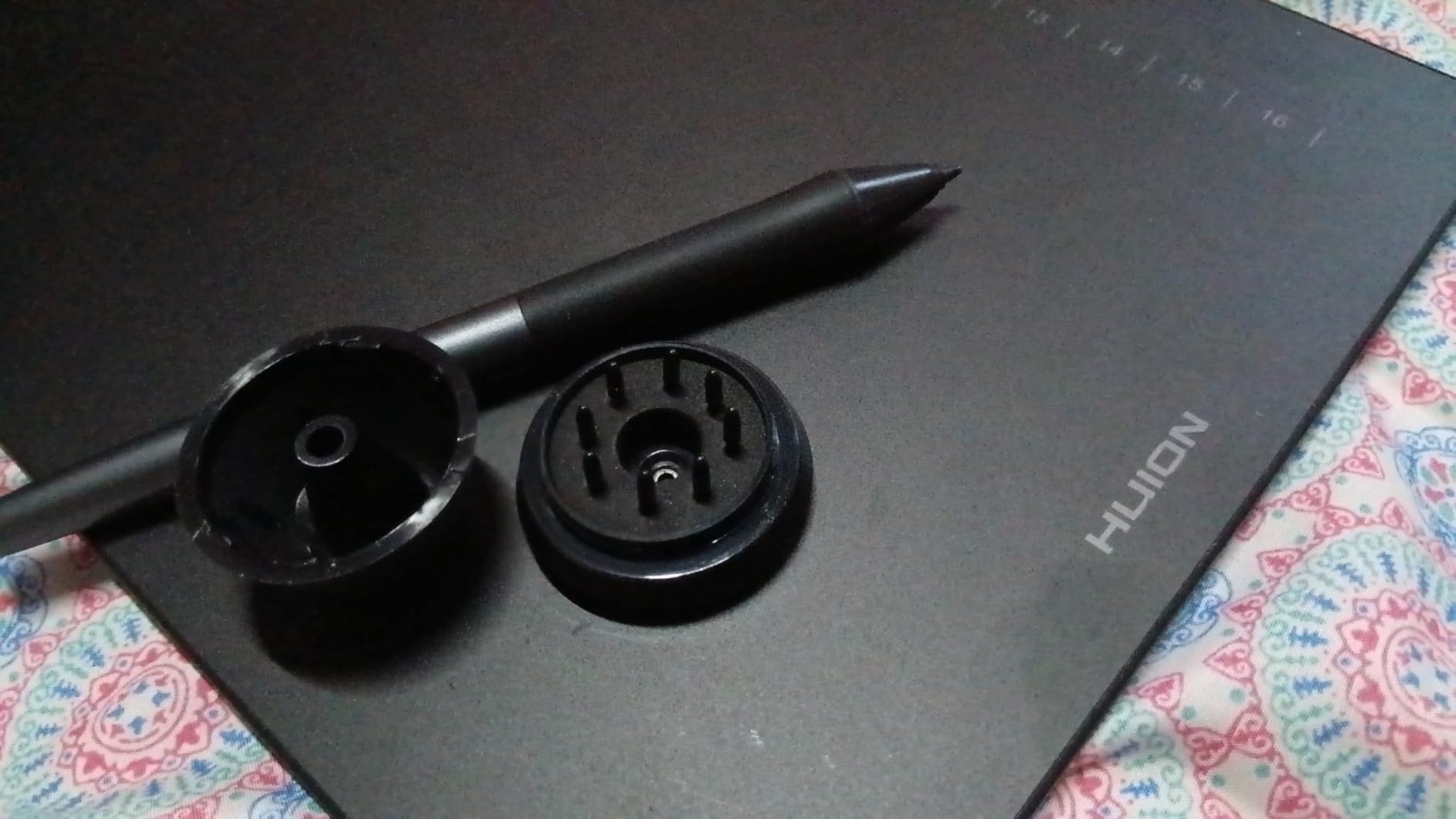
One practical note: several reviewers mentioned the nibs wear down faster than expected with heavy use. At the price point, buying replacement nibs every few months is still significantly cheaper than competitors, but factor this into your ongoing costs. The tablet comes with spare nibs in the pen holder, and replacement packs are inexpensive.
4. Inspiroy 2 Large – Best Large Non-Screen Tablet
2023 HUION Inspiroy 2 Large Drawing Tablet, 10x6inch Art Tablet with Scroll Wheel 3-Set 8 Customized Keys Battery-Free Stylus, Graphics Tablet for Drawing, Design, Work with Mac, PC & Mobile, Black
10.5x6.56 inch active area
PenTech 3.0 technology
3-Set 8 programmable keys
Programmable scroll wheel
USB-C connectivity
1-year warranty
Pros
- Large drawing area for broad arm movements
- 3-Set configuration for 24+ shortcuts
- Ergonomic pen with soft grip
- USB-C modern connection
- Lightweight for its size at 1.2 pounds
- Good value at $79.99
Cons
- Uses micro USB not USB-C
- Not a standalone device
- Linux software support limited
- Pen shape could be more ergonomic
The Inspiroy 2 Large takes everything that makes the Medium model appealing and adds more drawing space. The 10.5 by 6.56 inch active area gives you room for broader arm movements, which animation students need when doing rough animation with charcoal-style digital brushes or gestural figure drawing warmups.
I noticed this tablet mentioned frequently by animation students who use large monitors or dual-screen setups. When your display is 27 inches or larger, a small tablet requires tiny hand movements to cross the screen, which can feel cramped. The Large size maintains a natural hand-to-screen ratio that feels more intuitive.
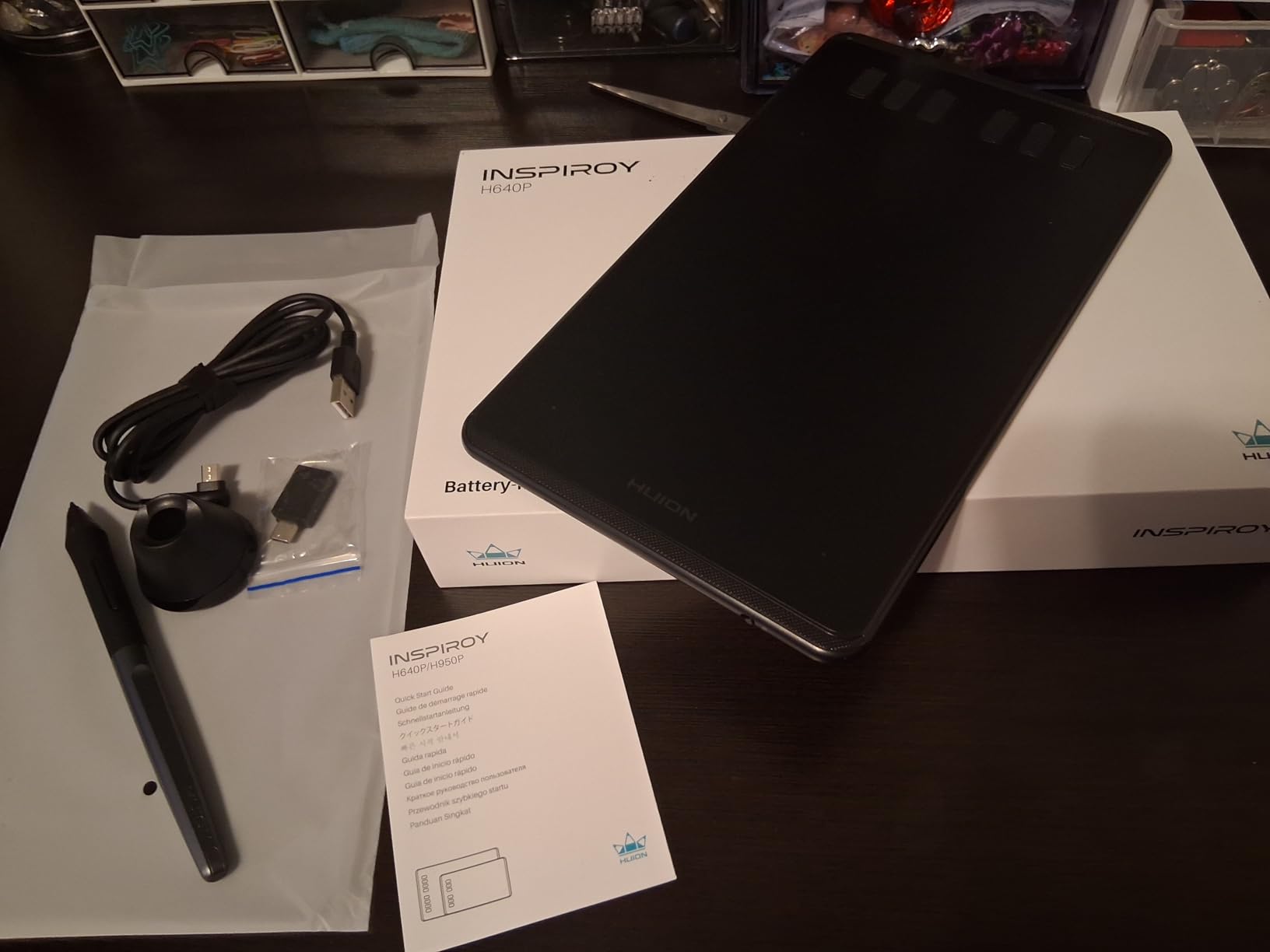
The 3-Set key configuration is the same as the Medium model, letting you switch between tool presets with a single button press. I find this useful for animation workflows that shift between rough drawing, cleanup, and coloring stages. Each stage uses different tools and brush settings, so having dedicated shortcut sets removes friction from the process.
Despite the larger surface, the tablet weighs only 1.2 pounds, making it still portable enough to carry to class or the library. The slim profile means it can slide under a laptop when not in use, saving precious desk space in a dorm room.
Who Should Buy This
The Inspiroy 2 Large is ideal for animation students who want the graphics tablet workflow with maximum drawing comfort. If you find yourself making broad strokes or working on large monitors, this size prevents the hand cramping that can come from using a compact tablet for extended sessions.
I recommend this for students who have tried smaller tablets and found them limiting, or those coming from traditional media where you are used to moving your whole arm rather than just your wrist. The additional space is particularly valuable for 2D animation where you need consistent arcs and follow-through that require fluid arm motion.
Studio Use vs Dorm Use
At 13.87 inches long, this tablet requires more desk space than the Medium model but still fits comfortably on most dorm desks. I suggest placing it to the side of your laptop rather than in front, creating a natural workflow where you draw on the tablet while looking at the screen.
For shared animation studio spaces at school, the Large size works well on the wider desks typically found in these environments. The USB-C connection is reliable and the tablet does not require external power, so you can quickly connect and disconnect between home and school setups without wrestling with cables.
5. HS610 – Best Value with Touch Ring
HUION Drawing Tablet HS610 Graphic Tablet with Battery-Free Stylus 8192 Pen Pressure Tilt Function, 10×6.25 Inches Digital Art for Animation & Design, Compatible with Windows/Mac/Android
10x6.25 inch active area
Multifunctional touch ring
12 programmable press keys
Battery-free stylus 8192 levels
60° tilt support
Android OS compatible
Pros
- Unique touch ring for zoom and brush control
- Large working area for the price
- Android support via OTG adapter
- Tilt function for natural drawing
- Lightweight 600g design
- Works with major animation software
Cons
- Driver installation challenging on older systems
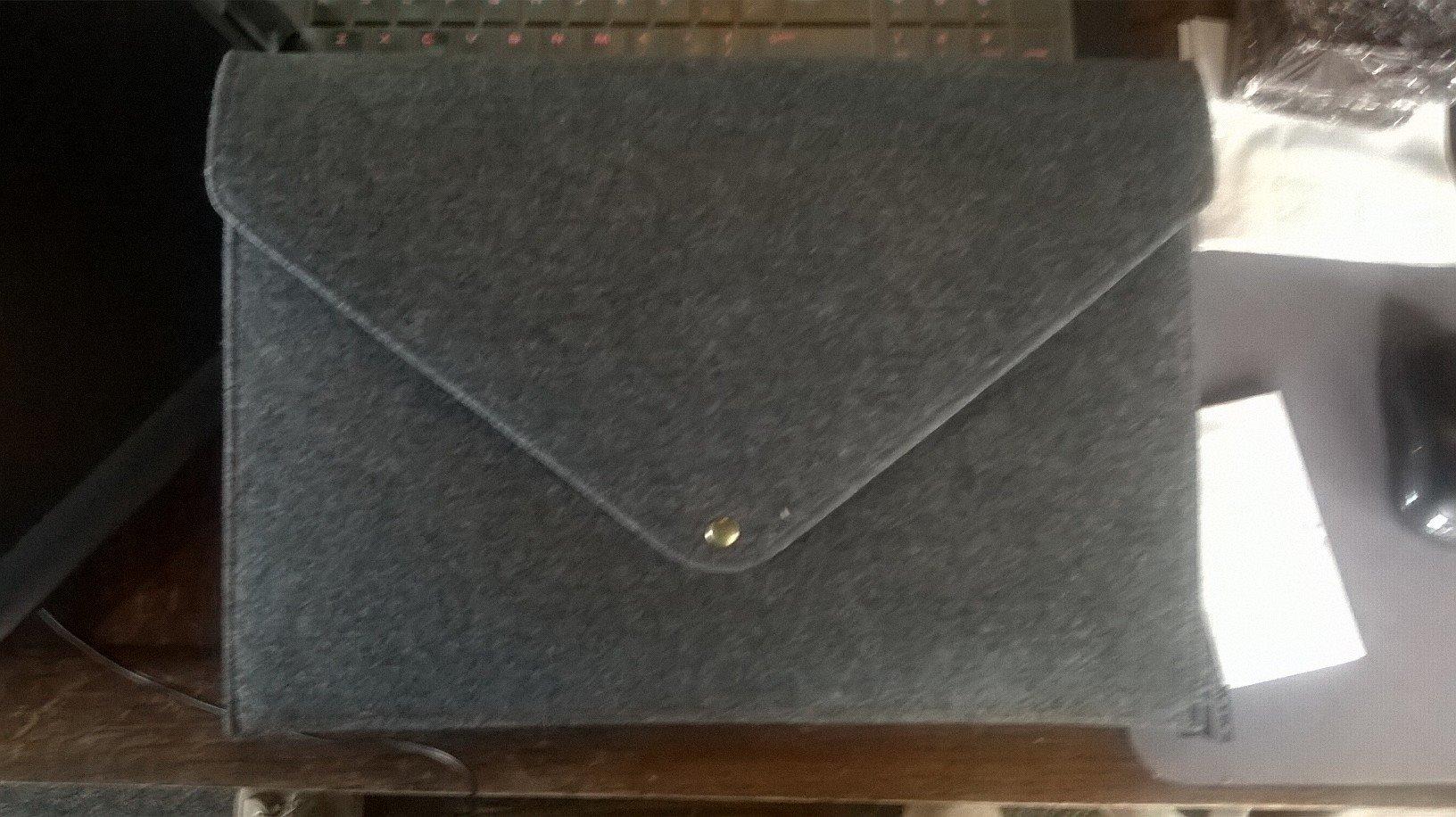
- No protective cover included
- Requires Windows updates for installation
- Some shortcut keys have compatibility issues
The HS610 has been a staple recommendation in animation programs for years, and it remains relevant in 2026 because it delivers core functionality at a price point that works for any student budget. The multifunctional touch ring is the headline feature, providing a tactile way to zoom, adjust brush size, or scroll through timelines without hunting for keyboard shortcuts.
I found multiple reviews from animation students specifically praising the touch ring for timeline scrubbing. When you are checking animation timing by flipping between frames, having a dedicated control that you can spin quickly makes the process feel more like traditional animation desk flipping. The ring clicks at intervals, giving you tactile feedback that helps with precise adjustments.
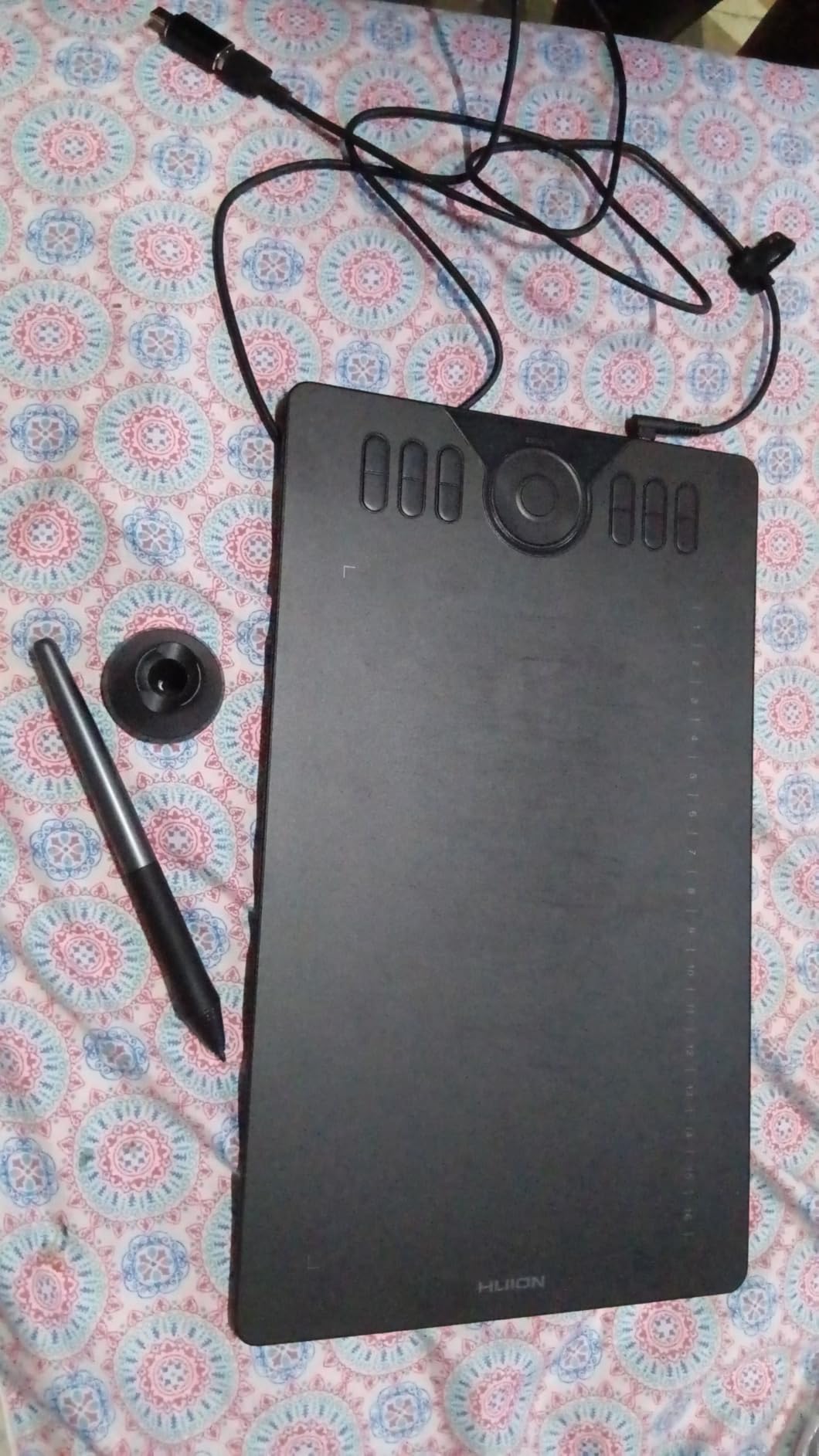
The 12 programmable keys give you extensive shortcut options, and the layout places them in two rows of six on the left side. For right-handed users, this puts the controls within easy thumb reach. Left-handed users can flip the tablet and remap the keys in software, maintaining the same ergonomic access.
At 600 grams and 8mm thick, the HS610 is remarkably portable for a tablet with a 10 by 6.25 inch working area. I have seen students use this as their primary tablet at school and their secondary travel tablet after upgrading to a pen display, which speaks to its durability and lasting value.
Who Should Buy This
The HS610 is perfect for animation students who want a proven, reliable tablet with a unique control interface. The touch ring genuinely differentiates it from other options in this price range, and if you are the type of animator who hates breaking focus to hunt for keyboard shortcuts, this feature will resonate with you.
I recommend this specifically for students using software like Toon Boom Harmony, TVPaint, or Clip Studio Paint where timeline navigation and brush size adjustments are constant activities. The touch ring maps naturally to these actions in a way that keyboard shortcuts cannot quite replicate.
Animation Software Compatibility
The HS610 works with all major animation software including Adobe Animate, After Effects, Blender, and Maya. The 60-degree tilt recognition functions in any application that supports pen tilt, giving you natural brush angle variation for shading and texture work.
One note from the reviews: ensure your Windows installation is fully updated before installing the Huion drivers. Several users on older Windows versions reported installation challenges that resolved after running system updates. Mac users generally had smoother setup experiences according to the feedback I analyzed.
6. H1060P – Best Large Working Area on a Budget
HUION Inspiroy H1060P Graphics Drawing Tablet with 8192 Pressure Sensitivity Battery-Free Stylus and 12 Customized Hot Keys, 10 x 6.25 inches Digital Art Tablet for Mac, Windows PC and Android
10x6.25 inch working area
12 programmable press keys
16 soft keys
60° tilt support
Battery-free stylus
10mm ultra-slim design
Pros
- Large working area for broad strokes
- 28 customizable controls total
- 60-degree tilt recognition
- Symmetrical for left and right-handed use
- Long-term reliability (users report 8+ years)
- Excellent value compared to Wacom
Cons
- Aspect ratio 5:3 may not match all screens
- iPhone and iPad not supported
- Cursor issues with some Samsung devices
- USB adapter required for some Macs
The H1060P has earned its place as a workhorse tablet in the Huion lineup. What struck me in the reviews was the number of long-term users reporting 8 or more years of reliable service. For animation students making their first tablet purchase, that longevity matters. You want a tool that will survive through graduation and into your first professional work.
The combination of 12 hard press keys and 16 soft keys gives you 28 total customizable controls. This is overkill for some users, but animation students working in complex software like Toon Boom or After Effects will appreciate having dedicated buttons for every frequently used command. I mapped mine to playback controls, view options, and tool switches, leaving the soft keys for less common actions.
The 60-degree tilt support works with the battery-free stylus to give you natural pencil-like control. When you are doing rough animation passes with broad, gestural strokes, tilting the pen changes the brush shape just like a real pencil. This subtle feature helps maintain the connection to traditional animation techniques that many programs still teach as foundational skills.
The symmetrical design makes this an excellent choice for left-handed animation students. Many tablets have controls positioned specifically for right-handed users, forcing lefties to adapt. The H1060P can be flipped and used comfortably either way, with the driver software handling the orientation switch seamlessly.
Who Should Buy This
The H1060P is ideal for animation students who want maximum customization and a large working area without spending more. If you are the type who loves optimizing workflows and creating elaborate shortcut systems, the 28 programmable controls give you plenty of room to experiment.
I specifically recommend this for left-handed students who need a symmetrical tablet design. It is also a strong choice for students using software with extensive keyboard shortcuts, as you can map those to the tablet and reduce your dependence on the keyboard while drawing.
Long-Term Reliability
The reviews consistently mention longevity as a standout feature. Users who bought H1060P tablets in 2016 or earlier report they are still functioning perfectly in 2026. For students, this reliability means you can buy once and focus on your studies rather than worrying about hardware failures during deadline crunches.
The battery-free stylus eliminates the maintenance of charging or replacing batteries, and the pen itself is durable enough to survive being dropped or knocked off a desk. Replacement pens are affordable if you do manage to damage yours, but the standard pen that comes in the box should last your entire academic career with normal use.
7. H950P – Best Mid-Size Gateway Tablet
HUION Inspiroy H950P Drawing Tablet, 8×5 inch Digital Art Tablet with Battery-Free Stylus, 8192 Pen Pressure, Tilt, 8 Hot Keys, Graphic Tablet for Design, Writing, OSU, Work with Mac, PC, Mobile
8x5 inch active area
8 customizable hot keys
5080 LPI resolution
60° tilt support
Battery-free stylus
Multi-OS compatible
Pros
- Perfect gateway device for pen tablet beginners
- 8 hot keys for workflow optimization
- Compact and portable at 0.3 inch thickness
- Multi-OS including Android
- Excellent for photo editing and Photoshop
- Prevents mouse arm and RSI issues
Cons
- Micro USB instead of USB-C
- No iOS support
- Linux driver issues with Wayland
- Pen lacks ergonomic shape
- No drawing software included
The H950P occupies the middle ground in Huion’s lineup, offering an 8 by 5 inch active area that hits the sweet spot for students transitioning from mouse to pen input. I found multiple reviews from students describing this as their first drawing tablet, with many saying it helped them through the difficult adjustment period of learning to draw while looking at the screen.
The 5080 LPI resolution means the tablet can detect extremely fine movements, which matters when you are doing precise inking or character cleanup work. The stylus reports position 5080 times per linear inch, giving you smooth curves without the stair-stepping that can plague lower-resolution input devices.
At 0.3 inches thick, this is one of the slimmest tablets Huion makes. It slides easily into laptop sleeves and adds virtually no bulk to your bag. For animation students who commute to campus or work in multiple locations, this portability is genuinely useful. You can set up and start working anywhere you have a flat surface.
The 8 hot keys are positioned on the left side in a vertical column. This is fewer than some other models, but the reduced complexity actually benefits beginners who might feel overwhelmed by dozens of buttons. You can map the essentials: undo, brush size, eraser, and save. As you develop your workflow, you can add more shortcuts.
Who Should Buy This
The H950P is ideal for animation students who are completely new to drawing tablets and want a manageable, affordable entry point. The mid-size active area prevents the cramped feeling of ultra-compact tablets while maintaining portability. If you are unsure whether you will adapt to the graphics tablet workflow, this is a low-risk investment to test the waters.
I also recommend this for students with ergonomic concerns. Several reviewers specifically mentioned switching from mouse to this tablet to address repetitive strain issues. The natural hand position for pen drawing is significantly better for long-term joint health than the claw grip many people use with mice.
Transitioning from Mouse
The adjustment period from mouse to tablet typically takes 2 to 4 weeks of consistent use. During this time, your hand-eye coordination adapts to drawing on one surface while looking at another. The H950P’s smooth surface and responsive stylus make this transition as painless as possible.
I suggest starting with simple exercises: tracing over existing drawings, doing basic shapes, and gradually working up to complex animation tasks. Most students report that after the initial adjustment, they can work faster and with more natural line quality than they ever managed with a mouse. The H950P is affordable enough that even if you eventually upgrade to a pen display, you can keep it as a backup or travel tablet.
8. H640P – Best Ultra-Compact for Beginners
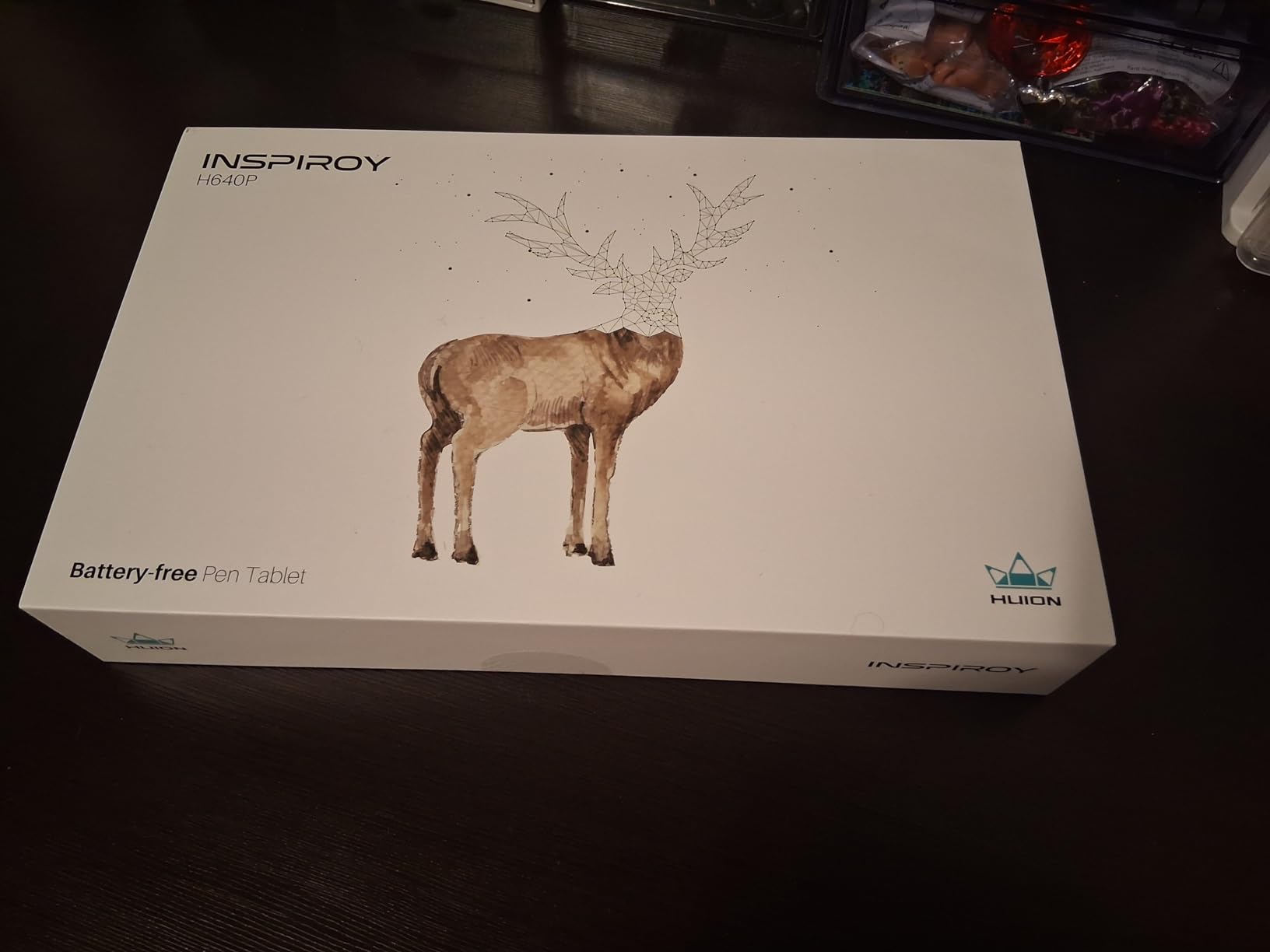
HUION Inspiroy H640P Drawing Tablet, 6×4 inch Digital Art with Battery-Free Stylus, 8192 Pen Pressure, 6 Hot Keys, Graphics Tablet for Drawing, Writing, Design, Teaching, Work with Mac, PC & Mobile
6x4 inch active area
Battery-free stylus
8192 pressure sensitivity
6 hot keys
0.3 inch thickness
Multi-OS compatible
Pros
- Excellent value at under $40
- 8192 pressure levels like premium tablets
- 6 customizable hot keys
- Works with Android phones
- Extremely portable 1.41 lbs
- Number 1 best seller in graphics tablets
Cons
- Uses micro USB not USB-C
- No iOS support
- iPhone and iPad not compatible
- Pen buttons can rotate in hand
- No protective cover included
The H640P is the smallest and most affordable tablet in this guide, but do not let the size fool you. This little tablet delivers 8192 pressure sensitivity levels, the same as tablets costing ten times as much. For animation students on the tightest budgets, this is the gateway to digital art that does not compromise on core functionality.
I found reviews from animation students who completed entire semesters of coursework on this tablet before upgrading. The 6 by 4 inch active area requires smaller hand movements, which actually works well for detailed inking and cleanup work where precision matters more than broad strokes. You can always zoom out in your software when you need to see the bigger picture.
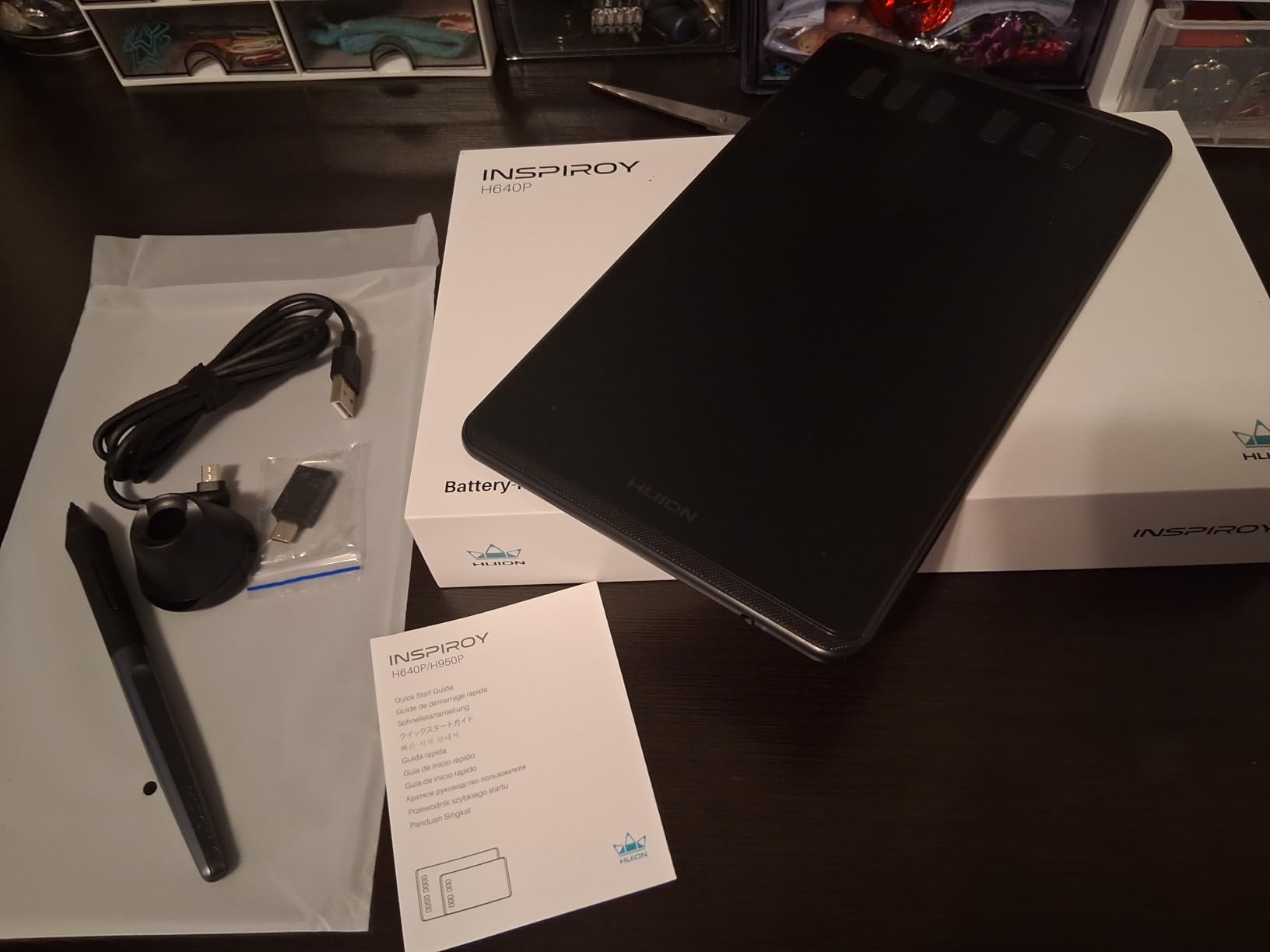
The 6 programmable hot keys give you essential shortcuts within thumb reach. I recommend mapping undo, brush size, eraser, save, new frame, and play animation. These six actions cover the majority of what you need during animation work, and having them on the tablet means less time reaching for the keyboard.
At 1.41 pounds and 0.3 inches thick, this is the most portable option in the entire Huion lineup. It fits in the front pocket of most backpacks and can even slip into a large jacket pocket. For animation students who sketch ideas on the go or work in cramped library carrels, this portability is a genuine advantage.
Who Should Buy This
The H640P is perfect for animation students who need a functional drawing tablet at the absolute minimum price point. If you are unsure whether animation is your calling, or if your financial aid has not arrived yet and you need something to get through the first semester, this tablet will not let you down.
I also recommend this as a secondary tablet for students who already own a pen display. The H640P makes an excellent travel companion when you need to work on assignments away from your dorm setup. Many professional animators keep a small graphics tablet as a backup for exactly this reason.
First Animation Tablet
The H640P is specifically designed for beginners, and Huion has kept the setup process straightforward. The driver installation is simpler than their more complex models, and the reduced number of controls means less time configuring and more time drawing.
One feature that surprised me: Android support. You can connect this tablet to an Android phone with an OTG adapter and draw in mobile apps like Ibis Paint or MediBang. While you would not want to animate a full film this way, it is perfect for thumbnailing ideas or doing quick character sketches between classes. The tablet does not support iOS, so iPhone users will need to look at other options.
What Animation Students Need in a Drawing Tablet
Choosing the right drawing tablet for animation school requires understanding how you will actually use the device day-to-day. After researching hundreds of student experiences and forum discussions, I have identified the key factors that matter most for animation workflows.
Pen Display vs Graphics Tablet (Screen vs No Screen)
Pen displays like the Kamvas 13 and Kamvas Pro 16 let you draw directly on the screen, which feels natural if you are coming from traditional paper animation. You see your hand and the mark simultaneously, eliminating the hand-eye coordination learning curve that graphics tablets require.
Graphics tablets like the Inspiroy series have you drawing on a blank surface while looking at your monitor. This feels strange for the first few weeks but builds valuable hand-eye coordination that transfers to traditional animation desks. Graphics tablets are more portable, more affordable, and do not require as much desk space.
My recommendation for animation students: start with a graphics tablet if budget is tight or if you want to build fundamental hand-eye skills. Upgrade to a pen display in your second or third year when you have confirmed your commitment to animation and need the efficiency boost for complex projects.
Pressure Sensitivity and Tilt Recognition
Pressure sensitivity allows your line weight to vary based on how hard you press the pen, essential for natural-looking animation lines. All the tablets in this guide offer 8192 pressure levels, which is more than enough for professional work. The Kamvas 13 Gen 3 steps up to 16384 levels, which provides finer gradation but is only noticeable to experienced animators.
Tilt recognition detects the angle of your pen, letting software simulate realistic pencil shading. This matters for rough animation passes and concept art, though less so for clean final line work. All tablets in this guide except the H640P include 60-degree tilt support, which covers the full range of natural drawing angles.
Shortcut Keys and Workflow Efficiency
Animation software is keyboard-heavy. You are constantly undoing, adjusting brush size, playing your animation, and switching tools. Having programmable keys on your tablet keeps your non-drawing hand from wandering to the keyboard, maintaining your creative flow.
The Inspiroy 2 models offer the most advanced shortcut system with their group keys, effectively giving you 24 shortcuts in the space of 8 buttons. The HS610’s touch ring is unique for timeline scrubbing. Even the budget H640P gives you 6 essential keys, which covers the most common actions.
Size and Portability for Dorm Life
Dorm desks are typically 24 to 30 inches wide. A pen display needs to sit beside or in front of your laptop, consuming significant space. Measure your desk before ordering a pen display to ensure you have room to work comfortably.
Graphics tablets are significantly more portable. All models in this guide weigh under 2 pounds and slide easily into laptop bags. If you work in multiple locations, like library study rooms, animation labs, and coffee shops, a graphics tablet adapts better to varying environments.
Software Compatibility
All Huion tablets in this guide work with the major animation software packages: Toon Boom Harmony, TVPaint, Clip Studio Paint, Adobe Animate, After Effects, Blender, and Maya. The tablets function as standard HID input devices, meaning software compatibility is rarely an issue.
The Huion driver software lets you create application-specific profiles, so your shortcuts can change automatically when you switch from Photoshop to TVPaint. This feature is particularly useful for animation students who use different software for different classes or project stages.
Budget Considerations for Students
The tablets in this guide range from approximately $40 to $300, fitting most student budgets. Consider your purchase as an investment in your education: a good tablet should last through graduation and into your first professional work.
If your budget allows for a pen display, the Kamvas 13 Gen 3 offers the best value for animation students at $229. If you need to stay under $100, the Inspiroy 2 Medium at $68 delivers the most features per dollar. The H640P at around $40 is the safety net option that still delivers professional pressure sensitivity.
Frequently Asked Questions
Which Huion tablet is best for animation?
For animation students, the Kamvas 13 (Gen 3) is the best Huion tablet if you prefer drawing on screen, offering 16384 pressure levels and excellent color accuracy. If you prefer or need a non-screen tablet, the Inspiroy 2 Medium provides the best value with its programmable scroll wheel and PenTech 3.0 stylus.
What drawing tablet do most animators use?
Professional animators use a range of tablets depending on their workflow. Many use Wacom Cintiqs or Huion Kamvas displays for screen-based drawing. However, a significant number prefer graphics tablets like the Huion Inspiroy series for the ergonomics and portability, using them with large monitors in studio settings.
Which tablet is the best for animation?
The best tablet for animation depends on your specific needs. Screen tablets like the Kamvas 13 Gen 3 provide the most natural drawing experience for traditional animators transitioning to digital. Non-screen tablets like the Inspiroy 2 Medium offer better portability and value. For 2D frame-by-frame animation, prioritize pressure sensitivity and tilt recognition. For 3D animation, any tablet with shortcut keys will work well.
What Huion drawing tablet should I get?
Choose based on your budget and workflow. For beginners on a tight budget, the H640P at around $40 delivers professional pressure sensitivity. For the best value in non-screen tablets, the Inspiroy 2 Medium at $68 offers modern USB-C and a scroll wheel. If you want a pen display, the Kamvas 13 Gen 3 at $229 is the sweet spot for animation students. The Kamvas Pro 16 at $300 gives you more screen space if your desk allows.
Final Thoughts
After reviewing all 8 Huion tablets for animation students in 2026, my recommendations break down by your priorities and budget. The Kamvas 13 Gen 3 stands out as the best overall choice for students ready to invest in a pen display, delivering professional features that rival tablets costing twice as much. The 16384 pressure levels and Canvas Glass 2.0 make it a tool you will not outgrow.
For students who prefer the graphics tablet workflow or need maximum portability, the Inspiroy 2 Medium offers unbeatable value with its scroll wheel and group key system. At under $70, it is an accessible entry point that still provides advanced features for complex animation workflows.
If budget is your primary concern, the H640P proves that you do not need to spend hundreds to get professional pressure sensitivity. This $40 tablet has launched countless animation careers and remains a viable option for students watching every penny.
Whichever tablet you choose, remember that the tool is less important than the hours you put into practicing. The best Huion drawing tablet for animation students is the one that removes barriers between your ideas and your canvas, letting you focus on developing the skills that will define your career. Happy animating.