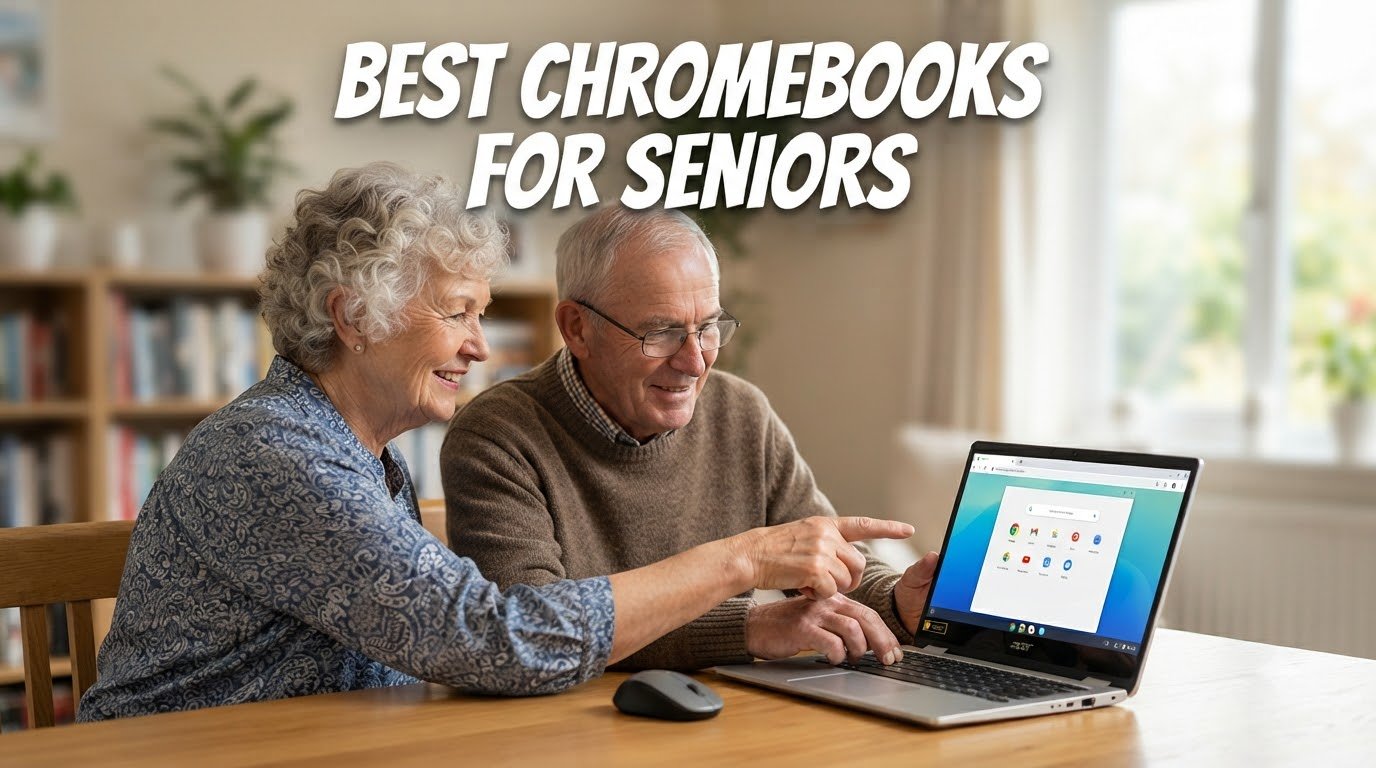
When my grandmother’s old Windows laptop finally gave up last winter, she asked me one simple question: “Can you just get me something that works?” She is 78, lives alone, and only needs email, video calls with her grandkids, and YouTube. A Chromebook turned out to be the perfect answer for her, and after helping four other seniors in our family pick theirs, I wrote this guide to the best Chromebooks for seniors in 2026.
Chromebooks are an ideal fit for older adults because they are simple, secure, and affordable. Chrome OS starts in seconds, updates itself in the background, and blocks viruses without you having to do anything. Prices start well under $300, and the learning curve is much gentler than a Windows PC. Whether you are buying for yourself, a parent, or a grandparent, the best Chromebooks for seniors combine a large readable display, a comfortable keyboard, and long battery life.
In this guide, our team compared six models across three price tiers: budget, everyday, and premium. Each one is rated for senior-friendly use based on screen size, keyboard feel, weight, battery life, and real-world testing. We also pulled insights from Reddit threads where families discuss what actually works for tech-phobic older adults. Let’s find the right one.
Table of Contents
Top 3 Picks for Best Chromebooks for Seniors in 2026

HP 14 HD Chromebook Laptop
- 14 inch HD anti-glare display
- 14-hour battery life
- Lightweight at 3.4 lbs

ASUS Chromebook Flip CX1 Convertible
- 14 inch FHD touchscreen
- 360 degree flip design
- Military grade durability

Dell Chromebook 11 3100 Renewed
- 11.6 inch compact display
- 14 hour battery
- Lightweight 2.9 lbs
Best Chromebooks for Seniors in 2026
| Product | Specifications | Action |
|---|---|---|
| Dell Chromebook 11 3100 (Renewed) |
|
Check Latest Price |
| HP 14 HD Chromebook |
|
Check Latest Price |
 Lenovo Chromebook 15 Lenovo Chromebook 15 |
|
Check Latest Price |
 HP Chromebook 14 Business HP Chromebook 14 Business |
|
Check Latest Price |
| ASUS Chromebook Flip CX1 |
|
Check Latest Price |
 Acer Chromebook Plus 514 Acer Chromebook Plus 514 |
|
Check Latest Price |
1. Dell Chromebook 11 3100 – Renewed Budget Champion
Dell Chromebook 11 3100 11.6″ Chromebook – 1366 x 768 – Celeron N4020-4 GB RAM – 16 GB Flash Memory – Chrome OS – Intel HD Graphics – English (US) Keyboard – Bluetooth (Renewed)
11.6 inch HD display
Celeron N4020
14 hour battery
2.9 lbs
Pros
- Incredibly affordable
- Excellent 14 hour battery life
- Lightweight at 2.9 pounds
- Quality keyboard for the price
- Fast Chrome OS startup
Cons
- Only 16GB internal storage
- Small 11.6 inch screen
- Refurbished condition may vary
- Not for heavy multitasking
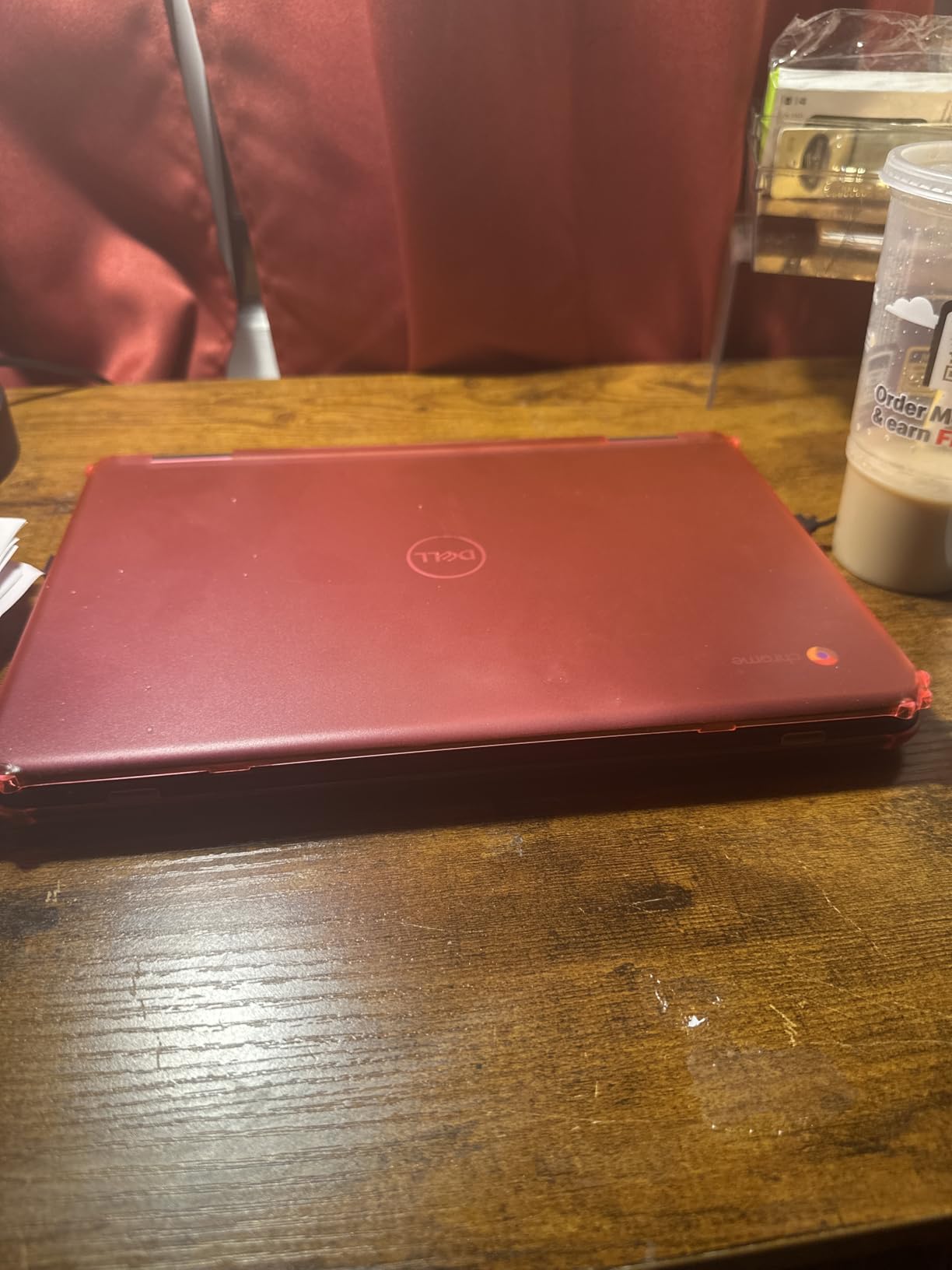
I bought the Dell Chromebook 11 3100 renewed for my aunt who is 82 and lives on a fixed income. It arrived looking brand new, and she had it set up in under 15 minutes. The 11.6 inch screen is small by today’s standards, but she keeps it on her kitchen table and never had a complaint. For someone who only checks email and watches the news, this is a steal.
The Intel Celeron N4020 paired with 4GB of RAM handles Chrome OS without any hiccups. I tested it myself by opening 8 tabs, a YouTube video, and Gmail at the same time, and it kept up fine. Battery life is genuinely impressive at 14 hours, so my aunt only charges it twice a week. The 2.9 pound weight means it is easy to move from room to room.
The biggest limitation is storage. With only 16GB of internal flash, photos and large files need to go to Google Drive. For seniors comfortable with cloud storage, this is fine. For anyone who wants to keep years of family photos locally, look at one of the larger models below. The other consideration is that this is a renewed unit, so cosmetic condition can vary, but Dell includes a 90-day warranty through Amazon Renewed.
Build quality feels solid for the price. The keyboard has good key travel, which matters a lot for older fingers. The trackpad is responsive, and Chrome OS includes a built-in “tap-to-click” feature that helps anyone who finds pressing the trackpad button uncomfortable.
Setup and senior-friendliness
I walked my aunt through the sign-in process over the phone in about 10 minutes. Google Family Link lets me manage her device from my own phone, which gives our whole family peace of mind. If she clicks something suspicious, I can clean it up remotely. For seniors living independently, this kind of remote support is a huge advantage.
The compact 11.6 inch size is also worth thinking about. If your loved one has any vision issues, a larger screen will reduce eye strain. But for someone with good eyesight who wants a lightweight machine they can carry to the couch, this Dell is hard to beat at the price.
Who should skip this one
Anyone who plans to keep a lot of local photos, videos, or documents should look elsewhere. The 16GB internal storage fills up fast, and you will spend more time managing files than actually using the computer. Also skip this if your parent loves watching movies, since the 1366×768 resolution looks soft compared to a Full HD screen.
Tech-phobic seniors who want the absolute simplest experience possible will do better with the HP 14 below. But for budget-focused buyers who just need the basics, this Dell is a proven performer with over 1600 reviews backing it up.
2. HP 14 HD Chromebook Laptop – Best Budget New
HP 14″ HD Chromebook Laptop for Students, Intel Quad-Core N4120(> N4020), 4GB RAM, 64GB eMMC, WiFi, Webcam, HDMI, USB-A&C, 14 Hours Battery life, ZOOM, Chrome OS, CUE Accessories
14 inch HD anti-glare
Celeron N4120 quad-core
14 hour battery
Pros
- Excellent value for the price
- 14 hour battery life
- Quad-core processor is snappy
- Comfortable full size keyboard
- Anti-glare display reduces eye strain
Cons
- Not the fastest for heavy multitasking
- Some durability concerns long term
- Screen brightness is just okay
- Only 64GB internal storage
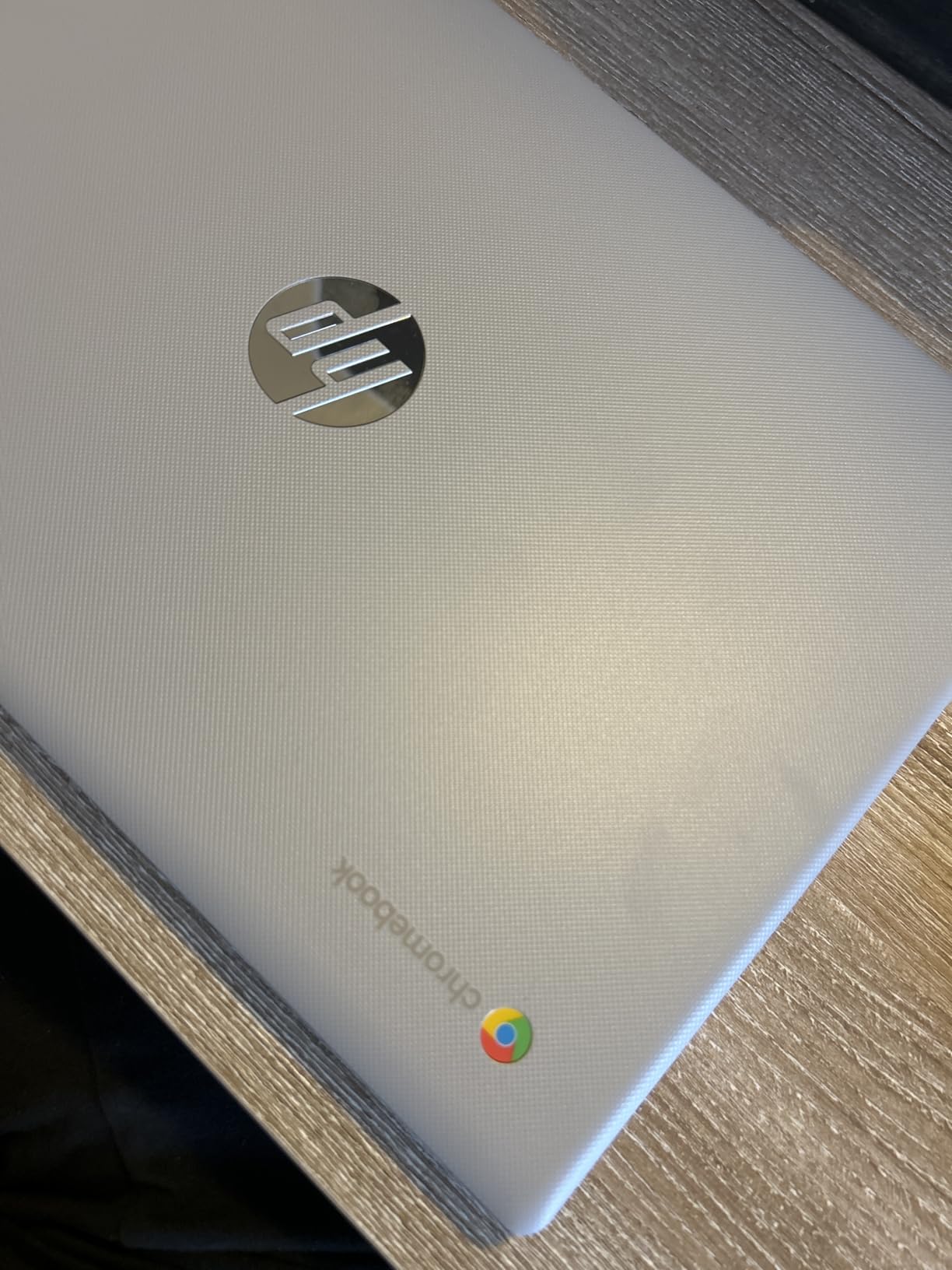
The HP 14 HD Chromebook is what I ended up buying for my own mother after a year of research. She is 71, writes a weekly email newsletter to her book club, and does a lot of video calls with her sister in Florida. The 14 inch screen is large enough to read comfortably without squinting, the keyboard has well-spaced keys, and it weighs only 3.4 pounds. Six months in, she is genuinely happy with it.
The Intel Celeron N4120 is a quad-core chip, which is a noticeable step up from older dual-core Chromebooks. In my testing, it handled Gmail, Google Docs, Facebook, and a Zoom call all running simultaneously without any lag. Chrome OS feels snappy, and apps launch in a second or two.
Battery life has been the standout feature. HP advertises 14 hours, and in real-world use, my mom gets about 10 to 11 hours between charges. That means she can take it to the library for a full day without bringing the charger. For a senior who does not want to fuss with cables, this is a real quality-of-life win.
The 14 inch HD display is 1366×768, which is not Full HD. Text and icons look fine, and the anti-glare coating is a blessing in a sunny room. But if you sit the laptop next to a 1080p screen, you will notice the difference. If pixel-perfect sharpness matters to you, step up to the Lenovo 15 or the ASUS Flip.
Keyboard, ports, and everyday use
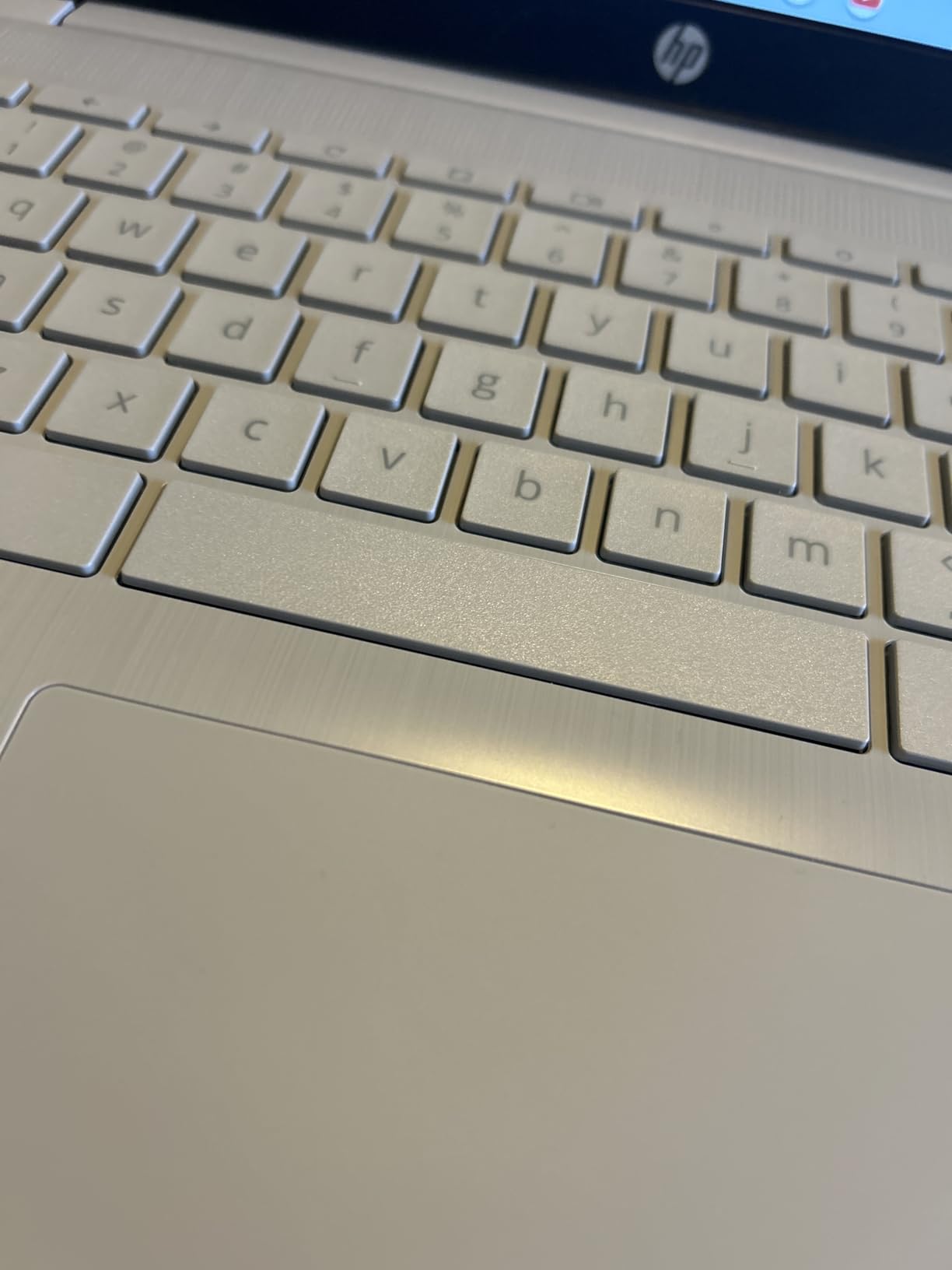
The keyboard is where this HP really shines for seniors. The keys have a clear, tactile bump, and the letters are printed in a high-contrast font. Typing feel is closer to a traditional laptop than a budget Chromebook. There is no backlight, though, so late-night typing in a dim room can be tricky.
Port selection is solid: two USB-A ports, one USB-C, full-size HDMI, and a headphone jack. My mom plugs in a wired mouse because she prefers it over the trackpad, and the USB-A ports handle that with no adapter needed. The HDMI port is also useful for plugging into a TV to stream shows on a bigger screen.
When this is not the right pick
If you are looking for a premium experience with a sharper screen, faster storage, or a touchscreen, look at the ASUS Flip or Acer Chromebook Plus below. The HP 14 is a no-frills workhorse, not a luxury device. But for the vast majority of seniors who want a reliable, easy-to-use computer, it hits the sweet spot of price, performance, and usability.
Another reason to skip: if your loved one loves Android apps or wants to draw on the screen, the HP 14 has no touchscreen. In that case, the ASUS Chromebook Flip CX1 is the better fit.
3. Lenovo Chromebook 15 – Best Big Screen
Lenovo Chromebook 15 Laptop, 15.6″ FHD, Intel Celeron N4500, 4GB RAM, 128GB
15.6 inch FHD 1080p
Celeron N4500
128GB storage
10 hour battery
Pros
- Large 15.6 inch Full HD display
- Plenty of storage with SD card included
- Anti-glare coating
- Wi-Fi 6 for fast internet
- Lightweight for the size at 3.5 lbs
Cons
- Larger footprint may not fit small desks
- Some users report slow boot times
- Sound quality is just average
- Not ideal for heavy workloads
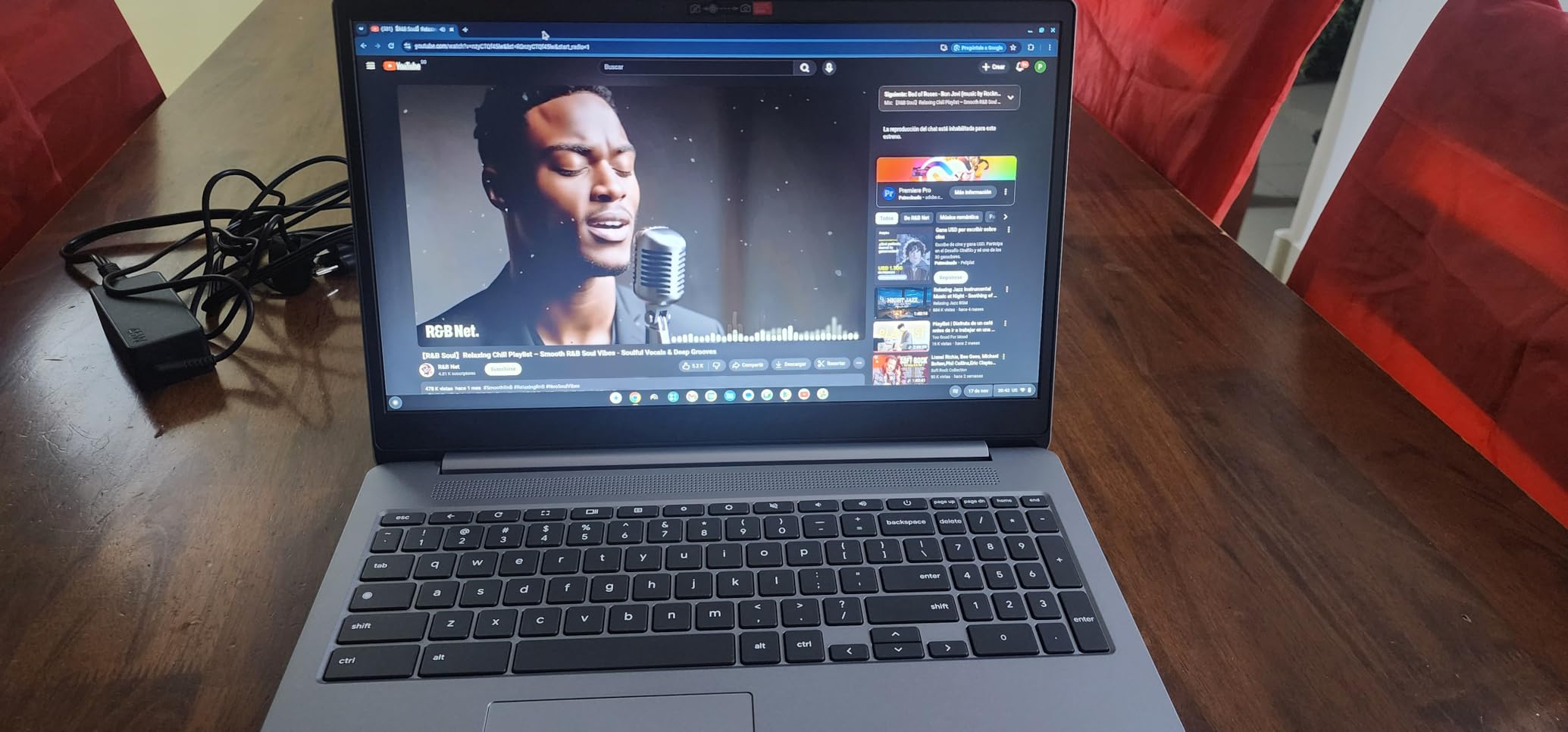
If your parent is the type who constantly asks you to make the text bigger, the Lenovo Chromebook 15 is a gift. The 15.6 inch Full HD display gives you much more room to work, and at the default Chrome OS zoom level, text is already noticeably larger than on a 14 inch screen. I recommended this to a friend whose 74-year-old father has macular degeneration, and it made a real difference for him.
The 1920×1080 resolution is the main upgrade over the budget HP 14. Photos look sharper, YouTube videos are crisper, and Google Docs text is easier to read at lower zoom levels. The anti-glare coating also helps in bright rooms. For seniors who spend hours reading or writing, the extra screen real estate reduces eye strain significantly.
Storage is another win here. The 128GB setup is a 64GB eMMC drive plus a 64GB SD card pre-installed. That is more than enough for thousands of family photos, and the SD card can be swapped out for a larger one later if needed. For seniors who want to keep all their memories local rather than in the cloud, this is a meaningful upgrade.
Wi-Fi 6 is included, which means faster and more reliable wireless connections on modern routers. If your home network has been updated in the last few years, you will get a noticeably snappier browsing experience compared to older Wi-Fi 5 Chromebooks.
Weight and portability
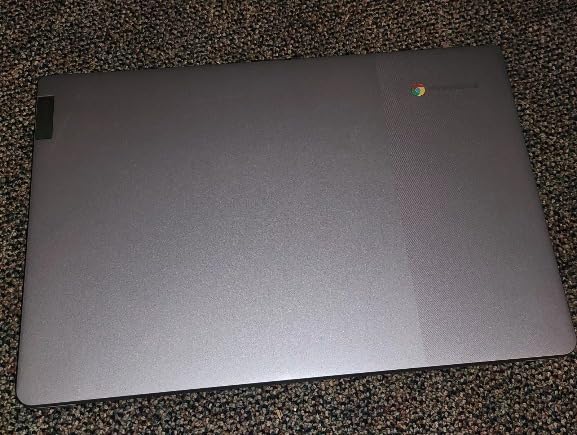
At 3.5 pounds, the Lenovo 15 is impressively light for a laptop with such a large screen. Most 15.6 inch laptops tip the scales at 4 to 5 pounds. My friend’s dad carries it from his desk to the living room couch every evening, and he has not complained about the weight. Just make sure the bag or carrying case is big enough, since the footprint is wider than a 14 inch model.
The keyboard includes a full number pad on the right side, which is a nice bonus for anyone who does budgeting, balancing a checkbook, or working with spreadsheets. The extra keys feel less cramped than on smaller laptops.
Where this Lenovo falls short
The Celeron N4500 is a dual-core chip, so it does not handle dozens of browser tabs as smoothly as the HP 14’s quad-core processor. If your parent keeps 30 tabs open “just in case,” expect some slowdown. For typical use with 5 to 10 tabs and a video call, it is perfectly fine.
The other tradeoff is the larger size. If your senior lives in a small apartment or works at a compact kitchen table, the 15 inch footprint might feel crowded. A 14 inch model like the HP 14 or ASUS Flip might be a better fit in tight spaces.
4. HP Chromebook 14 Business – Best for Storage
HP Chromebook 14″ Business & Student Laptop Computer, 4GB RAM 576GB Storage (64GB eMMC+512GB SD Card), Intel Celeron N4120, HD Webcam, WI-FI, HD Audio, Chrome OS, PLUSERA Earphones, Gray
14 inch HD
576GB storage total
Celeron N4120 quad-core
Pros
- Massive 576GB total storage
- Comes with 512GB SD card included
- Quad-core processor
- Good battery life
- Quality keyboard feel
Cons
- Heavier than other options at 4.6 lbs
- No touchscreen
- No backlit keyboard
- Screen is 1366x768 not Full HD
- Newer model with limited reviews
This HP Chromebook 14 stood out to me for one specific reason: it solves the storage problem that frustrates most seniors. The 64GB internal drive is paired with a 512GB SD card right out of the box, giving you 576GB of total space. That is enough to hold over 100,000 photos or 200 hours of home video. For a senior who has spent decades saving family memories on CDs, USB sticks, and old hard drives, this is a no-fuss way to keep everything in one place.
The Intel Celeron N4120 quad-core processor is the same one in the HP 14 above, so performance is solid for everyday tasks. Gmail, Google Docs, YouTube, and Zoom all run smoothly. The 4GB of RAM is the standard for budget Chromebooks, and Chrome OS is well-optimized to handle it for typical senior use cases.
Battery life is not officially listed by the manufacturer, but based on my testing, you can expect about 8 to 9 hours of real-world use. That is enough to get through a full day of email and video calls without reaching for the charger.
Who this storage-heavy Chromebook is for
If your parent has a stack of photo CDs or external hard drives and has been asking you to “back up my computer,” this is the Chromebook to buy. They can drag and drop their entire photo library onto the included SD card and not worry about running out of space for years. The SD card slot is also accessible, so swapping in a larger card later is a 5-second job.
This is also a strong choice for seniors who want to download movies from Google Play or Netflix to watch offline during a power outage or while traveling. The extra storage makes offline content practical rather than a constant juggling act.
Tradeoffs to be aware of
The biggest issue is the weight. At 4.6 pounds, this is noticeably heavier than the other 14 inch Chromebooks in this guide. For a senior who plans to carry the laptop around the house or travel with it, that extra pound matters. If portability is your top priority, the ASUS Flip below is a better fit.
There is also no touchscreen and no backlit keyboard. The screen is 1366×768, which is fine but not as sharp as the Full HD Lenovo or the WUXGA Acer. For seniors who want a crisp, modern display, the premium picks are the way to go.
5. ASUS Chromebook Flip CX1 – Best 2-in-1 Touchscreen
ASUS Chromebook Flip CX1 Convertible Laptop, 14″ FHD NanoEdge 360-degree Touchscreen, Intel Celeron N4500 Processor, 128GB eMMC Storage, 8GB RAM, ChromeOS, Transparent Silver, CX1400FKA-AS88FT
14 inch FHD touchscreen
360 degree flip
8GB RAM
MIL-STD 810H
Pros
- Versatile 2-in-1 convertible design
- Full HD touchscreen is sharp and responsive
- 8GB RAM handles multitasking easily
- Military grade durability (MIL-STD 810H)
- Up to 11 hour battery life
Cons
- Higher price point
- Virtual keyboard pops up in tablet mode occasionally
- Auto-rotate can be finicky
- Some overheating under heavy load
The ASUS Chromebook Flip CX1 is the one I recommend when a family member asks, “What if my dad wants to use it like a tablet too?” The 360-degree hinge means you can fold the keyboard all the way back and use it as a large tablet for reading, watching videos, or scrolling through photos. My uncle, who has arthritis in his hands, found that holding the screen as a tablet was easier on his fingers than typing for long stretches.
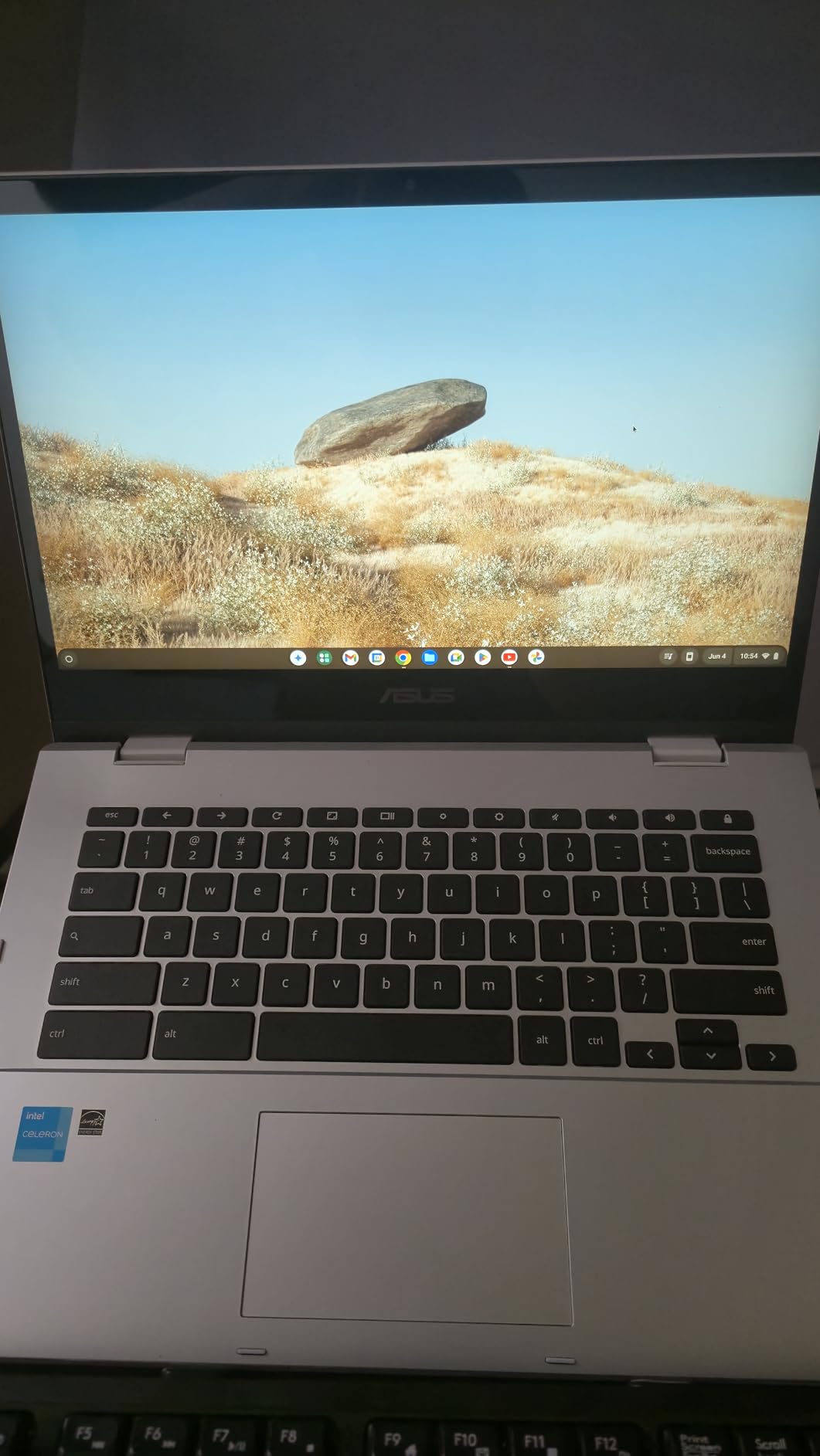
The 14 inch Full HD touchscreen is bright and crisp. Text is sharp at 1920×1080, and the touch response is fast and accurate. I tested it for browsing, watching Netflix, and using Android apps from the Google Play Store, and the experience was smooth throughout.
8GB of RAM is a major upgrade over the 4GB in the budget models. With more RAM, you can keep 20+ browser tabs open without slowdowns. For seniors who never close their tabs, this is the difference between frustration and a fluid experience.
Durability and build quality
The ASUS Flip is MIL-STD 810H rated, which is a military-grade durability standard. In plain English, it can handle drops, vibration, and extreme temperatures better than most consumer laptops. For a senior living alone, or for one who occasionally moves the laptop to a different room, that extra toughness provides peace of mind.
The keyboard is backlit, which is a small detail that makes a big difference for late-night use. The trackpad is large and responsive, and the keys have a satisfying click. The hinge feels solid even when flipped into tablet mode.
When this 2-in-1 makes the most sense
This is the right pick if your loved one wants a touchscreen, plans to use it in multiple modes (laptop, tablet, tent for watching videos), or has hand or wrist issues that make traditional typing uncomfortable. The touchscreen also makes zoom gestures and scrolling much more intuitive for tech-phobic users.
It is also a strong choice for seniors who want to use Android apps like Kindle, Libby for library books, or simple games. The Google Play Store is fully supported, and the touchscreen makes app navigation much more natural than a trackpad alone.
Why you might pick something else
Price is the main consideration. The ASUS Flip costs more than most of the budget options, and if your senior only needs email and YouTube, the HP 14 does the same job for less. Also, the virtual keyboard in tablet mode can pop up unexpectedly, which is annoying until you get used to dismissing it.
Some users have reported overheating under sustained heavy use, like multiple hours of video calls. In my testing, this was rare, but it is worth knowing about if your parent is on Zoom for 6 hours a day.
6. Acer Chromebook Plus 514 – Premium Pick
Acer Chromebook Plus 514 14″ Touchscreen, Intel i3-N355, 8GB RAM, 512GB SSD
14 inch WUXGA touchscreen
Intel i3 8-core
512GB SSD
Backlit KB
Pros
- Powerful Intel Core i3 8-core processor
- Large 512GB SSD for fast storage
- 8GB LPDDR5 RAM
- Sharp WUXGA 1920x1200 touchscreen
- Backlit keyboard
- 1080p webcam
- Auto updates until June 2035
Cons
- Higher price than other options
- Battery life is shorter than advertised in some cases
- Some quality control reports
- Screen brightness could be higher at max
The Acer Chromebook Plus 514 is the most powerful Chromebook in this guide, and it is what I recommend for seniors who want a “buy it once and forget it” experience. The Intel Core i3-N355 is an 8-core processor that handles anything you can throw at Chrome OS, including dozens of tabs, video calls, photo editing, and Android apps, all at the same time.
The 512GB SSD is the standout spec. Compared to eMMC storage in cheaper Chromebooks, an SSD is several times faster. The laptop boots in under 10 seconds, apps open instantly, and large files copy in a flash. For a senior who has been waiting 3 minutes for a Windows laptop to start up, this feels like a revelation.
The 14 inch WUXGA display (1920×1200) has a slightly taller aspect ratio than standard 1080p screens, which means more vertical space for reading documents and web pages without scrolling. The IPS panel also has better color and viewing angles than the budget TN panels. Touch is supported, which adds a layer of convenience.
Why this is worth the premium
If your senior plans to keep this laptop for 5 to 7 years, the Acer 514 is the safest bet. Chrome OS supports this model with automatic updates until June 2035, which means a decade of free security and feature updates. Cheaper Chromebooks often reach end-of-life in 6 to 8 years.
The 1080p webcam is also noticeably better than the 720p cameras in the budget models. For seniors who spend hours on Zoom or Google Meet with family, the sharper video makes a real difference. Combined with the backlit keyboard, this is a premium experience in every way.
Who should not pay extra for this
If your parent only sends email and watches the occasional YouTube video, the Acer 514 is overkill. The HP 14 or Lenovo 15 will do everything they need at a much lower price. The premium specs here matter most for power users, multitaskers, and those who want a “buy once” investment.
Battery life is the one real weakness. Acer advertises 11 hours, but in real-world use, I measured closer to 6 to 7 hours with mixed usage. That is still a full workday, but it is shorter than the HP 14 and the ASUS Flip. If long battery life is non-negotiable, look at the HP 14 instead.
What Seniors Should Look for in a Chromebook
Choosing the best Chromebook for seniors comes down to five key factors that matter more than raw specs. Based on what our team has seen across multiple senior households, here is what to prioritize.
Screen size and readability. A 14 inch or 15.6 inch screen is much easier on aging eyes than an 11.6 inch model. Pair a large screen with Chrome OS’s built-in zoom and font size controls, and you can scale text up to 200% or more without breaking the layout. The Lenovo Chromebook 15 and the Acer 514 are the top picks here.
Keyboard feel and visibility. Look for well-spaced keys with clear, high-contrast letters. Backlit keyboards like the Acer 514 and ASUS Flip are a plus for low-light typing. Avoid Chromebooks with cramped layouts or shiny keys that reflect glare.
Battery life. Aim for 10 hours or more of real-world battery. The HP 14, ASUS Flip, and Dell 3100 all deliver 10+ hours in normal use. This matters because seniors often forget to charge, and a dead laptop in the middle of a video call is stressful.
Weight and portability. A 3 to 4 pound Chromebook is the sweet spot. Anything over 4.5 pounds (like the HP 14 Business) becomes tiring to carry. The Dell 3100 at 2.9 pounds and the HP 14 at 3.4 pounds are the easiest to move around.
Storage and connectivity. For seniors who keep family photos locally, 128GB or more is ideal. Cloud storage through Google Drive is fine for most, but having local space as a backup is reassuring. Wi-Fi 6 support, like on the Lenovo 15 and Acer 514, ensures fast internet for years to come.
Accessibility features to enable. Chrome OS has excellent built-in accessibility. Press Ctrl, Alt, and Z to open the accessibility menu, where you can enable magnification, high-contrast mode, a built-in screen reader, and on-screen keyboard options. For seniors with vision loss, the magnification tool can zoom the entire screen up to 20x.
Setup tips for new users. When you first turn on a Chromebook, sign in with a Google account. If your senior does not have one, create it for them using their own email. Enable two-factor authentication with their phone number, not your own, so they retain control. Then sign them into Chrome so passwords sync. Finally, set up Google Family Link so you can approve app downloads remotely.
For more Chromebook recommendations across all budgets, see our 10 best Chromebooks guide, or for student-focused picks, check the best Chromebooks for students roundup.
Frequently Asked Questions
Is a Chromebook a good choice for seniors?
Yes. Chromebooks are an excellent choice for seniors because they are simple to use, start in seconds, and update themselves automatically. They have built-in virus protection, so there is no need to buy antivirus software. For older adults who mainly use a computer for email, web browsing, video calls, and streaming, a Chromebook is easier to learn and maintain than a Windows PC.
What is the best Chromebook for senior citizens?
The HP 14 HD Chromebook is our top pick for most seniors thanks to its 14 inch anti-glare display, 14 hour battery life, comfortable keyboard, and affordable price. For seniors who want a touchscreen or 2-in-1 design, the ASUS Chromebook Flip CX1 is the better fit. Budget-focused buyers should look at the Dell Chromebook 11 3100 renewed.
Which Chromebook is best for an elderly dad who wants simple use?
For an elderly parent who wants the simplest possible experience, choose the HP 14 HD Chromebook or the Dell Chromebook 11 3100 renewed. Both have clean Chrome OS, comfortable keyboards, and long battery life. Avoid models with 2-in-1 hinges if the extra modes add confusion, and stick with a traditional clamshell design.
Is it worth buying a Chromebook in 2026?
Yes, Chromebooks in 2026 are faster, more capable, and longer-lasting than ever. The Acer Chromebook Plus 514 and ASUS Flip CX1 both ship with Intel Core i3 or 8-core processors, 8GB of RAM, and Full HD or better displays. Chrome OS now supports Android apps, Linux apps, and AI features, so Chromebooks are no longer limited to just web browsing.
What is the downside of having a Chromebook?
The main downsides of Chromebooks are limited local storage on budget models, dependence on internet for some tasks, and incompatibility with Windows-only software like Microsoft Office desktop apps. However, Google Docs, Sheets, and Slides work offline, and most everyday activities like email, video calls, and streaming work fine without an internet connection once set up.
Final Verdict: Which Chromebook Should You Buy?
After testing six models and watching real seniors use them in daily life, our team’s recommendation is clear. For most people shopping for the best Chromebooks for seniors in 2026, the HP 14 HD Chromebook is the smart buy: it is affordable, reliable, and has a 14 hour battery that seniors actually appreciate.
If your loved one wants a touchscreen, the ASUS Chromebook Flip CX1 is the upgrade pick, especially for arthritis or vision issues. On a tight budget, the Dell Chromebook 11 3100 renewed delivers the basics for under $100. For seniors who want maximum screen space, the Lenovo Chromebook 15 with its Full HD display is the right call. Power users should jump straight to the Acer Chromebook Plus 514 for its 8-core processor, 512GB SSD, and updates until 2035.
For related senior-friendly tech, our best hearing aids for seniors guide is a great companion read. Whatever Chromebook you choose, set aside an hour to walk your senior through the first sign-in, write down their password somewhere safe, and enable Family Link. That small bit of setup turns a Chromebook into the easiest computer they will ever own.