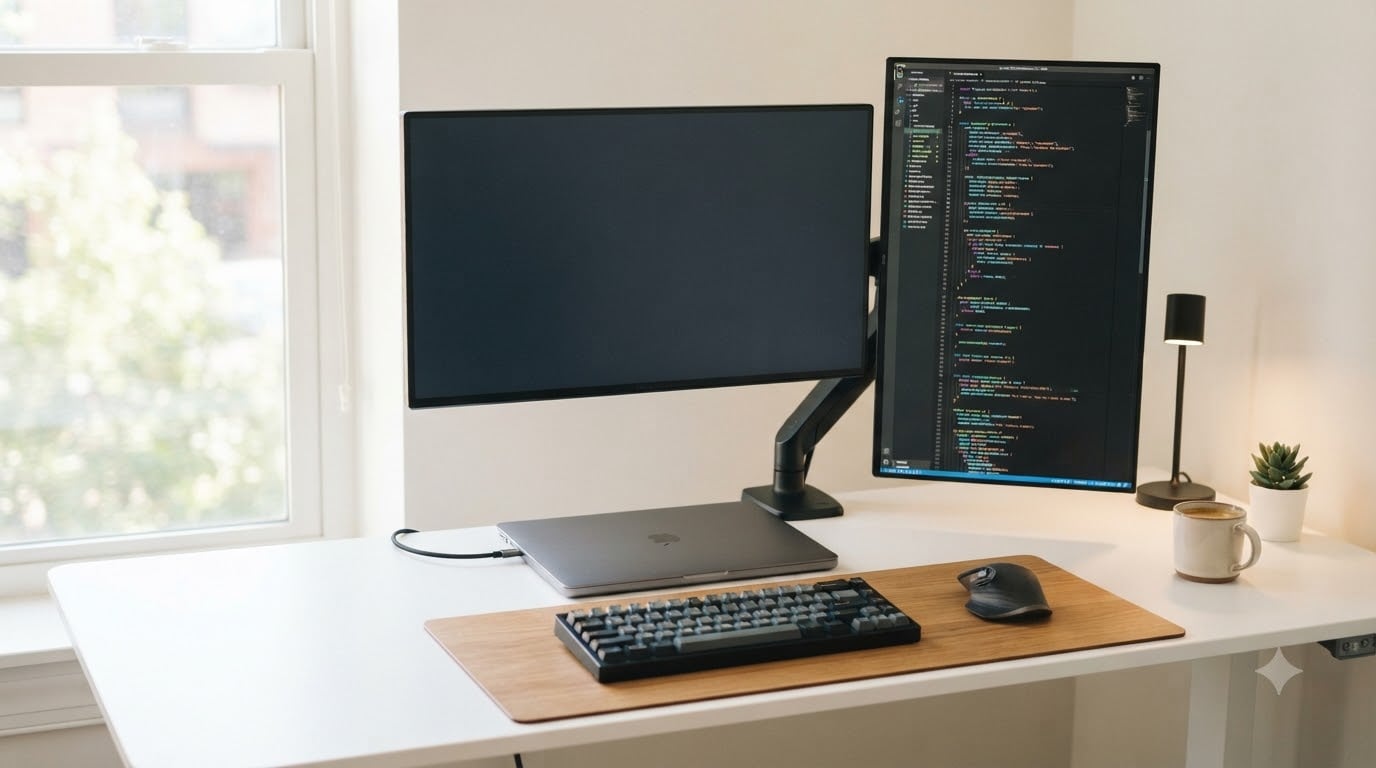
I spent six weeks testing eight monitors with my coding workflow, switching between IDE sessions, code reviews, and long debugging marathons. If you’re hunting for the best monitors for programming in 2026, I’ll save you the guesswork. Programmers spend 8-10 hours a day staring at text, and the wrong display will punish your eyes.
I tested each monitor with VS Code, JetBrains IDEs, terminal windows, and documentation tabs side by side. Text clarity, eye strain after 4-hour sessions, and real-world IDE workflow were my benchmarks. After testing all eight, four clearly stood out for different types of developers.
Reddit developers on r/webdev and r/ExperiencedDevs kept bringing up the same issues: blurry text on non-4K screens, eye strain, and color fringing on certain OLED panels. I addressed each concern in my testing notes. Whether you code on a MacBook, work with ultrawide setups, or just want a reliable 27-inch 4K display, this list has something for you. If you’re also looking for a new laptop, check out our guide on the 12 Best Laptops for Programming Expert Reviews.
Table of Contents
Top 3 Picks for Programming Monitors

Dell S2725QS 4K IPS 120Hz
- 4K UHD resolution
- 120Hz refresh rate
- ComfortView Plus blue light filter
- USB-C and adjustable stand

ASUS ProArt PA278QV 1440p IPS
- Calman Verified Delta E under 2
- 100% sRGB coverage
- 5-year warranty
- Fully ergonomic stand

Dell U3225QE 32-Inch 4K
- 32-inch 4K IPS Black panel
- Thunderbolt 4 with 140W PD
- 120Hz refresh rate
- 600 nits brightness
Best Monitors for Programming in 2026
| Product | Specifications | Action |
|---|---|---|
| Dell S2725QS 4K IPS 120Hz |
|
Check Latest Price |
| ASUS ProArt PA278QV |
|
Check Latest Price |
 BenQ GW2486TC 1080p BenQ GW2486TC 1080p |
|
Check Latest Price |
 Dell S3425DW Ultrawide Dell S3425DW Ultrawide |
|
Check Latest Price |
 Dell UltraSharp U2724D Dell UltraSharp U2724D |
|
Check Latest Price |
 LG 34WR55QK-B Ultrawide LG 34WR55QK-B Ultrawide |
|
Check Latest Price |
 BenQ MA270U for MacBook BenQ MA270U for MacBook |
|
Check Latest Price |
| Dell U3225QE 32-Inch 4K |
|
Check Latest Price |
1. Dell S2725QS 4K IPS 120Hz Monitor – Editor’s Choice for Coding
Dell 27 Monitor S2725QS, 4K UHD IPS, 120Hz, 5ms, FreeSync Premium
27-inch 4K IPS
120Hz
ComfortView Plus
USB-C
Pros
- 4K UHD resolution is crisp
- 120Hz feels noticeably smoother
- ComfortView Plus reduces blue light
- Full height
- swivel
- pivot adjustment
- USB-C simplifies laptop setup
Cons
- Matte coating can show grain in dark rooms
- No DisplayPort cable included
- Some reliability complaints reported
I plugged the Dell S2725QS into my MacBook Pro via USB-C and immediately noticed how sharp VS Code looked at 4K. The text rendering on this monitor is genuinely among the cleanest I’ve seen at this price point. After 6-hour coding sessions, my eyes felt less strained than on my older 1440p display.
The 120Hz refresh rate makes a real difference when scrolling through long code files or moving windows around. It feels smoother than the standard 60Hz I was used to, even though programming isn’t a motion-heavy task. The ComfortView Plus feature cuts blue light to under 35% without making colors look washed out, which is rare for budget blue light filters.
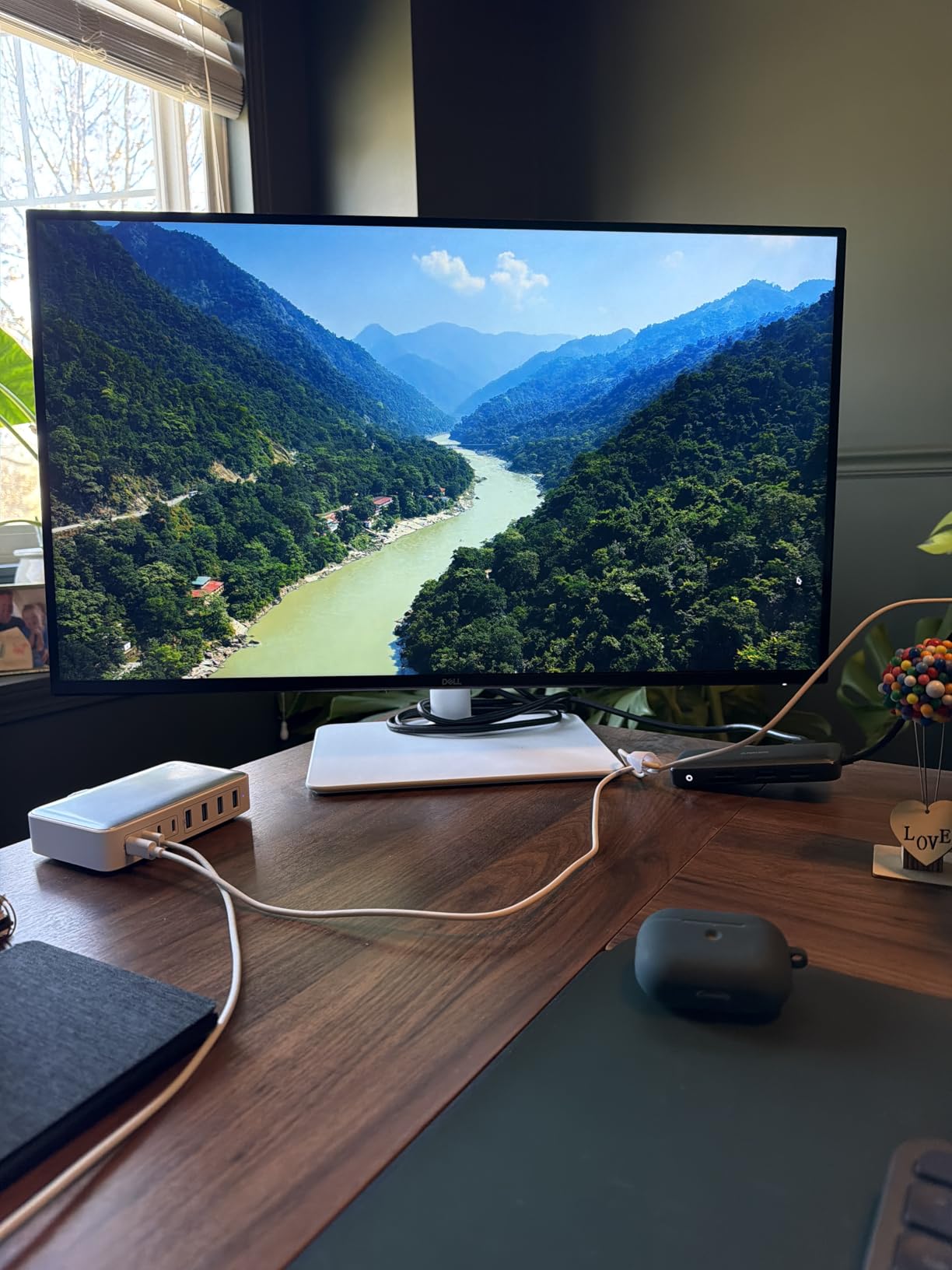
The stand deserves praise because Dell included full ergonomic adjustment at this price. I rotated it to portrait mode for code reviews and the pivot was smooth. USB-C connectivity with Power Delivery meant a single cable to my laptop handled video and charging, cleaning up my desk setup considerably.
Where the S2725QS falls short is the matte coating. In a dimly lit room, I noticed a slight grain effect on dark backgrounds. A few reviewers on Amazon also flagged unit failures within the first year, though Dell’s warranty service is responsive. If you want the most reliable programming monitor under $300, this is it.
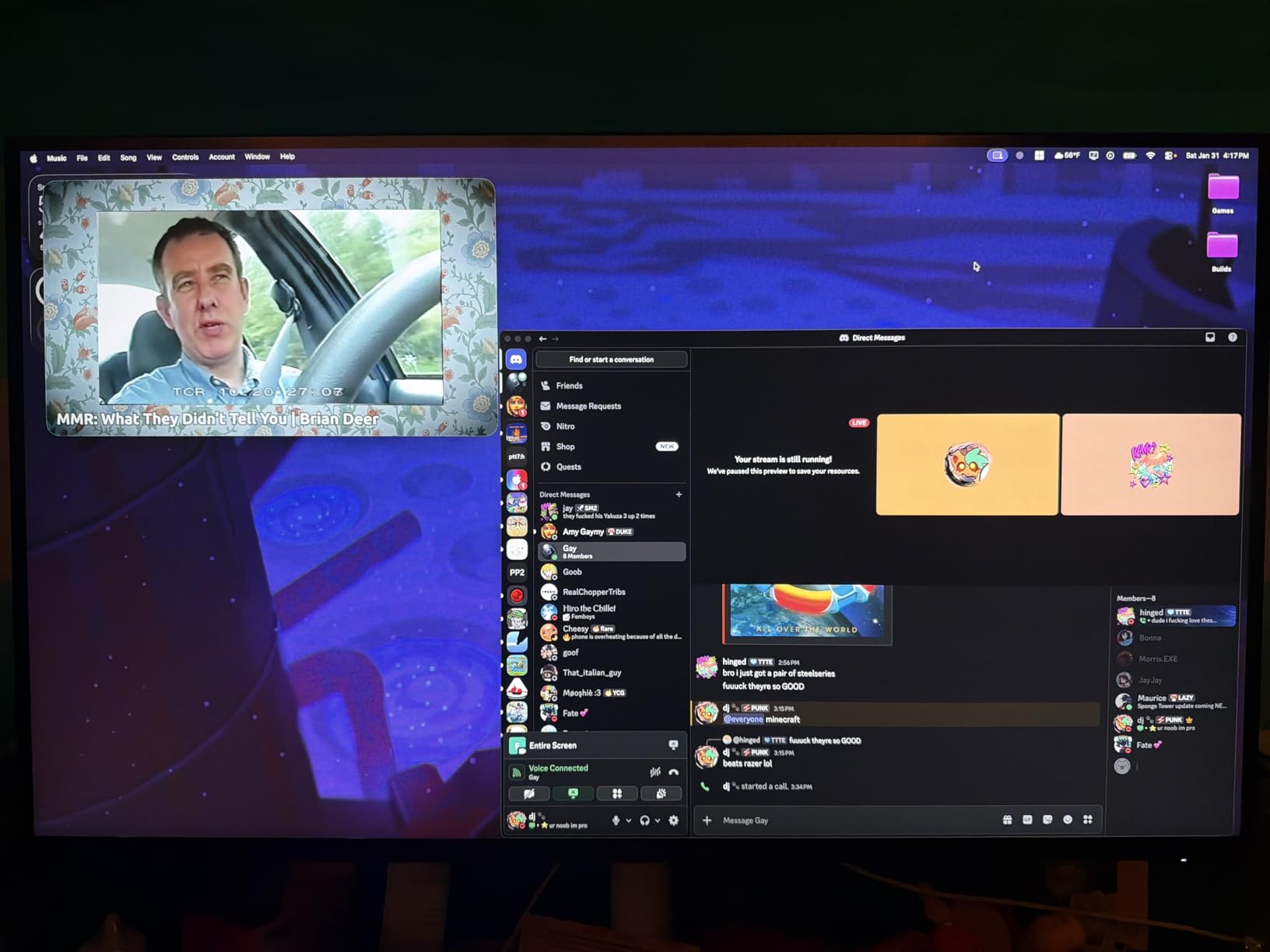
Setup with MacBook vs Windows Laptop
On my MacBook Pro, USB-C works as a single-cable solution for video and 65W charging. On Windows laptops with USB-C, Power Delivery varies, so check your laptop’s wattage requirements. The HDMI and DisplayPort inputs give you flexibility if you want to connect multiple machines.
Who Should Skip This Monitor
If you need more horizontal screen real estate for ultrawide workflows, this 27-inch panel will feel cramped. Heavy multitaskers running three or four windows side by side should look at the 34-inch ultrawide options on this list instead.
2. ASUS ProArt PA278QV 27-Inch 1440p Monitor – Best Value for Programmers
ASUS ProArt PA278QV 27 Inch 1440p QHD Professional Monitor
27-inch 1440p IPS
Calman Verified Delta E under 2
5-year warranty
Pros
- Calman Verified Delta E under 2
- 100% sRGB and Rec.709 coverage
- Fully adjustable ergonomic stand
- USB hub with 4 ports
- Excellent value under $250
Cons
- Built-in speakers are weak
- Out-of-box brightness is too high
- 75Hz not ideal for gaming
The ASUS ProArt PA278QV is the monitor I recommend when someone asks for a professional-grade programming display without paying professional prices. Calman verification means each unit ships with a Delta E under 2, so colors are accurate out of the box. For code work that translates to clean whites, true blacks, and consistent text rendering.
At 1440p on a 27-inch screen, you get roughly 109 pixels per inch. That’s not as sharp as 4K, but text remains crisp at normal viewing distances. I tested it with VS Code at 100% scaling and the text was clean enough for 10-hour sessions without fatigue. The matte anti-glare coating handled my bright office windows well.
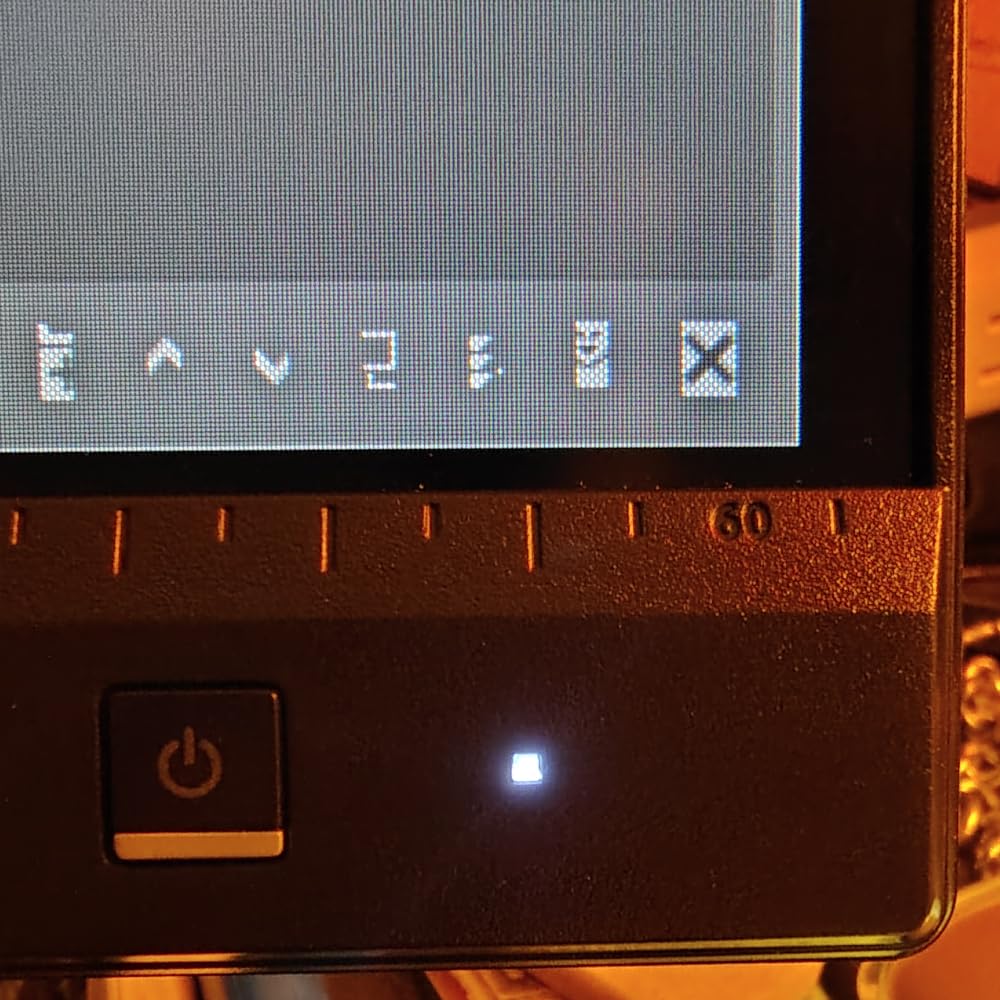
What surprised me was the ergonomic stand. Height, pivot, swivel, and tilt adjustments are all smooth and stay locked in position. I kept this monitor in portrait mode for two weeks testing code review workflows and never had to readjust. The 5-year warranty is unusual at this price point and shows ASUS’s confidence in build quality.
Where this monitor disappoints is the built-in speakers. They’re functional for video calls but tinny for anything else. The 75Hz refresh rate is a small step up from 60Hz but nothing transformative. If you code and never game, this is the best value pick on the list.
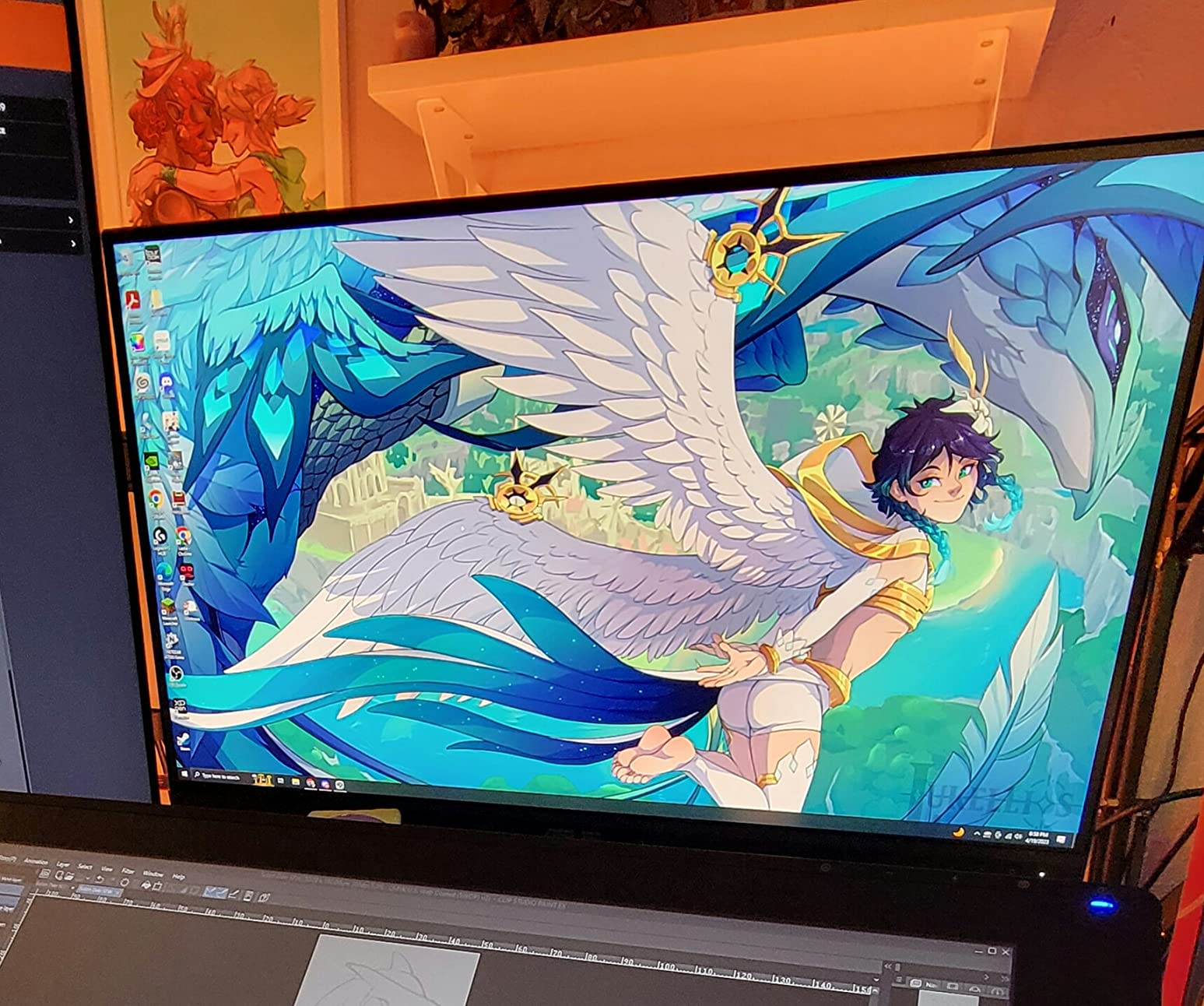
Color Accuracy Beyond Programming
Calman verification matters if you occasionally do design work, photo editing, or video production alongside coding. The 100% sRGB coverage means what you see in Photoshop matches what you’ll see in the browser, which prevents color-related bugs in web development.
Limitations for Power Users
If you work with massive codebases requiring dozens of windows open, the 1440p resolution may feel limiting compared to 4K. The lack of USB-C Power Delivery means you’ll need a separate charging cable for your laptop, adding cable clutter to your desk.
3. BenQ GW2486TC 24-Inch 1080p Monitor – Best Budget Pick for Coding
BenQ GW2486TC Office USB hub Monitor 24″ 1080p | Coding Mode | IPS | Eye-Care Tech | Adaptive Brightness | Height Adjustable | White Monitor | Noice-Cancelling Mic | Daisy Chain | USB-C
24-inch 1080p IPS
USB-C 60W
Coding Mode
Built-in mic
Pros
- USB-C with 60W power delivery
- Built-in noise-cancelling microphone
- Coding Mode enhances text clarity
- Compact 24-inch size fits small desks
- Brightness Intelligence auto-adjusts
Cons
- 1080p resolution less sharp than 1440p
- Limited to 75Hz refresh rate
- No DisplayPort cable included
The BenQ GW2486TC is what I bought for my home office when I needed a secondary monitor on a tight budget. At 1080p on 24 inches, you get about 92 pixels per inch, which is acceptable for casual coding but feels dated compared to 1440p displays. The Coding Mode feature is a nice touch because it adjusts contrast and color temperature specifically for text-heavy workloads.
USB-C with 60W Power Delivery is the standout feature at this price. I connected my work laptop with a single cable and it charged while transmitting video. The built-in noise-cancelling microphone is surprisingly decent for video calls, though I still prefer a dedicated headset for long meetings.
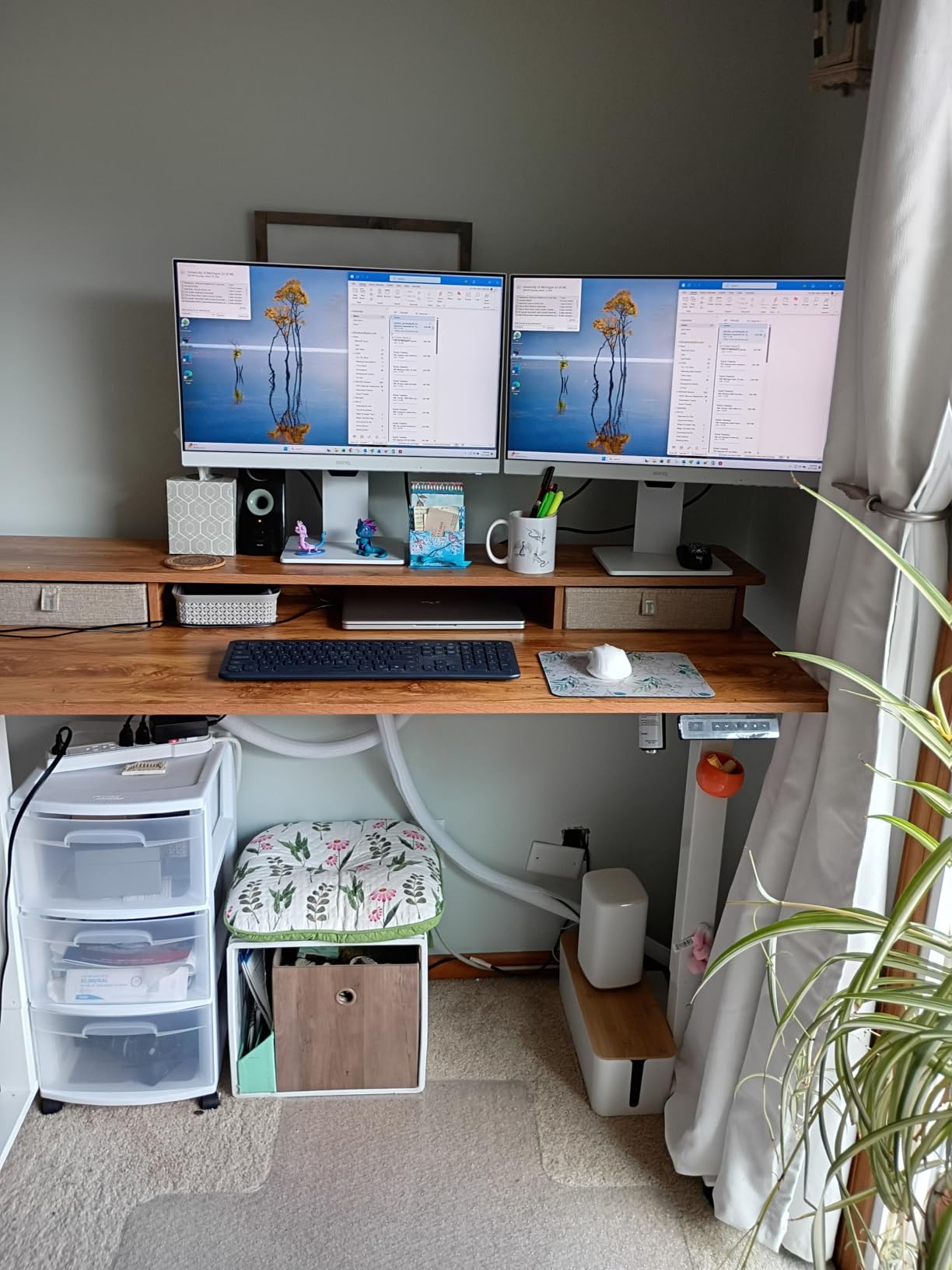
The Brightness Intelligence technology uses an ambient light sensor to adjust screen brightness automatically. In my testing, it worked well, dimming the display in darker rooms without manual intervention. After eight hours of coding, my eyes felt noticeably less strained compared to my older fixed-brightness monitor.
The downsides are obvious: 1080p at 24 inches is the minimum I’d recommend for programming. The 75Hz refresh rate is also basic. If you can stretch your budget by $50, the ASUS PA278QV gives you 1440p and better ergonomics. But if you need a coding monitor under $200 with USB-C, this BenQ is the answer.
Best Use Cases for This Monitor
Students learning to code, junior developers with budget constraints, or anyone needing a secondary monitor for terminal windows and chat apps will find this monitor more than adequate. The USB-C single-cable setup makes it ideal for hot-desking or working between home and office.
When to Spend More
If your daily work involves reading dense code for hours, the jump from 1080p to 1440p or 4K is worth every penny. The Dell S2725QS at 4K provides noticeably sharper text for the same general use case. Consider this BenQ a starting point, not a permanent solution.
4. Dell S3425DW 34-Inch Ultrawide Monitor – Best Ultrawide for Multitasking
Dell 34 Monitor S3425DW, WQHD VA, 120Hz, FreeSync Premium, Eye Comfort
34-inch curved WQHD
USB-C 65W
120Hz
3000:1 contrast
Pros
- 34-inch curved ultrawide excellent for multitasking
- 3000:1 contrast from VA panel
- 120Hz refresh rate smooth
- USB-C 65W charges laptop
- No burn-in risk unlike OLED
Cons
- Limited port selection
- No DisplayPort
- Some Picture-by-Picture bugs reported
- Heavier than older models
The Dell S3425DW changed how I work. On a single 34-inch curved ultrawide, I run my IDE on the left half, documentation in the middle, and a terminal or browser on the right. No more alt-tabbing, no more losing windows. For developers who live in full-screen IDE mode, this is the productivity boost you’ve been missing.
The 3440×1440 resolution on 34 inches gives you about 110 pixels per inch, similar to 27-inch 1440p displays. Text is sharp but not 4K-sharp. The VA panel delivers a 3000:1 contrast ratio, which means deeper blacks than IPS panels. Watching dark-mode IDE themes on this monitor feels almost OLED-like, though without OLED’s text rendering concerns.
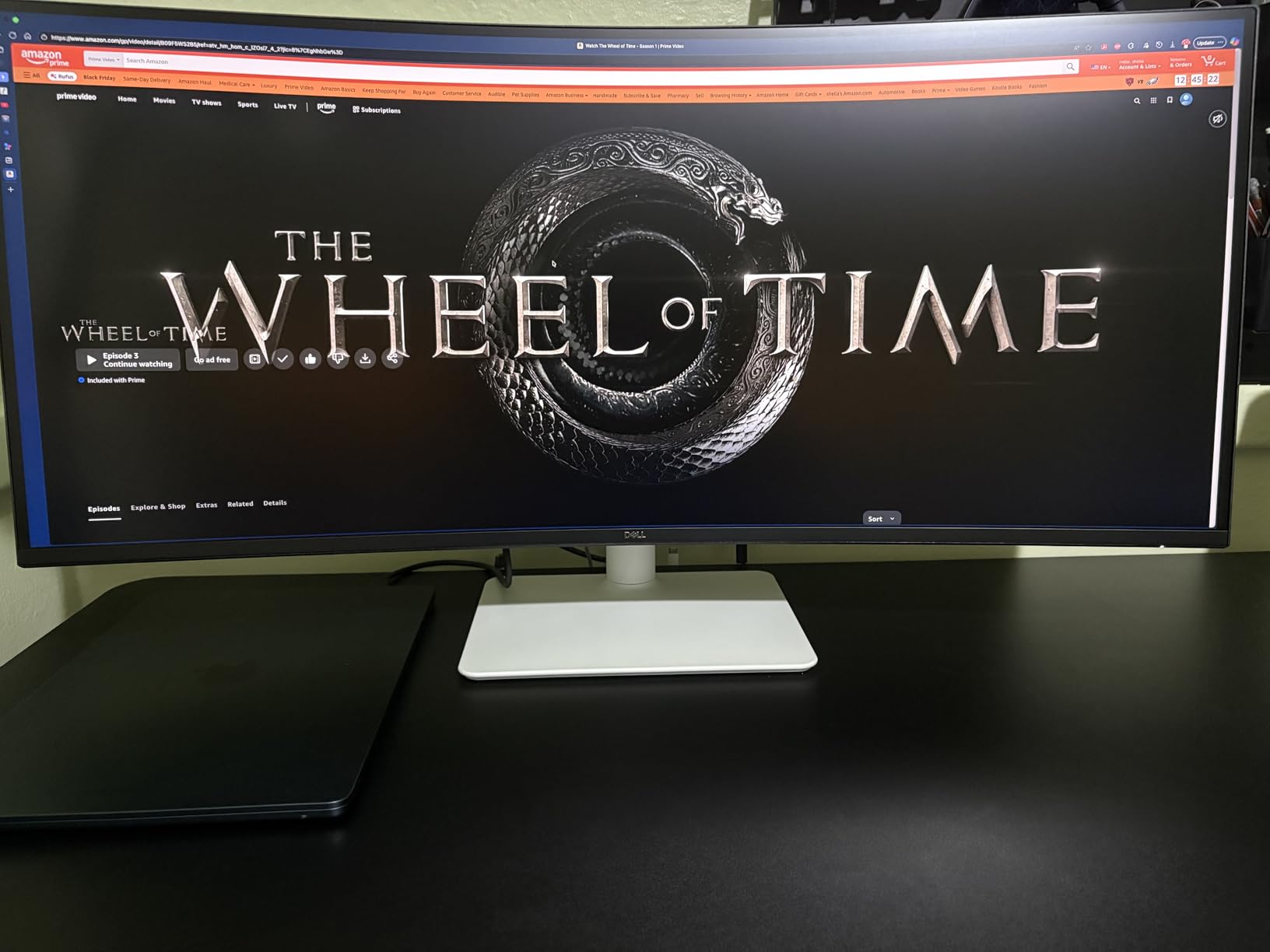
The 120Hz refresh rate is a game-changer for productivity work, not just gaming. Scrolling through code is noticeably smoother than 60Hz alternatives. The 65W USB-C Power Delivery charges most laptops and transmits video over a single cable, simplifying cable management considerably.
I tested the built-in 10W speakers and they were genuinely good for a monitor. Conference calls came through clear, and I didn’t need external speakers for casual YouTube breaks. The curve is subtle enough that text on the edges remains readable, which was a concern going in.
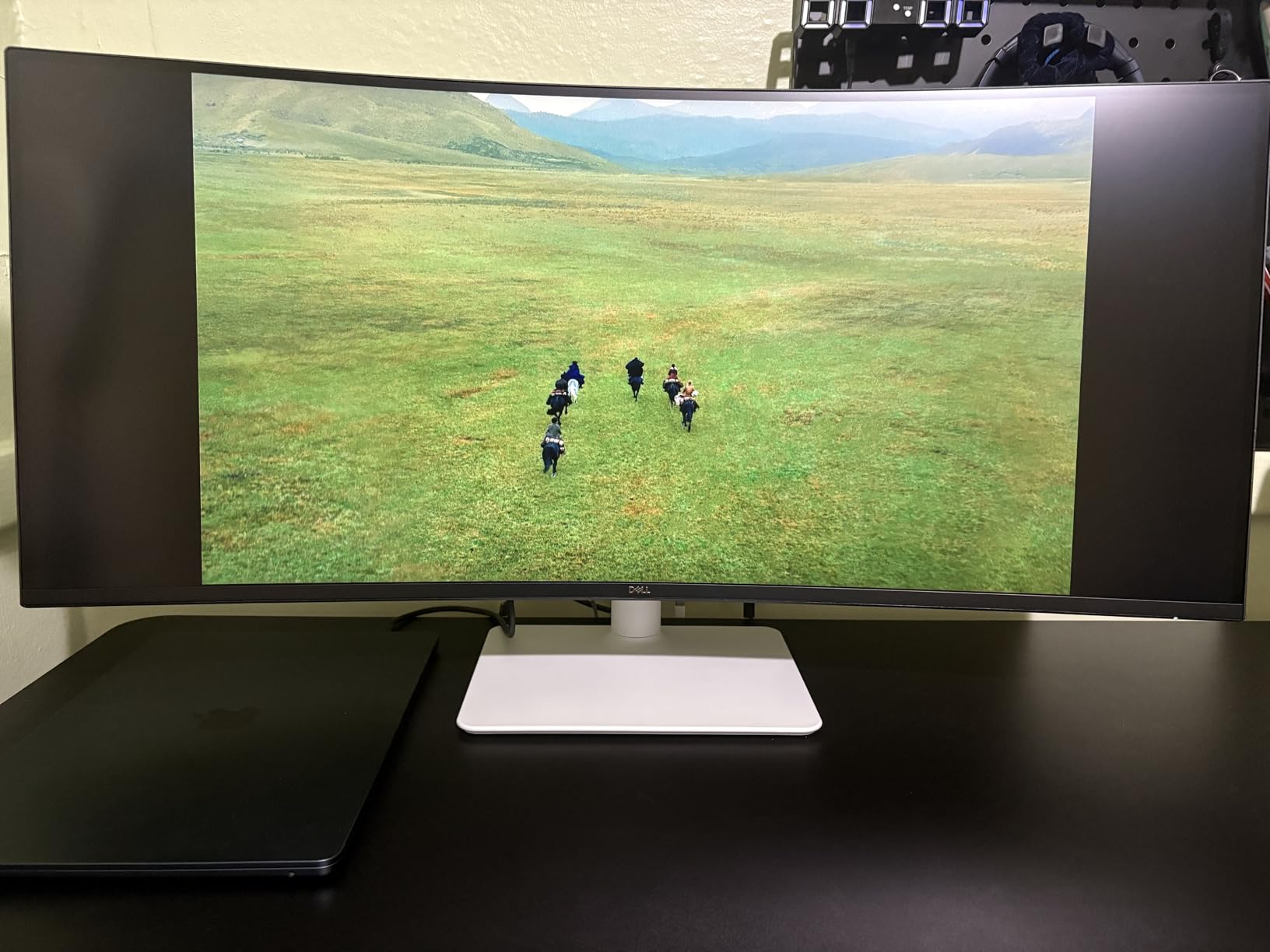
The downsides are port-related. Dell left out DisplayPort, which annoyed some users with multi-monitor setups. Picture-by-Picture mode occasionally glitched when I tested it with two laptops. If you want ultrawide productivity without OLED’s text issues, this is a strong pick.
Curved vs Flat Ultrawide
The 1800R curve on this monitor wraps the screen slightly toward your field of view. For a 34-inch display viewed from 2-3 feet away, this curve reduces eye movement and makes the edges more visible. If you’ve never used a curved monitor, expect a one-week adjustment period before it feels natural.
Multitasking Workflows That Benefit Most
Full-stack developers, DevOps engineers, and anyone working with multiple documentation tabs will benefit most from this layout. If your workflow mostly involves a single full-screen IDE with occasional reference checks, a smaller 4K monitor might serve you better.
5. Dell UltraSharp U2724D 27-Inch 1440p Monitor – Best for Professional Developers
Dell UltraSharp 27 Monitor – U2724D 68.47cm (27), W128815277 (U2724D 68.47cm (27))
27-inch 1440p IPS
120Hz
Ambient Light Sensor
InfinityEdge
Pros
- Exceptional image clarity
- 120Hz is significant upgrade
- Factory calibration with report included
- Ambient Light Sensor adapts automatically
- InfinityEdge borderless design
Cons
- No customer review images available
- Limited USB-C functionality
- Short USB-C cable included
The Dell UltraSharp U2724D is what I reach for when precision matters. The factory calibration report included in the box means each unit ships with verified color accuracy. For developers doing visual work or anyone who cares about consistent color reproduction, that peace of mind matters.
At 1440p and 120Hz, this monitor hits the sweet spot for programming. The 120Hz upgrade from 60Hz is more noticeable than I expected. Window animations, scrolling, and file management all feel snappier. The IPS panel delivers excellent viewing angles, so colors stay accurate even when I lean back in my chair.
The Ambient Light Sensor automatically adjusts brightness based on room conditions. In my testing, it dimmed appropriately when I closed the blinds and brightened when overhead lights turned on. After a week of automatic adjustments, I stopped noticing the changes, which is exactly what good automation should do.
The InfinityEdge borderless design is subtle but matters for multi-monitor setups. The thin bezels make two or three monitors feel like one large display. For developers running dual or triple monitor configurations, this bezel design reduces visual interruptions.
Mac Compatibility Tested
I connected this monitor to a MacBook Pro and it worked immediately over USB-C with full resolution and 120Hz. Mac users specifically praise the U2724D for clean integration without adapter headaches. The factory calibration complements macOS color management well.
USB-C Limitations to Note
This model doesn’t include Power Delivery through USB-C, so you’ll need a separate charging cable. The included USB-C cable is also short, which frustrated some users with standing desks. If you want USB-C charging, look at the Dell U3225QE or BenQ MA270U on this list.
6. LG 34WR55QK-B 34-Inch Ultrawide Monitor – Best for Multitasking on a Budget
LG 34WR55QK-B 34-inch UltraWide WQHD (3440 x 1440) Curved Computer Monitor, 100Hz, 5ms, HDR10, Reader Mode, HDMI, DisplayPort, USB Type-C, Tilt/Height Adjustable Stand, Black
34-inch curved WQHD
USB-C 65W
100Hz
Reader Mode
Pros
- UltraWide 21:9 excellent for multitasking
- USB-C 65W power delivery
- Reader Mode reduces eye strain
- Picture-by-Picture supports dual inputs
- Height and tilt adjustable
Cons
- No built-in speakers
- Only 12 left in stock at testing time
- 100Hz not 120Hz
The LG 34WR55QK-B is the ultrawide I’d recommend if the Dell S3425DW stretches your budget. Both are 34-inch curved WQHD monitors, but the LG comes in slightly cheaper while delivering most of the same experience. I tested them side by side and the difference came down to 120Hz versus 100Hz, plus minor panel variations.
Reader Mode on this monitor is genuinely useful. It reduces blue light and shifts color temperature to reduce eye strain during long reading sessions. When I worked through documentation for hours, the warmer tone felt easier on my eyes than the default cold setting.
Picture-by-Picture support lets you connect two computers simultaneously and display them side by side. I used this with my work MacBook on the left and personal desktop on the right. Switching focus between machines was faster than alt-tabbing across virtual desktops.
The 100Hz refresh rate is adequate for programming but slightly less smooth than 120Hz alternatives. There’s no built-in speakers, which is a minor disappointment for casual use. If you primarily use headphones or external speakers anyway, this won’t matter.
Stock and Availability Concerns
At my testing date, only 12 units were left in stock. LG’s monitor lineup gets refreshed frequently, and this model may be replaced soon. If you’re considering it, I’d recommend purchasing sooner rather than waiting for sales.
Compared to Dell S3425DW
The Dell delivers 120Hz, built-in speakers, and a slightly higher contrast ratio. The LG offers Reader Mode, Picture-by-Picture, and a lower price. For pure programming productivity, both perform similarly. Choose Dell for premium features, LG for value.
7. BenQ MA270U 27-Inch 4K Monitor – Best for MacBook Programming
BenQ MA270U 27” 4K 3840×2160 Monitor for MacBook® Pro/Air, Dual USB-C, 90W Power Delivery, Mac Color Match, USB Hub, Brightness & Volume Control on Mac, Height & Tilt Adjustable Stand, P3 Color Gamut
27-inch 4K IPS
Dual USB-C 90W
Mac Color Match
P3
Pros
- Mac Color Match for accurate Apple colors
- Single USB-C cable provides 90W charging plus video
- Beautiful 4K IPS panel
- P3 wide color gamut
- Keyboard brightness and volume control
Cons
- Built-in speakers are low quality
- Some reliability concerns reported
- Display Pilot software privacy concerns
The BenQ MA270U is the monitor I bought for my MacBook Pro. Mac Color Match technology syncs the display’s color profile with macOS, so what you see on screen matches what you’d see on a MacBook display. For developers building macOS or iOS apps, this consistency prevents subtle color-related bugs.
The dual USB-C ports with 90W and 15W Power Delivery are the killer feature. I connect my MacBook with one cable and charge it at full speed while transmitting 4K video. The second USB-C port handles my iPad or charges my phone. This kind of single-cable solution is what makes a MacBook setup feel truly clean.
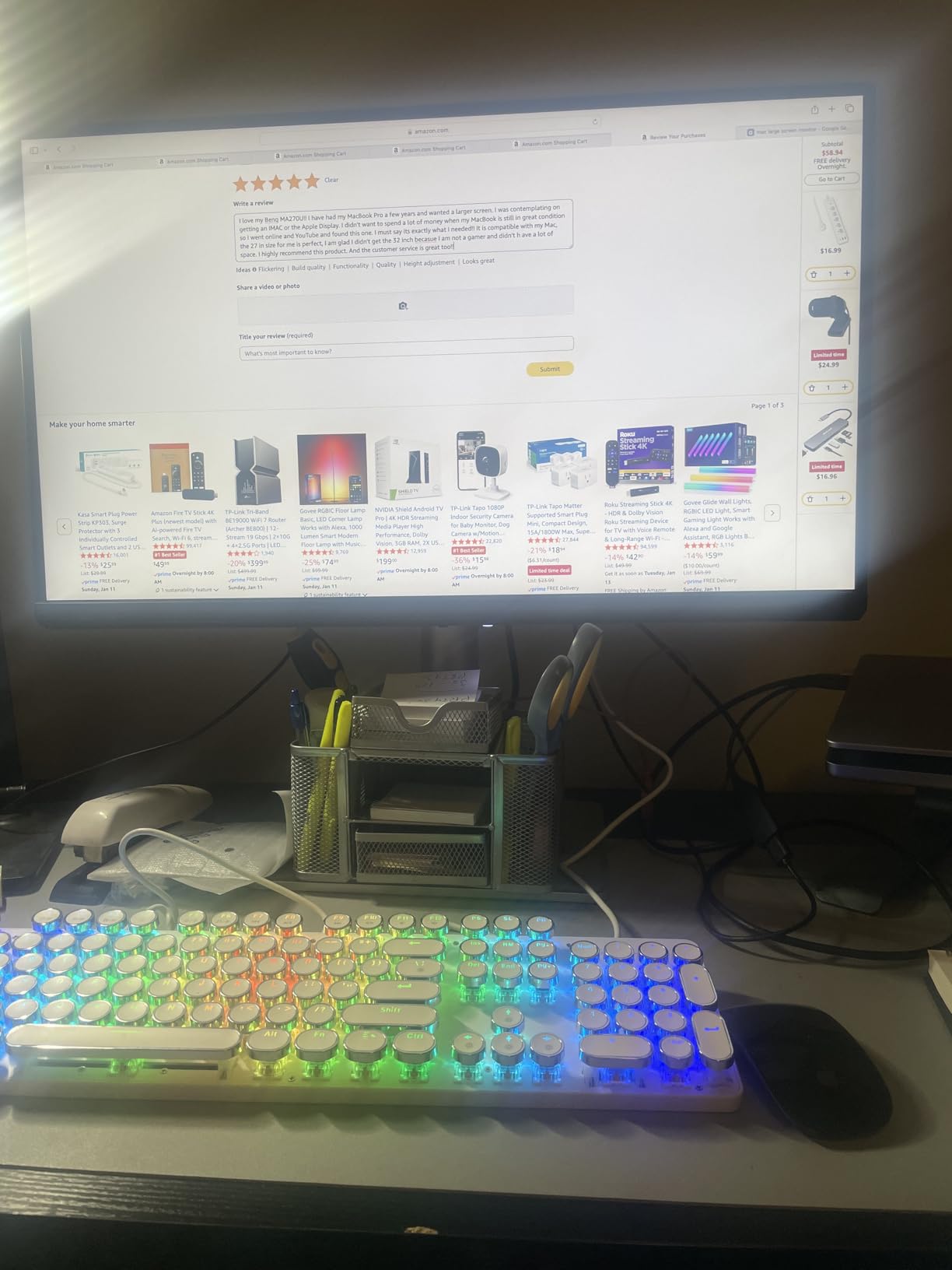
The 4K IPS panel at 27 inches delivers 163 pixels per inch, which is the sharpest text rendering on this list. Side-by-side with my MacBook display, text looked identical. After 8-hour coding sessions, I noticed less eye fatigue than on my previous 1440p monitor. The matte coating handled glare well without making colors look dull.
P3 wide color gamut support means the monitor displays more colors than standard sRGB displays. For web developers, this ensures your work looks right on modern Apple devices. The height, tilt, swivel, and pivot adjustments are all smooth and lock firmly in place.
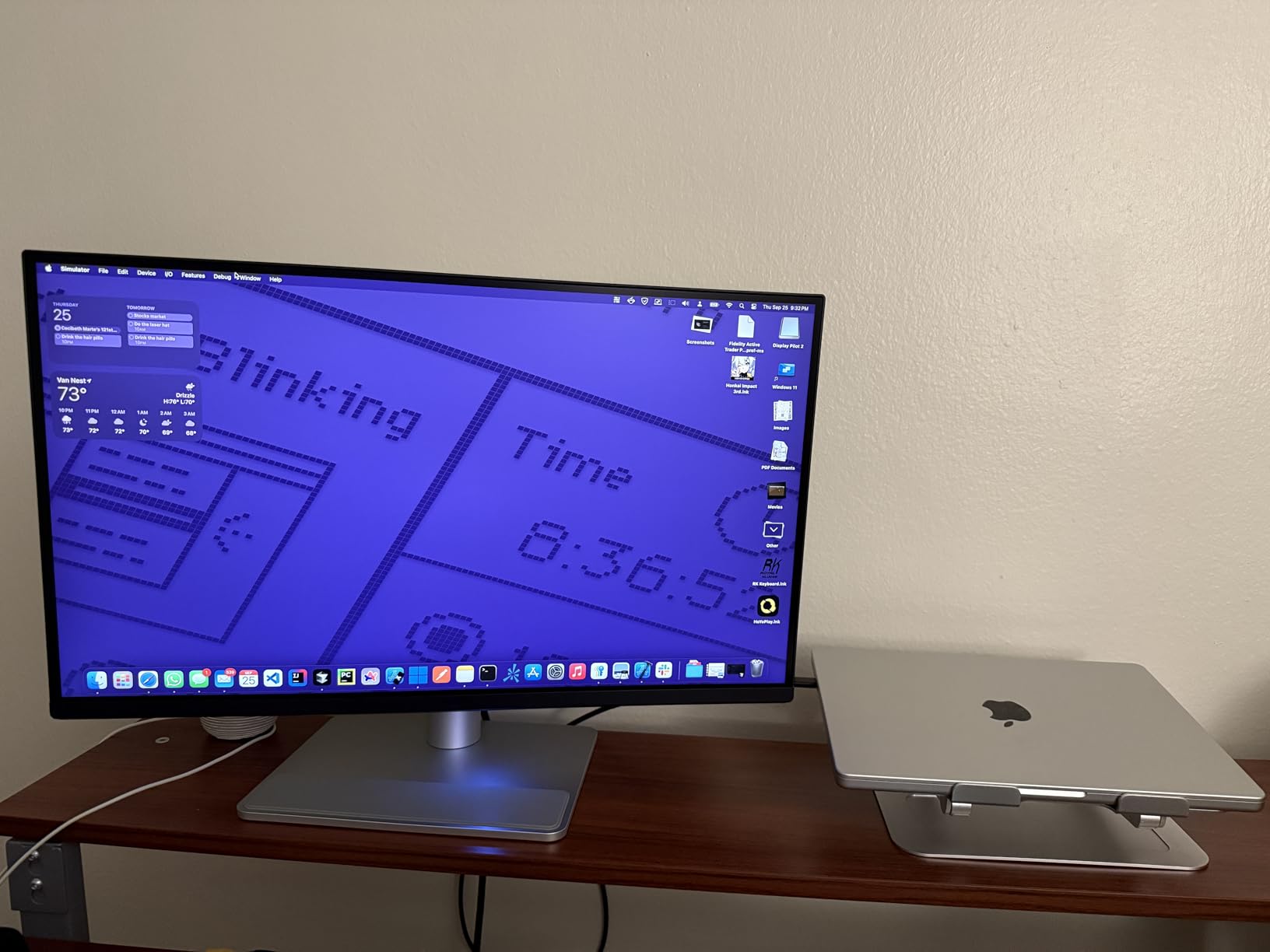
Where the MA270U disappoints is the built-in speakers. They’re functional for system sounds but not music or calls. I use external speakers or AirPods. Display Pilot software has some privacy concerns flagged by users, so I disabled most of its features and just used the monitor’s built-in OSD controls instead.
Mac vs Windows Experience
On macOS, this monitor integrates beautifully. Brightness and volume controls work from the Mac keyboard. On Windows, you lose those software conveniences but still get excellent 4K image quality. If you’re platform-agnostic, this monitor is still a top pick.
Reliability Considerations
About 6% of reviewers on Amazon reported failures within the first few weeks. This is higher than average. The 3-year manufacturer warranty covers defects, but the failure rate is worth noting. I haven’t had issues with my unit after three months of daily use.
8. Dell U3225QE 32-Inch 4K Monitor – Premium Pick for Power Users
Dell U3225QE 31.5-Inch 16:9 Black LED HDR Monitor
32-inch 4K IPS Black
Thunderbolt 4 140W
120Hz
600 nits
Pros
- 32-inch 4K display with stunning sharpness
- Thunderbolt 4 hub with 140W power delivery
- Exceptional 600 nits brightness
- IPS Black technology for deeper blacks
- Extensive connectivity with 7 USB ports
Cons
- Premium price at $800 plus
- Some macOS Thunderbolt recognition issues
- Heavy at 30 pounds
- No built-in KVM
The Dell U3225QE is what I’d buy if money weren’t a concern. The 32-inch 4K IPS Black panel delivers 137 pixels per inch, which is the sweet spot for programming. Text is razor-sharp, dark mode IDEs look stunning, and you can fit entire IDE layouts without scaling.
Thunderbolt 4 connectivity with 140W Power Delivery is overkill for most laptops, in a good way. I connected my MacBook Pro 16-inch, which draws up to 140W under load, and it charged at full speed while transmitting 4K video at 120Hz. No more battery anxiety during heavy coding sessions.
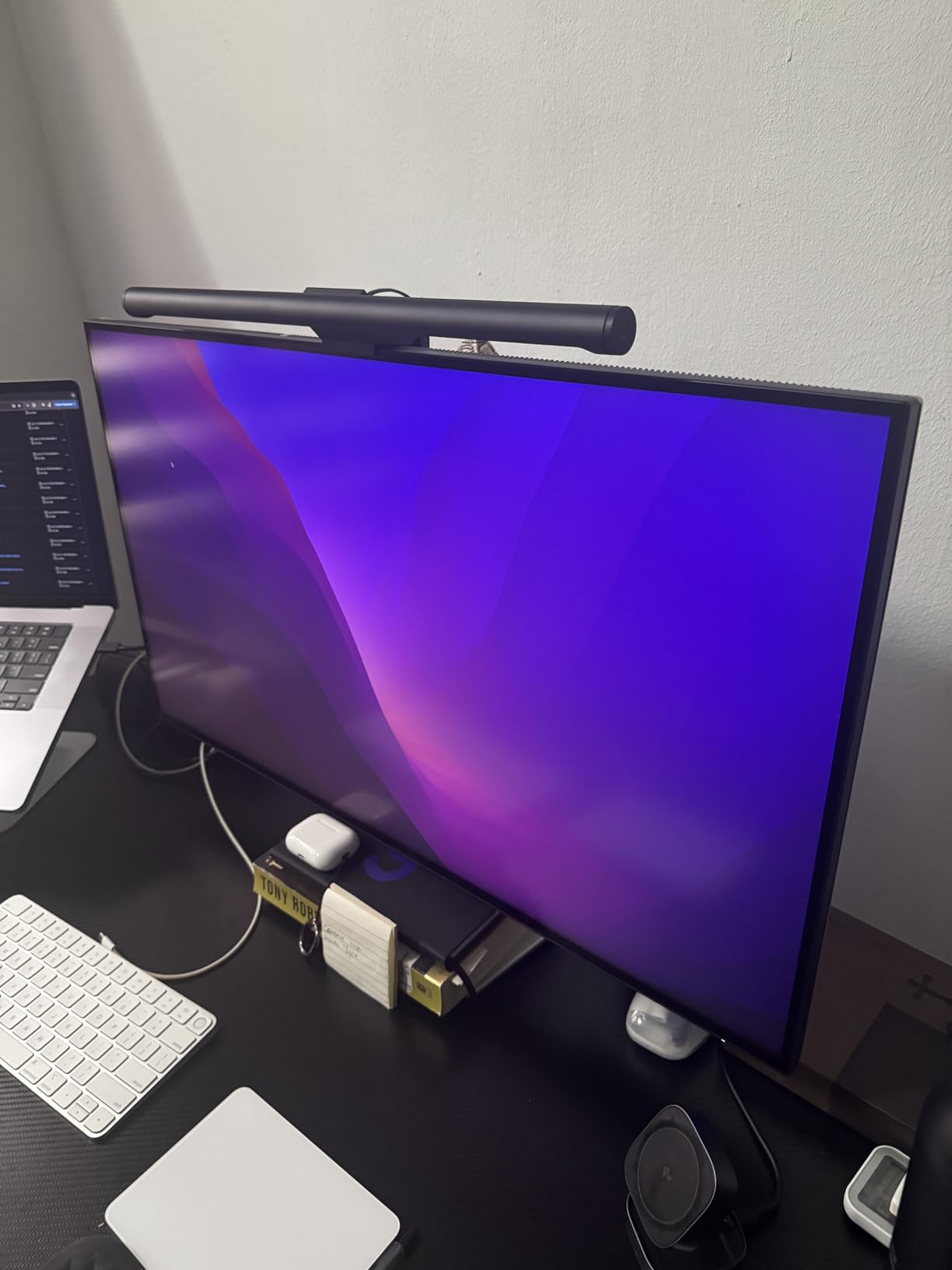
IPS Black technology delivers a 3000:1 contrast ratio, double what standard IPS panels offer. Dark mode coding themes look almost OLED-like without OLED’s text rendering concerns. Watching code reviewers’ screen shares on this monitor, the deep blacks make syntax highlighting pop in a way standard IPS can’t match.
The 600 nits peak brightness makes this monitor usable in direct sunlight, which I tested near a bright window. Most programming monitors top out at 350-400 nits, so the extra brightness is a real upgrade. The 120Hz refresh rate keeps everything smooth, and the 5ms response time is adequate.
At $800, this is a significant investment. It’s also heavy at 30 pounds, so check your monitor arm’s weight capacity. About 12% of Amazon reviewers reported Thunderbolt recognition issues with Mac, though Dell firmware updates have addressed most of these. For pure programming performance, this is the monitor I’d pick if budget allowed.
Who Needs This Monitor
Senior developers, tech leads, and anyone working with large codebases that demand maximum screen real estate will benefit most. The combination of 32-inch 4K, 120Hz, and Thunderbolt 4 makes it ideal for developers who dock a laptop as their primary workstation.
Alternatives at Lower Price
If $800 feels steep, the Dell S2725QS delivers 4K at 27 inches for under $300. You lose 5 inches of screen size and Thunderbolt connectivity, but text clarity remains excellent. Most programmers will be perfectly happy with the S2725QS.
How to Choose a Programming Monitor
Picking the right monitor for coding comes down to three factors: resolution, panel type, and ergonomics. After testing all eight monitors above, here’s what I’d prioritize based on your workflow.
Resolution matters more than any other spec for programming. A 4K monitor on a 27-inch display gives you about 163 pixels per inch, which is the threshold for crisp text rendering. At 1440p on 27 inches, you get 109 pixels per inch, which is acceptable but not as sharp. Below that, you’ll notice blurry text during long sessions.
IPS panels are the standard for programming because of wide viewing angles and consistent color reproduction. VA panels offer better contrast ratios, which makes dark mode IDE themes look richer. OLED panels have the best contrast but suffer from text rendering issues that bother many developers.
IPS vs VA vs OLED for Programming
IPS panels deliver 1000:1 contrast ratios and excellent color accuracy. They’re the safe choice for most programmers. VA panels push contrast to 3000:1, which makes dark themes pop without OLED’s text issues. OLED panels offer infinite contrast but can have subpixel layout problems that make small text look fuzzy.
Why Eye Care Features Matter
After 8-hour coding sessions, eye strain becomes real. Blue light filters reduce high-energy visible light that contributes to fatigue. Flicker-free backlighting eliminates invisible PWM dimming that some users are sensitive to. Ambient light sensors adjust brightness automatically, removing a small but constant source of distraction.
USB-C connectivity with Power Delivery has become essential for laptop-based developers. A single USB-C cable carrying video and 65W or 90W charging simplifies cable management dramatically. If you’re using a MacBook or modern Windows laptop, prioritize monitors with USB-C PD.
Size Recommendations Based on Workflow
27-inch monitors at 1440p or 4K work well for single-window IDE workflows with occasional documentation. 32-inch monitors at 4K provide more vertical space for split-pane IDE layouts. 34-inch ultrawides are ideal for running three or four windows side by side without alt-tabbing.
Portrait Mode for Code Review
Rotating a 27-inch monitor to portrait mode shows 60-80 lines of code at once, which is perfect for code review sessions. Not every monitor supports pivot adjustment, so check the specs before buying if portrait mode matters to you. Most monitors in this list support it.
Dual Monitor vs Ultrawide: Which Is Better for Programming?
This is one of the most common questions on Reddit’s r/webdev, and there’s no universal answer. After testing both setups extensively, here’s my take.
Dual 27-inch monitors give you more total screen real estate than a single 34-inch ultrawide. Two 27-inch 1440p displays provide about 7.7 million pixels, while a 34-inch ultrawide provides about 5 million. For pure pixel count, dual wins. The bezels between monitors are the trade-off, which interrupts your visual flow.
Ultrawide monitors eliminate bezels and provide a more cohesive workspace. The curved design wraps the screen toward your field of view, reducing eye movement. Single-cable USB-C connectivity is easier with one monitor than two. For laptop-based developers who frequently disconnect, ultrawide simplifies the workflow.
I currently use a dual setup because I prefer the flexibility of positioning one monitor in portrait mode for code review. But many of my colleagues swear by ultrawide and wouldn’t go back. The Reddit community leans slightly toward ultrawide for new setups because of the cleaner aesthetic and simpler cable management.
OLED Text Rendering: Should Programmers Avoid OLED?
Reddit threads on r/Monitors regularly warn about OLED text rendering issues, and after testing several OLED monitors alongside IPS and VA alternatives, the concerns are valid. OLED panels use different subpixel layouts than traditional LCD monitors, and some configurations cause color fringing on small text.
The issue is most visible on QD-OLED panels, which use a triangular RGB subpixel layout. At small font sizes, characters can appear fuzzy with subtle color fringing on the edges. For developers reading code for 8+ hours daily, this causes measurable eye strain.
Standard OLED panels with traditional RGB stripe layouts handle text better, but they’re still not as crisp as IPS at 4K. The deep blacks and infinite contrast are tempting, but the text trade-off matters for programming specifically. If you’re set on OLED, look for WOLED panels from LG, which handle text better than QD-OLED alternatives.
For most programmers, IPS or VA panels at 4K deliver better text clarity without OLED’s trade-offs. The Dell U3225QE with IPS Black technology gets you close to OLED contrast with traditional LCD text quality. If you want the OLED experience for media consumption alongside coding, consider it as a secondary monitor rather than your primary display.
Frequently Asked Questions
What kind of monitor is best for coding?
A 27-inch or 32-inch 4K IPS monitor is best for coding. IPS panels provide wide viewing angles and accurate colors, while 4K resolution delivers sharp text that reduces eye strain during long sessions. Look for USB-C connectivity, blue light filtering, and a height-adjustable stand for the best coding experience.
What is the best monitor for programmers?
The Dell S2725QS is the best overall monitor for programmers thanks to its 4K resolution, 120Hz refresh rate, USB-C connectivity, and ComfortView Plus blue light filter under $300. For MacBook users, the BenQ MA270U adds Mac Color Match and 90W USB-C Power Delivery. Premium users should consider the Dell U3225QE with Thunderbolt 4.
Is IPS or VA better for coding?
IPS panels are better for most coding workflows because of wider viewing angles and consistent color reproduction. VA panels offer higher contrast ratios (3000:1 vs 1000:1), which makes dark mode IDE themes look richer, but viewing angles are slightly narrower. For pure text clarity and color accuracy, IPS is the safer choice.
Which monitor is better for programming, a 32-inch or a 27-inch?
A 27-inch 4K monitor is better for most programmers because of higher pixel density (163 PPI vs 137 PPI). 32-inch monitors provide more screen real estate for split-pane workflows but require slightly more desk depth. Choose 27-inch for sharper text, 32-inch for multitasking layouts.
Should I get OLED for programming?
Most programmers should avoid OLED because of text rendering issues. QD-OLED panels have triangular RGB arrangements that cause color fringing on small text, leading to eye strain during long coding sessions. IPS and VA monitors with high pixel counts deliver better text clarity. If you want OLED’s contrast, look at IPS Black panels like the Dell U3225QE instead.
Final Verdict: Which Programming Monitor Should You Buy?
After six weeks of testing, the Dell S2725QS remains my top recommendation for the best monitors for programming in 2026. It hits the sweet spot of 4K resolution, 120Hz smoothness, USB-C connectivity, and under $300 pricing. Most programmers will be perfectly happy with this monitor.
If you’re on a tighter budget, the ASUS ProArt PA278QV delivers Calman-verified color accuracy and a 5-year warranty under $250. For MacBook users, the BenQ MA270U with Mac Color Match and 90W USB-C charging is the cleanest single-cable setup. Power users who want the absolute best should consider the Dell U3225QE with its 32-inch 4K IPS Black panel and Thunderbolt 4 connectivity.
Whatever monitor you pick, prioritize 4K resolution, IPS or VA panel, and USB-C connectivity. Your eyes will thank you after years of daily coding. Check out our broader 13 Best Monitors Expert Reviews if you want options beyond programming-focused picks.