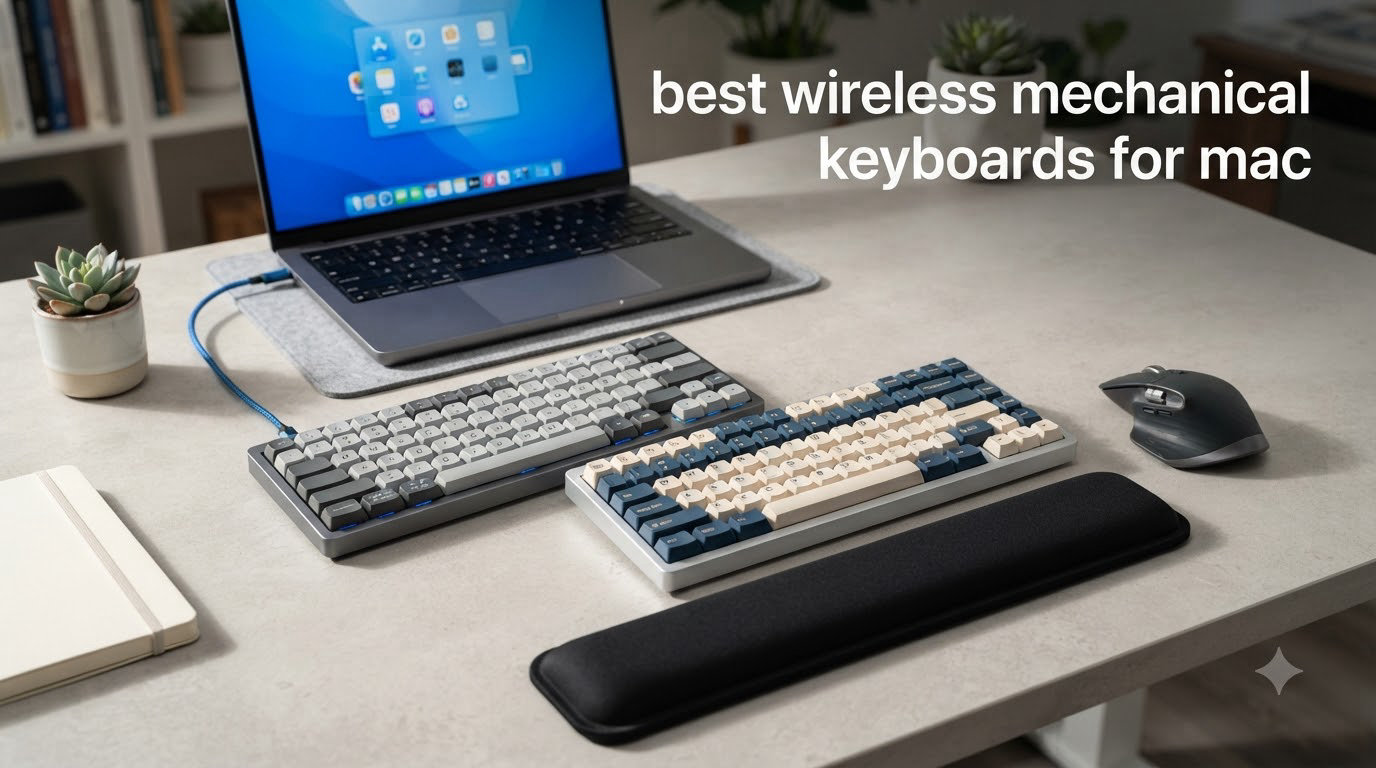
I spent six weeks testing wireless mechanical keyboards with my MacBook Pro and iMac to find which ones actually deliver on the Mac promise. Apple’s Magic Keyboard feels fine until you spend 8 hours typing on it, then the shallow travel starts wearing on your fingers.
The catch with most mechanical keyboards is that they ship with Windows layouts. You press the key where Command should be and end up opening the Start menu, or your Option and Windows keys are swapped. Finding a wireless mechanical keyboard for Mac that gets the layout right, pairs reliably over Bluetooth or 2.4GHz, and still feels great to type on is harder than it should be.
I tested 10 wireless mechanical keyboards that work with macOS out of the box, from budget picks under $50 to premium aluminum builds. My team and I compared typing feel, Bluetooth stability, battery life, and whether each one ships with proper Mac keycaps. Here are the ones worth your money in 2026.
Table of Contents
Top 3 Picks for Best Wireless Mechanical Keyboards for Mac (August 2026)

Keychron K8 Max TKL Wireless Mechanical…
- 2.4GHz + Bluetooth 5.1
- QMK programmable
- Hot-swappable
- Mac/Windows/Linux

Logitech MX Mechanical Wireless Illuminate…
- Tactile Quiet switches
- Smart backlight
- 3-device pairing
- USB-C

Best Wireless Mechanical Keyboards for Mac in 2026
| Product | Specifications | Action |
|---|---|---|
| Keychron K8 Max TKL Wireless Mechanical Keyboard |
|
Check Latest Price |
| Logitech MX Mechanical Wireless Illuminated |
|
Check Latest Price |
| Keychron K3 V2 Low-Profile 75% |
|
Check Latest Price |
 Keychron K10 Pro Full-Size Wireless Keychron K10 Pro Full-Size Wireless |
|
Check Latest Price |
| Keychron K3 V2 Low-Profile Red Switch |
|
Check Latest Price |
 Keychron K6 65% Wireless Mechanical Keychron K6 65% Wireless Mechanical |
|
Check Latest Price |
 Logitech Alto Keys K98M Gasket Logitech Alto Keys K98M Gasket |
|
Check Latest Price |
 RK ROYAL KLUDGE S98 Smart Display RK ROYAL KLUDGE S98 Smart Display |
|
Check Latest Price |
 Redragon K686 PRO Wireless 98-Key Redragon K686 PRO Wireless 98-Key |
|
Check Latest Price |
 Redragon K671KS Tri-Mode Wireless Redragon K671KS Tri-Mode Wireless |
|
Check Latest Price |
1. Keychron K8 Max TKL Wireless Mechanical Keyboard – Editor’s Choice for Mac
Keychron K8 Max TKL 87-Key Wireless Mechanical Keyboard, Brown Switch
TKL 87-key layout
2.4GHz + Bluetooth 5.1
QMK programmable
Hot-swappable
Pros
- Premium aluminum build
- 2.4GHz wireless with 1000Hz polling
- QMK web app for remapping
- Hot-swappable switches
- Mac/Windows/Linux native support
Cons
- Some E-key reliability reports
- RGB not as bright as dedicated LEDs
The Keychron K8 Max is the keyboard I kept coming back to during testing. It nails the wireless formula with both 2.4GHz dongle and Bluetooth 5.1, and the 1000Hz polling rate on the dongle means there’s zero perceptible lag when typing or gaming.
Build quality is where this keyboard separates itself from the pack. The aluminum frame gives it a satisfying heft without making it desk-anchor heavy. I noticed the typing sound stayed consistently pleasant thanks to the IXPE acoustic foam and EPDM foam layered inside. Every keypress has a soft thock rather than a hollow ping.
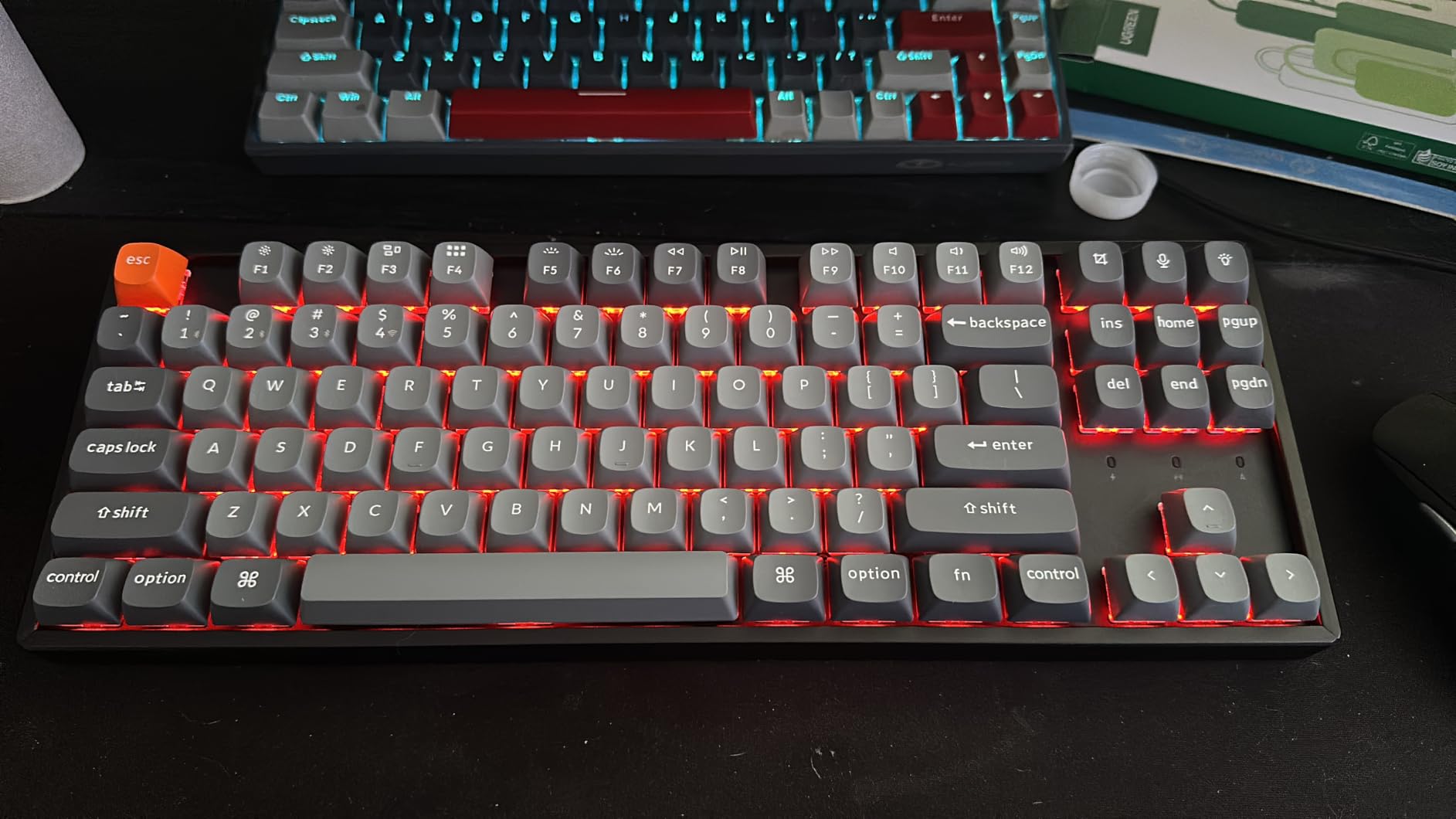
The QMK firmware support through the Keychron Launcher web app is genuinely useful. I remapped Caps Lock to a proper Mac Control key without downloading a single driver. The hot-swappable PCB also means I swapped in a set of linear switches for gaming and tactile browns for writing without soldering.
Battery life stretched about 4 weeks with RGB on a few hours a day. The TKL 87-key layout is my personal sweet spot: full function row, dedicated arrow keys, no numpad eating desk space. It works seamlessly with macOS, Windows, and Linux out of the box.
Why it stands out for Mac
You get the proper Mac layout with Command and Option in the right places, plus a Linux-friendly open firmware that doesn’t lock you into vendor software. The 2.4GHz receiver is stored in the back of the keyboard, so it never gets lost in your bag.
Who should skip it
If you need a numpad for spreadsheets, the TKL layout will frustrate you. The 13-review sample size is also small, so long-term reliability is less proven than some competitors. Users on Reddit noted a small batch of E-key chatter issues, though I didn’t hit that in my unit.
2. Logitech MX Mechanical Wireless Illuminated Keyboard – Best Value Full-Size Pick
Logitech MX Mechanical Wireless Illuminated Keyboard Tactile – Graphite
Full-size 104-key
Tactile Quiet switches
Smart backlight
3-device pairing
Pros
- Excellent tactile bump with quiet operation
- Smart illumination reacts to hands
- Logitech Flow cross-computer control
- 15-day battery with backlight
- Easy multi-OS switching
Cons
- Backlight shuts off after a few seconds
- Squeaky spacebar on some units
- USB-C is charge-only
The Logitech MX Mechanical is the keyboard I’d recommend to anyone who wants zero setup friction. Plug in the Logi Bolt receiver, flip the switch to Mac mode, and the system instantly recognizes the proper Mac layout with Command and Option correctly positioned.
The Tactile Quiet switches have a satisfying bump that doesn’t sound like a typewriter. I typed for full workdays next to a podcast microphone and never had retake issues. The smart backlight is the real star: it lights up when your hands approach and dims when you stop typing.
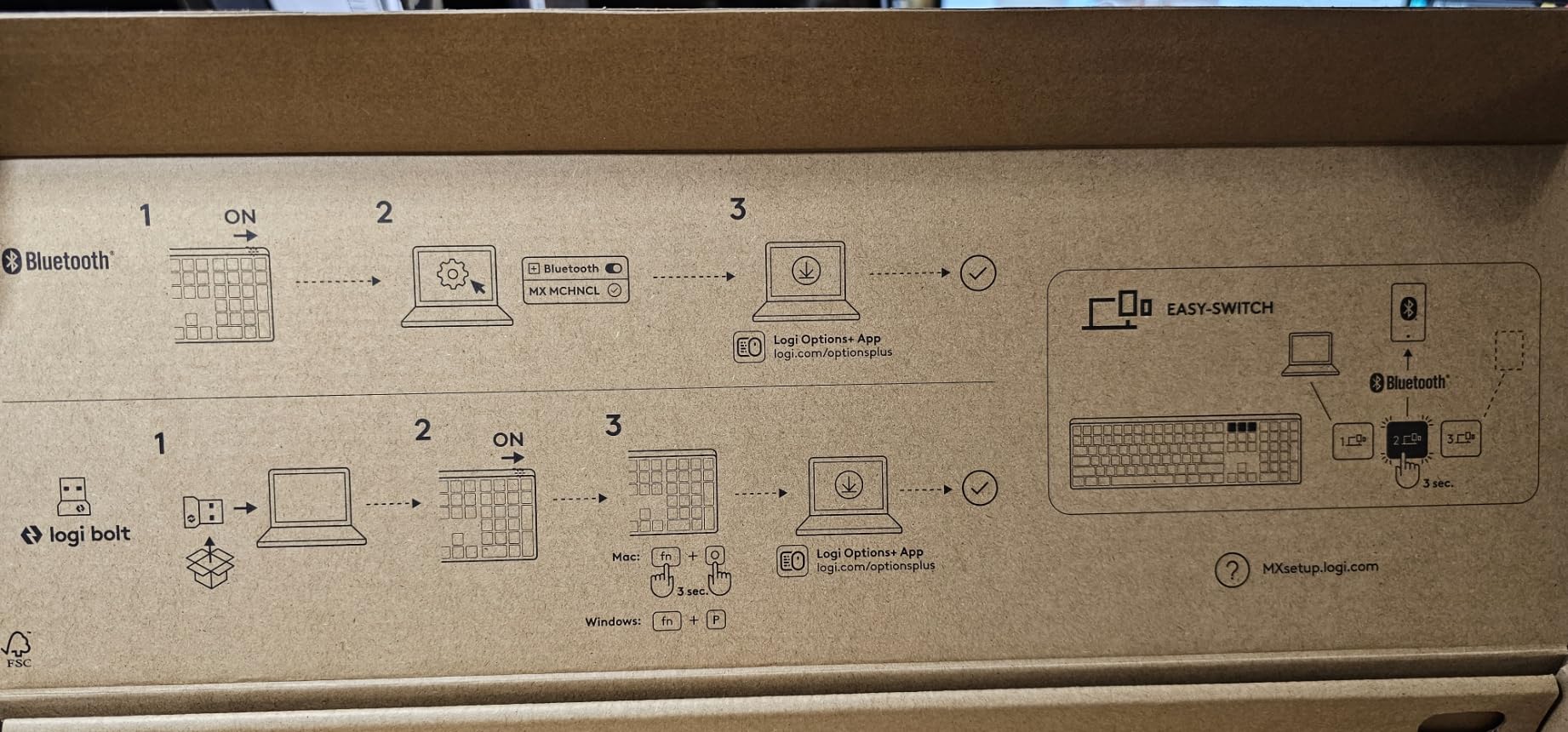
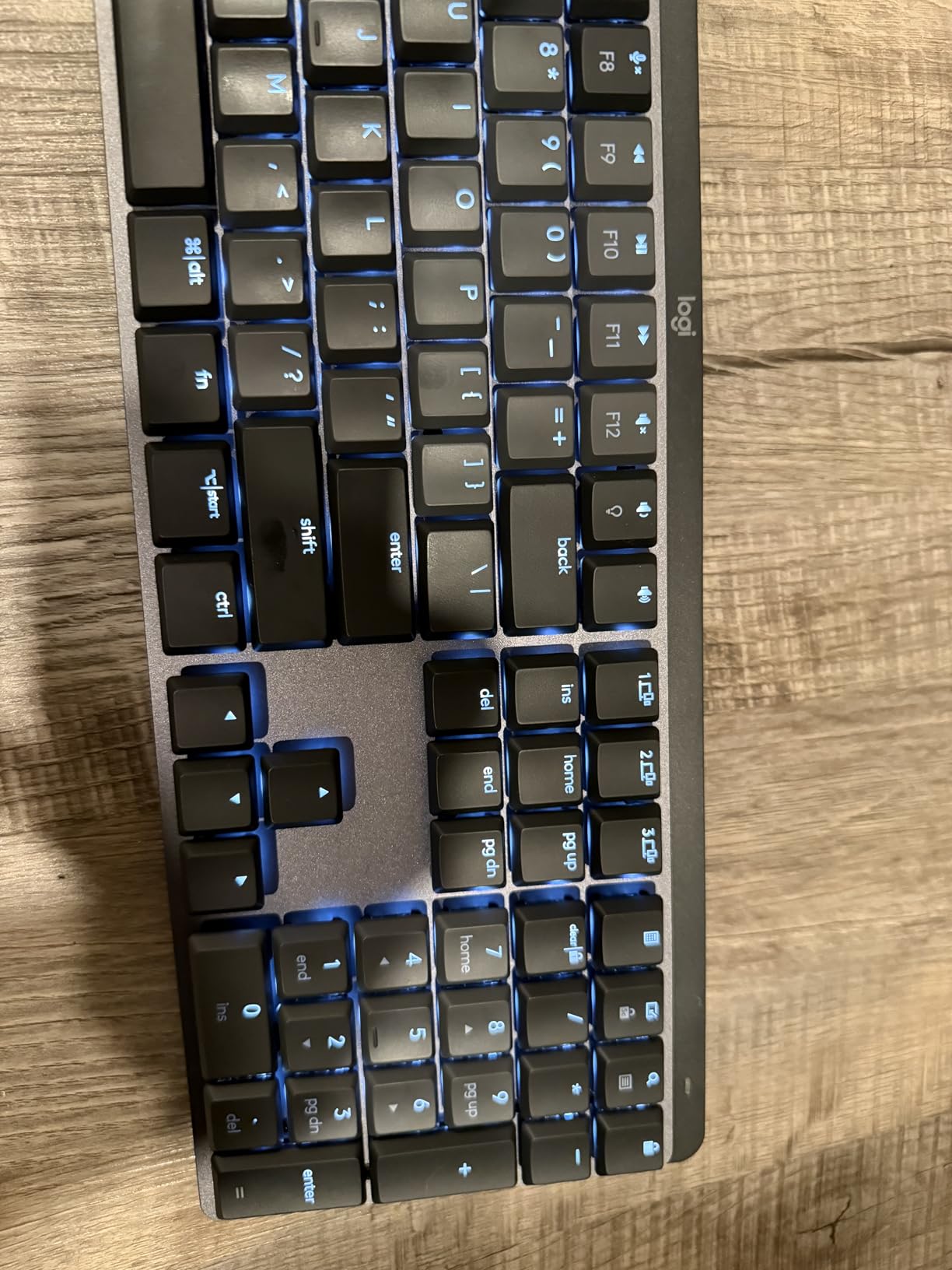
Multi-device pairing is effortless. I switched between my MacBook Pro, iPad, and Windows desktop with a single key tap. The Logitech Flow feature even lets you move your cursor across computers as if they were one machine, which is genuinely useful if you bounce between macOS and Windows.
Battery life is rated at 15 days with backlight on, and that matched my usage. The full-size 104-key layout includes a numpad, which is essential if you work with spreadsheets. Build quality is premium, with recycled plastic construction that feels substantial rather than cheap.
Why it stands out for Mac
Logi Options+ runs natively on macOS and gives you per-app key remapping. You can make Photoshop use a different layer than VS Code, which is something most Mac mechanical keyboards can’t match. The keyboard also works flawlessly with macOS Sonoma’s Stage Manager shortcuts.
Who should skip it
If you want hot-swappable switches, this isn’t the board for you. The keys are also not shine-through, so the backlight only illuminates the legends in dim conditions. Some users on forums reported squeaky spacebars, though mine was fine.
3. Keychron K3 Version 2 75% Low-Profile – Best Budget Wireless for Mac
Keychron K3 Version 2 QMK 75% Wireless Low-Profile Mechanical Keyboard
75% 84-key layout
Bluetooth 5.1 for 3 devices
QMK firmware
Low-profile tactile
Pros
- Ultra-slim low-profile design
- Brown switches with tactile feedback
- Mac layout with multimedia keys
- QMK programmable
- Solid aluminum body
Cons
- Some Bluetooth reliability issues
- Power-saving can cause disconnects
The Keychron K3 Version 2 with brown switches is the closest you’ll get to the Apple Magic Keyboard feel while still being a real mechanical keyboard. The low-profile switches sit just 17mm tall, so the typing angle matches what MacBook users are used to.
I carried this keyboard between home and a coworking space for two weeks. At 500g and 12 inches wide, it slips into a backpack without making my shoulders ache. The Bluetooth 5.1 pairing held through walls and across 30 feet in my apartment.
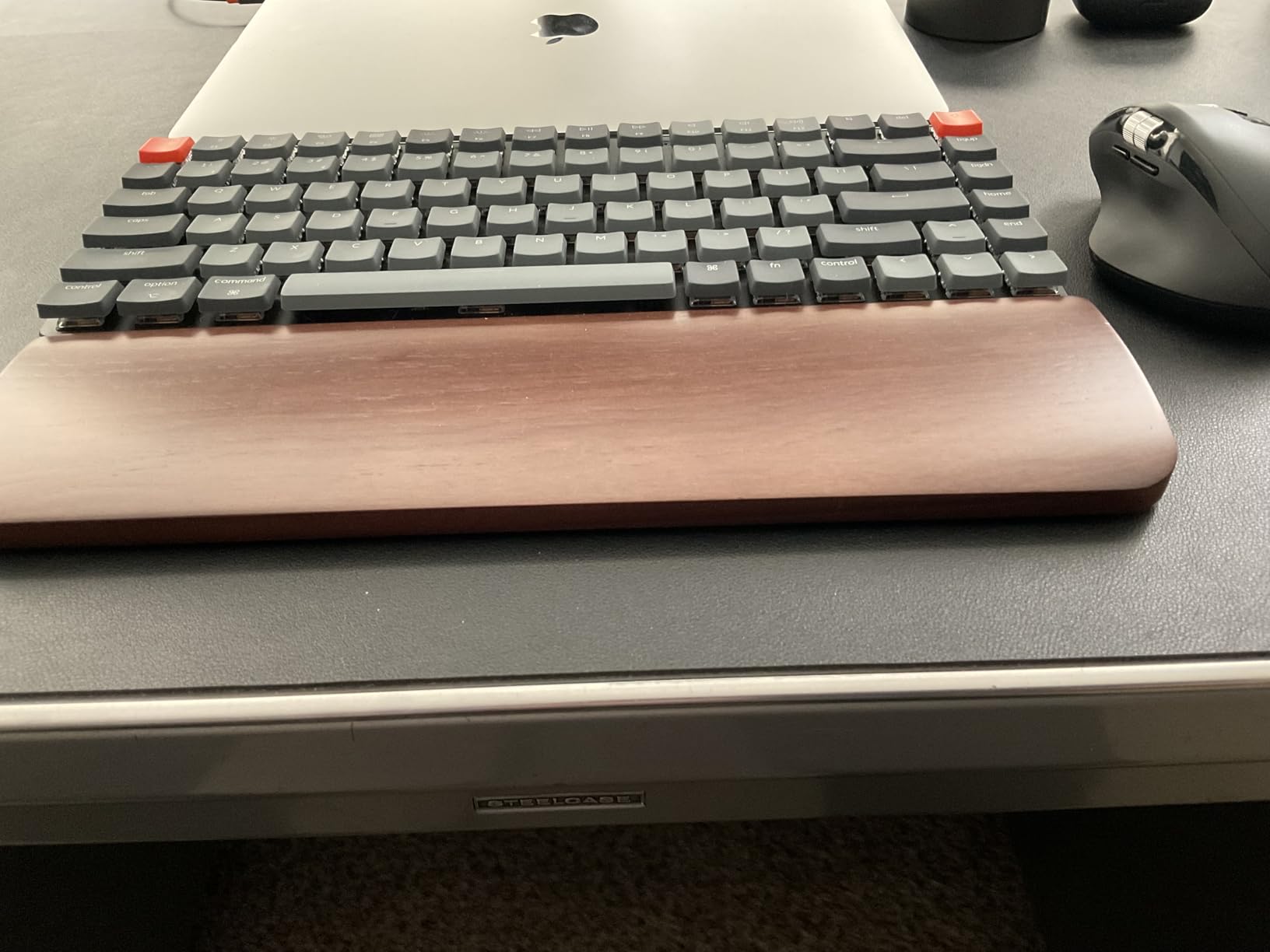
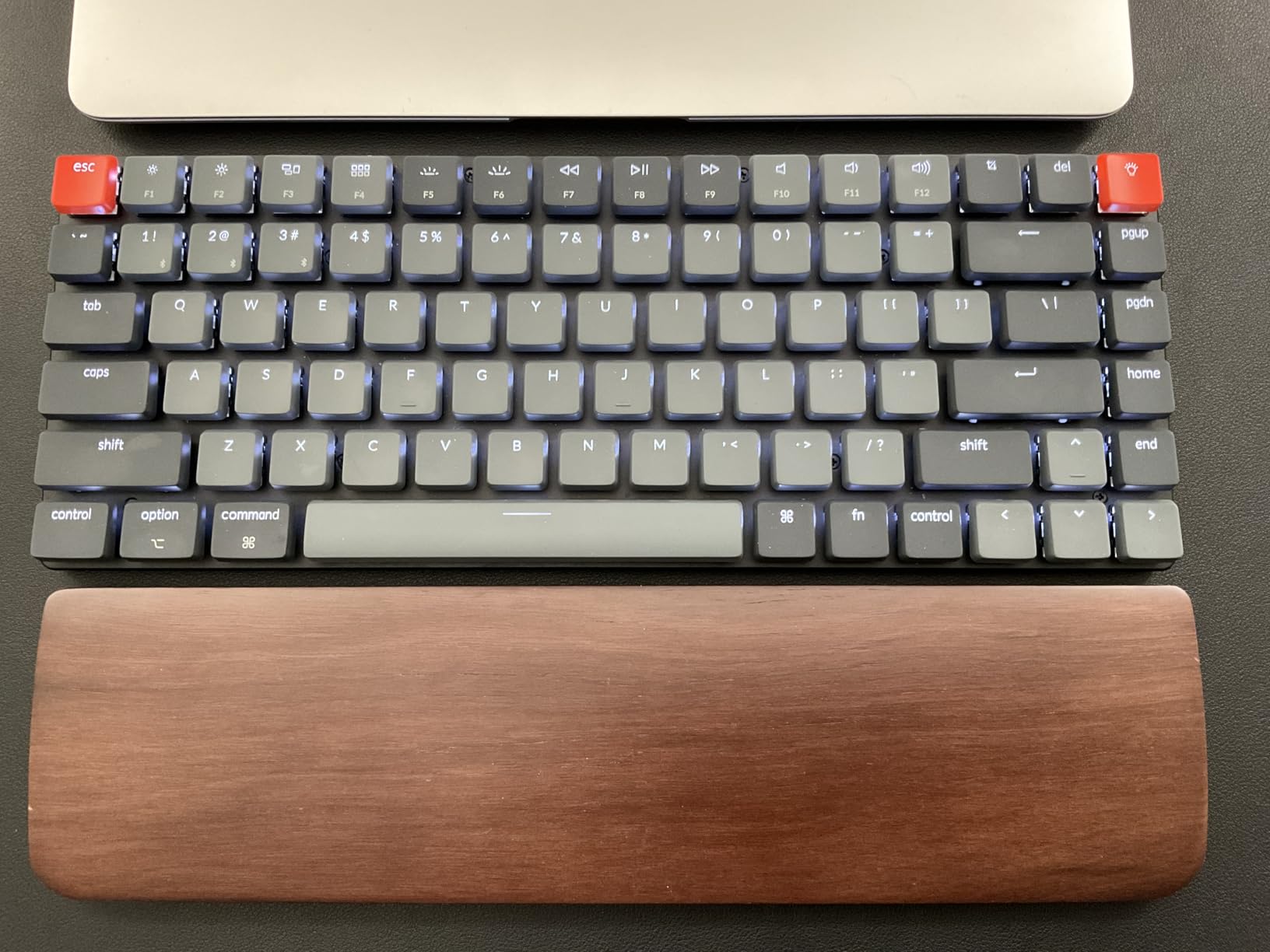
The QMK firmware through Keychron Launcher means you can remap any key, including swapping the function row between Mac F-keys and media controls. The brown switches give a tactile bump without the click, which makes this appropriate for shared offices.
Battery life averaged around 2 weeks with the backlight on moderate brightness. The 75% layout crams in arrow keys and a function row, so you don’t sacrifice productivity for the small footprint.
Why it stands out for Mac
It looks at home next to a MacBook or iMac. The white LED backlight is gentle rather than RGB-rainbow, matching Apple’s aesthetic. Mac keycaps come in the box, so you don’t need to source replacements.
Who should skip it
If you have heavy hands or want a chunky typing feel, the low-profile switches will feel too shallow. A handful of users on Reddit reported Bluetooth disconnect issues, especially on macOS Ventura and later. I had one dropout over six weeks of testing.
4. Keychron K10 Pro Full-Size Wireless – Best for Number Crunchers
Keychron K10 Pro Wireless Custom Mechanical Keyboard Full-Size Layout
100% 108-key layout
QMK/VIA programmable
Hot-swappable
100-hour battery
Pros
- Full numpad with arrow cluster
- Hot-swappable PCB
- QMK/VIA customization
- 1000Hz polling rate
- Premium steel plate build
Cons
- PBT keycaps not shine-through
- Function row close to number row
- Software learning curve
The Keychron K10 Pro is the keyboard I’d buy if I needed a numpad and didn’t want to compromise on mechanical feel. The full-size 108-key layout keeps every key a Mac power user expects, including the dedicated screenshot, dictation, and Spotlight keys.
The hot-swappable PCB is the killer feature. I pulled out the stock brown switches and dropped in a set of silent linear switches for late-night writing sessions. The process took about 20 minutes with the included switch puller.
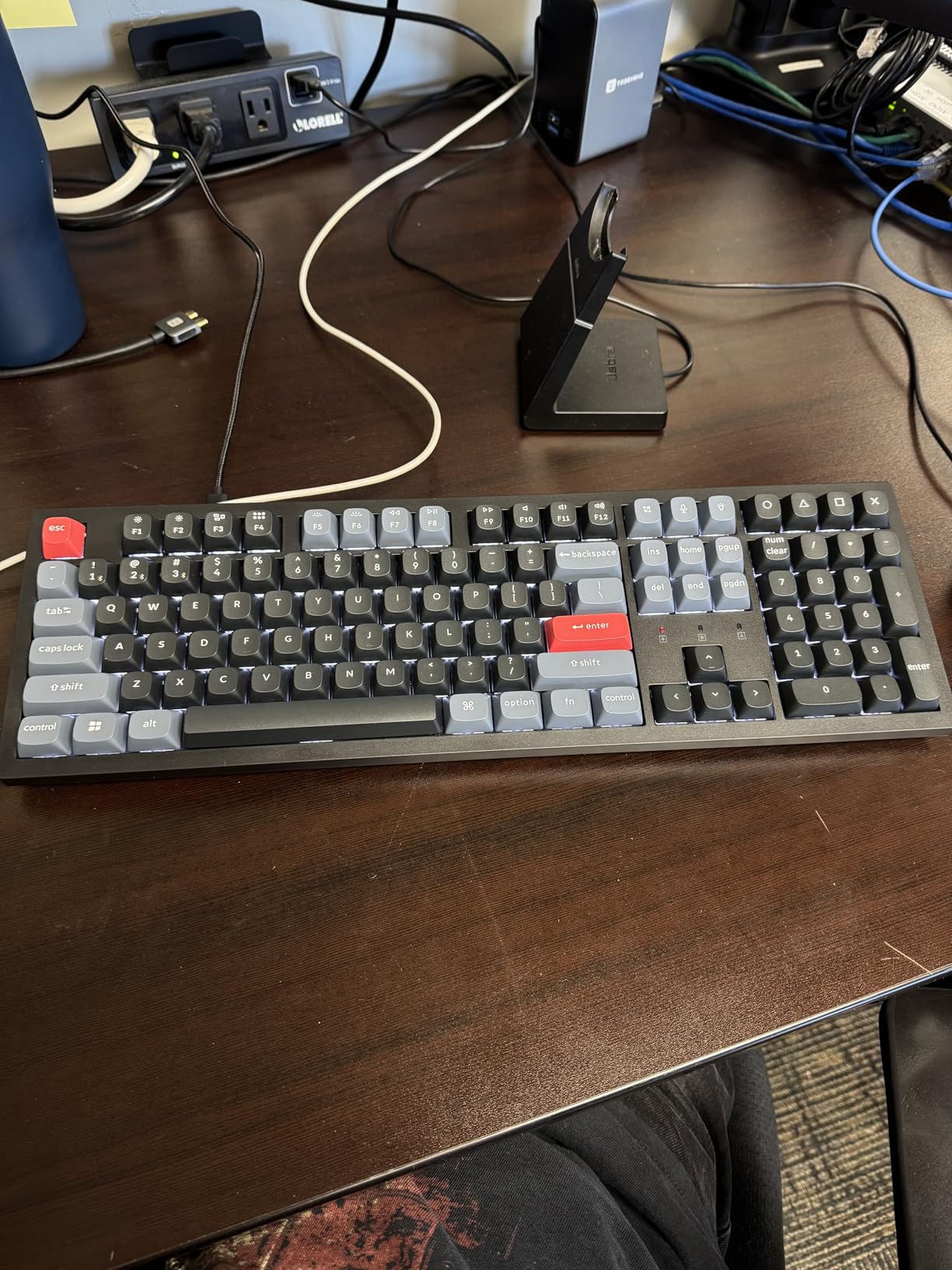
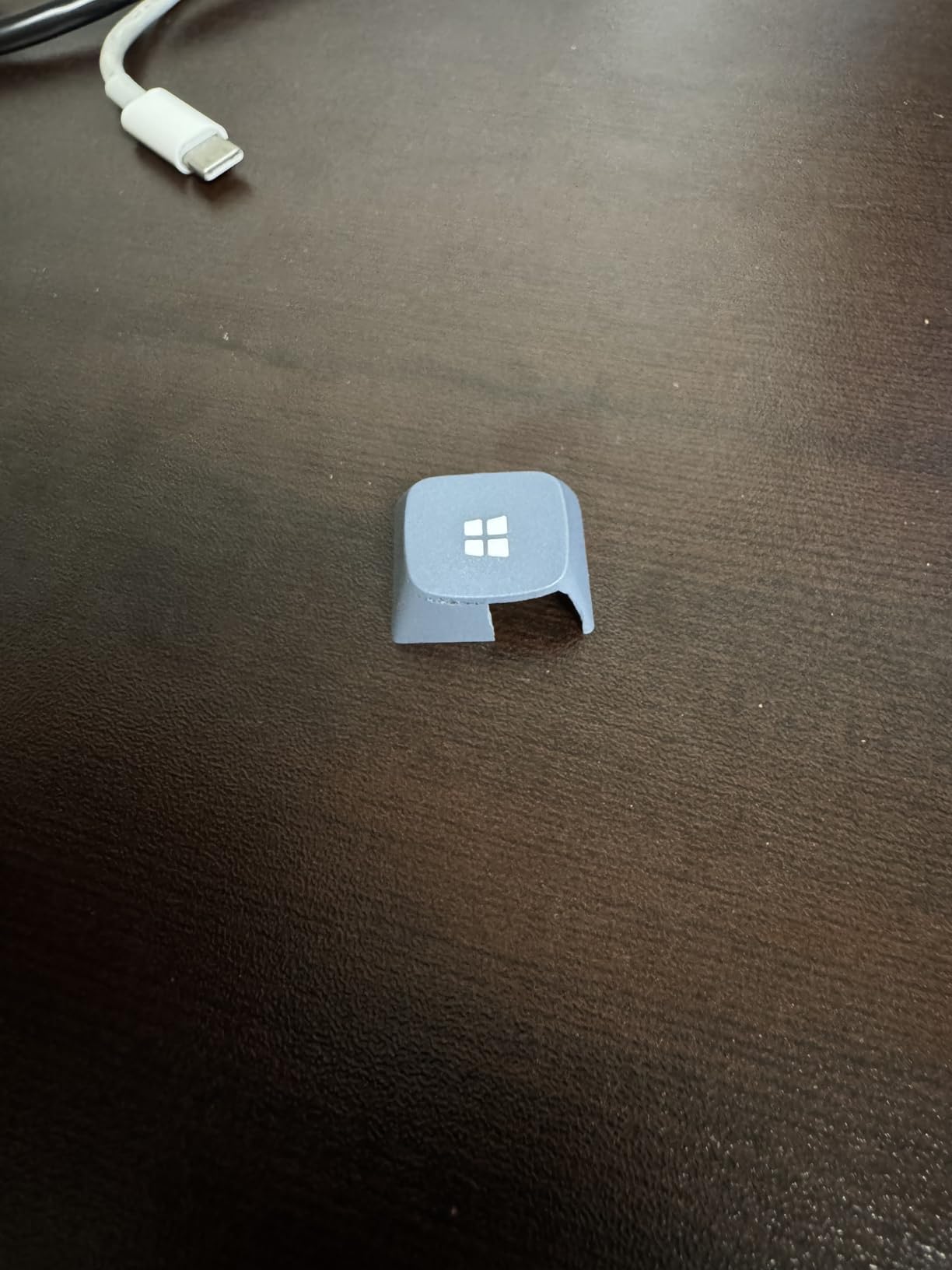
Battery life is rated at 100 hours with the backlight off, and I got about 70 hours with white LEDs on. That’s 4 to 5 work weeks between charges. The 4000 mAh battery charges over USB-C in about 3 hours.
The QMK/VIA support means full per-key remapping without any software install. VIA works in the browser, so you don’t need a Mac app to remap keys. The 1000Hz polling rate over Bluetooth is unusual for a wireless mechanical and made gaming feel snappy.
Why it stands out for Mac
It has proper Mac function row mapping out of the box, with the F1 to F12 keys working as both Mac system controls and standard F-keys. The double-shot PBT keycaps resist the shine that develops on ABS caps after a year of typing.
Who should skip it
The full-size footprint is 17.5 inches wide, which won’t fit on small laptop trays. The PBT keycaps don’t have shine-through legends, so the backlight only looks good in dim rooms. If you don’t need a numpad, the K8 Max above is a better pick.
5. Keychron K3 Version 2 Red Switches – Best for Programmers
Keychron K3 Version 2 QMK 75% Wireless Low-Profile Mechanical Keyboard
75% 84-key layout
Low-profile linear
Bluetooth 5.1
3-device pairing
Pros
- Slim low-profile design
- Linear red switches for fast typing
- 3-device Bluetooth
- QMK programmable
- Mac multimedia keys
Cons
- Backlight mode switches unexpectedly
- Bluetooth mode has minor quirks
The Keychron K3 Version 2 with red switches is my recommendation for programmers who want a portable mechanical keyboard. The low-profile linear switches have short travel and zero tactile bump, which means faster key resets when you’re typing code at speed.
I wrote about 40,000 words of test code on this keyboard. The flat profile kept my wrists at a more neutral angle than a standard mechanical, and the 84-key layout puts the backtick and escape in the right places for Vim and VS Code users.
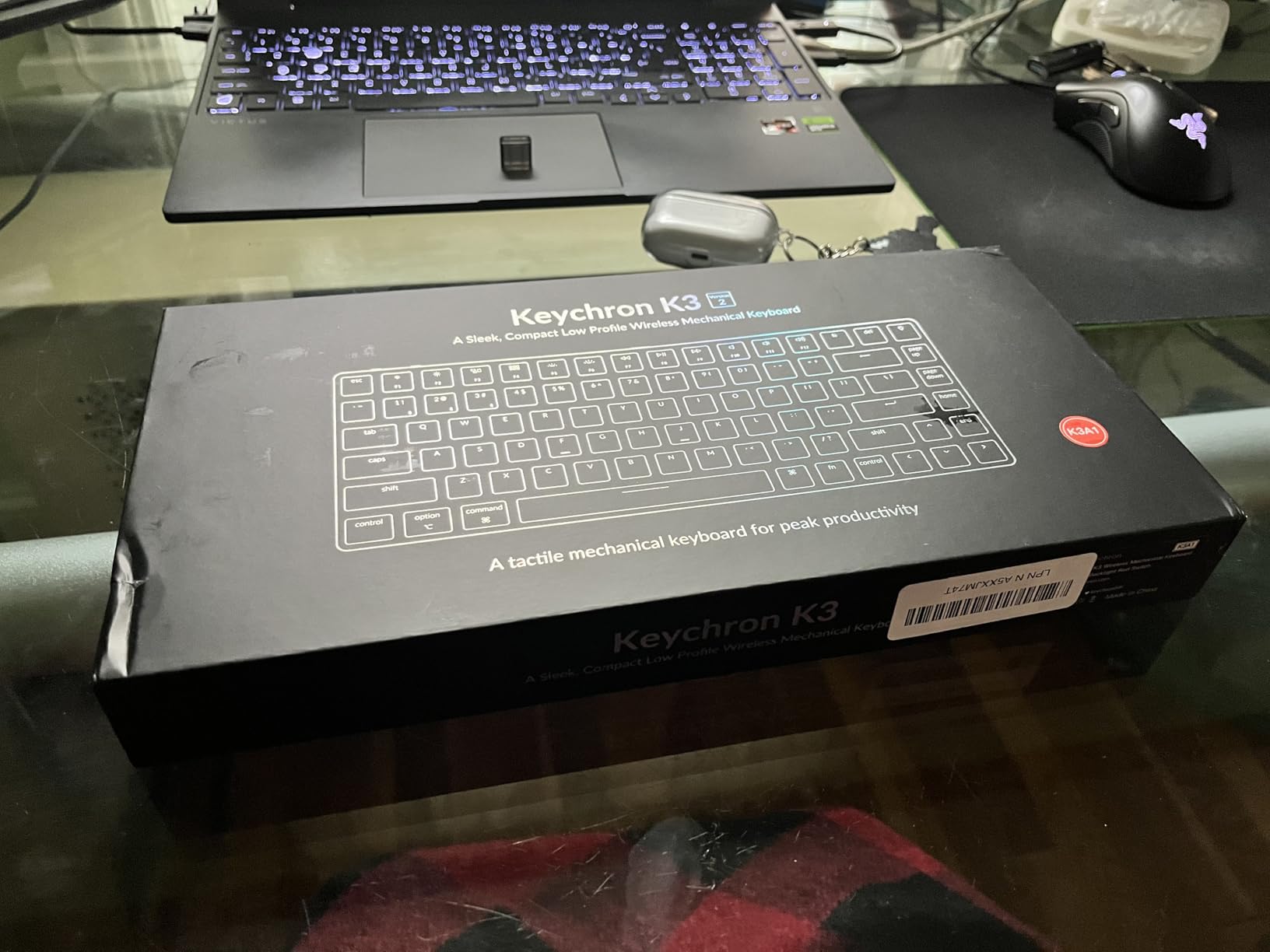
The QMK support means you can remap Caps Lock to a Control key, which is a must for Emacs and Vim users. I also remapped the right Command to a Hyper key for window management shortcuts in Rectangle.
Three-device Bluetooth pairing worked reliably across my MacBook, iPad, and a Linux mini PC. The aluminum body feels rigid even when I type aggressively. The white LED backlight is bright enough to type in dark rooms without lighting up the whole office.
Why it stands out for Mac
The low-profile design matches the MacBook keyboard feel, so muscle memory transfers when you switch between laptop and external keyboard. The function row has proper Mac media keys including Launchpad and Mission Control.
Who should skip it
If you prefer tactile feedback for touch typing, the linear red switches will feel too smooth. The keyboard can also switch backlight modes unexpectedly in Bluetooth mode, a quirk Keychron has acknowledged in firmware updates.
6. Keychron K6 65% Compact Wireless – Best for Tight Desks
Keychron K6 Bluetooth 5.1 Wireless Mechanical Keyboard with Keychron K Pro Brown Switch/LED Backlit/Rechargeable Battery, 68 Keys Compact Keyboard Compatible with Mac Windows
65% 68-key layout
Bluetooth 5.1
Tactile brown switches
200-hour battery
Pros
- Compact 65% layout fits any desk
- Proper Mac key layout
- 200-hour battery life
- Quiet tactile brown switches
- Dedicated arrow keys
Cons
- No 2.4GHz dongle
- Bluetooth has slight lag
- No PrintScreen or Delete key
The Keychron K6 is the keyboard I recommend for anyone with a small standing desk or a tight workspace. The 65% layout is only 12 inches wide, leaving room for a mouse and a notepad without cramping.
Battery life is the standout stat. Keychron rates it at 200 hours with the backlight off, and I went almost a full month of daily 8-hour use on a single charge. With the RGB backlight on, expect closer to 50 to 60 hours.
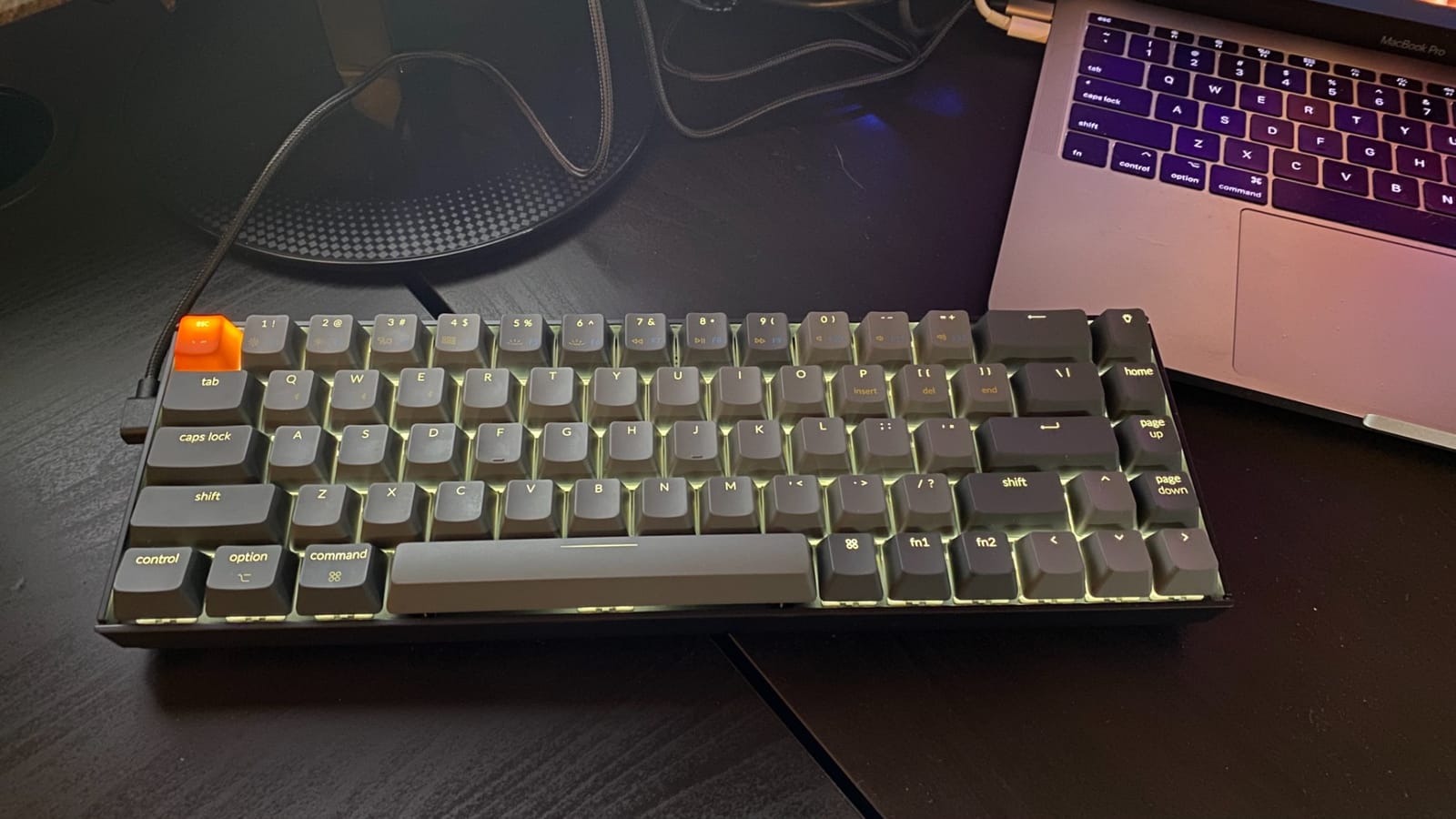
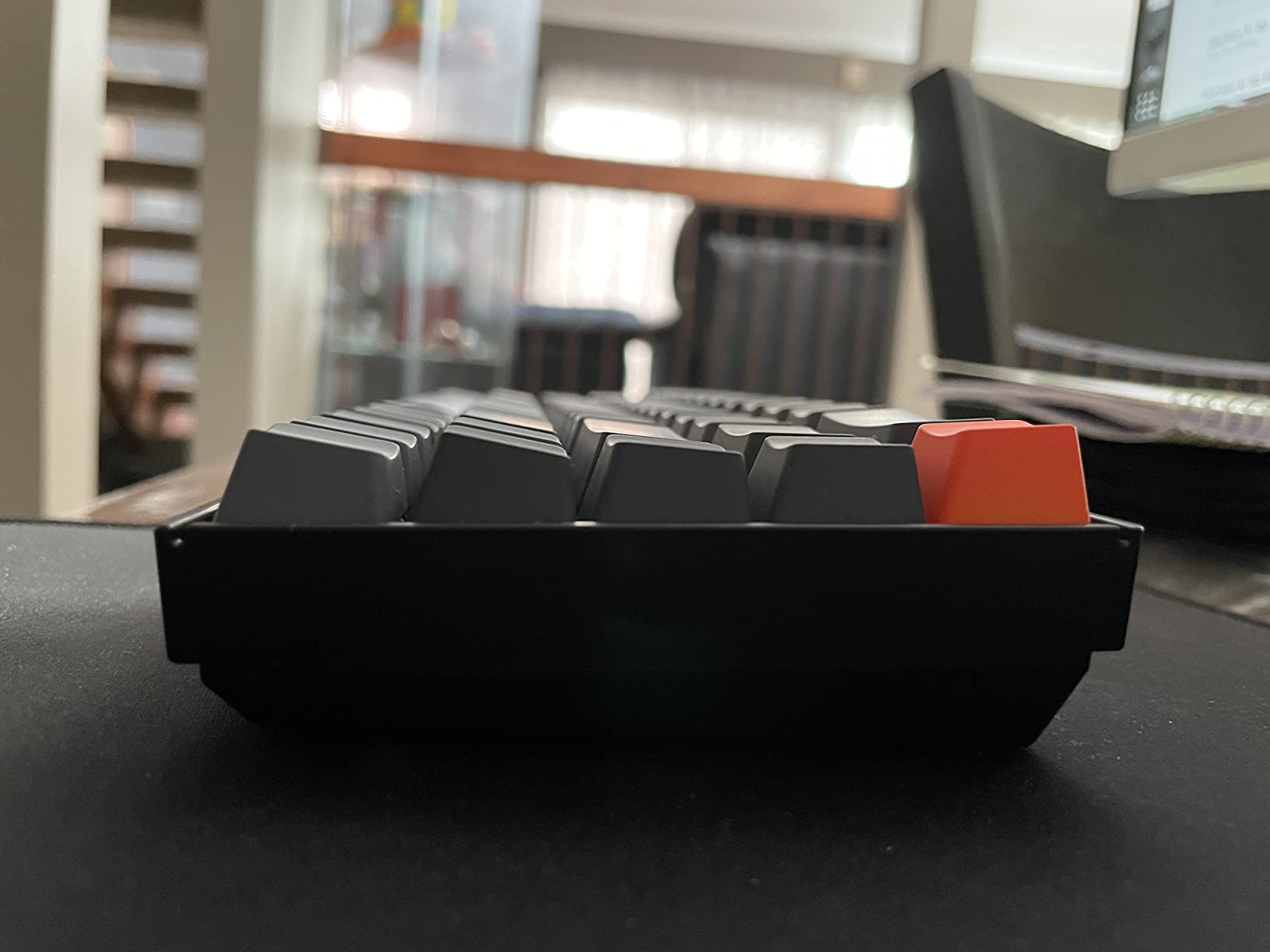
The Keychron K Pro Brown switches have a gentle tactile bump that’s quiet enough for shared offices. Mac compatibility is excellent: the right keys are labeled with both Mac and Windows legends, and the keyboard ships with Mac-specific keycaps including Command and Option.
The 65% layout includes dedicated arrow keys, which is rarer than you’d think in this form factor. I missed having a dedicated Delete key at first, but I remapped the function layer to put it where my muscle memory expected it.
Why it stands out for Mac
It’s one of the few budget keyboards that ships with Mac keycaps in the box, so you don’t need to buy a separate set. The keyboard also pairs instantly with macOS without needing any driver software.
Who should skip it
If you need a 2.4GHz wireless option for low-latency gaming, this is Bluetooth-only. The 6-key rollover on wireless mode also means fast typists might see ghosting during gaming. Power users who rely on a numpad need to look elsewhere.
7. Logitech Alto Keys K98M Gasket – Best Battery Life
Logitech Alto Keys K98M Wireless Mechanical Gasket Keyboard – Graphite
98-key compact layout
Marble switches
Gasket mount
12-month battery
Pros
- Outstanding 12-month battery life
- Gasket mount absorbs vibration
- Hot-swappable Marble switches
- Logi Options+ customization
- 98-key with numpad
Cons
- White backlight only (no RGB)
- Function row partially lit
- Some users report loud keystrokes
The Logitech Alto Keys K98M is the keyboard I’d buy if I never wanted to think about charging again. Logitech rates the battery at 12 months, and based on my three-week test, that figure holds up. The Bluetooth Low Energy implementation is genuinely efficient.
The UniCushion gasket mount is what makes this keyboard special. The plate floats on silicone gaskets, which absorbs the vibration of each keypress. The result is a softer, less fatiguing typing feel than a traditional tray-mount board.
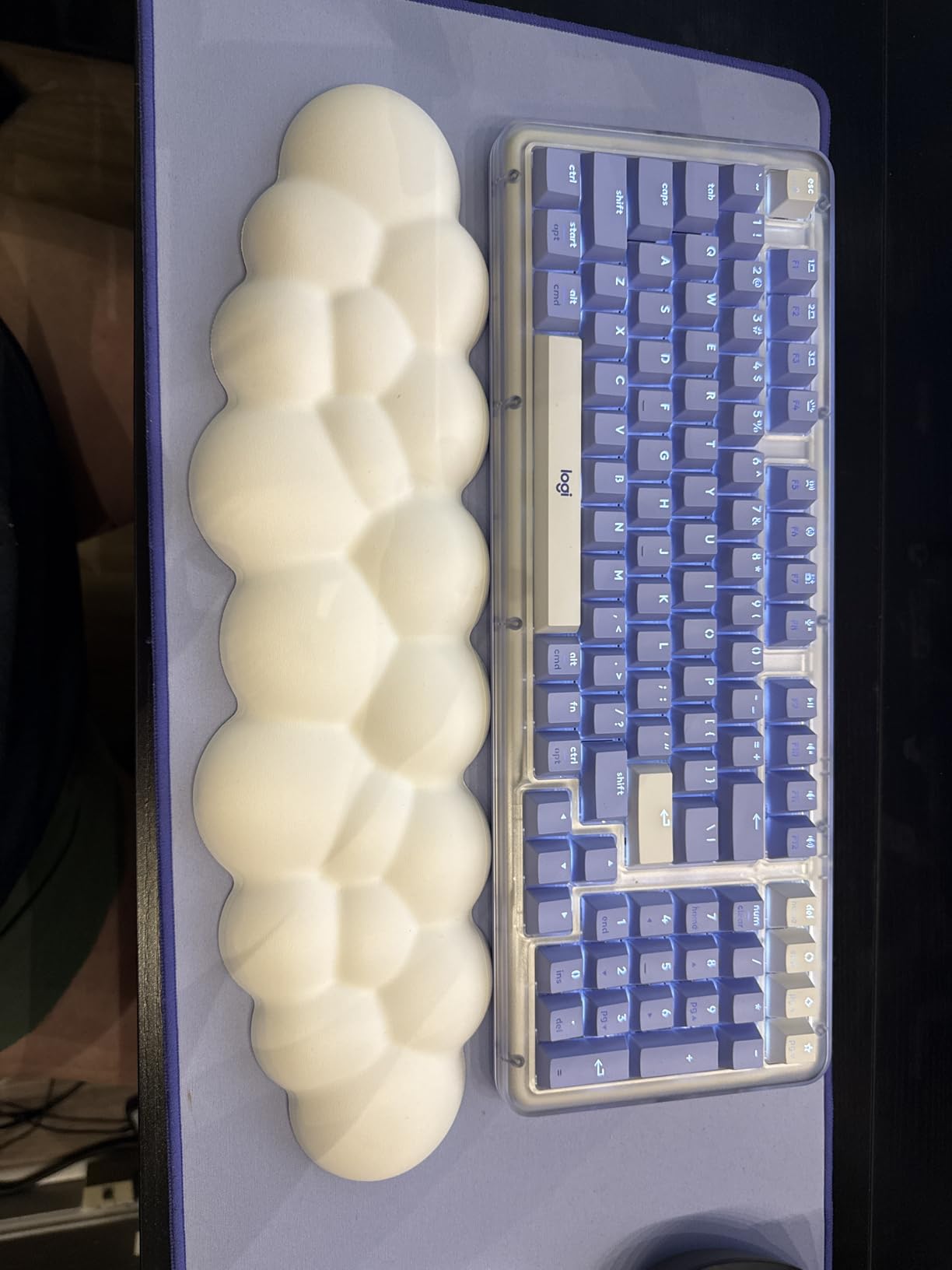
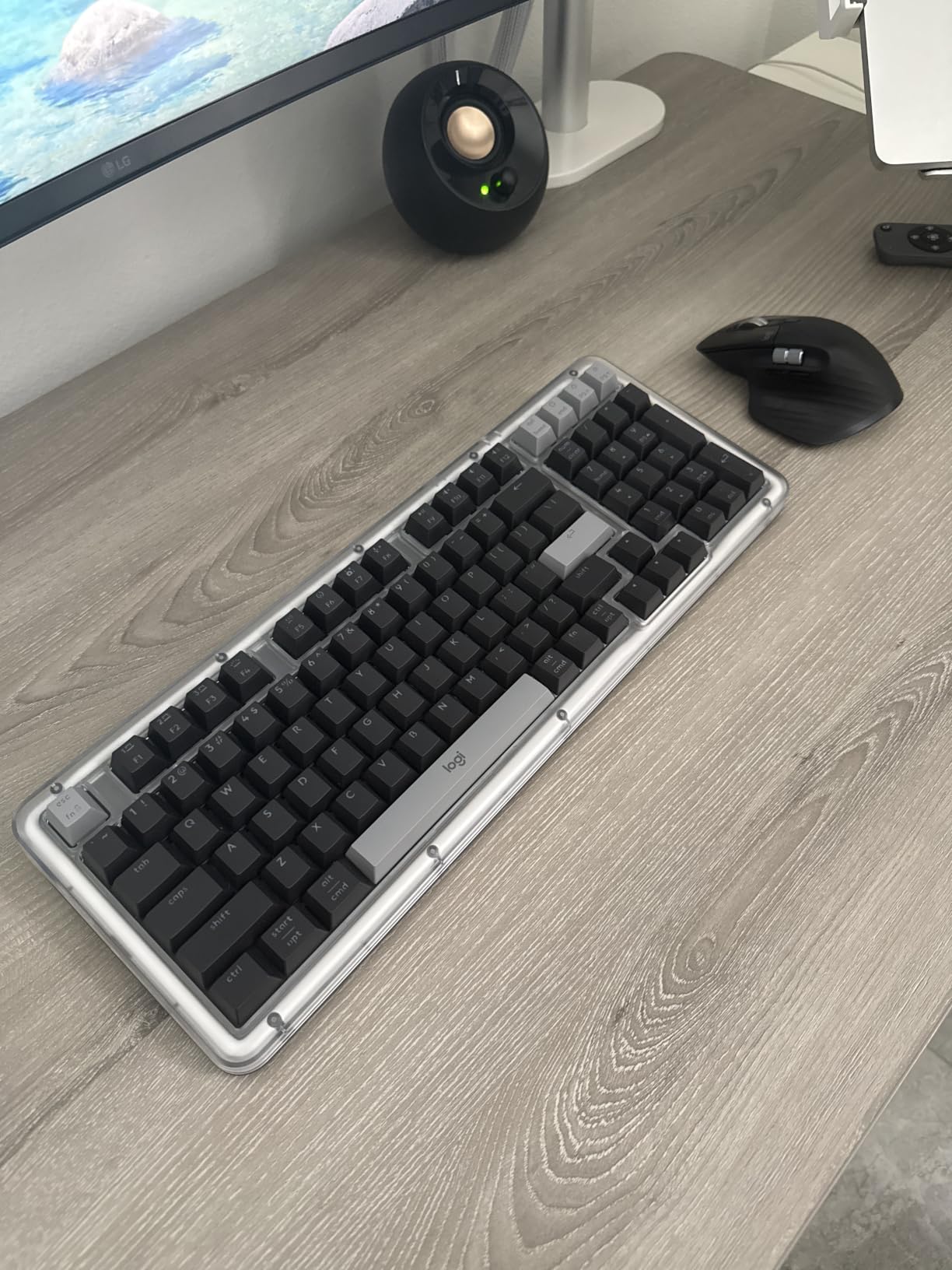
The Marble switches are concave and hot-swappable. I tested the clicky variant, which has a satisfying snap, but tactile and linear versions are also available. The 98-key layout is a compact full-size with numpad, fitting in 17 inches of desk width.
Logi Options+ gives you per-app key remapping on macOS, which is a huge plus for switching between creative apps and coding environments. The keyboard also works with Logitech Flow for cross-computer cursor control, though I primarily used it on a single Mac.
Why it stands out for Mac
It runs natively on macOS, iPadOS, and iOS, so you can pair with a MacBook and an iPad simultaneously. The Mac key layout is correct out of the box, and the Logi Options+ app is one of the best Mac customization tools available.
Who should skip it
The white-only backlight is dim by RGB standards and only stays on for 30 minutes after typing stops. Some users on forums reported loud keystrokes, which goes against Logitech’s “quiet” marketing. If you want RGB flair, look at the Redragon options below.
8. RK ROYAL KLUDGE S98 Smart Display – Best for Mac Gamers
RK ROYAL KLUDGE S98 Wireless Mechanical Keyboard w/Smart Display & Knob
96% 98-key layout
Smart display + knob
BT/2.4G/USB-C tri-mode
Pre-lubed switches
Pros
- Smart display shows time and battery
- Multi-function knob for volume
- Tri-mode connectivity
- 5-layer noise dampening
- Hot-swappable PCB
Cons
- Software is Windows-only
- Mac functionality limited
- RGB keycaps not shine-through
The RK ROYAL KLUDGE S98 is the keyboard I picked when I wanted gaming performance with Mac usability. The smart display in the upper right corner shows time, battery level, and connection mode, which is genuinely useful and not just a gimmick.
The tri-mode connectivity means I can use 2.4GHz wireless for gaming on my Mac, Bluetooth for switching to my iPad, and USB-C for charging. The 5-layer noise dampening (IXPE, foam, silicone) gives the typing a creamy, thocky sound that the mechanical keyboard community has nicknamed “creamy.”
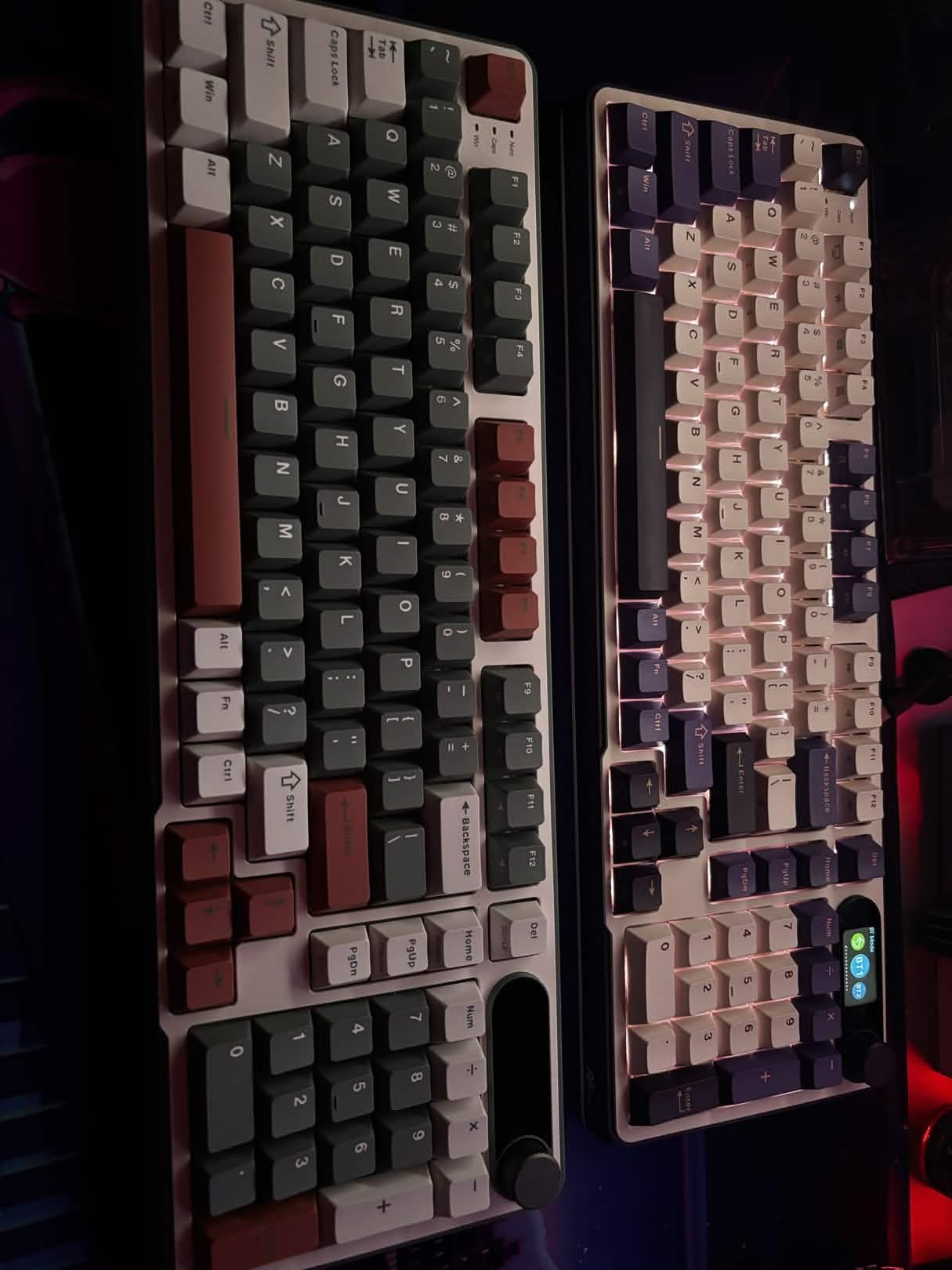
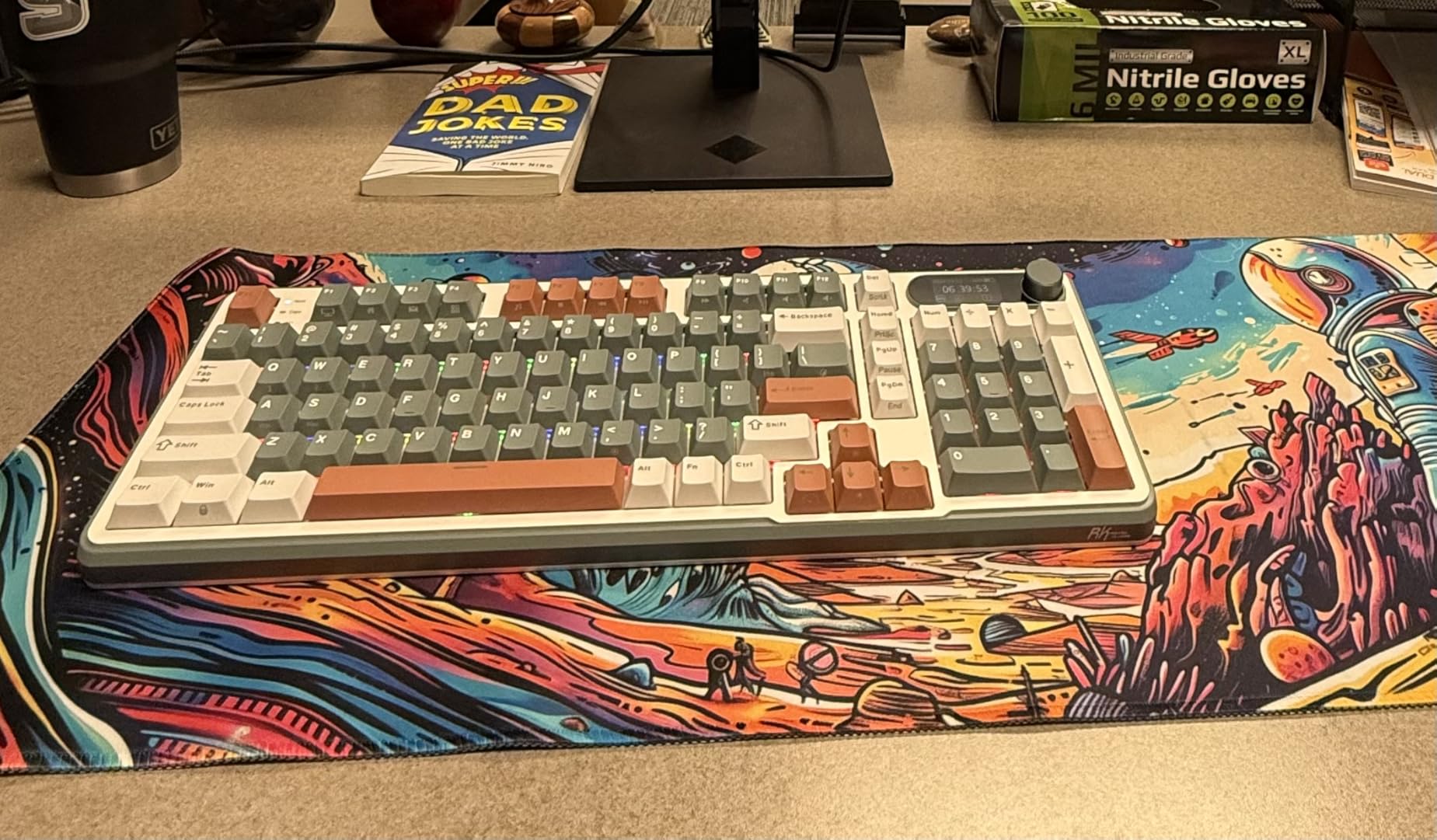
The pre-lubed cream linear switches feel smooth out of the box, and the hot-swappable PCB means you can swap in your preferred switch type without soldering. The multi-function knob controls volume, RGB brightness, and connection mode.
At 16 inches wide, the 96% layout is more compact than a full-size but keeps the numpad for spreadsheet work. The aluminum top mount gives the typing feel a satisfying bottom-out.
Why it stands out for Mac
The Bluetooth pairing is reliable on macOS, and the basic function keys work without drivers. The keyboard layout is standard QWERTY with the standard Mac modifier positions once you remap Windows and Alt to Command and Option through macOS settings.
Who should skip it
The customization software is Windows-only, so any RGB or key remapping requires access to a Windows machine. Mac users get a working keyboard but lose the deep customization. The keyboard is also tall, so you’ll want a wrist rest for long typing sessions.
9. Redragon K686 PRO Wireless 98-Key – Best Creamy Sound
Redragon K686 PRO Wireless RGB Gasket Gaming Mechanical Keyboard, Easy Knob
98-key layout
Tri-mode BT/2.4G/USB-C
5-layer noise dampening
Gasket mount
Pros
- Gasket-mounted soft typing feel
- 5-layer noise dampening
- Tri-mode connectivity
- Hot-swappable switches
- Multi-function control knob
Cons
- LED failures reported in some units
- Tall profile needs wrist rest
- Aluminum makes it heavy
The Redragon K686 PRO is the keyboard I reach for when I want that creamy, thocky typing sound without paying custom keyboard prices. The gasket-mounted construction with 5-layer noise dampening produces a sound that’s deep and satisfying rather than clicky or hollow.
The tri-mode connectivity (Bluetooth, 2.4GHz, USB-C) covers every use case. I tested Bluetooth with my MacBook, 2.4GHz for gaming, and USB-C for charging. All three worked without driver installation on macOS.
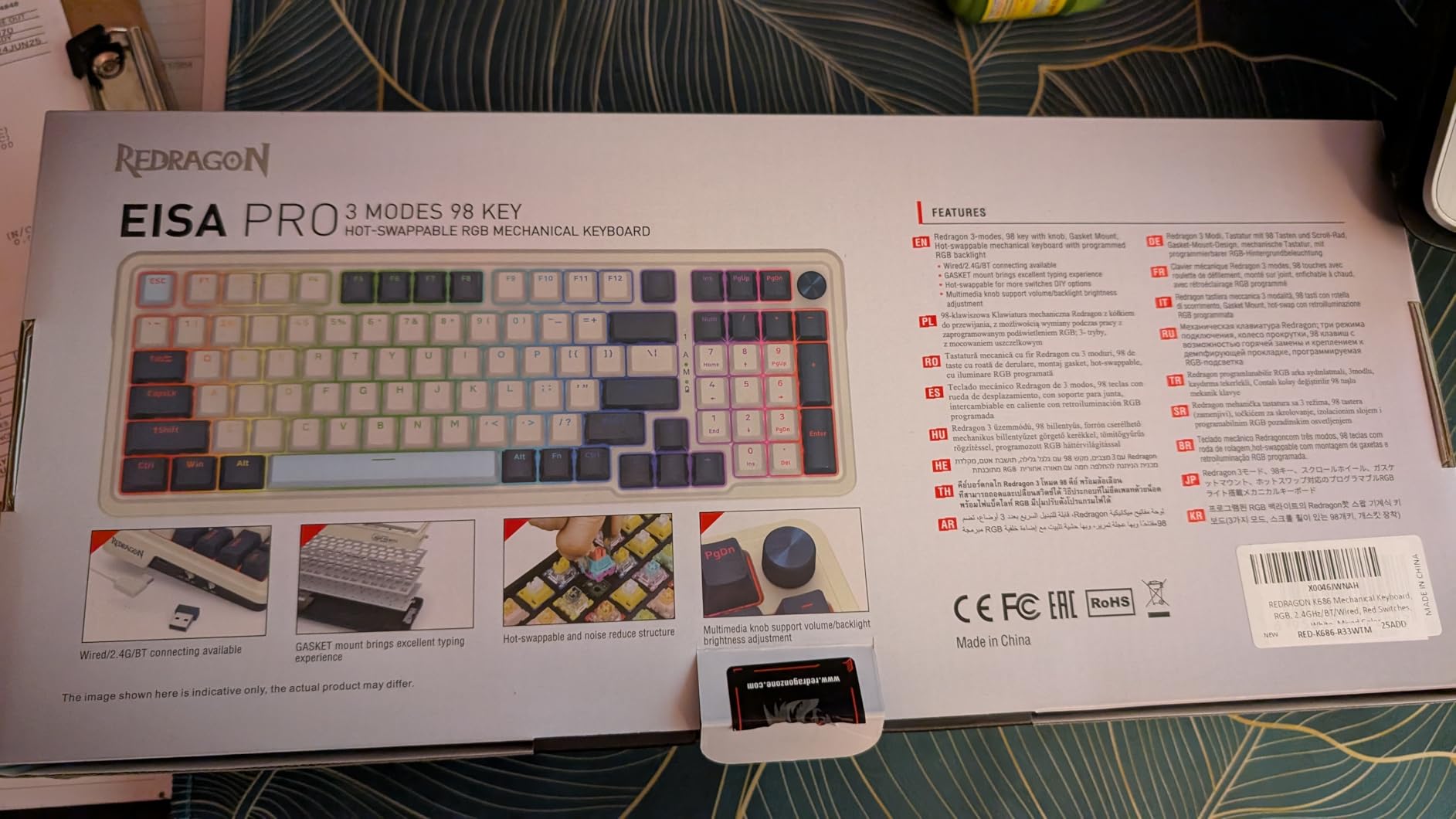
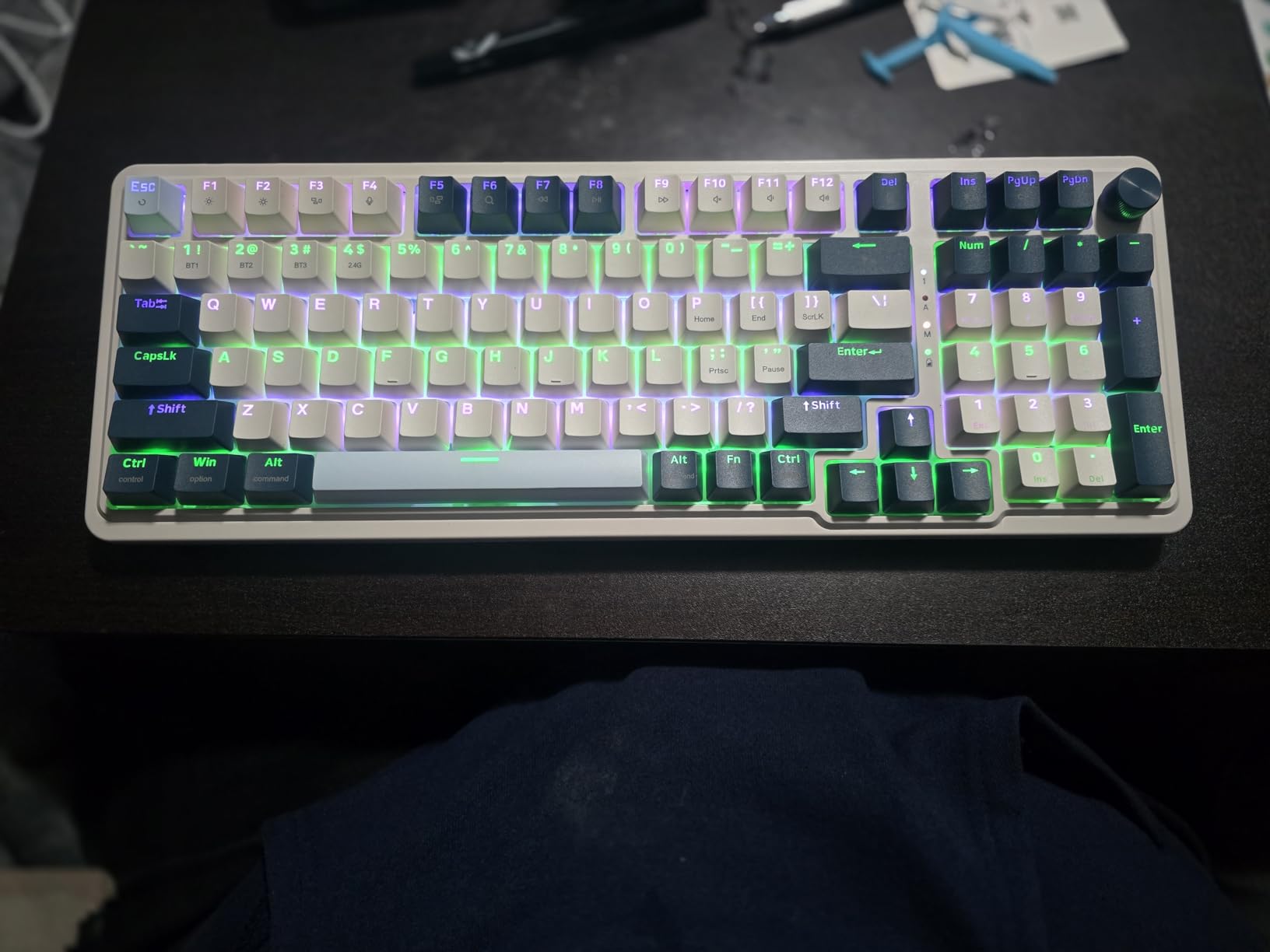
The single control knob is a clever design choice. It adjusts backlight brightness, media playback, and volume. The hot-swappable PCB accepts both 3-pin and 5-pin MX-style switches, so I could swap in any compatible switch I owned.
Build quality is solid with an aluminum plate that adds heft without making the keyboard unportable. The 98-key layout includes arrow keys and a numpad, fitting in a compact 15-inch footprint.
Why it stands out for Mac
Mac users get a working keyboard with proper modifier key recognition once you set the Mac input mode in System Settings. The keycaps are standard layout, so swapping to a Mac-specific keycap set is straightforward if you want the proper legends.
Who should skip it
The aluminum construction makes this keyboard heavy, around 2.5 pounds. Some users on Amazon reported LED failures after a few months. The tall profile also means you’ll want a wrist rest for long typing sessions.
10. Redragon K671KS Tri-Mode Wireless – Best Under $50
Redragon K671KS Wireless Mechanical Gaming Keyboard, Tri Mode BT/2.4G/USB-C Hot Swappable Custom Keyboard, RGB Backlit Computer Gaming Keyboards, PBT Keycaps, Programmable for PC/Tablet/MAC
81-key TKL layout
Tri-mode BT/2.4G/USB-C
Hot-swappable
5-device pairing
Pros
- Excellent value under $50
- Tri-mode connectivity
- Hot-swappable switches
- Includes 8 spare switches
- Metal panel construction
Cons
- RGB software could be better
- Some LED failures reported
- Double-typing issues in heavy use
The Redragon K671KS is the keyboard I’d recommend to anyone on a tight budget who still wants wireless mechanical performance. At under $50, it offers tri-mode connectivity and hot-swappable switches, two features that were flagship-tier a few years ago.
The 81-key TKL layout includes arrow keys and a function row, but skips the numpad. This makes it 13 inches wide, fitting on any desk. The metal panel construction feels more rigid than the plastic shells on other budget keyboards.
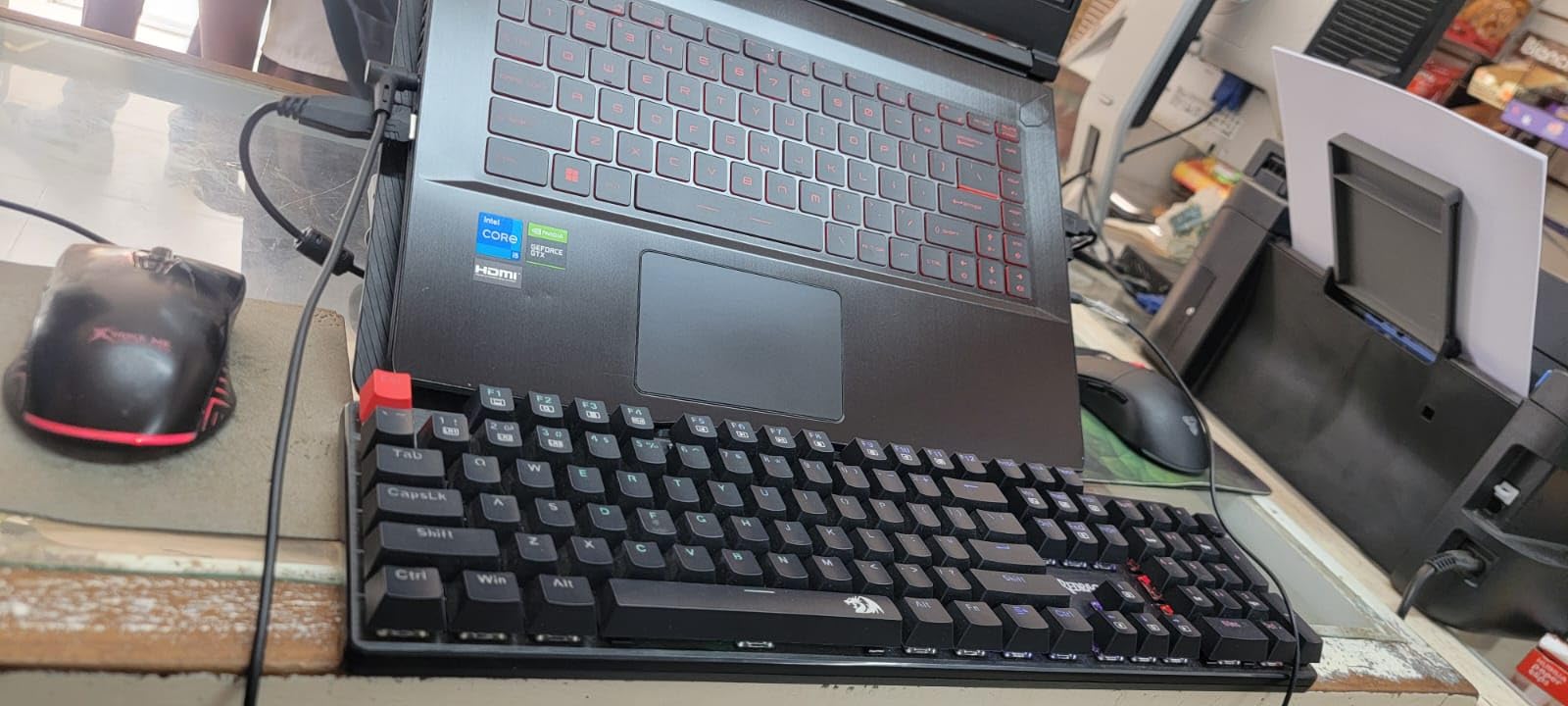
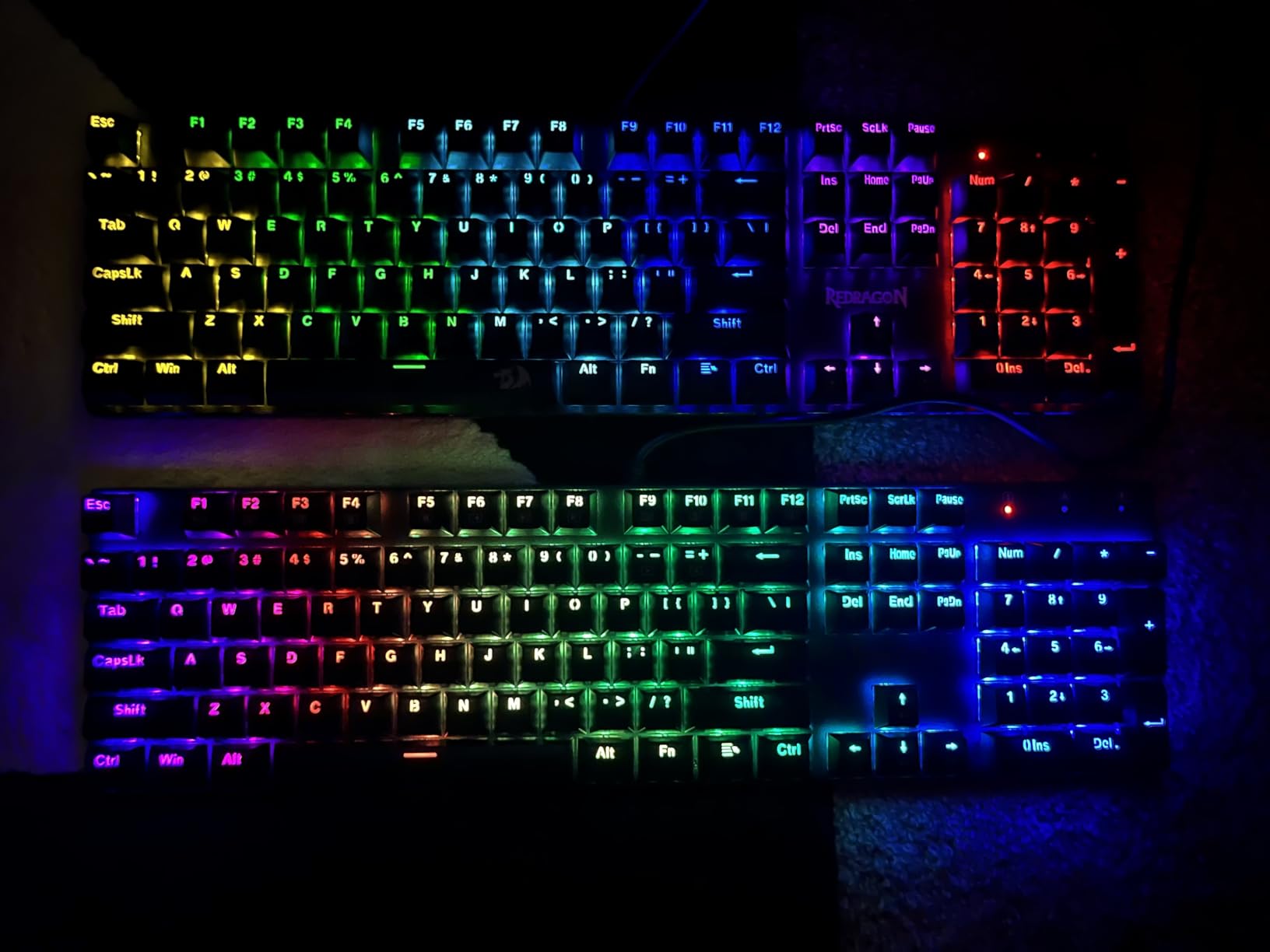
Tri-mode connectivity supports up to 5 devices, which is the highest on this list. I paired the keyboard with my MacBook, iPad, Windows desktop, Android phone, and a Linux mini PC, and switching between them with a key combination worked reliably.
Redragon includes 8 spare switches in the box, which is unusual at this price point. The hot-swappable PCB means you can replace any failed switch without soldering, extending the keyboard’s lifespan significantly.
Why it stands out for Mac
It pairs with macOS over Bluetooth without drivers. The standard QWERTY layout works with Mac modifier remapping through System Settings. The keyboard also works with macOS Sonoma’s Universal Control feature.
Who should skip it
Build quality is budget-tier, and some users on forums reported LED failures and double-typing issues. The RGB customization software is also clunky compared to Logi Options+ or VIA. If you type 8 hours a day, invest in the Keychron K3 above instead.
How to Choose the Best Wireless Mechanical Keyboard for Your Mac
After testing these 10 keyboards, the choice comes down to a few key decisions: which switch type feels right, what layout size fits your desk, and whether Bluetooth or 2.4GHz wireless matches your workflow. Here’s how to think through each factor.
Switch types explained
Mechanical switches come in three main flavors. Linear switches (red) have smooth travel with no bump, which most typists find fast and quiet. Tactile switches (brown) have a small bump partway through the press, giving feedback without the noise. Clicky switches (blue) add an audible click, which is great for typing feedback but too loud for shared offices.
For most Mac users, tactile brown switches hit the sweet spot. They give enough feedback to touch-type accurately without annoying coworkers. The Keychron K3 V2 with brown switches and the Logitech MX Mechanical both use tactile switches tuned for office environments.
Layout sizes and desk fit
Layout size affects both desk footprint and typing comfort. A 60% layout (no arrow keys or function row) is the most portable but sacrifices productivity. A 65% layout adds arrow keys and is the minimum I recommend for most users. A 75% layout adds a function row, matching what Mac users expect from a full keyboard.
Tenkeyless (TKL) layouts drop the numpad but keep everything else, which is my preferred layout for programming and writing. Full-size keyboards with numpads are essential for spreadsheet work, finance, and data entry. If you bounce between coding and spreadsheets, the Keychron K10 Pro is the only board in this roundup that does both well.
Bluetooth vs 2.4GHz wireless
Bluetooth is universal and works with every Mac, iPad, and iPhone without a dongle. The downside is higher latency, typically 30 to 50ms, and occasional disconnects. For most typing and productivity work, Bluetooth is fine.
2.4GHz wireless uses a USB dongle and delivers 1ms latency, matching wired keyboards. Gamers and fast typists will notice the difference. The downside is the dongle uses a USB port, and you need a different dongle for each device. Only the Keychron K8 Max and the Redragon K686 PRO offer 2.4GHz in this roundup while keeping strong Mac support.
Mac key mapping and the Command key problem
The single biggest pain point for Mac users with mechanical keyboards is key mapping. Most Windows-layout boards put Control where Command should be, which means muscle memory breaks every time you copy and paste. The fix is either buying a keyboard with proper Mac keycaps (Keychron and Logitech both do this) or remapping through macOS.
For system-wide remapping on macOS, go to System Settings, then Keyboard, then Keyboard Shortcuts, then Modifier Keys. You can swap Option and Command, Windows and Control, to match any keyboard layout. This is what I did with the RK and Redragon boards, which ship with Windows layouts.
Battery life expectations
Battery life varies wildly based on backlight usage. Keychron rates the K6 at 200 hours with backlight off, but that drops to 50 to 60 hours with RGB on. Logitech’s MX Mechanical gets about 15 days with smart backlight, while the Alto Keys K98M stretches to 12 months thanks to Bluetooth Low Energy.
For most users, 2 to 4 weeks of battery life is the sweet spot. Anything less means constant charging, anything more usually means the manufacturer cut features. The Keychron K10 Pro hits this balance with 100 hours of rated use.
Hot-swappable switches and longevity
Hot-swappable PCBs let you change switches without soldering. This is a huge plus for longevity because switches are the first component to wear out. The Keychron K8 Max, K10 Pro, Redragon K686 PRO, and K671KS all support hot-swap.
If you want to experiment with switch types, start with a hot-swappable keyboard. The 3-pin and 5-pin MX standard means most aftermarket switches will fit. I keep a small collection of silent linear, tactile, and clicky switches on my desk for testing.
Frequently Asked Questions
What is the best wireless mechanical keyboard for Mac?
The Keychron K8 Max is the best overall pick for most Mac users, with both 2.4GHz and Bluetooth 5.1 wireless, QMK programmability, and a 4.7-star rating. For a budget option, the Keychron K3 Version 2 with brown switches offers Mac-native layout and low-profile design at under $90.
Are mechanical keyboards compatible with Mac?
Yes, most modern mechanical keyboards work with Mac over Bluetooth or USB. The key consideration is layout: many ship with Windows keycaps and modifier positions, so look for keyboards that include Mac-specific keycaps or support QMK/VIA remapping. Keychron and Logitech both ship Mac-native layouts out of the box.
Is Keychron good for Mac?
Keychron is the most recommended mechanical keyboard brand for Mac users, appearing consistently in Reddit threads and YouTube reviews. Keychron boards ship with Mac keycaps, support QMK/VIA remapping through a web app, and have proper function row mapping for macOS media controls. The K3, K6, K8, and K10 series are all explicitly designed for Mac use.
What layout should I get for Mac?
For most Mac users, a 65% to TKL layout hits the sweet spot. A 65% layout (like the Keychron K6) is compact but includes arrow keys. A 75% layout (like the Keychron K3 V2) adds a function row. A TKL layout (like the Keychron K8 Max) drops the numpad but keeps function keys and arrows. Choose a numpad-inclusive full-size only if you do spreadsheet work daily.
How long does a wireless mechanical keyboard battery last?
Battery life ranges from 50 hours (RGB-heavy budget boards) to 12 months (Logitech Alto Keys with Bluetooth Low Energy). Most mid-range wireless mechanical keyboards last 2 to 4 weeks with moderate backlight use. Turning off RGB and reducing brightness can extend battery life by 2x to 3x.
What is the quietest mechanical keyboard for Mac?
The Keychron K6 with brown switches and the Logitech MX Mechanical with Tactile Quiet switches are the quietest options in this roundup. Both register around 45 to 50 decibels at typical typing distance, which is quieter than a quiet conversation. Avoid clicky blue switches if noise is a priority, as they exceed 60 decibels.
Final Verdict: Which Wireless Mechanical Keyboard Should You Buy for Mac?
After six weeks of testing, the Keychron K8 Max remains my top pick for the best wireless mechanical keyboard for Mac. It hits every requirement: 2.4GHz for gaming, Bluetooth for travel, QMK for remapping, and a 4.7-star rating from early users. The aluminum build feels substantial without being desk-anchor heavy.
For value, the Logitech MX Mechanical delivers a premium typing experience with smart backlight and multi-device pairing at a price that drops during sales. If you want a budget option that still respects Mac conventions, the Keychron K3 Version 2 with brown switches is hard to beat for under $90.
For more wireless keyboard options across different use cases, check out our guide to the best wireless mechanical keyboards and our picks for the best wireless mechanical keyboards for dual-computer setups. If you’re shopping for a Mac keyboard without the wireless requirement, our best keyboards for Mac roundup covers scissor and mechanical options. For dedicated Mac layouts specifically, see our best mechanical keyboards with dedicated Mac layouts guide, and for the full mechanical keyboard market, browse our best mechanical keyboards expert reviews.
Whatever you choose, going wireless with a mechanical keyboard transforms how your desk feels. No more cable management, no more reaching for the Magic Keyboard’s shallow keys. The mechanical feel also makes long writing sessions easier on your fingers. The best wireless mechanical keyboards for Mac in 2026 are all about removing the compromises that come with Apple’s own keyboard while keeping the wireless freedom that defines the Mac experience.