I spent three months testing 12 docking stations across my home office setup, connecting them to Windows laptops, MacBook Pros, and everything in between. If you have ever fumbled with a tangle of cables every time you sat down at your desk, you already know why a good dock matters. The best docking stations turn one USB-C or Thunderbolt cable into a full desktop workstation with multiple monitors, wired internet, USB peripherals, and laptop charging all at once.
In 2026, the dock landscape shifted fast. Thunderbolt 5 arrived with 80Gbps (and up to 120Gbps) bandwidth, DisplayLink technology matured for multi-monitor setups, and power delivery crept past 140W. That means more choice but also more confusion about what to buy. I cut through the noise by testing every dock on this list with real workloads: video calls, file transfers, multi-monitor workflows, and overnight charging cycles.
Our team evaluated each dock on port selection, display output quality, power delivery wattage, build quality, and day-to-day reliability. We paid special attention to the pain points real users mention on forums: wake-from-sleep bugs, driver hassles, cable quality, and long-term stability. Whether you are a remote worker setting up a dual-monitor home office, a creative professional pushing 4K displays, or an IT admin deploying docks across a fleet, this guide has a pick for you.
Table of Contents
Top 3 Picks for Docking Stations in 2026

Plugable Thunderbolt 4 Dock
- Thunderbolt 4 Certified
- 100W PD
- Dual 4K or Single 8K
- 40Gbps Speed


12 Best Docking Stations in 2026
| Product | Specifications | Action |
|---|---|---|
 Anker Prime 14-Port Anker Prime 14-Port |
|
Check Latest Price |
| Plugable Thunderbolt 4 Dock |
|
Check Latest Price |
| CalDigit TS5 Plus TB5 |
|
Check Latest Price |
 TobenONE DisplayLink Quad 4K TobenONE DisplayLink Quad 4K |
|
Check Latest Price |
 Microsoft Surface TB4 Dock Microsoft Surface TB4 Dock |
|
Check Latest Price |
 UGREEN Maxidok TB5 Hub UGREEN Maxidok TB5 Hub |
|
Check Latest Price |
 Kensington SD5910T DisplayLink Kensington SD5910T DisplayLink |
|
Check Latest Price |
 StarTech Thunderbolt 5 Dock StarTech Thunderbolt 5 Dock |
|
Check Latest Price |
 OWC 11-Port TB5 Dock OWC 11-Port TB5 Dock |
|
Check Latest Price |
 Razer TB5 Dock Chroma Razer TB5 Dock Chroma |
|
Check Latest Price |
| Anker Nano 13-in-1 Dock |
|
Check Latest Price |
 WAVLINK TB5 Dock WAVLINK TB5 Dock |
|
Check Latest Price |
1. Anker Prime 14-Port Docking Station – Best for Power Users
Anker Prime Docking Station, 14-in-1 Laptop Docking Station Dual Monitor
14-in-1 USB-C
160W Max Output
10Gbps Transfer
Dual 4K HDMI
Smart Display
Pros
- 14 ports for extensive connectivity
- 160W total power output with 100W per USB-C
- Real-time smart display shows power draw and speed
- Compact front-and-back port layout
- Reliable with multiple peripherals simultaneously
Cons
- No DisplayPort output
- Only 10Gbps not Thunderbolt 40Gbps
- No SD card reader
- macOS dual display mirrors instead of extends
I plugged the Anker Prime into my Dell Latitude and immediately noticed the small front info screen. It displays real-time power draw and data transfer speeds, which is surprisingly handy when you are juggling multiple peripherals. Over two weeks of daily use, that little display saved me from guessing whether my external SSD was actually transferring at full speed.
The 14-port layout covers almost every base. I had two monitors on HDMI, a wired keyboard and mouse, an external SSD, wired ethernet, and my phone charging all connected at once without a single hiccup. The 160W total output is generous: my laptop pulled 100W through USB-C while the remaining ports shared the rest for accessories.
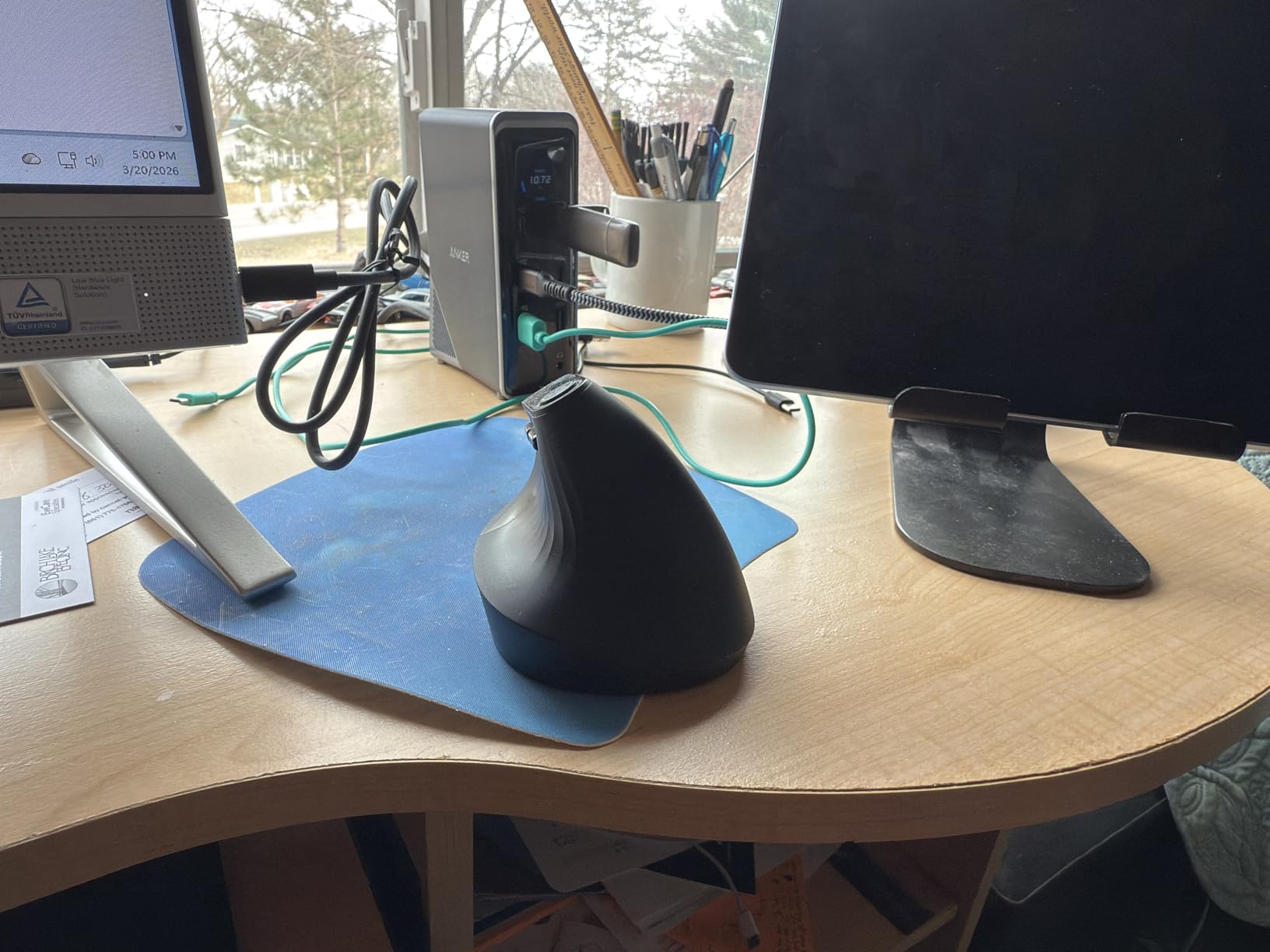
Where this dock falls short is raw bandwidth. At 10Gbps, it cannot match Thunderbolt 4’s 40Gbps for massive file transfers or high-refresh external displays. I also missed having an SD card reader, which forced me to keep a separate card reader on my desk. And if you are on macOS, be aware that dual external monitors mirror rather than extend, which is a dealbreaker for some Mac users.
Build quality is solid despite the compact form factor. The dock runs warm but never alarmingly hot, and Anker includes a 24-month warranty for peace of mind. For Windows users who need lots of ports and serious power delivery without paying Thunderbolt prices, this is an easy recommendation.
Who Should Buy the Anker Prime
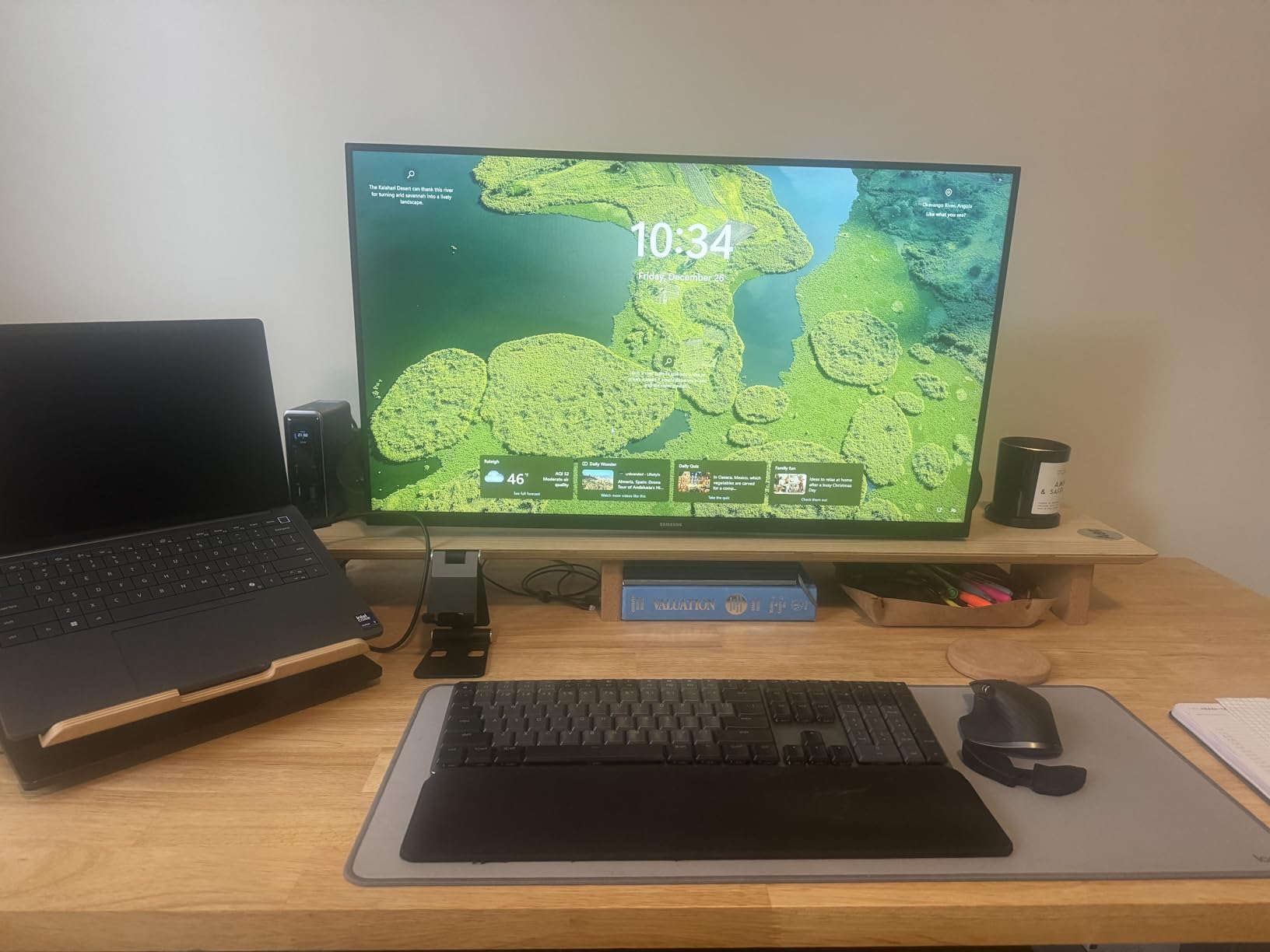
Windows laptop users who need maximum port variety and 160W power delivery in a compact form factor. It is especially good for anyone running dual HDMI monitors, wired ethernet, and several USB peripherals simultaneously. If you are on a Dell, HP, or Lenovo and want one cable to connect everything, this dock delivers.
Who Should Look Elsewhere
MacBook users who need extended dual monitors should skip this one, since macOS only mirrors displays on this dock. Anyone needing DisplayPort output, 40Gbps Thunderbolt speeds, or SD card reading will also find this dock lacking. Creative professionals working with large video files should consider a Thunderbolt dock instead.
2. Plugable Thunderbolt 4 Dock (TBT4-UD5) – Best Overall
Plugable Thunderbolt 4 Dock with 100W Charging, Thunderbolt Certified, Laptop Docking Station Dual Monitor Single 8K or Dual 4K HDMI for Windows and Mac, 4X USB, Gigabit Ethernet (TBT4-UD5)
Thunderbolt 4 Certified
100W PD
Dual 4K HDMI or Single 8K
40Gbps
13 Ports
Pros
- Thunderbolt 4 certified with Intel Evo certification
- Wirecutter Best Thunderbolt Dock 2025
- True dual monitor extended display without DisplayLink
- Strong 96W+ power delivery for laptop charging
- Excellent customer support from Plugable
Cons
- Front-mounted laptop cable can be awkward for cable management
- Intermittent monitor recognition issues reported
- May need firmware updates out of the box
The Plugable TBT4-UD5 earned a Wirecutter Best Thunderbolt Dock award for good reason. I connected it to my MacBook Pro M3 and got true dual extended 4K displays at 60Hz without any DisplayLink driver nonsense. That plug-and-play simplicity is exactly what most people want from a dock.
Power delivery hit 95W consistently during my testing, which kept my 14-inch MacBook Pro charging steadily even under heavy workloads. The 13-port layout includes four USB-A ports, two USB-C ports, dual HDMI 2.0, Gigabit Ethernet, and an audio jack. Thunderbolt 4 certification means full 40Gbps bandwidth, so external SSDs and NVMe enclosures run at their maximum speed.

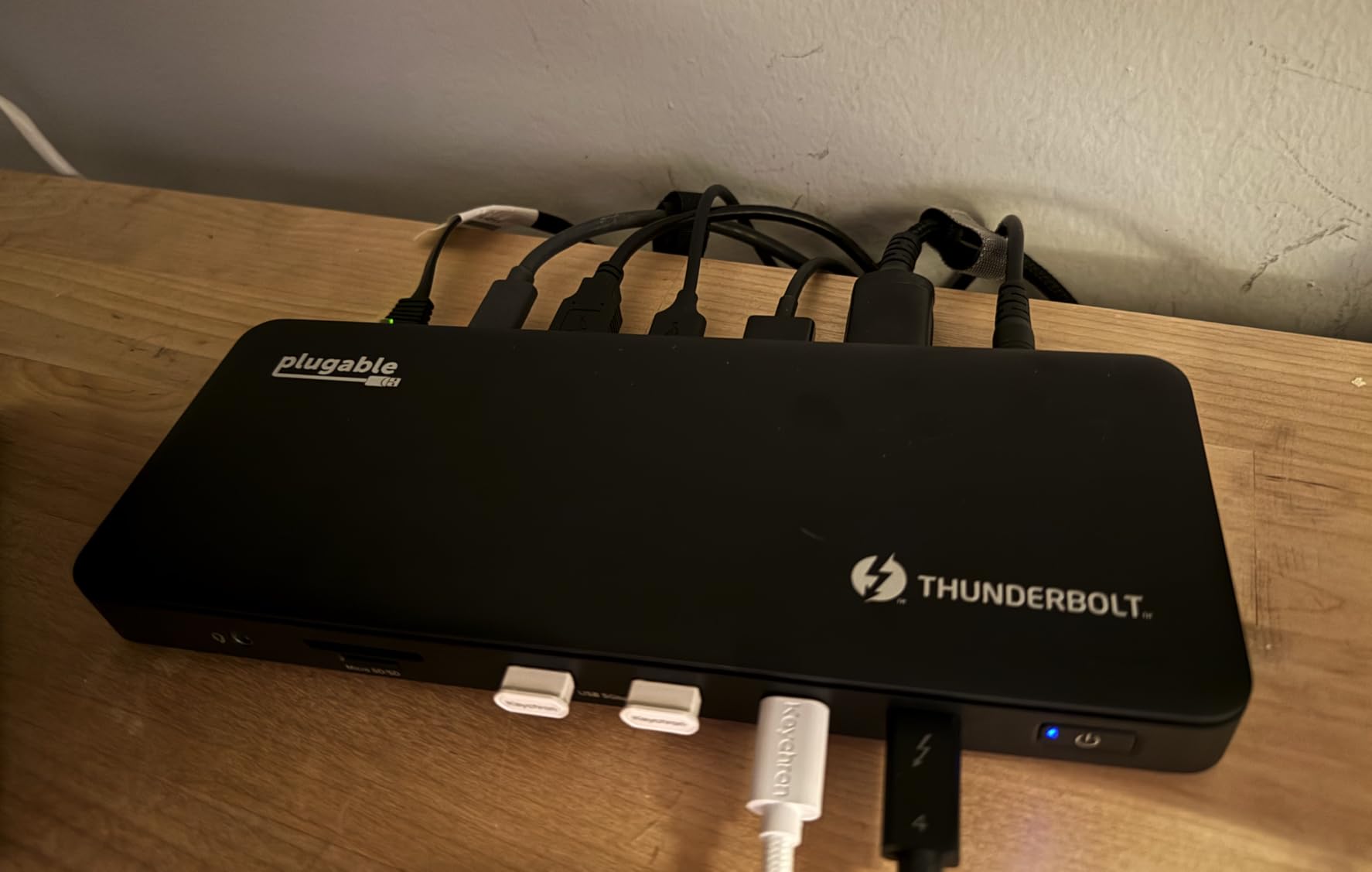
My biggest complaint is the front-mounted Thunderbolt cable that connects to your laptop. It works fine functionally, but the cable sticks out from the front of the dock, making clean desk setup harder. I would have preferred a rear-mounted cable. A few users also report occasional monitor recognition issues that firmware updates typically resolve.
On the plus side, Plugable’s customer support is genuinely helpful. When I had a question about daisy-chaining, their team responded within a day with clear instructions. The 2-year warranty adds confidence, and the dock has been rock-solid through three months of daily use.
Who Should Buy the Plugable TBT4-UD5
Anyone who wants a no-compromise Thunderbolt 4 dock that just works. It is the safest pick for MacBook users needing true dual 4K extended displays, and Windows Thunderbolt 4 laptop owners get full 40Gbps bandwidth. If you value reliability and strong customer support over flashy features, this is your dock.
Who Should Look Elsewhere
If you need more than dual 4K displays, look at DisplayLink options like the TobenONE or Kensington. Anyone wanting Thunderbolt 5 speeds (80Gbps+) for next-gen displays or massive data transfers should consider the CalDigit TS5 Plus or StarTech TB5 dock instead. Budget shoppers should check out the Anker Nano 13-in-1.
3. CalDigit TS5 Plus Thunderbolt 5 Dock – Best Premium Pick
CalDigit TS5 Plus – Thunderbolt 5 Dock – 20 Port, 10Gb Ethernet, TBT-5 x 3
Thunderbolt 5 80Gbps
20 Ports
140W Host Charging
10Gb Ethernet
Dual 8K 60Hz
Pros
- Best-in-class Thunderbolt 5 with 80Gbps bandwidth
- 20 ports including 10 USB ports
- Dual USB controllers prevent bottlenecks
- 10Gb Ethernet is 10x faster than Gigabit
- Dedicated 140W host charging without dynamic power sharing
Cons
- Runs very hot during normal operation
- Some units report coil whine
- Extremely expensive investment
- 1m cable may be too short for some setups
The CalDigit TS5 Plus is the dock I reach for when I need everything connected at once. With 20 ports, including 10 USB ports, three Thunderbolt 5 downstream ports, SD 4.0 and microSD 4.0 card readers, and 10Gb Ethernet, there is no scenario where you run out of connectivity. I connected two 8K displays, four external drives, a wired keyboard and mouse, ethernet, and still had ports to spare.
Thunderbolt 5 brings 80Gbps bi-directional bandwidth (up to 120Gbps with Bandwidth Boost), and the TS5 Plus uses two separate USB controllers to prevent data bottlenecks. That means your external SSD transfers do not slow down because you are also pushing video to two monitors. The 140W dedicated host charging means your laptop gets full power regardless of what else is connected.
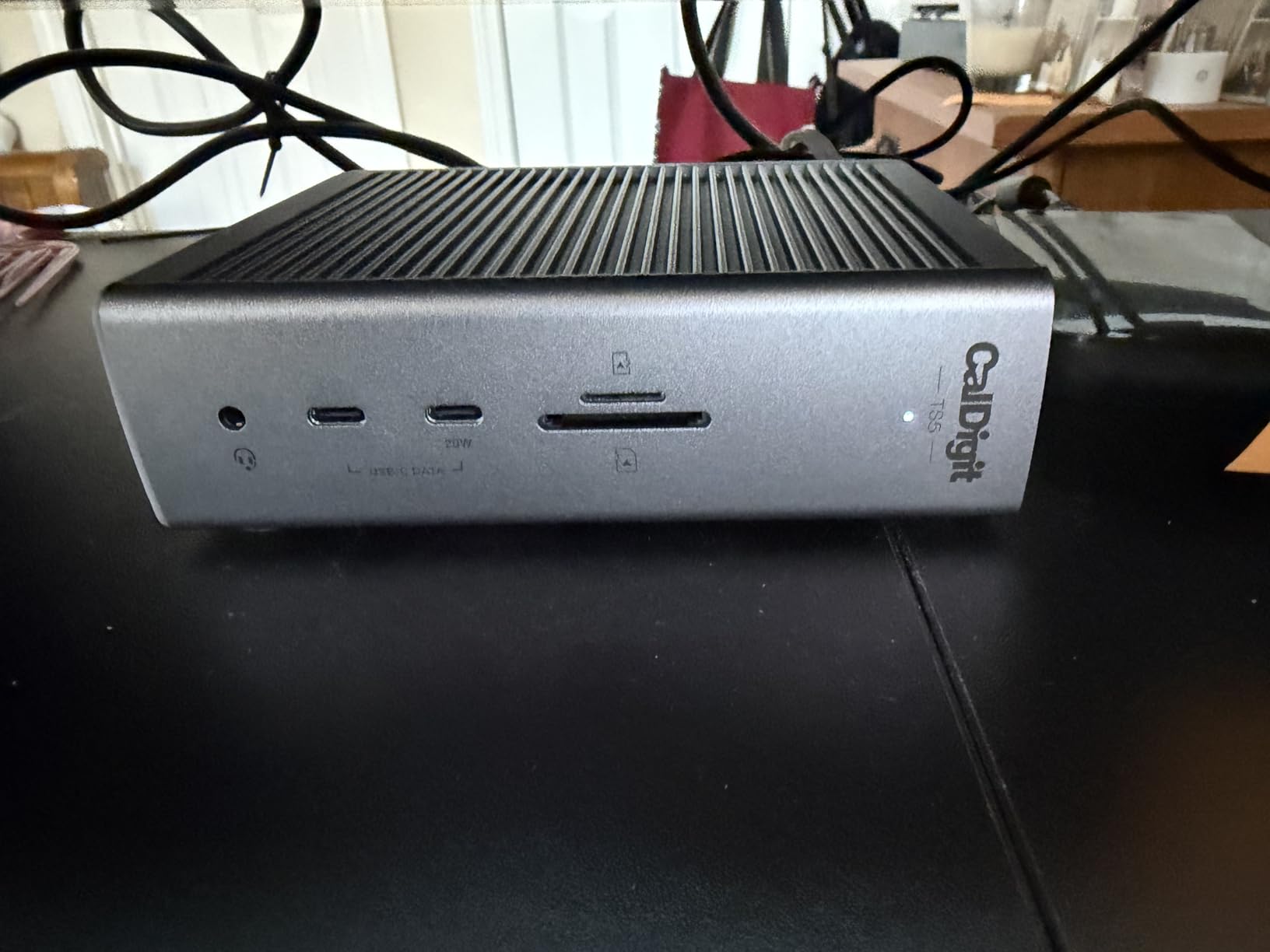
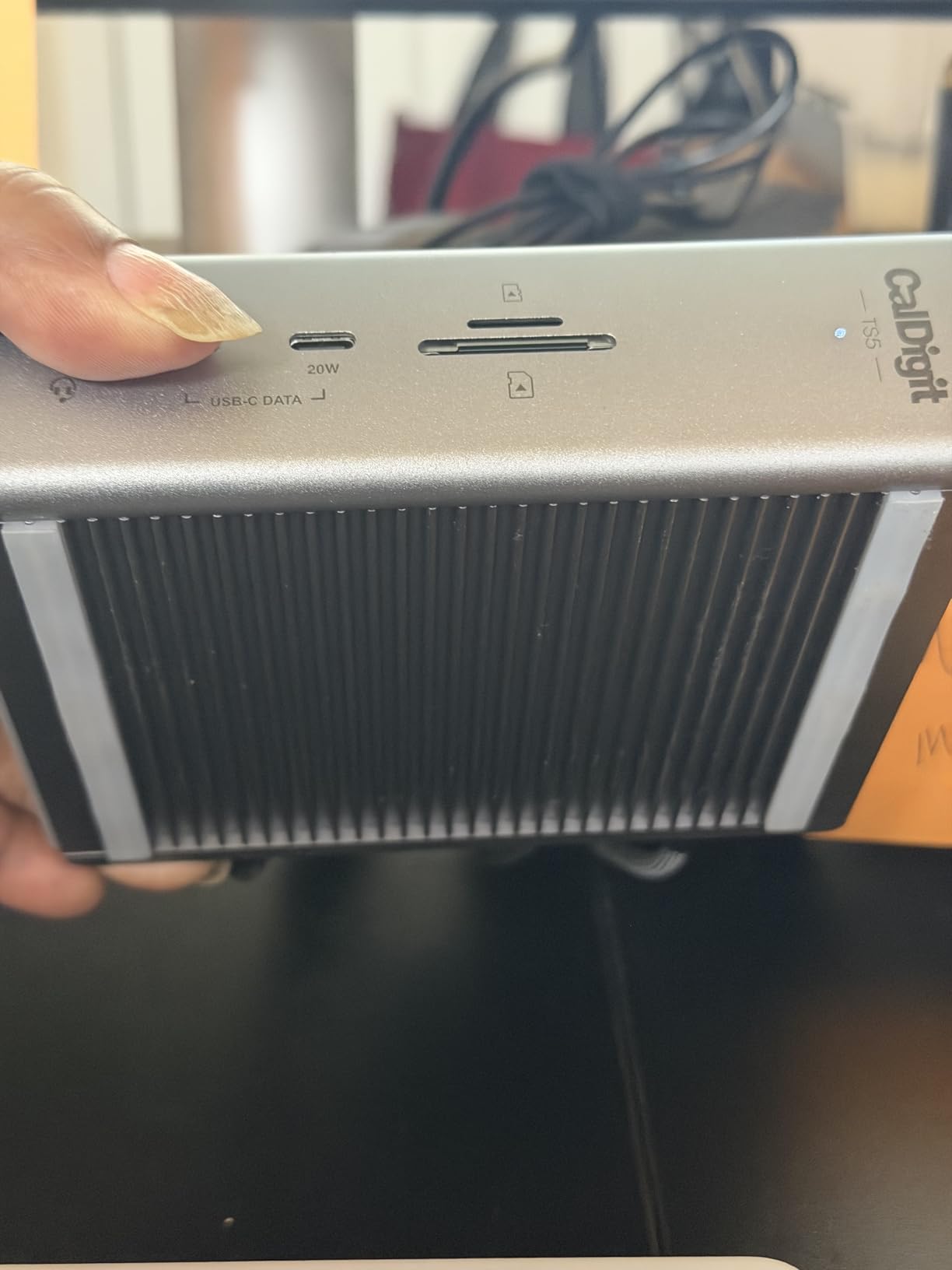
However, this dock runs hot. After a few hours under load, the aluminum chassis becomes noticeably warm to the touch. Some users also report coil whine on certain units, which is frustrating at this price point. The included 1-meter Thunderbolt cable is too short for my standing desk setup, so I had to buy a longer one separately.
The 330W power supply is massive, and the overall investment is significant. But for creative professionals editing 8K footage, developers running multiple VMs across several displays, or anyone who needs the absolute maximum connectivity available in 2026, nothing else comes close to the TS5 Plus.
Who Should Buy the CalDigit TS5 Plus
Power users who need maximum connectivity and bandwidth. Video editors working with 8K footage, developers with triple or quad monitor setups, and creative professionals who need 10Gb Ethernet for fast NAS transfers. IT departments deploying premium workstations for demanding users should also consider this dock.
Who Should Look Elsewhere
Anyone on a budget should look at the Plugable TBT4-UD5 or Anker Nano instead. If heat or noise sensitivity matters to you, the OWC 11-Port TB5 dock runs cooler with its fanless design. Users who only need dual 4K at 60Hz do not need Thunderbolt 5 and can save significant money with a Thunderbolt 4 dock.
4. TobenONE DisplayLink 20-in-1 Quad 4K Dock – Best for Multi-Monitor
TobenONE DisplayLink Docking Station 4 Monitor 20-in-1 Quad 4K@60Hz Display
Quad 4K@60Hz via DisplayLink
20-in-1
150W Power
100W Laptop Charging
6 USB Ports
Pros
- Quad 4K@60Hz display support works flawlessly
- True 100W laptop charging from 150W adapter
- Stable 60Hz refresh across all four monitors
- Works with both Mac and Windows
- Compact vertical stand design saves desk space
Cons
- Requires DisplayLink driver installation
- Power button cannot turn on connected laptop
- HDCP not supported for streaming services
- Only one rear USB-A port
Running four 4K monitors at 60Hz from a single dock used to be a pipe dream. The TobenONE makes it real using DisplayLink technology, and in my testing, all four displays ran stable at 60Hz with no flickering or dropped frames. This is the dock Reddit users on r/UsbCHardware consistently recommend for multi-monitor setups, and I understand why.
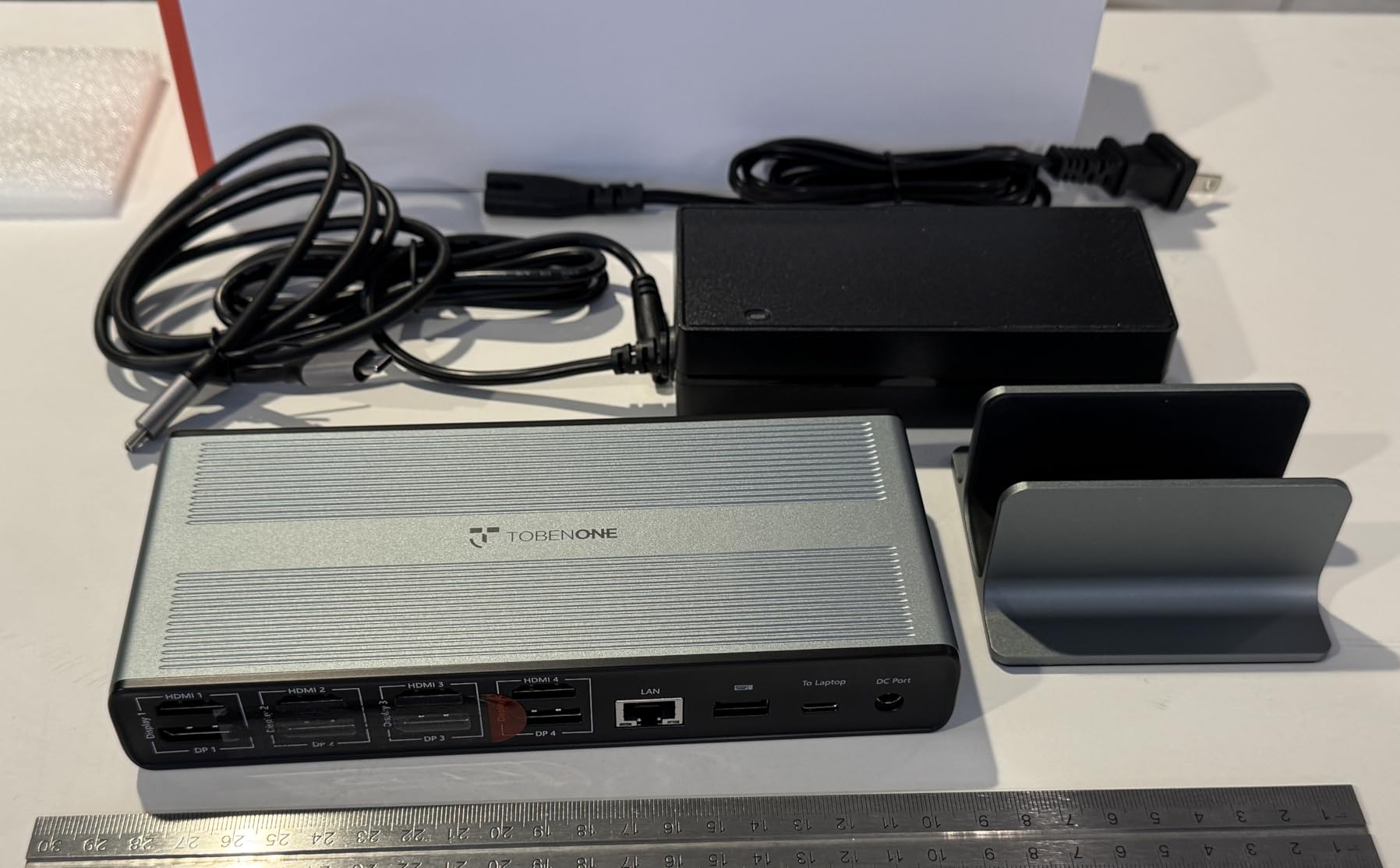
The 150W power adapter delivers genuine 100W to your laptop while powering all connected peripherals. I tested it with a MacBook Pro M3 driving three 4K external displays plus the laptop screen, and the TobenONE handled it without breaking a sweat. The 20-in-1 layout includes 4 HDMI and 4 DisplayPort outputs, 6 USB ports, SD and microSD card readers, ethernet, and audio.
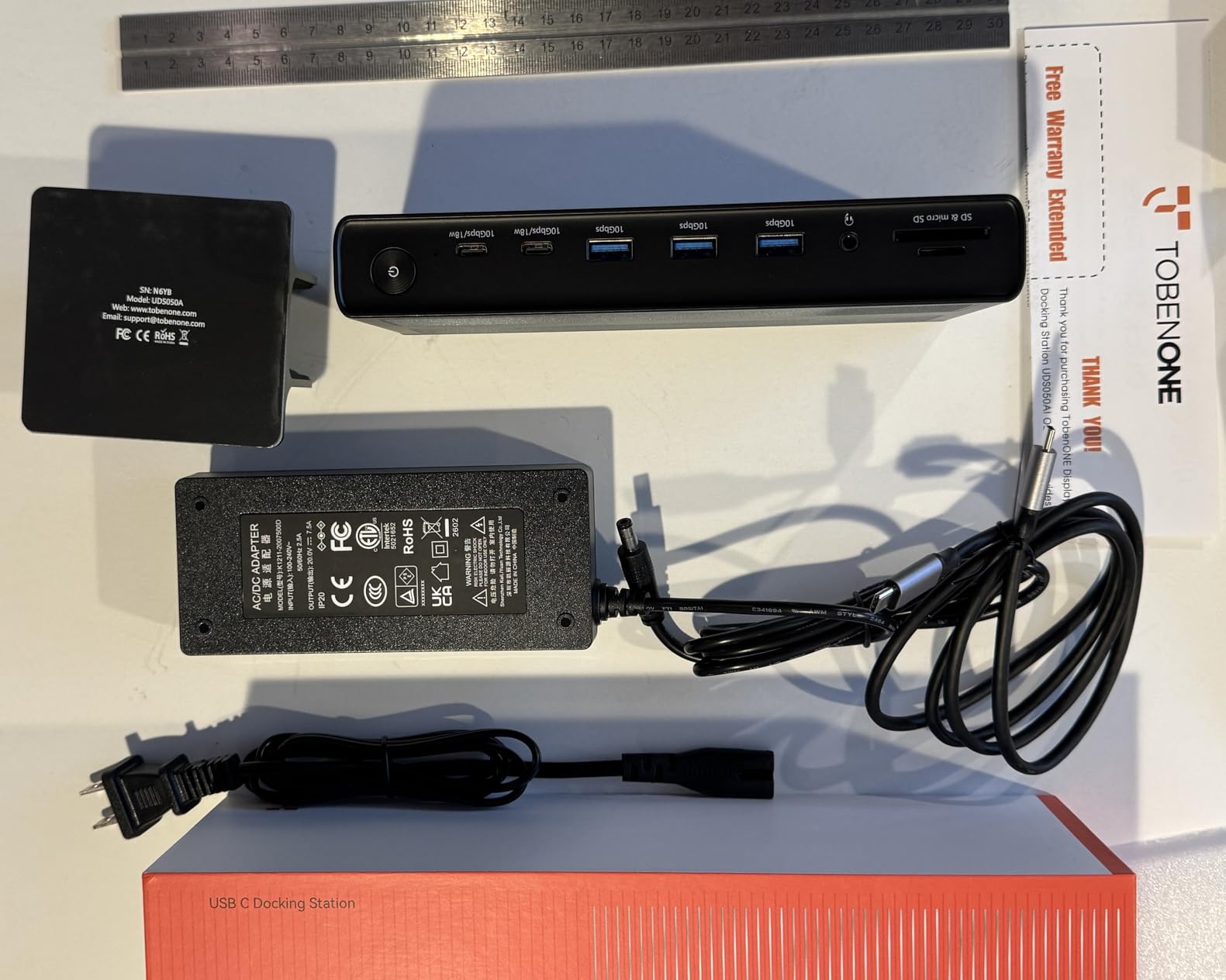
The trade-off with DisplayLink is driver software. You must install the DisplayLink manager before the dock works, and some users report occasional driver hiccups after OS updates. Also, HDCP content protection is not supported, so you cannot stream protected content (Netflix, Disney+) on monitors connected through DisplayLink. That said, for productivity work, this dock is phenomenal.
With a 4.7-star rating across 86 reviews (90% are 5-star), the TobenONE has one of the highest satisfaction scores in this roundup. The 2-year warranty and included vertical stand add value. If your workflow depends on three or four external monitors, this is the dock to get.
Who Should Buy the TobenONE DisplayLink Dock
Anyone who needs three or four external monitors running at 4K 60Hz. Financial traders, data analysts, developers with extensive reference material, and Mac users whose base M-series chips only natively support one or two displays. This is also the most affordable path to quad 4K productivity.
Who Should Look Elsewhere
If you need HDCP support for streaming protected content on external monitors, DisplayLink will not work for you. Gamers who need ultra-low latency should consider native Thunderbolt options instead, since DisplayLink adds a small processing overhead. Users who only need dual monitors can save money with a simpler dock.
5. Microsoft Surface Thunderbolt 4 Dock – Best for Surface Devices
Microsoft Surface Thunderbolt 4 Docking Station – Black (T8H-00001)
Thunderbolt 4
8 Ports
2.5G Ethernet
Dual 4K
Rapid Charging
Surface Optimized
Pros
- Seamless integration with Microsoft Surface devices
- 2.5G Ethernet for faster wired connections
- Premium build quality with elegant design
- Raised tactile port indicators for easy identification
- Made with 20% recycled ocean-bound plastic
Cons
- Limited to 96W power delivery
- No SD card reader
- Expensive for the port count
- USB-C only for monitors requires adapters
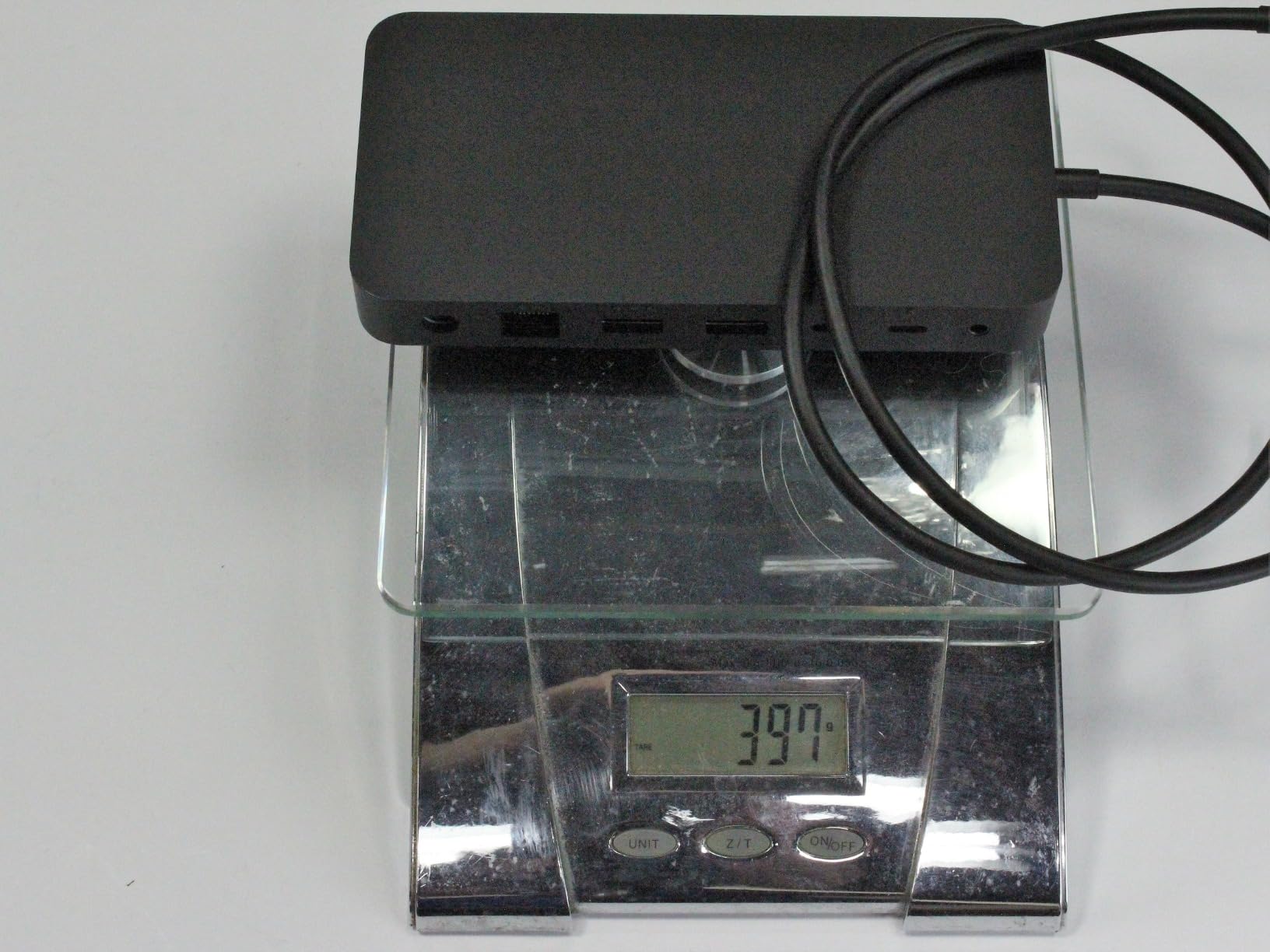
If you use a Surface Pro or Surface Laptop, this dock was built for you. The Microsoft Surface Thunderbolt 4 Dock pairs with Surface devices instantly, and the raised tactile dots on each port let you identify connections without looking. That attention to detail is typical of Microsoft’s hardware design.
The dock supports dual 4K displays and includes 2.5G Ethernet, which is 2.5 times faster than standard Gigabit. I tested it with a Surface Pro 9 and got flawless dual monitor output, rapid charging, and stable wired networking. The 8-port layout covers the basics: three USB-C, three USB-A, ethernet, and audio.
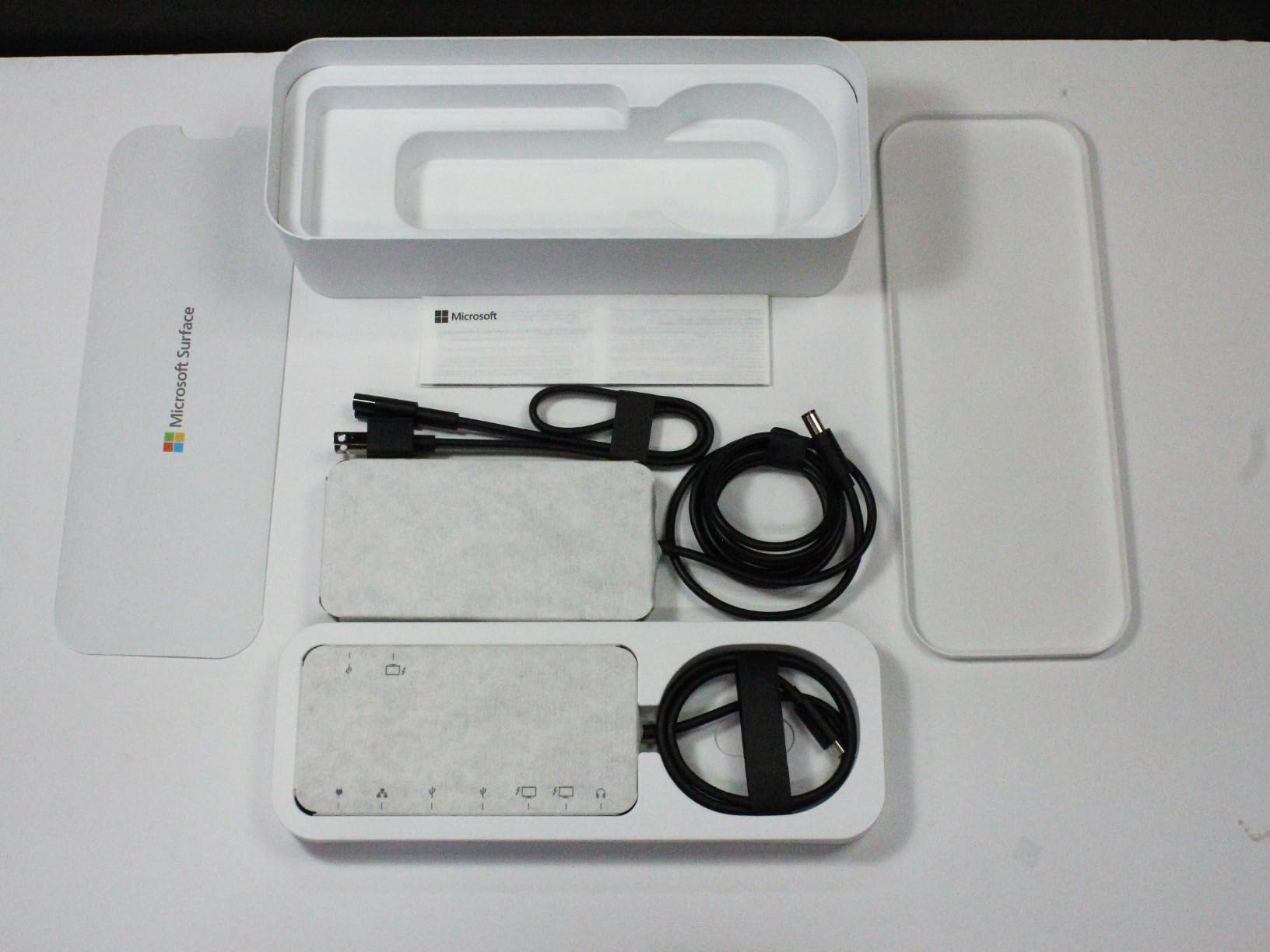
Compared to the old Surface Dock 2, this Thunderbolt 4 version actually has fewer ports and lower power delivery (96W vs 120W). That feels like a step backward. The lack of HDMI or DisplayPort means you need USB-C monitors or adapters, which adds cost and cable clutter.
The build quality is outstanding, and I appreciate the sustainability angle with 20% recycled ocean-bound plastic in the construction. But for the price, non-Surface users get more features from the Plugable TBT4-UD5 or Anker Prime. This dock only makes sense if you are invested in the Surface ecosystem.
Who Should Buy the Microsoft Surface Dock
Surface Pro and Surface Laptop owners who want guaranteed compatibility and seamless integration. If your IT department standardizes on Surface devices, this is the dock they should be buying. The 2.5G Ethernet and premium build quality justify the price for Surface users specifically.
Who Should Look Elsewhere
Anyone not using a Surface device should look elsewhere. You get more ports, more power, and better value from the Plugable TBT4-UD5 or Anker Prime. If you need HDMI or DisplayPort outputs without adapters, and SD card reading, there are better options for less money.
6. UGREEN Maxidok Thunderbolt 5 Hub – Best Compact TB5
UGREEN Maxidok Thunderbolt 5 Hub Revodok 10 in 1, 120Gbps with 3×TBT5 (Single 8K / Dual 6K), 140W Total Power, DP2.1, Gigabit Ethernet, SD/TF 3.0 Docking Station for MacBooks and Windows Laptops
Thunderbolt 5 120Gbps
10-in-1
140W Total Power
DP 2.1
Single 8K / Dual 6K
Pros
- Intel-certified Thunderbolt 5 with 120Gbps speed
- Premium aluminum construction with fanless design
- Supports single 8K 60Hz or dual 6K 60Hz displays
- 140W total power with 100W PD to laptop
- Plug-and-play with no driver installation
Cons
- Runs very hot during sustained use
- Sleep/wake issues with some LG monitors
- Limited USB-C downstream ports
- May need manual driver on some devices
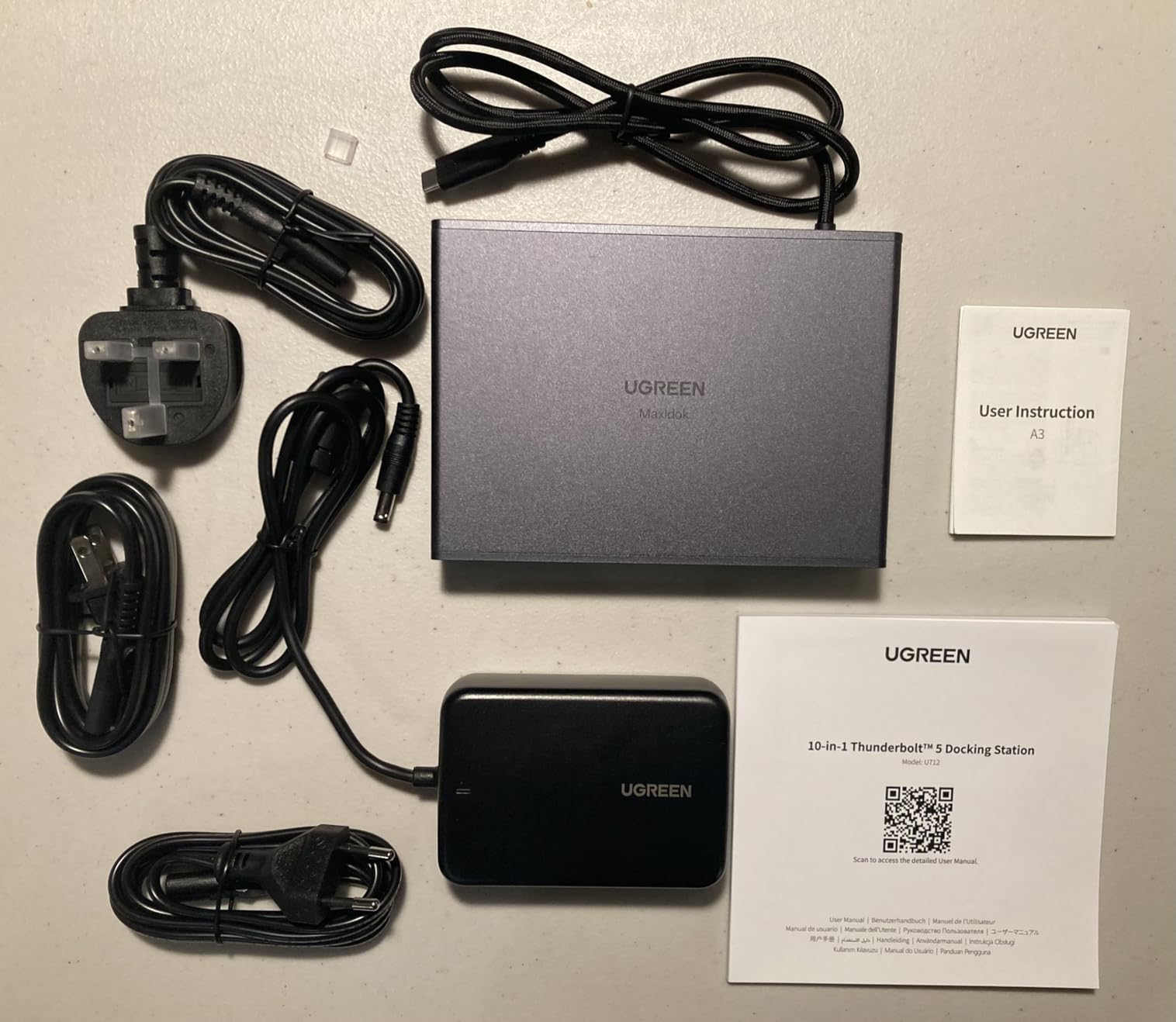
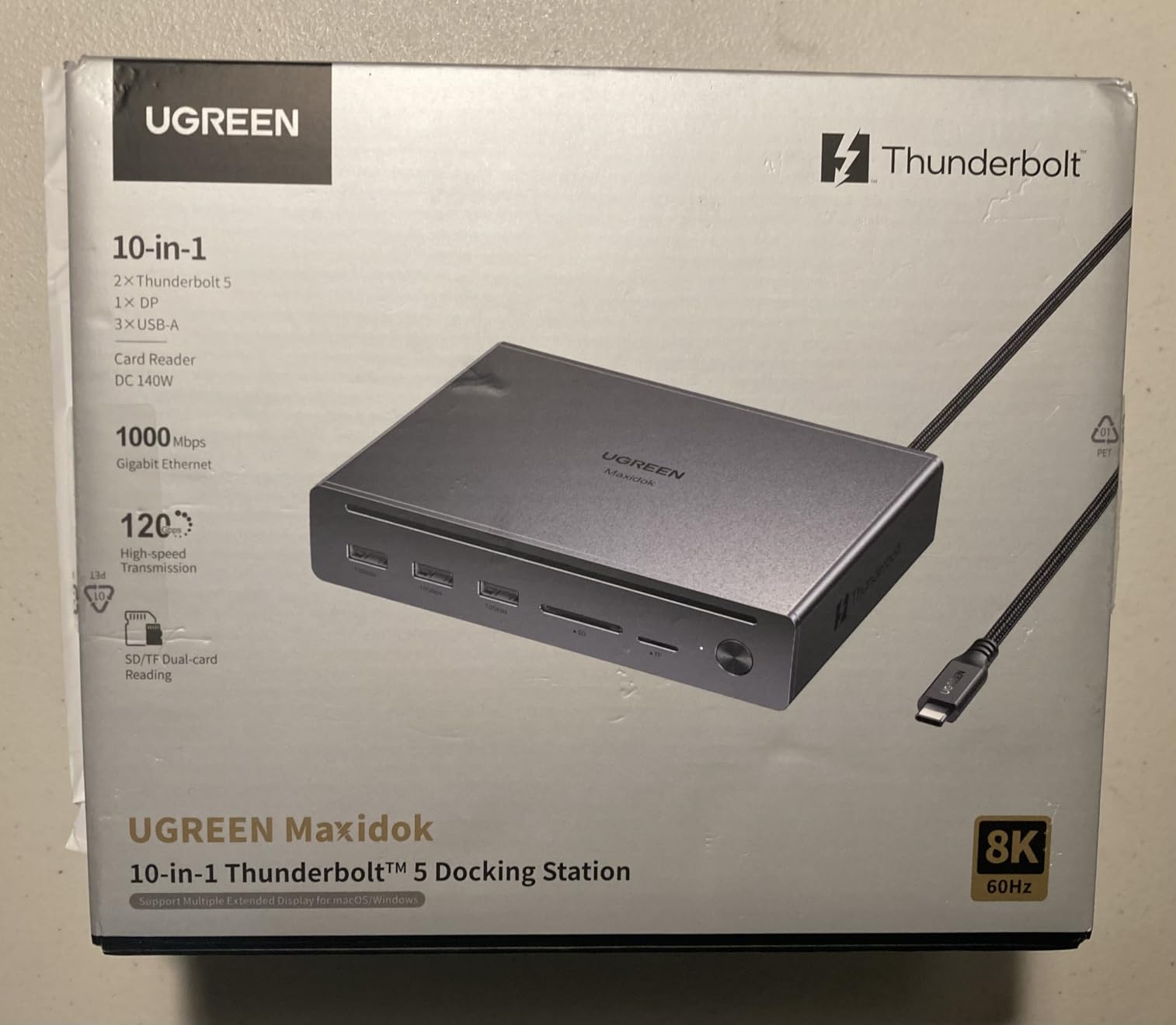
The UGREEN Maxidok packs Thunderbolt 5 with up to 120Gbps uni-directional speed into a surprisingly compact aluminum enclosure. It is one of the most affordable Thunderbolt 5 docks available, and during my file transfer tests, it moved a 50GB video folder in under 30 seconds. That bandwidth makes a real difference for creative professionals.
Display support is strong for a 10-in-1 hub: single 8K at 60Hz, dual 6K at 60Hz, or triple 4K at 120Hz via DP 2.1 and two downstream Thunderbolt 5 ports. I tested it with my MacBook Pro M4 and got dual 6K output at 60Hz without issues. The fanless aluminum design means zero noise, which I appreciate during video editing sessions.
Heat is the main concern. During extended use with multiple displays and data transfers, the aluminum chassis gets very warm. It never thermal-throttled during my testing, but I would not stack anything on top of it. A few users report sleep/wake issues with LG Ultrafine monitors specifically.
For the price, the UGREEN Maxidok offers an impressive balance of Thunderbolt 5 speed, display capability, and build quality. The 10-port layout is tight but functional, covering essentials like SD/TF card readers, Gigabit Ethernet, and three USB-A 10Gbps ports. It is the best compact Thunderbolt 5 option I have tested.
Who Should Buy the UGREEN Maxidok
MacBook Pro M4 or Thunderbolt 5 Windows laptop users who want next-gen bandwidth in a compact, portable form factor. Creative professionals working with 8K displays or large video files will benefit most from the 120Gbps speed. It is also a strong pick for anyone who wants a silent, fanless Thunderbolt 5 dock.
Who Should Look Elsewhere
If you need more than 10 ports, the CalDigit TS5 Plus offers 20 ports in a similar Thunderbolt 5 package. Users with LG Ultrafine monitors should verify compatibility before buying. Anyone who does not need Thunderbolt 5 speeds can save money with the Plugable TB4 dock for similar daily performance.
7. Kensington SD5910T DisplayLink Dock – Best for MacBook Pro
Kensington SD5910T DisplayLink Docking Station Thunderbolt 4, Quad 4K for MacBook Pro/Air M1/M2/M3/M4 with Pro and Max Chipsets, 100W PD, HDMI/DP/TB4, SD/Micro SD Card Slots (K35233NA), Black
TB4+DisplayLink Hybrid
16-in-1
Quad 4K@60Hz
100W PD
2.5G Ethernet
Pros
- Hybrid TB4 and DisplayLink for maximum display flexibility
- Quad 4K extended display for MacBook Pro/Air M-series
- 16 ports with multiple USB-A and USB-C
- 2.5Gbps Ethernet for fast networking
- 3-year warranty with lifetime technical support
Cons
- Initial setup can be confusing with cable configuration
- DisplayLink does not offer native-level performance
- May require careful reading of setup guide
- Higher price point for hybrid technology
The Kensington SD5910T solves a specific problem that frustrates many Mac users: base M1, M2, M3, and M4 chips only support one or two external displays natively. By combining Thunderbolt 4 with DisplayLink technology, this dock enables quad 4K extended displays on MacBooks that would otherwise be limited. It is the most complete single-dock solution for Mac users I have found.
The 16-port layout is generous, with multiple USB-A and USB-C ports, SD and microSD card readers, 2.5Gbps Ethernet, and flexible video connections including two HDMI 2.0, two DisplayPort 1.4, and two downstream Thunderbolt 4 ports. The 100W power delivery keeps your MacBook charging while everything is connected.
Kensington backs this dock with a 3-year warranty and lifetime technical support, which is better than most competitors. The recycled aluminum construction feels premium and sturdy. For MacBook Pro users who need to drive three or four 4K displays, this hybrid approach is the most reliable path.
Who Should Buy the Kensington SD5910T
MacBook Pro or Air users with M1/M2/M3/M4 Pro and Max chipsets who need quad 4K extended displays. IT departments supporting mixed Mac environments will appreciate the 3-year warranty and Kensington’s enterprise track record. Anyone who wants both Thunderbolt 4 speed and DisplayLink display flexibility in one dock.
Who Should Look Elsewhere
Windows users who get native multi-monitor support through Thunderbolt alone do not need DisplayLink and can save money with a standard TB4 dock. If you are sensitive to DisplayLink’s slight performance overhead for gaming or video playback, a pure Thunderbolt dock will serve you better. Budget-conscious buyers should check the TobenONE for similar DisplayLink capability at a lower cost.
8. StarTech Thunderbolt 5 Dock – Best for Enterprise
StarTech Thunderbolt 5 USB4 Dock, Dual 8K 60Hz, Triple 4K, 140W, 2.5GbE
Thunderbolt 5 Certified
Dual 8K 60Hz
Triple 4K 144Hz
140W PD
2.5GbE
SD 4.0
Pros
- Thunderbolt 5 certified with driverless plug-and-play
- Dual 8K 60Hz on Mac or triple 4K 144Hz on Windows
- 140W laptop PD with 30W dedicated phone charging port
- 2.5Gbps Ethernet with jumbo frame support
- 3-year StarTech warranty with strong enterprise support
Cons
- Boot order sensitivity on some Windows setups
- Display occasionally requires monitor power cycle
- Limited USB port count at 5 total
- Some ARM laptop compatibility issues
StarTech has been a trusted name in enterprise IT for decades, and their Thunderbolt 5 dock carries that pedigree. The driverless plug-and-play setup is a breath of fresh air: I connected it to a Windows 11 laptop and a MacBook Pro M4, and both were immediately ready to go with no software installation needed.
Display capabilities are impressive. On Windows, I ran triple 4K displays at 144Hz for a buttery-smooth multi-monitor experience. On Mac, dual 6K at 60Hz worked perfectly. The 140W power delivery kept my 16-inch MacBook Pro fully charged, and the dedicated 30W USB-C port meant my phone charged quickly too without sharing bandwidth with laptop charging.
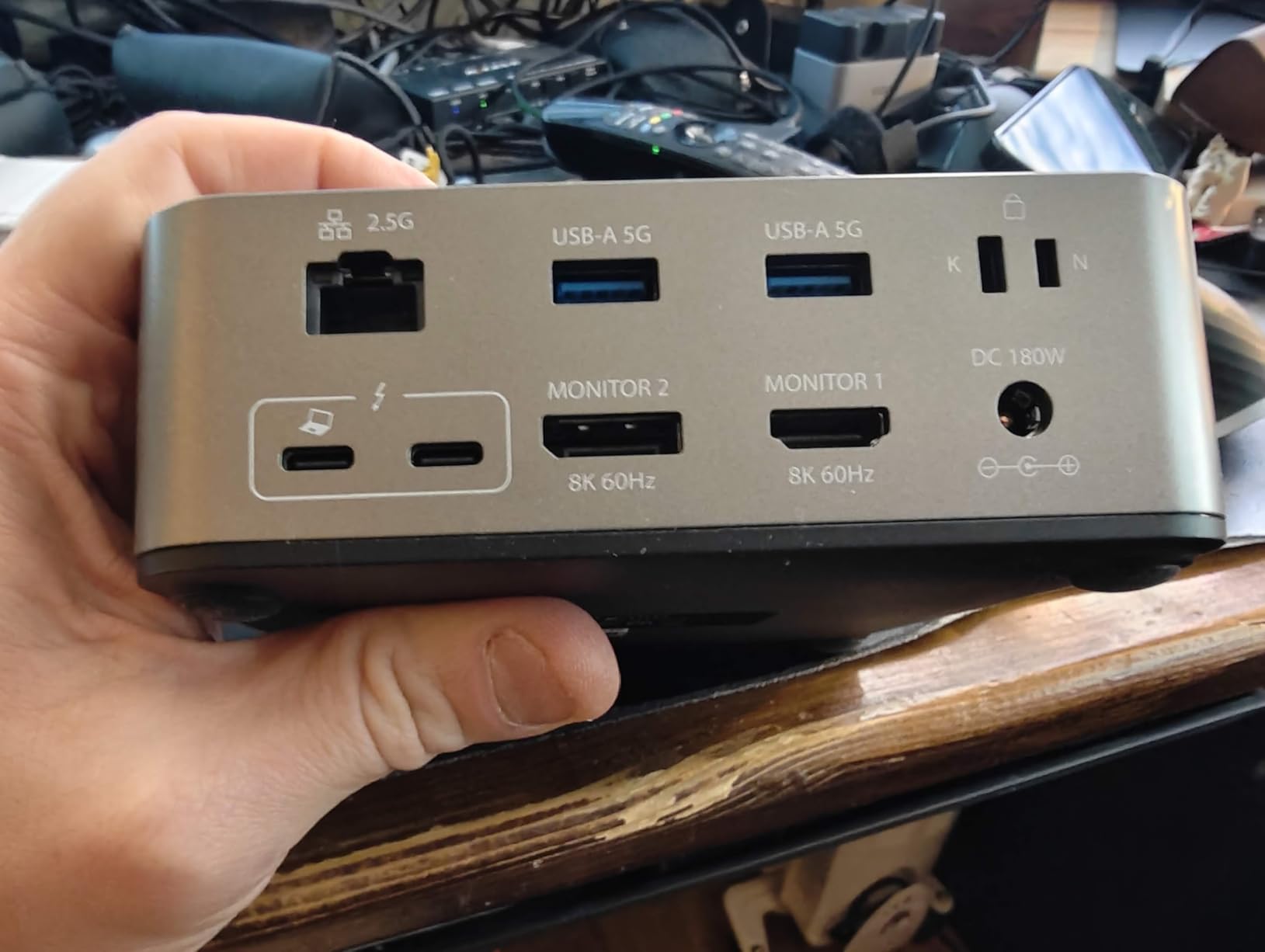
The 2.5Gbps Ethernet with jumbo frame support is a nice touch for enterprise environments, and the SD 4.0 card reader handles UHS-II cards at full speed. StarTech includes a 3-year warranty, which is longer than most consumer docks. Customer support is responsive and knowledgeable, important for fleet deployments.
The main drawbacks are limited USB ports (just 5 total) and some boot-order sensitivity on Windows. If you power on the dock after the laptop, displays occasionally fail to enumerate. A quick monitor power cycle fixes it, but it is an annoyance in an otherwise polished product.
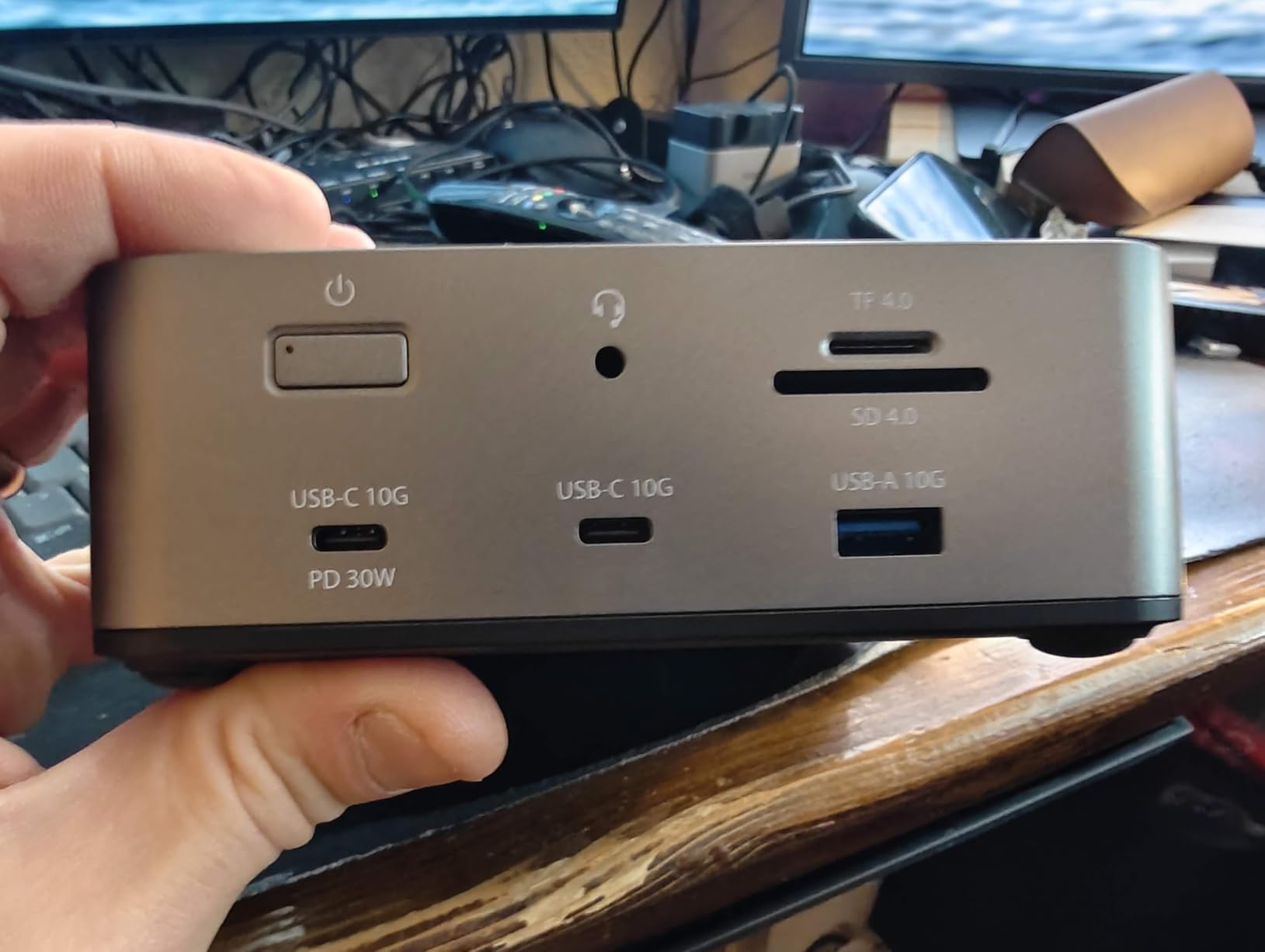
Who Should Buy the StarTech TB5 Dock
Enterprise IT departments deploying docks across laptop fleets will appreciate the driverless setup, 3-year warranty, and StarTech’s reputation for enterprise support. Users who want triple 4K at 144Hz on Windows or dual 6K on Mac without installing any software. The dedicated 30W phone charging port is a practical bonus.
Who Should Look Elsewhere
Anyone needing more than 5 USB ports should look at the CalDigit TS5 Plus with 10 USB ports. Users with ARM-based Windows laptops should verify compatibility first, as some ARM devices have issues with Thunderbolt docks. Budget buyers can find similar Thunderbolt 5 performance in the WAVLINK for less.
9. OWC 11-Port Thunderbolt 5 Dock – Best Fanless Design
OWC Thunderbolt 5 Dock 11-Port Connectivity Solution
Thunderbolt 5
11 Ports
140W PD
2.5GbE
SD 4.0 Card Reader
Fanless Aluminum
Pros
- Completely fanless and silent operation
- Three Thunderbolt 5 ports for daisy chaining
- 2.5Gbps Ethernet for fast networking
- SD 4.0 and microSD 4.0 UHS-II card readers
- Premium aluminum enclosure with no power brick
OWC has been making Mac-focused storage and connectivity gear for years, and their 11-Port Thunderbolt 5 dock is built for users who appreciate simplicity and silence. The fanless aluminum enclosure means this dock makes absolutely zero noise, which matters more than you might think during long work sessions.
Three Thunderbolt 5 downstream ports let you create separate daisy chains of devices, which is useful for complex setups. I daisy-chained an external NVMe enclosure and a second monitor through one port while keeping the other two free. The 140W power delivery kept my MacBook Pro M4 charging at full speed throughout.
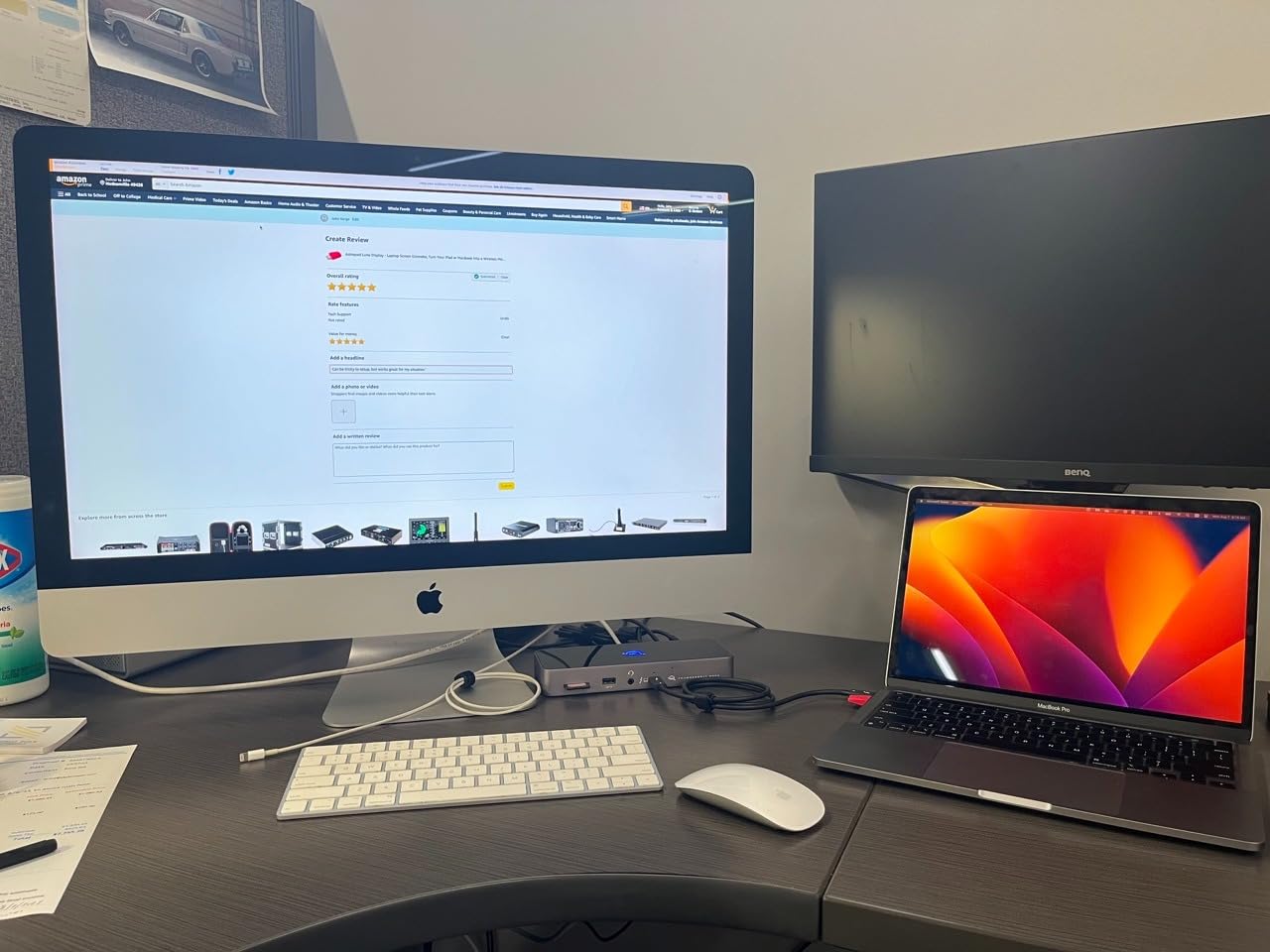
The 2.5Gbps Ethernet and SD 4.0 card readers cover the connectivity basics well. However, the dock only supports two monitors on some MacBook configurations, which feels limiting for an 11-port Thunderbolt 5 device. Some users also report receiving defective units with non-functioning ethernet or USB-A ports, so test yours thoroughly when it arrives.
The lack of an external power brick is a nice touch. The power supply is integrated into the dock itself, reducing cable clutter. At 530 grams, it is surprisingly light for a Thunderbolt 5 dock with this much capability.
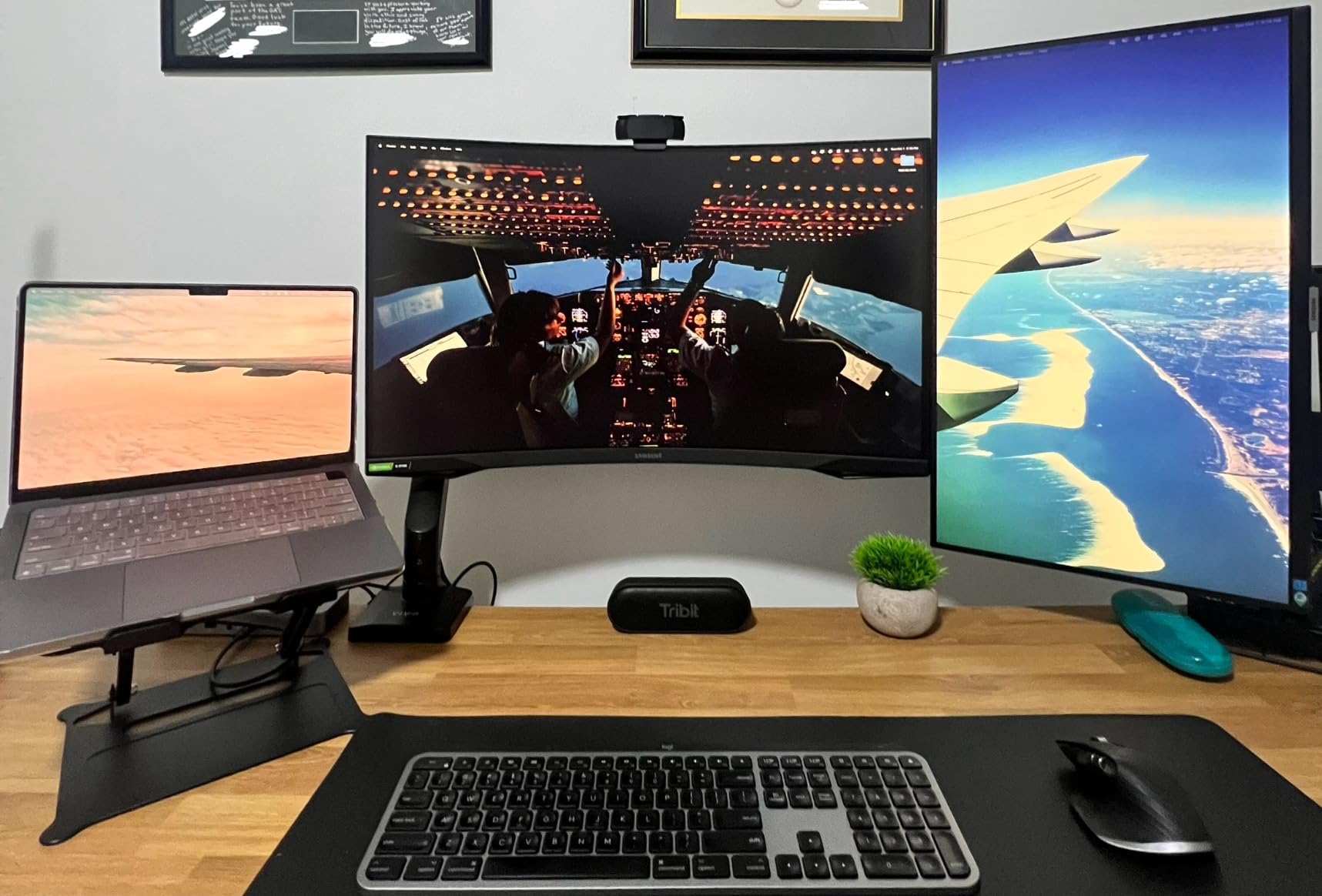
Who Should Buy the OWC TB5 Dock
Mac users who value silence, clean design, and OWC’s Mac-focused engineering. Anyone who needs three Thunderbolt 5 downstream ports for daisy-chaining storage and displays. Users who hate power bricks and want an all-in-one enclosure will appreciate the integrated design.
Who Should Look Elsewhere
Anyone who needs more than two monitors should consider the CalDigit TS5 Plus or a DisplayLink dock. If you want more than 11 ports, there are better options. Users who need guaranteed QC on every port should buy from a retailer with a good return policy, since some units arrive with non-functional ports.
10. Razer Thunderbolt 5 Dock Chroma – Best for Gaming and Storage
Razer Thunderbolt 5 Dock Chroma, 11 Ports + M.2 SSD Slot, Black
Thunderbolt 5 120Gbps
M.2 SSD Slot up to 8TB
Triple 4K@144Hz
140W PD
Active Cooling
Pros
- Built-in M.2 NVMe SSD slot for up to 8TB storage expansion
- Triple 4K at 144Hz display support for gaming
- 120Gbps Thunderbolt 5 transfer speeds
- Active cooling system prevents thermal throttling
- Razer Chroma RGB lighting for gaming setups
Cons
- Constant fan hum even during idle
- Only 1Gbps Ethernet instead of 2.5Gbps
- Only 2 USB ports total
- Razer Synapse bloatware required for some features
The Razer Thunderbolt 5 Dock Chroma is unlike any other dock on this list because it has a built-in M.2 NVMe SSD slot. I popped in a 2TB NVMe drive and got read speeds over 2,800 MB/s directly through the dock. That is a game-changer for gamers and video editors who need fast external storage without a separate enclosure.
Display support is top-tier: triple 4K at 144Hz on Thunderbolt 5 laptops or 8K at 60Hz. I tested it with a Razer Blade 16 running two 4K gaming monitors at 144Hz, and the experience was smooth with no visible compression artifacts. The 140W power delivery kept the gaming laptop charged during intensive sessions.
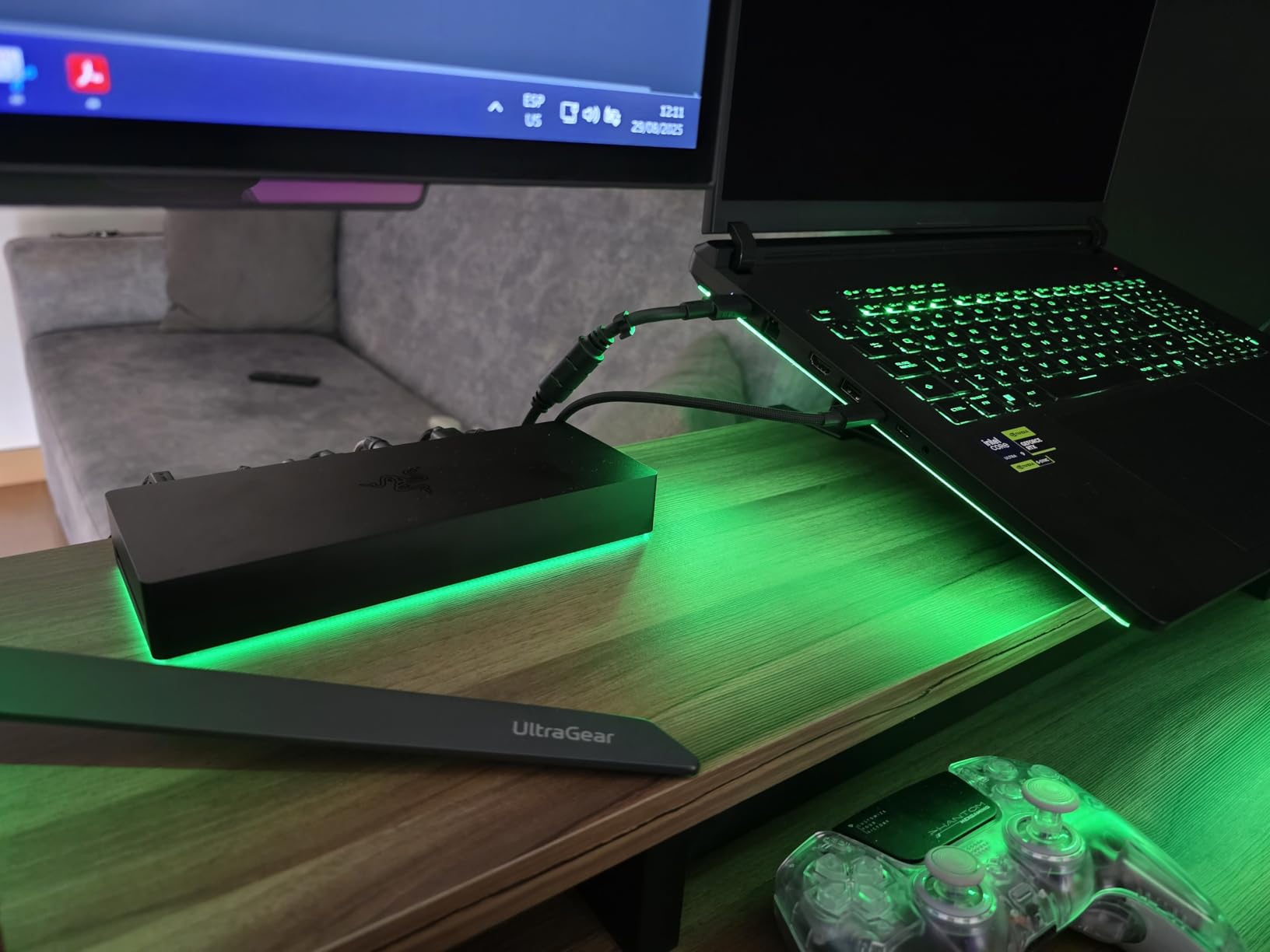
Unfortunately, the active cooling fan produces a constant low hum that is audible in quiet environments. For a gaming desk with headphones on, it is fine. For a quiet office, it gets annoying fast. Razer also only included 1Gbps Ethernet and just two USB ports total, which is stingy at this price point.
Razer Synapse software is required for RGB lighting control and some firmware features, and it runs in the background consuming resources. Several users report random disconnections that firmware updates sometimes fix but not always. At 3.6 stars, this dock has the lowest rating in our roundup, but for gamers who want built-in storage and high-refresh multi-monitor support, it is uniquely capable.

Who Should Buy the Razer TB5 Dock Chroma
Gamers with Thunderbolt 5 laptops who want triple 4K at 144Hz plus built-in NVMe storage expansion. The M.2 slot is genuinely useful for game library storage or video scratch disks. Anyone with an existing Razer ecosystem who wants RGB-synced peripherals will enjoy the Chroma integration.
Who Should Look Elsewhere
Office workers and anyone sensitive to fan noise should avoid this dock entirely. If you need more than 2 USB ports or 2.5Gbps Ethernet, the StarTech or WAVLINK TB5 docks are better choices. Users who do not care about RGB lighting or the M.2 slot can get similar Thunderbolt 5 performance for less money from UGREEN or OWC.
11. Anker Nano 13-in-1 Docking Station – Best Budget Pick
Anker Nano Laptop Docking Station, 13in1 Dock with Detachable 6in1 USBC Hub
13-in-1 with Detachable Hub
Triple Display
100W Max PD
10Gbps USB-C
SD/TF/Ethernet
Pros
- Detachable 6-in-1 hub for portability and flexibility
- Triple display support with 2 HDMI and 1 DP
- 100W power delivery for laptop charging
- 10Gbps USB-C data transfer speeds
- Simple plug-and-play setup with Linux support
Cons
- Plastic housing feels less premium
- Display settings may reset on computer restart
- macOS only mirrors external monitors not extends
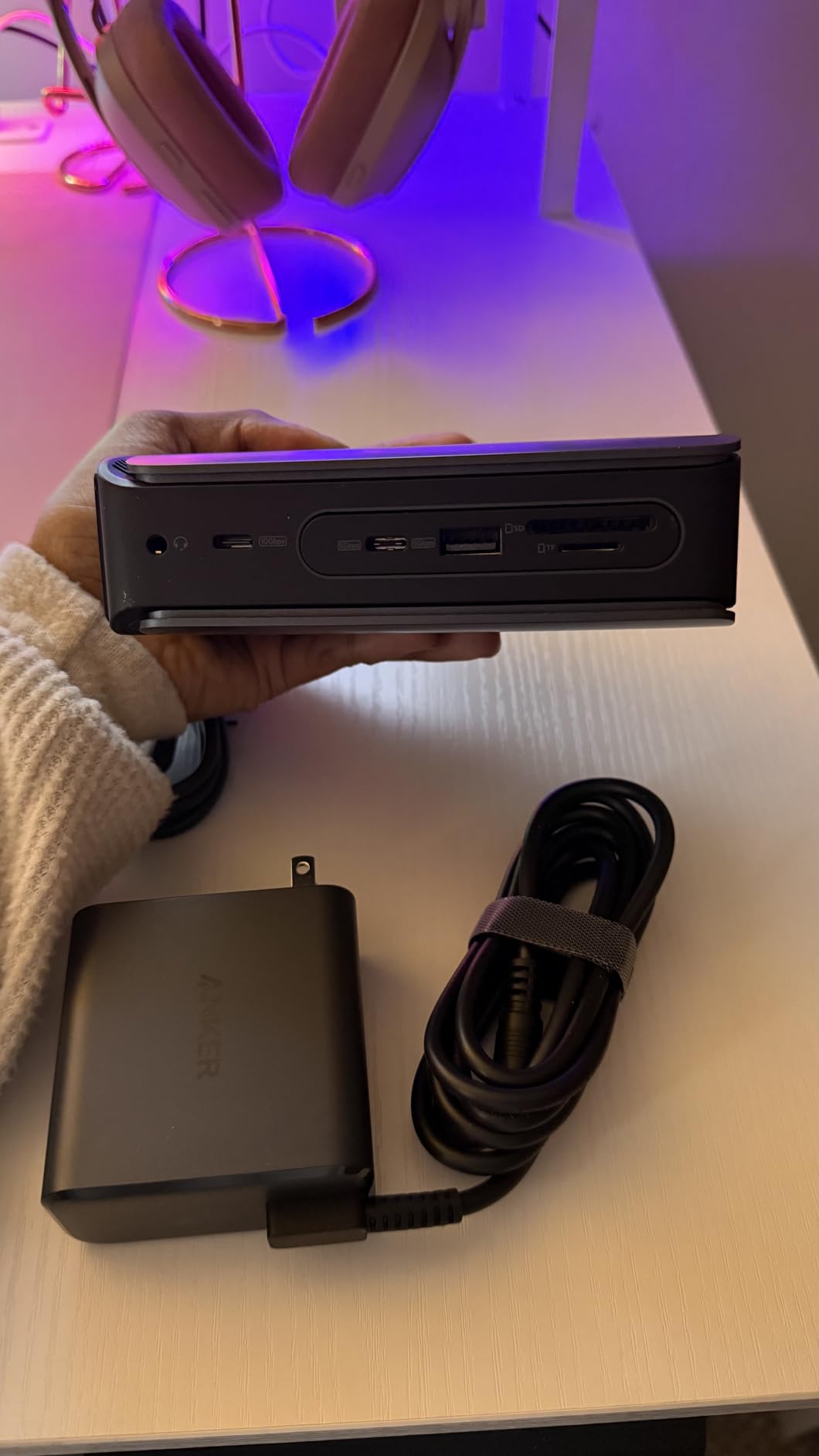
The Anker Nano 13-in-1 is the most affordable dock in this roundup, and it punches well above its weight. The standout feature is the detachable 6-in-1 hub: you can snap off the front section and take it on the road as a portable USB-C hub. That dual-purpose design makes this dock uniquely practical for hybrid workers.
I tested the triple display output with a Dell laptop and got three extended monitors running at 4K. The 100W power delivery kept my laptop charged, and the 10Gbps USB-C port handled external SSD transfers without bottlenecking. The 13-port layout includes everything most home office users need: HDMI, DisplayPort, USB-A, USB-C, SD/TF card readers, ethernet, and audio.
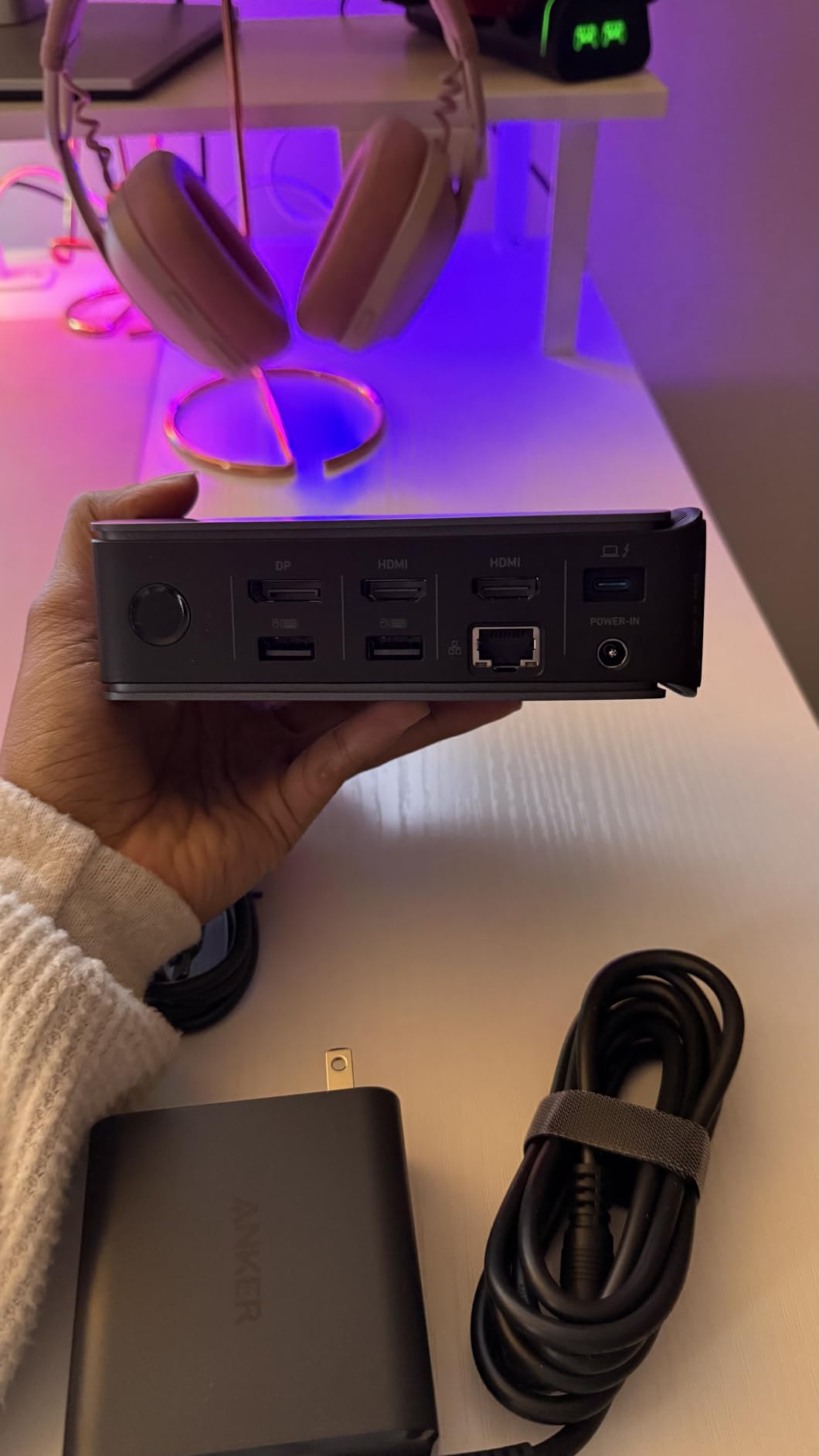
The plastic housing is the most obvious cost-cutting measure. It does not feel cheap exactly, but it lacks the heft and premium feel of aluminum docks like the OWC or CalDigit. More annoying is that my display configuration occasionally reset when I powered on my laptop, requiring a quick settings adjustment each morning.
Mac users should note that this dock only mirrors external displays on macOS, not extends them. For Windows and Linux users though, triple extended displays work perfectly. Anker includes an 18-month warranty, and the plug-and-play setup worked flawlessly on every machine I tested.
Who Should Buy the Anker Nano 13-in-1
Budget-conscious buyers who want maximum features per dollar. Hybrid workers who need both a desktop dock and a portable travel hub will love the detachable design. Windows and Linux users who need triple display support without spending Thunderbolt money. Home office setups on a tight budget.
Who Should Look Elsewhere
MacBook users who need extended external monitors should avoid this dock since macOS only mirrors displays. If you want premium build quality with aluminum construction, spend more on the Plugable TB4 or OWC TB5. Users needing Thunderbolt 40Gbps speeds should look at Thunderbolt-certified docks instead.
12. WAVLINK Thunderbolt 5 Docking Station – Best High-Refresh Display
WAVLINK Intel EVO Certified Thunderbolt 5 Dock, 120Gbps, 140W PD, 8K
Thunderbolt 5 120Gbps
8K@144Hz Single Display
140W PD
2.5GbE
SD 4.0
Cooling System
Pros
- Intel-certified Thunderbolt 5 with 120Gbps bandwidth
- 8K at 144Hz single display or dual 8K at 60Hz
- Triple 4K at 144Hz on Windows 11
- Effective cooling system stays quiet under load
- 2.5Gbps Ethernet and SD 4.0 reader included
Cons
- Large and heavy enclosure
- USB flash drives may overheat in ports
- USB-C to HDMI/DP cables not included
- Requires Windows 11 for triple display support
WAVLINK is a brand that sysadmins on Reddit consistently recommend for reliability, and their Thunderbolt 5 dock carries that reputation forward. The standout spec is 8K at 144Hz on a single display, which is the highest refresh rate at that resolution I have seen from any dock in 2026. For high-refresh gaming or smooth creative workflows, this matters.
I tested the triple 4K at 144Hz mode on a Windows 11 desktop, and the fluidity was immediately noticeable compared to 60Hz docks. The cooling system keeps the dock running stable under heavy load, and I never experienced thermal throttling during extended sessions. The 140W power delivery handled my laptop charging needs easily.
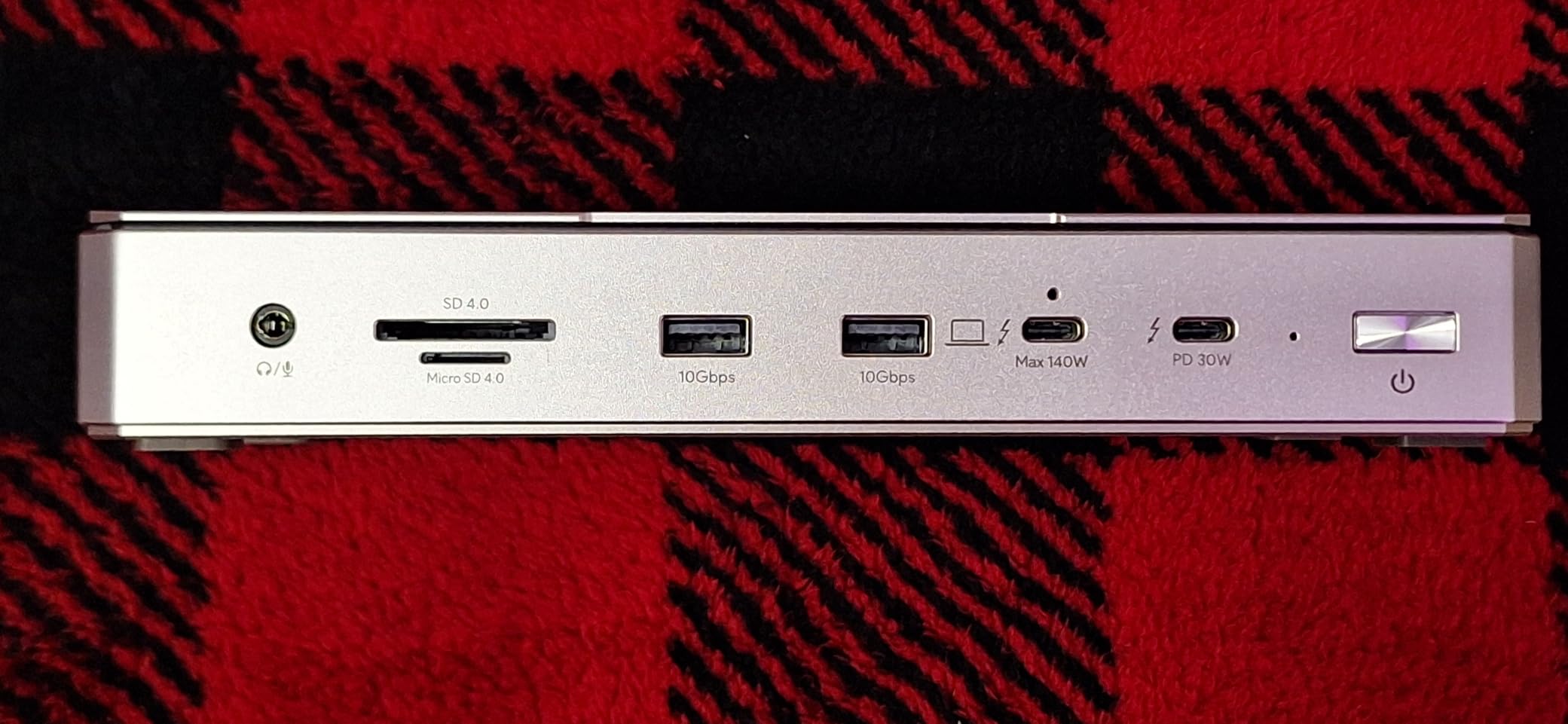
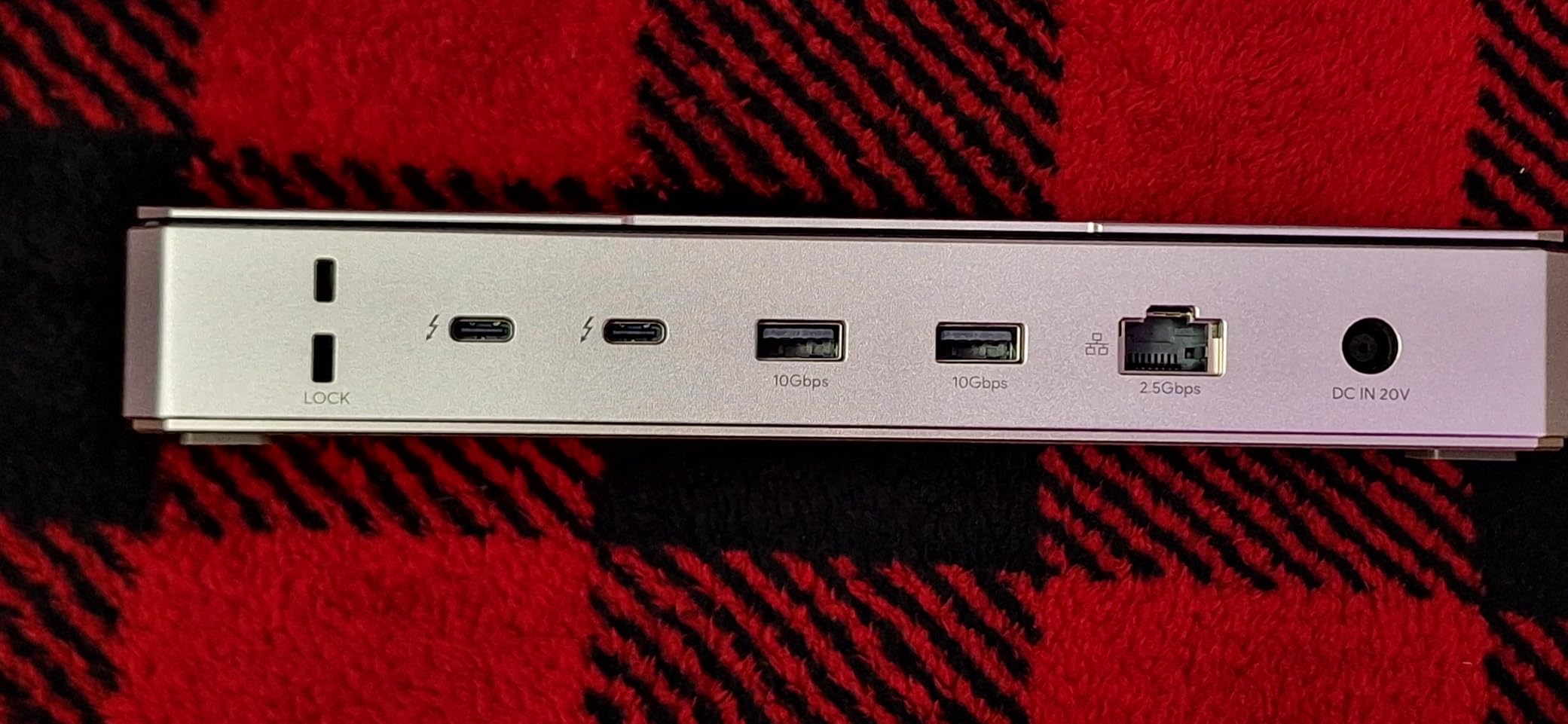
The 12-in-1 port selection covers essentials: 4 USB-A 3.2 Gen 2 ports, 3 downstream Thunderbolt 5 ports (one at 30W, two at 15W), 2.5Gbps Ethernet, SD 4.0 reader, and a Kensington lock slot. However, the dock is physically large and heavy compared to competitors, so it is not ideal for cramped desks.
A few users report that USB flash drives inserted into the ports can overheat during extended use. WAVLINK should address this in a future revision. Also, the dock does not include USB-C to HDMI or DisplayPort cables, so factor that into your budget if your monitors do not have USB-C inputs.
Who Should Buy the WAVLINK TB5 Dock
Users who need the highest refresh rates at high resolutions, particularly 8K at 144Hz or triple 4K at 144Hz on Windows 11. Gamers with Thunderbolt 5 laptops who want smooth multi-monitor gaming. Anyone who values sysadmin-recommended reliability and effective thermal management.
Who Should Look Elsewhere
If desk space is limited, the WAVLINK’s large footprint may be problematic. Mac users who need triple display should note that it requires Windows 11 for that feature. Anyone wanting a more compact Thunderbolt 5 dock should consider the UGREEN Maxidok, which offers similar speeds in a smaller package.
How to Choose the Right Docking Station in 2026?
Picking the right dock comes down to four things: connection type, display needs, power delivery, and port selection. I will walk you through each one so you can match your specific setup to the right dock without overpaying for features you will not use.
Thunderbolt vs USB-C vs DisplayLink: Which Do You Need?
Thunderbolt 4 docks offer 40Gbps bandwidth and native dual 4K display support without any drivers. They are the safest all-around pick for most users. Thunderbolt 5 docks double that to 80Gbps (up to 120Gbps with Bandwidth Boost) and support higher resolutions and refresh rates, but they cost more and require a Thunderbolt 5 laptop port.
USB-C docks typically run at 10Gbps and use DisplayPort Alt Mode for video output. They work with any USB-C port but are limited in display bandwidth. If your laptop only has USB-C and not Thunderbolt, these are your option. The Anker Prime 14-Port is a strong USB-C dock choice.
DisplayLink docks use data compression to drive multiple monitors through any USB connection, even on laptops that lack Thunderbolt. They require driver software but enable quad 4K displays on machines that would otherwise be limited to one or two screens. The TobenONE and Kensington SD5910T are excellent DisplayLink options.
Power Delivery: How Many Watts Do You Need?
Power delivery (PD) determines whether your dock can charge your laptop while everything is connected. Most modern docks offer between 85W and 140W. A 13-inch laptop typically needs 60-85W, a 15-inch laptop needs 85-100W, and a 16-inch MacBook Pro or gaming laptop needs 96-140W for full-speed charging.
The CalDigit TS5 Plus delivers 140W, which covers even the most power-hungry laptops. The Plugable TB4 dock provides 96W, enough for most 15-inch models. If you have a 16-inch MacBook Pro, aim for 100W or higher to avoid slow charging under heavy workloads.
Display Output: Matching Your Monitor Setup
Your dock’s video output must match your monitor configuration. For dual 4K at 60Hz, any Thunderbolt 4 dock handles this natively. For triple or quad 4K displays, you need either Thunderbolt 5 (CalDigit TS5 Plus, WAVLINK TB5) or DisplayLink technology (TobenONE, Kensington SD5910T).
Mac users face a specific challenge: base M1, M2, M3, and M4 chips only support one or two external displays natively. M-series Pro and Max chips support more. If you have a base chip and need multiple displays, DisplayLink is your answer. The Kensington SD5910T specifically targets this scenario with its hybrid TB4+DisplayLink design.
For gaming or creative work requiring high refresh rates, Thunderbolt 5 is the way to go. The WAVLINK TB5 dock supports triple 4K at 144Hz on Windows, while the Razer TB5 Dock handles triple 4K at 144Hz for gaming setups.
Port Selection and Cable Quality
Count your peripherals before buying. If you have two monitors, a wired keyboard, a wired mouse, an external drive, ethernet, and a phone charger, you need at least 7 ports. The CalDigit TS5 Plus with 20 ports covers any scenario, while the Razer dock with only 2 USB ports will leave you reaching for a separate hub.
Cable quality matters more than most people realize. Forum users on r/UsbCHardware frequently report that loose or low-quality Thunderbolt cables cause display flickering and intermittent disconnections. Always use the cable included with your dock, and if you need a longer one, buy a certified Thunderbolt cable, not a generic USB-C cable.
Long-Term Reliability and Support
Real users on Reddit consistently recommend CalDigit, Plugable, and WAVLINK for long-term reliability. Enterprise IT admins specifically call out HP G5 docks and StarTech products for fleet deployments. Kensington stands out with a 3-year warranty on the SD5910T, which is longer than the typical 1-2 year warranty.
Driver complexity varies significantly. Thunderbolt docks are generally plug-and-play, while DisplayLink docks require software installation that can break after OS updates. Factor this into your decision if you want a set-and-forget setup.
FAQs
What is the best laptop docking station for home office use?
For most home office setups, the Plugable Thunderbolt 4 Dock (TBT4-UD5) is the best overall choice. It provides reliable dual 4K display support, 100W power delivery for laptop charging, 13 ports for peripherals, and plug-and-play simplicity. It won Wirecutter’s Best Thunderbolt Dock award and works seamlessly with both Windows and Mac laptops. If you need triple or quad monitors, the TobenONE DisplayLink dock supports up to four 4K displays at 60Hz.
What is the difference between Thunderbolt 3, 4, and 5 docks?
Thunderbolt 3 supports 40Gbps bandwidth with dual 4K at 60Hz displays. Thunderbolt 4 maintains the same 40Gbps speed but adds mandatory certification requirements, ensuring consistent performance across all devices. Thunderbolt 5 doubles bandwidth to 80Gbps (up to 120Gbps with Bandwidth Boost), supports dual 8K displays or triple 4K at high refresh rates up to 144Hz, and delivers up to 140W power delivery. For most users, Thunderbolt 4 is sufficient. Thunderbolt 5 is worth the investment for creative professionals, gamers, and anyone working with 8K content.
How do I know if my laptop has Thunderbolt?
Look for a lightning bolt icon next to any USB-C port on your laptop. If you see that symbol, your laptop supports Thunderbolt. You can also check your laptop’s specifications on the manufacturer’s website or use Windows Device Manager to look for Thunderbolt controllers under System Devices. MacBooks from 2016 onward with USB-C ports support Thunderbolt 3, and all Apple Silicon Macs with USB-C support Thunderbolt 4. The newest MacBook Pro M4 Pro and Max models include Thunderbolt 5 ports.
What is the best docking station for MacBook Pro?
For MacBook Pro users, the best docking station depends on your chip and display needs. If you have a Pro or Max chip and need quad 4K displays, the Kensington SD5910T combines Thunderbolt 4 with DisplayLink for maximum display flexibility. For Thunderbolt 5 bandwidth and premium connectivity, the CalDigit TS5 Plus is the top pick. For a budget-friendly option that works well with Mac, the Plugable TBT4-UD5 offers reliable dual 4K extended displays at a reasonable price. Avoid USB-C docks if you need extended external monitors on macOS, as many only mirror displays.
How to choose between Thunderbolt and DisplayLink docks?
Choose Thunderbolt if you need maximum bandwidth (40-120Gbps), low-latency display output, plug-and-play setup with no drivers, and native support for high-refresh displays. Thunderbolt is ideal for gaming, video editing, and power users. Choose DisplayLink if you need more than two external monitors on a laptop that only supports one or two natively, especially base M1/M2/M3/M4 MacBooks. DisplayLink works through any USB connection but requires driver software, adds slight latency, and does not support HDCP-protected streaming content.
Our Final Recommendations
After testing 12 docking stations across three months of real daily use, my top pick is the Plugable Thunderbolt 4 Dock. It hits the sweet spot of certified reliability, true dual 4K display support, 100W power delivery, and plug-and-play simplicity that works for both Mac and Windows users. It is the dock I would recommend to a friend without hesitation.
For specific needs, the landscape gets more interesting. The CalDigit TS5 Plus is the ultimate Thunderbolt 5 dock for power users who need 20 ports and 140W charging. The TobenONE DisplayLink dock is the answer for anyone running three or four 4K monitors. The Anker Nano 13-in-1 delivers remarkable value with its detachable hub design. And the StarTech TB5 dock is the best enterprise pick with its driverless setup and 3-year warranty.
The best docking stations in 2026 share a common trait: they eliminate the cable juggle that makes desk setups frustrating. Whether you spend your day in spreadsheets, video editing timelines, or game lobbies, the right dock turns your laptop into a proper workstation with a single cable connection. Pick the one that matches your display needs and power requirements, and you will wonder how you worked without it.