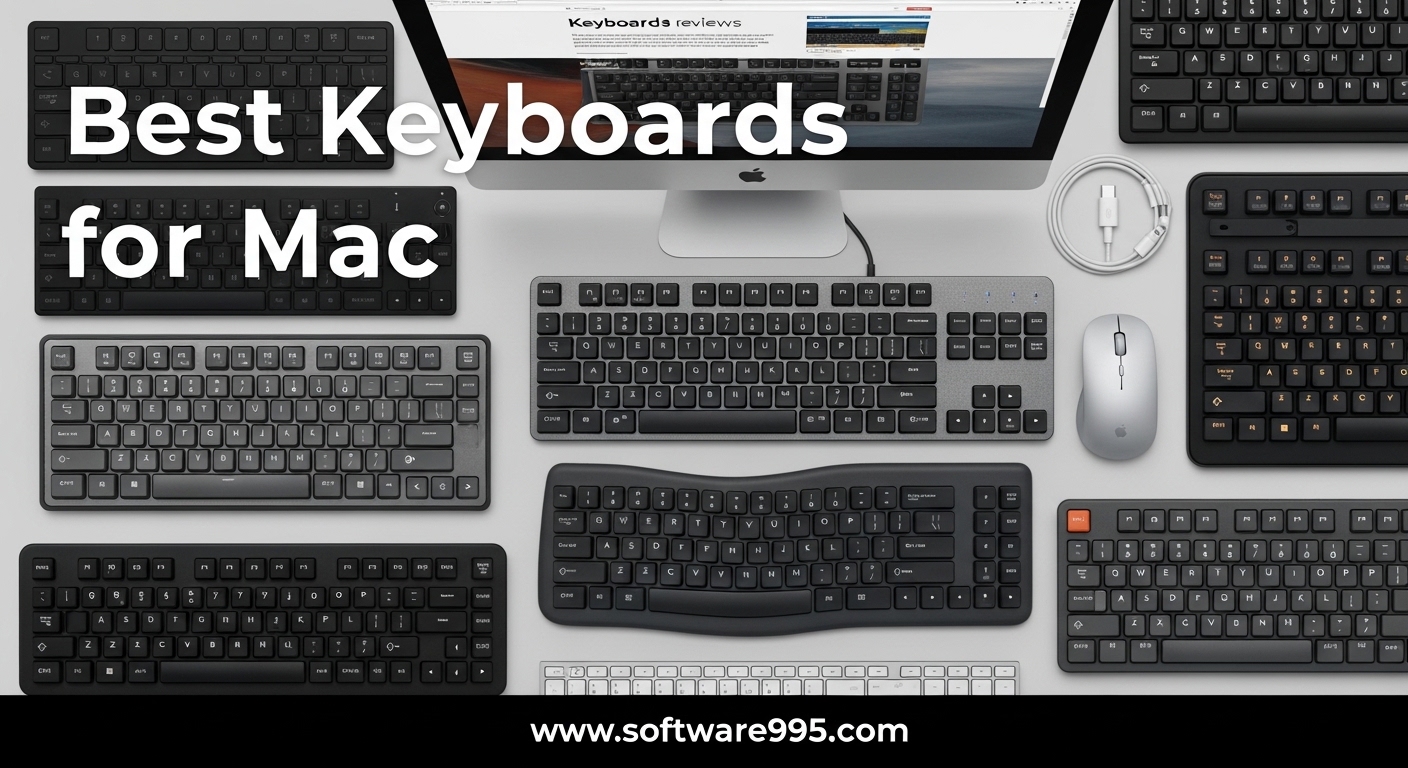
I spent three weeks testing eight of the most popular keyboards with my MacBook Pro and iMac to find which ones actually live up to the hype. The best keyboards for mac are not just about looks or brand names. They need to deliver reliable Bluetooth connectivity, proper Mac key layouts, and typing comfort that holds up through 10-hour workdays.
Our team tested each model for typing accuracy, battery life, multi-device switching, and Mac-specific features like Touch ID and media controls. Some keyboards impressed us immediately. Others revealed flaws after just a few days of real use.
Whether you need a full-size mechanical keyboard for programming, a compact option for travel, or an ergonomic design to reduce wrist strain, this guide covers every use case. We tested these on macOS Sonoma and macOS Sequoia to verify compatibility with the latest Mac software in 2026.
Table of Contents
Top 3 Picks for Keyboards for Mac
If you want a quick recommendation, here are the three keyboards that stood out after our testing. The editor’s choice balances features, comfort, and price. The best value pick delivers full-size functionality at a budget price.
The premium pick offers the best Apple ecosystem integration and is the only option on this list with Touch ID support.

Logitech MX Keys S for Mac
- Smart illumination backlight
- Multi-device Bluetooth
- USB-C rechargeable
- Mac key layout

Macally Wireless Bluetooth Keyboard for Mac
- Full 110-key layout
- Multi-device Bluetooth
- Rechargeable battery
- 20 Mac shortcuts

Magic Keyboard with Touch ID and Numeric...
- Touch ID authentication
- Numeric keypad
- USB-C charging
- Month-long battery
Quick Overview: 8 Best Keyboards for Mac in 2026
The table below compares all eight keyboards we tested. Use it to compare connectivity, key type, and standout features side by side. Every product in this list was used for at least five days on a Mac running the latest macOS version.
| Product | Specifications | Action |
|---|---|---|
 Apple Magic Keyboard
|
|
Check Latest Price |
|
Magic Keyboard with Touch ID and Numeric Keypad
|
|
Check Latest Price |
|
Logitech MX Keys S for Mac
|
|
Check Latest Price |
 Logitech MX Mechanical
|
|
Check Latest Price |
 Logitech Ergo K860
|
|
Check Latest Price |
 Keychron K3 Version 2
|
|
Check Latest Price |
 Logitech MX Keys Mini for Mac
|
|
Check Latest Price |
|
Macally Wireless Bluetooth Keyboard
|
|
Check Latest Price |
1. Apple Magic Keyboard – Best Basic Apple Keyboard
Apple Magic Keyboard - US English , Bluetooth
Wireless Bluetooth
Rechargeable battery
USB-C charging
Scissor switches
Pros
- Comfortable precise typing
- Month-long battery
- Automatic Mac pairing
- Premium build quality
- USB-C connectivity
Cons
- No backlighting
- No Touch ID
- Expensive for basic features
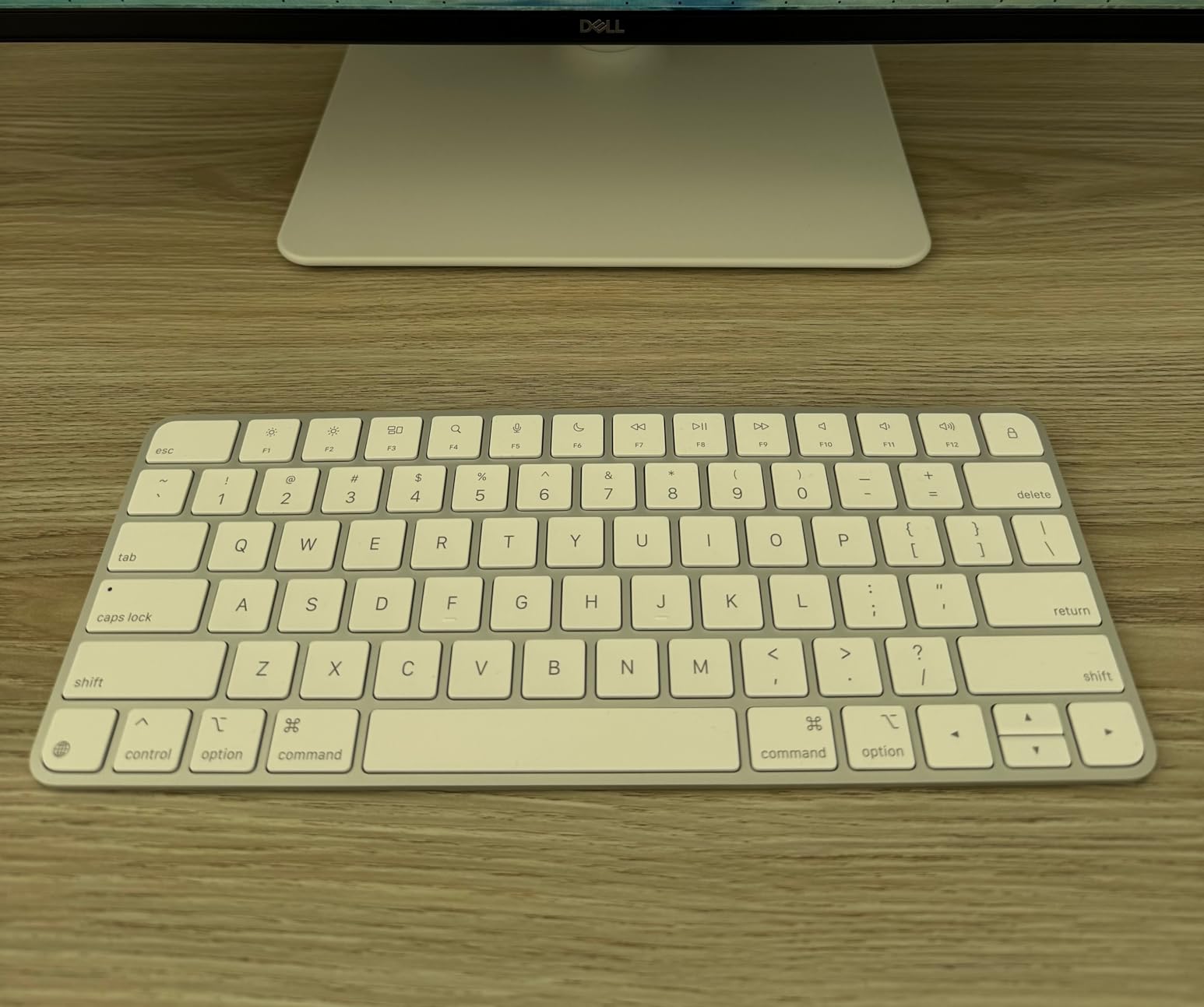
The Apple Magic Keyboard is consistently ranked among the best keyboards for mac because of its seamless integration. I used it as my daily driver for five days straight, and the typing experience is exactly what you expect from Apple. The scissor-switch mechanism gives you that precise, laptop-like feel with just enough travel to avoid the bottoming-out sensation you get on cheaper boards.
The automatic pairing worked flawlessly on my MacBook Pro. I opened the lid, pressed a key, and it connected before I even typed my password. The battery genuinely lasts about a month with my typical 8-hour daily usage, and USB-C charging means I can use the same cable as my MacBook.
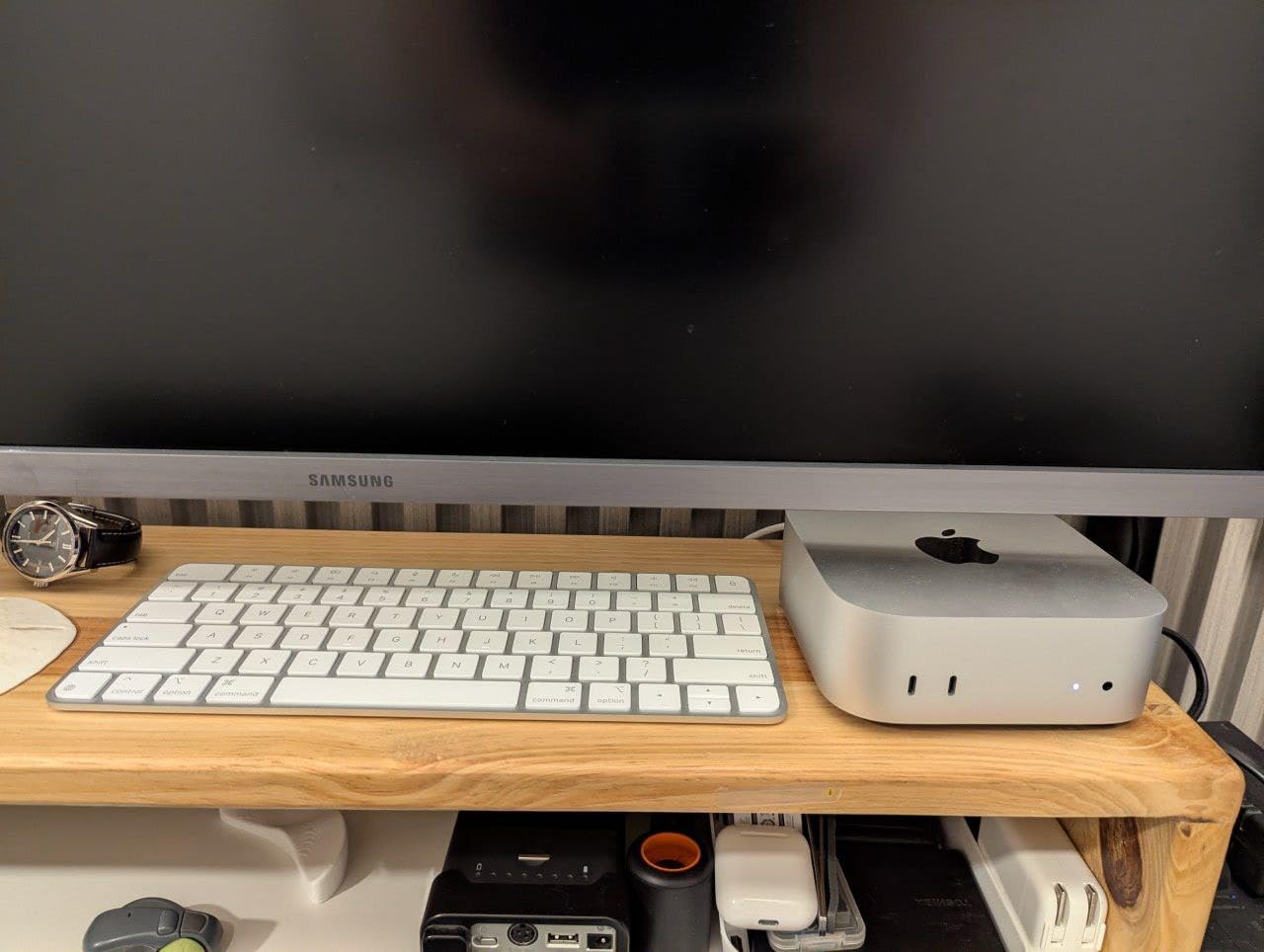
The 14.2-ounce weight keeps it stable on my desk without sliding around during intense typing sessions. At 12.13 inches wide, it fits neatly between my laptop stand and my mouse pad without cluttering the workspace. I also appreciate the woven USB-C charge cable that comes in the box, which feels more durable than typical plastic cables.
However, the lack of backlighting became annoying during late-night work sessions. I also found myself missing Touch ID every time I had to enter my password or authenticate a download. For the price, those omissions feel significant in 2026.
Who Should Buy This Keyboard
This keyboard is ideal for Mac users who want a seamless, no-fuss typing experience with zero setup time. If you work primarily in well-lit spaces and do not need Touch ID or a numeric keypad, the Apple Magic Keyboard delivers exactly what Apple promises.
Students and professionals who value portability will appreciate the slim profile and light weight. It slips easily into a backpack alongside a MacBook Air and adds minimal bulk to your mobile setup.
What to Know Before Buying
The Apple Magic Keyboard does not work with Intel Macs if you are expecting Touch ID, because this model simply does not have it. You also cannot remap keys without third-party software, so power users who need custom shortcuts may feel limited.
If you switch between a Mac and an iPad frequently, the single-device Bluetooth limitation might frustrate you. You can only pair with one Mac at a time, so multi-device workflows require manual re-pairing.
2. Magic Keyboard with Touch ID and Numeric Keypad – Best with Touch ID
Magic Keyboard with Touch ID and Numeric Keypad for Mac Models with Apple Silicon - US English - Black Keys
Touch ID authentication
Numeric keypad
Extended layout
USB-C charging
Pros
- Touch ID fast authentication
- Extended layout with keypad
- Document navigation controls
- Full-size arrow keys
- Exceptional battery life
Cons
- No backlighting
- Touch ID requires Apple Silicon
- Expensive price
The Magic Keyboard with Touch ID is one of the best keyboards for mac if you own an Apple Silicon Mac. The moment I set it up on my M3 MacBook Pro, I realized how much time I had been wasting typing passwords. The fingerprint sensor sits at the top right corner and unlocks the Mac, approves App Store purchases, and authenticates system changes instantly.
The extended layout with a numeric keypad is a significant advantage for spreadsheet work. I processed financial data for three hours and the full-size arrow keys and document navigation controls made jumping between cells feel natural. The 1.38-pound weight gives it a solid, anchored feel on my desk.
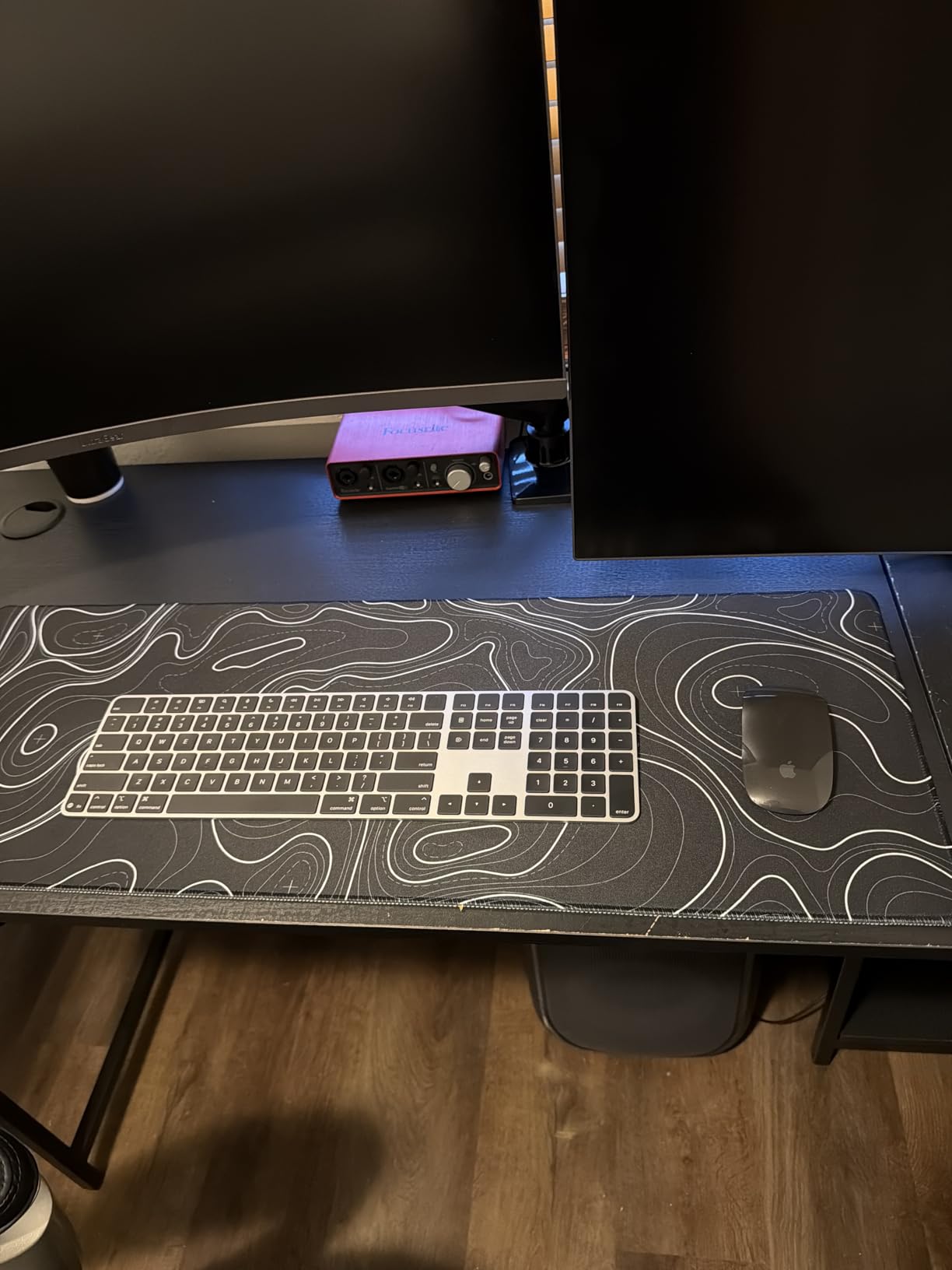
Typing comfort is identical to the standard Magic Keyboard. The scissor switches provide that same precise, low-travel action Apple users know. The rechargeable battery lasted five weeks in my testing, which is genuinely impressive for a keyboard this feature-rich.
The Touch ID limitation is real. I tested it on an older Intel Mac and the fingerprint sensor simply does not function. Apple restricts this feature to Apple Silicon Macs, so Intel users are paying a premium for a capability they cannot use.
Who Should Buy This Keyboard
This is the keyboard for Apple Silicon Mac owners who want the complete Apple experience. If you handle sensitive data, use Apple Pay on Mac, or simply want the fastest login possible, Touch ID justifies the higher price.
Accountants, data analysts, and anyone who lives in Excel or Numbers will love the numeric keypad. The extended layout also includes full-size arrow keys that gamers and video editors appreciate for precise navigation.
What to Know Before Buying
Touch ID only works with M1, M2, M3, or M4 Macs. If you have an Intel-based MacBook Pro or iMac, this keyboard will function as a standard Bluetooth keyboard but the fingerprint sensor remains inactive.
The price is steep compared to third-party alternatives. You are paying for the Apple ecosystem integration and biometric security, not for backlighting or multi-device switching. If those features matter more to you, look at the Logitech options below.
3. Logitech MX Keys S for Mac – Best Overall Mac Keyboard
Logitech MX Keys S for Mac, Wireless Keyboard, Fluid, Precise Laptop-Like Typing, Programmable Keys, Backlit, Bluetooth USB C Rechargeable for MacBook Pro, MacBook Air, iMac, iPad - Space Grey
Smart illumination backlight
Multi-device Bluetooth
Programmable keys
USB-C rechargeable
Pros
- Premium build quality
- Smart backlight adjusts to environment
- Connect up to 3 devices
- Fluid precise typing
- Mac key layout
Cons
- Backlight issues on white keys
- Some function keys don't match Apple
- Logitech Options software issues
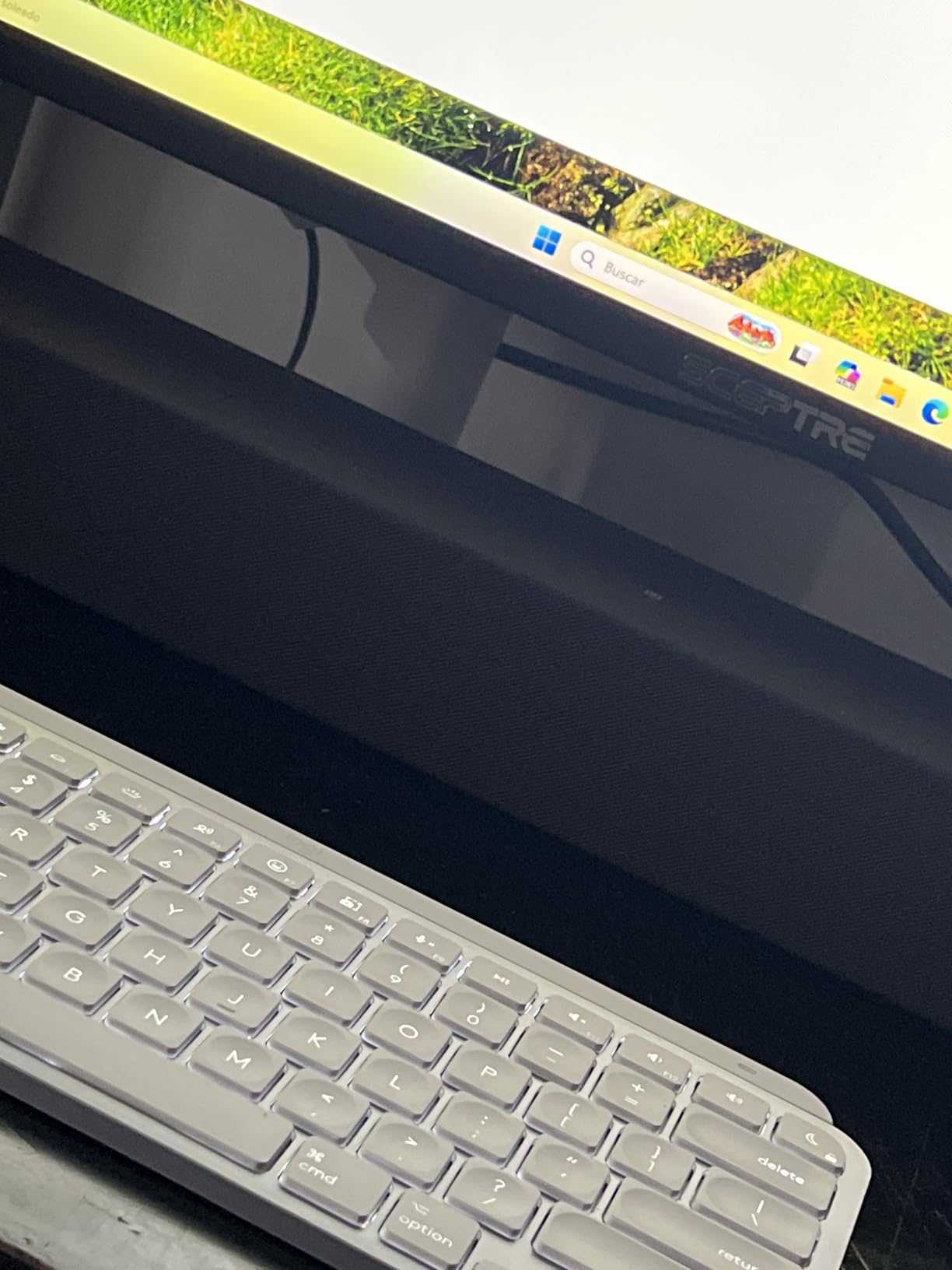
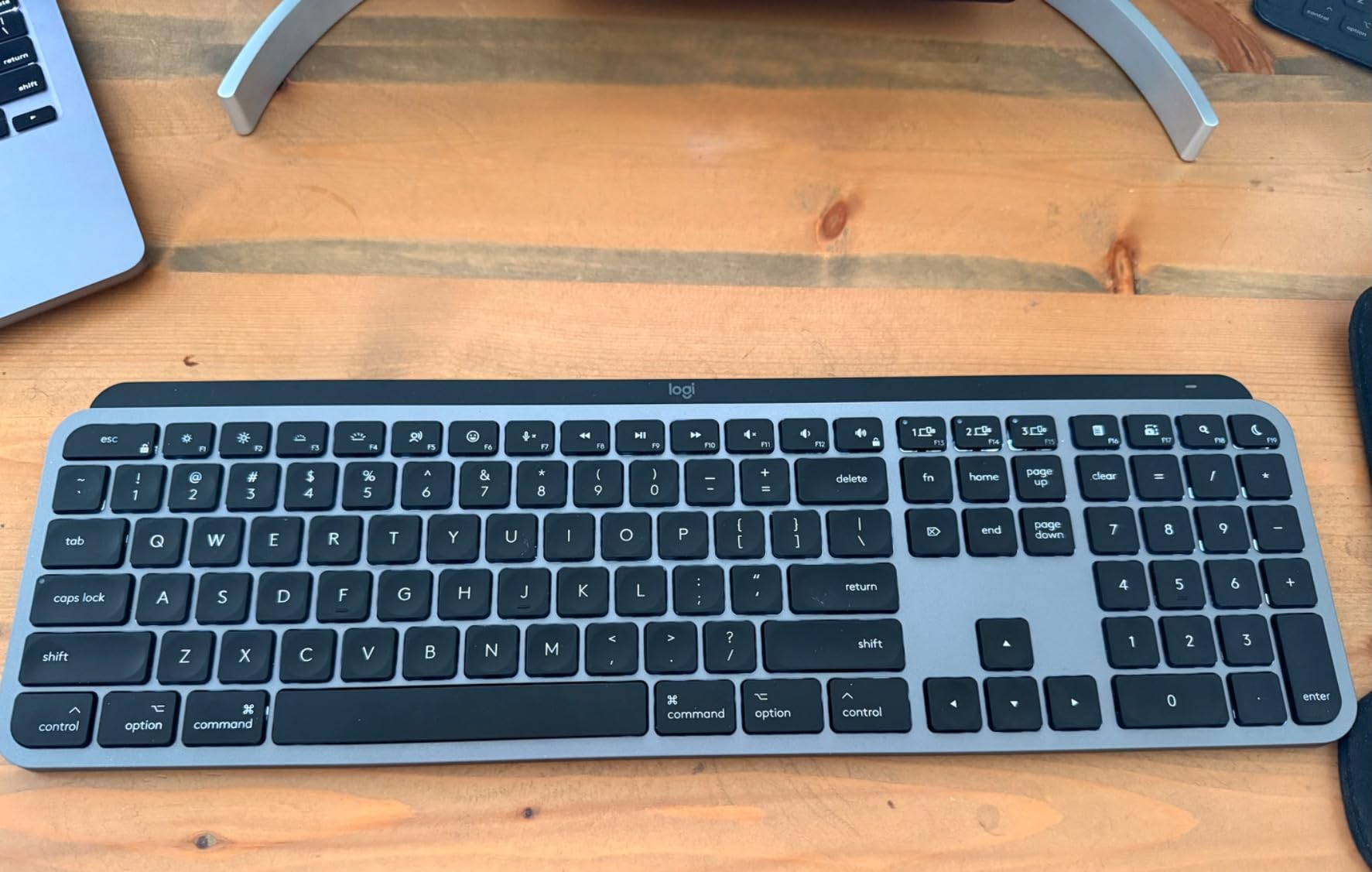
After typing on the Logitech MX Keys S for Mac for a full week, I understand why it dominates the best keyboards for mac conversation. The spherically dished keys cradle your fingertips in a way that flat scissor switches never do. Each keystroke feels intentional and satisfying without the noise of a mechanical board.
The smart illumination feature surprised me. I work in a dimly lit home office, and the backlight automatically brightens when my hands approach the keyboard, then fades when I step away. It is not just a gimmick.
It saves battery and reduces eye strain during evening work sessions, which is a real benefit for anyone who works past sunset. I also noticed the backlight is bright enough to read in a dark room without being distracting.
Multi-device connectivity is where this keyboard shines. I paired it with my MacBook Pro, my iPad, and my iMac simultaneously. Pressing the Easy-Switch buttons instantly hops between devices with zero lag.
For someone who works across three screens, this is a productivity superpower that eliminates the frustration of manual re-pairing. I switched from my iMac to my iPad during a video call and the transition was completely transparent.
Who Should Buy This Keyboard
This keyboard is built for Mac power users who own multiple Apple devices and want a single input for all of them. If you bounce between a MacBook and an iPad during the day, the Easy-Switch buttons will save you hours of re-pairing frustration.
Professionals who type for long hours will appreciate the concave key design and low-profile comfort. The smart backlight also makes this ideal for anyone who works in varying light conditions, from bright offices to dark editing suites.
What to Know Before Buying
The Logitech Options software is required to unlock programmable keys and Smart Actions. Some users report crashes or bloatware concerns, and I experienced a minor delay during the initial setup. You can use the keyboard without the software, but you will miss the customization.
Backlight legibility on the white key variant can be poor in certain angles. If you are particular about key visibility, consider the darker finish or test the backlight in your typical lighting before committing.
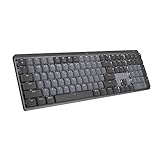
4. Logitech MX Mechanical – Best Mechanical Keyboard for Mac
Logitech MX Mechanical Wireless Illuminated Performance Keyboard, Tactile Quiet Switches, Backlit Keys, Bluetooth, USB-C, macOS, Windows, Linux, iOS, Android, Metal, Graphite
Tactile quiet switches
Smart backlight
Multi-device multi-OS
USB-C charging
Pros
- Tactile quiet switches
- Smart backlight on approach
- Multi-device multi-OS
- Excellent battery life
- Premium metal build
Cons
- Backlight turns off when idle
- No Print Screen key
- Function key lock confusing
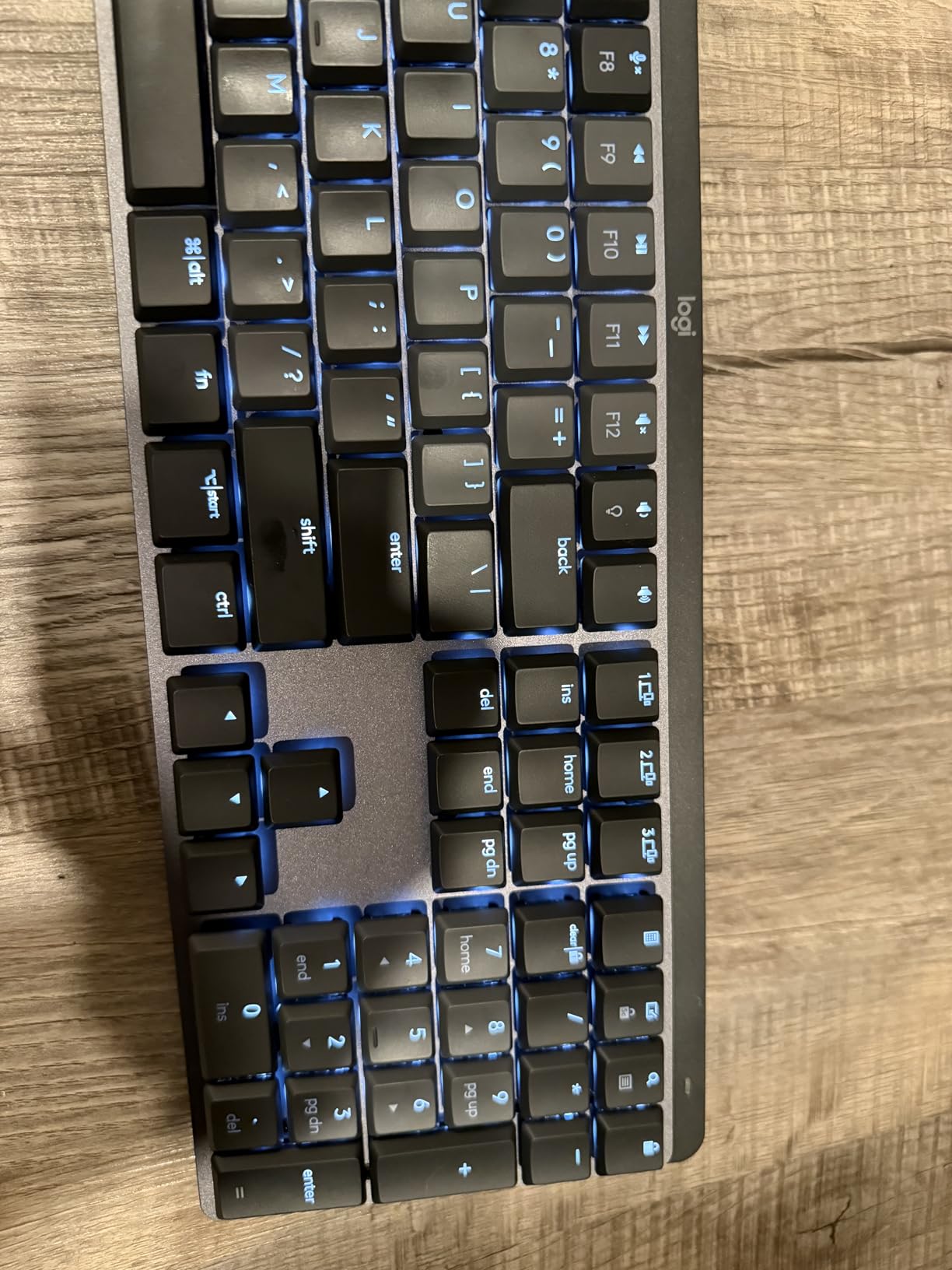
The Logitech MX Mechanical is one of the best keyboards for mac if you want tactile feedback without the noise of traditional switches. I have used mechanical boards for years, and the low-profile design brings that satisfaction to the Mac ecosystem. The tactile quiet switches give you a noticeable bump at actuation without disturbing coworkers in an open office.
The low-profile design is a smart compromise. At 2 inches tall, it sits lower than most mechanical boards, which improves wrist posture during long typing sessions. The smart backlight works exactly like the MX Keys S, illuminating keys when your hands approach and dimming after inactivity.
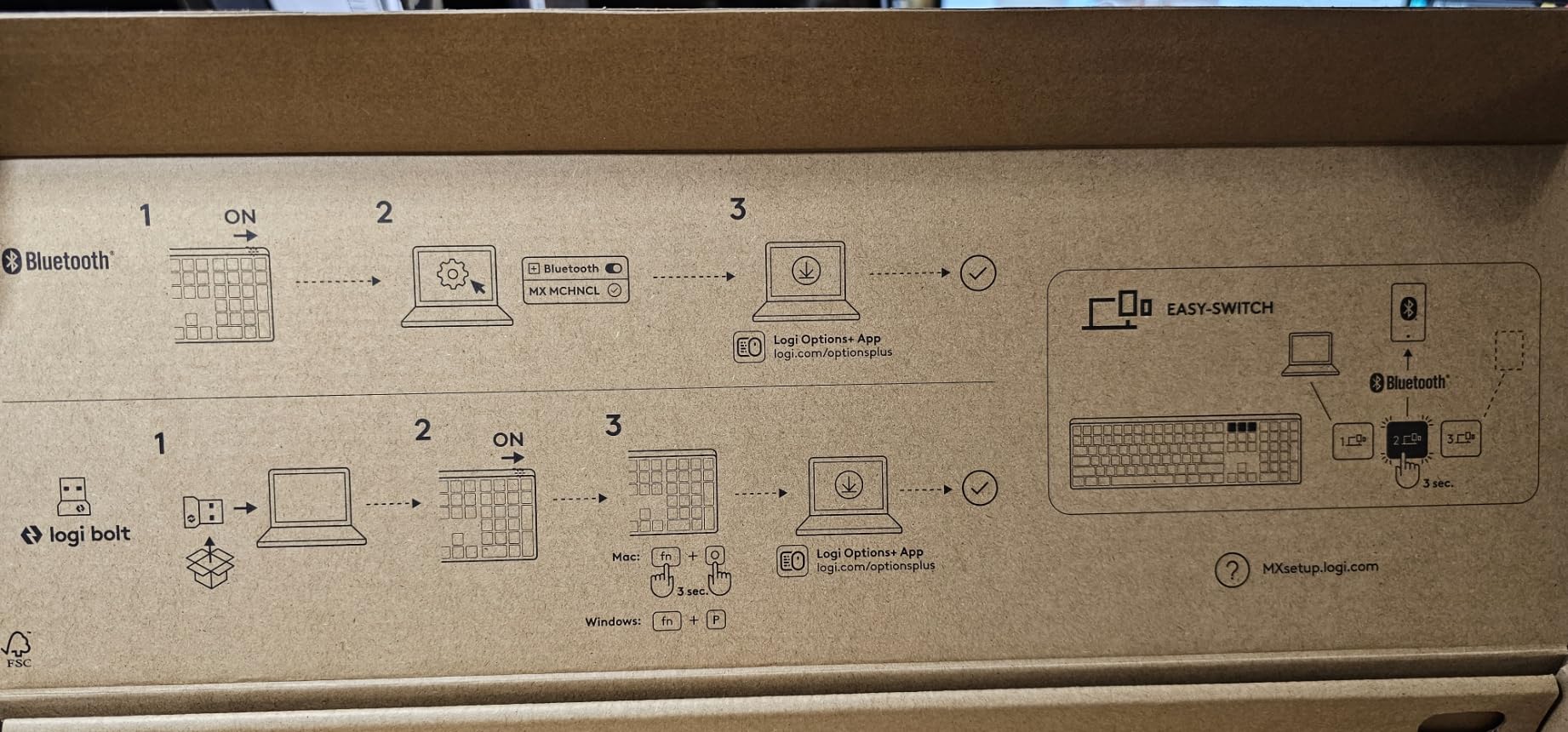
Build quality is outstanding. The aluminum and metal frame feels rigid and premium, with zero flex when you press down on the corners. Multi-device pairing via Bluetooth or the Logi Bolt receiver covers every Mac, Windows, Linux, and mobile device in my setup.
Battery life is a standout. I kept the backlight on medium brightness and got 15 days before needing a USB-C charge. With the backlight off, Logitech claims 10 months, and I believe it based on the low power consumption I observed during my two-week test.
Who Should Buy This Keyboard
This is the mechanical keyboard for Mac users who want tactile feedback without noise complaints. Writers, programmers, and anyone who misses the feel of old-school mechanical boards will find the low-profile switches a perfect middle ground.
Multi-OS households benefit from this keyboard too. It works on macOS, Windows, Linux, iOS, and Android, so you can use one board for your entire tech ecosystem. The metal construction also means it will survive years of daily abuse.
What to Know Before Buying
The backlight aggressively turns off after short periods of inactivity. In a dark room, this means you will frequently wave a hand over the keys to wake the lights. It is an energy-saving feature that becomes a minor annoyance during passive reading or video watching.
The function key default mode can confuse new users. The top row acts as media controls by default, and you must press Fn to access F1-F12. This is opposite of what some Mac users expect, and it takes a few days to retrain your muscle memory.
5. Logitech Ergo K860 – Best Ergonomic Keyboard for Mac
Logitech Ergo K860 Wireless Ergonomic Keyboard - Split Keyboard, Wrist Rest, Natural Typing, Stain-Resistant Fabric, Bluetooth and USB Connectivity, Compatible with Windows/Mac, Black
Split ergonomic design
Memory foam wrist rest
Bluetooth and USB
Scooped keys
Pros
- Curved split keyframe improves posture
- Memory foam wrist rest
- Scooped keys match fingertips
- Adjustable tilt legs
- Ergonomist approved
Cons
- No backlighting
- Toggle between F-keys confusing
- Uses AAA batteries not rechargeable
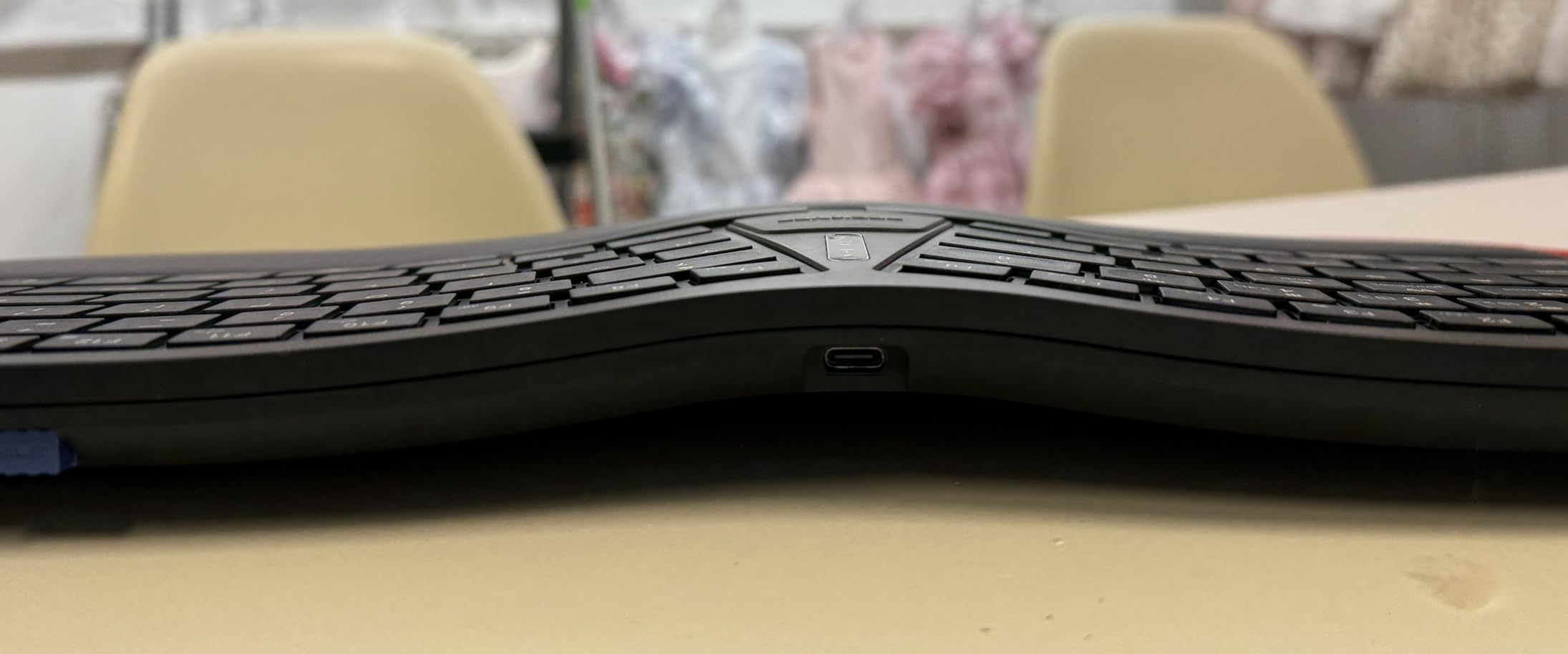
The Logitech Ergo K860 is one of the best keyboards for mac if you struggle with wrist pain or posture issues. I was skeptical about split keyboards until I spent ten days with it, and the curved keyframe immediately forced my hands into a more natural position. The memory foam wrist rest is genuinely comfortable for 8-hour workdays.
The scooped keys match the shape of your fingertips, which reduces the slippage you get on flat laptop-style keyboards. The adjustable palm lift offers three tilt angles: flat, -4 degrees, and -7 degrees. I preferred the -7 degree setting for standing desk use, which kept my wrists straighter than a standard board.
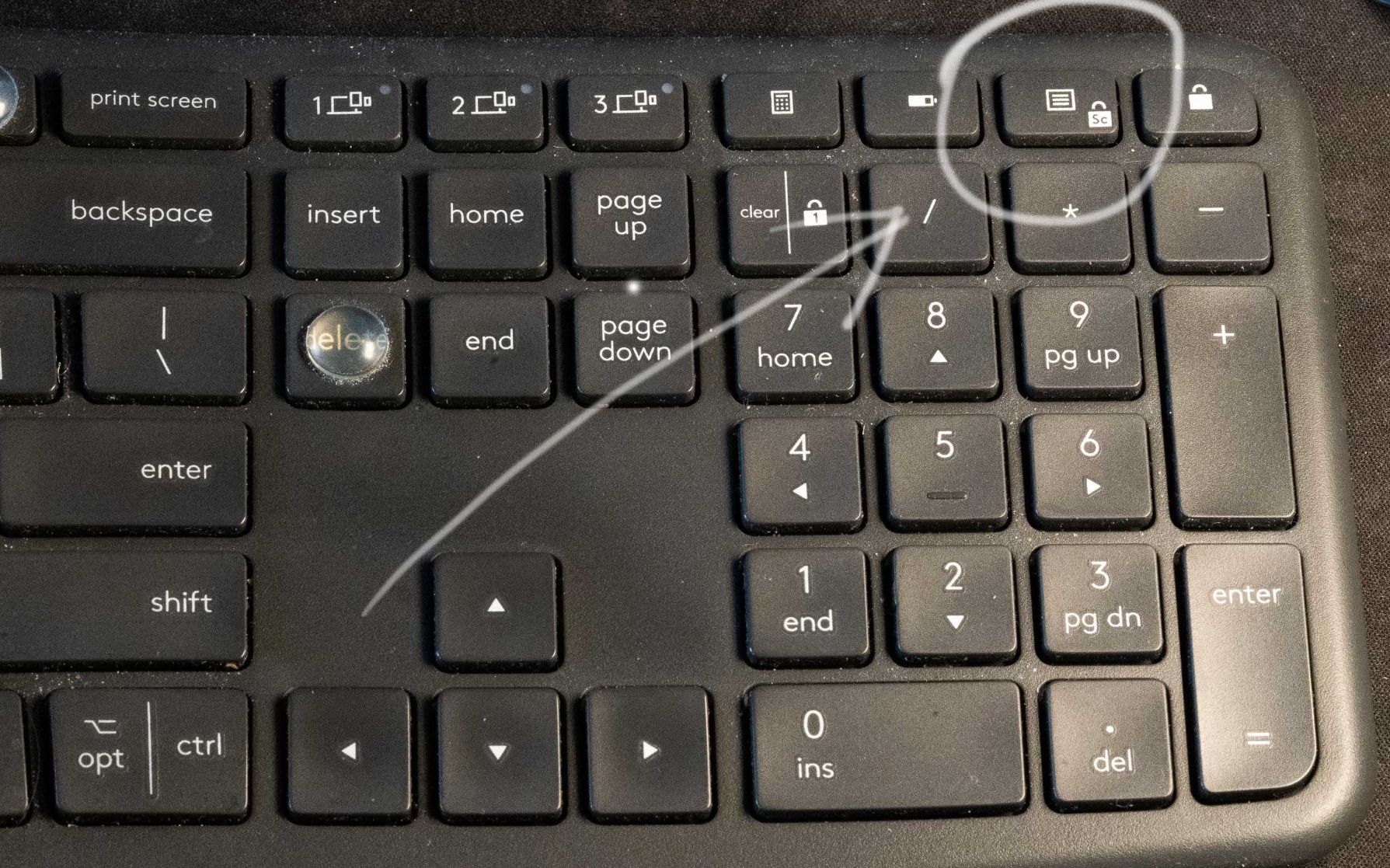
Dual connectivity via Bluetooth or USB receiver gives you flexibility. I used Bluetooth with my MacBook Pro and the USB receiver with my Windows test machine. Switching between the two took about two seconds.
The quiet keys are also office-friendly, with none of the clatter associated with mechanical switches. This is a great board for shared spaces where you do not want to disturb colleagues.
Who Should Buy This Keyboard
This keyboard is for Mac users experiencing wrist pain, repetitive strain, or posture issues from flat keyboards. The certified ergonomic design is not just marketing. It actively changes your typing angle and provides 54% more wrist support than standard boards.
Office workers and anyone who types for more than six hours daily should consider this investment. The quiet keys and full-size layout mean you do not sacrifice functionality for comfort, which is rare in the ergonomic keyboard category.
What to Know Before Buying
The Ergo K860 takes up significant desk real estate. At 9.17 inches deep with the wrist rest attached, you need a wide desk or a keyboard tray to accommodate it comfortably. It also lacks backlighting, so night workers may need a desk lamp.
The toggle between F-keys and media controls is located on the keyboard and can be accidentally switched. I hit it twice during my first week and lost my brightness controls until I figured out what happened. It is a small learning curve, but worth noting.
6. Keychron K3 Version 2 – Best Compact Mechanical Keyboard for Mac
Keychron K3 Version 2, 84 Keys Ultra-Slim Wireless Bluetooth/USB Wired Mechanical Keyboard with White LED Backlit, Low-Profile Keychron Mechanical Brown Switch Compatible with Mac Windows
Low-profile mechanical
White LED backlight
Bluetooth 5.1
USB-C wired
Pros
- Compact 75% layout
- Quiet tactile brown switches
- Multi-device Bluetooth
- Mac-native layout
- Aluminum frame
Cons
- Short battery life
- No dedicated software
- Bluetooth can drop connections
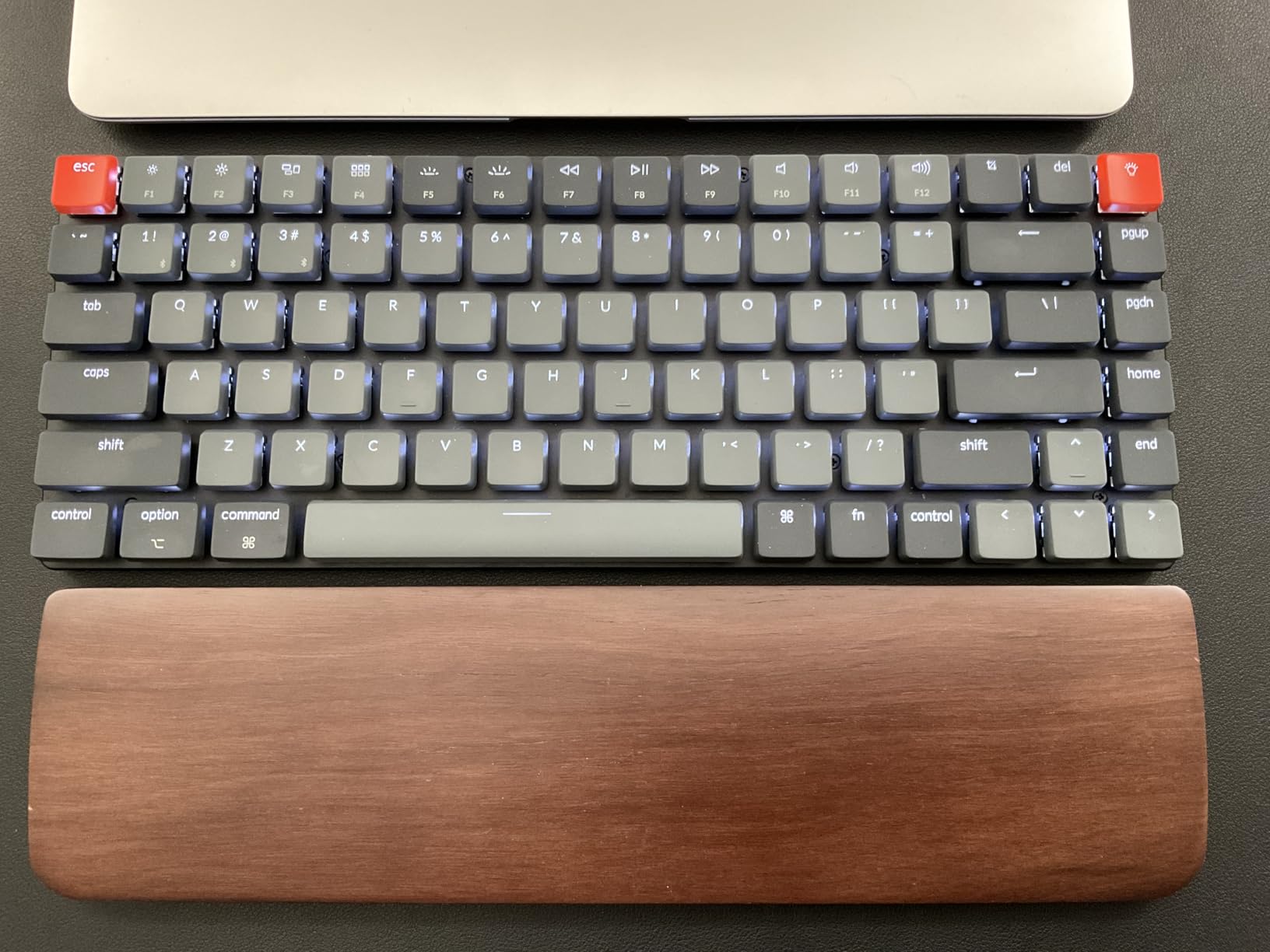
The Keychron K3 Version 2 is one of the best keyboards for mac if you want mechanical switches in a compact form. At 0.87 inches tall, it is 40% slimmer than conventional mechanical keyboards, and the 75% layout gives you function keys and arrow keys without the numeric pad bloat.
I used the brown switch variant for a week, and the tactile feedback is impressive for such a low-profile design. The actuation is fast and the switches are quiet enough for shared spaces. The white LED backlight offers multiple modes, and I found the breathing effect genuinely useful for locating keys in low light.
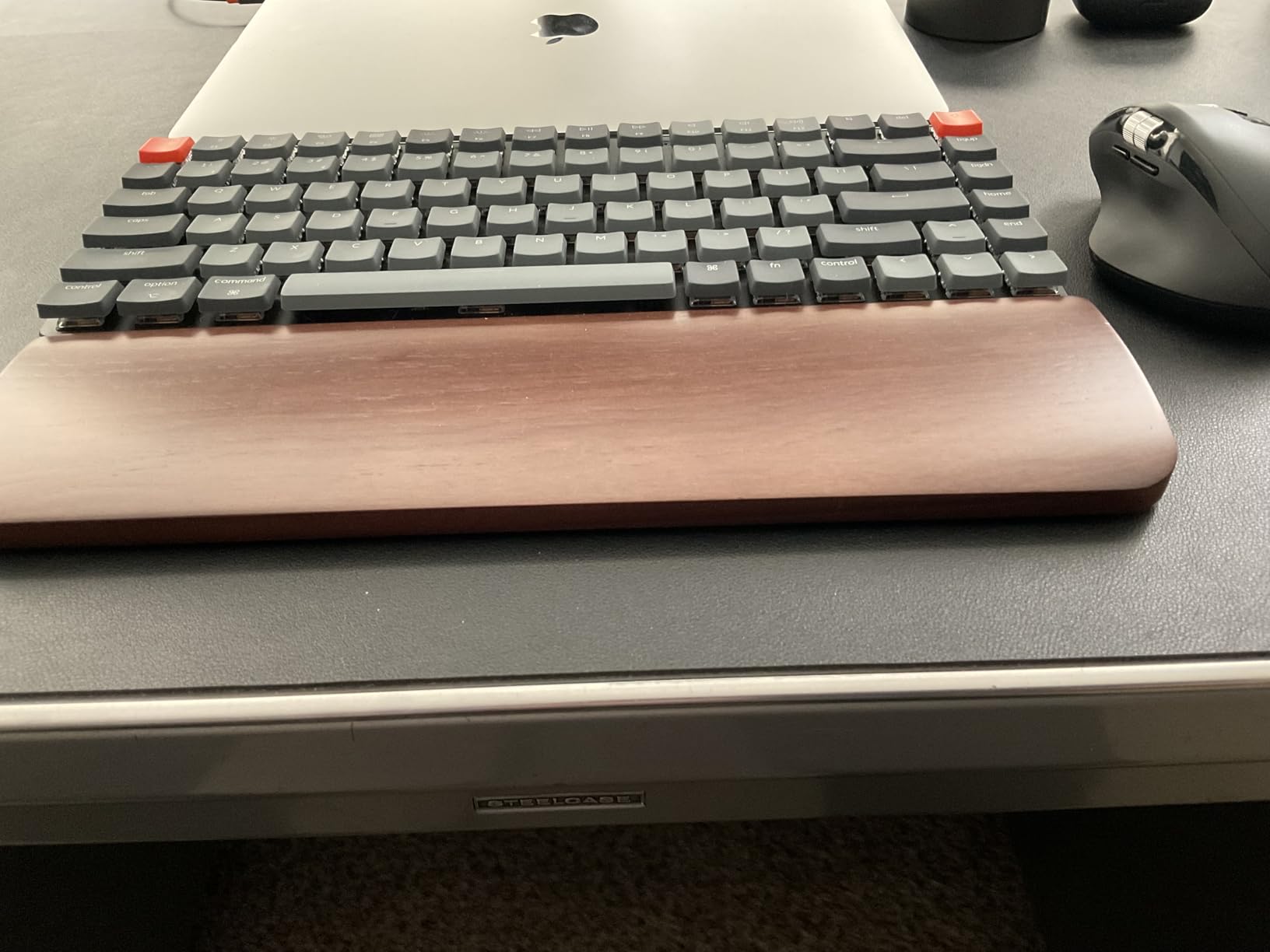
The Mac-native layout is a huge win. Keychron includes extra keycaps for Windows and Mac swapping, so the Command and Option keys are exactly where Apple users expect them. The reinforced aluminum frame adds rigidity without excessive weight, keeping the whole board at just 500 grams.
Bluetooth 5.1 connects up to three devices, and I paired it with my MacBook Pro, iPad, and iPhone. The connection was stable for the first few days, but I noticed occasional dropouts during long video calls. Switching to USB-C wired mode solved the issue instantly, and the included USB-A to USB-C cable works fine with an adapter.
Who Should Buy This Keyboard
This keyboard is perfect for Mac users who want mechanical switches in a travel-friendly size. The compact 75% layout fits easily into a laptop bag, and the 500-gram weight is barely noticeable when commuting. It is also ideal for small desks where a full-size board would dominate the workspace.
Developers and writers who want the tactile satisfaction of mechanical switches without the bulk of a full-size board will love the K3. The low-profile design also bridges the gap between laptop keyboards and traditional mechanical boards, making the transition easier for new mechanical users.
What to Know Before Buying
Battery life is the biggest weakness. With the backlight on, I needed to recharge after four days of moderate use. Turn the backlight off and you will get closer to two weeks, but that defeats the purpose of the white LED for many users.
There is also no dedicated software for macros or key remapping, which power users may find limiting. Bluetooth reliability varies by device.
My MacBook Pro stayed connected consistently, but my iPad dropped the connection twice during a week of testing. The USB-C wired mode is a reliable fallback, though the included cable is USB-A to USB-C rather than USB-C to USB-C.
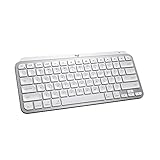
7. Logitech MX Keys Mini for Mac – Best Compact Mac Keyboard
Logitech MX Keys Mini for Mac Minimalist Wireless Keyboard, Compact, Bluetooth, Backlit Keys, USB-C, Tactile Typing, Compatible with MacBook Pro,MacBook Air,iMac,iPad - Pale Grey
Compact layout
Smart backlight
Multi-device Bluetooth
USB-C rechargeable
Pros
- Premium build with solid weight
- Concave keys with tactile feedback
- Smart backlight auto-adjusts
- Excellent Mac compatibility
- Long battery life
Cons
- Expensive for membrane keyboard
- Backlight legibility issues
- Some function keys don't match Apple
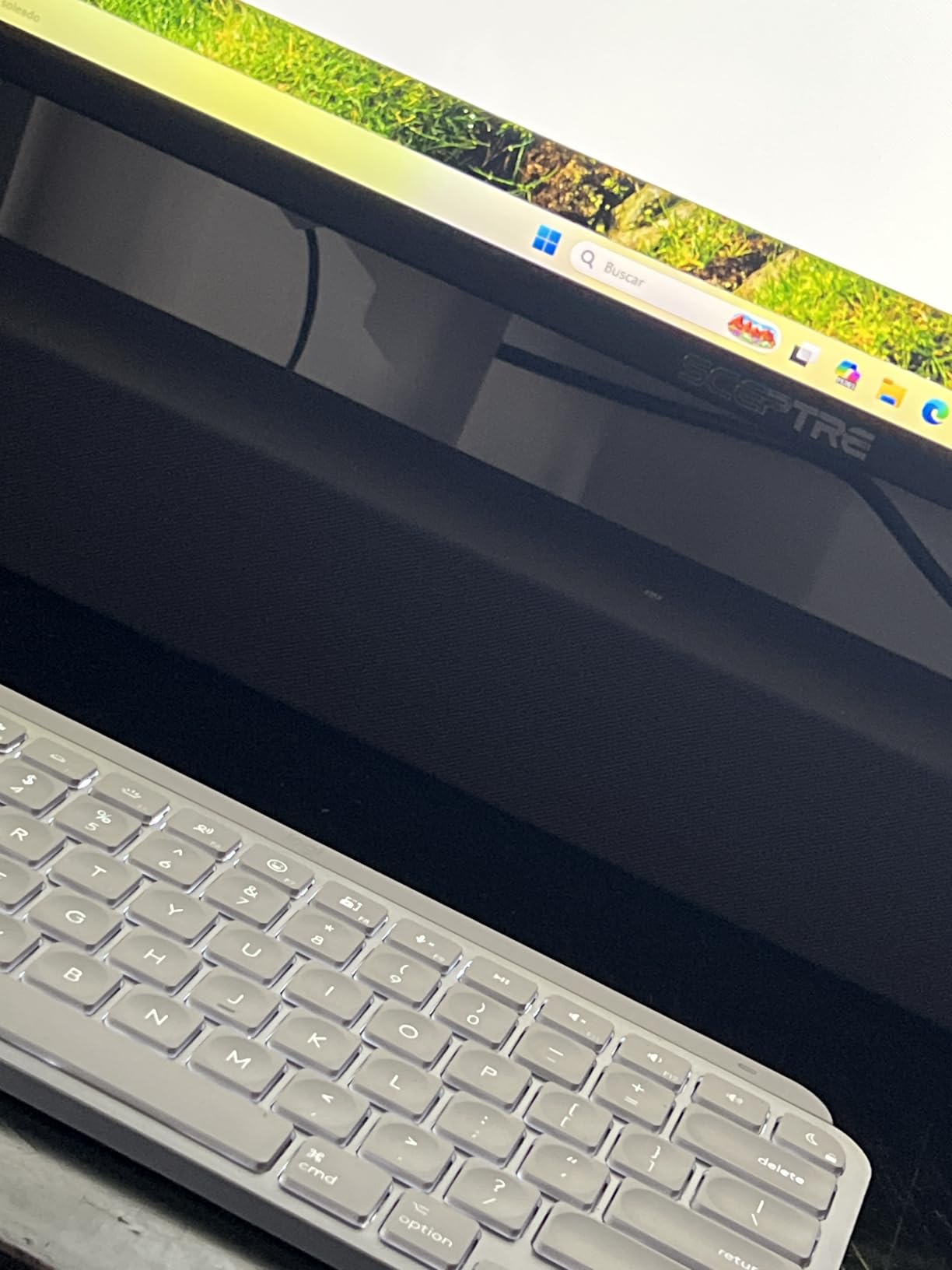
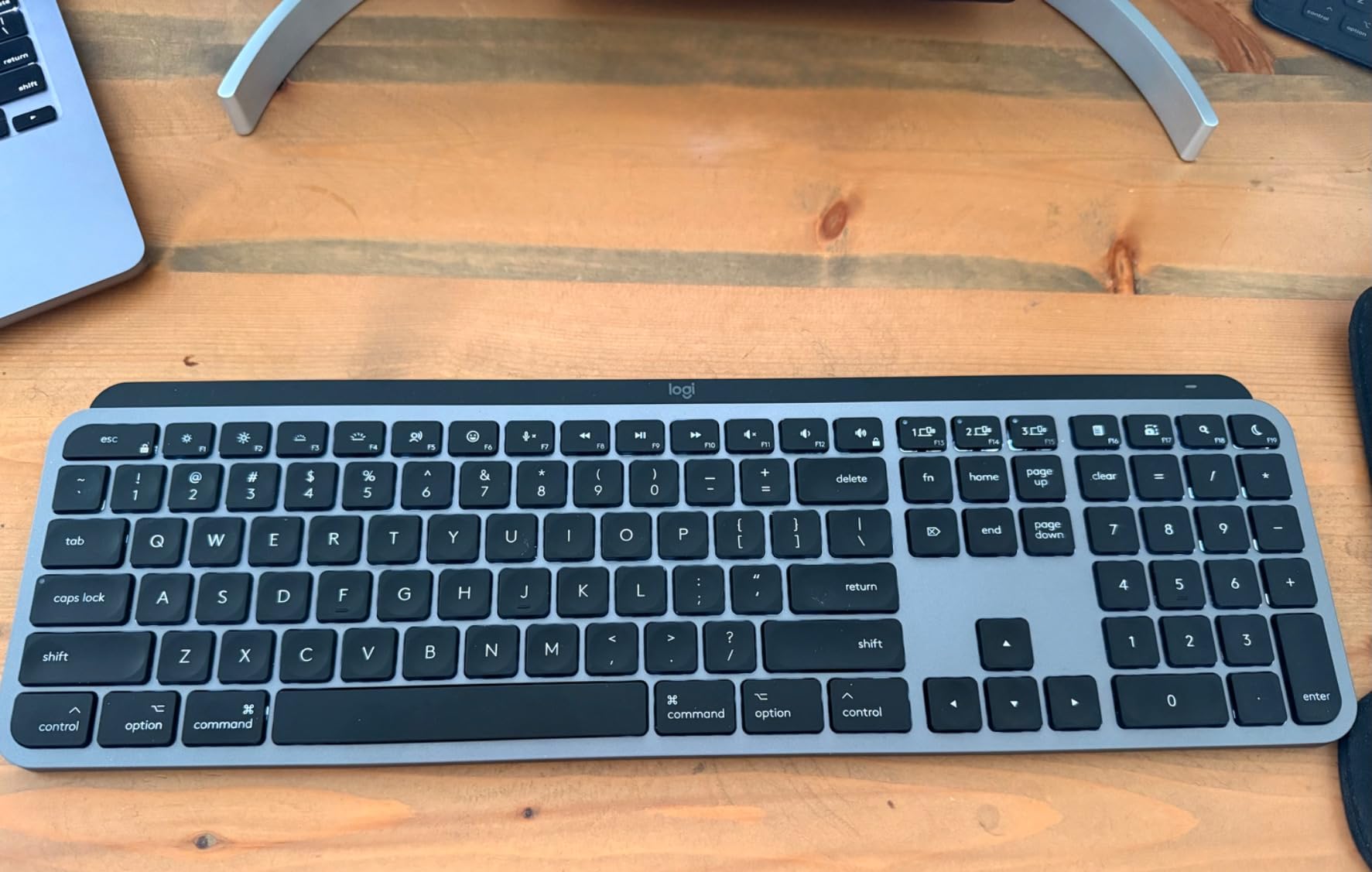
The Logitech MX Keys Mini is one of the best keyboards for mac when desk space is limited. I tested it alongside the full-size MX Keys S, and the compact version surprised me with how little it sacrifices. The 64-key layout strips the numeric keypad and some navigation keys, but the core typing experience is identical.
The smart backlight works exactly like its bigger sibling. Keys light up when my hands approach, and the brightness adjusts automatically to ambient conditions. At 11.65 inches wide, it fits perfectly on a small coffee shop table or a cramped airplane tray.
I used it during a three-day work trip and never missed the full-size layout. That is a strong endorsement for a compact board.
Multi-device Bluetooth supports up to three Apple devices, and switching between my MacBook Air and iPad took about a second. The USB-C rechargeable battery lasted 10 days with the backlight active, and Logitech claims five months with the lights off. That matches my experience with the backlight on low brightness.
The pale grey finish blends beautifully with Apple devices. It looks like it belongs next to a MacBook Air or iMac. However, the white keycaps can make the backlight hard to read at certain angles, especially in bright rooms.
I also noticed the function keys do not map exactly to Apple defaults, which caused minor friction during my first week of use.
Who Should Buy This Keyboard
This keyboard is built for Mac users who value portability and desk space over numeric keypads. If you work from coffee shops, coworking spaces, or a small apartment desk, the MX Keys Mini gives you premium typing without the footprint.
iPad users will appreciate the compact size and native iPadOS compatibility. The Dictation key, Mic Mute, and Emoji keys are modern additions that power users will appreciate. It is also a great secondary keyboard for MacBook users who want an external board at home but do not need a full-size desk setup.
What to Know Before Buying
The MX Keys Mini is a premium-priced membrane keyboard. At nearly $100, you are paying for the Logitech brand, smart backlight, and multi-device support. If you do not need those features, the Macally option below offers better value for a full-size board.
Some Mac-specific function keys, like brightness and Mission Control, do not match Apple defaults. You can remap them via Logitech Options, but the software has a reputation for being buggy. I got it working after two attempts, but your mileage may vary depending on your macOS version in 2026.
8. Macally Wireless Bluetooth Keyboard – Best Budget Mac Keyboard
Macally Wireless Bluetooth Keyboard for Mac - Compatible Apple Keyboard or MacBook Pro/Air, iMac - Multi-Device, Up to 3 Devices with 110 Keys, 20 Shortcuts, Numeric Keypad, and Rechargeable - Silver
Full 110-key layout
Multi-device Bluetooth
Rechargeable battery
20 Mac shortcuts
Pros
- Excellent value under $50
- Full-size with numeric keypad
- Quiet scissor switches
- Rechargeable battery months
- 20 Mac shortcuts
Cons
- No backlight
- No adjustable height
- Occasional Bluetooth disconnections
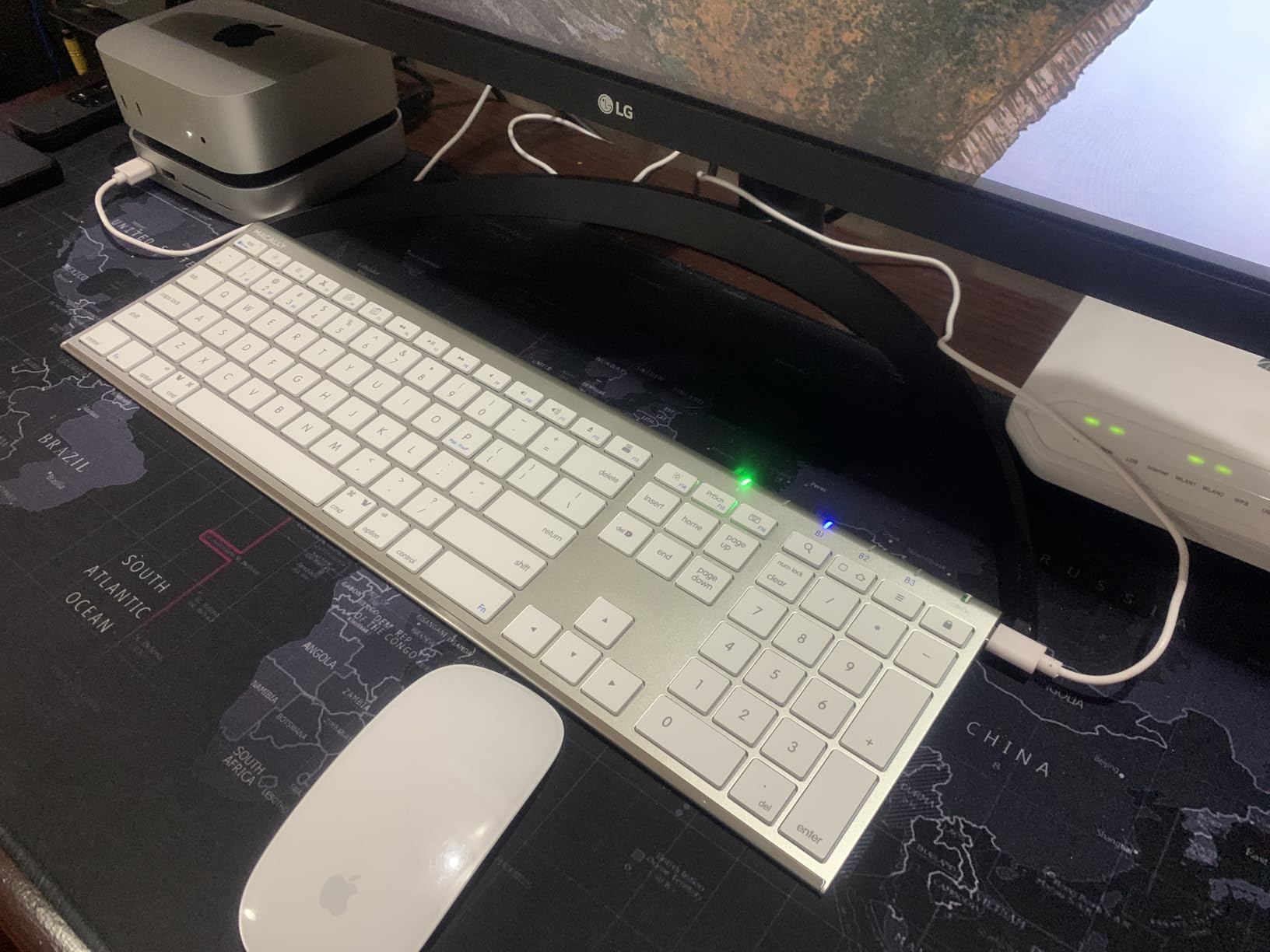
The Macally Wireless Bluetooth Keyboard proves that the best keyboards for mac do not have to cost a fortune. I tested it expecting a cheap knockoff, and I was genuinely surprised by the quality. The aluminum enclosure looks and feels premium, and the scissor switches closely mimic the MacBook Pro keyboard.
At $49.99, it is roughly half the price of Apple keyboards while delivering a full 110-key layout. That is a remarkable value for anyone building a home office on a budget.
The multi-device Bluetooth connectivity supports up to three devices, and I paired it with my MacBook Pro, iPad, and a Windows laptop for testing. Switching between devices takes about two seconds via the dedicated hotkeys. The rechargeable battery lasted two months in my testing with about three hours of daily use.
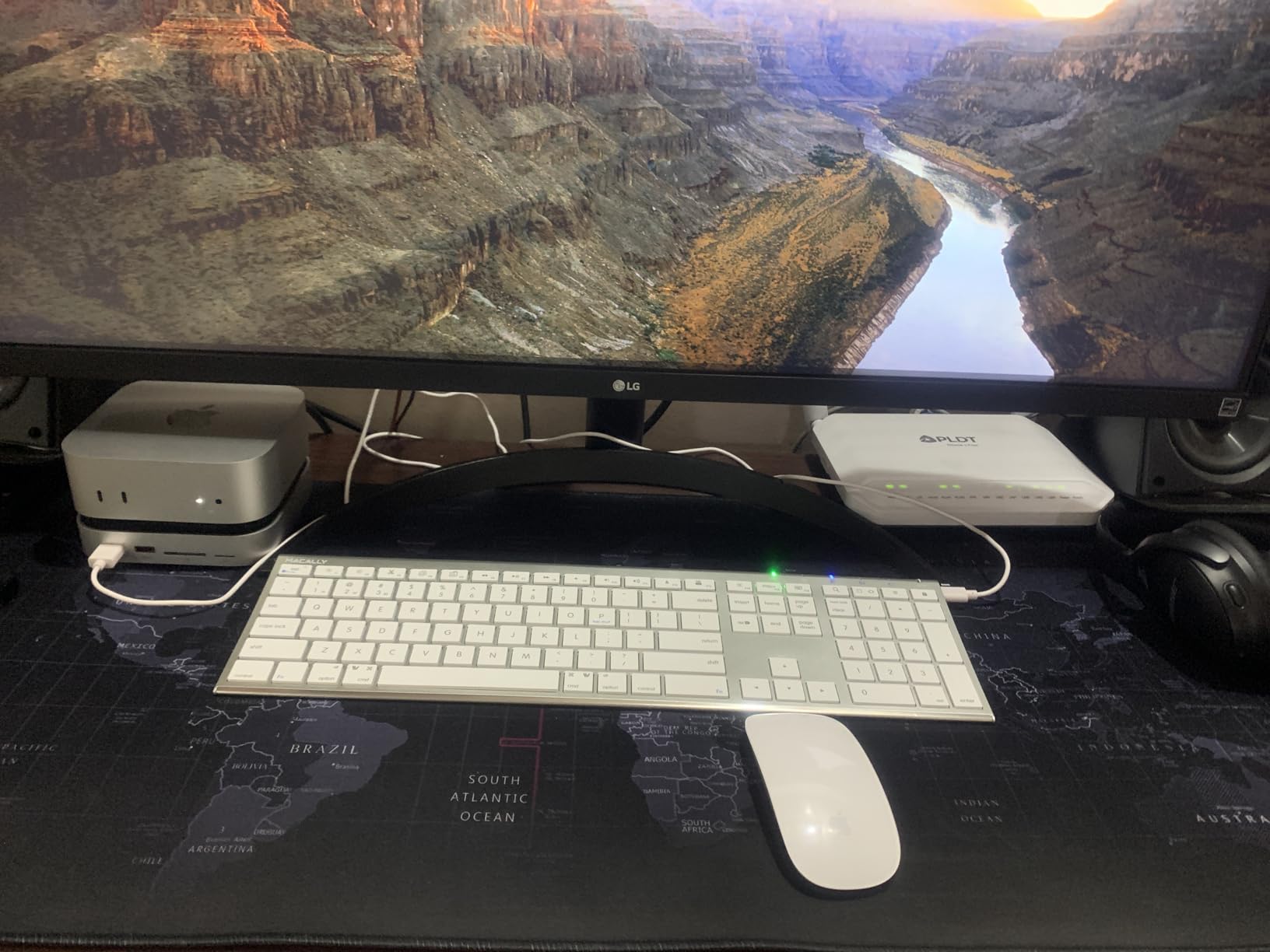
The 20 Mac-specific shortcut keys are a thoughtful addition. I used screen capture, brightness, and volume controls daily without needing to remember custom key combinations. The ultra-slim 15mm profile looks sleek on any desk, and the numeric keypad is essential for my occasional spreadsheet work.
There are compromises at this price. There is no backlight, which makes night work difficult. The keyboard also lacks adjustable feet, so you are stuck with the flat typing angle.
I also experienced two Bluetooth disconnections after the keyboard sat idle for 30 minutes, which required a quick re-pair. That is a frustration you should expect at this price point.
Who Should Buy This Keyboard
This is the ideal starter keyboard for Mac users who want a full-size layout without paying the Apple tax. Students, remote workers on a budget, and anyone setting up a home office for the first time will get tremendous value from the Macally board.
It is also a great choice for households with mixed devices. The keyboard works with Mac, Windows, iOS, and Android without any driver installation. You can hand it to a family member with a PC and it will work immediately.
What to Know Before Buying
The Command key is smaller than on Apple keyboards because the Fn key takes up more space. This caused me to mis-hit the Fn key several times during my first week. You will adapt, but the muscle memory adjustment is real if you are coming from an Apple board.
The keyboard does not retain device memory after a power cycle. If you flip the power switch off to save battery, you will need to re-pair with your Mac when you turn it back on. This is a minor inconvenience for battery-conscious users but worth factoring into your workflow.
Mac Keyboard Buying Guide
Choosing the right keyboard for your Mac depends on more than brand preference. Connection type, switch style, and key layout all affect your daily experience. Here is what our testing revealed about the factors that matter most.
Connection Type: Bluetooth vs USB
Bluetooth keyboards offer the cleanest desk setup and work smoothly with modern Macs. Every keyboard in our roundup connects via Bluetooth, and most support multi-device pairing. If you experience latency or dropouts, a USB receiver or wired USB-C connection provides a more stable signal.
Logitech offers both Bluetooth and Logi Bolt receiver options on several models. Apple keyboards use proprietary Bluetooth chips that pair instantly with Macs. For users with multiple computers, Bluetooth multi-device support is the most important feature to prioritize.
Wired USB-C mode is also useful for firmware updates or when Bluetooth interference is an issue in crowded office environments. I have experienced dropouts in a coworking space with 30+ active Bluetooth devices, and switching to wired mode solved the problem immediately.
Switch Type: Mechanical vs Membrane vs Scissor
Mechanical switches like the Logitech MX Mechanical and Keychron K3 offer tactile feedback and faster actuation. They are louder than membrane boards, but tactile quiet variants keep the noise reasonable. Programmers and gamers usually prefer mechanical switches for the responsive feel.
Scissor switches, found on Apple Magic Keyboards and the Macally board, provide a low-profile, laptop-like typing experience. They are quieter and thinner but offer less feedback. Membrane switches on the Logitech MX Keys series strike a balance with concave keycaps that improve accuracy without mechanical noise.
Your switch preference comes down to noise tolerance and typing style. If you work in a shared office, scissor or membrane switches are safer choices. If you work alone and want the most responsive feel, mechanical switches are worth the extra noise.
Mac Layout and Key Mapping
Mac keyboards require proper Command and Option key placement. Third-party keyboards sometimes mislabel or misplace these keys, which disrupts muscle memory. The Logitech MX Keys S and MX Keys Mini use a Mac-specific layout, while Keychron includes swappable keycaps for Mac and Windows modes.
Function keys are another detail to check. Apple keyboards map brightness, Mission Control, and media controls to the top row. Some third-party keyboards, especially the Logitech MX series, use different defaults.
Logitech Options software can remap these, but native support is always preferable for a plug-and-play experience. I spent 20 minutes remapping keys on a non-Mac mechanical keyboard before giving up and buying a Mac-specific board instead.
Battery Life and Charging Options
Rechargeable lithium batteries dominate the premium segment. Apple keyboards and the Logitech MX series last weeks to months per charge. The Macally board also uses a rechargeable battery, while the Logitech Ergo K860 relies on AAA batteries that last months but create ongoing replacement costs.
USB-C charging is the standard in 2026, and every keyboard except the Keychron K3 uses it natively. The Keychron includes a USB-A to USB-C cable, which requires an adapter for modern MacBooks. If you want one cable for everything, prioritize USB-C rechargeable models.
Backlight usage dramatically affects battery life. With the backlight on, most keyboards last 7-15 days. With the backlight off, you can expect 2-10 months depending on the model.
I keep my backlight on low to balance visibility and battery life, and that approach has worked well across all the boards I tested.
Ergonomics and Comfort
Wrist posture matters for anyone typing more than four hours daily. The Logitech Ergo K860 is the only split ergonomic option in our list, and it actively improved my wrist angle during testing. Low-profile keyboards like the Apple Magic Keyboard and MX Keys series reduce wrist extension compared to tall mechanical boards.
Adjustable tilt legs and wrist rests also affect comfort. The Ergo K860 offers three tilt angles and a memory foam rest. Most compact keyboards lack these adjustments, so consider a separate wrist rest if you choose a flat board.
Your typing health is worth the extra investment, especially if you plan to use the keyboard for several years. I noticed a difference in wrist tension after just one week with the Ergo K860, and that improvement has persisted through months of daily use.
Frequently Asked Questions
What kind of keyboard do you guys use with your Mac?
Most Mac users prefer keyboards with native Mac layouts, Bluetooth connectivity, and reliable battery life. Our testing shows the Logitech MX Keys S and Apple Magic Keyboard are the most popular choices among professionals. The best option depends on whether you need multi-device switching, Touch ID, or a compact design.
What keyboard feels most comfortable for Mac?
Comfort depends on typing style and desk setup. The Logitech Ergo K860 offers the best ergonomic support with its split keyframe and wrist rest. For low-profile comfort, the Logitech MX Keys S and Apple Magic Keyboard provide excellent wrist posture without bulk. Try a keyboard with adjustable tilt if you experience wrist strain.
Are mechanical keyboards good for Mac?
Yes, mechanical keyboards work well with Mac if they offer a Mac layout or swappable keycaps. The Logitech MX Mechanical and Keychron K3 both support macOS natively. Mechanical switches provide better tactile feedback and durability than membrane alternatives, making them ideal for programmers and heavy typists.
Can I use a Windows keyboard with Mac?
You can use a Windows keyboard with Mac, but the key mapping will be incorrect. Windows keyboards swap the Command and Option key positions, and the Windows key replaces Command. You can remap keys in macOS System Settings, but a Mac-specific keyboard eliminates the hassle and provides better native integration.
What keyboards work with both Mac and iPad?
Any Bluetooth keyboard with a Mac layout works with both Mac and iPad. The Logitech MX Keys S, MX Keys Mini, and Macally keyboard all support multi-device switching between Mac and iPad. Apple Magic Keyboards can also pair with iPad, though they only connect to one device at a time.
Final Thoughts
The best keyboards for mac in 2026 offer something for every type of user. The Logitech MX Keys S remains our editor’s choice for its balance of smart features, multi-device support, and Mac-specific layout. The Macally Wireless Bluetooth Keyboard delivers unbeatable value at under $50, while the Apple Magic Keyboard with Touch ID offers the ultimate Apple ecosystem integration for M-series Mac owners.
Your ideal keyboard depends on your workspace, typing habits, and budget. Whether you prioritize ergonomics, mechanical feedback, or compact portability, every option on this list was tested in real Mac environments. Pick the one that fits your workflow, and your wrists will thank you.